Mac Startup Problems Complete Troubleshooting Guide 2025: Fix Black Screen, Frozen Apple Logo, Gray Screen, and Boot Failures
Comprehensive guide to fixing all Mac startup issues including black screen, stuck Apple logo, gray screen, kernel panic, and recovery mode problems. Step-by-step solutions for both Intel and Apple Silicon Macs with expert troubleshooting techniques.
When your Mac refuses to start, it can be one of the most frustrating experiences for any user. Whether you're facing a completely black screen, an endlessly spinning progress bar, or a Mac that shows signs of life but won't boot to the desktop, understanding the root cause is essential for a successful fix. This comprehensive guide covers every startup scenario you might encounter and provides expert-level troubleshooting solutions for both Intel and Apple Silicon Macs.
Understanding Mac Startup: What Happens When You Press Power
Before diving into troubleshooting, it's crucial to understand what should happen during a normal Mac startup sequence. This knowledge will help you identify exactly where problems occur.
The Normal Boot Sequence
Stage 1: Power On (0-2 seconds) When you press the power button, your Mac's System Management Controller (SMC) on Intel Macs or the Secure Enclave on Apple Silicon Macs initializes the hardware. You should hear a startup sound (if enabled) and see the display light up.
Stage 2: Firmware Initialization (2-10 seconds) The Mac's firmware (T2 chip on newer Intel Macs, or the Apple Silicon SOC) performs hardware checks and loads the boot loader. The Apple logo appears with a progress bar.
Stage 3: Kernel Loading (10-30 seconds) macOS kernel loads, initializes drivers, and mounts the boot volume. The progress bar advances steadily.
Stage 4: LoginWindow (30-60 seconds) The system loads user-facing components, and you see either the login screen or your desktop (if automatic login is enabled).
When Something Goes Wrong
Problems can occur at any stage, manifesting as:
- Complete failure to power on: No lights, sounds, or fan activity
- Black screen with power: Fans running but no display
- Stuck Apple logo: Progress bar frozen or missing
- Gray/White screen: Boot process interrupted before macOS loads
- Kernel panic: System crashes with error message
- Login issues: Can't get past the login screen
Quick Diagnostic Decision Tree
Before proceeding with detailed troubleshooting, use this quick diagnostic to identify your specific issue:
| Symptom | Likely Cause | Go To Section |
|---|---|---|
| No power, no lights, no sound | Power/hardware issue | Section 1 |
| Fans running, black screen | Display or boot issue | Section 2 |
| Apple logo appears, progress bar stuck | Software/disk issue | Section 3 |
| Gray or white screen | Firmware/startup disk issue | Section 4 |
| Error message on screen | Kernel panic | Section 5 |
| Can boot to Recovery but not macOS | System corruption | Section 6 |
Section 1: Mac Won't Turn On at All
When your Mac shows absolutely no signs of life—no fan noise, no keyboard backlight, no startup chime—the problem is typically related to power delivery or fundamental hardware failure.
Basic Power Checks
Step 1: Verify Power Connection
- Ensure the power cable is firmly connected to both your Mac and a working outlet
- For MacBooks, check if the MagSafe connector shows an amber (charging) or green (charged) light
- Try a different power outlet or power strip
- If using USB-C charging, try a different cable and adapter
Step 2: Check for Physical Damage
- Inspect the power cable for fraying or damage
- Look for signs of liquid damage (corrosion, staining)
- Check ports for debris or bent pins
Step 3: Perform a Power Cycle This clears residual charge and can resolve many no-power issues:
-
For MacBooks with non-removable batteries:
- Disconnect from power
- Press and hold the power button for 10 seconds
- Release, wait 5 seconds
- Press power button normally
-
For Desktop Macs:
- Unplug from power completely
- Wait 15 seconds
- Plug back in and wait 5 seconds
- Press the power button
SMC Reset (Intel Macs Only)
The System Management Controller manages power, batteries, fans, and other hardware functions. Resetting it can resolve power-related issues.
For MacBooks with T2 chip (2018 and later):
- Shut down your Mac completely
- Press and hold: Control (left) + Option (left) + Shift (right) for 7 seconds
- Keep holding those keys and also press the power button for another 7 seconds
- Release all keys and wait a few seconds
- Press the power button to turn on
For MacBooks without T2 chip:
- Shut down your Mac
- Press and hold: Shift (left) + Control (left) + Option (left) + Power button for 10 seconds
- Release all keys
- Press the power button to turn on
For Desktop Macs:
- Shut down your Mac
- Unplug the power cord
- Wait 15 seconds
- Plug the power cord back in
- Wait 5 seconds, then press the power button
Apple Silicon Macs: Power Issues
Apple Silicon Macs (M1, M2, M3, M4) don't have a traditional SMC. Instead, the Secure Enclave handles these functions and usually manages itself automatically. However, you can force a complete reset:
- If your Mac is unresponsive, press and hold the power button for 10 seconds
- Wait 10 seconds after release
- Press the power button again
If the Mac still won't turn on:
- Connect to power and wait 30 minutes (battery may be completely depleted)
- Try a different USB-C cable and power adapter (minimum 30W for MacBook Air, 67W+ for MacBook Pro)
Hardware Failure Indicators
If none of the above works, you may have a hardware failure:
- No fan noise at all: Power supply or logic board failure
- Brief spin then stop: Power delivery issue or shorted component
- LED diagnostic codes (on some models): Check Apple's support documentation for your specific model
Section 2: Black Screen but Mac Has Power
This scenario—where you can hear fans running or see keyboard backlight, but the display remains black—is one of the most common startup issues.
Immediate Checks
Step 1: Brightness and Display Wake Sometimes the solution is embarrassingly simple:
- Press the brightness up key (F2 on most keyboards) several times
- Press any key or click the trackpad to wake the display
- Connect an external display to see if the Mac is actually booting
Step 2: External Display Test This determines if the issue is with your Mac's display or the system itself:
- Connect an external monitor via HDMI, DisplayPort, or USB-C/Thunderbolt
- Press any key to ensure the Mac is awake
- If the external display works, the issue is with your Mac's built-in display
NVRAM/PRAM Reset
NVRAM (Non-Volatile Random-Access Memory) stores display settings, startup disk selection, and other parameters. Corruption can cause display issues.
For Intel Macs:
- Shut down your Mac
- Turn it on and immediately press and hold: Option + Command + P + R
- Keep holding for about 20 seconds
- On Macs with a startup chime, release after you hear the second chime
- On T2 Macs, release after the Apple logo appears and disappears twice
For Apple Silicon Macs: NVRAM is reset automatically when needed. However, you can accomplish a similar effect by:
- Shutting down the Mac completely
- Pressing and holding the power button until you see "Loading startup options"
- Selecting your startup disk and clicking "Continue"
Safe Mode Boot
Safe Mode loads macOS with minimal drivers and extensions, which can bypass problematic software:
For Intel Macs:
- Shut down your Mac
- Press the power button, then immediately press and hold the Shift key
- Release Shift when you see the login window
- "Safe Boot" appears in red text in the menu bar
For Apple Silicon Macs:
- Shut down your Mac completely
- Press and hold the power button until "Loading startup options" appears
- Select your startup disk
- Press and hold Shift, then click "Continue in Safe Mode"
If Safe Mode works, the issue is likely a third-party extension or startup item. Remove recently installed software or check Login Items in System Settings.
Display Hardware Issues
If none of the above works, consider:
MacBook Display Cable Issues: On some MacBooks (particularly 2016-2018 models), the display flex cable can wear over time. Symptoms include:
- Display works at certain angles
- Flickering or lines on screen
- "Stage light" effect at bottom of screen
GPU Failures (Older Macs): Some older Macs with discrete GPUs (2011-2015 MacBook Pros, some iMacs) are prone to GPU failures. Signs include:
- Garbled graphics before black screen
- Crashes during graphics-intensive tasks
- System works briefly then fails
Section 3: Stuck on Apple Logo or Progress Bar
When your Mac shows the Apple logo but the progress bar freezes or loops endlessly, you're typically dealing with software or disk problems.

Understanding the Progress Bar
Normal behavior:
- Progress bar should advance steadily, not necessarily smoothly
- First boot after major update may take 10-30 minutes
- Occasional pauses of 1-2 minutes are normal
Problem indicators:
- Progress bar at same position for more than 30 minutes
- Progress bar moves backward
- Progress bar reaches end but system doesn't load
Disconnect All Peripherals
External devices can prevent proper booting if their drivers cause issues:
- Shut down your Mac (press and hold power for 10 seconds if necessary)
- Disconnect ALL external devices (drives, hubs, printers, displays)
- Leave only power connected (no keyboard/mouse for Apple Silicon initial boot)
- Try booting again
Boot in Verbose Mode
Verbose mode shows detailed text output during boot, helping identify where the process stalls:
For Intel Macs:
- Shut down your Mac
- Turn on and immediately press Command + V
- Watch the text output for error messages
- Note the last few lines before it stops
For Apple Silicon Macs:
- Boot into Recovery Mode (hold power button until startup options appear)
- Open Terminal from Utilities menu
- Type:
nvram boot-args="-v"and press Enter - Restart and watch for error messages
Run First Aid from Recovery
Disk errors are a common cause of boot failures. Use Disk Utility from Recovery Mode:
For Apple Silicon Macs:
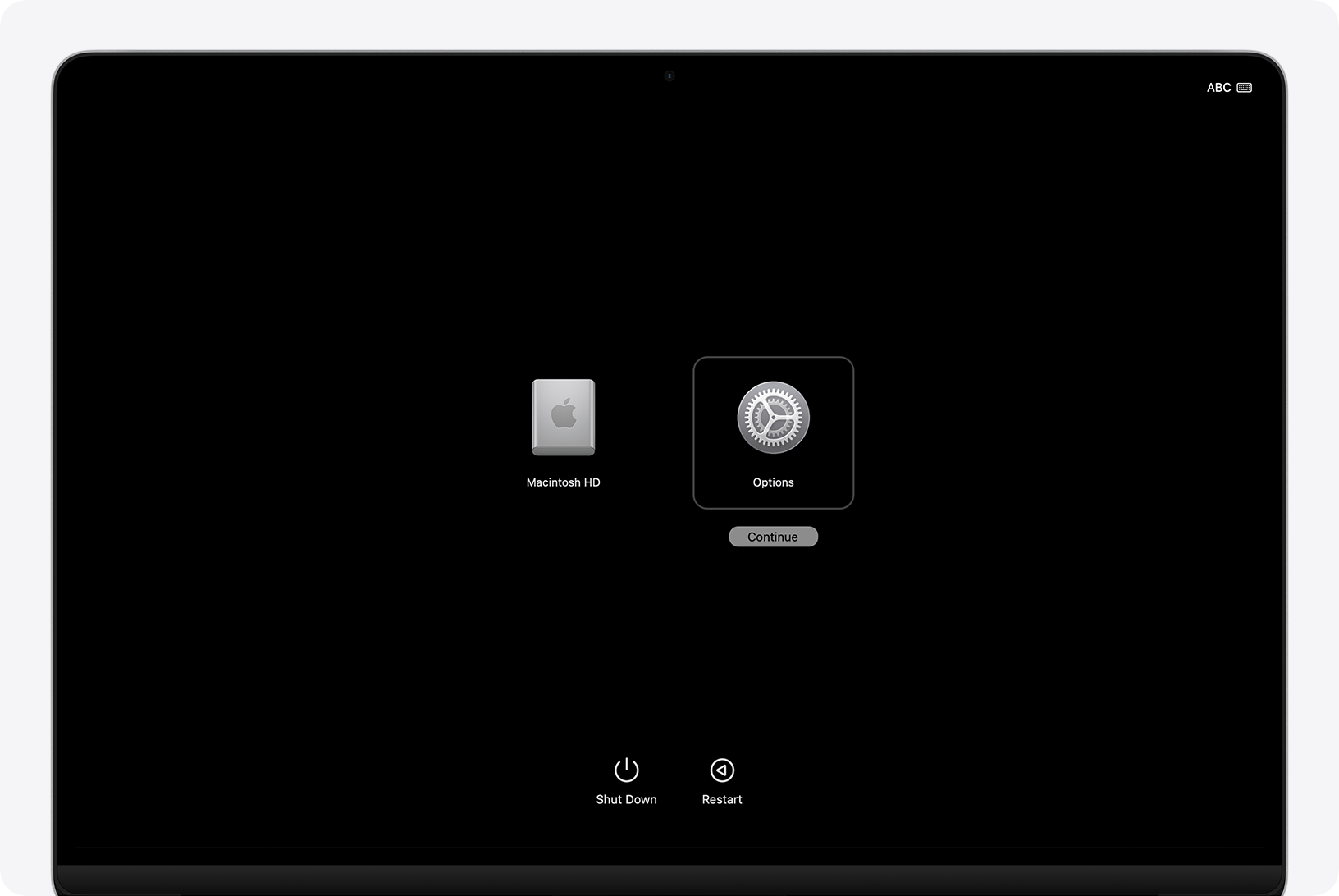
- Shut down your Mac
- Press and hold the power button until you see "Loading startup options"
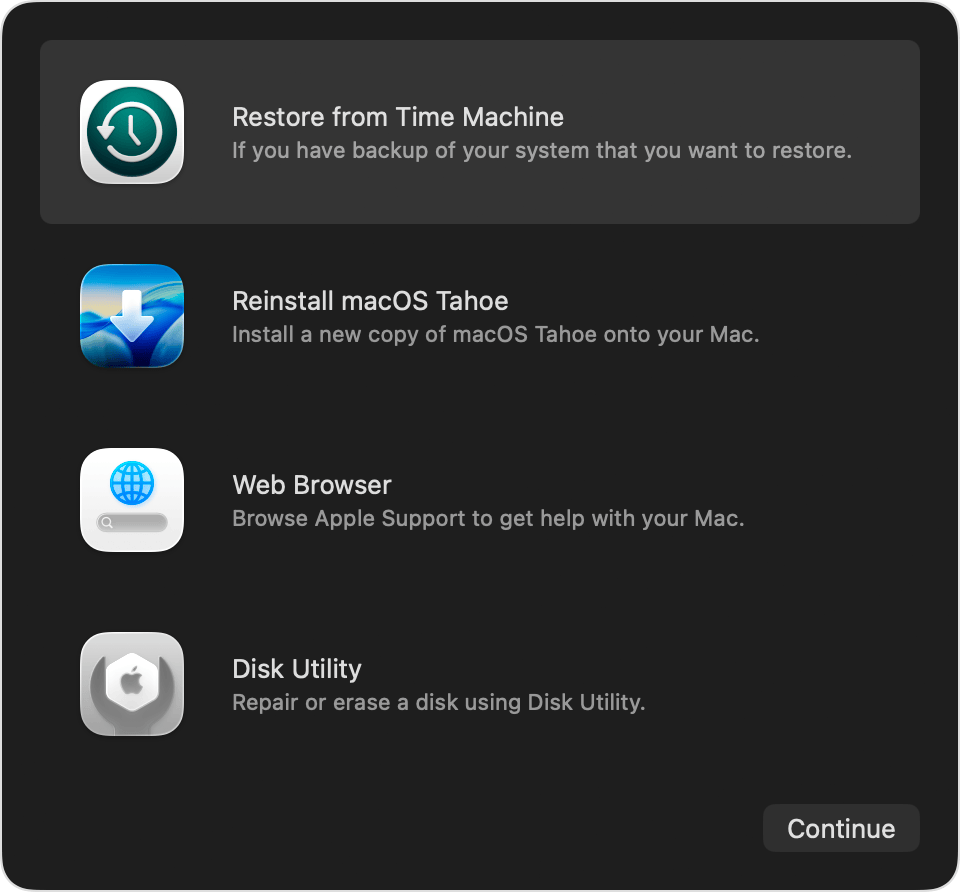
- Click Options (gear icon) and click Continue
- Select Disk Utility and click Continue
- Select your startup disk (usually "Macintosh HD") in the sidebar
- Click First Aid, then Run
For Intel Macs:
- Shut down your Mac
- Turn on and immediately press and hold Command + R
- Continue holding until you see the Apple logo or globe
- Select Disk Utility from macOS Utilities
- Run First Aid on your startup disk
Reset the Startup Disk
Sometimes the startup disk preference becomes corrupted:
From Recovery Mode:
- Access Recovery Mode (as described above)
- Click Apple menu > Startup Disk (or use nvram commands in Terminal)
- Select your main macOS volume
- Click Restart
Reinstall macOS
If First Aid doesn't resolve the issue, reinstalling macOS can repair system files without erasing your data:
- Boot into Recovery Mode
- Select "Reinstall macOS" from the recovery options
- Follow the on-screen instructions
- This process typically takes 30-60 minutes
Important: This does NOT erase your data. It reinstalls system files over the existing installation.
Section 4: Gray or White Screen Issues
A gray or white screen during startup indicates the Mac is having trouble finding or loading a bootable operating system.
Startup Screen Indicators
Different screens indicate different problems:

Folder with Question Mark: Your Mac cannot find a bootable operating system. This could mean:
- Startup disk is not properly connected
- macOS is corrupted
- Hard drive/SSD failure

Circle with Slash (Prohibitory Symbol): macOS is found but is incompatible with this Mac. Common after:
- Installing wrong macOS version
- Hardware modifications
- Boot camp issues

Exclamation Point in Circle: On Apple Silicon Macs, this indicates a critical firmware issue or security policy violation. Requires DFU restore.

Globe with Warning Symbol: Your Mac is trying to start from Internet Recovery but cannot connect. Check your internet connection.
Fixing a Question Mark Folder
Step 1: Select Startup Disk Manually
- Hold Option (Intel) or power button (Apple Silicon) during startup
- You should see available boot volumes
- If your disk appears, select it and click the arrow to boot
- After booting, set it as default in System Settings > General > Startup Disk
Step 2: Reset NVRAM (Intel Macs) If the startup disk isn't remembered:
- Reset NVRAM (Option + Command + P + R during startup)
- After reset, immediately hold Option to select startup disk
Step 3: Repair with Recovery Mode If the disk doesn't appear in startup options:
- Boot to Recovery Mode
- Run Disk Utility First Aid
- If the disk appears but can't be repaired, you may need to reinstall macOS
Fixing the Prohibitory Symbol
This indicates macOS incompatibility:
- Boot to Recovery Mode
- If Recovery Mode is for the wrong macOS version, use Internet Recovery:
- Option + Command + R (latest compatible macOS)
- Shift + Option + Command + R (original macOS for this Mac)
- Reinstall the correct macOS version
External Drive Boot Issues
If you're trying to boot from an external drive:
- Ensure it's formatted correctly (APFS for macOS 10.13+)
- Connect directly to Mac (not through a hub)
- On T2/Apple Silicon Macs, you may need to allow external boot in Startup Security Utility
Section 5: Kernel Panic and System Crashes
A kernel panic is a critical system error where macOS cannot continue operating safely. You'll typically see a message instructing you to restart your Mac.
Understanding Kernel Panic Messages
The kernel panic screen displays:
- Instructions in multiple languages
- Countdown timer to automatic restart
- Error code (on some versions)
Common Causes:
- Hardware failures (RAM, SSD, logic board)
- Incompatible kernel extensions (drivers)
- Critical software bugs
- Overheating
- Power issues
Immediate Steps After Kernel Panic
Step 1: Document the Error If you can see an error code or specific message, take a photo. This information is valuable for troubleshooting.
Step 2: Wait for Automatic Restart Let the countdown complete or press any key to restart immediately.
Step 3: If Panic Occurs Repeatedly Boot into Safe Mode (described earlier) which:
- Disables most third-party kernel extensions
- Runs basic disk checks
- Clears some system caches
Checking Panic Logs
After successfully booting:
- Open Console app (in Applications > Utilities)
- In the sidebar, click "Crash Reports"
- Look for entries starting with "panic"
- The log shows what was happening when the crash occurred
Common culprits in panic logs:
- Third-party antivirus software
- VirtualBox, Parallels, or VMware issues
- Audio interface drivers
- Network/VPN kernel extensions
Resolving Recurring Panics
Remove recent software: If panics started after installing something, remove it:
- Boot to Safe Mode
- Move recently installed apps to Trash
- Check /Library/Extensions and ~/Library/Extensions for third-party .kext files
- Restart normally
Reset SMC and NVRAM: Hardware-related panics sometimes resolve after resetting these (procedures described earlier).
Run Apple Diagnostics:
- Shut down your Mac
- Apple Silicon: Press and hold power button, continue holding through startup to startup options, then press Command + D
- Intel: Turn on and immediately press and hold D key
- Follow on-screen instructions
- Note any error codes reported
Hardware-Related Kernel Panics
If diagnostics report hardware issues, or panics continue in Safe Mode:
- Memory (RAM) issues: Some older Macs have user-replaceable RAM. Try reseating or replacing modules.
- Storage issues: Failing SSDs can cause panics. Check in Disk Utility and consider replacing.
- Thermal issues: Panics during heavy workloads may indicate overheating. Clean vents and fans, check Activity Monitor for runaway processes.
Section 6: Recovery Mode Solutions
macOS Recovery is your Swiss Army knife for startup problems. It provides tools to repair, restore, and reinstall your operating system.
Accessing Recovery Mode
Apple Silicon Macs (M1, M2, M3, M4):
- Shut down your Mac completely
- Press and hold the power button
- Continue holding until you see "Loading startup options"
- Click Options (gear icon)
- Click Continue
Intel Macs:
| Key Combination | Recovery Type |
|---|---|
| Command + R | Built-in Recovery (installed macOS version) |
| Option + Command + R | Internet Recovery (latest compatible macOS) |
| Shift + Option + Command + R | Internet Recovery (original macOS for this Mac) |
Recovery Mode Utilities
Disk Utility:
- First Aid: Repairs disk errors
- Erase: Complete disk wipe (for clean installs)
- Mount/Unmount: Access drives that aren't appearing
Reinstall macOS:
- Downloads and installs a fresh copy of macOS
- Does NOT erase your data (unless you erase first)
- Requires internet connection
Safari:
- Browse the web for troubleshooting resources
- Download tools or installers
Terminal:
- Advanced command-line troubleshooting
- Reset passwords, repair permissions, access files
When Recovery Mode Doesn't Work
Apple Silicon: Use DFU Mode Device Firmware Update mode is the last resort for Apple Silicon Macs:
- Requires a second Mac with Apple Configurator 2
- Connect Macs via USB-C cable
- Enter DFU mode on the problematic Mac
- Use Configurator to restore firmware
Intel: Use Internet Recovery If local recovery is corrupted:
- Hold Option + Command + R during startup
- You'll see a spinning globe while it loads from Apple's servers
- This downloads a recovery environment over the internet
Section 7: Apple Silicon vs Intel Mac Differences
Modern Macs use two different processor architectures, each with unique boot procedures and troubleshooting steps.
Boot Process Comparison
| Feature | Apple Silicon Macs | Intel Macs |
|---|---|---|
| Recovery Access | Hold power button | Command + R |
| SMC Reset | Not applicable (automatic) | Key combination required |
| NVRAM Reset | Automatic or via nvram command | Option + Command + P + R |
| Safe Mode | Power button → Startup Options → Shift | Hold Shift during boot |
| Startup Key Combos | Press power, then keys | Keys during power-on |
| DFU Mode | Yes (requires second Mac) | No |
| Target Disk Mode | Share Disk mode | Traditional T key boot |
Apple Silicon Specific Issues
Startup Options Not Appearing: If holding the power button doesn't show startup options:
- Ensure the Mac is completely shut down (not sleeping)
- Hold power for a full 10 seconds until you see "Loading startup options"
- If nothing appears, the Mac may need DFU restore
Security Policy Issues: Apple Silicon Macs have security policies that can prevent certain boots:
- Boot to Recovery Mode
- Open Utilities > Startup Security Utility
- Adjust settings as needed (may require admin password)
External Boot Disabled: By default, Apple Silicon Macs cannot boot from external drives:
- Boot to Recovery Mode
- Open Utilities > Startup Security Utility
- Select "Allow external media" or adjust security level
Intel Mac Specific Issues
T2 Security Chip Problems: Macs with T2 chips (2018-2020 Intel Macs) have additional security features:
- Secure Boot can prevent booting from external drives
- BridgeOS (T2 firmware) can become corrupted
- May require DFU-like restore via Apple Configurator
EFI Firmware Issues: Older Intel Macs can have EFI (firmware) problems:
- EFI password lockouts
- Corrupted boot.efi files
- Firmware update failures
Section 8: Prevention and Maintenance
Preventing startup problems is far easier than fixing them. Follow these best practices to keep your Mac healthy.
Regular Backup Strategy
Time Machine:
- Set up automatic backups to an external drive or network location
- Verify backups periodically by browsing them
- Keep at least one offline backup
Bootable Clone: Create a bootable backup using tools like Carbon Copy Cloner or SuperDuper:
- Allows you to boot from the backup if main drive fails
- Makes migration to new Mac simple
- Test the clone periodically
Safe Update Practices
Before Major macOS Updates:
- Verify your Mac is compatible
- Complete a full backup
- Check app compatibility
- Ensure at least 35GB free space
- Connect to a stable power source
- Use a reliable internet connection
After Updates:
- Wait for Spotlight indexing to complete (may take hours)
- Check that critical apps work
- Monitor Activity Monitor for unusual CPU/memory usage
- Give the system 24-48 hours to "settle"
Hardware Maintenance
Keep Your Mac Cool:
- Ensure vents are not blocked
- Clean dust from vents and fans annually
- Use on hard surfaces, not soft (beds, blankets)
- Monitor temperatures with tools like iStat Menus
Battery Health:
- Avoid keeping MacBooks at 100% charge constantly
- Use Optimized Battery Charging
- Don't let battery drain to 0% regularly
Storage Health:
- Keep at least 10-15% of storage free
- Run Disk Utility First Aid periodically
- Consider enabling TRIM for third-party SSDs
Monitor System Health
Regular Checks:
- Run Apple Diagnostics every few months
- Check S.M.A.R.T. status of storage drives
- Monitor log files for recurring errors
- Keep macOS and apps updated
Early Warning Signs:
- Unusual sounds (clicking, grinding)
- Intermittent kernel panics
- Apps crashing frequently
- Unexplained slowdowns
- Battery draining abnormally fast
Conclusion: When to Seek Professional Help
This guide covers the vast majority of Mac startup problems you'll encounter. However, some situations warrant professional intervention:
Contact Apple Support or an Authorized Service Provider when:
- Hardware diagnostics report specific component failures
- DFU restore fails on Apple Silicon Macs
- Physical damage is present (liquid, drops, cracks)
- Problems persist after trying all software solutions
- Your Mac is under warranty or covered by AppleCare+
- You're not comfortable with advanced troubleshooting
Data Recovery Considerations: If your Mac won't boot and you don't have backups:
- Don't attempt repairs that might erase data
- Consider professional data recovery before any invasive steps
- Target Disk Mode (Intel) or Share Disk mode (Apple Silicon) may allow data access
Quick Reference Card
| Problem | First Try | Second Try | Last Resort |
|---|---|---|---|
| Won't power on | Power cycle, check cables | SMC reset (Intel) or 30-sec hold | Hardware service |
| Black screen | Brightness keys, external display | NVRAM reset, Safe Mode | Display repair |
| Stuck Apple logo | Disconnect peripherals | Recovery Mode + First Aid | Reinstall macOS |
| Kernel panic | Safe Mode | Check panic logs, remove software | Hardware diagnostics |
| Question mark folder | Recovery Mode disk repair | Internet Recovery | Replace drive |
Advanced Terminal Troubleshooting Commands
For power users comfortable with Terminal, these commands can provide additional diagnostic information and repair capabilities. Access Terminal through Recovery Mode or Single User Mode.
Disk Repair Commands
Check and Repair Filesystem:
# Check disk for errors (read-only)
diskutil verifyVolume /

# Repair filesystem (requires unmounted or Recovery)
diskutil repairVolume /

# List all disks and volumes
diskutil list

# Get detailed disk information
diskutil info disk0
APFS Specific Commands:
# Check APFS container
diskutil apfs list

# Repair APFS container
diskutil apfs repairContainer disk1

# Unlock FileVault encrypted volume
diskutil apfs unlockVolume disk1s1
System Integrity Commands
Reset System Caches:
# Clear font caches (can fix some startup issues)
atsutil databases -removeUser
atsutil server -shutdown
atsutil server -ping

# Clear kernel extension cache
sudo kextcache -invalidate /
sudo kextcache -update-volume /
Check System Integrity:
# Verify system file integrity
csrutil status

# View boot arguments
nvram boot-args

# Clear all NVRAM settings (use with caution)
nvram -c
Diagnostic Log Commands
View System Logs:
# View recent boot log
log show --predicate 'eventMessage contains "boot"' --last 1h

# View kernel messages
log show --predicate 'processImagePath contains "kernel"' --last 30m

# Export panic logs
find /Library/Logs/DiagnosticReports -name "*.panic" -exec cat {} \;

# View crash reports
log show --predicate 'eventMessage contains "crash"' --last 1d
Hardware Information:
# Get detailed system information
system_profiler SPHardwareDataType

# Check memory status
vm_stat

# View power management settings
pmset -g

# Check battery health (MacBooks)
pmset -g batt
Single User Mode Troubleshooting (Intel Macs Only)
Single User Mode provides a minimal command-line environment for advanced troubleshooting:
- Start your Mac and hold Command + S
- You'll see white text on black background
- Run filesystem check:
/sbin/fsck -fy - If errors found, run again until "OK" is reported
- Mount filesystem as read-write:
/sbin/mount -uw / - Perform repairs, then reboot:
reboot
Frequently Asked Questions
How long should I wait before assuming my Mac is stuck?
During normal boot: If the progress bar hasn't moved for more than 30 minutes on a regular startup, something is likely wrong. However, after major macOS updates, boots can take up to an hour as the system migrates data and rebuilds caches.
During macOS installation: Installations can take 1-3 hours depending on your internet speed and Mac model. Don't interrupt unless it's been stuck at the same percentage for over an hour.
During Time Machine restoration: Large restores can take 8-24 hours. Monitor the progress indicator and only intervene if it shows errors.
Can I recover data from a Mac that won't boot?
Yes, usually through several methods:
-
Target Disk Mode (Intel Macs): Connect the non-working Mac to another Mac via Thunderbolt/USB-C cable and hold T during startup. The drive mounts on the working Mac.
-
Share Disk Mode (Apple Silicon): Boot to Recovery, then use Utilities > Share Disk to mount the drive for network access.
-
Recovery Mode Terminal: Access files via Terminal commands and copy to external drive.
-
Remove Drive: For older Macs with removable storage, the drive can be installed in an external enclosure.
-
Professional Recovery: Companies like DriveSavers or Ontrack can recover data from failed drives.
Why does my Mac startup take longer after updates?
Several processes run after updates that cause temporary slowdowns:
- Spotlight reindexing: Can take hours and causes high CPU usage
- iCloud sync: Downloads and processes updated service data
- App relaunching: Apps may require migration or cache rebuilding
- System optimization: macOS optimizes performance data in the background
Allow 24-48 hours for these processes to complete before troubleshooting slow performance.
Is it safe to reset NVRAM/SMC frequently?
Yes, resetting NVRAM and SMC (on Intel Macs) is completely safe and won't damage your Mac or erase data. These resets simply clear temporary settings and restore defaults. However, you will need to reconfigure:
- Display resolution and arrangement
- Startup disk selection
- Volume level
- Time zone (in some cases)
- Bluetooth device pairings may need re-establishing
Can malware cause Mac startup problems?
While rare, malware can cause startup issues:
- Launch agents/daemons: Malicious scripts that run at startup and cause system instability
- Kernel extensions: Unauthorized kexts can cause kernel panics
- Boot sector attacks: Extremely rare but possible firmware-level malware
If you suspect malware:
- Boot to Safe Mode (which disables most malware)
- Run a reputable anti-malware scan (Malwarebytes for Mac is well-regarded)
- Check Login Items in System Settings
- Examine /Library/LaunchAgents and /Library/LaunchDaemons for unknown items
How do I know if my Mac needs a new battery?
Battery issues can cause startup problems, especially on MacBooks. Signs include:
- Mac only works when plugged in
- Random shutdowns at low battery
- Battery swelling (visible as trackpad bulge or case separation)
- "Service Recommended" in battery status
Check battery health: Click Apple menu > System Settings > Battery > Battery Health, or hold Option and click the battery icon in the menu bar on older macOS versions.
What's the difference between macOS Recovery and Internet Recovery?
Built-in Recovery (Command + R):
- Uses recovery partition on your Mac's storage
- Faster to access
- Offers the macOS version currently installed
- Won't work if startup disk is damaged or missing
Internet Recovery (Option + Command + R):
- Downloads recovery environment from Apple's servers
- Requires internet connection
- Slower to access
- Offers latest macOS compatible with your Mac
- Works even without a startup disk
Original macOS Recovery (Shift + Option + Command + R):
- Downloads recovery for the original macOS that shipped with your Mac
- Useful for downgrading or starting fresh
- Available on Macs introduced after late 2017
Related Troubleshooting Resources
If you've resolved your startup issue and want to ensure your Mac stays healthy, explore these additional guides:
Performance Optimization:
- Learn how to manage RAM on macOS Tahoe for optimal performance
- Discover battery optimization tips to extend your MacBook's lifespan
System Maintenance:
- Master storage management to prevent full disk issues
- Understand Time Machine troubleshooting for reliable backups
Connectivity Issues:
- Fix WiFi dropping problems that can affect recovery downloads
- Resolve Bluetooth issues with peripherals
System Updates:
- Check the macOS Tahoe compatibility guide before upgrading
- Review the complete upgrade guide for safe update procedures
Remember: patience is key. Many startup issues that seem catastrophic can be resolved with methodical troubleshooting. Take your time, work through solutions systematically, and don't hesitate to seek help when needed.
For more macOS troubleshooting guides, explore our blog or use our compatibility checker to verify your Mac supports the latest macOS features.