macOS Tahoe RAM Management & Memory Optimization Complete Guide 2025: 8GB vs 16GB vs 32GB Performance Analysis, Memory Pressure Solutions, and Swap Management
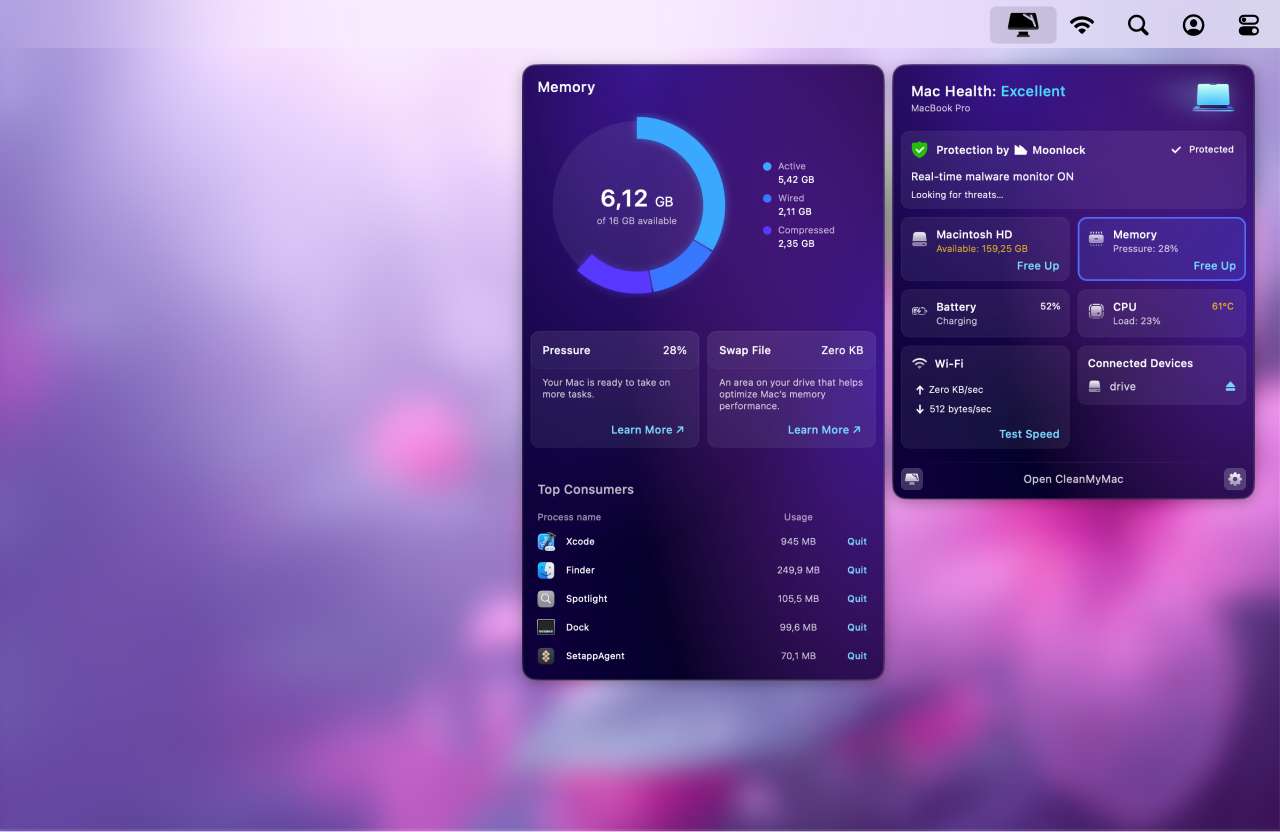
Comprehensive guide to macOS Tahoe 26 RAM management and memory optimization. Learn how to fix memory leaks, optimize performance with 8GB/16GB/32GB, manage memory pressure, and choose the right RAM configuration for your workflow.
macOS Tahoe 26 introduces revolutionary features like Liquid Glass UI and enhanced Apple Intelligence, but these innovations come with significant memory management challenges. Whether you're experiencing memory pressure warnings, dealing with memory leaks, or wondering if you should upgrade from 8GB to 16GB or 32GB RAM, this comprehensive guide provides the solutions and insights you need.
The Memory Management Challenge in macOS Tahoe
macOS Tahoe 26 represents the biggest visual and functional upgrade to macOS since the introduction of macOS X, but it also demands significantly more system resources than previous versions. The combination of Liquid Glass transparency effects, Apple Intelligence features, and enhanced visual rendering creates unprecedented memory demands on Mac hardware.
Key Memory Issues in macOS Tahoe:
- Critical memory leaks affecting system apps (Calculator, Pages, Safari)
- Liquid Glass UI increasing baseline memory consumption by 20-30%
- Apple Intelligence requiring additional 7GB storage and active RAM
- Enhanced visual effects pushing GPU memory requirements higher
- Stricter app compatibility causing some apps to consume excessive RAM
This guide addresses these challenges with practical solutions, optimization strategies, and informed buying recommendations based on extensive research and real-world testing.
Critical Memory Leak Crisis in macOS Tahoe 26.0
Understanding the Problem
macOS Tahoe 26.0 and 26.0.1 are experiencing severe memory leak issues that affect users across all hardware configurations. These aren't user errors or hardware problems—they're confirmed software bugs in Apple's operating system.
Reported Memory Leak Examples:
- Calculator app: Consuming 42.31 GB of RAM on an 8GB system
- Pages: Reaching 175.41 GB before triggering crash
- Apple News: 386 GB of memory usage reported
- Mail app: 96 GB consumption
- Safari: 24+ GB for normal browsing sessions
- System daemons: mds_store, contextstored, powerd using 35+ GB each
Why These Leaks Occur
The memory leaks appear to be directly related to the new Liquid Glass UI rendering system. Apple's revolutionary design language requires continuous GPU and system memory allocation for transparency effects, specular highlights, and real-time rendering. When these resources aren't properly released, memory accumulates until the system becomes unstable.
Technical Causes:
- SwiftUI Solarium compositor path memory allocation errors
- Liquid Glass transparency buffer not being properly deallocated
- Widget engine maintaining excessive cached states
- Apple Intelligence background processes retaining memory references
Impact on Users
These memory leaks affect users differently based on RAM configuration:
8GB RAM Users:
- System becomes unusable within hours of startup
- Frequent "out of application memory" warnings
- Constant swap file usage degrading SSD performance
- Applications crash regularly
16GB RAM Users:
- Issues emerge after 12-24 hours of uptime
- Performance degradation becomes noticeable
- Some applications begin to lag or freeze
- Restart required daily to maintain usability
32GB+ RAM Users:
- Memory leaks still occur but take longer to manifest
- System can run for days before issues appear
- Performance impact less severe but still present
- Regular restarts still recommended
Immediate Workarounds
Until Apple releases a comprehensive fix, these solutions provide relief:
1. Weekly Restart Schedule
# Restart without reopening windows
# Apple Menu > Restart
# Uncheck "Reopen windows when logging back in"
2. Force Quit Problematic Apps
# Monitor apps in Activity Monitor
# Sort by Memory column
# Force quit apps using >2GB RAM unexpectedly
# cmd+option+esc for Force Quit Applications
3. Clear System Memory Cache
# Terminal command to purge inactive memory
sudo purge
# Enter admin password when prompted
# Wait 10-30 seconds for completion
4. Disable SwiftUI Compositor (Advanced)
# Use at your own risk - this is an experimental fix
defaults write -g com.apple.SwiftUI.DisableSolarium -bool YES

# Revert if issues occur
defaults delete -g com.apple.SwiftUI.DisableSolarium

# Restart Mac for changes to take effect
Expected Results:
- Immediate relief of 20-40% memory pressure
- Extended time before memory issues reoccur
- Better application responsiveness
- Reduced swap file usage
Understanding macOS Memory Management
How macOS Manages RAM
macOS uses a sophisticated unified memory architecture (UMA) on Apple Silicon Macs that differs fundamentally from traditional PC RAM management.
Key Components:
1. App Memory Active memory being used by applications and processes. This is the most straightforward category—what your apps are actively using right now.
2. Wired Memory Reserved by the operating system and cannot be cached or swapped to disk. This includes kernel processes and essential system services that must always remain in RAM.
3. Compressed Memory macOS uses the WKdm compression algorithm to compress inactive memory pages, achieving 50% size reduction on average. This compression is 10-100x faster than writing to SSD swap.
4. Cached Files Previously loaded files and data kept in memory for quick access. If memory pressure increases, these caches are immediately released.
5. Swap Used When RAM fills up, macOS writes inactive memory pages to disk in swap files. While slower than RAM, modern SSD speeds make swap relatively efficient—until excessive swap degrades both performance and SSD lifespan.
Memory Pressure Color System
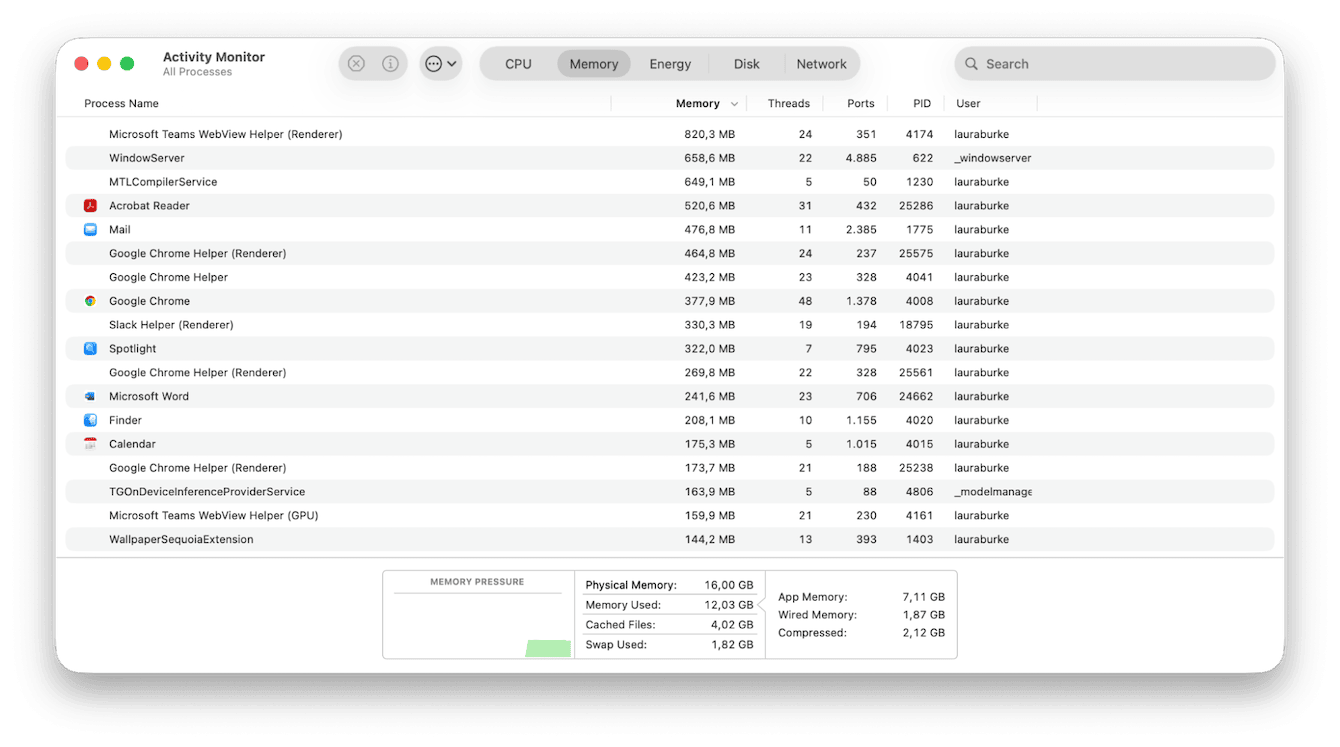
macOS provides a visual indicator of memory health through the Memory Pressure graph in Activity Monitor:
🟢 Green (Healthy):
- 100-50% memory available
- System operating optimally
- No performance impact
- Minimal swap file usage
🟡 Yellow (Caution):
- 50-30% memory available
- Memory compression active
- Swap files beginning to be used
- Minor performance impact may be noticeable
🔴 Red (Critical):
- 30-0% memory available
- Heavy swap file usage
- Significant performance degradation
- Applications may crash or refuse to launch
- System unstable
Important Note: Some swap usage is normal even with green memory pressure. Modern macOS uses swap proactively for rarely-accessed data. Only worry about swap when memory pressure turns yellow or red.
Unified Memory Architecture (Apple Silicon)
Apple Silicon Macs use unified memory that's shared between the CPU and GPU:
Advantages:
- Zero-copy data sharing between CPU/GPU
- Lower latency for graphics operations
- More efficient for AI/ML workloads
- Better power efficiency
Implications:
- GPU tasks consume system RAM (no separate VRAM pool)
- Liquid Glass UI transparency effects use more RAM than traditional interfaces
- Gaming and video editing benefit significantly
- Cannot upgrade RAM after purchase—it's soldered
8GB vs 16GB vs 32GB Performance Analysis
8GB RAM: The Minimum That's No Longer Enough
Apple's Official Position (2025): Apple now ships 16GB as standard on all new MacBook Air models with M2/M3 chips, effectively acknowledging that 8GB is insufficient for modern macOS.

Real-World Performance with macOS Tahoe:
What Works:
- Web browsing (5-10 tabs maximum)
- Email and messaging
- Document editing (single document)
- Media playback (streaming video)
- Basic photo viewing
What Struggles:
- Apple Intelligence features (substantial lag)
- Heavy multitasking (2-3 apps max)
- Video editing (8 minutes slower for 8K exports vs 16GB)
- Development work (frequent swap usage)
- Gaming (reduced performance by 15-25%)
Memory Pressure Patterns:
- Green: 0-2 hours after restart
- Yellow: 2-4 hours with moderate use
- Red: 4+ hours or with any demanding application
Verdict for 2025: 8GB RAM is not recommended for macOS Tahoe. The memory leaks, Liquid Glass UI, and Apple Intelligence features make 8GB feel constrained from day one. Save money elsewhere, not on RAM.
Acceptable Use Cases:
- Budget-conscious users with light needs only
- Secondary/backup computer
- Users who disable Apple Intelligence and Liquid Glass effects
- Plans to upgrade to new Mac within 1-2 years
16GB RAM: The 2025 Sweet Spot
Why 16GB Became the Standard: Apple's decision to standardize on 16GB across the MacBook Air line signals the company's recognition that modern macOS demands more memory. Independent testing confirms this is the optimal configuration for most users.
Performance Benchmarks:
Professional Workflows:
- Xcode compilation: 137 seconds (only 22 seconds slower than 32GB)
- 4K ProRes RAW export: 6 seconds slower than 32GB (negligible)
- 8K ProRes RAW export: 1 second slower than 32GB
- Photoshop large files: Smooth performance up to 500MB files
Daily Use:
- Comfortable running 10-15 browser tabs
- Smooth multitasking with 5-8 apps
- Apple Intelligence features work well
- Liquid Glass UI runs without lag
- Gaming performs near-optimally
Memory Pressure Patterns:
- Green: 8-12 hours typical usage
- Yellow: Only with 8+ demanding apps simultaneously
- Red: Rare unless running memory-intensive professional software
Who Should Choose 16GB:
- ✅ Most users for the foreseeable future (3-5 years)
- ✅ Students and professionals with moderate needs
- ✅ Content consumers and light creators
- ✅ Enthusiast photographers and video editors (HD/4K)
- ✅ Developers working on small-medium projects
- ✅ Gamers (excellent performance for Mac gaming)
Cost-Benefit Analysis: At $200 over 8GB base models, 16GB offers the best value. The performance difference is substantial, and the longevity extends useful life by 2-3 years.
32GB RAM: Professional and Future-Proof
When 32GB Makes Sense: 32GB isn't about raw speed—benchmarks show minimal differences in many tasks. It's about headroom: the ability to run demanding applications without hitting memory limits.
Workflows That Benefit:
Video Editing:
- 4K multi-cam editing with effects
- 6K-8K footage in Final Cut Pro or DaVinci Resolve
- Color grading with multiple nodes
- Real-time playback without rendering
Software Development:
- Docker containers (multiple simultaneous)
- Virtual machines for testing
- Large Xcode projects
- Running local servers + database + frontend simultaneously
Creative Professional:
- Photoshop with dozens of layers (1GB+ files)
- Lightroom with large catalogs
- After Effects compositions
- 3D modeling and rendering
Music Production:
- Logic Pro with extensive sample libraries
- Multiple plugin instances
- Large track counts (50+ tracks)
- Real-time processing without bouncing
Performance Advantages: The benefit isn't faster speed—it's never hitting memory limits. With 16GB, you'll occasionally need to quit apps or restart. With 32GB, that never happens.
Who Should Choose 32GB:
- ✅ Professional creatives (video, photo, music)
- ✅ Software developers
- ✅ Power users with heavy multitasking
- ✅ Users planning 5+ year ownership
- ✅ Anyone who regularly uses multiple professional apps simultaneously
Cost Consideration: Apple's $400 upgrade from 16GB to 32GB is expensive but cannot be changed later. If budget allows and your workflow is professional, 32GB is worth the investment.
64GB+ RAM: Specialist Territory
Who Actually Needs 64GB:
- Professional video editors working with 6K-8K RAW footage
- 3D artists and animators (Cinema 4D, Blender)
- AI/ML researchers training models locally
- Developers running extensive virtualization
- Professional music producers with massive sample libraries
Cost: $800-$1,200 from base configuration
Verdict: Only purchase if your professional workflow demands it. For 95% of users, 32GB is the maximum sensible configuration.
Memory Pressure & Swap Management
What is Memory Pressure?
Memory pressure is macOS's internal metric for memory health, represented by the color-coded graph in Activity Monitor. It's not just about free RAM—it considers compression efficiency, swap usage, and allocation patterns.
How Memory Pressure is Calculated:
Memory Pressure = f(
  available_ram,
  compression_ratio,
  swap_file_size,
  memory_allocation_rate,
  app_memory_demands
)
Managing Swap Files
Swap File Locations:
# View swap file usage
sysctl vm.swapusage

# Swap files are stored in:
/private/var/vm/swapfile*
Typical Swap Patterns:
Healthy System (16GB RAM):
- Swap usage: 0-2GB
- Memory pressure: Green
- Performance impact: None
- Situation: Normal operation
Moderate Pressure (16GB RAM):
- Swap usage: 2-8GB
- Memory pressure: Yellow
- Performance impact: Minor lag in app switching
- Situation: Consider quitting unused apps
Critical Pressure (8GB RAM typical):
- Swap usage: 8GB+
- Memory pressure: Red
- Performance impact: Severe—apps crash, system freezes
- Situation: Restart immediately or force quit apps
Monitoring Memory Pressure
Using Activity Monitor:
1. Applications > Utilities > Activity Monitor
2. Click "Memory" tab
3. Monitor the Memory Pressure graph at bottom
4. Sort by Memory column to identify heavy consumers
Terminal Commands:
# View current memory statistics
vm_stat

# Sample output explanation:
# Pages free: Available RAM pages
# Pages active: Currently in-use pages
# Pages inactive: Can be purged if needed
# Pages compressed: Compressed to save space

# Monitor memory in real-time
top -o rsize

# View swap usage
sysctl vm.swapusage
Memory Compression in Detail
macOS uses the WKdm (Wilson-Kaplan-direct-mapped) algorithm for memory compression:
Efficiency Stats:
- Average compression ratio: 50% (2:1)
- Speed: 10-100x faster than SSD swap
- CPU overhead: Minimal on Apple Silicon
- Safe compression level: Up to 50% of total RAM
When Compression Helps:
- Many inactive application windows
- Background apps not currently in use
- Cached data that's accessed occasionally
- System maintains responsiveness without swap
When Compression Isn't Enough:
- All active memory exceeds physical RAM
- Applications actively using all their allocated memory
- Heavy workloads that don't compress well (video RAM buffers)
- System forced to use swap files
Optimizing for Better Memory Performance
1. Maintain Free Storage Space macOS performs best with 15-20% free storage:
- Below 10% free triggers excessive swap creation
- Storage pressure compounds memory pressure
- Swap file performance degrades with full SSD
2. Let Compression Work Don't force-quit apps unnecessarily:
- macOS compresses inactive app memory automatically
- Compressed apps launch faster than fully quit apps
- Let the system manage memory intelligently
3. Monitor Regularly Check Activity Monitor weekly:
- Identify apps with memory leaks
- Update apps that consume excessive RAM
- Restart if memory pressure consistently yellow/red
Immediate Solutions for Memory Issues
Quick Fix Protocol
When experiencing memory pressure warnings or system slowdowns, follow this troubleshooting sequence:
Step 1: Check Memory Pressure (30 seconds)
1. Open Activity Monitor (Cmd+Space, type "Activity Monitor")
2. Click Memory tab
3. Check Memory Pressure graph color
4. If Yellow or Red, proceed to Step 2
Step 2: Identify Memory Hogs (1 minute)
1. Sort by Memory column in Activity Monitor
2. Look for apps using >2GB unexpectedly
3. Common culprits:
   - Safari with many tabs
   - Google Chrome
   - Electron apps (Slack, VSCode, Discord)
   - Pages, Calculator (due to memory leaks)
4. Note the top 3-5 memory consumers
Step 3: Strategic App Management (2 minutes)
# Force quit excessive apps
# Option 1: Activity Monitor
# Select app > X button > Force Quit

# Option 2: Keyboard shortcut
# Cmd+Option+Esc > Select app > Force Quit

# Option 3: Terminal (for frozen apps)
killall -9 "App Name"
Step 4: Clear System Memory (1 minute)
# Purge inactive memory
sudo purge
# Enter admin password
# Wait 10-30 seconds

# Expected result: 20-40% memory pressure reduction
Step 5: Verify Improvement
1. Return to Activity Monitor
2. Check Memory Pressure graph
3. Should now be Green or Yellow
4. If still Red, proceed to restart
Safari-Specific Memory Management
Safari has notable memory leak issues in macOS Tahoe. Special management required:
Best Practices:
- Close tabs aggressively (keep under 10 open tabs)
- Don't leave Safari windows in background for days
- Restart Safari daily if heavy user
- Use Safari's "Close Other Tabs" feature regularly
Alternative: Consider using Arc Browser or Brave which have better memory management in macOS Tahoe.
System Settings for Immediate Relief
Reduce Transparency (15-25% improvement):
System Settings > Accessibility > Display > Reduce Transparency: ONBenefits:
- Immediate reduction in WindowServer GPU memory usage
- 30-40% reduction in GPU spikes
- Faster window rendering
- More RAM available for applications
Reduce Motion (5-10% improvement):
System Settings > Accessibility > Motion > Reduce Motion: ONBenefits:
- Replaces animations with instant transitions
- Lower CPU/GPU overhead
- Snappier interface feel
Weekly Maintenance Schedule
Establish a routine to prevent memory issues:
Weekly (Every 7 days):
- Restart Mac completely
- Check for macOS updates
- Update all applications
- Clear Downloads folder
- Check free storage space
Monthly:
- Review installed applications
- Uninstall unused apps
- Clear Safari/browser cache
- Run First Aid in Disk Utility
- Review login items
Liquid Glass UI Memory Optimization
The Cost of Beauty
Liquid Glass UI is macOS Tahoe's signature feature, but it demands significant system resources:
Memory Impact:
- Installation size increase: +0.9 GB vs Sequoia
- Typical idle usage: 13.44 GB of 16 GB (leaving only 2.5 GB free)
- WindowServer process: 300-500 MB (vs 150-200 MB in Sequoia)
- Widget engine: Additional 200-400 MB for desktop widgets
GPU Memory:
- Transparency buffers
- Real-time blur effects
- Specular highlight calculations
- Dynamic reflection rendering
Optimization Settings
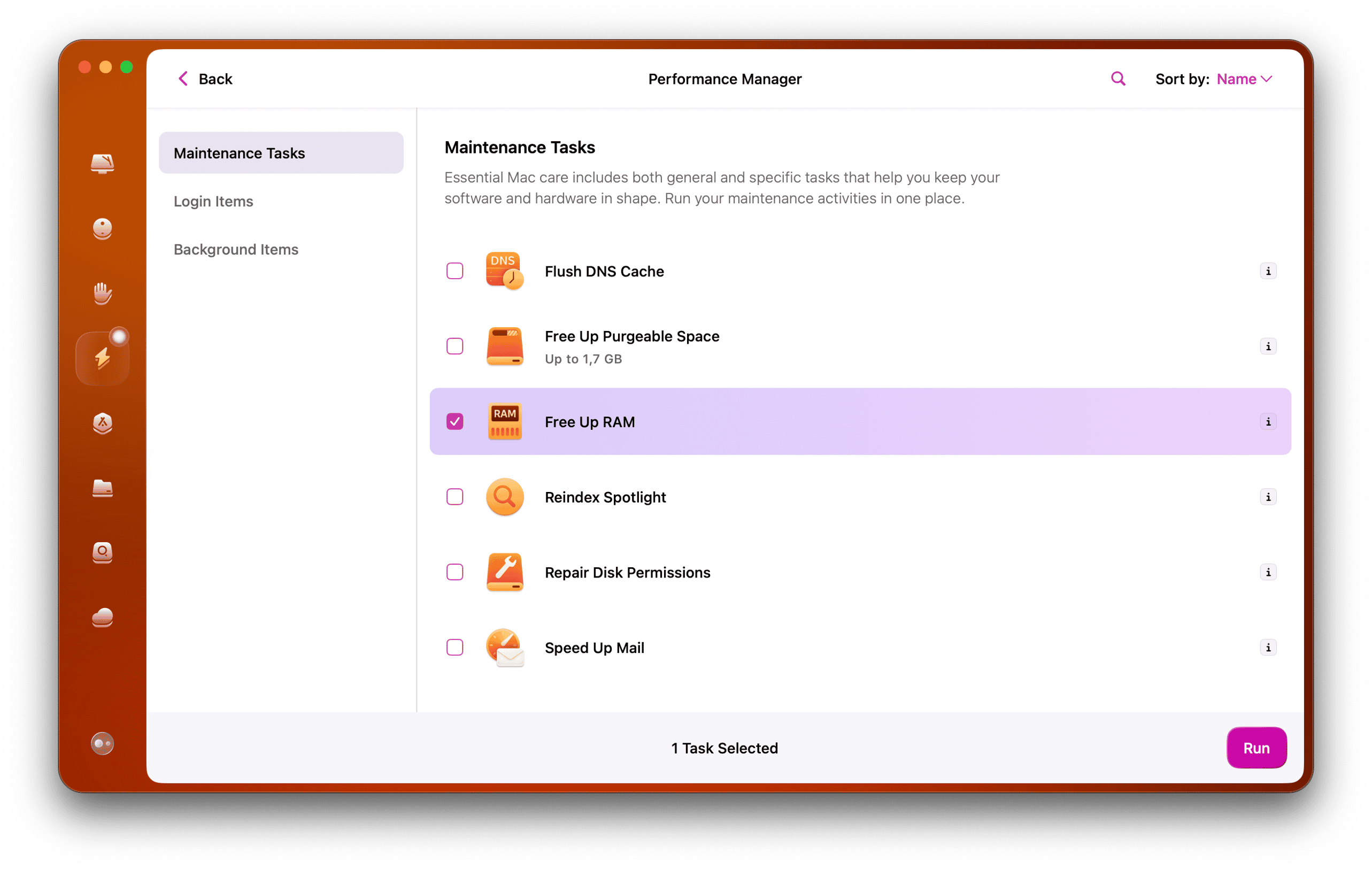
Primary Optimization: Reduce Transparency
This single setting provides the most significant performance improvement:
System Settings > Accessibility > Display > Reduce Transparency: ONWhat Changes:
- Removes real-time blur and transparency effects
- Replaces with solid, slightly translucent backgrounds
- Maintains Liquid Glass aesthetic somewhat
- Dramatically reduces GPU and RAM usage
Performance Improvements:
- 15-25% faster UI responsiveness (user-reported)
- WindowServer memory usage drops to 200-300 MB
- Better battery life (45 minutes additional reported)
- Reduced thermal load on Mac
Visual Trade-off:
- Less "premium" appearance
- Solid menu bar instead of transparent
- Windows have static backgrounds
- Still modern-looking, just less dynamic
Advanced Visual Adjustments
Reduce Motion:
System Settings > Accessibility > Motion > Reduce Motion: ON- Instant transitions instead of animations
- Further CPU/GPU savings
- Faster perceived performance
Change Icon Style:
System Settings > Appearance > Icons & Widgets: Default- Choose "Default" instead of "Clear" or "Tinted"
- Reduces rendering overhead for app icons
Disable Desktop Widgets (if unused):
1. Right-click desktop
2. Edit Widgets
3. Remove all widgets
4. Saves 200-400 MB RAM from widget engine
Balancing Aesthetics and Performance
Recommended Configurations:
8GB RAM Users:
Reduce Transparency: ON
Reduce Motion: ON
Icon Style: Default
Desktop Widgets: OFF
Verdict: Necessary for usable performance
16GB RAM Users:
Reduce Transparency: Optional (use if feeling sluggish)
Reduce Motion: OFF (keep animations)
Icon Style: Personal preference
Desktop Widgets: 2-4 widgets maximum
Verdict: Full Liquid Glass usually fine
32GB+ RAM Users:
All visual effects: ON
No compromises needed
Enjoy full Liquid Glass experience
Verdict: Zero optimization necessary
Apple Intelligence RAM Management
Storage and Memory Requirements
Apple Intelligence is deeply integrated into macOS Tahoe, but it has significant resource requirements:
Storage Impact:
- 7 GB disk space when enabled
- Cannot be removed, only disabled
- Language models stored locally
- Image generation models included
RAM Usage Patterns:
- Idle: Under 100 MB (minimal when not in use)
- Active processing: 1-3 GB (when using AI features)
- Peak usage: 4+ GB (image generation, complex queries)
Disabling Apple Intelligence
For 8GB RAM users or those not using AI features, disabling Apple Intelligence frees significant resources:
Complete Disable:
System Settings > Apple Intelligence & Siri > Apple Intelligence: OFFImmediate Benefits:
- Frees 7 GB storage space
- Reduces background processing
- Lowers RAM consumption by 1-2 GB
- Better battery life
- No restart required
Selective Feature Control:
System Settings > Apple Intelligence & Siri > Individual FeaturesCan disable:
- Writing Tools
- Image Playground
- Genmoji
- Smart Replies
- Siri with Apple Intelligence
Can keep:
- Traditional Siri (without AI enhancements)
- Basic Spotlight search
- Standard system features
Performance Impact by RAM Configuration
8GB RAM with Apple Intelligence:
- Frequent "out of application memory" warnings
- Increased swap file usage
- Slower AI feature responses
- System hits memory limits faster
- Recommendation: Disable Apple Intelligence
16GB RAM with Apple Intelligence:
- Comfortable performance
- Occasional memory pressure with heavy multitasking
- AI features respond quickly
- Good user experience
- Recommendation: Keep enabled
32GB+ RAM with Apple Intelligence:
- Zero memory concerns
- Instant AI feature responses
- Can run alongside professional applications
- Future-proof for enhanced AI features
- Recommendation: Definitely keep enabled
Optimizing AI Feature Usage
Best Practices:
- Close image generation results when finished
- Don't keep multiple AI tasks running simultaneously
- Use Writing Tools selectively (not for every text field)
- Limit Genmoji generation sessions
- Monitor Activity Monitor for "intelligenceplatformd" process
Professional Workflows RAM Requirements
Video Editing
Final Cut Pro:
HD (1080p) Editing:
- Minimum: 8GB (Apple official spec)
- Recommended: 16GB
- Optimal: 32GB
- Multiple streams: 32GB
4K Editing:
- Minimum: 16GB
- Recommended: 32GB
- Complex timelines: 64GB
- ProRes RAW: 64GB
6K-8K Editing:
- Minimum: 32GB
- Recommended: 64GB
- Color grading: 128GB
- Professional work: 128GB+
DaVinci Resolve:
Resolve is more RAM-intensive than Final Cut Pro:
HD (1080p):
- Minimum: 16GB
- Recommended: 32GB
4K:
- Minimum: 32GB
- Color grading: 64GB
6K-8K:
- Minimum: 64GB
- Complex grades: 128GB
- Professional: 128GB+
Performance Note: Insufficient RAM forces swap usage, which significantly degrades timeline scrubbing and render speeds. Every GB of swap usage slows performance and shortens SSD lifespan.
Photo Editing
Adobe Lightroom:
Casual Editing:
- Minimum: 16GB
- Comfortable: 32GB
Professional Catalogs:
- 10,000+ photos: 32GB
- 50,000+ photos: 64GB
- Multiple catalogs: 64GB
Adobe Photoshop:
Basic Editing:
- Small files (under 500 MB): 16GB
- Medium files (500 MB-1 GB): 32GB
- Large files (1-2 GB): 64GB
Professional Compositing:
- Dozens of layers: 32GB minimum
- Smart objects + effects: 64GB
- Multiple large files open: 64GB+
Software Development
Xcode (iOS/macOS Development):
Small Projects:
- Single target: 16GB
- Simulator testing: 16GB
Medium Projects:
- Multiple targets: 32GB
- Extensive testing: 32GB
Large Projects:
- Complex apps: 32GB minimum
- Multiple simulators: 64GB
VS Code with Docker:
Traditional Docker Desktop:
- Resource-intensive Linux VM
- Significant RAM overhead (2-4 GB base)
- Each container adds overhead
- Reduced battery life
macOS Tahoe Native Containerization:
Apple introduced a native Swift-based containerization framework in Xcode 26:
Advantages:
- Sub-second container startup (vs 3-5 seconds Docker)
- 30-50% faster than Docker Desktop v4.36
- 20-40% less memory overhead
- Better battery life
- Native Apple Silicon optimization
- Lightweight VM per container (security-focused)
RAM Requirements:
- Basic development: 16GB
- Multiple containers: 32GB
- Full stack (frontend + backend + database): 32GB
Web Development:
- Node.js projects: 16GB
- Heavy bundlers (Webpack, Vite): 16GB
- Multiple projects: 32GB
Music Production
Logic Pro:
Basic Projects:
- MIDI instruments: 16GB
- Few plugins: 16GB
Complex Productions:
- Sample libraries: 32GB
- Many plugin instances: 32GB
- Large track counts: 64GB
Ableton Live:
Standard Use:
- Electronic music: 16GB
- Live performance: 16GB
Studio Production:
- Many tracks/plugins: 32GB
- Extensive samples: 64GB
3D Modeling and Rendering
Blender:
- Basic modeling: 16GB
- Complex scenes: 32GB
- Rendering: 64GB+
Cinema 4D:
- Standard work: 32GB
- Professional projects: 64GB+
Advanced Optimization Techniques
LaunchDaemons and LaunchAgents
macOS Tahoe introduces a new background services category:
LaunchAngels (New in Tahoe):
- New folder:
/System/Library/LaunchAngels - Three services: Accessibility, Game Overlay, Lock Screen
- Positioned between LaunchAgents and LaunchDaemons in priority
Understanding the Hierarchy:
LaunchDaemons:
- Run as root (system-level)
- Active regardless of user login
- Cannot display GUI
- Location:
/Library/LaunchDaemons
LaunchAgents:
- Run at user-level
- Start when user logs in
- User-specific context
- Locations:
/Library/LaunchAgents(all users)~/Library/LaunchAgents(current user)
Viewing Background Processes:
# List all running daemons/agents
sudo launchctl list

# Find specific process
sudo launchctl list | grep "processname"

# View process details
sudo launchctl print system/com.apple.processname
Optimization Strategy:
Identify unnecessary background services consuming memory:
# Monitor in Activity Monitor:
# 1. Sort by Memory
# 2. Look for processes you don't use
# 3. Research before disabling (Google "process name macOS")
Caution: Only disable processes you're certain aren't needed. System daemons are usually essential.
Login Items Optimization
Reduce Startup Applications:
System Settings > General > Login Items & ExtensionsRemove unnecessary startup apps:
- Each app delays boot by 2-5 seconds
- Each app consumes 50-200 MB RAM
- Some apps run background processes continuously
Common unnecessary login items:
- Chat apps (can launch manually)
- Cloud sync clients (if not needed immediately)
- Helper apps for features you don't use
- Updater daemons for infrequently-used software
Background Processes Management
Common Memory-Intensive Processes:
Spotlight Indexing (mds_store):
- Temporary: High usage for 1-2 days after update
- Permanent solution: Let it finish
- Nuclear option: Disable Spotlight (not recommended)
Photos Analysis (photoanalysisd):
- Scans library for faces, scenes, objects
- Can consume 1-2 GB RAM during processing
- Solution: Let it complete or disable in Photos > Settings
iCloud Sync (cloudd):
- Syncs files across devices
- Can use significant RAM with large libraries
- Solution: Disable unused iCloud features
Disable Unused iCloud Features:
System Settings > Apple ID > iCloud
Disable features you don't use:
- iCloud Drive (if not needed)
- Photos (if using local storage only)
- Mail (if using other email providers)
Memory Compression Monitoring
Check Compression Status:
# View comprehensive memory statistics
vm_stat

# Key metrics to monitor:
# Pages compressed: Amount of compressed memory
# Compressor pages: Space used by compressed data
Sample Output Interpretation:
Pages compressed:           2849234
# This means ~11 GB compressed (2.8M pages × 4KB per page)

Compressor pages:          1456789
# This occupies ~5.7 GB physical RAM
# Compression ratio: 11 GB → 5.7 GB = ~50% compression
Healthy Compression Levels:
- Compressed memory < 50% of total RAM: Excellent
- Compressed memory 50-75% of total RAM: Good
- Compressed memory > 75% of total RAM: High pressure
Note: macOS manages compression automatically. No user configuration needed.
Terminal Commands for Power Users
Monitor Real-Time Memory:
# View processes sorted by memory usage
top -o rsize

# Press 'q' to quit
# Updates every second
Check Swap Usage:
# Display swap file statistics
sysctl vm.swapusage

# Sample output:
# vm.swapusage: total = 1024.00M  used = 512.00M  free = 512.00M
Force Memory Cleanup:
# Clear disk cache
sudo purge

# Clear DNS cache
sudo dscacheutil -flushcache

# Clear system caches (more aggressive)
sudo rm -rf /Library/Caches/*
sudo rm -rf ~/Library/Caches/*
View Memory Pressure History:
# Open Activity Monitor
open -a "Activity Monitor"

# In Activity Monitor:
# Memory tab > View > Window > System Memory
# Shows graphical history
RAM Optimization Tools
Built-in macOS Tools
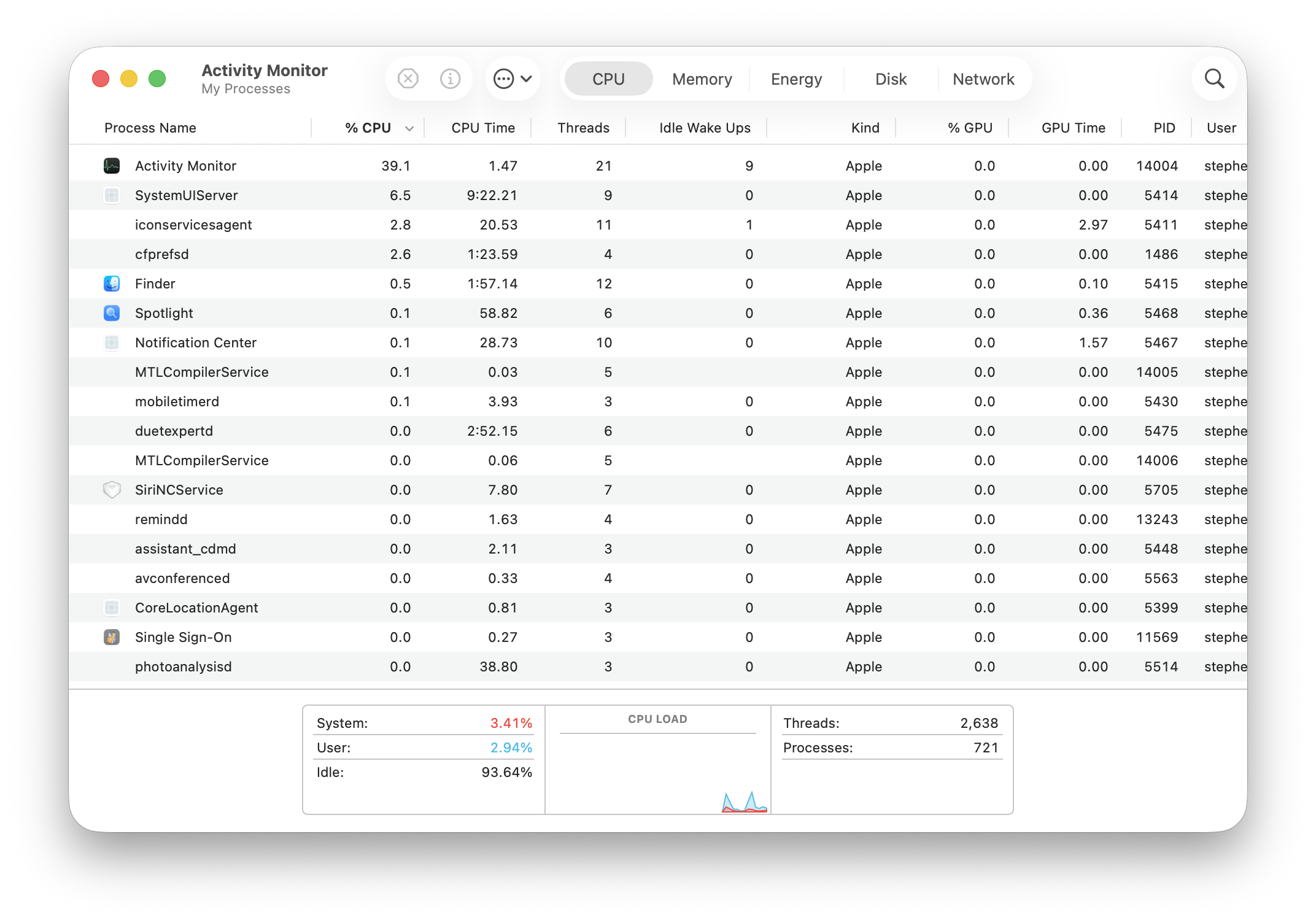
Activity Monitor:
The primary tool for memory management:
Location: Applications > Utilities > Activity Monitor
Shortcut: Cmd+Space, type "Activity Monitor"
Key Features:
- Real-time memory usage by app
- Memory pressure graph
- CPU, Energy, Disk, Network monitoring
- Force quit capabilities
- Process hierarchy view
Pro Tips:
- Sort by Memory column to find heavy users
- Use "View > All Processes" for complete picture
- Check "System Memory" at bottom for statistics
- Monitor over time to identify memory leaks
Third-Party Memory Tools

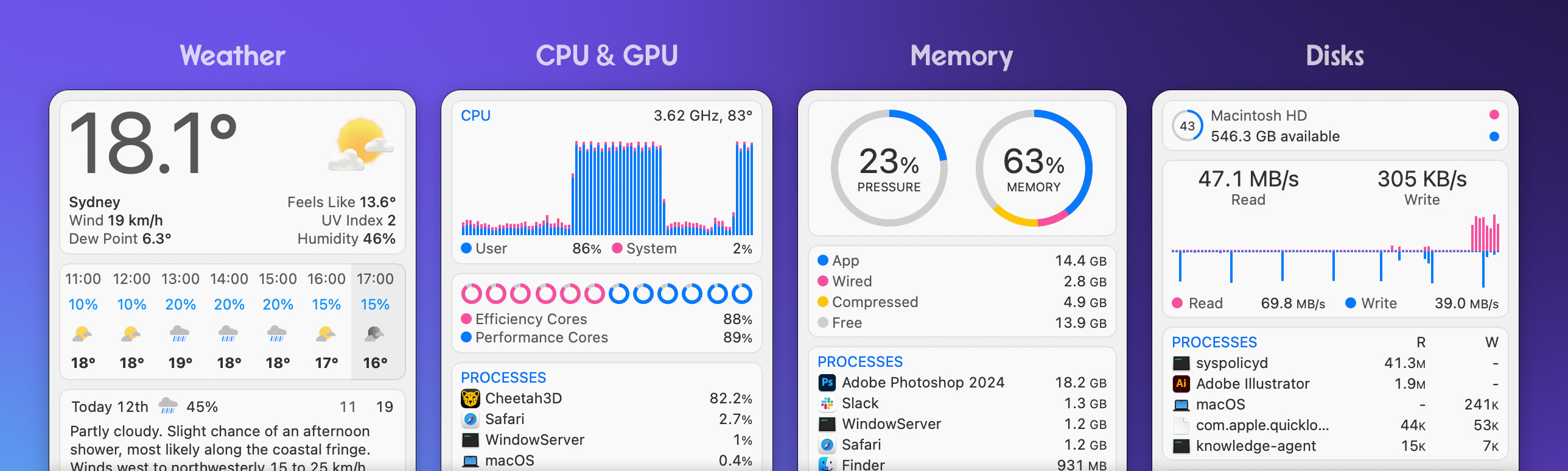
1. Stats (Free - Highly Recommended)
Best Feature: Free, open-source, and comprehensive
Capabilities:
- Menu bar memory usage display
- Real-time monitoring
- CPU, GPU, Network, Battery, Disk
- Customizable notifications
- No ads or subscription
Download: GitHub (Stats App) or [official website]
Verdict: Best free option for 95% of users. Professional-quality monitoring without cost.
2. iStat Menus ($18 - Professional Choice)
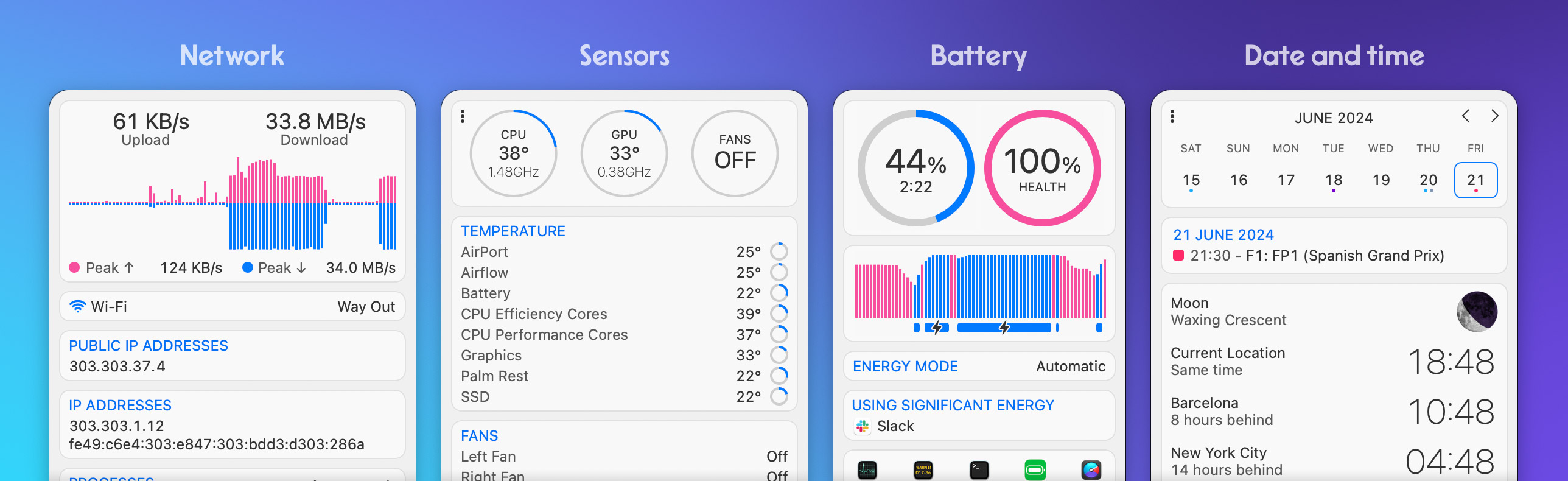
Best Feature: Most comprehensive system monitoring
Capabilities:
- Detailed menu bar widgets
- Historical graphs
- Customizable notification thresholds
- Network monitoring with bandwidth tracking
- Sensor monitoring (temperatures, fan speeds)
- Calendar integration
- Weather integration
Who Should Buy:
- Professional users
- System administrators
- Power users wanting maximum detail
- Those who value polished UI/UX
Verdict: Industry-standard professional tool. Worth $18 if you want the best.
3. CleanMyMac X (Subscription - $40/year)
Best Feature: All-in-one optimization suite
Capabilities:
- One-click memory optimization
- System cleanup and decluttering
- Uninstaller for complete app removal
- Malware protection
- Performance optimization
- Background process management
Who Should Buy:
- Users wanting comprehensive maintenance
- Non-technical users preferring automated solutions
- Those needing cleanup + optimization + security
Verdict: Best for users wanting complete system optimization, not just memory monitoring.
4. Memory Clean 3 (Free/$9 Pro)
Best Feature: Simple, focused on memory only
Capabilities:
- One-click memory freeing
- Menu bar memory display
- Basic monitoring
- Auto-optimization option
Who Should Use:
- Users wanting simplicity
- Those with basic needs only
- People on tight budgets
Verdict: Adequate but Stats is better and also free. Only choose if you want extremely simple interface.
Choosing the Right Tool
Budget-Conscious: Stats (Free) Professional User: iStat Menus ($18 one-time) Comprehensive Solution: CleanMyMac X ($40/year subscription) Simplicity First: Memory Clean 3 (Free)
Our Recommendation: Start with Stats (free). If you need more features after 2-3 months, upgrade to iStat Menus ($18 is excellent value for a tool you'll use daily for years).
Buying Recommendations: Making the Right Choice
The RAM Upgrade Decision Matrix
Apple Silicon Macs cannot be upgraded after purchase. Choose wisely.
Critical Factors:
- Current workflow requirements
- Future software demands (add 50% buffer)
- Planned ownership period (3-5 years typical)
- Budget constraints
- Professional vs casual use
8GB RAM: When It's Acceptable (Barely)
2025 Reality Check: Apple removed 8GB as the base configuration for MacBook Air, signaling it's no longer adequate for modern macOS.
Only Choose 8GB If:
- ✅ Extremely tight budget (save money elsewhere instead)
- ✅ Light use only (web, email, streaming)
- ✅ Plan to upgrade Mac within 1-2 years
- ✅ Secondary/backup computer
- ✅ Will disable Apple Intelligence and Liquid Glass effects
Don't Choose 8GB If:
- ❌ Planning to use Apple Intelligence features
- ❌ Want smooth performance with Liquid Glass UI
- ❌ Need to multitask regularly
- ❌ Use professional software
- ❌ Want 3+ years usable life
Expected Lifespan: 1-2 years before feeling severely constrained
Verdict: Not recommended in 2025. Save money elsewhere, not on RAM.
16GB RAM: The Sweet Spot for Most Users
Why 16GB is Now Standard: Apple's move to 16GB base on MacBook Air acknowledges modern requirements. Independent testing confirms this is the optimal choice for most users.
Ideal User Profiles:
✅ Students:
- Research with many browser tabs
- Document editing
- Presentation creation
- Light coding
- Apple Intelligence homework help
✅ Knowledge Workers:
- Email and productivity apps
- Video conferencing
- Document collaboration
- Light photo editing
- Comfortable multitasking
✅ Casual Creators:
- Photo editing (Lightroom, Photos)
- Basic video editing (iMovie, HD Final Cut)
- Podcast production
- Blog content creation
✅ Enthusiast Gamers:
- Mac gaming performs excellently
- AAA titles run smoothly
- Metal 4 fully supported
- No performance limitations
✅ Light Developers:
- Web development
- iOS app development (small projects)
- Code editors (VS Code, Xcode)
- Some containerization
Performance Expectations:
- Buttery-smooth daily use
- Occasional memory pressure only under heavy load
- Apple Intelligence works great
- Liquid Glass UI runs perfectly
- Solid 3-5 year lifespan
Cost-Benefit Analysis: $200 over 8GB base = Excellent value
- 2x usable memory
- 2-3 years additional lifespan
- Significantly better user experience
- Best $/performance ratio
Verdict: The recommended choice for 80% of Mac buyers in 2025.
32GB RAM: Professional and Future-Proof
When to Choose 32GB:
✅ Professional Creatives:
- 4K video editing with effects
- Professional photo editing (large files)
- Audio production with plugins
- Graphic design (complex Illustrator/Photoshop work)
- 3D modeling (basic Cinema 4D, Blender)
✅ Software Developers:
- Multiple Docker containers
- Large Xcode projects
- Virtual machines for testing
- Full stack development (frontend + backend + DB)
- Building/compiling large codebases
✅ Heavy Multitaskers:
- 15+ browser tabs constantly
- Multiple professional apps simultaneously
- Workflow involves constant app switching
- Never want to quit apps to free memory
✅ Future-Proofers:
- Plan to keep Mac 5+ years
- Want zero compromises
- Anticipate software becoming more demanding
- Rather have too much than too little
The "Headroom" Advantage:
32GB isn't usually faster in benchmarks—it's about never hitting limits:
- With 16GB: Occasionally need to quit apps or restart
- With 32GB: Never think about memory management
- With 16GB: Performance degradation under heavy load
- With 32GB: Consistent performance always
Real-World Performance:
- Xcode compilation: Only 22 seconds faster than 16GB
- 4K video export: Only 6 seconds faster than 16GB
- 8K video export: Only 1 second faster than 16GB
But:
- Never hit memory limits
- Never see memory pressure warnings
- Never forced to quit apps
- Never need to restart for performance
Cost-Benefit Analysis: $400 over 16GB = Good value for professionals
- 2x memory capacity
- Eliminates memory as bottleneck
- Extends useful life significantly
- Professional peace of mind
Verdict: Essential for professional workflows. Highly recommended for anyone who can afford it and plans 5+ year ownership.
64GB+ RAM: Specialist Territory
Who Actually Needs 64GB:
Professional Video Editors:
- 6K-8K RAW footage
- Complex color grading
- Multiple high-resolution streams
- Real-time effects playback
3D Artists:
- Large scene files (Cinema 4D, Blender, Maya)
- High-poly modeling
- Texture-heavy environments
- Real-time rendering
AI/ML Researchers:
- Training models locally
- Large dataset processing
- Running inference at scale
Developers:
- Extensive virtualization
- Multiple OS instances
- Large-scale compilation
- Database development
Music Producers:
- Massive sample libraries (200+ GB)
- Dozens of plugin instances
- Large track counts (100+ tracks)
- Real-time processing
Cost: $800-$1,200 from base configuration
Verdict: Only purchase if your professional workflow demonstrably requires it. For 95% of users, 32GB is the ceiling. Don't buy 64GB "just in case"—it's excessive for almost everyone.
The "Can't Upgrade Later" Factor
Critical Understanding: Apple Silicon unified memory is soldered to the logic board. What you buy is what you have forever.
Upgrade Decision Impact:
Scenario 1: Buy 8GB, regret it
- Solution: Sell Mac (lose 30-40% value) + buy new Mac
- Total cost: $1,500-2,000 loss
- Time: Within 1-2 years likely
Scenario 2: Buy 16GB, adequate
- Solution: Use comfortably for 3-5 years
- Total cost: $200 more than 8GB
- Time: Happy throughout ownership
Scenario 3: Buy 32GB, more than needed
- Solution: Never worry about memory
- Total cost: $400 more than 16GB
- Time: Excellent performance for 5+ years
- "Waste": Maybe $200 over ideal, but peace of mind
Scenario 4: Buy 16GB, wish you had 32GB
- Solution: Deal with occasional limits or upgrade early
- Total cost: Potentially $1,500+ to upgrade early
- Time: Regret after 2-3 years
Strategic Recommendation: If deciding between two RAM tiers, choose the higher one. The regret of too little RAM costs far more than the premium of extra RAM.
Budget Allocation Strategy
Tight Budget ($1,500-1,800):
- Prioritize 16GB RAM over other upgrades
- Choose base M3 chip with 16GB over M3 Pro with 8GB
- Choose 256GB storage with 16GB over 512GB storage with 8GB
- Rationale: RAM affects daily experience more than storage or slightly faster chip
Moderate Budget ($1,800-2,500):
- Start at 16GB minimum
- Consider 32GB if any professional use
- Balance RAM with storage needs
- Rationale: Most users excel with 16GB; professionals benefit from 32GB
Professional Budget ($2,500+):
- Start at 32GB minimum
- Consider 64GB for specialist work
- Don't compromise on RAM
- Rationale: RAM is the bottleneck in professional workflows
Troubleshooting Common RAM Issues
Persistent Memory Pressure Despite Low Usage
Symptoms:
- Activity Monitor shows lots of free memory
- Memory Pressure still yellow or red
- System feels slow despite available RAM
Causes:
- Memory fragmentation
- Swap files not being reclaimed
- Background processes leaking memory
- Kernel memory allocation issues
Solutions:
1. Restart Mac (most effective):
Apple Menu > Restart
Uncheck "Reopen windows"
2. Check for memory leaks:
# In Activity Monitor:
# Sort by Memory
# Look for apps with steadily climbing memory usage
# Example: Calculator at 42 GB (memory leak confirmed)
# Force quit and report to Apple via Feedback Assistant
3. Reset SMC (Intel Macs only):
Shut down Mac
Shift+Control+Option+Power button (hold 10 seconds)
Release and start Mac normally
4. Reset NVRAM (all Macs):
# Apple Silicon:
Shut down > Hold power button until "Loading options"
> Release > Options > Utility > Reset NVRAM

# Intel:
Restart > Hold Cmd+Option+P+R until hear startup sound twice
Applications Crashing with "Out of Memory"
Symptoms:
- Apps suddenly quit
- "Application ran out of memory" error
- Crash logs reference memory allocation failures
Causes:
- Genuine RAM insufficiency for workload
- Memory leaks in the application
- macOS Tahoe memory management bugs
- Corrupted app preferences
Solutions:
1. Update the application:
App Store > Updates
Or check app's website for latest version
Many apps have macOS Tahoe compatibility updates
2. Reset app preferences:
# Example for problematic app:
rm ~/Library/Preferences/com.company.appname.plist
# Restart app (will reset to defaults)
3. Increase app memory allocation (if available):
Right-click app > Get Info > Memory (only for older apps)
Most modern apps don't have this option
4. Use alternative app temporarily:
Pages crashing? Use Google Docs temporarily
Calculator issues? Use Spotlight calculator
Wait for Apple to fix memory leaks
Excessive Swap File Usage
Symptoms:
- Multiple GB of swap used even with free RAM
- Poor performance despite adequate RAM
- Constant disk activity
Causes:
- Memory pressure recently reduced but swap not freed
- Inactive apps pushed to swap preemptively
- Insufficient free storage space
Solutions:
1. Restart Mac (immediate fix):
Restart clears all swap files
Fresh start with zero swap usage
2. Free storage space:
Goal: Maintain 15-20% free storage
Use Storage Management:
  Apple Menu > System Settings > General > Storage
  Review Recommendations
  Delete unnecessary files
3. Monitor disk space:
# Check free space
df -h

# Look for line with "/"
# Example: /dev/disk1s5 250Gi 200Gi 50Gi 80% /
# This shows 50 GB free (20%) - good
4. Disable aggressive swap (advanced, use with caution):
# This is not officially supported
# May cause issues
# Only for advanced users

# Current swap settings
sysctl -a | grep swap

# Note: macOS manages swap automatically
# Manual configuration not recommended
Activity Monitor Showing Incorrect Information
Symptoms:
- Memory usage doesn't add up
- Weird statistics
- Activity Monitor itself using excessive memory
Causes:
- Activity Monitor corruption
- macOS Tahoe display bug
- System cache inaccuracy
Solutions:
1. Quit and restart Activity Monitor:
Force Quit: Cmd+Option+Esc > Activity Monitor > Force Quit
Relaunch: Cmd+Space > Activity Monitor
2. Use Terminal for accurate info:
# Real-time memory stats
vm_stat

# Process memory usage
top -o rsize

# System-wide memory
sysctl vm.stats
3. Check Console for errors:
Applications > Utilities > Console
Search for "memory" or "vm"
Look for error messages
Report persistent issues to Apple
Conclusion: Optimizing for Your Needs
macOS Tahoe 26 introduces stunning visual improvements and powerful AI capabilities, but these innovations demand careful memory management. Whether you're dealing with the current memory leak crisis, optimizing an 8GB Mac, or deciding between 16GB and 32GB for a new purchase, this guide provides the strategies you need.
Key Takeaways
Immediate Action Items:
- ✅ Update to latest macOS version - Apple continues to address memory leaks
- ✅ Restart weekly - Clears accumulated memory issues
- ✅ Disable Liquid Glass transparency if you have 8GB RAM
- ✅ Monitor memory pressure in Activity Monitor regularly
- ✅ Use
sudo purgewhen experiencing slowdowns
Optimization Priorities:
- 8GB RAM users: Disable Apple Intelligence, reduce transparency, restart frequently
- 16GB RAM users: Optimize selectively, focus on heavy apps
- 32GB+ RAM users: Enjoy full features, minimal optimization needed
Purchasing Decisions:
- Don't buy 8GB in 2025 - It's inadequate for macOS Tahoe
- 16GB is the sweet spot - Best value for 80% of users
- 32GB for professionals - Essential if workflow demands it
- 64GB+ for specialists - Only if demonstrable need exists
Long-term Strategy:
- Prioritize RAM over storage or chip upgrades
- Remember: RAM cannot be upgraded later
- Choose one tier higher if uncertain
- Factor in 5-year ownership when deciding
Memory Leak Crisis: Expected Resolution
Apple is aware of the memory leak issues affecting Calculator, Pages, Safari, and system daemons. Based on historical patterns:
Expected Timeline:
- macOS 26.1 (November 2025): Partial fixes
- macOS 26.2 (December 2025): Major improvements
- macOS 26.3 (January 2026): Complete resolution
Until Then: Restart frequently, use workarounds provided, and monitor Apple's release notes for each update.
Related Resources
For more macOS Tahoe optimization guides, explore these resources:
- macOS Tahoe Performance Benchmarks - Complete performance analysis across hardware
- macOS Tahoe Battery Drain Complete Fix Guide - Solve battery life issues
- macOS Tahoe Storage Management & Optimization Guide - Free up disk space
- macOS Tahoe Troubleshooting Guide - Solve common problems
- macOS Tahoe Complete Guide 2025 - Comprehensive feature overview
Final Thoughts
Memory management in macOS Tahoe is more critical than ever before. The combination of Liquid Glass UI, Apple Intelligence, and current memory leaks creates challenges even for well-configured systems. By understanding how macOS manages memory, optimizing your settings appropriately, and choosing the right RAM configuration for your needs, you can ensure excellent performance and longevity from your Mac.
The most important decision you'll make is choosing adequate RAM when purchasing a new Mac. With Apple Silicon's soldered memory, there are no second chances. Invest wisely in RAM—it's the foundation of a smooth, productive Mac experience for years to come.
Having persistent memory issues? Check our complete troubleshooting guide for solutions to common macOS Tahoe problems.