Mac Disk Full With Nothing on It? Check Root's Log Folder
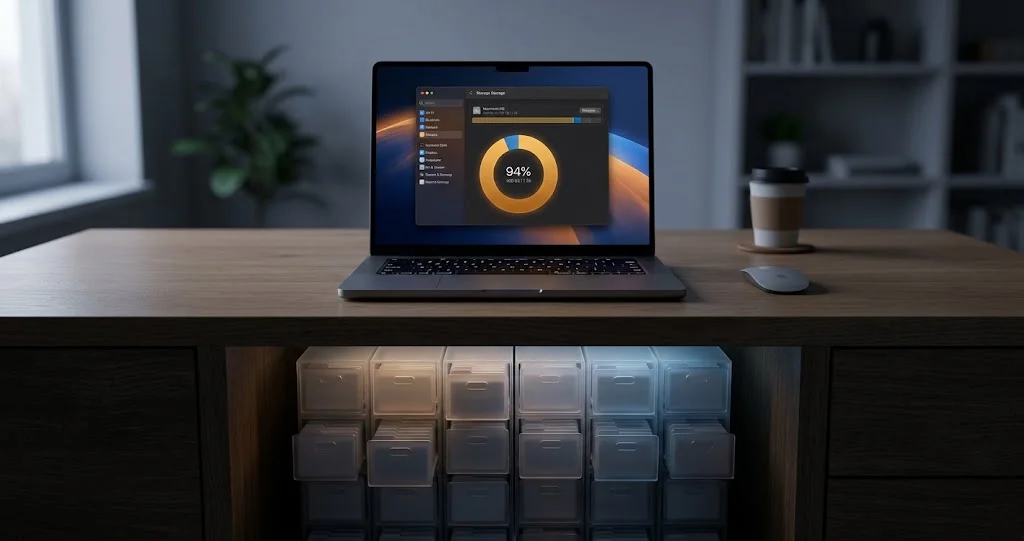
Storage tools miss tens of gigabytes hidden in /private/var/root. Here is how to find runaway RTCReporting logs, and the sync bug that usually causes them.
Here is a storage problem that defeats every tool most people reach for.
Your Mac says the disk is nearly full. You open a storage analyser and add up what it found — and the total comes to tens of gigabytes less than macOS says is in use. Disk Utility reports no snapshots. You delete apps, you offload photos, you empty the Trash, and the number barely moves. Restarting helps for an hour, then the space disappears again.
The files are real. Your tools cannot see them because they live in /private/var/root — the home directory of the root account — and every one of those tools is running as you.
On the Macs where this bites hardest, the bulk of it is one thing: log files written by a system daemon called rtcreportingd, in quantities that reach tens of gigabytes. Michael Tsai documented a case on 21 August 2026 where /private/var/root/Library/Logs alone was consuming 74 GB on an M4 MacBook Air, and where the folder climbed back to 27 GB within a single day of being cleared.
The logs are not the disease. They are what a stuck daemon looks like when nobody is reading the thermometer. This article covers how to find the space, how to reclaim it without the classic mistake that wastes the whole exercise, and how to find the process that is actually generating it.
Key Takeaways
/private/var/rootis invisible to anything running as your user. We confirmed on macOS 26.5.2 thatls /private/var/rootreturnsPermission denied. Storage analysers, Finder and Disk Utility's usage figures all miss what is inside it.rtcreportingdis a real Apple system daemon that runs as root. We verified its launchd job declaresUserName => root, which is exactly why its logs land in root's home directory rather than yours.- Reported sizes reach tens of gigabytes, and regrow fast. 74 GB in a documented case, back to 27 GB within a day of deletion, because the underlying cause was still running.
- The classic mistake wastes the whole job. Deleting files with a GUI tool running under
sudomoves them to root's invisible Trash. Space is not reclaimed. You have to delete immediately, or empty root's Trash. - Look for a stuck sync client. In the documented case
rtcreportingdandfileproviderdwere each pinned near 100% CPU, and quitting Dropbox stopped both.fileproviderdis the macOS process that hosts cloud-storage File Provider extensions. - Do not go deleting things in
/private/var/rootat random. Logs and caches are safe to remove. Other things there are not, and this article is specific about which is which.
Why Your Storage Tools Cannot See It
Before the fix, the mechanism — because understanding it is what stops you chasing the wrong thing next time.
Root Has a Home Directory, and Daemons Use It
On macOS the root account's home directory is /private/var/root. Most people assume it is essentially empty and only touched when you run Terminal from macOS Recovery. That has not been true for years. System daemons that run as root and want to store state, caches or logs write them there, in the same Library layout your own home directory uses:
/private/var/root/Library/Logs
/private/var/root/Library/Caches
You can confirm the directory is off limits to you in one command. On a Mac where Terminal does not have elevated privileges:
ls /private/var/rootWe ran exactly this on macOS 26.5.2 (build 25F84) and got:
ls: /private/var/root: Permission deniedThat is a plain Unix permission denial — root's home is mode-restricted to root. It is not a TCC privacy protection and it is not something Full Disk Access fixes. A storage analyser you launched from the Dock is running as you, so it walks the filesystem as you, and everything under that directory is a hole in its map.
This Is Why the Numbers Disagree
The symptom people describe is "my storage tool's totals do not add up", and this is the reason. In the documented case, OmniDiskSweeper's folder totals came to roughly 90 GB less than macOS reported as used.
It is worth separating this from the other reasons Mac free-space numbers disagree, because there are several and only one of them is this bug.
Howard Oakley laid out the general arithmetic on 21 August 2026, and the numbers from his own Mac mini make the point:
| Source | Reported as used on the same volume |
|---|---|
diskutil apfs list container difference | 837.101 GB |
| Sum of per-volume Capacity Consumed | 837.027 GB |
| Finder's Get Info on the volume | 826.67 GB |
| Disk Utility | 814.03 GB |
Four tools, four numbers, a spread of about 23 GB, and nothing wrong. The differences come from container-versus-volume accounting, purgeable space, and APFS special-file behaviour:
- Container versus volume. An APFS container holds several volumes that share free space. "Free space on Macintosh HD" and "free space in the container" are different questions with different answers.
- Purgeable space. macOS marks some content as removable-on-demand — caches, some snapshots, some downloaded content. Disk Utility's own Help book says "you can't manually remove the files that are designated purgeable, but macOS removes them as space is required." Oakley measured 47.04 GB purgeable on his Data volume.
- Special files. APFS clone files share storage until they diverge; sparse files store only their non-null data; some system files are compressed; dataless files hold their data in the cloud and materialise on demand. Free space accounting uses what is on disk now.
None of that produces a persistent, growing, unexplained 90 GB. If your gap is small and stable, it is normal accounting. If it is large and grows while the Mac sits idle, something is writing files you cannot see.
For the more common storage confusions — System Data that will not shrink, snapshots that will not release — we cover those separately in System Data storage huge on Mac and the macOS storage management guide. Check those first. This article is about the case where those explanations do not fit.
What rtcreportingd Actually Is
Let us be honest about the limits here, because the internet is about to fill up with confident explanations of a daemon Apple has never documented.
What we verified directly, on macOS 26.5.2 (build 25F84):
The executable exists at /usr/libexec/rtcreportingd and is about 1.45 MB. Its launchd job is at /System/Library/LaunchDaemons/com.apple.rtcreportingd.plist, and reads:
{
  "EnablePressuredExit" => true
  "EnableTransactions" => true
  "Label" => "com.apple.rtcreportingd"
  "MachServices" => {
    "com.apple.rtcreportingd" => true
  }
  "ProgramArguments" => [
    0 => "/usr/libexec/rtcreportingd"
  ]
  "UserName" => "root"
}
Check it on your own Mac — the plist is world-readable:
plutil -p /System/Library/LaunchDaemons/com.apple.rtcreportingd.plistUserName => root is the whole explanation for where the logs go. A daemon running as root that writes to ~/Library/Logs writes to /private/var/root/Library/Logs. There is nothing exotic about it.
The binary is written in Swift, and its internal class names are visible with strings. They include BackendHTTP, TransparencyLog, StorebagCache, StorebagCoordinator, SessionCoordinator, XPCActivity and — note this one — CacheCleanupActivity. Its Mach service names include com.apple.rtcreporting, com.apple.rtcreporting.pathmonitor and com.apple.rtcreportingd.storebag.
What we are not going to tell you is what "RTC" stands for or precisely what the daemon reports on. Apple does not document it, and we are not going to invent an expansion of an acronym and present it as fact. What the class names support is a modest description: it is a reporting or telemetry service that talks to an Apple backend over HTTP, caches state locally, monitors network path availability, and has a scheduled activity for cleaning up its own cache.
That last detail is the interesting one. The daemon has cleanup logic. When its logs grow to tens of gigabytes, the reasonable reading is not "Apple forgot to rotate logs" but "something is generating events faster than the daemon can process and clean up after them". Which points at whatever is generating the events.
To be clear about the boundary: that is an inference from class names, not a statement about Apple's implementation. Treat it as a hypothesis that happens to fit the observed behaviour.
Finding the Space
You need sudo for all of this, and you should read each command before running it.
1. Confirm the Gap Exists
First, what macOS thinks is used:
df -h / /System/Volumes/DataOn a modern Mac you get two lines, because the system volume is a sealed read-only snapshot and your data lives on a separate volume in the same container. On our test Mac:
Filesystem        Size    Used   Avail Capacity  Mounted on
/dev/disk3s1s1   926Gi    12Gi   331Gi     4%    /
/dev/disk3s5     926Gi   568Gi   331Gi    64%    /System/Volumes/Data
Note that both report the same Size and Avail — that is the shared container free space, not a per-volume quota. This is the container-versus-volume distinction from earlier, made concrete.
Then check snapshots, so you can rule them out:
diskutil apfs listSnapshots /System/Volumes/DataAnd the container view:
diskutil apfs listIf snapshots are minimal and the container's Capacity In Use is far above what your storage analyser found, you have an invisible-files problem.
2. Measure Root's Home Directory
This is the command that finds it:
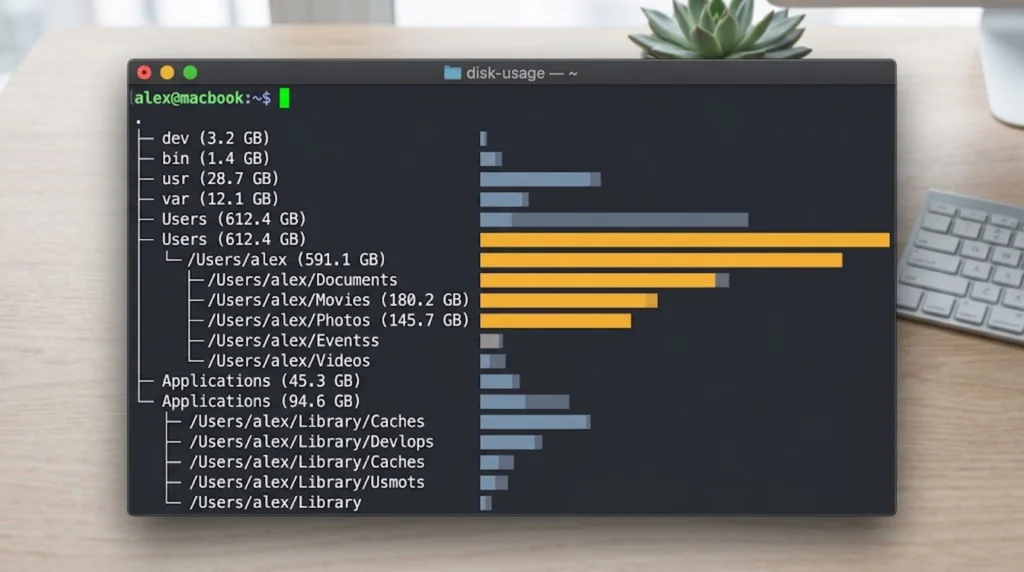
sudo du -h -d 2 /private/var/root/-d 2 limits the depth to two levels, which is enough to see whether Library/Logs or Library/Caches is the culprit without waiting for a full traversal. Expect it to take a minute or two on a machine with a large offender.
For a sorted view of the worst offenders one level deeper:
sudo du -h -d 3 /private/var/root/Library | sort -h | tail -20On a healthy Mac these totals are small — megabytes, not gigabytes. If /private/var/root/Library/Logs comes back with a number that has "G" after it and more than one digit in front, that is your missing space.
3. See What Is Inside
Before deleting anything, look:
sudo ls -la /private/var/root/Library/Logs
sudo du -h -d 1 /private/var/root/Library/Logs | sort -h | tail
In the documented case the contents were "almost entirely from RTCReporting". If yours is dominated by something else, that changes what you should do — the diagnostic approach in this article still applies, but the culprit will be a different subsystem.
4. A GUI Alternative
If you would rather see this in a window, OmniDiskSweeper is free and is what surfaced the problem in the original report. The important part is that you must relaunch it with elevated privileges for it to see root's home directory. Launched normally it will show you the same incomplete picture as everything else.
Our storage analyser roundup covers the options, but be aware that the same limitation applies to all of them: if the tool is not running as root, this space is invisible to it.
Reclaiming It — and the Mistake That Wastes the Whole Job
Here is the trap, and it is a good one.
If you delete these files with a GUI tool that is running under sudo, the tool does what it always does: it moves them to the Trash. But because the process is running as root, that is root's Trash, at /private/var/root/.Trash, which does not appear in your Dock and which you will never think to empty. The files are still on disk. Your free space does not change. You conclude the deletion did not work.
In OmniDiskSweeper specifically, hold Option to turn Delete into Delete Immediately.
From Terminal, delete the log contents directly:
sudo rm -rf /private/var/root/Library/Logs/*Read that command before you run it. It removes the contents of root's Logs directory and nothing else. Do not shorten the path. Do not add a space before the slash.
Then check whether anything is sitting in root's Trash from a previous attempt:
sudo du -sh /private/var/root/.TrashAnd if there is:
sudo rm -rf /private/var/root/.Trash/*Caches in root's home are also generally safe to clear — they are, by definition, regenerable:
sudo du -h -d 1 /private/var/root/Library/Caches | sort -h | tailWhat not to touch. Do not delete /private/var/root itself. Do not delete /private/var/root/Library wholesale. Do not go removing keychains, preferences or anything you do not recognise. Logs and caches are the safe categories; everything else in there belongs to a system component that put it there for a reason.
Restart afterwards. Then re-check with df -h to confirm the space actually came back.
Now Find What Is Causing It
If you stop at deletion, the space comes back and then leaves again. In the documented case it was back to 5 GB within minutes of a restart and 27 GB within a day.
Watch the CPU
Open Activity Monitor, sort by % CPU, and look for two processes:
rtcreportingd— the daemon writing the logsfileproviderd— the macOS process that hosts cloud-storage File Provider extensions
In the documented case both were pinned near 100% CPU continuously, on an idle Mac.
From Terminal:
ps -Ao pid,pcpu,comm | grep -E 'rtcreportingd|fileproviderd'Both of these processes exist and run on any healthy Mac — we confirmed both running on our test machine, which has no storage problem at all. Their presence is normal. Their sustained CPU use is not. A few percent while a sync is in progress is expected. Sitting at 90–100% with the Mac untouched is the signal.
Watch the Logs Grow
The most direct confirmation is to measure twice:
sudo du -sh /private/var/root/Library/LogsWait ten minutes with the Mac idle, and run it again. On a healthy Mac the number does not move meaningfully. If it climbs measurably while you are doing nothing, something is in a loop.
Suspect Cloud Sync First
fileproviderd is the giveaway. It is the system process that hosts File Provider extensions — the modern mechanism that Dropbox, OneDrive, Google Drive, Box and iCloud Drive all use to present cloud files in Finder. If it is burning CPU continuously, one of those extensions is stuck.
In the documented case the client was Dropbox, on a Mac where it had been misbehaving for about a year — not keeping files offline as configured, and appearing to sync constantly when nothing had changed. Quitting Dropbox stopped both the CPU use and the log growth immediately.
To test this on your own Mac, quit your sync clients one at a time and watch. Quit the client completely — menu bar icon, Quit — rather than pausing syncing, because a paused extension may still be loaded.
# after quitting a sync client, check whether the load dropped
ps -Ao pid,pcpu,comm | grep -E 'rtcreportingd|fileproviderd'
If quitting one client drops both processes to idle, you have found it.
What to Do About the Sync Client
Options, roughly in order of effort:
- Update it. File Provider extension bugs are common and frequently fixed. Check for an update before anything else.
- Sign out and back in. This rebuilds the extension's local state and resolves a surprising number of stuck-sync cases.
- Remove and reinstall the client. More disruptive but more thorough.
- Move the data elsewhere. In the documented case the outcome was migration to iCloud Drive, after Dropbox proved unable to reliably download files for the move — the author ended up downloading the folder from Dropbox's web interface instead. iCloud Drive then "uploaded everything quickly and then settled into a state of no CPU use."
That last point is worth flagging honestly: migrating between cloud providers when the source client is broken is genuinely painful, and the web interface may be your most reliable export path. Our iCloud Drive guide covers the destination side, and if iCloud Drive itself is misbehaving, the iCloud Drive auto-download bug is a known separate issue.
We are not saying Dropbox is uniquely at fault. It is the client in the documented case. Any File Provider extension can get stuck, and the diagnostic is the same whichever one you use.
The Other Places Storage Hides From You
Root's home directory is the one almost nobody checks, but it is not the only place a user-level tool comes up short. If your gap is not in /private/var/root, work through these before concluding the numbers are lying.
Other daemons' root-owned data. /private/var/root is where root's home lives, but system components also write under /private/var/db, /private/var/folders and /Library/Logs. Measure them the same way:
sudo du -h -d 1 /private/var/db | sort -h | tail
sudo du -h -d 1 /Library/Logs | sort -h | tail
sudo du -sh /private/var/folders
/private/var/folders holds per-user temporary and cache containers and can legitimately reach several gigabytes. It is managed by macOS and generally should be left alone; a restart clears the volatile parts.
Local Time Machine snapshots. These are the most-blamed and least-often-guilty cause. Check rather than assume:
tmutil listlocalsnapshots /
diskutil apfs listSnapshots /System/Volumes/Data
If snapshots genuinely are the problem, macOS thins them automatically under space pressure, and the deeper cases are covered in our Time Machine troubleshooting guide.
Other users' home directories. Obvious once stated, invisible in practice — a second account on the Mac with 200 GB of video is not something your storage tool will show you while running as you. sudo du -h -d 1 /Users answers it in one line.
Files held open by a running process. Space that was deleted but not released, because a process still has the file descriptor. This shows up as a gap that vanishes after a restart:
sudo lsof / 2>/dev/null | grep -i deleted | headMail's local store, iOS device backups, and Xcode. The three classic large-and-forgotten directories on a developer's or a heavy Mail user's Mac:
du -sh ~/Library/Mail
du -sh ~/Library/Application\ Support/MobileSync/Backup
du -sh ~/Library/Developer/Xcode/{DerivedData,iOS\ DeviceSupport,Archives} 2>/dev/null
These are all readable as your own user, so a storage analyser will find them — they just get lost in a long list. Worth checking before you escalate to sudo.
Cloud placeholder files that materialised. If you use a "keep files online only" setting in any sync client, a bug or a full-text search can quietly download everything. That is the same class of failure as the one in this article and usually shows up as steady growth in the sync folder itself.
How Common Is This?
Honest answer: we do not know, and neither does anyone else publishing about it.
What exists in the public record is a first-hand account with specific numbers and a specific fix, an Apple Support Community thread about RTCReporting storage, and a Reddit thread from users asking what was taking up their storage. That is enough to establish the problem is real and reproducible, and not enough to say what proportion of Macs are affected.
What we can say from our own checking: rtcreportingd runs on a stock Mac with no storage problem, its logs there are unremarkable, and the daemon has cleanup logic that evidently works most of the time. This is a failure mode, not a default behaviour. If your Mac's storage adds up, you have nothing to fix.
Apple has published no support document about this, has not acknowledged it, and has not shipped a documented fix. If you hit it, filing feedback with Apple is worth the five minutes — an unacknowledged issue stays unacknowledged.
Troubleshooting Common Issues
sudo du is taking forever
That is normal on a large or heavily fragmented directory tree. Use -d 1 first to find which top-level folder is large, then descend only into that one. Avoid running du across the whole disk when you already know the directory you care about.
I deleted the logs but free space did not change
The Trash problem. Check sudo du -sh /private/var/root/.Trash and empty it with sudo rm -rf /private/var/root/.Trash/*. This catches almost everyone who used a GUI tool.
The second possibility is that a process still has the deleted files open, in which case the space is not released until the process exits. Restart the Mac and check again.
The space came back within a day
Expected, if you have not found the cause. Deleting the logs treats the symptom. Go to the Activity Monitor step and find what is looping.
rtcreportingd is using CPU but I have no cloud sync clients
Then the trigger is something else. Sort Activity Monitor by CPU and look at what else is busy. Check the unified log for the daemon's own activity:
log show --predicate 'process == "rtcreportingd"' --last 1h --info | head -50Be aware that unified log queries only return what was actually written, and log data ages out — a query over a long window can legitimately return nothing.
Disk Utility First Aid says the disk is fine
It will. This is not filesystem corruption. First Aid checks metadata consistency; a directory full of large, valid files is perfectly consistent.
Can I just disable rtcreportingd?
We would not. It is an Apple system daemon on a Mac with System Integrity Protection, and disabling system launch daemons to work around a symptom tends to produce a second, less obvious problem later. Fix the process that is driving it instead. If the daemon is misbehaving with no identifiable trigger, that is an Apple bug worth reporting rather than one to route around.
My Mac is running out of space and I need room now
Immediate, safe wins while you diagnose: empty your own Trash, empty root's Trash as above, delete the root Logs contents, and check sudo du -h -d 1 /private/var/root/Library/Caches. Between them those often free enough to make the Mac usable again while you find the cause. Our guide to update failures caused by insufficient space covers what to do if this is blocking a macOS update specifically.
FAQ
What is /private/var/root?
It is the home directory of the root account on macOS. It is readable only by root, which is why tools running as your user cannot see inside it. System daemons that run as root store logs, caches and state there, using the same Library structure as your own home folder.
Why can't Finder or my storage app see these files?
Because they run as you, and the directory's Unix permissions exclude your user. This is not a privacy protection that Full Disk Access can lift — it is ordinary file permissions. A GUI tool must be relaunched with elevated privileges to walk that directory.
What is rtcreportingd?
An Apple system daemon at /usr/libexec/rtcreportingd, launched by com.apple.rtcreportingd and running as root. Apple does not document it. Its internal structure indicates a reporting service that communicates with an Apple backend over HTTP and maintains a local cache. It exists on healthy Macs and is not itself a problem.
Is it malware?
No. It is an Apple binary in /usr/libexec, launched by a launch daemon inside the sealed system volume. You can confirm its signature:
codesign -dv --verbose=2 /usr/libexec/rtcreportingdHow much space is normal for root's Logs folder?
On a healthy Mac, small — this is not a folder you should be able to notice. If sudo du -sh /private/var/root/Library/Logs returns anything in double-digit gigabytes, that is the problem. There is no official Apple threshold; the practical test is whether it grows while the Mac is idle.
Will a Mac cleaning app fix this?
Almost certainly not, for the same reason your storage analyser missed it: unless the cleaner escalates privileges and specifically walks root's home directory, it cannot see the files. And even a cleaner that removed them would not stop them coming back, because the cause is a looping process rather than accumulated junk.
Does this affect only certain Macs or macOS versions?
There is not enough public data to say. The documented case was an M4 MacBook Air. We verified the daemon and the permission behaviour on macOS 26.5.2. Nothing about the mechanism is specific to a chip or a macOS version — root has had a home directory for as long as macOS has existed.
Should I report this to Apple?
Yes, if you hit it. Include the output of sudo du -h -d 2 /private/var/root/, the CPU figures for rtcreportingd and fileproviderd, and which sync client stopping resolved it. Apple has published nothing about this, and specific reports are how that changes.
Conclusion
The reason this problem is so frustrating is that every instinct you have about Mac storage is wrong for it. The files are not in a folder you can find. They are not snapshots. They are not System Data in the sense the Storage pane means. Deleting apps does not help, the numbers do not add up, and the one tool that would show you is the one you did not think to run with sudo.
Once you know where to look it is a ten-minute job: measure /private/var/root with du, delete the logs, empty root's Trash, and then — the part that actually matters — watch Activity Monitor until you find the process that is filling them back up. Nine times out of ten, given fileproviderd sitting next to rtcreportingd in the CPU list, that is a cloud sync client that has been quietly broken for months.
And if your Mac's storage numbers disagree by a few gigabytes rather than ninety, relax. That is just APFS being APFS, and Howard Oakley's arithmetic explains all of it.
Related reading: System Data storage huge on Mac and won't shrink · macOS storage management and optimization · Mac storage analyzer tools compared · iCloud Drive complete guide · macOS update stuck: not enough space
Sources: Michael Tsai, "Huge RTCReporting Logs and Dropbox", 21 August 2026 · The Eclectic Light Company, "The arithmetic of free space", 21 August 2026 · Apple Support Community thread 254838127 (RTCReporting) · Apple, Disk Utility Help (purgeable space) · Local verification on macOS 26.5.2 (build 25F84), 22 August 2026, using ls, plutil, strings, df, and ps.