iMessage Not Syncing Between Mac and iPhone? Tahoe Fix
iMessage messages not syncing between your Mac and iPhone on macOS Tahoe? Fix Send & Receive, Messages in iCloud, and chat.db with this complete guide.
You sent a message from your iPhone twenty minutes ago, you walk over to your Mac, open Messages, and the conversation is frozen in 2024. Or the inverse: you fired off a reply from your MacBook in a meeting, your iPhone never lit up, and now your friend thinks you ghosted them. iMessage not syncing between Mac and iPhone is one of the most persistent friction points in the entire Apple ecosystem, and on macOS Tahoe 26.5 / 26.5.1 it has taken on a new flavor because of how Apple has restructured the underlying Messages-in-iCloud pipeline and the Apple Account migration that shipped earlier in the Tahoe cycle.
This guide walks the entire decision tree end to end. We will isolate which of the four distinct failure modes you are actually hitting, then apply the specific fix for that mode — instead of the usual "sign out and sign back in" advice that solves the problem maybe one time in four and breaks something else the other three. By the end you should know exactly why your devices stopped agreeing, and exactly what to do about it.
Key Takeaways
- There are four distinct failure modes, not one: Send & Receive mismatch, Messages in iCloud stalled, local
chat.dbcorruption on the Mac, and Apple Account drift between devices. The fix differs for each, so diagnosing the right mode first saves hours. - Send & Receive must match across devices — same Apple ID, same checked addresses, and the same "Start new conversations from" identity. A mismatch here is the single most common cause of iMessage not syncing on Tahoe.
- Messages in iCloud is the canonical sync mechanism as of macOS Tahoe. If it is off on either device, the Mac and iPhone will diverge over time even if both are signed in.
- Local
chat.dbcorruption on the Mac side is rare but real, especially after forced shutdowns or a botched migration assistant import. A controlled reset (not a delete) fixes it. - Green-bubble SMS messages from Android contacts are not a sync bug — they will not appear on your Mac unless SMS forwarding is on, and even then they are a different transport than iMessage.
How iMessage Sync Actually Works on macOS Tahoe
Before we touch settings, you need a working mental model of the pipeline. iMessage on Tahoe rides on three layers stacked on top of each other, and a break in any single layer looks identical from the user's seat: messages stop syncing. The layers are not interchangeable.
The first layer is the identity layer. Every iMessage conversation is keyed to an Apple ID and a set of "reachable at" addresses (phone numbers and email addresses verified against that Apple ID). When you send an iMessage from your Mac, the Apple Push Notification service routes it based on the recipient's reachable addresses and your own outgoing identity. If your Mac and iPhone disagree about which identity you are using — different Apple IDs, or the same Apple ID but a different set of checked addresses — they end up on different "sides" of the conversation. The iPhone might think the conversation belongs to your phone number, while the Mac thinks it belongs to your iCloud email, and neither side will mirror the other.
The second layer is the delivery layer, which is APNs (Apple Push Notification service) itself. When you send a message, Apple's servers fan it out to every device registered to your Apple ID that is currently reachable. This is why a fresh message can arrive on your Mac and iPhone simultaneously even with Messages in iCloud turned off. The delivery layer does not, however, replay history. It only delivers messages in real time.
The third layer is the sync layer, which is Messages in iCloud. This is what makes your message history, deletions, pinned conversations, and attachments converge across all your devices. Without Messages in iCloud, your Mac sees only what arrived via APNs while the Mac was awake, signed in, and online. If you bought a new MacBook last month, it would have no idea your iPhone has been in a five-year text thread with your sister — there is no history to deliver because the delivery layer does not store any.
On Tahoe specifically, Apple tightened the coupling between Messages in iCloud and the Advanced Data Protection flow. If you toggle ADP, Messages in iCloud has to re-key its CloudKit container, and during that re-keying window (which can last a few hours on a busy account) sync genuinely is paused. This is a normal, expected behavior, but it looks identical to a bug.
The Apple Account Drift Problem
The Apple Account (formerly "Apple ID") migration that landed mid-Tahoe introduced a subtle new failure mode. When Apple renamed the construct from Apple ID to Apple Account and consolidated some of the back-end identity tables, a small fraction of accounts ended up with what looks like one account but is actually two stitched-together records. Your Mac might be signed into the post-migration record while your iPhone is still pointing at the legacy record, or vice versa. On the surface both devices say "Signed in as [email protected]" and look identical. Underneath, they are talking to different identity endpoints.
You can usually spot this by opening System Settings → [Your Name] → Sign-In & Security on the Mac and comparing the displayed Apple Account number to the one shown on the iPhone under Settings → [Your Name] → Sign-In & Security. They should be identical strings of digits. If they differ — even by one digit — you have account drift and no amount of toggling Send & Receive will fix the underlying mismatch. You need to sign out of one device fully (System Settings → Apple Account → Sign Out, then restart), then sign back in.
Fast Diagnostic Decision Tree
Before you start mashing toggles, run this five-question triage. It takes about ninety seconds and will tell you which of the four failure modes you are in.
Question 1: Are new messages from the last hour appearing on both devices?
- If yes, but older history is divergent → you are in Mode B (Messages in iCloud). The delivery layer is healthy, but the sync layer is stalled or never finished its initial backfill.
- If no, only one device receives new messages → continue to Question 2.
Question 2: When you send a new iMessage from the Mac, does it arrive on the iPhone at all (in any conversation)?
- If no to both → you are in Mode A (Send & Receive mismatch) or Mode D (Apple Account drift). The Mac is not registering as a valid endpoint for your identity.
- If yes, but in a separate "new" thread instead of the existing conversation → you are in Mode A. Your "Start new conversations from" address on the Mac differs from what the iPhone uses.
Question 3: Does the Messages app on the Mac launch normally, or does it spinning-beachball, hang, or crash within thirty seconds?
- If it hangs, crashes, or shows empty conversation cells with broken thumbnails → you are likely in Mode C (
chat.dbcorruption).
Question 4: Did you recently change your iPhone SIM, switch to eSIM, change carriers, or port your phone number?
- If yes → very likely Mode A. Your phone number needs to be re-verified against your Apple ID before it will sync as a "reachable at" address.
Question 5: Did you recently sign out and back in on either device, restore from a backup, or run Migration Assistant in the last week?
- If yes → check for Mode D (Apple Account drift) first. Migration events frequently leave devices on slightly different identity records.
Now jump to the matching section below.
Mode A: Send & Receive Address Mismatch
This is the single most common cause, and the fix is almost entirely in two settings panes — one on each device.
Check Send & Receive on Your Mac
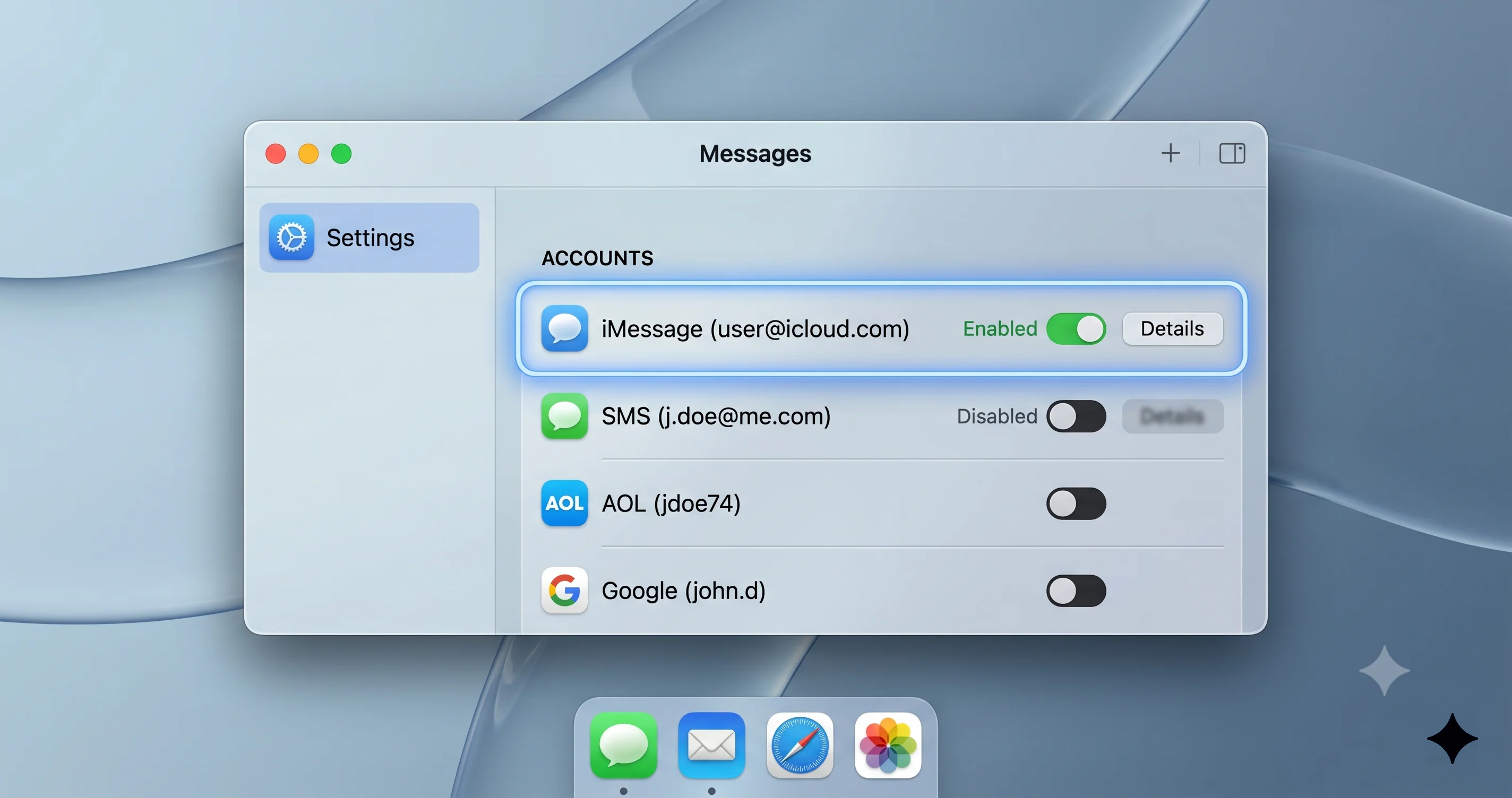
Open Messages on your Mac. From the menu bar choose Messages → Settings → iMessage. You should see, at minimum:
- Apple Account: This shows the Apple ID logged into iMessage. Note the exact email shown here — this is critical.
- You can be reached for messages at: A list of addresses with checkboxes. This should include your phone number (the one tied to your iPhone) and one or more email addresses.
- Start new conversations from: A dropdown that determines your outgoing identity. Whatever is selected here is what your recipients see as the "From" address.
- Enable Messages in iCloud: A checkbox we will return to in Mode B.
Now write down three things: the Apple Account email, the full set of checked "reachable at" addresses, and the "Start new conversations from" value.
Check Send & Receive on Your iPhone
On the iPhone, open Settings → Apps → Messages → Send & Receive. (On older Tahoe-paired iOS versions this might be Settings → Messages → Send & Receive without the Apps intermediate level — both routes land in the same place.)
You should see:
- Apple ID (still labeled this way on iOS for historical reasons, but it is the same Apple Account).
- You can be reached by iMessage at: a list of addresses with checkmarks.
- Start new conversations from: the outgoing identity dropdown.
Compare each line to what you wrote down from the Mac. They should match exactly, including the "Start new conversations from" value.
Why "Start new conversations from" Matters So Much
This is the setting users overlook the most. Suppose your iPhone is set to start new conversations from your phone number, and your Mac is set to start new conversations from your @icloud.com email. When you message a friend from the iPhone, the conversation is keyed to your phone number on Apple's servers. When you message that same friend later from the Mac, the Mac creates what looks like a separate conversation keyed to your email address. The friend sees both messages, but on your side the two devices show two different threads. From the user's perspective it looks like the Mac and iPhone are not syncing — but technically they are, they just disagree about which conversation is "the" conversation.
Fix it by setting the same value on both devices. Most people want to standardize on the phone number, because that is what their recipients usually have saved in contacts.
The "Phone Number Not Reachable" Issue
After a SIM swap, eSIM transfer, carrier port, or even a long period without cellular service, your phone number can quietly fall off the "reachable at" list on one or both devices. iOS usually re-registers automatically, but the Mac sometimes does not pick up the change for hours or days.
To force the re-registration on the iPhone: Settings → Apps → Messages, toggle iMessage off, wait sixty seconds, toggle it back on, and wait for "Waiting for activation" to clear. You should now see your phone number with a checkmark in Send & Receive. If it stays in "Waiting for activation" for more than ten minutes, the activation server is bottlenecked or your carrier's SMS-verification path is broken; both are usually transient and self-clear within a few hours.
On the Mac, the equivalent flow is to sign out of iMessage entirely: Messages → Settings → iMessage → Sign Out. Quit Messages, wait a minute, relaunch, sign back in with the same Apple Account, and re-check the address list. Your phone number should reappear as a checked option within a few minutes of signing in.
iCloud Keychain Is a Hard Dependency
One detail that catches a lot of users: iMessage activation on the Mac requires iCloud Keychain to be enabled on at least one of your trusted devices. The activation flow uses Keychain to share the iMessage encryption keys across devices. If you previously disabled iCloud Keychain on every device, the Mac will fail activation silently and you will see "Waiting for activation" forever.
Re-enable iCloud Keychain on your iPhone (Settings → [Your Name] → iCloud → Passwords & Keychain), wait a minute for the Mac to notice, then redo the sign-out / sign-in dance on the Mac.
Mode B: Messages in iCloud Stalled or Disabled
If new messages arrive on both devices but your history is divergent — for example, the iPhone has a thread from 2022 but the Mac's copy of that thread starts in 2025 — you are in Mode B. The sync layer is not doing its job.
Confirm Messages in iCloud Is On (Both Devices)
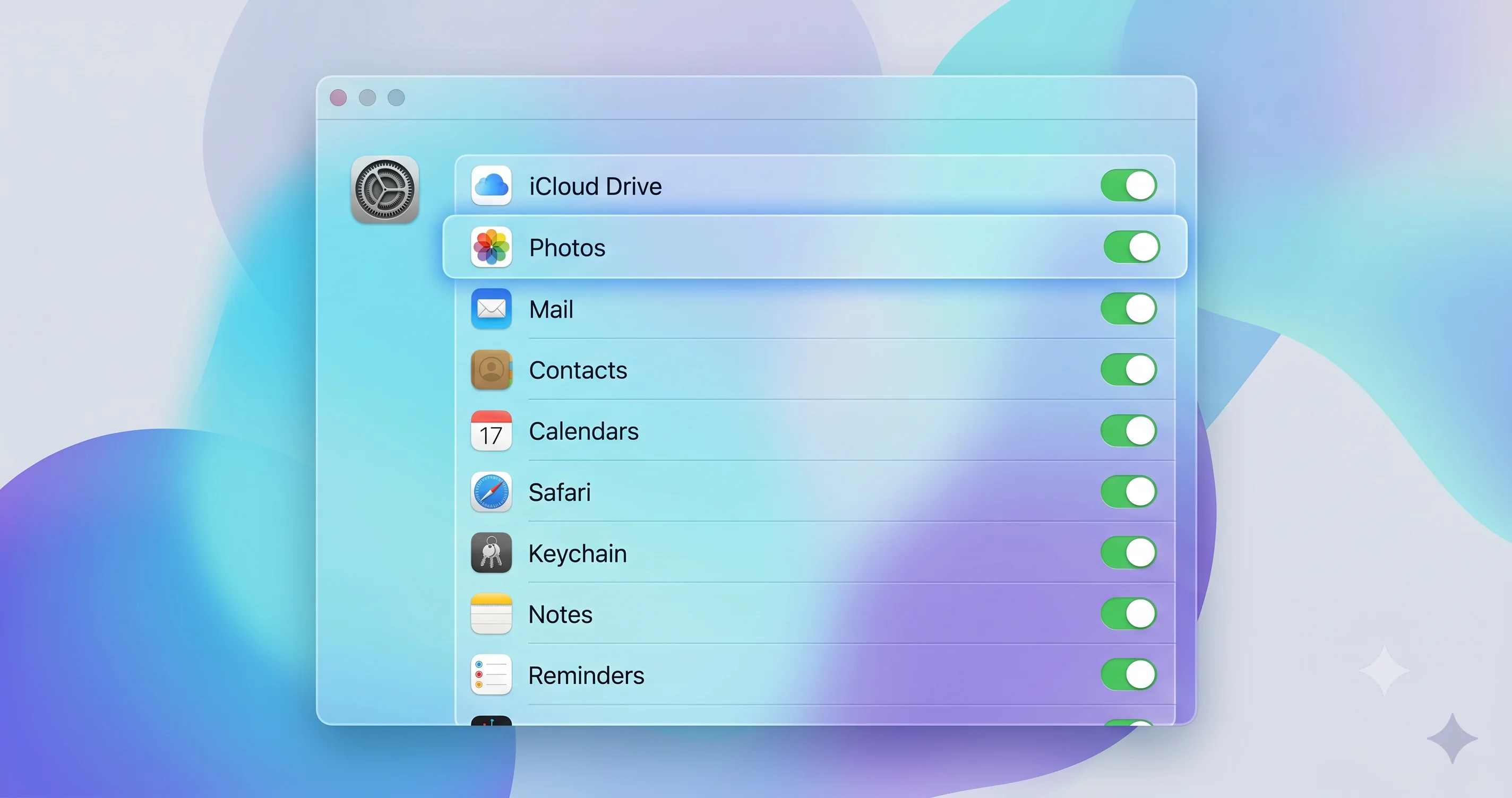
On the iPhone: Settings → [Your Name] → iCloud → See All → Messages in iCloud. Toggle should be on. There is also a Sync Now button below the toggle — tap it.
On the Mac: Messages → Settings → iMessage, scroll down, check Enable Messages in iCloud. Right next to that checkbox is a Sync Now button. Click it.
Both devices need the toggle on. If you enable it on a device for the first time, expect a backfill window of anywhere from ten minutes to several hours depending on the size of your message history and the speed of your network. During backfill, the Messages app on the new device will progressively populate threads and attachments. Do not interrupt this by signing out, force-quitting, or toggling the setting back off — every interruption restarts the backfill from scratch.
What Messages in iCloud Actually Syncs
It is worth being explicit about scope, because misunderstandings here lead users to think Messages in iCloud is broken when it is working as designed:
- Synced: iMessage conversation history (text), attachments (images, videos, voice memos), reactions, pinned conversation order, message deletions (deletes propagate across devices), edits and unsends (within Apple's allowed window), read/unread state, and message search index.
- Not synced: Notification settings (each device has its own), "Filter Unknown Senders" preference, message tone, the "Send Read Receipts" toggle (per-device), keyboard suggestions, and the SMS forwarding configuration itself (that lives on the iPhone). Also not synced: the original SMS/MMS messages from before SMS forwarding was on, and any green-bubble messages that arrived while SMS forwarding was off.
The Backfill Timeline
For a user with a few thousand messages, expect Mac backfill to complete in well under an hour. For a user with hundreds of thousands of messages across years of threads — common for long-tenured iMessage users — backfill can take six to twelve hours. The Messages app does not show a progress bar. The only signal is that threads keep getting older as the backfill walks backward in time.
You can monitor backfill progress indirectly by watching System Settings → [Your Name] → iCloud → Manage Account Storage → Messages. The reported storage usage will climb as attachments download. If the number stops climbing for more than thirty minutes during the day, sync has likely stalled — proceed to the Sync Now button and, failing that, a controlled reset.
The Storage Hit
This catches people off guard: Messages in iCloud counts against your iCloud storage quota. If you are on the 50 GB plan and your message history is 80 GB of attachments (mostly video and voice memos from group chats), Messages in iCloud will silently fail to sync attachments because there is no room. Text will sync, but the attachments will show as broken thumbnails on the Mac.
Check System Settings → [Your Name] → iCloud → Manage Account Storage to see your free space. If you are within 10% of your limit, either delete some message attachments (long-press on an image in Messages → More → trash, which propagates the deletion across devices), free up other iCloud storage, or upgrade your iCloud+ plan.
Mode C: chat.db Corruption on the Mac
This is rarer than the first two but absolutely a real failure mode, and you can spot it by these symptoms: Messages launches but conversations show blank, attachments show as broken icons, search returns no results even for words you can see on screen, the app spinning-beachballs on launch, or Console shows repeated entries from chatkit, imagent, or IMDPersistence complaining about SQLite corruption.
The Messages app stores all your local message data in three files in ~/Library/Messages/:
chat.db— the main SQLite database containing message text, conversation metadata, and attachment references.chat.db-wal— the SQLite write-ahead log. Pending writes that have not been merged intochat.dbyet live here.chat.db-shm— the SQLite shared-memory file used by the WAL mechanism.
When the app shuts down cleanly, the WAL is merged into the main DB. When the app is force-quit, the Mac crashes, or the disk fills up mid-write, the WAL can end up in an inconsistent state. Messages then either refuses to open the DB at all, or opens it but can no longer reconcile it with the iCloud-synced state.
The Controlled Reset Procedure
Do not delete chat.db. Move it. The difference matters because if the iCloud sync re-pulls into a clean DB and something goes wrong, you want your old data on disk for recovery.
-
Quit Messages completely. Right-click the dock icon → Quit. Then verify in Activity Monitor that no
Messages,imagent, ormessagesappprivateprocesses are running. Kill any stragglers. -
Make a backup folder on the Desktop:
mkdir ~/Desktop/messages-backup-$(date +%Y%m%d) -
Move the three database files (not copy — move, so the next launch creates fresh ones):
mv ~/Library/Messages/chat.db ~/Desktop/messages-backup-*/ mv ~/Library/Messages/chat.db-wal ~/Desktop/messages-backup-*/ mv ~/Library/Messages/chat.db-shm ~/Desktop/messages-backup-*/ -
Launch Messages. The app will create a fresh, empty local database.
-
If Messages in iCloud is on, the app will now begin backfilling from iCloud. Expect the same backfill timeline described in Mode B.
-
If Messages in iCloud is off, you have just lost your local history on the Mac — but it should still exist on the iPhone. Turn on Messages in iCloud on both devices and let the iPhone push history into iCloud, then let the Mac pull it back down.
-
After you confirm Messages is working and history has backfilled, you can delete the backup folder. Until then, keep it.
When the Controlled Reset Is Not Enough
If after a controlled reset Messages still crashes or hangs, the corruption may extend into your CloudKit-side Messages container. The fix here is to disable and re-enable Messages in iCloud, which forces a clean re-sync:
- On the iPhone: Settings → [Your Name] → iCloud → See All → Messages in iCloud → toggle off. iOS will ask whether to keep messages on this device — choose Disable and Download Messages, so your iPhone retains its copy.
- Wait two minutes.
- Toggle Messages in iCloud back on.
- On the Mac, also toggle it off and then back on.
- Let the backfill complete.
Mode D: Apple Account Drift
Diagnosed via the Apple Account number comparison described in the architecture section above. The fix is to fully sign out of one device and sign back in, which forces it to re-register against the canonical post-migration record.
Pick the device that is less recently used (you have less to lose if something goes sideways). On that device:
- iPhone: Settings → [Your Name] → Sign Out. Choose to keep a copy of your data on the device. Restart the iPhone. Sign back in with the same Apple Account.
- Mac: System Settings → [Your Name] → Sign Out. Pick which iCloud data to keep a local copy of (Messages, Photos, etc.). Restart. Sign back in.
After sign-back-in, recheck Send & Receive (Mode A) and Messages in iCloud (Mode B). The new sign-in should put both devices on the same identity record, and the symptoms should clear within an hour or two.
For broader Continuity issues that often share root causes with iMessage drift, the Continuity features troubleshooting guide and the focused Continuity sync troubleshooting guide walk through the parallel diagnostics for Handoff, Universal Clipboard, and AirDrop.
The SMS-from-Android Gotcha
This is the most common false positive. A user reports "iMessage not syncing — my Android friend's messages don't show up on my Mac." The friend texts a green bubble (because they are on Android, so iMessage is not in play), the iPhone receives it as an SMS, and the Mac shows nothing.
This is not an iMessage sync bug. It is the SMS Forwarding feature working as designed — or rather, not configured.
SMS messages cannot be iMessages. They are a fundamentally different transport: cellular SMS/MMS to your phone number. The way Apple bridges them to your Mac is Text Message Forwarding, a feature on the iPhone that pipes your incoming SMS/MMS over to your other Apple devices via iMessage's relay infrastructure. If SMS forwarding is off, green-bubble messages will never appear on your Mac, even if everything else is configured correctly.
To enable: on the iPhone, Settings → Apps → Messages → Text Message Forwarding. Toggle on each device you want to receive SMS on. The Mac will display a six-digit code to enter on the iPhone as a one-time verification.
Note that this is also distinct from the new RCS messaging support that landed alongside Tahoe. RCS is a separate cellular-based protocol that supersedes SMS for messages between iPhone and modern Android phones. If your RCS messages specifically are failing to send (not failing to sync — failing to send), the diagnostic path is entirely different; see the RCS message send failure on macOS 26.5 guide because that is a cellular-gate problem, not a Mac-iPhone iCloud sync problem.
What to Do If Old Messages Exist on iPhone but Not Mac
This is the most common Mode B variant and deserves a dedicated walkthrough because the user expectation often does not match Apple's design.
The default assumption is: "I just turned on Messages in iCloud on my Mac, so my Mac should now show every message I have ever received." That is the eventual outcome, but it can take a long time and there is no progress UI.
The expected timeline is:
- Minutes 0–5: New messages from this point on sync in real time.
- Minutes 5–60: The most recent week to month of history backfills.
- Hours 1–6: The last year of history backfills.
- Hours 6–24: The full multi-year history backfills, including older attachments.
If after 24 hours of the Mac being awake, online, and signed in, you still have a clearly missing chunk of history, then sync is genuinely stuck. The fix is the toggle-off-and-on dance on both devices, optionally followed by the controlled chat.db reset.
A second cause of "old messages on iPhone but not Mac" is that the iPhone's local message history is longer than what is stored in iCloud. If you have ever had Messages in iCloud disabled on the iPhone, those messages were never pushed to iCloud, and they will not show up on the Mac even after enabling Messages in iCloud — because they only exist on the iPhone. To push them up, ensure Messages in iCloud is enabled on the iPhone (not just on the Mac), and tap Sync Now.
Troubleshooting Common Issues
Problem: "Waiting for Activation" Won't Clear on the Mac
Solution: Quit Messages, sign out of iCloud entirely (System Settings → Apple Account → Sign Out), restart the Mac, sign back in, then re-enable iMessage from Messages → Settings. The "Waiting for activation" state often persists when there is a stale token cached in Keychain that a full iCloud sign-out clears. If it still fails after a full sign-out and the iPhone activates fine, your account may be flagged for rate-limiting on the activation server — wait 24 hours and try again.
Problem: New Messages Sync but Deletions Don't
Solution: This is almost always a Messages in iCloud problem. Deletions only propagate when both devices have Messages in iCloud on. Verify the toggle on both, and tap Sync Now on whichever device you deleted from. If you deleted from a device that did not have Messages in iCloud on, the deletion will not propagate — you will need to manually delete again from a device that does have it on.
Problem: Attachments Are Missing or Show as Broken Thumbnails
Solution: Check iCloud storage quota first (System Settings → [Your Name] → iCloud → Manage Account Storage). If you are over quota, attachment sync silently fails. If quota is fine, the attachments may simply still be downloading — Messages backfills attachments lazily after text. Click on a broken thumbnail to force an immediate download. If it still fails, the controlled chat.db reset usually fixes it.
Problem: Messages App Hangs for 30 Seconds on Launch
Solution: This is almost always WAL replay on a large, fragmented chat.db. Either wait it out (it will eventually complete and run faster next launch), or apply the controlled reset. If hangs persist after a reset, check Disk Utility → First Aid on your boot volume — slow disk reads can manifest as a hung Messages app.
Problem: Mac Shows Messages from One Conversation in Two Threads
Solution: Classic Send & Receive mismatch. Both threads exist because the Mac is keying conversations by a different "Start new conversations from" identity than the iPhone. Standardize the setting on both devices (usually to the phone number), then expect a few days for the merge to settle — Apple does not retroactively merge split threads, but new messages will land in whichever thread matches the canonical identity going forward.
Problem: Group Chats Sync but One-on-Ones Don't (or Vice Versa)
Solution: This usually points to a contact-level address mismatch. Open the misbehaving conversation, tap the contact name, and check the address you are messaging them at. If you are messaging their phone number from one device and their email from another, Apple treats those as different conversations. Standardize on one address — preferably the one shown in the existing thread on whichever device has the most history.
Problem: Mac Mail Also Stopped Working at the Same Time
Solution: This points to a broader Apple Account / iCloud issue, not specifically iMessage. The Mac Mail troubleshooting guide walks through the parallel diagnostics. If Mail search specifically is broken, the envelope index repair guide covers the Mail-specific equivalent of the chat.db reset described above.
Problem: iCloud Drive Is Also Behaving Oddly
Solution: Check the iCloud Drive auto-download bug guide. Multiple iCloud services going sideways at once usually means a daemon-level issue (cloudd or bird) rather than an app-level one. The fix paths overlap.
FAQ
Q: Will I lose my message history if I sign out of iMessage on the Mac?
No, provided Messages in iCloud is enabled. Your history is stored in iCloud and will re-download when you sign back in. If Messages in iCloud is off, the local chat.db on the Mac will be preserved through the sign-out, so signing back in with the same Apple Account will restore the same local history. The risky case is signing out without iCloud and then signing in with a different Apple Account.
Q: How long should a fresh Messages in iCloud backfill take on a new Mac?
Typically thirty minutes to two hours for a few thousand messages, but multi-year heavy users can see twelve to twenty-four hours for full backfill including attachments. There is no progress UI — the only signal is that threads keep getting older as the sync walks backward in time. Keep the Mac awake, online, and signed in throughout. Sleep mode pauses backfill.
Q: Why do messages from my Android friend never sync to my Mac?
Because those are SMS messages, not iMessages, and SMS is a cellular protocol that does not natively reach your Mac. You need to enable Text Message Forwarding on your iPhone (Settings → Apps → Messages → Text Message Forwarding) and add your Mac as a destination. Once enabled, future green-bubble SMS messages will forward to the Mac. Historical SMS messages received before forwarding was enabled will not retroactively appear.
Q: Is Messages in iCloud the same as iCloud Backup?
No, they are separate systems. iCloud Backup is a per-device snapshot of your iPhone's state. Messages in iCloud is a live, multi-device synced store of your message history. You can have one without the other. Disabling iCloud Backup does not affect Messages in iCloud, and vice versa. Both, however, share your iCloud storage quota.
Q: Does Messages in iCloud sync to a Windows PC or web browser?
No. There is no web interface for Messages and no Windows client. Messages in iCloud only syncs across Apple devices — iPhone, iPad, Mac, and Apple Watch (the Watch shows messages but does not store full history). If you need cross-platform access to message content, you would need to manually export, which is not a first-class workflow.
Q: Why does my iPhone show "Last seen" times that don't match my Mac?
Read receipts and presence indicators are per-device settings, not synced. If "Send Read Receipts" is on for the Mac but off for the iPhone (or vice versa), the two devices will report different states to the other party. To unify behavior, set the same Read Receipts preference on every device, in Messages → Settings → iMessage on the Mac and Settings → Apps → Messages on the iPhone.
Q: I have iPhone Mirroring set up — shouldn't that solve the syncing problem?
iPhone Mirroring is a separate Continuity feature that streams your iPhone's screen to the Mac on demand; it is not a sync mechanism. It also has its own quirks unrelated to iMessage. If Mirroring itself is broken on Tahoe, see the iPhone Mirroring not working guide. For actual iMessage sync, you still need Send & Receive and Messages in iCloud configured correctly as described above.
Q: My Mac shuts down sometimes and that seems to break iMessage — coincidence?
Possibly not. Unclean shutdowns are a primary cause of chat.db corruption. If your Mac shuts down unexpectedly with any regularity — especially on Apple Silicon machines that have hit content-filter / network-extension issues — fix the shutdown problem first. See the macOS 26.5.1 M5 shutdown and content filter fix guide for that path.
Conclusion
iMessage not syncing between Mac and iPhone on macOS Tahoe is almost always one of four problems: a Send & Receive address mismatch, a stalled Messages in iCloud pipeline, local chat.db corruption on the Mac, or Apple Account drift left over from the mid-Tahoe identity migration. The "sign out and back in" sledgehammer fixes some of these and breaks others, which is why the diagnostic decision tree at the top of this guide matters. Spend the ninety seconds to triage, then apply the specific fix.
If your devices share an Apple Account, both have Messages in iCloud on, both have matching Send & Receive settings including the same "Start new conversations from" identity, and the Mac's local chat.db is clean, sync will work reliably and quickly. When it stops, you almost always changed one of those variables — usually without realizing it.
Related reading:
- RCS Message Send Failure on macOS 26.5 — Mac, iPad, Watch Fix — distinct issue, cellular gate vs iCloud sync.
- macOS Tahoe Continuity Features: Complete Troubleshooting Guide — for parallel issues with Handoff, Universal Clipboard, AirDrop.
- iPhone Mirroring Not Working on macOS Tahoe Fix — for the Continuity feature most often confused with iMessage sync.
- Mac Mail Not Working: Complete Troubleshooting Fix Guide — when more than one iCloud service is misbehaving at once.