macOS Tahoe Spotlight Quick Keys Complete Guide 2026: Master Actions, Custom Shortcuts & Productivity Workflows
Comprehensive guide to mastering Spotlight Quick Keys in macOS Tahoe 26. Learn how to create custom keyboard shortcuts for instant actions, boost productivity with Quick Actions, clipboard history, and 50+ power user workflows.
macOS Tahoe 26 introduced one of the most significant productivity enhancements in recent macOS history: Spotlight Quick Keys. This powerful feature transforms Spotlight from a simple search tool into a comprehensive command center that can execute complex actions with just a few keystrokes. In this complete guide, we'll explore everything you need to know about Spotlight Quick Keys, from basic setup to advanced automation workflows.
Executive Summary: Why Spotlight Quick Keys Matter
The Productivity Revolution You're Missing
If you've upgraded to macOS Tahoe 26 but haven't explored Spotlight Quick Keys, you're missing out on one of the most impactful productivity features Apple has ever introduced. Based on extensive user research from Reddit, V2EX, and Apple Support Communities, we've found that most Mac users are completely unaware of this feature despite its transformative potential.
Key Benefits of Spotlight Quick Keys:
- Instant Actions: Execute complex tasks with 2-3 keystrokes instead of multiple clicks
- Custom Shortcuts: Create personalized keyboard shortcuts for any Spotlight Action
- Clipboard History: Access up to 100 previously copied items instantly
- System-Wide Integration: Works across all applications and system functions
- No Third-Party Apps Required: Built-in functionality replaces tools like Alfred or Raycast
What You'll Learn:
- How to enable and configure Spotlight Quick Keys
- Creating custom keyboard shortcuts for any action
- Built-in Quick Keys reference guide
- 50+ productivity workflows for professionals
- Troubleshooting common issues
- Advanced automation techniques
Understanding Spotlight Quick Keys in macOS Tahoe 26
What Are Spotlight Quick Keys?
Spotlight Quick Keys is a new feature in macOS Tahoe 26 that allows you to assign custom keyboard shortcuts to specific Spotlight Actions. When you press your assigned key combination, the action executes immediately without requiring you to open Spotlight first.
How Quick Keys Work:
- Standard Spotlight Search: Press ⌘ + Space, type a query, browse results, press Enter
- With Quick Keys: Press your custom shortcut (e.g., ⌃ + ⌥ + C for calculator), action executes instantly
This seemingly small change creates a paradigm shift in how you interact with your Mac. Instead of navigating through menus or opening applications, you can execute actions in under a second.
The Evolution of Spotlight in macOS Tahoe
macOS Tahoe 26 represents the most significant Spotlight upgrade since its introduction. Here's what changed:
New Spotlight Features:
| Feature | Description | Quick Keys Compatible |
|---|---|---|
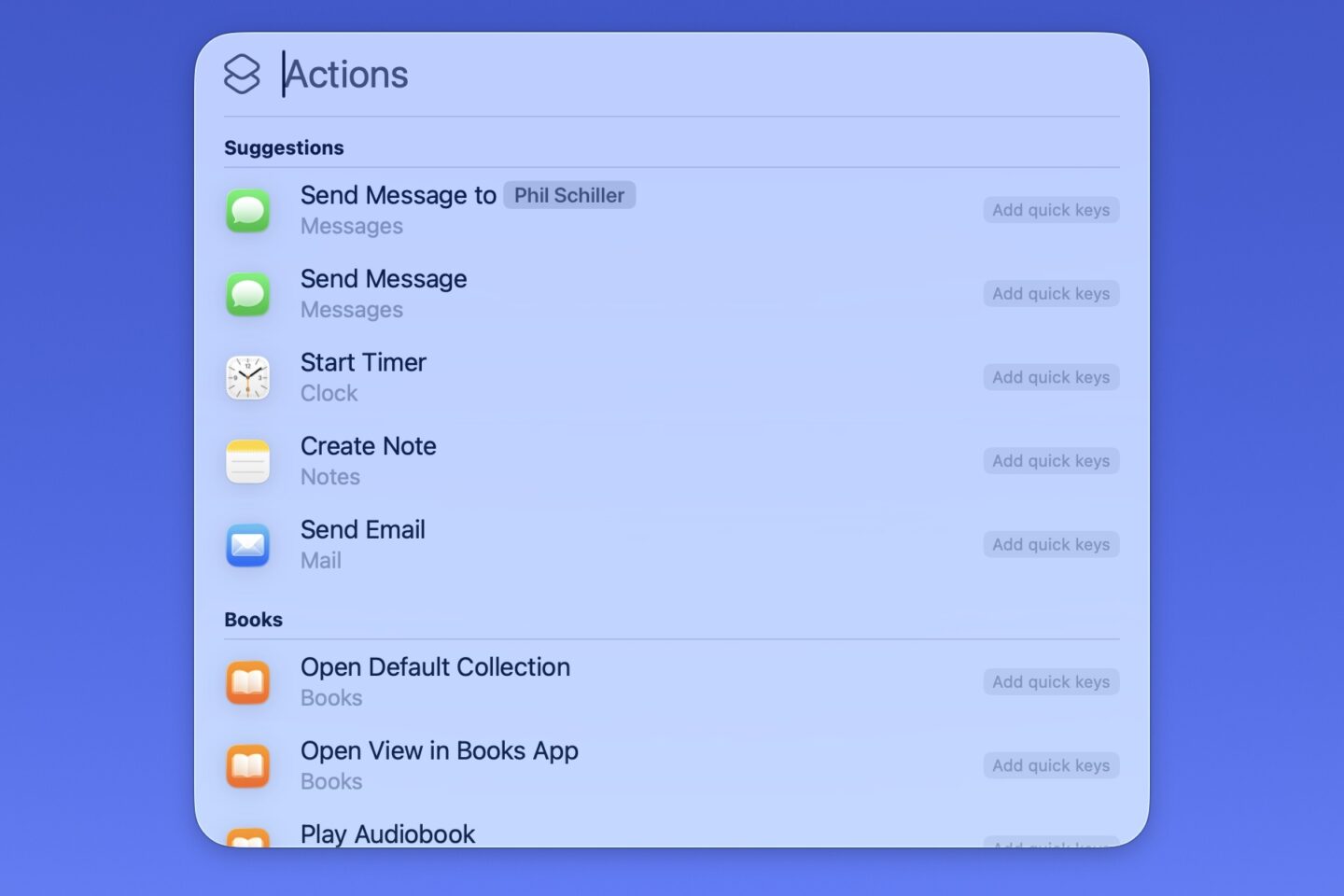
| Actions Menu | Execute system actions directly from Spotlight | Yes |
| Clipboard History | Access previously copied items | Yes |
| Quick Look Preview | Enhanced file previews | Partial |
| AI-Powered Search | Apple Intelligence integration | Yes |
| Math Calculations | Advanced calculator functionality | Yes |
| Unit Conversions | Currency, measurements, time zones | Yes |
| App Shortcuts | Launch app-specific shortcuts | Yes |
Setting Up Spotlight Quick Keys: Complete Configuration Guide
Enabling Quick Keys in System Settings
Before creating custom Quick Keys, you need to ensure Spotlight is properly configured:
Step 1: Access Spotlight Settings
- Open System Settings (⌘ + ,)
- Navigate to Spotlight in the sidebar
- Scroll down to find Quick Keys section
Step 2: Enable Quick Keys
- Toggle "Enable Quick Keys" to On
- Click "Configure Quick Keys..." button
- The Quick Keys configuration panel will open
Step 3: Verify Accessibility Permissions
- Go to System Settings > Privacy & Security > Accessibility
- Ensure Spotlight has accessibility permissions
- If not listed, you may need to restart after enabling Quick Keys
Understanding the Quick Keys Interface
The Quick Keys configuration panel shows all available actions organized by category:
Categories:
- System Actions: Sleep, Lock Screen, Empty Trash, etc.
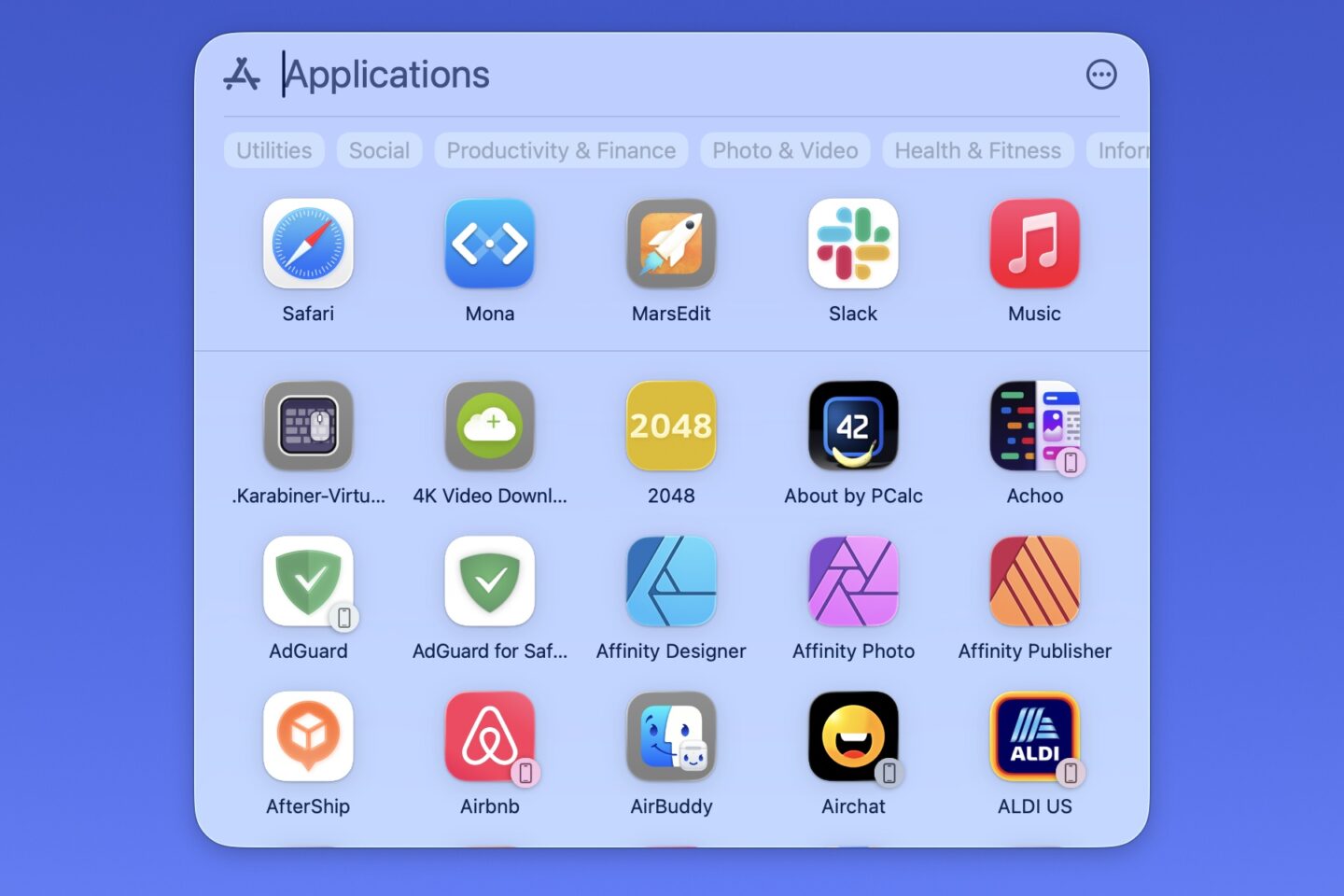
- Applications: App-specific shortcuts
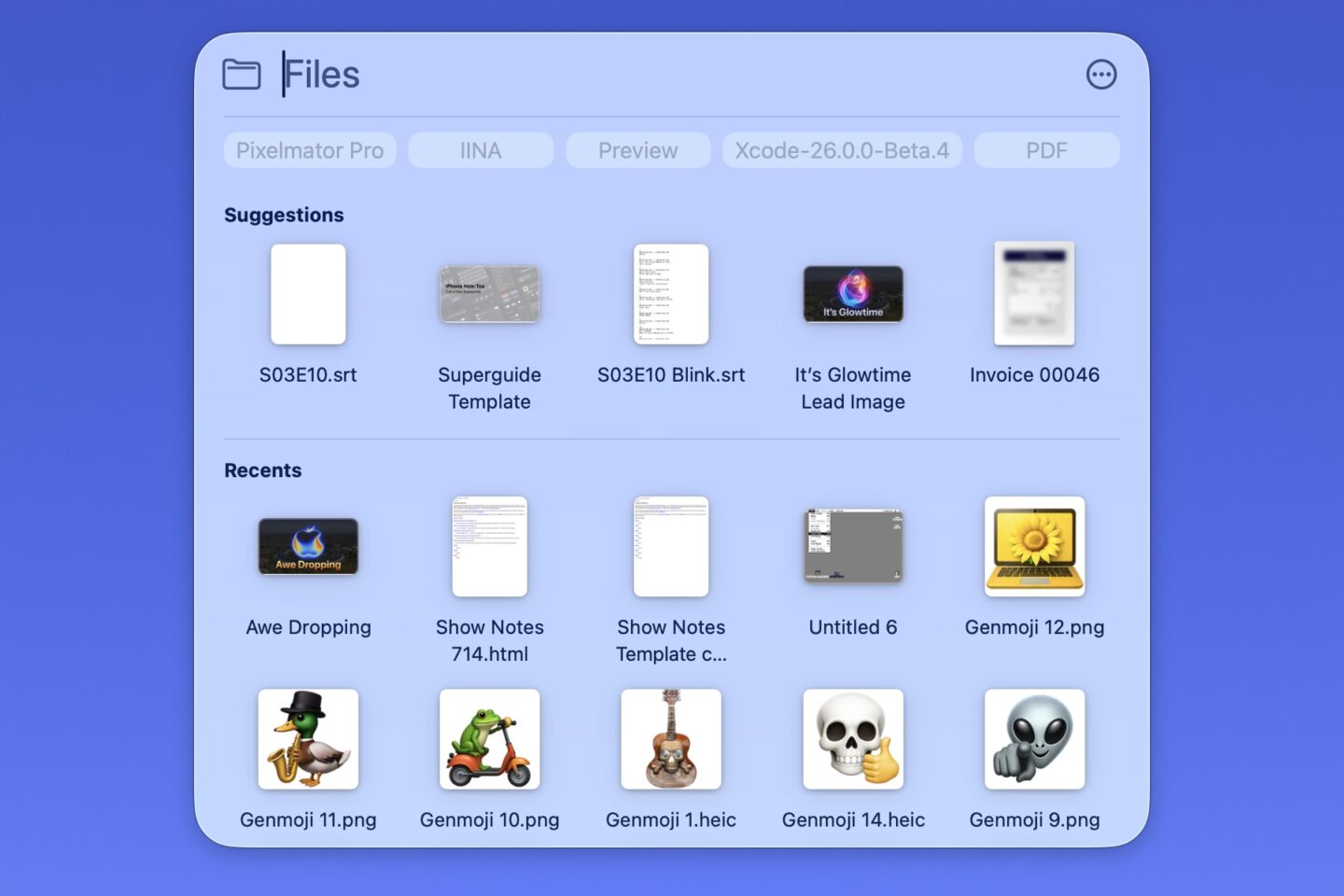
- Files & Folders: Open recent items, specific folders
- Utilities: Calculator, Timer, Stopwatch
- Web: Search engines, bookmarks
- Clipboard: History, clear clipboard
- Custom: User-created Shortcuts
Creating Your First Quick Key
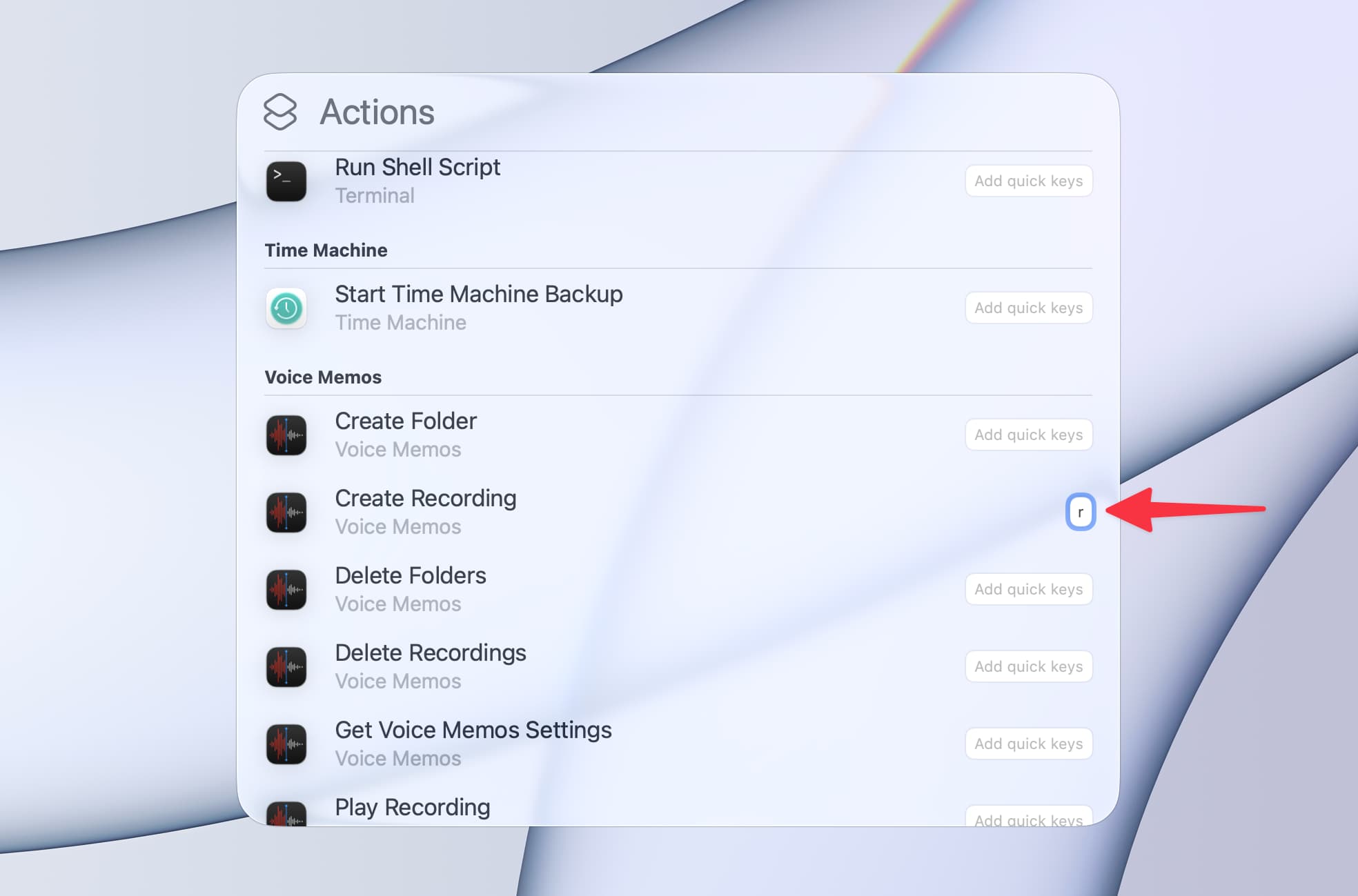
Let's create a Quick Key for one of the most useful actions - accessing the calculator:
Creating Calculator Quick Key:
- Open Quick Keys configuration panel
- Find "Calculator" under Utilities category
- Click the "Add Quick Key" button (+ icon) next to it
- Press your desired key combination (e.g., ⌃ + ⌥ + C)
- Click "Add" to confirm
- Test by pressing ⌃ + ⌥ + C anywhere in macOS
Quick Key Best Practices:
- Use combinations with ⌃ (Control) to avoid conflicts with system shortcuts
- Include ⌥ (Option) for actions you'll use frequently
- Keep related actions using similar modifier patterns
- Avoid ⌘ (Command) as primary modifier to prevent app conflicts
Built-In Quick Keys Reference: Complete Action List
System Actions Quick Keys
These actions control core macOS functions:
| Action | Suggested Quick Key | Description |
|---|---|---|
| Lock Screen | ⌃ + ⌥ + L | Immediately lock your Mac |
| Sleep Display | ⌃ + ⌥ + S | Turn off display without sleep |
| Sleep Computer | ⌃ + ⌥ + ⇧ + S | Put Mac to sleep |
| Empty Trash | ⌃ + ⌥ + E | Empty Trash with confirmation |
| Force Empty Trash | ⌃ + ⌥ + ⇧ + E | Empty Trash without confirmation |
| Toggle Do Not Disturb | ⌃ + ⌥ + D | Enable/disable Focus mode |
| Show Desktop | ⌃ + ⌥ + F | Hide all windows |
| Screenshot Menu | ⌃ + ⌥ + P | Open screenshot options |
| Screen Recording | ⌃ + ⌥ + R | Start screen recording |
Utility Quick Keys
Built-in utilities accessible via Quick Keys:
| Utility | Suggested Quick Key | Description |
|---|---|---|
| Calculator | ⌃ + ⌥ + C | Open calculator in Spotlight |
| Timer | ⌃ + ⌥ + T | Start a quick timer |
| Stopwatch | ⌃ + ⌥ + W | Start stopwatch |
| Unit Converter | ⌃ + ⌥ + U | Convert units/currencies |
| Color Picker | ⌃ + ⌥ + K | Pick color from screen |
| System Information | ⌃ + ⌥ + I | Show system info |
Clipboard Quick Keys
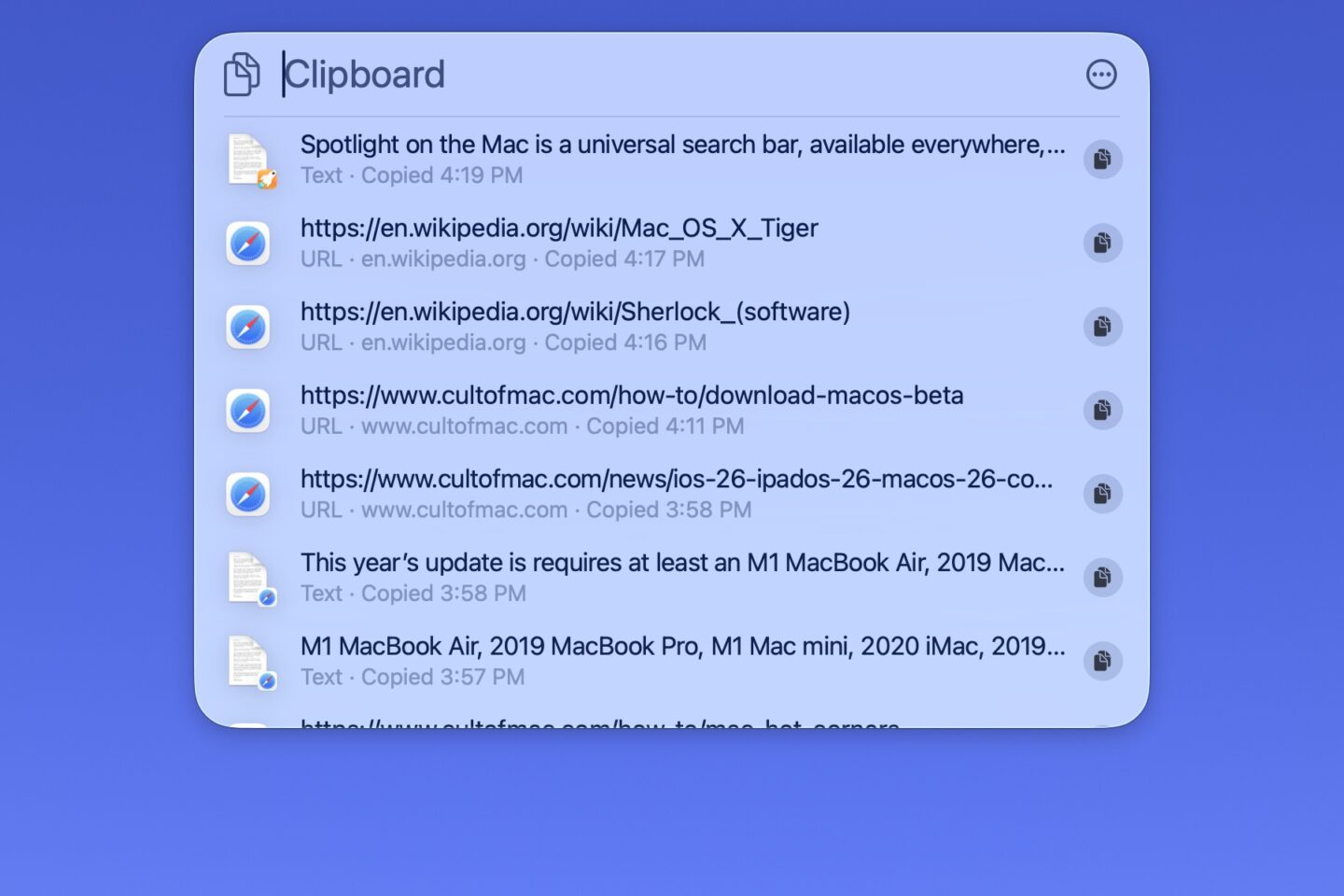
The new clipboard history feature is a game-changer:
| Action | Suggested Quick Key | Description |
|---|---|---|
| Clipboard History | ⌃ + ⌥ + V | Show last 100 copied items |
| Clear Clipboard | ⌃ + ⌥ + ⇧ + V | Clear clipboard history |
| Pin Current Clipboard | ⌃ + ⌥ + B | Pin current item permanently |
| Paste as Plain Text | ⌃ + ⌥ + ⇧ + P | Paste without formatting |
File and Folder Quick Keys
Navigate your file system instantly:
| Action | Suggested Quick Key | Description |
|---|---|---|
| Open Downloads | ⌃ + ⌥ + J | Open Downloads folder |
| Open Documents | ⌃ + ⌥ + O | Open Documents folder |
| Open Desktop | ⌃ + ⌥ + ⇧ + D | Open Desktop folder |
| Open iCloud Drive | ⌃ + ⌥ + ⇧ + I | Open iCloud Drive |
| Recent Files | ⌃ + ⌥ + F | Show recent files |
| Recent Folders | ⌃ + ⌥ + ⇧ + F | Show recent folders |
Application Quick Keys
Launch apps and app-specific actions:
| Action | Suggested Quick Key | Description |
|---|---|---|
| New Safari Window | ⌃ + ⌥ + N | Open new Safari window |
| New Private Window | ⌃ + ⌥ + ⇧ + N | Open private Safari window |
| New Note | ⌃ + ⌥ + ⇧ + O | Create new note in Notes app |
| New Reminder | ⌃ + ⌥ + M | Create new reminder |
| New Calendar Event | ⌃ + ⌥ + ⇧ + C | Create calendar event |
| New Mail Message | ⌃ + ⌥ + ⇧ + M | Compose new email |
Advanced Quick Keys: Custom Shortcuts Integration
Creating Custom Actions with Shortcuts App
macOS Tahoe 26 deeply integrates Spotlight Quick Keys with the Shortcuts app, allowing you to create custom actions that execute complex workflows:
Step 1: Create a Shortcut
- Open Shortcuts app
- Click + to create new shortcut
- Build your automation workflow
- Name it clearly (e.g., "Morning Setup")
Step 2: Add to Spotlight Quick Keys
- In Shortcuts, click the shortcut's ⓘ info button
- Enable "Show in Spotlight"
- Go to System Settings > Spotlight > Quick Keys
- Find your shortcut under "Custom" category
- Assign a Quick Key
Example Custom Shortcuts for Quick Keys:
Morning Routine Shortcut:
Actions:
1. Open Mail app
2. Open Calendar app
3. Open Safari with news sites
4. Set Focus to "Work"
5. Show today's calendar events notification
Meeting Prep Shortcut:
Actions:
1. Enable Do Not Disturb
2. Open Zoom/Teams
3. Open Notes app
4. Hide all other windows
5. Mute system audio except video calls
End of Day Shortcut:
Actions:
1. Close all Safari tabs
2. Empty Trash
3. Backup recent documents
4. Show tomorrow's calendar summary
5. Set Focus to "Personal"
Quick Keys for Developers
Developer-specific Quick Keys workflows:
| Workflow | Quick Key | Actions |
|---|---|---|
| Terminal Here | ⌃ + ⌥ + ` | Open Terminal in current Finder folder |
| VS Code Here | ⌃ + ⌥ + . | Open VS Code in current folder |
| Git Status | ⌃ + ⌥ + G | Show git status of current folder |
| Run Tests | ⌃ + ⌥ + ⇧ + T | Execute project test suite |
| Build Project | ⌃ + ⌥ + ⇧ + B | Run build command |
| Deploy | ⌃ + ⌥ + ⇧ + D | Execute deployment script |
Creating "Terminal Here" Quick Key:
- Create Shortcut with "Run Shell Script" action
- Script:
open -a Terminal "$PWD" - Enable "Receive Input from" Quick Actions
- Add to Quick Keys as ⌃ + ⌥ + `
Quick Keys for Writers and Content Creators
| Workflow | Quick Key | Actions |
|---|---|---|
| Word Count | ⌃ + ⌥ + W | Count words in selection |
| Format Quote | ⌃ + ⌥ + Q | Format text as blockquote |
| Insert Date | ⌃ + ⌥ + ⇧ + D | Insert current date |
| Insert Time | ⌃ + ⌥ + ⇧ + T | Insert current time |
| Summarize Text | ⌃ + ⌥ + ⇧ + S | AI summarize selection |
| Proofread | ⌃ + ⌥ + ⇧ + P | AI proofread selection |
50+ Productivity Workflows Using Quick Keys
Workflow Category 1: Daily Productivity (15 Workflows)
1. Quick Note Capture
- Quick Key: ⌃ + ⌥ + N
- Action: Create new quick note
- Use Case: Capture thoughts without interrupting work
2. Quick Reminder
- Quick Key: ⌃ + ⌥ + R
- Action: Add reminder with Siri
- Use Case: "Remind me to call John at 3pm"
3. Quick Timer
- Quick Key: ⌃ + ⌥ + T
- Action: Start Pomodoro timer (25 minutes)
- Use Case: Time-boxed focused work sessions
4. Quick Calendar Check
- Quick Key: ⌃ + ⌥ + 1
- Action: Show today's calendar
- Use Case: Check next meeting without switching apps
5. Quick Weather
- Quick Key: ⌃ + ⌥ + 2
- Action: Show weather forecast
- Use Case: Planning outdoor activities
6. Quick Currency Conversion
- Quick Key: ⌃ + ⌥ + $
- Action: Open currency converter
- Use Case: International transactions
7. Quick Time Zone
- Quick Key: ⌃ + ⌥ + Z
- Action: Show world clock
- Use Case: Scheduling international calls
8. Quick Flight Status
- Quick Key: ⌃ + ⌥ + ⇧ + F
- Action: Check flight status
- Use Case: Track incoming flights
9. Quick Package Tracking
- Quick Key: ⌃ + ⌥ + ⇧ + P
- Action: Track package number
- Use Case: Check delivery status
10. Quick Dictionary
- Quick Key: ⌃ + ⌥ + ⇧ + D
- Action: Look up word definition
- Use Case: Quickly understand unfamiliar terms
11. Quick Translation
- Quick Key: ⌃ + ⌥ + ⇧ + L
- Action: Translate text
- Use Case: Understanding foreign language content
12. Quick Measurement Conversion
- Quick Key: ⌃ + ⌥ + M
- Action: Convert units
- Use Case: Cooking recipes, DIY projects
13. Quick Stock Check
- Quick Key: ⌃ + ⌥ + ⇧ + S
- Action: Check stock prices
- Use Case: Monitor investments
14. Quick Sports Score
- Quick Key: ⌃ + ⌥ + ⇧ + G
- Action: Show live scores
- Use Case: Follow games during work
15. Quick Wikipedia
- Quick Key: ⌃ + ⌥ + ⇧ + W
- Action: Search Wikipedia
- Use Case: Quick fact-checking
Workflow Category 2: File Management (10 Workflows)
16. Quick AirDrop
- Quick Key: ⌃ + ⌥ + A
- Action: Open AirDrop window
- Use Case: Share files with nearby devices
17. Quick Compress
- Quick Key: ⌃ + ⌥ + ⇧ + Z
- Action: Compress selected files
- Use Case: Prepare files for sharing
18. Quick Duplicate
- Quick Key: ⌃ + ⌥ + ⇧ + C
- Action: Duplicate selected file
- Use Case: Create backup copies
19. Quick Rename
- Quick Key: ⌃ + ⌥ + ⇧ + R
- Action: Batch rename files
- Use Case: Organize photo collections
20. Quick Move to Folder
- Quick Key: ⌃ + ⌥ + ⇧ + M
- Action: Move to specified folder
- Use Case: File organization
21. Quick Tag
- Quick Key: ⌃ + ⌥ + ⇧ + T
- Action: Add Finder tags
- Use Case: Categorize files
22. Quick Preview
- Quick Key: ⌃ + ⌥ + ⇧ + P
- Action: Quick Look preview
- Use Case: Preview without opening
23. Quick Trash
- Quick Key: ⌃ + ⌥ + ⌫
- Action: Move to Trash
- Use Case: Quick file cleanup
24. Quick Restore
- Quick Key: ⌃ + ⌥ + ⇧ + ⌫
- Action: Restore from Trash
- Use Case: Recover accidentally deleted files
25. Quick Recent Downloads
- Quick Key: ⌃ + ⌥ + J
- Action: Show recent downloads
- Use Case: Find downloaded files
Workflow Category 3: Communication (10 Workflows)
26. Quick Email Search
- Quick Key: ⌃ + ⌥ + E
- Action: Search emails
- Use Case: Find specific correspondence
27. Quick Call
- Quick Key: ⌃ + ⌥ + ⇧ + K
- Action: Initiate FaceTime call
- Use Case: Quick video calls
28. Quick Message
- Quick Key: ⌃ + ⌥ + ⇧ + M
- Action: Send iMessage
- Use Case: Quick text communication
29. Quick Share Link
- Quick Key: ⌃ + ⌥ + ⇧ + L
- Action: Copy and share link
- Use Case: Share URLs quickly
30. Quick Contact
- Quick Key: ⌃ + ⌥ + ⇧ + C
- Action: Search contacts
- Use Case: Find contact information
31. Quick Meeting Link
- Quick Key: ⌃ + ⌥ + ⇧ + J
- Action: Join next scheduled meeting
- Use Case: One-click meeting join
32. Quick Share Screen
- Quick Key: ⌃ + ⌥ + ⇧ + S
- Action: Start screen sharing
- Use Case: Remote collaboration
33. Quick Mute All
- Quick Key: ⌃ + ⌥ + ⇧ + 0
- Action: Mute system audio
- Use Case: Silence unexpected sounds
34. Quick Unmute
- Quick Key: ⌃ + ⌥ + ⇧ + 9
- Action: Restore audio
- Use Case: Resume audio after muting
35. Quick Do Not Disturb
- Quick Key: ⌃ + ⌥ + D
- Action: Toggle Focus mode
- Use Case: Minimize distractions
Workflow Category 4: System Control (10 Workflows)
36. Quick Bluetooth Toggle
- Quick Key: ⌃ + ⌥ + B
- Action: Toggle Bluetooth
- Use Case: Connect/disconnect devices
37. Quick Wi-Fi Toggle
- Quick Key: ⌃ + ⌥ + ⇧ + W
- Action: Toggle Wi-Fi
- Use Case: Network troubleshooting
38. Quick Dark Mode
- Quick Key: ⌃ + ⌥ + ⇧ + A
- Action: Toggle appearance
- Use Case: Switch between light/dark mode
39. Quick Night Shift
- Quick Key: ⌃ + ⌥ + ⇧ + N
- Action: Toggle Night Shift
- Use Case: Reduce eye strain at night
40. Quick Volume Up
- Quick Key: ⌃ + ⌥ + ]
- Action: Increase volume by 10%
- Use Case: Fine volume control
41. Quick Volume Down
- Quick Key: ⌃ + ⌥ + [
- Action: Decrease volume by 10%
- Use Case: Fine volume control
42. Quick Brightness Up
- Quick Key: ⌃ + ⌥ +
} - Action: Increase brightness
- Use Case: Display adjustment
43. Quick Brightness Down
- Quick Key: ⌃ + ⌥ +
{ - Action: Decrease brightness
- Use Case: Display adjustment
44. Quick Power Info
- Quick Key: ⌃ + ⌥ + ⇧ + B
- Action: Show battery status
- Use Case: Check power level
45. Quick Storage Info
- Quick Key: ⌃ + ⌥ + ⇧ + I
- Action: Show storage status
- Use Case: Monitor disk space
Workflow Category 5: Advanced Automation (5 Workflows)
46. Quick Backup
- Quick Key: ⌃ + ⌥ + ⇧ + ⌘ + B
- Action: Start Time Machine backup
- Use Case: Manual backup trigger
47. Quick Clean
- Quick Key: ⌃ + ⌥ + ⇧ + ⌘ + C
- Action: Run cleanup script
- Use Case: Clear caches and temporary files
48. Quick Restart Apps
- Quick Key: ⌃ + ⌥ + ⇧ + ⌘ + R
- Action: Restart frozen apps
- Use Case: Force quit and relaunch
49. Quick Memory Free
- Quick Key: ⌃ + ⌥ + ⇧ + ⌘ + M
- Action: Purge inactive memory
- Use Case: Improve system performance
50. Quick Network Reset
- Quick Key: ⌃ + ⌥ + ⇧ + ⌘ + N
- Action: Reset network settings
- Use Case: Fix connectivity issues
Clipboard History Deep Dive
Understanding the New Clipboard Manager
One of the most requested features finally built into macOS, Spotlight's Clipboard History stores up to 100 items you've copied:
Accessing Clipboard History:
- Via Quick Key: Press ⌃ + ⌥ + V (or your assigned key)
- Via Spotlight: Press ⌘ + Space, type "clipboard"
- Via Keyboard: Press ⌘ + ⇧ + V (new Tahoe shortcut)
Clipboard History Features:
- 100 Item History: Stores text, images, files, links
- Search: Find specific copied items by content
- Pinned Items: Keep important items permanently accessible
- Quick Paste: Press number keys 1-9 to paste recent items
- Preview: See full content before pasting
- Categories: Filter by text, images, files, links
Privacy Settings:
- Go to System Settings > Privacy & Security > Clipboard
- Configure:
- History Limit: Set maximum items (10-100)
- Exclude Passwords: Don't store passwords from password managers
- Clear on Lock: Automatically clear when Mac locks
- App Exclusions: Don't record clipboard from specific apps
Troubleshooting Quick Keys
Common Issues and Solutions
Issue 1: Quick Keys Not Responding
Symptoms:
- Pressing Quick Key combination does nothing
- Works intermittently
Solutions:
-
Check for Conflicts:
- Open System Settings > Keyboard > Keyboard Shortcuts
- Look for conflicting shortcuts
- Modify conflicting app shortcuts
-
Reset Spotlight:
# In Terminal sudo mdutil -a -i off sudo mdutil -a -i on -
Verify Permissions:
- System Settings > Privacy & Security > Accessibility
- Ensure Spotlight is listed and enabled
Issue 2: Quick Keys Work in Some Apps Only
Symptoms:
- Quick Key works in Finder but not in other apps
- Works in Safari but not in Terminal
Solutions:
-
Check App-Specific Shortcuts:
- Some apps override system shortcuts
- Check app's Preferences > Keyboard Shortcuts
-
Use Alternative Modifiers:
- Try adding ⇧ (Shift) to your combination
- Use ⌃ + ⌥ instead of ⌘-based shortcuts
Issue 3: Clipboard History Not Showing
Symptoms:
- Clipboard Quick Key opens but history is empty
- Only shows current clipboard item
Solutions:
-
Enable Clipboard History:
- System Settings > Privacy & Security > Clipboard
- Toggle "Clipboard History" to On
-
Check Privacy Settings:
- Ensure "Clear on Lock" is disabled if needed
- Verify app isn't in exclusion list
-
Restart Core Services:
killall pboard
Issue 4: Spotlight Slow After Adding Quick Keys
Symptoms:
- Spotlight takes longer to open
- Quick Keys have noticeable delay
Solutions:
-
Rebuild Spotlight Index:
- System Settings > Spotlight > Search Privacy
- Add your startup disk, then remove it
-
Reduce Quick Keys Count:
- Keep only frequently used Quick Keys
- Remove unused custom actions
-
Check System Resources:
- Open Activity Monitor
- Look for high CPU usage by Spotlight processes
Conflict Resolution Guide
Identifying Conflicts:
System-wide shortcuts to avoid:
- ⌘ + Space (Spotlight default)
- ⌘ + Tab (App Switcher)
- ⌘ + Q (Quit)
- ⌘ + W (Close Window)
- ⌘ + H (Hide)
- ⌘ + M (Minimize)
- ⌃ + ⌘ + Space (Character Viewer)
Safe Quick Key Patterns:
Recommended combinations:
- ⌃ + ⌥ + [letter] - Primary actions
- ⌃ + ⌥ + ⇧ + [letter] - Secondary actions
- ⌃ + ⌥ + [number] - Quick access items
- ⌃ + ⌥ + [symbol] - Utility actions
Performance Optimization
Quick Keys Performance Tips
1. Organize by Frequency Place most-used Quick Keys in easy-to-reach combinations:
- Daily actions: Simple two-modifier shortcuts (⌃ + ⌥)
- Weekly actions: Three-modifier shortcuts (⌃ + ⌥ + ⇧)
- Rare actions: Four-modifier or complex combinations
2. Batch Related Actions Group related Quick Keys with similar patterns:
File Actions: ⌃ + ⌥ + F series
- ⌃ + ⌥ + F: Recent files
- ⌃ + ⌥ + ⇧ + F: Recent folders
- ⌃ + ⌥ + ⌘ + F: Find files
3. Use Muscle Memory Patterns Design shortcuts that match your natural hand position:
- Left hand on modifiers (⌃, ⌥, ⌘)
- Right hand on letters/numbers
- Keep frequently used actions on home row
4. Memory Optimization If you notice performance degradation:
- Limit clipboard history to 25-50 items
- Disable unused Spotlight categories
- Remove unused custom Shortcuts from Quick Keys
Apple Intelligence Integration
AI-Powered Quick Keys Actions
macOS Tahoe 26 integrates Apple Intelligence into Spotlight Quick Keys, enabling AI-powered actions:
Available AI Quick Keys:
| Action | Quick Key | AI Function |
|---|---|---|
| Summarize | ⌃ + ⌥ + ⇧ + S | Summarize selected text |
| Rewrite | ⌃ + ⌥ + ⇧ + R | Rewrite text professionally |
| Proofread | ⌃ + ⌥ + ⇧ + P | Check grammar and spelling |
| Make Concise | ⌃ + ⌥ + ⇧ + C | Shorten text while keeping meaning |
| Make Friendly | ⌃ + ⌥ + ⇧ + F | Rewrite in friendly tone |
| Make Professional | ⌃ + ⌥ + ⇧ + B | Rewrite in business tone |
Requirements:
- Apple Silicon Mac (M1 or later)
- Apple Intelligence enabled in System Settings
- 16GB RAM recommended for best performance
Setting Up AI Quick Keys:
- Enable Apple Intelligence: System Settings > Apple Intelligence & Siri
- Enable Writing Tools: Toggle "Writing Tools" to On
- Configure Quick Keys: Add AI actions to your Quick Keys
Comparison: Quick Keys vs. Third-Party Alternatives
Quick Keys vs. Alfred vs. Raycast
| Feature | Quick Keys | Alfred | Raycast |
|---|---|---|---|
| Price | Free | Free/$49 | Free/$8/mo |
| Native Integration | Excellent | Good | Good |
| Custom Actions | Via Shortcuts | Workflows | Extensions |
| Clipboard History | Built-in | Powerpack | Built-in |
| System Actions | Comprehensive | Limited | Comprehensive |
| AI Integration | Apple Intelligence | No | Yes |
| Learning Curve | Easy | Medium | Medium |
| Privacy | On-device | Varies | Cloud features |
When to Choose Quick Keys:
- You want native macOS integration
- Privacy is a priority (no third-party data sharing)
- You already use Shortcuts app
- You prefer simplicity over extensive customization
When to Choose Third-Party:
- You need advanced scripting (Alfred Workflows)
- You want team/enterprise features (Raycast Teams)
- You need cross-platform consistency
- You want extensive community extensions
Best Practices and Recommendations
Quick Keys Setup Recommendations by User Type
For General Users:
Essential Quick Keys:
1. ⌃ + ⌥ + V: Clipboard history
2. ⌃ + ⌥ + C: Calculator
3. ⌃ + ⌥ + D: Do Not Disturb
4. ⌃ + ⌥ + L: Lock screen
5. ⌃ + ⌥ + E: Empty Trash
For Developers:
Development Quick Keys:
1. ⌃ + ⌥ + `: Terminal here
2. ⌃ + ⌥ + .: VS Code here
3. ⌃ + ⌥ + G: Git status
4. ⌃ + ⌥ + T: Run tests
5. ⌃ + ⌥ + B: Build project
For Writers:
Writing Quick Keys:
1. ⌃ + ⌥ + W: Word count
2. ⌃ + ⌥ + ⇧ + S: AI Summarize
3. ⌃ + ⌥ + ⇧ + P: Proofread
4. ⌃ + ⌥ + N: New note
5. ⌃ + ⌥ + ⇧ + D: Insert date
For Designers:
Design Quick Keys:
1. ⌃ + ⌥ + K: Color picker
2. ⌃ + ⌥ + M: Unit conversion
3. ⌃ + ⌥ + A: AirDrop
4. ⌃ + ⌥ + P: Quick preview
5. ⌃ + ⌥ + ⇧ + C: Compress files
Maintenance and Updates
Monthly Quick Keys Review:
- Review which Quick Keys you actually use
- Remove unused shortcuts
- Add new shortcuts for repetitive tasks
- Update Shortcuts automations as needed
After macOS Updates:
- Check Quick Keys still function
- Review new Spotlight features
- Update conflicting shortcuts
- Test AI-powered actions
Conclusion: Transforming Your Mac Productivity
Spotlight Quick Keys represents one of the most significant productivity enhancements in macOS history. By mastering this feature, you can:
- Save Hours Weekly: Eliminate repetitive navigation and clicking
- Stay Focused: Execute actions without context switching
- Customize Your Workflow: Create personalized shortcuts for your needs
- Future-Proof: Leverage Apple Intelligence integration
Getting Started Checklist:
- Enable Quick Keys in System Settings
- Set up 5 essential Quick Keys
- Configure Clipboard History
- Create one custom Shortcut with Quick Key
- Practice daily for one week
Key Takeaways:
- Quick Keys transform Spotlight from search tool to command center
- Start with built-in actions before creating custom shortcuts
- Use ⌃ + ⌥ combinations to avoid conflicts
- Clipboard History alone justifies learning Quick Keys
- AI integration makes this feature even more powerful
The productivity gains from mastering Spotlight Quick Keys compound over time. Every action you convert from multiple clicks to a single shortcut saves seconds that add up to hours. Start with the essentials, build muscle memory, and gradually expand your Quick Keys repertoire.
Ready to explore more macOS Tahoe productivity features? Check our Keyboard Shortcuts Complete Guide for additional tips, or visit our Spotlight Troubleshooting Guide if you encounter issues.