15 Best Mac Menu Bar Apps in 2026: Hidden Gems for Maximum Productivity

Discover 15 essential Mac menu bar apps for system monitoring, time management, window control, and more. These small but powerful tools will transform your Mac experience.
Your Mac's menu bar is prime real estate that most people underutilize. This tiny strip at the top of your screen can host powerful tools that fundamentally change how you work. Instead of just showing the time and Wi-Fi icon, why not turn it into your productivity command center?
This guide covers 15 carefully selected menu bar apps—small, focused, and efficient. Each one solves a problem that macOS doesn't address natively.
Why Menu Bar Apps Matter
The beauty of menu bar apps lies in their design philosophy: do one thing well.
Unlike bloated software suites, menu bar apps typically:
- Run silently in the background without cluttering your Dock
- Provide one-click access to core features
- Use minimal system resources
- Have near-zero learning curve
When you combine several well-chosen menu bar apps, they form a powerful personal productivity system.
System Monitoring
1. Stats — Professional System Monitor
Problem it solves: Want to know why your Mac is running slow without opening Activity Monitor?
Stats displays CPU, memory, disk, network, battery, and temperature data directly in your menu bar. It's the perfect free replacement for iStat Menus.
Key Features:
- Open source and completely free
- Native Apple Silicon support
- Highly customizable display styles
- Real-time monitoring of all critical metrics
My use case: When my fans suddenly spin up, I can instantly see which process is causing the issue.
Download: GitHub (Free, Open Source)

2. Hand Mirror — Pre-Meeting Camera Check
Problem it solves: Your Zoom meeting starts and you realize your hair is a mess or there's clutter in the background.
Hand Mirror adds a camera preview button to your menu bar. One click shows you exactly how you look—no need to open any app.
Key Features:
- Single-click camera preview
- Check lighting and background
- Keyboard shortcut support
- Minimal design, instant launch
My use case: I click it before every video call—it's become a habit.
Download: Mac App Store (Free)

Time Management
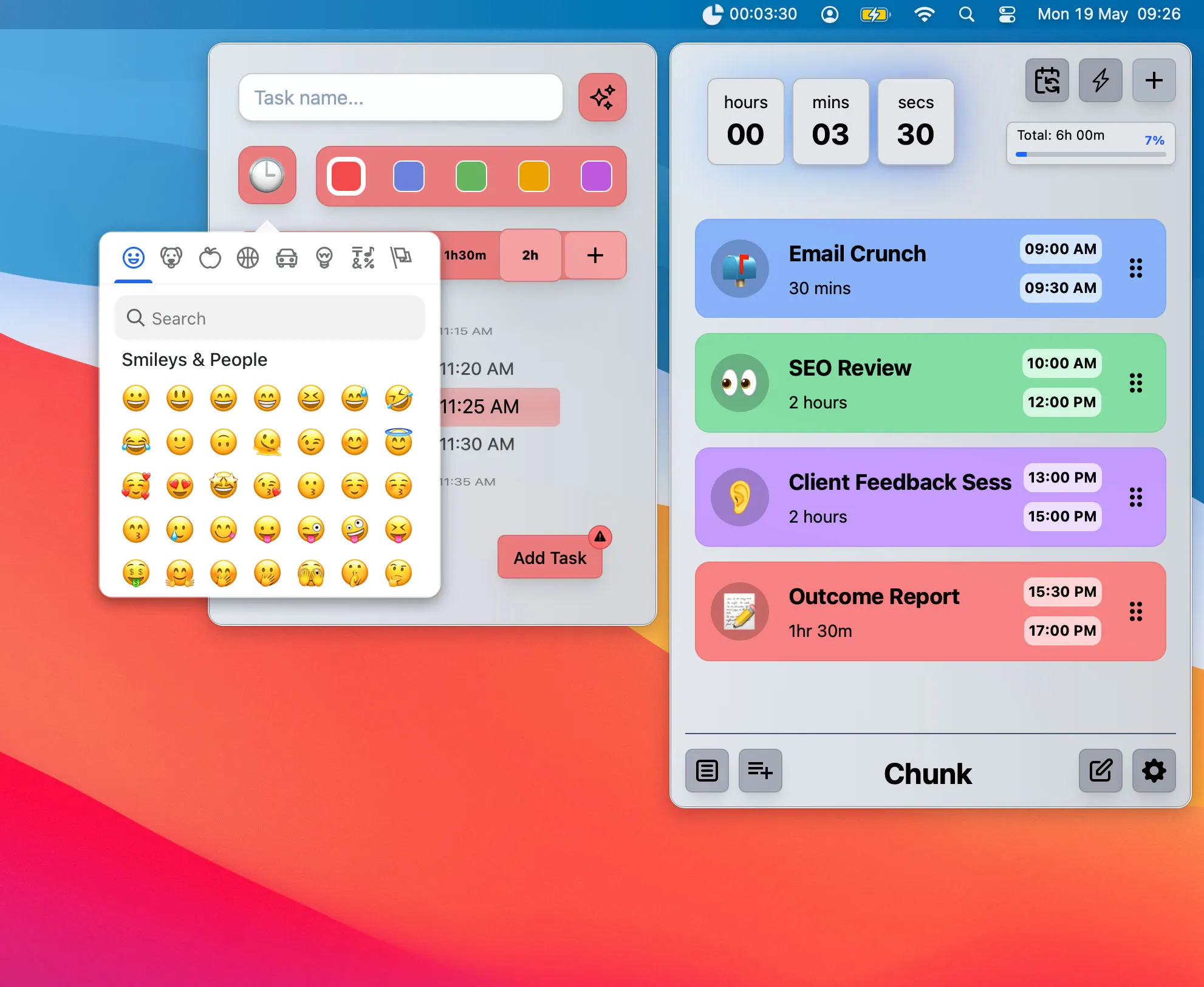
3. Chunk — For Those Who Need Strong Reminders
Problem it solves: Regular Pomodoro notifications are too easy to ignore.
Chunk's signature feature is "unmissable" notifications. When a time block ends, it takes over your entire screen—even if you're in a full-screen app.
Key Features:
- Full-screen notifications you can't ignore
- Simple time block setup (15 min to 3 hours)
- Visual time progress
- Bulk Time Shift: adjust all blocks at once
Best for: People who lose track of time and need external enforcement.
Download: chunkapp.net
4. One Thing — Minimalist Focus Reminder
Problem it solves: Too many to-dos, you don't know where to start.
One Thing's philosophy is radical simplicity: your menu bar shows just one thing. It can be your current task, a reminder, or any message you need to keep in mind.
Key Features:
- Menu bar displays single text
- Click to edit
- Zero learning curve
- Completely free
My use case: When writing long articles, I set "Stay focused, don't switch apps."
Download: Mac App Store (Free)

5. Pomy — Protect Your Eyes
Problem it solves: Extended screen time causing eye strain.
Pomy follows the 20-20-20 rule: every 20 minutes, look at something 20 feet away for 20 seconds. It gently reminds you to rest at appropriate intervals.
Key Features:
- Based on 20-20-20 eye care rule
- Non-intrusive reminders
- Customizable rest intervals
- Silent background operation
Download: Mac App Store
Window & Desktop Management
6. Rectangle — The Window Management Swiss Army Knife
Problem it solves: Dragging windows with your mouse is too slow.
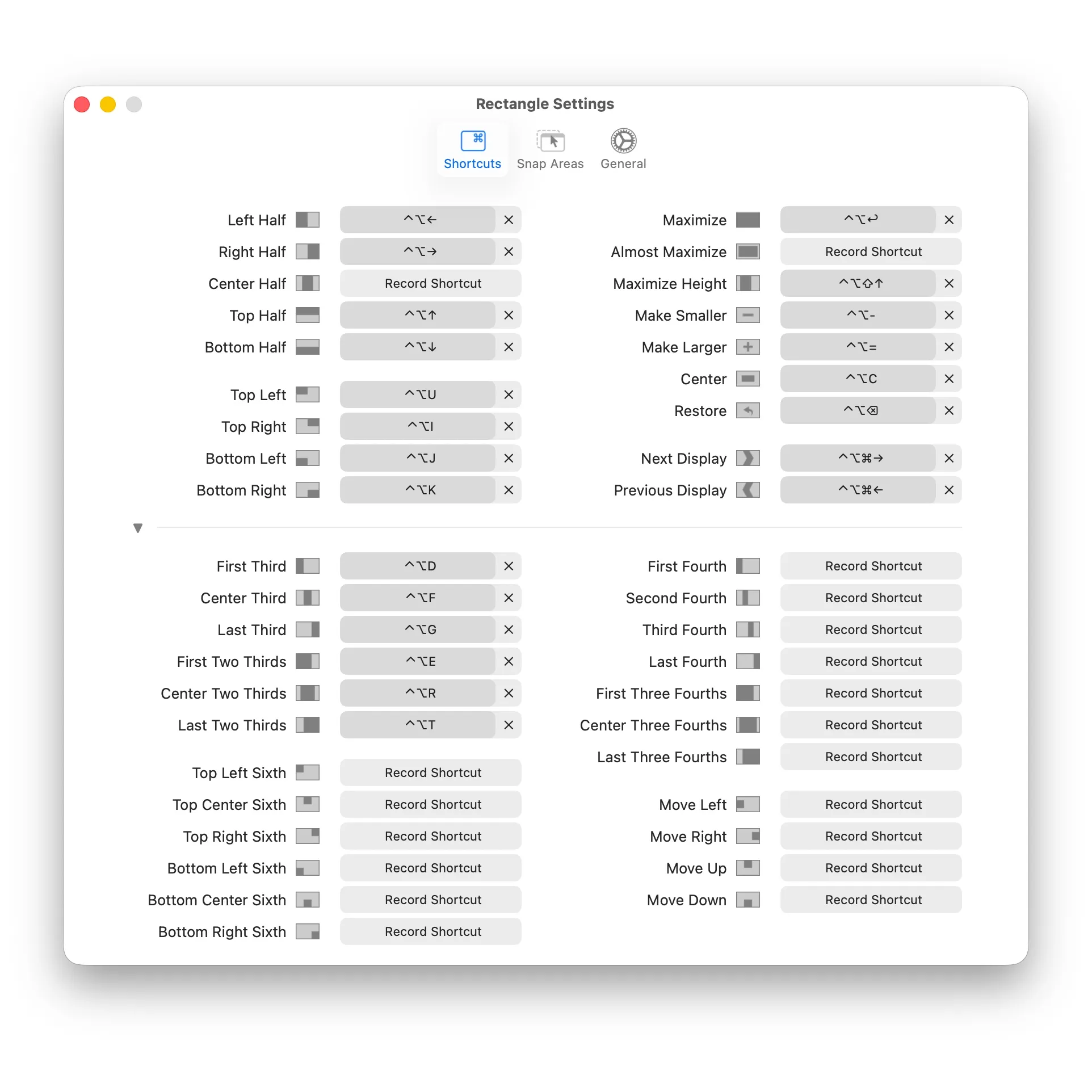
Rectangle lets you arrange windows instantly using keyboard shortcuts. ⌥ + ← snaps to left half, ⌥ + → to right half. That simple.
Key Features:
- Open source and free
- Rich keyboard shortcut support
- Multi-monitor support
- Compatible with all macOS versions
Essential Shortcuts:
| Shortcut | Action |
|---|---|
| ⌥ + ← | Left Half |
| ⌥ + → | Right Half |
| ⌥ + ↑ | Top Half |
| ⌥ + ↓ | Bottom Half |
| ⌥ + Enter | Maximize |
| ⌥ + C | Center |
Download: rectangleapp.com (Free, Open Source)
7. InfiniDesk — Multiple Desktops for Your Desktop
Problem it solves: Work and personal files mixed on the same desktop.
InfiniDesk creates multiple "virtual desktops" for your Mac, each with independent files, folders, and even wallpapers. Switch from the menu bar with one click—like having multiple computers.
Key Features:
- Independent files and wallpaper per virtual desktop
- One-click switching from menu bar
- Different wallpapers help your brain context-switch
- Archive completed project desktops
Use Cases:
- Work desktop vs personal desktop
- Separate client projects
- Clean desktop for video calls
Download: infinidesk.app
8. Later — Save Your Work State Instantly
Problem it solves: A meeting comes up but you have windows and files still open.
Later saves all your open apps and window positions with one click. After the meeting, restore everything exactly as it was.
Key Features:
- Save complete desktop state
- One-click restoration
- Quick access from menu bar
- Multiple saved states supported
Download: GitHub (Free, Open Source)
MacBook Notch Area
9. NotchNest — Make the Notch Useful
Problem it solves: What else can the MacBook notch do besides blocking your screen?
NotchNest transforms the notch area into a productivity hub. Hover near the notch, and a panel expands with music controls, Pomodoro timer, quick notes, file staging area, and more.
Key Features:
- Liquid Glass design language support
- Apple Music controls
- Built-in Pomodoro timer
- Quick notes and file staging
- AirDrop shortcut
- Calendar integration
- Camera mirror preview
Download: Mac App Store
Launchers & Productivity
10. Raycast — Spotlight on Steroids
Problem it solves: Spotlight is too basic for power user needs.
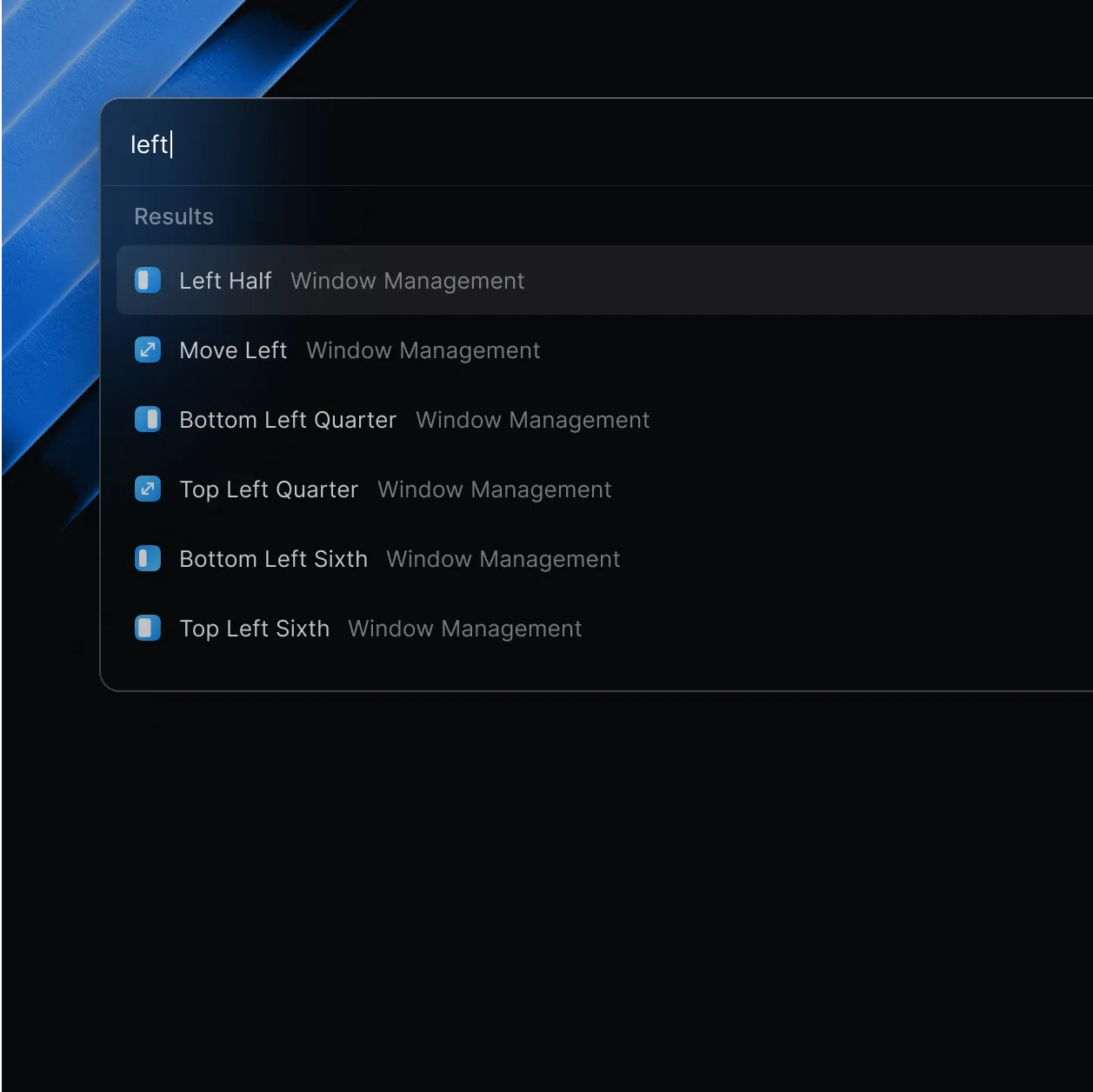
Raycast is the best Spotlight replacement, combining launcher, task management, and automation. Through its extension system, it connects to Notion, GitHub, Todoist, and more.
Key Features:
- Lightning-fast app launching
- Rich extension ecosystem
- Clipboard history
- Code snippet management
- Built-in window management
- Free core features (Pro optional)
My daily use:
- Quick app launching
- Search browser bookmarks
- Check GitHub notifications
- Run common scripts
Download: raycast.com (Free)
11. Alfred — The Classic Productivity Powerhouse
If you prefer a mature, stable solution, Alfred is another excellent choice. Its Workflow system is incredibly powerful with a vast library of community-contributed automations.
Download: alfredapp.com (Free basic, Powerpack paid)
System Enhancements
12. TinkerTool — Unlock Hidden Settings
Problem it solves: You want to tweak macOS behavior but can't find the option in System Settings.
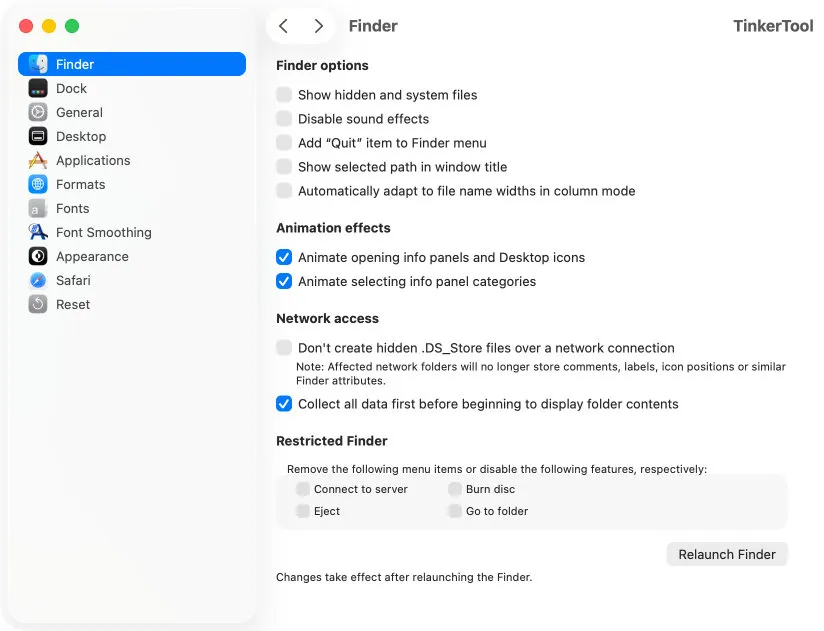
TinkerTool provides a clean interface to access Apple's hidden system preferences—like disabling animations, changing screenshot formats, or customizing Dock behavior.
Settings you can adjust:
- Disable window animations (make Mac feel faster)
- Remove "Recent Apps" from Dock
- Change default screenshot format
- Show hidden files
- Adjust font rendering
Caution: Use carefully—these are deep system settings.
Download: bresink.com (Free)
13. AltTab — Windows-Style Window Switching
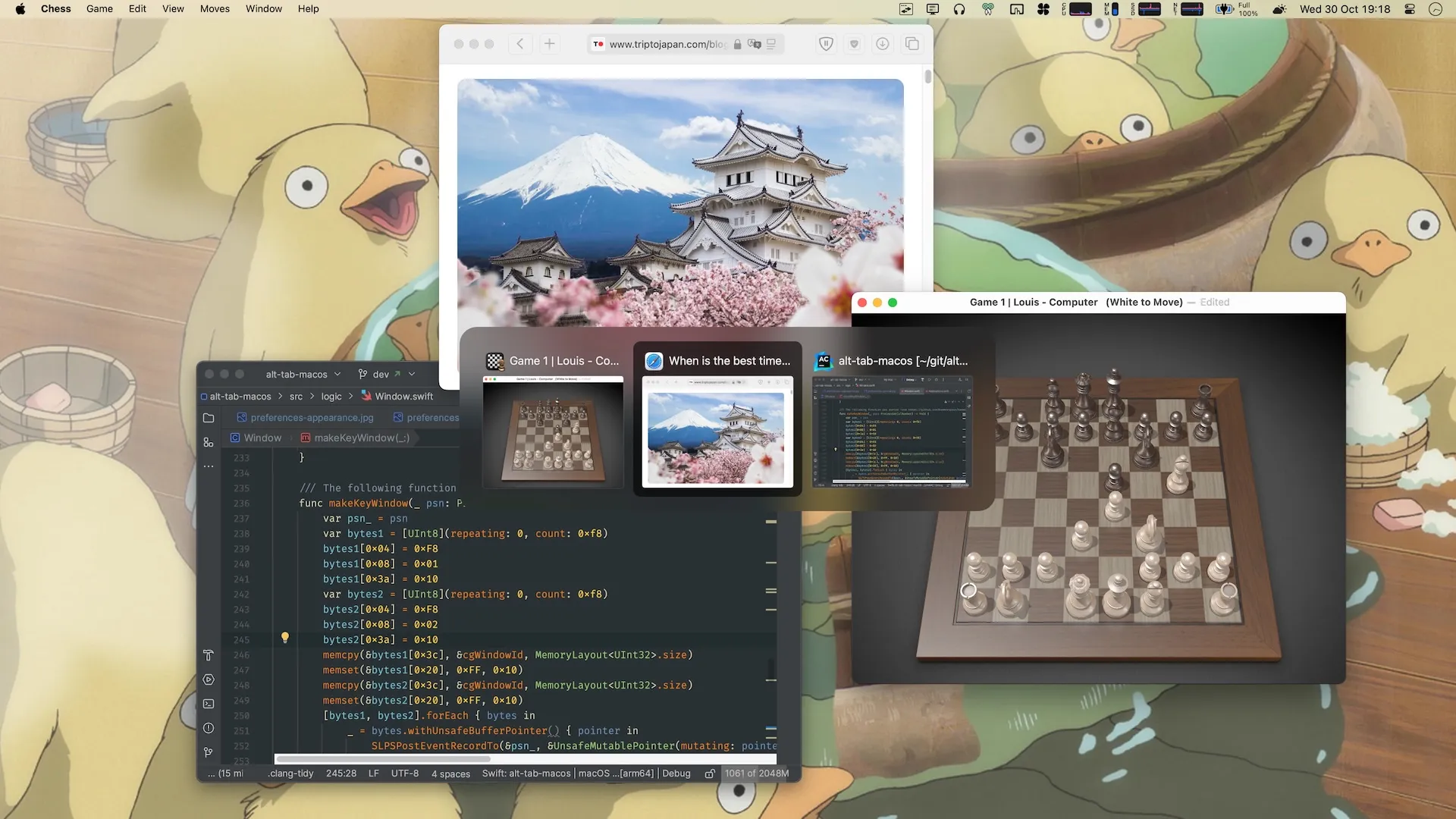
Problem it solves: macOS ⌘+Tab only switches apps, not windows.
AltTab brings Windows-style window switching to macOS, showing thumbnail previews of all open windows—not just app icons.
Key Features:
- Window thumbnail previews
- Multi-desktop support
- Highly customizable
- Open source and free
Download: GitHub (Free, Open Source)
14. Mac Mouse Fix — Third-Party Mouse Savior
Problem it solves: Logitech, Microsoft, and other third-party mice work poorly on macOS.
Mac Mouse Fix lets you fully customize mouse behavior: scroll direction, button mapping, gesture controls, and more.
Installation:
brew install mac-mouse-fixDownload: GitHub (Free, Open Source)
Other Utilities
15. Numi — The Calculator That Speaks Human
Problem it solves: Opening Calculator just to compute a simple percentage.
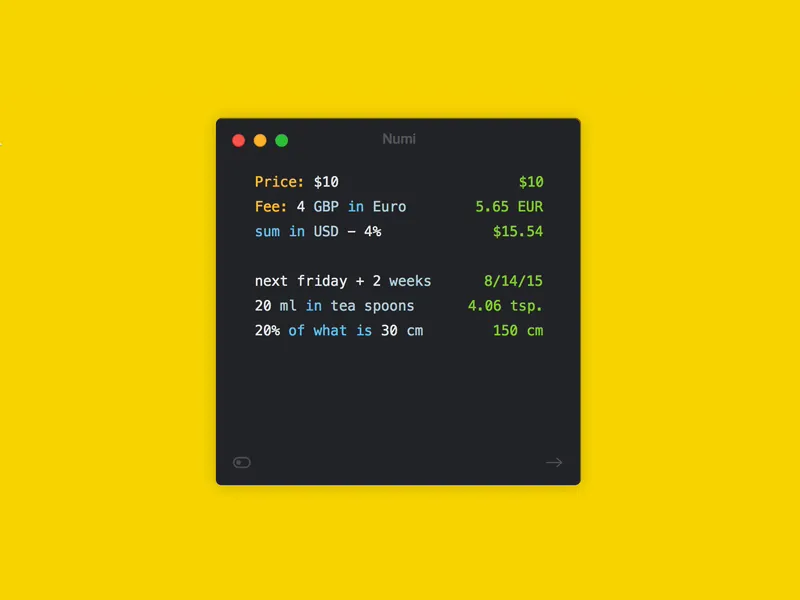
Numi understands natural language. You can type "20% of 1500" or "3 days from today" or "100 USD in EUR" and get instant answers.
Supported calculations:
- Percentages
- Currency conversion
- Unit conversion
- Date calculations
- Time zone math
Download: numi.app
My Recommended Menu Bar Setups
Here are my recommended combinations for different needs:
Minimalist (3 apps)
- Raycast — Replace Spotlight
- Rectangle — Window management
- Stats — System monitoring
Focus Worker (5 apps)
- Raycast — Launcher
- Chunk — Time management
- One Thing — Task reminder
- Later — State saving
- Hand Mirror — Meeting prep
Power User (8 apps)
- Raycast — Core launcher
- Stats — System monitoring
- Rectangle — Window management
- NotchNest — Notch utilities
- InfiniDesk — Desktop management
- AltTab — Window switching
- TinkerTool — System tweaks
- Numi — Smart calculations
Conclusion
The value of menu bar apps isn't in quantity—it's whether they actually solve your problems.
My recommendations:
- Start with 1-2 core apps (I suggest Raycast + Rectangle)
- Use them for a week to build habits
- Add new tools only when you encounter new pain points
- Periodically remove apps you don't use
Great tools should be invisible—they work silently, ready when you need them, and disappear when you don't.
That's the beauty of menu bar apps.
Sources
This article synthesizes information from multiple sources with personal testing:
- The Useful Tech - "5 New Mac Apps From 2025"
- Jannis - "6 Free Mac Apps You've Probably Never Heard Of"
- Arshad - "9 Essential Free Mac Apps" & "Best Mac Apps 2025"
- Tested on: macOS Tahoe 26.x, MacBook Pro M4