How to Prepare Your Mac for macOS 27: Complete Pre-WWDC 2026 Checklist
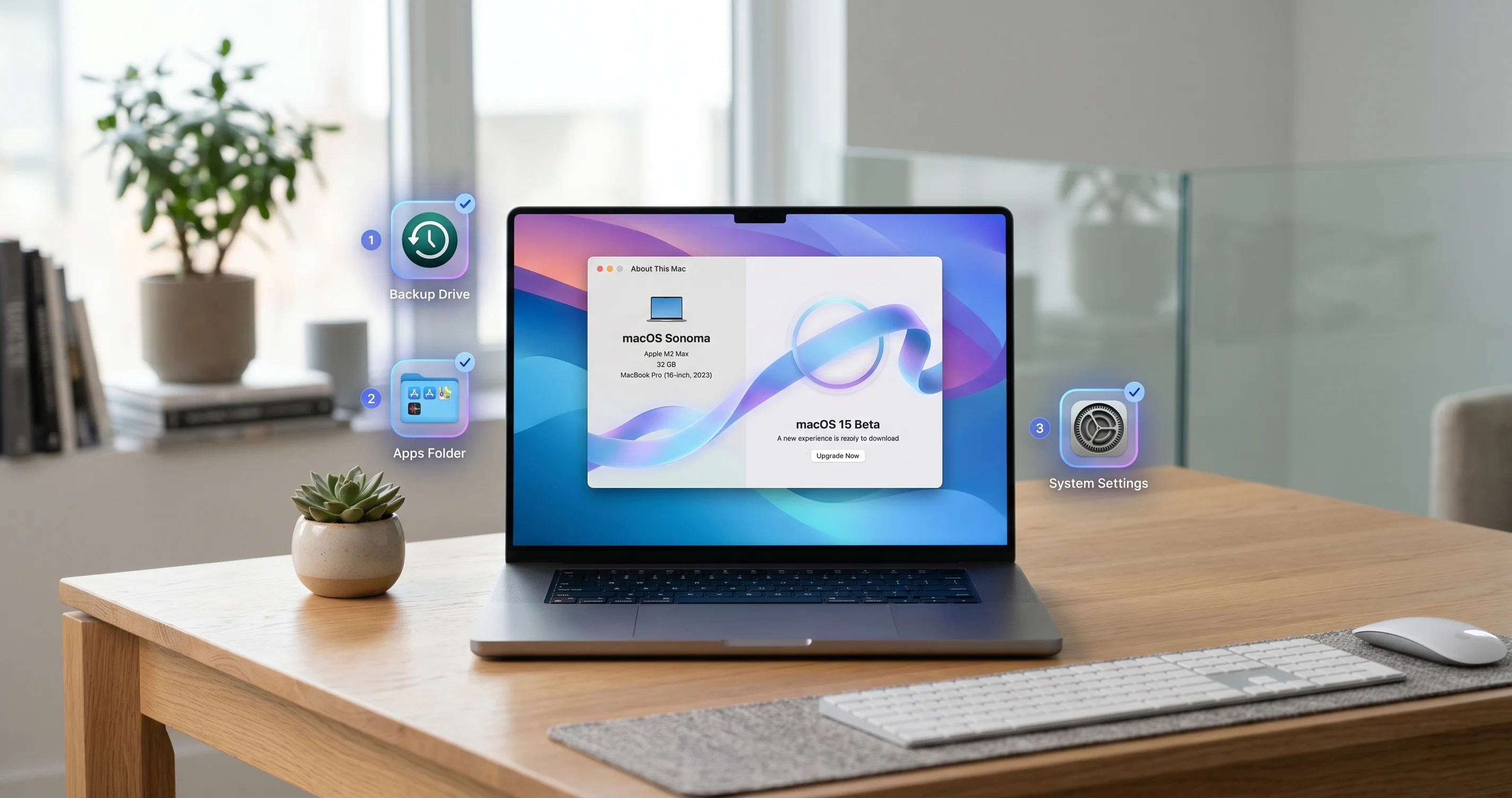
Get your Mac ready for macOS 27 before WWDC 2026. Complete checklist covering Intel app audit, Rosetta 2 migration, backup strategy, and compatibility check.
Apple has officially confirmed that WWDC 2026 will take place from June 8 through June 12, and all signs point to the unveiling of macOS 27 as the headlining announcement for the Mac platform. With less than two months until the keynote, now is the ideal window to prepare your Mac for what is shaping up to be the most significant macOS transition since Apple dropped PowerPC support in 2009. macOS 27 is widely expected to end Intel Mac support entirely, introduce a rebuilt Siri powered by large language models, and deliver a "Snow Leopard"-style release focused on stability and performance. Whether you are running a brand-new MacBook Pro with an M4 Max or still relying on an Intel iMac from 2020, this comprehensive checklist will walk you through every step you need to take before WWDC so you can upgrade on day one -- or make a smooth exit plan if your hardware is being left behind.
Key Takeaways
- macOS 27 will drop all Intel Mac support. Only Apple Silicon Macs (M1 and later) are expected to be compatible, making macOS Tahoe (26) the final release for Intel hardware.
- Rosetta 2 is on its way out. macOS 26.4 already displays deprecation warnings when launching Intel-only apps, and Rosetta 2 is expected to be fully discontinued by late 2027. Auditing your apps now prevents surprises later.
- A rebuilt Siri is coming. Internally called "Campos," the new Siri will function as a full conversational chatbot with on-screen awareness and cross-app actions, reportedly powered by a bespoke version of Google Gemini running on Apple servers.
- Backups are non-negotiable. Before any major macOS upgrade, you should have both a Time Machine backup and a bootable clone. This is doubly important if macOS 27 drops support for your machine.
- Preparation takes hours, not days. Every step in this checklist can be completed in an afternoon, and doing it now means you will be ready to install macOS 27 the moment Apple releases the public beta.
What We Know About macOS 27
Before diving into the preparation checklist, it helps to understand what macOS 27 will bring and why certain preparation steps matter. While Apple has not published official details ahead of WWDC, a convergence of supply chain reports, developer hints in macOS 26.4 betas, and credible reporting from outlets like MacRumors and Bloomberg's Mark Gurman paint a clear picture.
Intel Support Is Officially Ending
macOS Tahoe (26) was explicitly described by Apple as the last macOS release to support Intel-based Macs. The four remaining Intel models that can run Tahoe -- the 2019 Mac Pro, 2019 MacBook Pro 16-inch, 2020 MacBook Pro 13-inch (four Thunderbolt 3 ports), and 2020 iMac 27-inch -- will not make the cut for macOS 27. This completes a transition that began in June 2020 when Apple announced Apple Silicon at WWDC.
If you are currently running one of these Intel Macs, macOS 27 will not install on your machine. You can continue running macOS 26 with security updates for some time, but your long-term options will be limited. Our Intel Mac migration guide covers every scenario in detail, and our macOS Tahoe Intel Mac final guide explains what staying on Tahoe means practically.
A "Snow Leopard"-Style Stability Focus
Multiple sources suggest that macOS 27 will take the same approach as the legendary Mac OS X 10.6 Snow Leopard release from 2009: fewer flashy new features, deeper investment in performance, reliability, and system optimization. After the massive visual overhaul of Liquid Glass in macOS Tahoe, this makes strategic sense. Apple reportedly wants to use the complete removal of Intel compatibility code as an opportunity to strip out years of accumulated compatibility layers, reducing the operating system's footprint and improving performance across the board.
For users, this means macOS 27 should be faster, more stable, and more efficient than Tahoe -- particularly on Apple Silicon hardware that no longer needs to carry the weight of Intel compatibility code.
The Siri Chatbot Overhaul
The most significant user-facing feature expected in macOS 27 is a completely rebuilt Siri. Internally referred to as "Campos," this new version moves Siri from a command-response assistant to a full conversational chatbot interface. According to reporting from Bloomberg and corroborating sources, the new Siri will be powered by a bespoke version of Google's Gemini model running on Apple's own server infrastructure.
Key capabilities expected include:
- On-screen awareness: Siri will be able to see and understand what is currently displayed on your screen, allowing it to answer questions about content you are viewing without requiring you to copy and paste text.
- Personal context: The assistant will draw on your contacts, calendar, messages, and other personal data to provide contextually relevant responses -- all processed with Apple's privacy architecture.
- Cross-app actions: Rather than being limited to single-app commands, the new Siri will be able to chain actions across multiple apps. For example, you could ask it to "find the restaurant John mentioned in Messages last week and add it to my weekend plans in Calendar."
For a deeper look at everything expected from the conference, see our complete WWDC 2026 preview.
Expected Compatibility List
Based on Apple's historical pattern of dropping older chips and the complete elimination of Intel support, macOS 27 is expected to support the following Macs:
Full compatibility (all features including new Siri):
- MacBook Air: M1 (2020) and later
- MacBook Pro: M1 (Late 2020) and later
- iMac: M1 (2021) and later
- Mac mini: M1 (2020) and later
- Mac Studio: M1 Max/Ultra (2022) and later
- Mac Pro: M2 Ultra (2023) and later
Possible restrictions: Some advanced AI features may require M2 or later chips with higher Neural Engine throughput, similar to how Apple Intelligence required specific minimum hardware in macOS Sequoia and Tahoe. The base operating system, however, is expected to run on all Apple Silicon Macs.
Step 1: Check Your Mac's Compatibility
The single most important preparation step is confirming whether your Mac will run macOS 27. This determines every other decision in your preparation process.
How to Identify Your Mac Model
There are three ways to check exactly which Mac you have:
Method 1: About This Mac
- Click the Apple menu in the top-left corner of your screen.
- Select About This Mac.
- You will see your Mac's name, chip (e.g., "Apple M2 Pro" or "Intel Core i9"), year, and model identifier.
If you see "Apple M1," "Apple M2," "Apple M3," or "Apple M4" followed by any variant (Pro, Max, Ultra), your Mac is Apple Silicon and is almost certainly compatible with macOS 27.
If you see "Intel Core" anything, your Mac will not be supported.
Method 2: System Information
- Hold Option and click the Apple menu.
- Select System Information.
- In the Hardware Overview, look for Chip or Processor Name.
- The Model Identifier field (e.g., "MacBookPro18,1") gives you the precise model.
Method 3: Terminal command
Open Terminal and run:
sysctl -n machdep.cpu.brand_stringThis returns your processor name. If it starts with "Apple," you have Apple Silicon. If it starts with "Intel," you have an Intel Mac.
To get your full model identifier:
system_profiler SPHardwareDataType | grep "Model Identifier\|Chip\|Processor Name"Which Macs Will Likely Support macOS 27
The safe answer is: any Mac with Apple Silicon (M1 chip or later). This includes every Mac sold since late 2020. Here is the complete expected compatibility list:
| Mac Model | Earliest Compatible Version | Chip |
|---|---|---|
| MacBook Air | 2020 | M1 |
| MacBook Pro 13" | Late 2020 | M1 |
| MacBook Pro 14"/16" | 2021 | M1 Pro / M1 Max |
| iMac 24" | 2021 | M1 |
| Mac mini | 2020 | M1 |
| Mac Studio | 2022 | M1 Max / M1 Ultra |
| Mac Pro | 2023 | M2 Ultra |
Every subsequent model year for each product line is also supported.
What to Do If You Have an Intel Mac
If your Mac has an Intel processor, you have several options to consider before WWDC:
-
Continue on macOS Tahoe (26). Apple typically provides security updates for the previous two macOS versions. You can expect to receive security patches for macOS 26 through at least late 2027 or early 2028.
-
Plan a hardware upgrade. The refurbished Mac market currently offers excellent value on M1 and M2 machines. A base M1 MacBook Air, for example, can be found for under $600 and will run macOS 27 without issue.
-
Consider the OCLP path. OpenCore Legacy Patcher (OCLP) has historically allowed unsupported Macs to run newer macOS versions, though the future of this project is uncertain (more on this below).
-
Migrate to a new Mac now. If you plan to upgrade hardware anyway, doing it before WWDC gives you time to fully set up and test your new machine before macOS 27 arrives. Our Intel Mac migration guide walks through the complete process.
For a broader look at compatibility across macOS versions, our macOS Tahoe compatibility guide provides detailed hardware requirement tables.
Step 2: Audit Your Rosetta 2 Apps
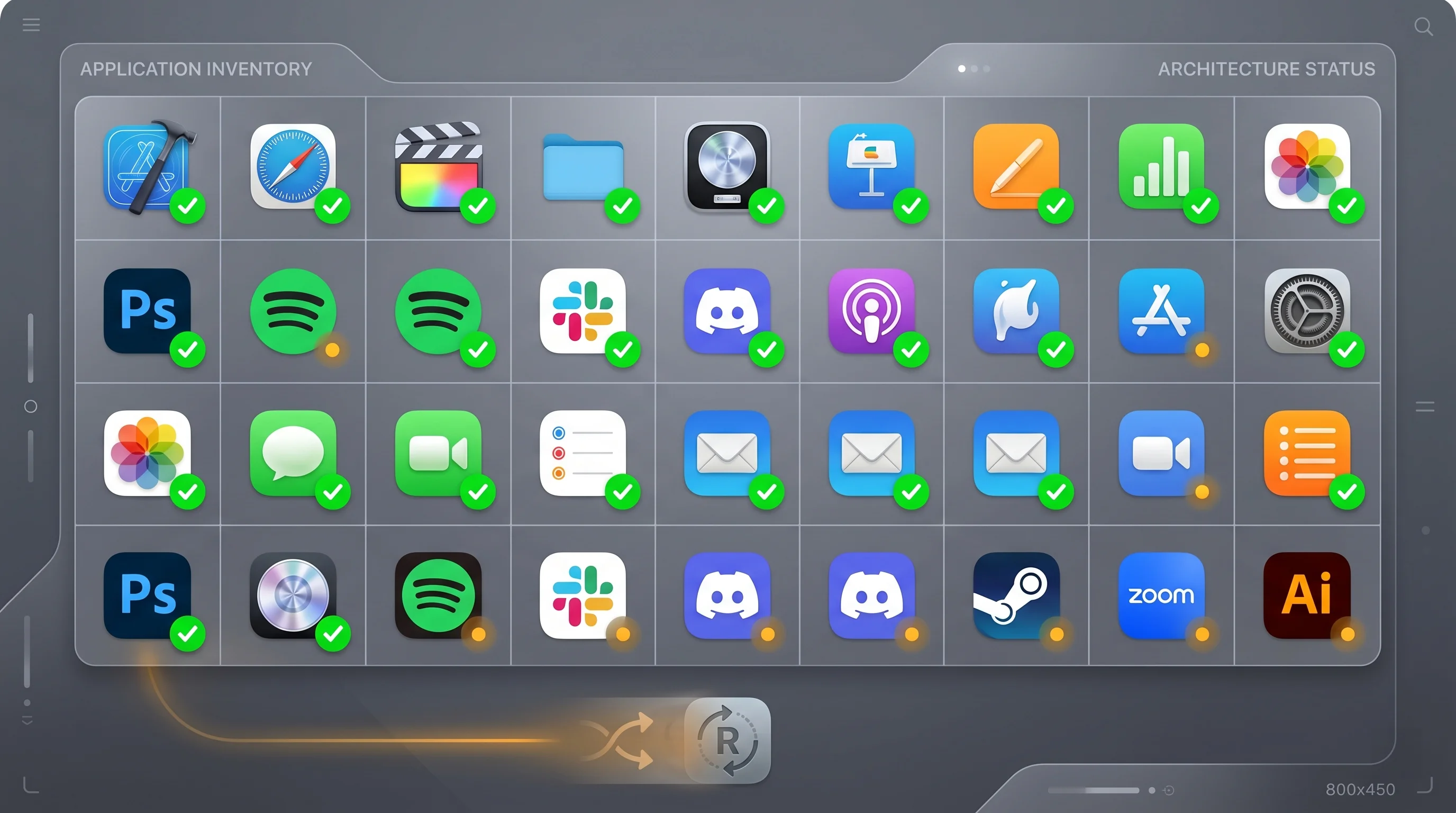
Even if your Mac has Apple Silicon, you may be running apps that still rely on Intel code through Rosetta 2. With Rosetta 2 deprecation warnings already appearing in macOS 26.4 and full discontinuation expected by late 2027, now is the time to identify and replace these apps.
How to Find Intel-Only Apps
Method 1: System Information (GUI)
- Open System Information (Apple menu > About This Mac > More Info > System Report, or search in Spotlight).
- In the left sidebar, navigate to Software > Applications.
- Wait for the list to populate (this can take a minute on systems with many apps installed).
- Click the Kind column header to sort applications by architecture.
- Look for apps marked as Intel -- these are the ones running through Rosetta 2.
- Apps marked Universal or Apple Silicon are native and require no action.
Method 2: Terminal Command
For a quick text-based audit, open Terminal and run:
system_profiler SPApplicationsDataType | grep -B 5 "Intel"This will output the name, version, and location of every Intel-only app on your system. For a cleaner, more focused output, try:
system_profiler SPApplicationsDataType | grep -B 2 "Kind: Intel" | grep "Location\|Kind"To get a simple count of how many Intel apps you have:
system_profiler SPApplicationsDataType | grep "Kind: Intel" | wc -lMethod 3: Using the Activity Monitor
- Open Activity Monitor from Applications > Utilities.
- If the Kind column is not visible, right-click on any column header and enable it.
- Sort by Kind to see which running processes are using "Intel" architecture (running under Rosetta 2).
Common Intel-Only Apps to Watch For
Based on community reports and our own testing, these categories of apps are most likely to still be Intel-only as of early 2026:
- Older versions of Adobe Creative Suite: While Adobe has released Universal Binary versions of all current apps, users running perpetual licenses of older versions (Photoshop CS6, older Lightroom Classic builds) may still be on Intel binaries.
- Legacy audio production software: Some DAW plugins, virtual instruments, and audio processing tools from smaller developers have been slow to transition. Check your Audio Units and VST plugins individually.
- Specialized scientific and engineering software: MATLAB (older versions), certain CAD tools, and niche research software may still be Intel-only.
- Older game titles: Games distributed outside the Mac App Store, particularly older Steam titles, frequently remain Intel-only.
- Corporate/enterprise software: Internal tools, VPN clients, and enterprise security software deployed by IT departments sometimes lag behind on architecture updates.
- Older Homebrew formulas: If you use Homebrew, some packages may have been installed as Intel binaries, particularly if you migrated from an Intel Mac using Migration Assistant.
How to Find Universal Binary Alternatives
For each Intel-only app you find, take the following steps:
- Check the developer's website for an updated version. Many developers have released Universal Binary updates but existing installations do not auto-update.
- Search the Mac App Store. App Store versions are more likely to be current and Universal.
- Look for alternatives. If a developer has abandoned their app, look for modern replacements. Websites like alternativeto.net can help identify substitutes.
- Check Homebrew with
brew info <package>to see if a native Apple Silicon version is available, then reinstall withbrew reinstall <package>.
For a comprehensive walkthrough of the Rosetta 2 situation and migration strategies, see our Rosetta 2 end of life guide.
Step 3: Create a Complete Backup Strategy
Before any major macOS upgrade -- and especially before one that may drop support for your hardware -- a robust backup strategy is essential. You need at minimum two independent backups, and ideally three.
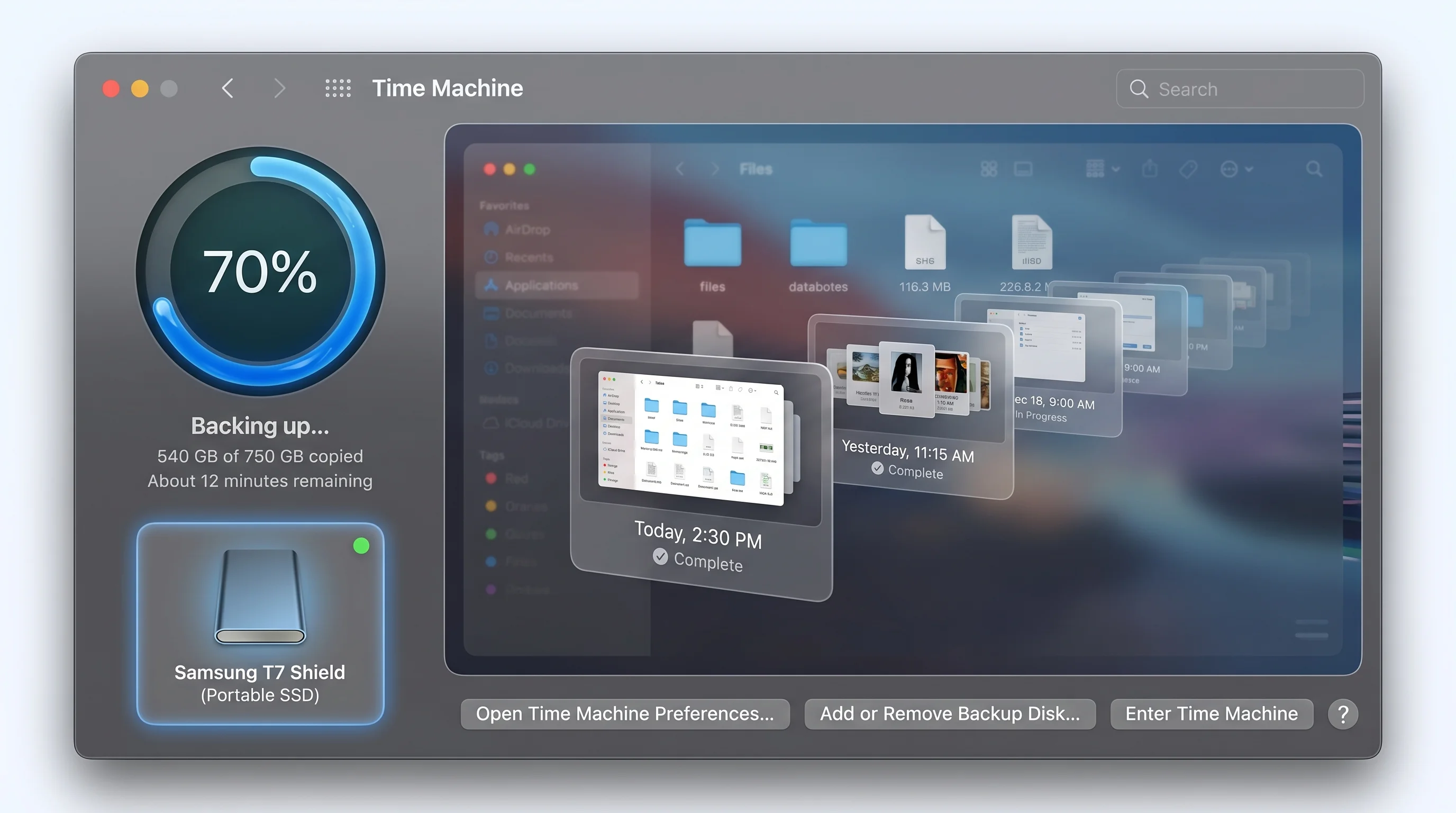
Time Machine Backup
Time Machine remains the simplest and most integrated backup solution on macOS. If you do not already have Time Machine configured, set it up now:
- Connect an external drive (at least twice the size of your Mac's internal storage is recommended).
- Open System Settings > General > Time Machine.
- Click Add Backup Disk and select your external drive.
- Enable Back Up Automatically.
- Wait for the initial backup to complete. This can take several hours depending on your data volume.
If Time Machine is already configured, verify your backup:
tmutil latestbackupThis command returns the path and timestamp of your most recent backup. Make sure it is recent. You can also check backup status with:
tmutil statusImportant considerations:
- Time Machine backups include your entire system, applications, and user data.
- If macOS 27 drops support for your Mac, your Time Machine backup can be used to restore to macOS 26 on the same hardware.
- Time Machine backups can also be used with Migration Assistant to transfer your data to a new Mac.
Bootable Clone with Carbon Copy Cloner or SuperDuper
A bootable clone is a complete, bit-for-bit copy of your startup disk that you can boot from directly. This provides a safety net that Time Machine alone cannot match:
- Carbon Copy Cloner (bombich.com): The most popular cloning tool for macOS. Version 7 supports Apple Silicon Macs natively and can create bootable clones on external SSDs. It costs $49.99 but offers a 30-day trial.
- SuperDuper! (shirt-pocket.com): A simpler alternative that also creates bootable clones. The basic cloning feature is free; the "Smart Update" feature (incremental clones) requires a $27.95 license.
To create a bootable clone:
- Connect a clean external SSD (formatted as APFS for Apple Silicon Macs or Mac OS Extended for Intel Macs).
- Open your cloning tool of choice.
- Select your internal drive as the source and the external SSD as the destination.
- Start the clone process. This typically takes 30-90 minutes depending on your data volume.
- After cloning, test the clone by restarting your Mac and holding the Option key (Intel) or the Power button (Apple Silicon) at startup, then selecting the external drive.
iCloud Sync Verification
Even with local backups, verifying that your iCloud data is fully synced provides an additional layer of protection:
- Open System Settings > [Your Name] > iCloud.
- Check that each category shows an up-to-date sync status.
- Pay special attention to:
- iCloud Drive: Ensure all files have finished uploading (look for the cloud icon with an upward arrow, which indicates pending uploads).
- Photos: If you use iCloud Photos, verify the library is fully uploaded. Open Photos, scroll to the bottom of the Library, and check for an upload progress indicator.
- Keychain: Make sure iCloud Keychain is enabled so your passwords sync.
- Notes, Reminders, Contacts, Calendars: Verify these are set to sync with iCloud.
You can verify iCloud Drive sync status via Terminal:
brctl statusFor a comprehensive guide to backup strategies, see our best Mac backup strategy for 2026.
Step 4: Clean Up Your System
A clean system upgrades faster, performs better, and is less likely to encounter issues during the update process. Treat this as spring cleaning for your Mac.
Remove Unused Apps
Start by identifying apps you no longer use:
- Open Finder and go to the Applications folder.
- Sort by Date Last Opened (View > Show View Options > Sort by > Date Last Opened).
- Any app you have not opened in six months or more is a candidate for removal.
When removing apps, do not just drag them to the Trash. Many apps leave behind preference files, caches, support files, and launch agents scattered across your Library folder. Instead:
- For App Store apps: Right-click the app in Launchpad, click the X button, and confirm deletion. This handles most cleanup automatically.
- For non-App Store apps: Use a dedicated uninstall tool or manually remove associated files. Check these locations:
~/Library/Application Support/[App Name]~/Library/Preferences/[App Bundle ID].plist~/Library/Caches/[App Bundle ID]~/Library/Logs/[App Name]/Library/LaunchAgents/and~/Library/LaunchAgents//Library/LaunchDaemons/
Our guide on how to completely uninstall apps on Mac covers every step in detail, including how to find and remove leftover files that most users miss.
Clear System Caches
macOS accumulates caches over time that can consume significant storage. While macOS manages most caches automatically, a pre-upgrade cleanup can free space and prevent potential cache corruption during the update:
# Check how much space caches are using
du -sh ~/Library/Caches/
To clear user-level caches safely:
- Open Finder and press Cmd + Shift + G to open "Go to Folder."
- Type
~/Library/Caches/and press Enter. - Select all folders inside and move them to the Trash.
- Empty the Trash.
Note: Do not delete the Caches folder itself, only its contents. macOS and individual apps will recreate their cache folders as needed. Some apps may take slightly longer to open the first time after clearing their cache.
For system-level caches (requires administrator access):
sudo rm -rf /Library/Caches/*Be cautious with this command -- only run it if you understand what system-level caches contain and are comfortable with apps rebuilding them.
Free Up Storage Space
macOS 27 will likely require at least 35-40 GB of free space for installation, similar to macOS Tahoe. Check your current storage:
- Open System Settings > General > Storage.
- Review the storage breakdown by category.
- Target the largest categories for cleanup.
Common space-saving actions:
- Empty the Trash: This seems obvious, but many users accumulate gigabytes of files in their Trash without emptying it. Right-click the Trash icon in the Dock and select Empty Trash.
- Remove old iOS/iPadOS backups: Open Finder, connect your iPhone, and check for local backups under the General tab. Old device backups can consume 10-50 GB each.
- Clean up Downloads: Sort your Downloads folder by size and date. Old disk images (.dmg), installer packages (.pkg), and zip files are common space wasters.
- Optimize storage with iCloud: If you have sufficient iCloud storage, enable Optimize Mac Storage under System Settings > [Your Name] > iCloud > iCloud Drive. This moves older files to iCloud and keeps only recently accessed files locally.
- Review large files: Use Terminal to find files over 1 GB:
find ~ -type f -size +1G -exec ls -lh {} \; 2>/dev/null | sort -k5 -hFor a complete walkthrough of storage optimization, see our macOS Tahoe storage management guide.
Step 5: Update All Apps to Latest Versions
Running the latest versions of your apps before upgrading macOS ensures maximum compatibility and reduces the chance of post-upgrade breakage. App developers often release compatibility updates in the weeks leading up to a new macOS release, but having the latest versions now puts you in the best starting position.
App Store Updates
- Open the App Store.
- Click Updates in the sidebar.
- Click Update All to install all available updates.
- If you see apps with available updates that are not downloading, check that you are signed in with the correct Apple Account and that the app is not stuck in a download queue.
You can also check for App Store updates via Terminal:
softwareupdate --listThis command lists available macOS and App Store updates. To install all available updates:
sudo softwareupdate --install --allNon-App Store App Updates (Homebrew)
If you use Homebrew, update all installed packages:
# Update Homebrew itself
brew update

# Upgrade all installed formulas and casks
brew upgrade

# Clean up old versions
brew cleanup

# Check for potential issues
brew doctor
Pay special attention to Homebrew casks (GUI applications installed via Homebrew). These are the most likely to have architecture-related updates:
# List outdated casks
brew outdated --cask

# Upgrade all casks
brew upgrade --cask
Direct Download Apps
For apps you downloaded directly from developer websites (not from the App Store or Homebrew), you will need to check each one manually:
- Open the app.
- Check for updates through the app's menu (usually under [App Name] > Check for Updates or Help > Check for Updates).
- If the app does not have a built-in update checker, visit the developer's website to download the latest version.
Make a list of apps that have not been updated in over a year. These may be abandoned by their developers and could cause problems with macOS 27. Start researching alternatives now rather than scrambling after the upgrade.
Step 6: Document Your Setup
This step is often overlooked but can save hours of frustration if something goes wrong during or after the upgrade. Documenting your current setup creates a reference you can use to recreate your environment.
Screenshot Your Settings
Take screenshots of settings that are difficult to remember or recreate from memory:
- System Settings > Desktop & Dock: Dock size, position, auto-hide behavior, hot corners.
- System Settings > Keyboard: Custom shortcuts, input sources, text replacements.
- System Settings > Trackpad/Mouse: Gesture configurations, tracking speed, click behavior.
- System Settings > Displays: Resolution, arrangement (for multi-monitor setups), Night Shift schedule.
- System Settings > Network: VPN configurations, DNS settings, proxy settings.
- System Settings > Privacy & Security: App permissions for camera, microphone, screen recording, accessibility, full disk access.
Store these screenshots in a folder on your Desktop or in iCloud Drive so they survive the upgrade process.
Export App Preferences
Many apps allow you to export preferences or configuration files. Prioritize these:
- Terminal/iTerm2: Export your profiles and color schemes. In iTerm2, go to Preferences > General > Preferences and note or export your profile location.
- Text editors and IDEs: VS Code stores settings in
~/Library/Application Support/Code/User/settings.json. Export your extensions list withcode --list-extensions > ~/Desktop/vscode-extensions.txt. - Browser: Ensure bookmarks and passwords are synced to your browser's cloud service (Chrome Sync, Firefox Sync, Safari via iCloud).
- Email clients: If using a third-party email client, note your account configurations and export any local email archives.
- SSH keys: Back up your
~/.ssh/directory, including yourconfigfile and all key pairs:
cp -r ~/.ssh/ ~/Desktop/ssh-backup/- Shell configuration: Back up your shell configuration files:
cp ~/.zshrc ~/Desktop/zshrc-backup
cp ~/.zprofile ~/Desktop/zprofile-backup 2>/dev/null
List Your Critical Workflows
Write down (or type out) the workflows you depend on daily. This serves as a checklist you can verify after upgrading:
- Can you access your email?
- Can you connect to your company VPN?
- Do your development tools compile and run projects?
- Do your creative apps open your project files?
- Do your peripheral devices (printers, external displays, audio interfaces) work?
- Are your cloud storage services syncing?
- Do your keyboard shortcuts and automation tools (Alfred, Raycast, Keyboard Maestro) work?
Having this list ready means you can systematically verify your setup after upgrading to macOS 27, rather than discovering broken workflows days or weeks later when you need them most.
What About OCLP for Unsupported Macs?
OpenCore Legacy Patcher (OCLP) has been a lifeline for users of older Macs that Apple no longer officially supports. The project has allowed Macs as old as 2008 to run recent macOS versions by patching the installer and injecting compatibility fixes at boot time. Naturally, many Intel Mac users are wondering whether OCLP will enable their machines to run macOS 27.
The situation is more uncertain than ever. In early 2026, the OCLP project's lead developer accepted a position at Apple, stepping away from active development. While the project remains open source and other contributors have continued maintenance, losing the primary architect raises significant questions about the project's ability to keep pace with Apple's increasingly complex system requirements.
There are also fundamental technical challenges. macOS 27's complete removal of Intel support code means OCLP would need to patch not just the installer and a few system components, but potentially the entire kernel and core frameworks. This is a substantially different challenge than patching macOS to run on an older Apple Silicon Mac that merely lacks some hardware feature.
Our recommendation: Do not count on OCLP as your primary strategy for running macOS 27 on an Intel Mac. If OCLP support materializes, treat it as a bonus. For now, plan around one of the following:
- Stay on macOS 26 (Tahoe) with security updates.
- Upgrade to an Apple Silicon Mac.
- Consider Linux as an alternative operating system for your Intel hardware. Distributions like Fedora and Ubuntu run excellently on Intel Mac hardware and will continue to receive updates for years.
If you want to explore the OCLP option anyway, bookmark the OpenCore Legacy Patcher GitHub repository and watch for announcements after WWDC. The community will test macOS 27 compatibility within days of the developer beta release.
macOS 27 Feature Predictions
Beyond the confirmed Intel support removal and Siri overhaul, here are additional features and changes that credible sources suggest may arrive with macOS 27:
Performance and efficiency improvements:
- Reduced memory footprint from removing Intel compatibility layers and Rosetta 2 translation overhead.
- Faster app launch times thanks to optimized Apple Silicon-native frameworks.
- Improved battery life on MacBook models as the system no longer needs to carry Intel-related background processes.
- More aggressive use of the Neural Engine for system-level tasks like Spotlight indexing and photo analysis.
System-level changes:
- A unified notification system that groups alerts more intelligently, potentially leveraging the new AI capabilities.
- Streamlined System Settings with better search and more logical organization -- a frequent complaint from users who transitioned from the old System Preferences.
- Enhanced Focus modes that can automatically detect your work context and adjust notifications, app layouts, and Siri behavior accordingly.
- Deeper integration between Stage Manager and the new Siri, allowing voice-driven window management.
Developer features:
- New Xcode tools for building apps that leverage the Campos (Siri) framework, allowing third-party apps to expose actions and data to the assistant.
- Updated SwiftUI components that take advantage of the post-Liquid Glass design refinements.
- Improved Instruments profiling specifically for Apple Silicon performance optimization, with Intel profiling tools removed.
Privacy and security:
- Expanded Lockdown Mode capabilities.
- New privacy controls for apps accessing the Siri conversational context.
- Enhanced sandboxing that leverages Apple Silicon hardware security features no longer constrained by Intel compatibility requirements.
These predictions are based on current reporting and may change when Apple makes its official announcements at WWDC. We will update our WWDC 2026 preview as new information becomes available.
Frequently Asked Questions
When will macOS 27 be released?
Apple will announce macOS 27 at WWDC on June 8, 2026. Based on Apple's established pattern, the developer beta will be available the same day, the public beta will follow in July, and the final release will arrive in September or October 2026. The exact release date will not be confirmed until closer to launch.
Will my M1 Mac run macOS 27?
Almost certainly yes. All Apple Silicon Macs, starting with the M1 chip introduced in late 2020, are expected to support macOS 27. Some advanced AI features may be limited to M2 or later chips, but the core operating system and the vast majority of features should work on M1 machines without issue.
Can I still use Intel apps on macOS 27?
This depends on Rosetta 2's status in macOS 27. If Apple includes Rosetta 2 in macOS 27 (even in a deprecated state), Intel apps will continue to work for the time being. However, macOS 26.4 already shows deprecation warnings for Rosetta 2, and Apple has signaled that full removal is planned for late 2027. The safest approach is to migrate all your critical apps to Universal Binary or native Apple Silicon versions now, before macOS 27 launches. See our Rosetta 2 end of life guide for a detailed migration plan.
What happens to my Intel Mac after macOS 27 launches?
Your Intel Mac will continue to work exactly as it does today. macOS 26 (Tahoe) will remain installed and functional. Apple typically provides security updates for the previous two macOS versions, so you can expect security patches through at least late 2027 or early 2028. After that, your Mac will still work but will no longer receive security updates, which increases risk over time -- especially if you use it to access sensitive accounts or financial services.
Should I upgrade to macOS 27 on day one?
We recommend waiting for the public beta at minimum, and ideally waiting until the .1 update (e.g., macOS 27.1) for mission-critical machines. Day-one releases, even from Apple, can contain bugs that only surface at scale. If you have a secondary Mac, install the beta on that machine first. If you only have one Mac, wait until early adopters and tech publications have had a few weeks to identify and report any major issues.
How much storage space will macOS 27 require?
Apple has not announced storage requirements yet, but based on recent macOS releases, expect to need 35-45 GB of free space for the installation process. The actual installed size of the operating system may be smaller than macOS 26 due to the removal of Intel compatibility code, but the installer itself needs working space for the upgrade process. Check your current free space in System Settings > General > Storage and aim for at least 50 GB free to give yourself comfortable headroom.
Your Pre-WWDC 2026 Checklist Summary
Here is a condensed version of every action item from this guide. Print it out or save it as a note on your Mac, and work through each item before June 8:
- Check compatibility: Confirm your Mac has Apple Silicon (M1 or later).
- Audit Rosetta 2 apps: Run
system_profiler SPApplicationsDataType | grep -B 5 "Intel"and note every Intel-only app. - Find replacements: For each Intel-only app, find a Universal Binary or Apple Silicon alternative.
- Run Time Machine backup: Verify it is current with
tmutil latestbackup. - Create a bootable clone: Use Carbon Copy Cloner or SuperDuper to clone your startup disk.
- Verify iCloud sync: Confirm all iCloud-synced data is up to date.
- Remove unused apps: Delete apps you have not used in six months, including their leftover files.
- Clear caches: Clean out
~/Library/Caches/to free space. - Free up storage: Aim for at least 50 GB free on your startup disk.
- Update App Store apps: Open the App Store and install all pending updates.
- Update Homebrew: Run
brew update && brew upgrade && brew cleanup. - Update direct-download apps: Check each non-App Store, non-Homebrew app for updates.
- Screenshot system settings: Capture Desktop & Dock, Keyboard, Displays, Network, and Privacy settings.
- Export app configs: Back up VS Code settings, SSH keys, shell configs, and browser data.
- Document workflows: List your daily critical workflows for post-upgrade verification.
- Decide on Intel Mac strategy: If applicable, choose between staying on Tahoe, upgrading hardware, or switching to Linux.
Conclusion
WWDC 2026 is just weeks away, and macOS 27 represents the most significant platform transition since Apple Silicon was introduced. Whether you are excited about the new Siri capabilities and performance improvements or navigating the end of Intel support, taking the time to prepare now will make the transition smooth and stress-free.
The steps in this guide are not complicated, but they do require intention. Setting aside two to three hours this weekend to run through the checklist means you will be ready to install macOS 27 the moment it becomes available -- with confidence that your data is backed up, your apps are compatible, and your system is clean.
For Intel Mac users, the transition is more consequential but equally manageable. macOS 26 will continue to receive security updates, Apple Silicon Macs have never been more affordable on the refurbished market, and Migration Assistant makes moving to a new machine remarkably painless.
Whatever your situation, the worst approach is to do nothing and be surprised. Spend a little time now, and WWDC keynote day becomes something to look forward to rather than worry about. We will be covering WWDC 2026 in real time and will publish detailed macOS 27 guides as soon as Apple lifts the curtain on June 8.