macOS Tahoe Finder Complete Guide 2025: Master File Management, Customization & Productivity Workflows
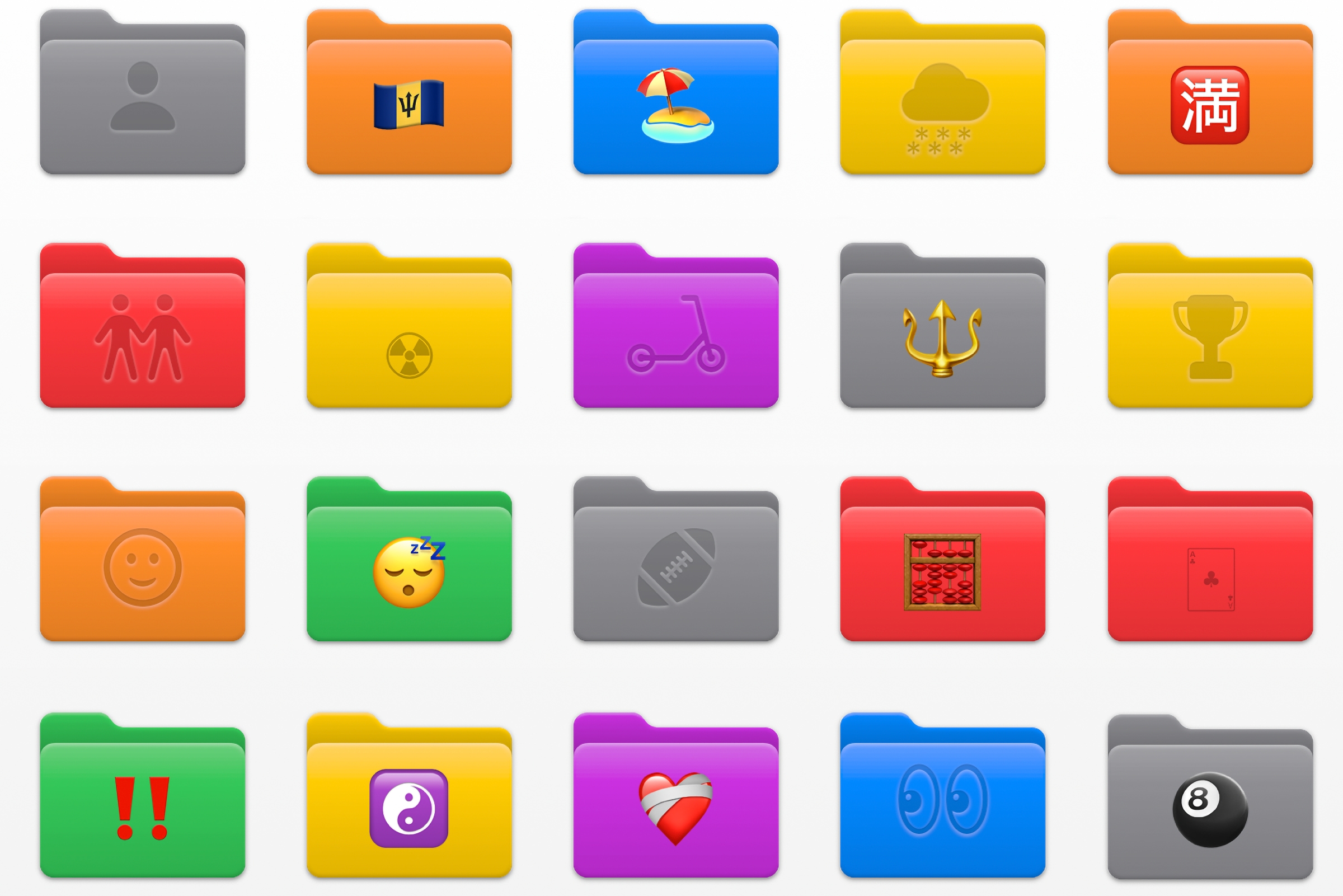
Ultimate guide to mastering macOS Tahoe Finder with emoji folder customization, color tags, Smart Folders, advanced search operators, keyboard shortcuts, and professional workflows for students, developers, and creative professionals.
The macOS Tahoe Finder has undergone its most significant transformation in years, introducing revolutionary customization options, enhanced Spotlight integration, and powerful productivity features that fundamentally change how we interact with files on Mac. This comprehensive guide explores every aspect of the new Finder experience, from emoji folder customization to advanced organizational workflows for different professional needs.
The Finder Revolution: What's New in macOS Tahoe
macOS Tahoe (macOS 26), released on September 15, 2025, brings the Liquid Glass design language to Finder, transforming it from a utilitarian file manager into a personalized, visually stunning productivity tool. The update introduces features that make file organization both functional and enjoyable.
Key Highlights
- Emoji folder customization with system symbols and full-color stickers
- Color-coded folder system that changes entire folder appearances
- Enhanced Spotlight integration with AI-powered search and Quick Actions
- Dynamic folder animation showing content status at a glance
- Improved accessibility with VoiceOver enhancements and better visual hierarchy
- Performance optimizations delivering faster navigation and reduced lag
Revolutionary Folder Customization System
The most talked-about Finder improvement in macOS Tahoe is the comprehensive folder customization system that lets you visually organize files in ways never before possible on Mac.
Emoji Folders: Add Personal Flair
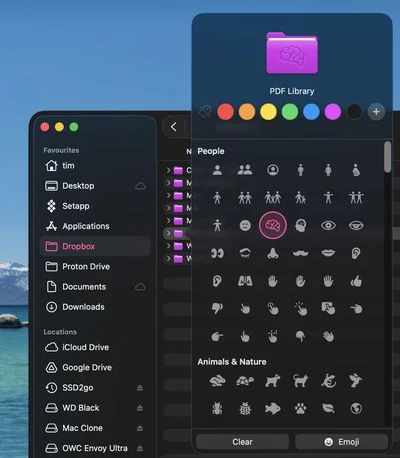
How to Customize Folders with Emojis:
- Right-click (or Control-click) any folder in Finder
- Select "Customize Folder..." from the context menu
- Choose from two customization types:
- System Symbols: Appear embossed into the folder like an engraving (monochrome)
- Emojis: Appear as full-color stickers on the folder surface
Popular Emoji Combinations by Use Case:
Students:
- 📚 Textbooks and reading materials
- 📝 Class notes and study guides
- 🎯 Current projects and assignments
- ✅ Completed coursework
- 📅 Assignment schedules and planners
Developers:
- 💻 Active coding projects
- 🔧 Tools and utilities
- 📦 Dependencies and packages
- 🧪 Test environments
- 🚀 Production deployments
Creative Professionals:
- 📸 Photo shoots and sessions
- 🎨 Design projects and mockups
- 🎬 Video production folders
- ✨ Final deliverables
- ⭐ Portfolio-worthy pieces
Business Users:
- 💼 Client folders and accounts
- 📊 Reports and analytics
- 💰 Financial documents
- 📞 Meeting materials
- ⏰ Urgent/priority items
Color-Coded Folder System
macOS Tahoe introduces a revolutionary color tag system that transforms the entire folder appearance, not just adds a colored dot.
Setting Up Color-Coded Folders:
Method 1: Individual Folder Colors
- Right-click the folder
- Select a color tag from the "Tags" menu
- The folder instantly changes to that color
- Create custom tags in Finder → Settings → Tags
Method 2: System-Wide Default Color
- Go to System Settings → Appearance → Folder Color
- Select a preset color or create custom
- All folders system-wide change to selected color
- Individual folder customizations override the default
Professional Color-Coding Strategies:
Priority-Based System:
- 🔴 Red: Urgent/immediate attention required
- 🟡 Yellow: In progress/pending
- 🟢 Green: Completed/approved
- 🔵 Blue: Review/awaiting feedback
- 🟣 Purple: Personal/low priority
- ⚪ Gray: Archived/reference only
Project-Based System:
- Assign unique colors to different clients
- Use consistent colors across related projects
- Archive with gray when project completes
- Quick visual identification of active work
Department-Based System (Business):
- Red: Sales and customer-facing
- Blue: Marketing materials
- Green: Finance and accounting
- Purple: Operations and internal
- Yellow: Human resources
Dynamic Folder Appearance
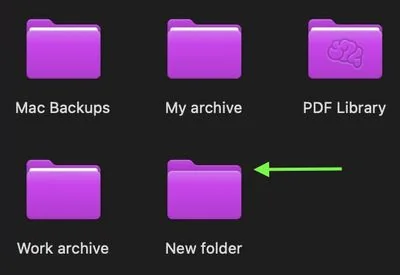
macOS Tahoe introduces intelligent folder previews that adapt based on content:
- Empty folders: Display without visible documents inside
- Folders with content: Show filed-away documents
- Content added: New animation plays when items are added to empty folders
- Visual feedback: Instantly understand folder states at a glance
Cross-Device Synchronization:
- Folder customizations in iCloud Drive sync across all devices
- Emoji folders appear on Mac, iPhone, and iPad
- Compressed folders retain customizations when shared
- Other macOS Tahoe users see your customizations
Reverting Customizations:
- Right-click folder → "Customize Folder"
- Click "Clear" to remove symbols/emojis
- Remove tags or set folder color to "Automatic"
- Folder returns to default blue appearance
Enhanced Spotlight Integration: The Biggest Update Ever
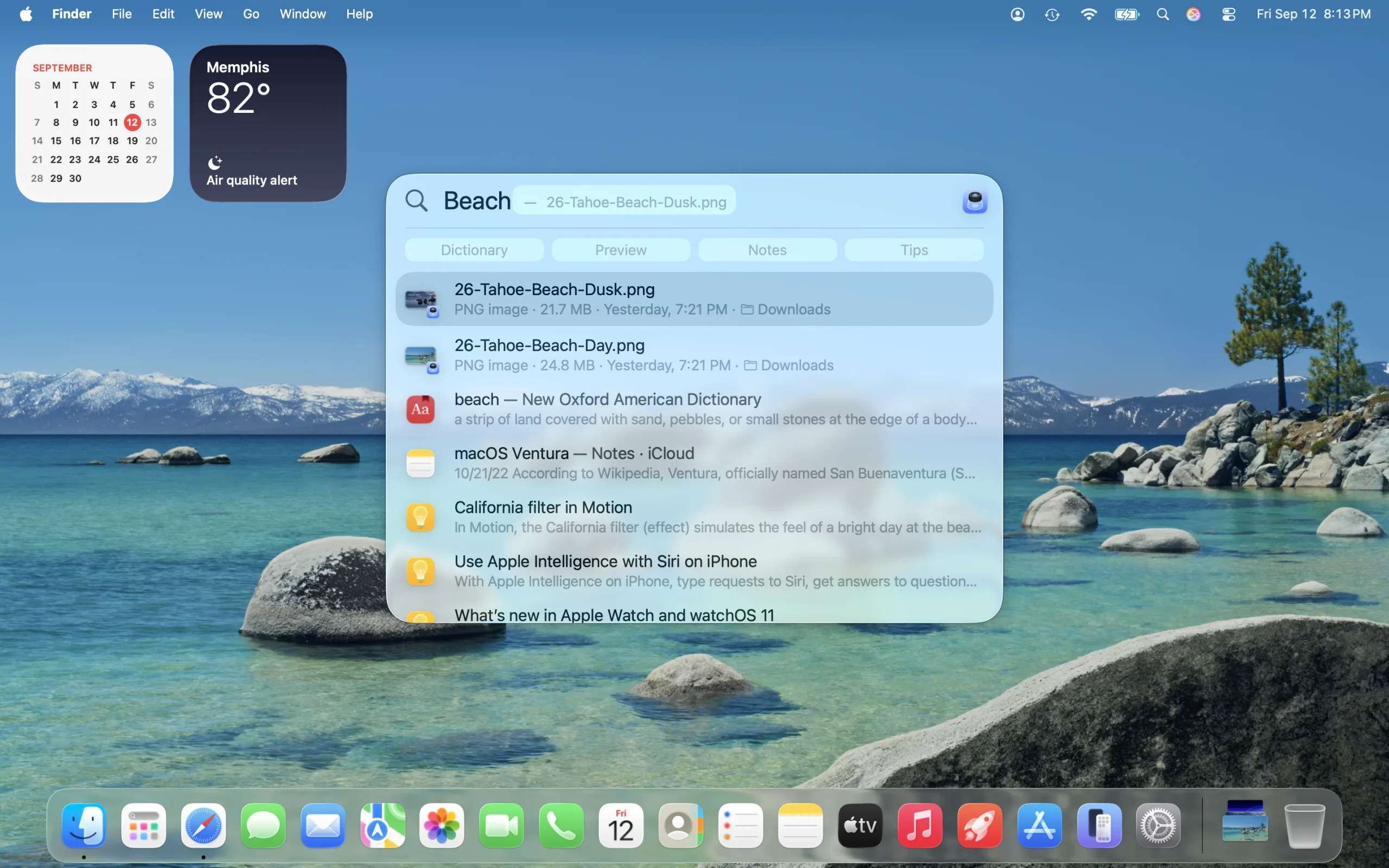
Apple calls macOS Tahoe's Spotlight update "the biggest Spotlight upgrade ever," and it fundamentally transforms how you find and interact with files in Finder.
Four Revolutionary Browsing Modes
1. Applications Mode
- Quick access to all installed apps
- Recently used apps appear first
- Type app name for instant launch
- No need to navigate to Applications folder
2. Files Mode
- Search across all local and cloud storage
- Results ranked by usage frequency
- Preview files with Space bar (Quick Look)
- Hold Cmd while selecting to reveal file location
3. Quick Actions Mode
- Execute hundreds of system actions directly from Spotlight
- Send messages, create events, run Shortcuts
- No need to open apps first
- Fully keyboard-accessible workflow
4. Clipboard History Mode
- Access recently copied text, images, and files
- Works across Mac, iPad, and iPhone (Universal Clipboard)
- Visual previews of clipboard items
- Paste previous items without re-copying
Advanced Search Capabilities
Natural Language Queries:
"presentations from last week"
"photos taken in Tokyo"
"PDF files larger than 10MB"
"emails from John about project"
Cloud Integration:
- Search files in Dropbox, Google Drive even if not downloaded locally
- iCloud Drive deep search integration
- Third-party cloud service support
- Unified results across all storage locations
Safari Tab Search:
- Find content from open Safari windows and tabs
- Search webpage titles and content
- Jump directly to specific tab
- No need to manually browse open tabs
Quick Keys: Keyboard Shortcut Automation
Spotlight automatically assigns Quick Keys to your frequently performed actions:
- Type "sm" to send a message
- Type "ar" to add a reminder
- Type "ne" to create a new event
- Custom shortcuts based on your usage patterns
Setting Up Quick Keys:
- Perform actions regularly through Spotlight
- System automatically learns and creates shortcuts
- View suggested Quick Keys in Spotlight preferences
- Customize or override automatic assignments
Mastering Finder Views and Navigation
macOS Tahoe's Finder offers four distinct view modes, each optimized for different file management scenarios.
The Four Essential Views
Icon View (Cmd+1)
Best For:
- Visual browsing of photos and media
- Desktop organization
- Quick drag-and-drop operations
- Personal file collections
Customization Options (Cmd+J):
- Icon size: Small (16px) to Extra Large (512px)
- Grid spacing: Tight to loose
- Text size: 10pt to 16pt
- Label position: Bottom or right
- Background: White, color, or custom image
- Manual arrangement or automatic sorting
Pro Tips:
- Arrange icons manually for custom organization
- Enable "Snap to Grid" for aligned appearance
- Use background images for visual categorization
- Larger icons for image-heavy folders
List View (Cmd+2)
Best For:
- File detail analysis
- Large folder navigation
- Sorting by metadata (date, size, kind)
- Developer workflows
Key Features:
- Sortable columns: Click headers to sort
- Expandable folders: Disclosure triangles for hierarchy
- Customizable columns: Add/remove metadata fields
- Calculate all sizes: View → Show View Options
Advanced Techniques:
- Option+click disclosure triangle: Expand all subfolders
- Option+drag column divider: Resize all columns uniformly
- Cmd+click column header: Secondary sort
- Two-finger swipe: Horizontal scrolling in wide lists
Developer Favorite Features:
- See file permissions at a glance
- Sort by "Date Modified" for recent edits
- "Kind" column to filter code files
- Path Bar integration for context
Column View (Cmd+3)
Best For:
- Deep directory navigation
- Hierarchical file browsing
- Quick parent folder access
- Project management
Why Developers Love It:
- Breadcrumb navigation: See full path context
- Quick traversal: Arrow keys move through hierarchy
- Preview column: File content preview on right
- Keyboard efficiency: Entirely keyboard-navigable
Customization:
- Drag column dividers to adjust width
- Option+double-click divider: Auto-adjust width
- Option+double-click any divider: Adjust all columns
- Show preview column or maximize file list
Navigation Shortcuts:
- Right Arrow: Open selected folder
- Left Arrow: Go to parent folder
- Up/Down Arrow: Navigate items in column
- Cmd+Up Arrow: Jump to parent folder
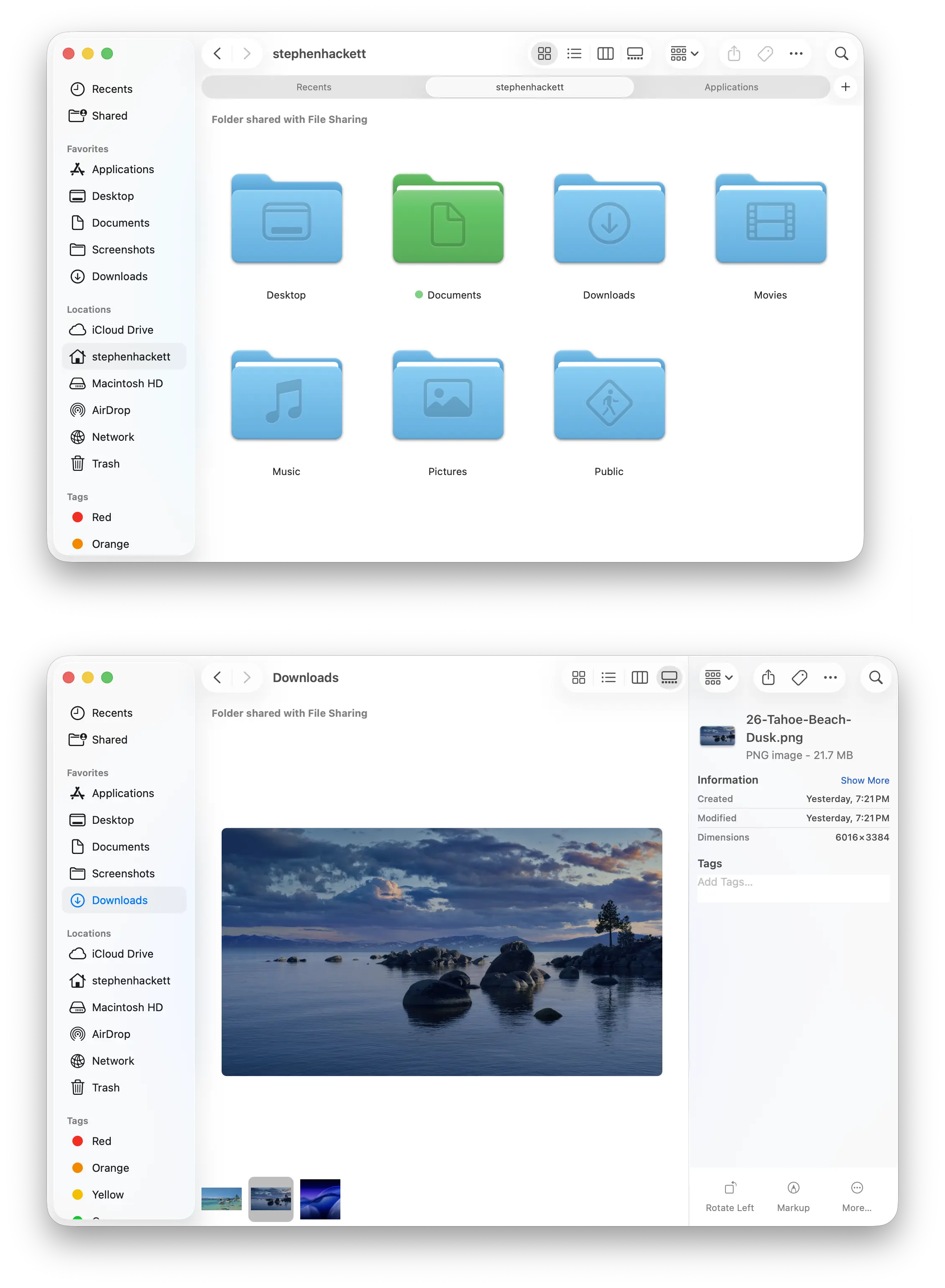
Gallery View (Cmd+4)
Best For:
- Photo and video libraries
- Design file review
- Media asset management
- Visual content creation
Unique Features:
- Large central preview: Detailed image viewing
- Thumbnail strip: Quick scrolling through files
- Metadata panel: EXIF data, dimensions, file info
- Rotation controls: Rotate images without opening
Optimal Use Cases:
- Photo shoot organization
- Client deliverable review
- Stock asset browsing
- Design iteration comparison
Customization Options:
- Thumbnail size adjustment
- Preview column toggle
- Metadata display preferences
- Auto-play video previews
View Options Best Practices
Per-Folder View Memory:
- Finder remembers view settings for each folder
- Set Documents to List View, Photos to Gallery View
- Consistent experience when returning to folders
- Override system defaults on a case-by-case basis
Setting Global Defaults:
- Open folder and configure desired view (Cmd+J)
- Adjust all settings (icon size, columns, etc.)
- Click "Use as Defaults" button
- All new folders use these settings
View Optimization by User Type:
Students: List View for assignments, Gallery View for research images Developers: Column View for code navigation, List View for logs Designers: Gallery View for assets, Icon View for inspiration boards Business: List View for documents, Column View for client hierarchies
Advanced Organization: Tags, Smart Folders & Search
The real power of macOS Tahoe Finder lies in its advanced organizational tools that automate file management and surface relevant content instantly.
Tags: The Foundation of Modern File Organization
Why Tags Beat Folders:
- Files can have multiple tags but exist in only one folder
- Tags are searchable across entire system
- Tags sync via iCloud to all devices
- Tags are faster than navigating nested folders
- Tags enable Smart Folders for automatic organization
Professional Tagging Systems:
Creative Professional Workflow:
Client Tags: ClientName-2025
Project Type: Photography, Design, Video
Status: Raw, Processing, Final, Delivered
Priority: Rush, Standard, Backlog
Rating: ⭐⭐⭐⭐⭐ (portfolio quality)
Developer Workflow:
Language: Python, JavaScript, Go, Rust
Project Status: Active, Maintenance, Deprecated
Environment: Dev, Staging, Production
Priority: Critical, High, Normal, Low
Type: Frontend, Backend, DevOps, Mobile
Student Workflow:
Semester: Spring-2025, Fall-2024
Course: CS101, MATH200, ENG150
Type: Notes, Assignment, Reading, Project
Status: To-Do, In-Progress, Submitted, Graded
Priority: Urgent, This-Week, Next-Week
Business Professional Workflow:
Client: Company names or codes
Status: Proposal, Active, Review, Complete, Billed
Department: Sales, Marketing, Operations, Finance
Fiscal: Q1-2025, Q2-2025, FY2025
Confidentiality: Public, Internal, Confidential, NDA
Tag Best Practices:
- Use prefix conventions: Add "&" before tags (e.g., "&2025") for faster Spotlight searches
- Color consistency: Don't use different tags with the same color
- Multiple tags per file: Combine tags for granular organization
- Colorless subcategories: Use colored tags for main categories, colorless for subcategories
- Regular cleanup: Remove obsolete tags quarterly
Creating and Managing Tags:
- Finder → Settings → Tags
- Add new tags with custom colors
- Drag to reorder (top 7 appear in context menu)
- Rename or delete unused tags
- Tags sync automatically via iCloud
Smart Folders: Automated File Organization
Smart Folders are virtual folders that automatically populate based on search criteria. They update in real-time as files are created, modified, or tagged.
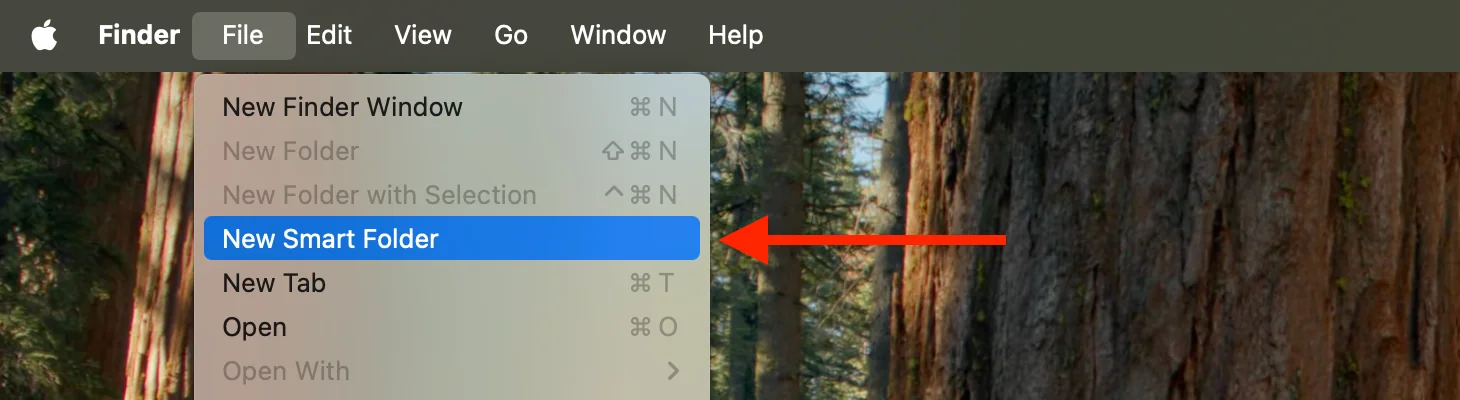
Creating Smart Folders:
- File → New Smart Folder (Cmd+Option+N)
- Set search criteria (file type, date, tag, size, etc.)
- Add multiple criteria with + button
- Click Save
- Enable "Add To Sidebar" for quick access
Essential Smart Folder Examples:
1. Recent Work (Last 7 Days)
Criteria:
- Created: within last 7 days
- Kind: documents, spreadsheets, presentations
- Location: Documents folder
Use Case: Quick access to current projects without hunting
2. Large Files for Cleanup
Criteria:
- Size: greater than 1GB
- Kind: any
- NOT Tag: Keep
Use Case: Identify storage hogs for archival or deletion
3. Project Dashboard
Criteria:
- Tag: ProjectName
- NOT Tag: Complete
- Modified: within last 30 days
Use Case: See all active project files regardless of location
4. Client Files - Active
Criteria:
- Tag: ClientName
- NOT Tag: Archived
- NOT Tag: Billed
- Kind: any
Use Case: Track all unbilled client deliverables
5. Images to Process
Criteria:
- Kind: images
- Tag: Unprocessed
- Created: within last month
- Size: greater than 1MB
Use Case: Photo editing workflow queue
6. Downloads to Review
Criteria:
- Location: Downloads
- Created: within last week
- NOT Tag: Reviewed
Use Case: Clean up Downloads folder regularly
7. Code Changes Today
Criteria:
- Kind: .js OR .py OR .go OR .tsx
- Modified: today
- Location: ~/Developer
Use Case: Track daily coding progress
8. High-Priority Work
Criteria:
- Tag: Urgent OR High
- NOT Tag: Complete
- Modified: within last 2 weeks
Use Case: Focus on critical tasks
Advanced Search Operators
macOS Tahoe Finder supports powerful search operators for precision file finding.
Name-Based Searches:
name:report          # Files containing "report"
name:"Q4 report"     # Exact phrase match
name:*draft*         # Wildcard search
name:==CONFIDENTIAL  # Case-sensitive exact match
Time-Based Operators:
@modified:yesterday    # Files modified yesterday
@modified:today        # Files modified today
@modified:thisweek     # Files modified this week
@created:<3/1/23       # Files created before March 1, 2023
@modified:>1/1/24      # Files modified after January 1, 2024
Metadata Searches:
kind:document    # All documents
kind:image       # All images
kind:video       # All videos
kind:PDF         # PDF files only
author:John      # Files by specific author
Size-Based Searches:
size:>100MB    # Files larger than 100MB
size:<5MB      # Files smaller than 5MB
size:1GB-5GB   # Files in size range
Tag-Based Searches:
tag:urgent              # Files with "urgent" tag
tag:urgent tag:work     # Files with both tags (AND logic)
tag:urgent OR tag:high  # Files with either tag (OR logic)
Boolean Logic for Complex Queries:
Creating Advanced Searches:
- Create new Smart Folder
- Click + button to add criteria
- Hold Option key: + becomes ...
- Click ... to reveal All | Any | None dropdown
- Combine multiple conditions
Example Combinations:
(kind:image OR kind:video) AND size:<5MB
# Shareable media files

tag:client NOT tag:archived
# Active client files only

kind:document AND @modified:thisweek AND tag:urgent
# Recent urgent documents
Professional Workflows by User Type
Different users have different file management needs. Here are optimized Finder workflows for four major user types.
Students: Academic Organization Excellence
Folder Structure:
~/Documents/
  ├── Courses/
  │   ├── Spring_2025/
  │   │   ├── 📚 CS101_Intro_to_Programming/
  │   │   │   ├── 📝 Lecture_Notes/
  │   │   │   ├── 🎯 Assignments/
  │   │   │   ├── 📖 Readings/
  │   │   │   └── ✅ Completed/
  │   │   ├── MATH200_Calculus/
  │   │   └── ENG150_Composition/
  │   └── Fall_2024/
  │       └── [Archived courses]
  ├── 🎓 Research_Projects/
  ├── 📚 Textbooks_Resources/
  └── 💼 Internship_Applications/
Tag System:
- Course Colors: Red (CS), Blue (Math), Green (English), Purple (Electives)
- Status Tags: To-Do, In-Progress, Submitted, Graded, Revision-Needed
- Priority: Urgent, This-Week, Next-Week, Long-Term
- Type: Notes, Assignment, Reading, Exam-Prep, Project
Essential Smart Folders:
- Due This Week:
- Tag: To-Do OR In-Progress
- Created/Modified: within last 7 days
- NOT Tag: Submitted- Current Courses (Spring 2025):
- Tag: CS101 OR MATH200 OR ENG150
- Modified: within last month
- NOT Tag: Graded- Study Materials:
- Tag: Notes OR Reading OR Exam-Prep
- Semester: Spring-2025
- Kind: PDF OR document- Graded Assignments (for review):
- Tag: Graded
- Created: this semester
- NOT Tag: Reviewed
Productivity Tips:
- Desktop Stacks: Enable for automatic grouping by date
- Quick Look: Preview PDFs without opening (Space bar)
- Batch Rename: Rename lecture PDFs consistently (YYYY-MM-DD_CourseName_Topic)
- Gallery View: Browse photo-heavy lecture slides
- iCloud Drive: Sync notes across Mac and iPad for mobile studying
Developers: Code Organization & Navigation
Folder Structure:
~/Developer/
  ├── 💻 Projects/
  │   ├── Active/
  │   │   ├── 🚀 project-alpha/
  │   │   ├── 🔧 internal-tools/
  │   │   └── 📦 client-website/
  │   ├── Maintenance/
  │   └── Archive/
  ├── 🔧 Tools/
  │   ├── Scripts/
  │   └── Utilities/
  ├── 📚 Learning/
  │   ├── Tutorials/
  │   └── Experiments/
  └── 📖 Documentation/
Essential Finder Settings for Developers:
# Show hidden files (for .git, .env, etc.)
defaults write com.apple.finder AppleShowAllFiles -bool true

# Show all file extensions
defaults write NSGlobalDomain AppleShowAllExtensions -bool true

# Show Path Bar (essential for nested directories)
defaults write com.apple.finder ShowPathbar -bool true

# Keep folders on top when sorting
defaults write com.apple.finder _FXSortFoldersFirst -bool true

# Column View as default (fastest for deep navigation)
defaults write com.apple.finder FXPreferredViewStyle -string "clmv"

# Restart Finder to apply
killall Finder
Tag System:
- Languages: Python, JavaScript, TypeScript, Go, Rust
- Status: Active, Maintenance, Deprecated, Experimental
- Type: Frontend, Backend, DevOps, Mobile, Full-Stack
- Priority: Production, Development, Testing, Staging
- Client: Client names or internal projects
Smart Folders for Development:
- Today's Code Changes:
- Kind: .js OR .py OR .go OR .tsx OR .rs
- Modified: today
- Location: ~/Developer- Large Files (for cleanup):
- Size: greater than 50MB
- Location: ~/Developer
- NOT Tag: Keep
# Identify node_modules, builds, logs- Config Files:
- Name: *.json OR *.yaml OR *.env OR *.config.js
- Location: ~/Developer/Projects- Documentation:
- Kind: .md OR .mdx
- Location: ~/Developer
- Modified: within last month
Productivity Techniques:
- Column View: Navigate deep
node_modulesor nested directories - Path Navigation: Cmd+Shift+G to jump to paths like
/usr/local/bin - Terminal Integration: Drag folders to Terminal to insert full path
- Quick Look for Code: Preview files without opening in editor
- Tabs for Projects: One Finder tab per active project (Cmd+T)
- Custom Toolbar: Add Terminal, VS Code, Docker to Finder toolbar
Hidden Power Features:
- Cmd+click folder title: Dropdown menu of parent directories
- Option+resize columns: Resize all columns uniformly
- Sidebar cleanup: Only show active projects, hide unused locations
- Smart Folder for branch changes: Track Git working directory changes
Creative Professionals: Asset Management
Folder Structure:
~/Creative/
  ├── 📁 Projects/
  │   ├── 2025/
  │   │   ├── 📸 ClientName_Wedding_2025-03-15/
  │   │   │   ├── RAW/
  │   │   │   ├── Selects/
  │   │   │   ├── Edited/
  │   │   │   ├── Finals/
  │   │   │   └── Delivered/
  │   │   ├── 🎨 BrandDesign_LogoRefresh/
  │   │   └── 🎬 VideoProduction_Commercial/
  │   └── Archive/
  │       ├── 2024/
  │       └── 2023/
  ├── 📚 Stock_Assets/
  │   ├── Photos/
  │   ├── Fonts/
  │   ├── Templates/
  │   └── Music/
  ├── ⭐ Portfolio/
  └── 💼 Business/
      ├── Contracts/
      ├── Invoices/
      └── Marketing/
Color-Coded Workflow:
- 🔴 Red: Urgent/priority clients
- 🟡 Yellow: In progress
- 🟢 Green: Ready for delivery
- 🔵 Blue: Awaiting client feedback
- 🟣 Purple: Personal projects
- ⚪ Gray: Archived/completed
Emoji Folder Strategy:
- 📸 Photo shoots and sessions
- 🎨 Design projects and branding
- 🎬 Video production folders
- ✅ Delivered projects
- ⭐ Portfolio-worthy work
- 📦 Stock and template library
Smart Folders for Creatives:
- Current Projects:
- Modified: within last month
- NOT Tag: Archived
- Location: ~/Creative/Projects/2025- Awaiting Client Approval:
- Tag: Ready OR Review
- NOT Tag: Approved
- Modified: within last 2 weeks- Client Name Dashboard:
- Tag: ClientName
- NOT Tag: Archived OR Delivered
- Kind: any- Portfolio Candidates:
- Rating: 5 stars
- Tag: Portfolio OR Best-Work
- Created: within last year- Large RAW Files:
- Kind: image
- Size: greater than 50MB
- Location: ~/Creative
- Tag: RAW- Unprocessed Images:
- Tag: RAW OR Selects
- NOT Tag: Edited
- Created: within last 2 months
View Strategies:
- Gallery View: Primary browsing mode for images
- List View: Project management, sorting by client/date
- Icon View: Inspiration boards with manual layout
- Column View: Quick navigation to specific shoots
Advanced Workflow Tips:
- Quick Look Fullscreen (Option+Space): Immersive image review
- Batch Rename: Photo sequences with consistent numbering
- Metadata Smart Folders: Organize by camera model, lens, or ISO
- Color Profiles: Use ColorSync Utility for custom brand folder colors
- Quick Look Markup: Client annotations directly in preview
- Tags for Shoot Types: Portrait, Landscape, Product, Event, Lifestyle
Business Professionals: Document Organization
Folder Structure:
~/Business/
  ├── 💼 Clients/
  │   ├── Active/
  │   │   ├── CompanyA/
  │   │   │   ├── Contracts/
  │   │   │   ├── Deliverables/
  │   │   │   ├── Communications/
  │   │   │   └── Invoices/
  │   │   └── CompanyB/
  │   └── Past/
  ├── 📊 Projects/
  │   ├── Q1_2025/
  │   ├── Q2_2025/
  │   └── Archive/
  ├── 💰 Finance/
  │   ├── 🧾 Invoices/
  │   ├── 🧾 Receipts/
  │   ├── 📈 Reports/
  │   └── 💳 Expenses/
  ├── 📞 Meetings/
  │   ├── Agendas/
  │   ├── Notes/
  │   └── Recordings/
  └── 📚 Resources/
      ├── Templates/
      └── Reference/
Professional Tag System:
- Clients: Individual client names or account codes
- Status: Proposal, Active, Review, Complete, Billed, Archived
- Priority: Urgent, High, Normal, Low
- Department: Sales, Marketing, Operations, Finance, HR
- Fiscal: Q1-2025, Q2-2025, Q3-2025, Q4-2025, FY2025
- Confidentiality: Public, Internal, Confidential, NDA-Required
Smart Folders for Business:
- This Week's Priorities:
- Tag: Urgent OR This-Week
- NOT Tag: Complete
- Modified: within last 7 days- Pending Invoices:
- Tag: Invoice
- Tag: Pending OR Sent
- NOT Tag: Paid
- Created: within last 90 days- Client Deliverables:
- Tag: Deliverable OR Final
- Modified: within last month
- NOT Tag: Delivered- Meeting Materials This Week:
- Created: within next 3 days
- Kind: presentation OR document
- Tag: Meeting OR Agenda- Expense Reports to Submit:
- Tag: Receipt OR Expense
- Tag: Current quarter (e.g., Q4-2025)
- NOT Tag: Submitted- Contracts to Review:
- Kind: PDF
- Tag: Contract
- Tag: Review OR Pending-Signature
- NOT Tag: Signed
Business Productivity Workflows:
1. Desktop Stacks:
- Enable automatic grouping by date or tag
- Keep workspace clean and organized
- Quickly access recent documents
2. Quick Access Sidebar:
- Add frequent client folders to sidebar
- Drag active project folders for one-click access
- Remove when project completes
3. Meeting Organization:
- Emoji folders: 📅 Upcoming, ✅ Past meetings
- Tag by participant: Easy filtering
- Smart Folder: "Meetings This Week" (created/modified in last 7 days)
- Quick Look: Preview agendas before meetings (Space bar)
4. Document Management:
- Consistent naming:
YYYY-MM-DD_ClientName_DocumentType_v1.pdf - Version control tags: Draft, Review, Final, Approved
- Archive quarterly: Move completed projects to Archive folder
- List View: Sort by "Date Modified" for recent documents
- Path Bar: Understand document context and location
5. Financial Document Tracking:
- Color coding: Green for paid invoices, yellow for pending, red for overdue
- Batch processing: Select multiple receipts, add "Q4-2025" tag simultaneously
- Smart Folder: "Unbilled Work" (tag: Billable, NOT tag: Invoiced)
- Searchable PDFs: Use OCR for scanned receipts
6. Collaboration Best Practices:
- Compress before sharing: Preserves folder customizations
- Shared tags: Use team-wide tag conventions
- iCloud Drive folders: Real-time collaboration with customized colors
- Quick Actions: Create PDFs, combine files directly from Finder
Essential Keyboard Shortcuts Reference
Mastering Finder keyboard shortcuts dramatically improves productivity. Here are the most essential shortcuts for macOS Tahoe.
Navigation Shortcuts
| Shortcut | Action |
|---|---|
| Cmd+N | New Finder window |
| Cmd+T | New Finder tab |
| Cmd+W | Close window or tab |
| Cmd+[ | Go back |
| Cmd+] | Go forward |
| Cmd+Up Arrow | Go to parent folder |
| Cmd+Down Arrow | Open selected item |
| Cmd+Shift+G | Go to Folder (type exact path) |
| Cmd+Shift+H | Home folder (~/) |
| Cmd+Shift+D | Desktop |
| Cmd+Shift+O | Documents |
| Cmd+Shift+U | Utilities |
| Cmd+Shift+A | Applications |
| Cmd+Shift+I | iCloud Drive |
| Cmd+Shift+R | AirDrop |
| Option+Go menu | Reveal Library folder |
File Operation Shortcuts
| Shortcut | Action |
|---|---|
| Cmd+C | Copy selected files |
| Cmd+V | Paste files |
| Cmd+Option+V | Move files (cut and paste) |
| Cmd+D | Duplicate selected items |
| Cmd+Delete | Move to Trash |
| Cmd+Shift+Delete | Empty Trash |
| Cmd+I | Get Info (detailed file information) |
| Space | Quick Look preview |
| Option+Space | Quick Look in fullscreen |
| Enter | Rename selected item |
View and Display Shortcuts
| Shortcut | Action |
|---|---|
| Cmd+1 | Icon View |
| Cmd+2 | List View |
| Cmd+3 | Column View |
| Cmd+4 | Gallery View |
| Cmd+J | Show View Options |
| Cmd+Shift+. (period) | Show/hide hidden files |
| Cmd+/ | Show/hide Status Bar |
| Cmd+Option+P | Show/hide Path Bar |
| Cmd+Option+S | Show/hide Sidebar |
Search and Selection Shortcuts
| Shortcut | Action |
|---|---|
| Cmd+F | Start Finder search in current folder |
| Cmd+A | Select all items |
| Cmd+click | Select multiple non-contiguous items |
| Shift+click | Select range of items |
| Cmd in search | Hold while selecting to reveal file location |
Power User Tip: Hold Option key while clicking menu items to reveal advanced options and alternative actions throughout Finder.
Tips, Tricks & Hidden Features
Unlock Finder's full potential with these advanced techniques that most users never discover.
Hidden Power Features
1. Custom Toolbar Shortcuts
- Right-click Finder toolbar → Customize Toolbar
- Drag frequently-used actions (New Folder, Delete, Get Info)
- Hold Cmd and drag any file/folder/app to toolbar for permanent shortcut
- Remove items by dragging them off toolbar (poof animation!)
2. Spring-Loaded Folders
- Drag file and hover over folder without releasing
- Folder automatically opens after brief delay
- Navigate through multiple levels of hierarchy
- Adjust delay: System Settings → Accessibility → Pointer Control → Spring-loading delay
3. Inverse Selection Technique
- Select files you DON'T want
- Hold Cmd and rubber-band select all files
- Selection inverts automatically
- Delete or move the now-selected files
4. Quick Path Navigation
- Cmd+click folder title in window header
- Dropdown shows full parent folder hierarchy
- Click any parent to jump directly to it
- Drag folder icon from title to insert path in Terminal
5. Advanced Quick Look Features
- Multiple files: Select several, press Space, use arrow keys to navigate
- Fullscreen slideshow: Option+Space for immersive viewing
- Markup tools: Edit PDFs, annotate images, trim videos in Quick Look
- Zoom: Cmd+Plus/Cmd+Minus to zoom in previews
- Grid view: Cmd+Return to show selected items in grid layout
6. Batch Operations Batch Rename (select files → Right-click → Rename X Items):
- Replace text: Change common words across filenames
- Add text: Insert prefix or suffix
- Format: Name with sequential numbering (Photo_001, Photo_002)
Batch Tagging:
- Select multiple files → Right-click → Tags
- Add or remove tags from entire selection
- Faster than tagging files individually
7. Hidden View Customization
- Icon View: Cmd+J → Set custom background image
- List View: Option+click disclosure triangle to expand/collapse all subfolders
- Column View: Option+double-click divider to auto-adjust all column widths
- Gallery View: Adjust thumbnail size with slider in View Options
8. Terminal Power-Ups for Finder
# Enable "Quit Finder" in menu
defaults write com.apple.finder QuitMenuItem -bool true

# Default to current folder when searching
defaults write com.apple.finder FXDefaultSearchScope -string "SCcf"

# Disable warning when changing file extensions
defaults write com.apple.finder FXEnableExtensionChangeWarning -bool false

# Show file extensions by default
defaults write NSGlobalDomain AppleShowAllExtensions -bool true

# Always show folders on top
defaults write com.apple.finder _FXSortFoldersFirst -bool true

# Restart Finder to apply all changes
killall Finder
9. Hidden Sidebar Customization
- Drag folders: Drag any folder to sidebar for quick access
- Remove built-in items: Cmd+drag items out to remove
- Reorder: Drag items to rearrange
- Manage in Settings: Finder → Settings → Sidebar for full control
10. AirDrop Advanced Usage
- Window position: Move Finder window while AirDrop is open - thumbnail stays floating
- Quick access: Cmd+Shift+R opens AirDrop window
- Settings: Click "Allow me to be discovered by" dropdown for "Everyone" or "Contacts Only"
- Folder customization: Emoji/color customizations transfer to other macOS Tahoe users via AirDrop!
Troubleshooting Common Finder Issues
Even with macOS Tahoe's improvements, you may encounter occasional Finder problems. Here are comprehensive solutions.
Finder Not Responding or Slow Performance
Symptoms:
- Finder freezes or becomes unresponsive
- Slow to open folders
- Lag when navigating files
- CPU spikes with only Finder running
Quick Fixes:
-
Relaunch Finder:
- Option+Right-click Finder icon in Dock → Relaunch
- Or: Cmd+Option+Esc → Select Finder → Relaunch
-
Force Quit via Activity Monitor:
- Open Activity Monitor (Cmd+Space → "Activity Monitor")
- Search for "Finder"
- Select and click X button (Force Quit)
- Finder automatically restarts
Advanced Solutions:
1. Clear Finder Preferences:
cd ~/Library/Preferences/
rm com.apple.finder.plist
killall FinderNote: This resets all Finder customizations to defaults
2. Rebuild Spotlight Index:
- System Settings → Siri & Spotlight → Spotlight Privacy
- Click + and add your hard drive
- Wait 30 seconds, then remove it
- Spotlight rebuilds index (can take 2-4 hours)
3. Free Up Disk Space:
- Ensure at least 15-20% free disk space
- Empty Trash: Cmd+Shift+Delete
- Remove large unused files
- Clear Downloads folder
- Use Storage Management: Apple menu → About This Mac → Storage → Manage
4. Disable Finder Extensions:
- System Settings → Privacy & Security → Extensions → Finder
- Disable unnecessary third-party extensions
- Restart Finder and test performance
5. Clean Desktop:
- Move files to organized folders
- Enable Desktop Stacks: Right-click Desktop → Use Stacks
- Fewer Desktop items = faster Finder rendering
Search Not Finding Files
Common Causes:
- Spotlight index corrupted or incomplete
- Files in Privacy-protected locations
- Spotlight indexing still in progress
- External drives not indexed
Solutions:
1. Check Spotlight Privacy Settings:
- System Settings → Siri & Spotlight → Spotlight Privacy
- Ensure important folders not in Privacy list
- Remove accidentally-added locations
2. Force Spotlight Reindex via Terminal:
sudo mdutil -E /Enter password when prompted. Spotlight rebuilds index.
3. Wait for Indexing to Complete:
- After macOS update, Spotlight needs time to reindex
- Menu bar Spotlight icon shows pulsing dot during indexing
- Can take 2-4 hours on large drives
- Avoid heavy system use during indexing
4. Index External Drives:
sudo mdutil -i on /Volumes/DriveNameReplace "DriveName" with your external drive's name.
iCloud Drive Sync Issues
Common Problems:
- Files stuck "Waiting to Upload"
- Files not syncing across devices
- Cloud icon not downloading files
- "Not enough iCloud storage" errors
Solutions:
1. Check iCloud System Status:
- Visit apple.com/support/systemstatus
- Verify iCloud Drive is operational
- Wait if service is down
2. Sign Out and Back In to iCloud:
- System Settings → Apple ID → Sign Out
- Restart Mac
- Sign back in
- iCloud re-syncs all files
3. Check Available Storage:
- System Settings → Apple ID → iCloud
- View storage usage
- Delete unnecessary files or upgrade plan
4. Force Download Files:
- Right-click file with cloud icon
- Select "Download Now"
- File downloads from iCloud to local storage
5. Verify Settings:
- System Settings → Apple ID → iCloud → iCloud Drive → Options
- Ensure "Desktop & Documents Folders" enabled (if using)
- Check "Optimize Mac Storage" setting (files removed to free space)
Files Not Copying or Moving
Issues:
- "File in use" errors
- Permission errors
- Slow transfer speeds
- Insufficient space warnings
Solutions:
1. File in Use Errors:
- Close application using the file
- Check if file open on another device (iCloud sync)
- Activity Monitor: Force quit app holding file
- Restart Mac if persistent
2. Permission Problems:
- Select file → Cmd+I (Get Info)
- Sharing & Permissions section
- Click lock icon, authenticate
- Change permissions to "Read & Write"
- Click gear icon → "Apply to enclosed items" (for folders)
3. Slow External Drive Transfers:
- Check cable quality (use Apple-certified cables)
- Try different USB/Thunderbolt port
- Disable cloud sync services temporarily (Google Drive, Dropbox)
- Copy in smaller batches instead of all at once
- Ensure drive formatted as APFS (Mac) or exFAT (cross-platform)
macOS Tahoe-Specific Issues
1. Folder Customizations Not Syncing:
- Ensure both Macs running macOS Tahoe 26 or later
- Verify folders in iCloud Drive, not local-only
- Check iCloud sync status
- Older macOS versions don't support emoji folder sync
2. Liquid Glass Visual Glitches:
- Reduce transparency: System Settings → Accessibility → Display → Reduce Transparency
- Update to latest macOS 26.x version (bug fixes)
- Reset NVRAM: Restart and hold Option+Cmd+P+R until second startup sound
3. External Drives Not Appearing (26.0.1 bug):
- Fixed in macOS 26.2 update
- Temporary solution: Boot in Safe Mode (hold Shift during startup), then restart normally
- Use Disk Utility → First Aid to verify drive
iCloud Drive and External Storage Management
Effective cloud and external storage management is crucial for modern workflows in macOS Tahoe Finder.
iCloud Drive Best Practices
Accessing iCloud Drive:
- Finder Sidebar: Enable in Finder → Settings → Sidebar → Check "iCloud Drive"
- Quick Access: Cmd+Shift+I opens iCloud Drive
- Desktop & Documents Sync: System Settings → Apple ID → iCloud → iCloud Drive → Options → Enable
Key Features in macOS Tahoe:
- Folder customization sync: Emoji folders and colors sync across Mac, iPhone, iPad
- Files On-Demand: Cloud icon indicates files not downloaded; double-click to download
- Optimize Storage: Automatically removes old files to free space (System Settings → Apple ID → iCloud → Manage Storage)
- Shared Folders: Collaborate with customized folder colors preserved
Workflow Integration:
- Drag and drop files directly to iCloud Drive in Finder
- Access same files on iPhone/iPad via Files app
- Use Smart Folders to organize iCloud files by tag/date
- iCloud files searchable via Spotlight just like local files
Storage Management:
- Monitor usage: System Settings → Apple ID → Manage iCloud Storage
- Optimize Photos: Photos → Settings → Optimize Mac Storage
- Delete unnecessary backups: Old iPhone backups consume storage
- Upgrade plan if needed (50GB, 200GB, 2TB, 6TB, 12TB options)
External Drive Organization
Connection Best Practices:
- Format drives properly:
- APFS: Best for modern Macs
- exFAT: Cross-platform compatibility (Mac + Windows)
- Avoid FAT32: 4GB file size limit
Folder Structure for External Drives:
/Volumes/ExternalDrive/
  ├── 🗄️ Backups/
  │   ├── TimeMachine/
  │   └── Manual_Backups/
  ├── 📦 Archive/
  │   ├── 2024_Projects/
  │   └── 2023_Projects/
  ├── 🎬 Media/
  │   ├── Photos/
  │   ├── Videos/
  │   └── Music/
  └── 💼 Active_Projects/
      ├── Current/
      └── Completed/
External Drive Tips:
- Name drives descriptively: "Photography_2TB" instead of "Untitled"
- Apply folder colors: Color-code external drive folders too
- Add to Sidebar: Drag frequently-used external folders to Finder sidebar
- Eject properly: Always eject (Cmd+E) before disconnecting
- Smart Folders: Can include external drive locations in search criteria
Performance Optimization:
- Use USB 3.0, USB4, or Thunderbolt for faster speeds
- Keep drives connected to direct ports (not hubs when possible)
- Run Disk Utility First Aid monthly for maintenance
- Back up external drive contents to cloud or second drive
Syncing External Drives to iCloud (Advanced): Note: Not natively supported, workarounds required:
Option 1: Symbolic Links (Advanced users):
# Move folder to external drive
mv ~/Documents/ProjectFolder /Volumes/ExternalDrive/

# Create symbolic link in original location
ln -s /Volumes/ExternalDrive/ProjectFolder ~/Documents/ProjectFolder
Option 2: Manual Sync:
- Drag and drop folders from external to iCloud Drive manually
- Use folder structure that mirrors external drive for easy management
Option 3: Third-Party Tools:
- ChronoSync: Automated local-to-cloud sync
- Carbon Copy Cloner: Comprehensive backup with cloud options
Conclusion: Mastering the New Finder
macOS Tahoe has transformed Finder from a utilitarian file manager into a powerful, personalized productivity tool that adapts to your unique workflow. The introduction of emoji folder customization, color-coded organization, and revolutionary Spotlight integration represents Apple's commitment to making file management both functional and delightful.
Key Takeaways
For All Users:
- Emoji folders and color tags make organization visual and intuitive
- Enhanced Spotlight saves hours of manual file hunting
- Four view modes optimize different browsing scenarios
- Smart Folders automate file organization without manual effort
For Students:
- Organize courses with color-coded folders and status tags
- Smart Folders surface assignments due this week automatically
- iCloud sync keeps materials accessible on Mac and iPad
- Gallery View perfect for reviewing lecture slides
For Developers:
- Column View enables lightning-fast deep directory navigation
- Advanced search operators find code files by modification date
- Keyboard shortcuts eliminate mouse usage for efficiency
- Hidden file visibility essential for configuration management
For Creative Professionals:
- Gallery View with large previews streamlines asset review
- Client-based color coding provides instant visual identification
- Smart Folders automatically collect unprocessed images
- Folder customizations sync to all devices via iCloud
For Business Users:
- Tag-based organization transcends folder hierarchies
- Smart Folders track unbilled work and pending deliverables
- Quick Look enables document review without app launching
- Batch operations handle multiple files simultaneously
Getting Started Today
Your First Steps:
- Customize 5 folders with emojis that match your workflow
- Create 3 Smart Folders for your most common file searches
- Learn 10 keyboard shortcuts from the reference above
- Set up a tagging system with 5-7 core tags
- Explore Spotlight with natural language queries
Advanced Mastery:
- Configure Finder preferences for optimal performance
- Build complex Smart Folders with Boolean logic
- Master all four view modes for different scenarios
- Integrate Terminal commands for power user workflows
- Develop folder hierarchies optimized for your profession
The Bottom Line
macOS Tahoe Finder isn't just about finding files anymore—it's about creating a personalized, efficient workspace that surfaces the right information at the right time. Whether you're managing academic assignments, developing software, creating media, or running a business, Finder's new capabilities provide the foundation for dramatically improved productivity.
The most successful users don't just adopt Finder's new features—they customize them to match their unique workflows. Experiment with different organizational strategies, discover which Smart Folders save you the most time, and develop your own system that makes file management effortless.
Start customizing your Finder today, and experience how macOS Tahoe has transformed the humble file manager into one of the Mac's most powerful productivity tools.
Related Articles
Deepen your macOS Tahoe expertise with these comprehensive guides:
- macOS Tahoe Complete Guide 2025: Revolutionary Liquid Glass Design, Apple Intelligence Integration, and Performance Optimization - Comprehensive overview of all macOS Tahoe features
- macOS Tahoe Spotlight Complete Guide 2025: Master 100+ Actions, Shortcuts & Productivity Workflows - Deep dive into Spotlight's revolutionary enhancements
- macOS Tahoe Keyboard Shortcuts Complete Mastery Guide 2025 - 200+ essential shortcuts for maximum productivity
- macOS Tahoe iCloud Drive & Cloud Storage Complete Guide 2025 - Master cloud storage workflows
- macOS Tahoe Troubleshooting Guide 2025 - Solutions for common problems
- macOS Tahoe Focus Modes Complete Guide 2025 - Eliminate distractions and boost productivity
- macOS Tahoe Shortcuts Automation Complete Guide 2025 - 50+ automation examples for daily workflows