macOS Tahoe Focus Modes Complete Guide 2025: Notification Management, Shortcuts Automation & Distraction-Free Productivity
Master macOS Tahoe 26 Focus Modes with this comprehensive guide covering notification management, Shortcuts automation, AI-powered intelligence, real-world workflows for students/developers/creatives, troubleshooting, and productivity optimization strategies.
macOS Tahoe 26 transforms Focus Modes from simple Do Not Disturb functionality into a sophisticated productivity powerhouse. With revolutionary Shortcuts automation integration, AI-powered intelligence, and deep customization options, Focus Modes now deliver quantifiable productivity gains—users report 25% boost in concentration and an average of 5 additional productive hours per week when properly configured.
This comprehensive guide covers everything you need to master Focus Modes in macOS Tahoe, from basic setup to advanced automation workflows that adapt to your unique productivity needs.
What Are Focus Modes in macOS Tahoe?
Focus Modes are Apple's solution to notification overload and digital distraction. Think of them as intelligent filters that pause or selectively allow notifications based on what you're doing—whether working on a critical project, studying for exams, or unwinding with family.
Evolution from Do Not Disturb
Previous macOS versions (Monterey-Sequoia):
- Basic Do Not Disturb silenced all notifications
- Limited customization options
- No automation beyond time-based scheduling
macOS Tahoe 26 Revolution:
- Multiple Focus profiles with unique icons, colors, and names
- Granular app and contact filtering per Focus mode
- NEW: Shortcuts automation integration — create sophisticated workflows that trigger when Focus activates
- Apple Intelligence integration for smart notification filtering (M1+ chips)
- Cross-device synchronization across iPhone, iPad, Mac, Apple Watch, and Apple Vision Pro
- Focus Filters customize app behavior (Calendar, Mail, Messages, Safari)
Available Focus Mode Types
macOS Tahoe provides 8 pre-configured Focus modes plus unlimited custom modes:
- Do Not Disturb — Silences all alerts and notifications
- Work — Filters work-related apps and contacts during business hours
- Personal — Allows notifications from family and friends during free time
- Sleep — Based on sleep schedule, silences everything overnight
- Gaming — Optimized for distraction-free gaming sessions
- Mindfulness — Supports meditation and focused activities
- Reading — Minimizes distractions for reading and research
- Driving — Auto-activates while driving (requires iPhone pairing)
Custom Focus Modes: Create unlimited profiles tailored to specific contexts—Study Focus, Deep Code, Creative Flow, Meeting Mode, Presentation Mode, etc.
NEW in macOS Tahoe: Shortcuts Automation Revolution
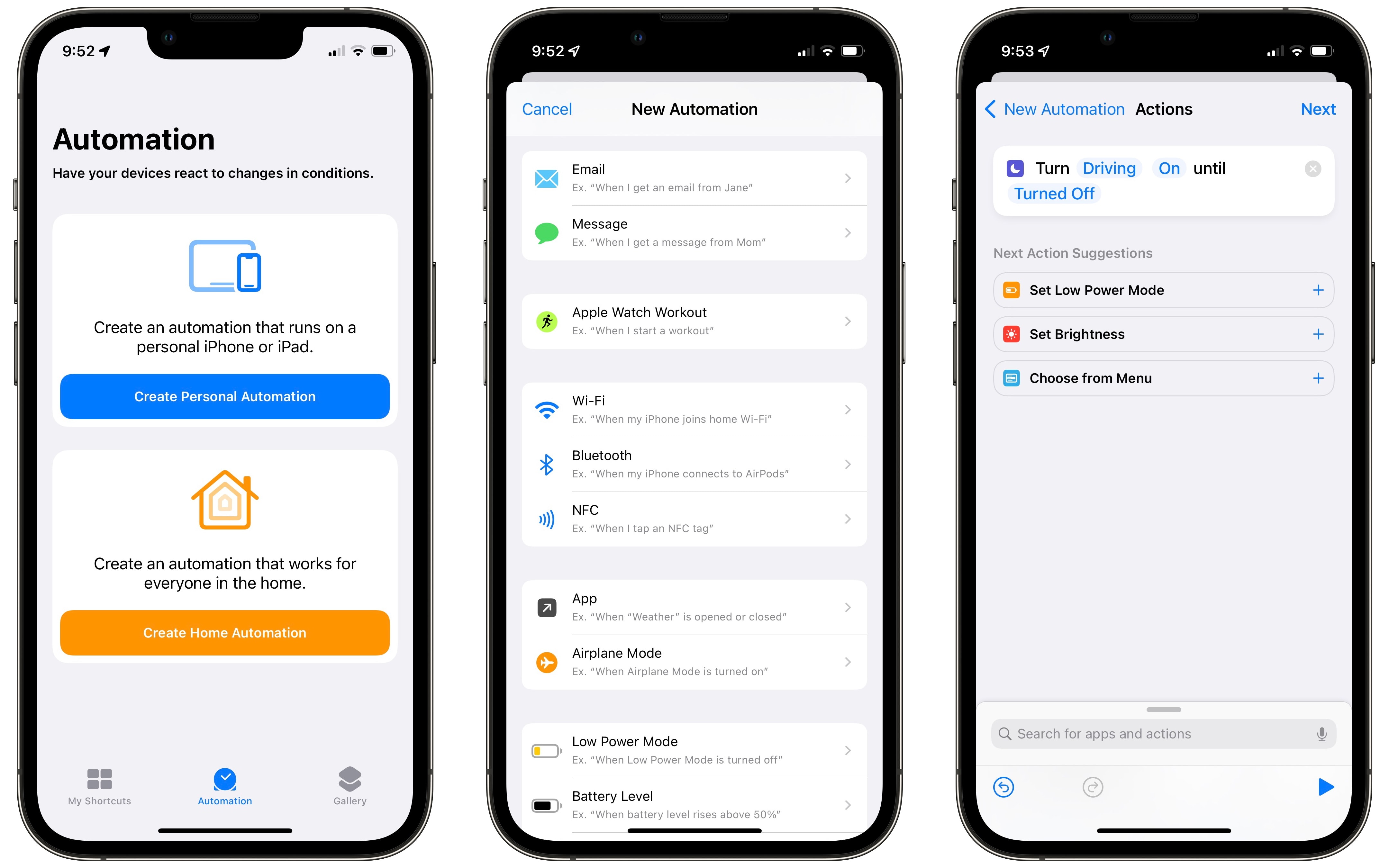
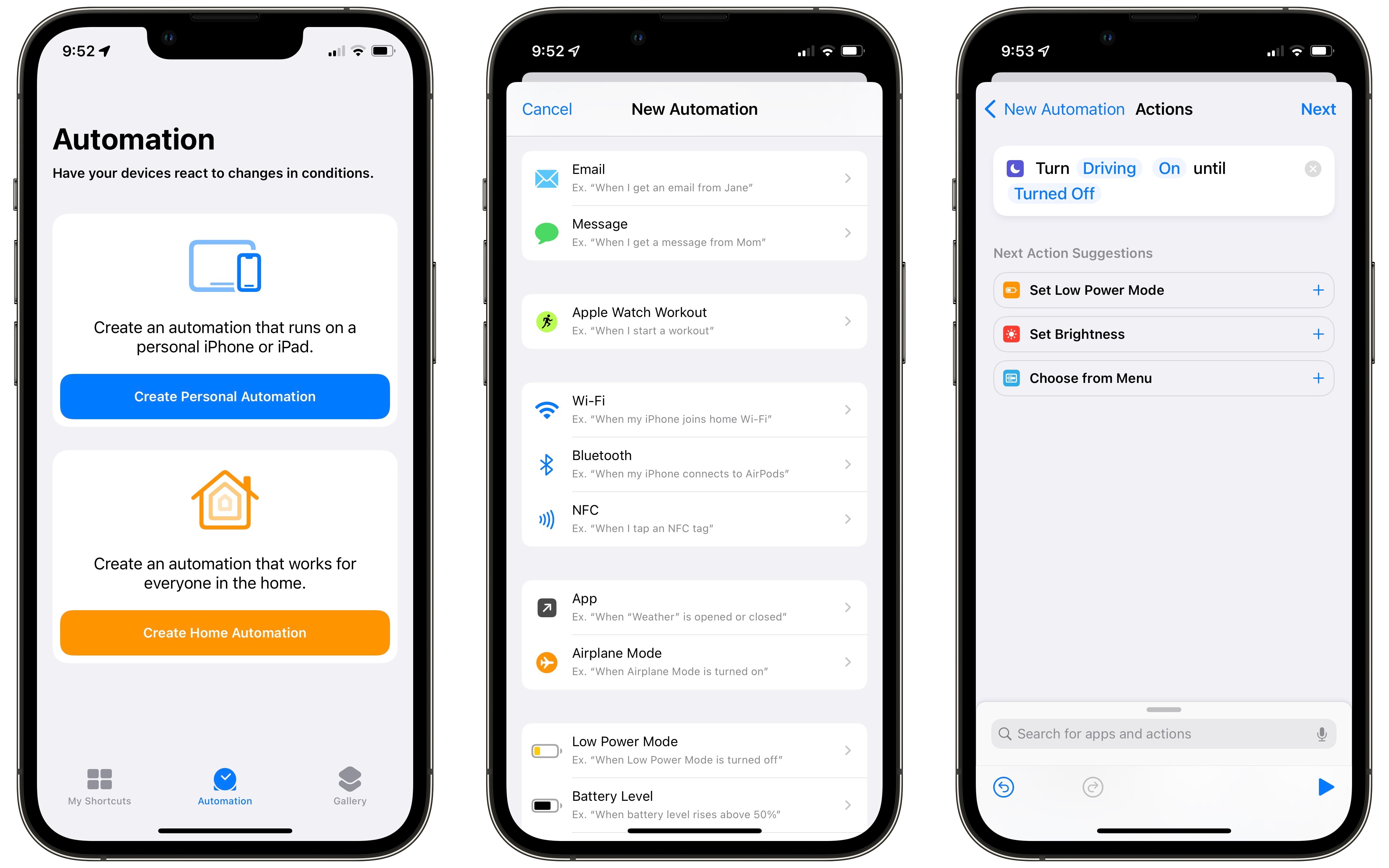
The most significant enhancement in macOS Tahoe is Focus Modes integration with Shortcuts automation—a feature previously exclusive to iOS now brought to Mac.
What Shortcuts Automation Enables
Before macOS Tahoe:
- Focus Modes only silenced notifications
- Manual activation or basic time-based scheduling
- No environmental customization
With macOS Tahoe Shortcuts Integration:
- Multi-step workflows trigger when Focus activates/deactivates
- Environmental control: Adjust volume, brightness, display settings
- App management: Automatically open/quit specific applications
- Visual customization: Enable HazeOver dimming, switch themes, hide Dock
- System optimization: Set low power mode, manage connectivity
- Conditional logic: Different actions based on time, location, battery level
Automation Trigger Options
Focus Mode automations can be triggered by:
- Time of day — Auto-activate Work Focus at 9 AM weekdays
- App launch — Enable Deep Code Focus when opening VS Code
- External display connection — Switch to Presentation Mode when HDMI connected
- Accessory connection — Activate Study Focus when specific Bluetooth headphones connect
- Battery level — Enable Battery Saver Focus when MacBook drops below 20%
- Folder activity — Trigger when files are saved to specific locations
- Network connectivity — Activate when joining office WiFi
- Stage Manager — Enable when activating Stage Manager window management
- Focus Mode changes — Run actions when specific Focus activates/deactivates
Real-World Automation Examples
Example 1: Developer Deep Work Automation
When "Deep Code" Focus activates:
1. Set volume to 0%
2. Enable HazeOver dimming (70% intensity, cool blue)
3. Switch to Dark mode
4. Hide Dock and menu bar
5. Quit Slack, Mail, Safari
6. Open Terminal and VS Code
7. Display "Focus mode active until 12 PM" notification
Example 2: Student Study Sprint
When "Study Focus" activates:
1. Set display to grayscale (reduce app appeal)
2. Volume to vibrate only
3. Block Safari except educational sites
4. Start Pomodoro timer (50 min work / 10 min break)
5. Display motivational quote on screen
6. Set phone to Do Not Disturb via Continuity
Example 3: Professional Meeting Mode
15 minutes before calendar event titled "Meeting":
1. Activate "Executive Mode" Focus
2. Display meeting agenda from calendar notes
3. Set Teams status to "In a Meeting"
4. Mute personal notifications
5. Close all browser tabs except meeting-related
6. Open OneNote for note-taking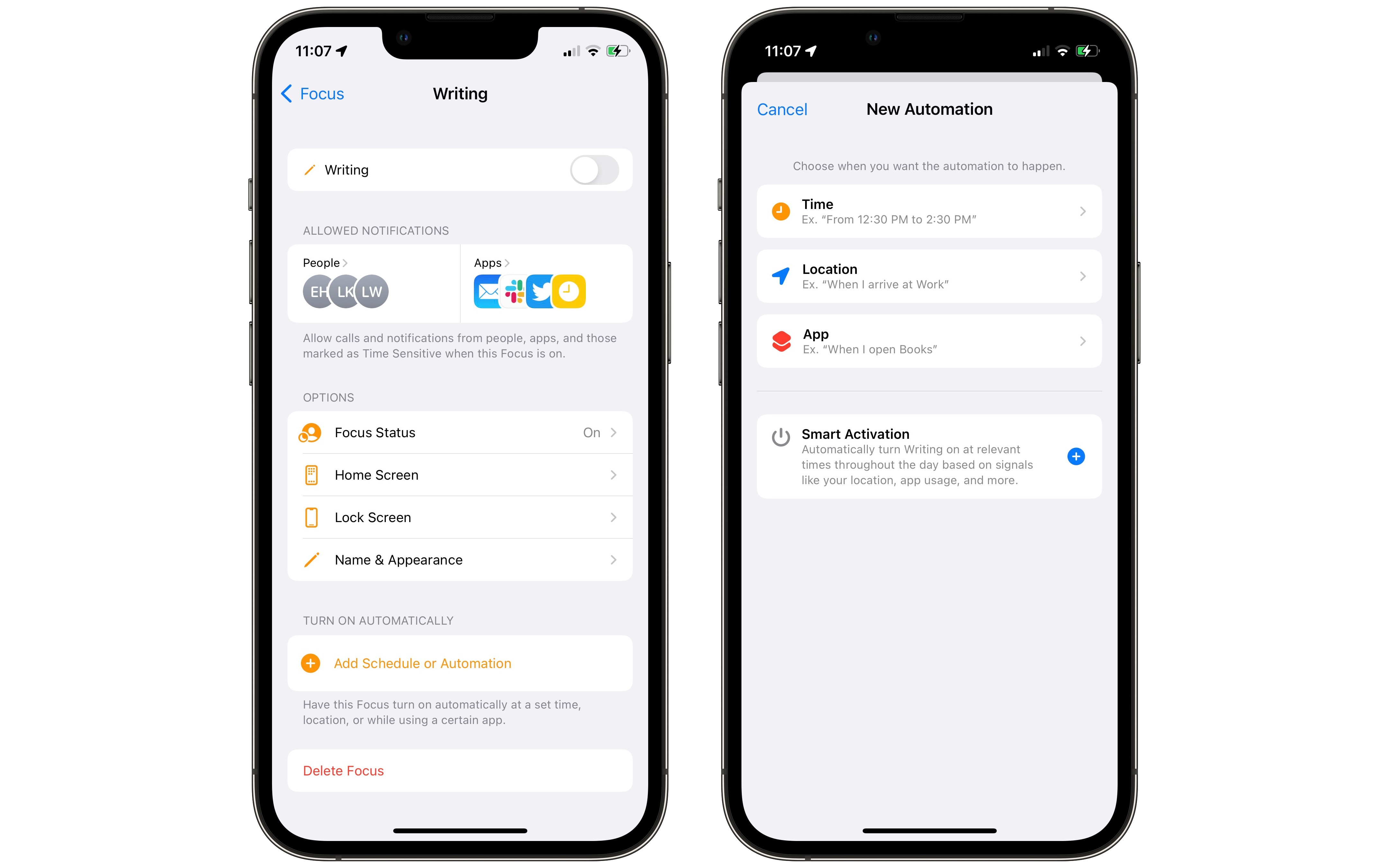
Step-by-Step Focus Modes Setup Guide
Accessing Focus Modes
There are three ways to access Focus settings:
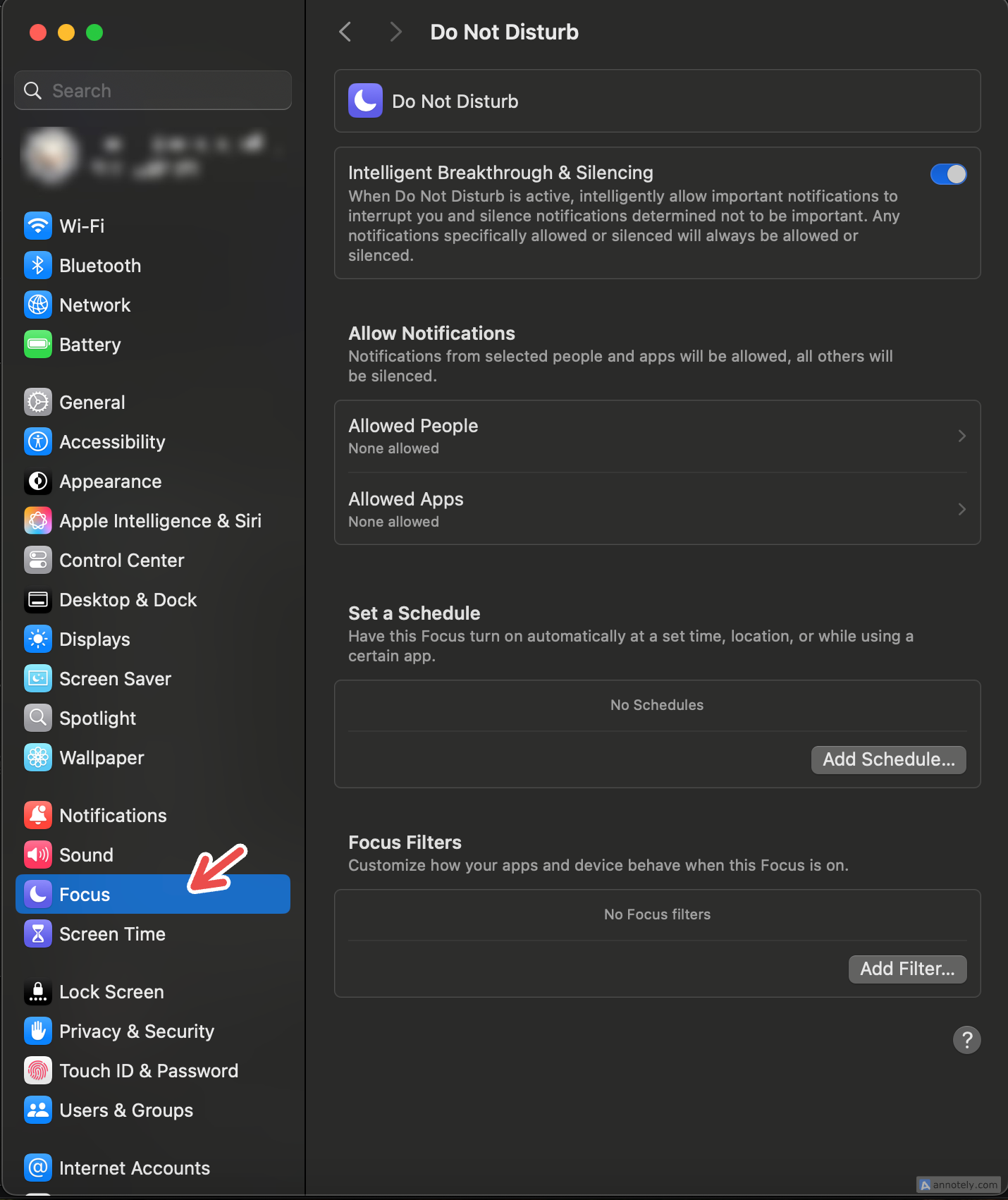
Method 1: System Settings
- Click Apple menu → System Settings
- Select Focus in the sidebar
- Choose a Focus mode to configure
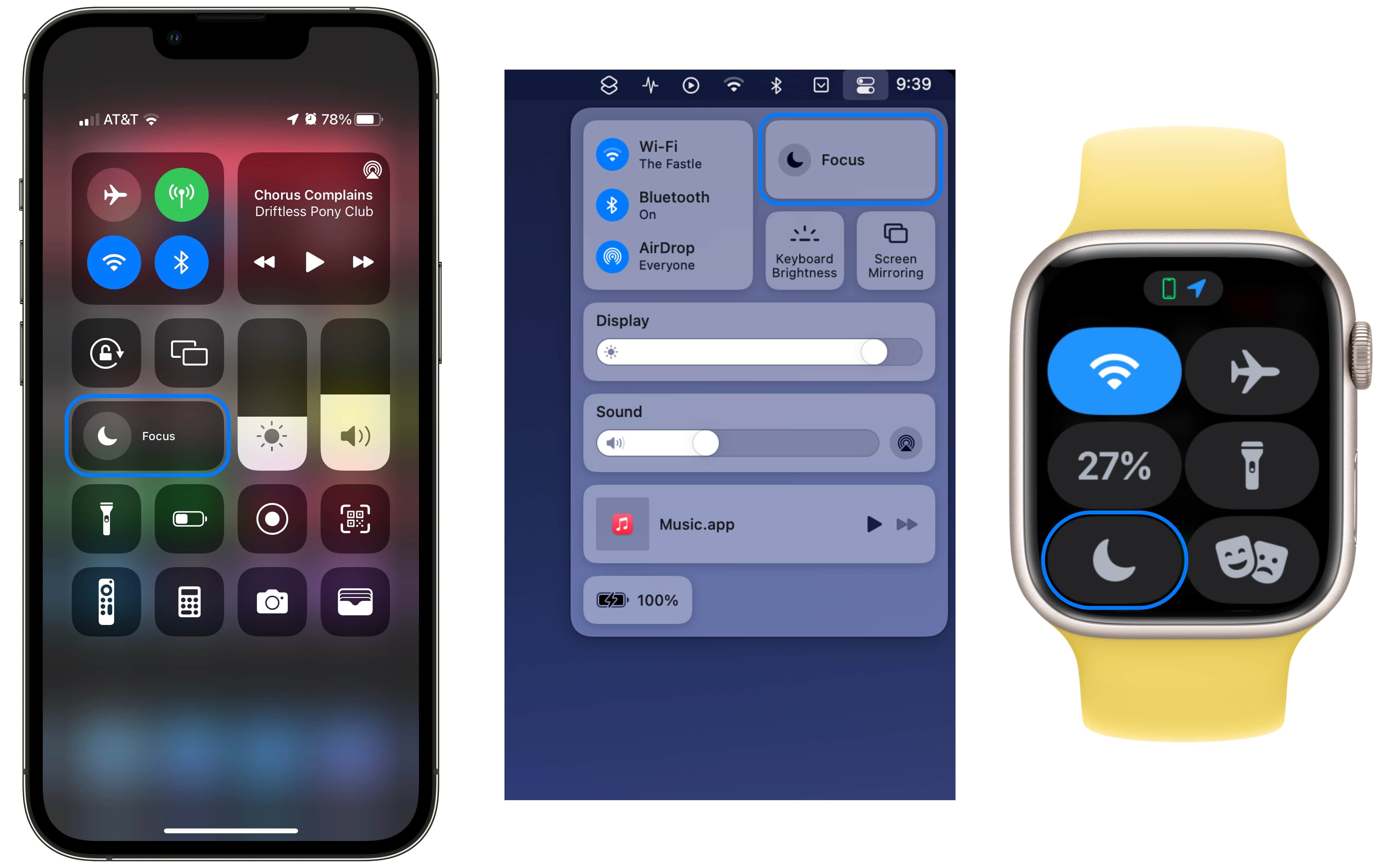
Method 2: Control Center
- Click Control Center icon in menu bar (top-right)
- Click Focus icon
- Select desired Focus mode or click Focus Settings for full configuration
Method 3: Spotlight Search (NEW in Tahoe)
- Press ⌘ + Space
- Type "Focus Settings"
- Press Return to open configuration
Creating Your First Custom Focus Mode
Step 1: Create New Focus
- Open System Settings → Focus
- Click + button at bottom of Focus list
- Select Custom (or choose from templates: Work, Personal, Sleep, Gaming, Mindfulness, Reading)
- Name your Focus (e.g., "Deep Work", "Creative Flow", "Study Sprint")
- Select an icon and color to visually identify the mode
Step 2: Configure Allowed Notifications
Recommended Approach: Use "Allow Notifications From" to whitelist critical apps/contacts rather than blocking everything.
For Apps:
- Click Apps under "Allowed Notifications From"
- Click + Add Apps
- Select essential apps for this context
- Work Focus: Slack, Teams, Zoom, Calendar, work email
- Study Focus: Educational apps only (Notion, Khan Academy, Google Docs)
- Deep Code: Terminal, Stack Overflow (browser), error monitoring tools
- Personal Focus: Social media, entertainment, messaging apps
For Contacts:
- Click People under "Allowed Notifications From"
- Click + Add People
- Select critical contacts (family, direct manager, key clients)
- Enable Allow Repeated Calls — second call from same person within 3 minutes breaks through (emergency feature)
Step 3: Enable Time Sensitive Notifications
Critical Feature: Toggle Time Sensitive Notifications to allow urgent system alerts to break through Focus modes, such as:
- Security alerts
- Delivery notifications with time windows
- Calendar event reminders
- Important app alerts marked as "Time Sensitive"
Step 4: Configure Focus Filters (Advanced)
Focus Filters customize how specific apps behave during each Focus mode:
Calendar Filter:
- Work Focus: Show only work calendar
- Personal Focus: Show only personal/family calendars
- Study Focus: Show only class/exam schedule
Mail Filter:
- Work Focus: Display only work email account
- Personal Focus: Show only personal email accounts
Safari Filter:
- Restrict specific Tab Groups
- Block distracting websites
- Show only work/study-related bookmarks
Messages Filter:
- Filter conversation threads by contacts
- Show only work-related group chats during Work Focus
Step 5: Set Up Automation Triggers
- Under Turn On Automatically, click + Add Schedule or Automation
- Choose trigger type:
- Time: Set specific hours (e.g., 9 AM - 5 PM weekdays for Work Focus)
- Location: Auto-activate at specific addresses (office, library, home)
- App: Trigger when opening specific apps (VS Code, Keynote, Adobe apps)
Pro Tip: Use multiple triggers for the same Focus mode. Example: Work Focus activates at 9 AM OR when opening Slack OR when connecting to office WiFi.
Step 6: Customize Lock Screen (Optional)
- Click Choose Lock Screen at bottom of Focus settings
- Select or create custom Lock Screen for this Focus
- Swipe between Lock Screens to activate corresponding Focus modes
Step 7: Configure Cross-Device Sharing
- Scroll to Options section
- Toggle Share Across Devices to sync this Focus across all Apple devices via iCloud
- Toggle Focus Status to let contacts know when you're in Focus mode (shows "John has notifications silenced" in Messages)
⚠️ Note: Some users report timing issues with device sharing. Disable if Focus modes turn off too soon or stay active too long across devices.
Apple Intelligence-Powered Focus Features (M1+ Required)
macOS Tahoe introduces AI-powered Focus capabilities that intelligently adapt to your usage patterns.
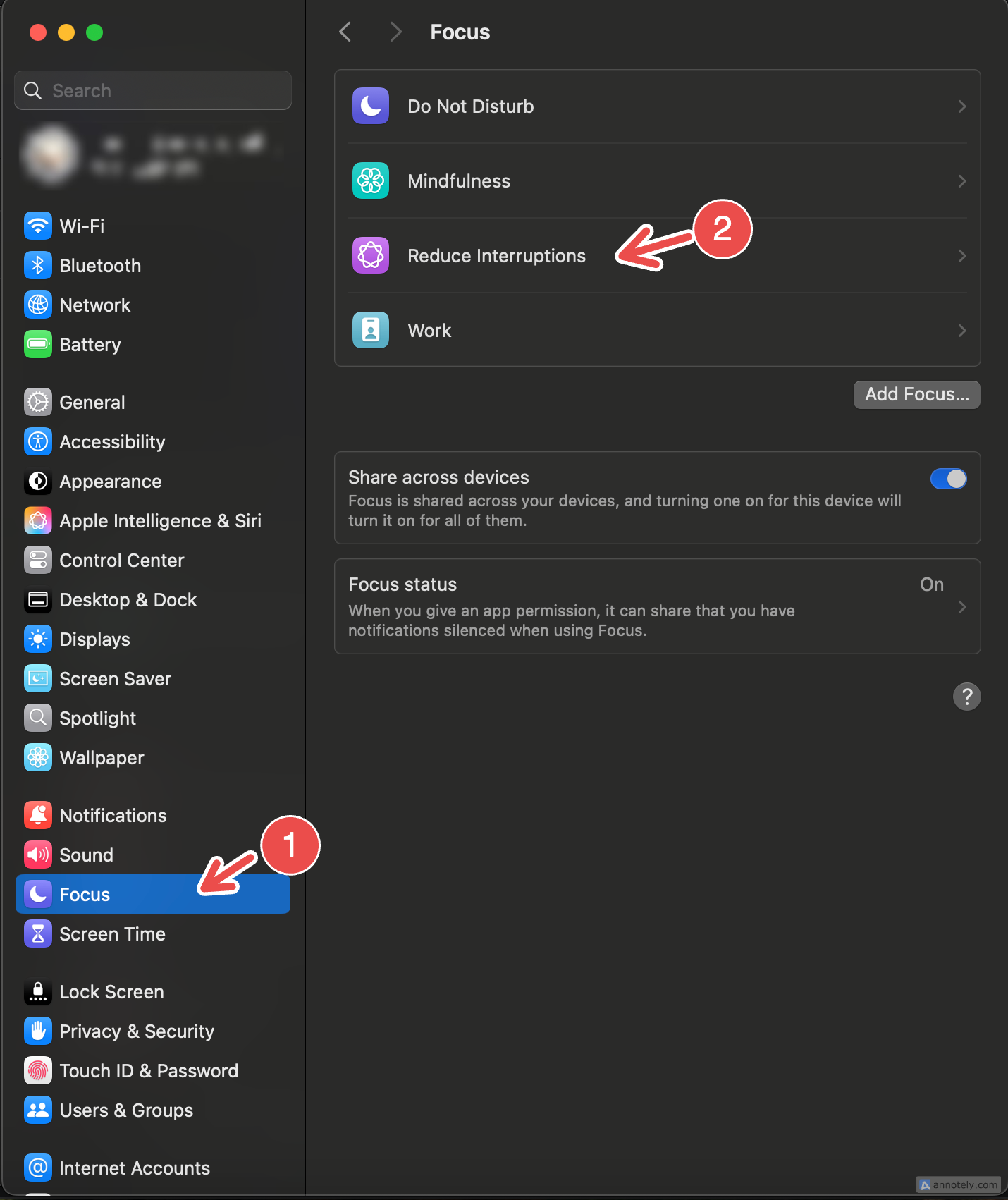
Reduce Interruptions Focus Mode
NEW flagship feature powered by Apple Intelligence:
How It Works:
- Uses on-device machine learning to evaluate urgency of each notification
- Adaptive intelligence improves over time by learning your patterns
- Dynamic filtering — not static rules, but continuous urgency evaluation
What Gets Through: ✅ Family emergency texts ✅ Time-sensitive work alerts ✅ Critical security notifications ✅ Important calendar reminders
What Gets Silenced: ❌ Promotional emails ❌ Social media likes/comments ❌ Non-urgent app updates ❌ Newsletter digests
Setup:
- Open System Settings → Focus
- Select Reduce Interruptions
- Toggle on
- No manual configuration needed — AI handles filtering automatically
System Requirements:
- macOS Tahoe 26 or later
- Apple Silicon Mac (M1, M2, M3, M4, M4 Pro, M4 Max, M4 Ultra)
- Apple Intelligence enabled in System Settings → Apple Intelligence & Siri
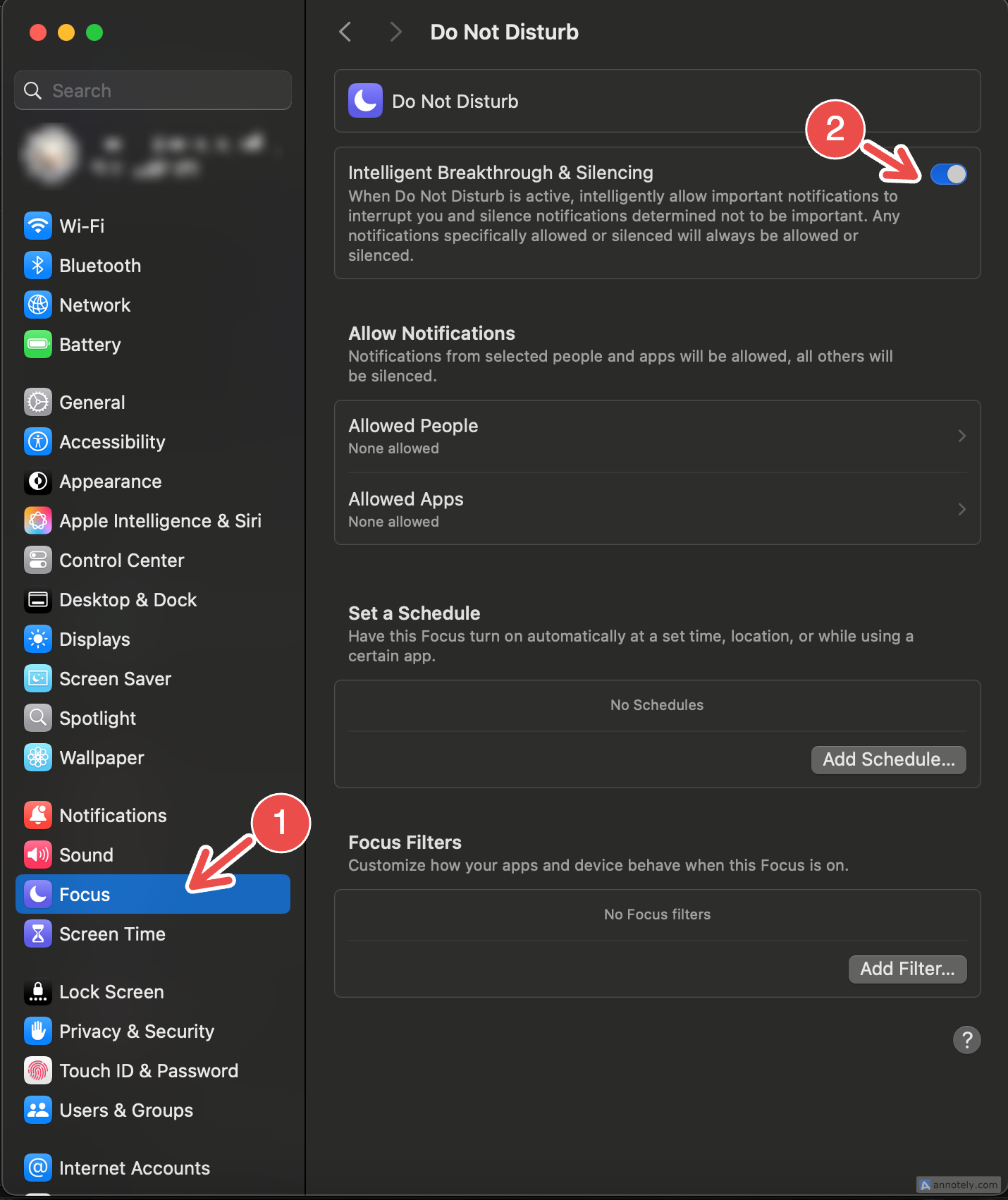
Intelligent Breakthrough and Silencing
Enhanced manual Focus modes can leverage AI assistance:
Configuration:
- When creating/editing any Focus mode
- Under Options, enable Intelligent Breakthrough and Silencing
- AI will assist your manual "Allowed Notifications From" settings by:
- Letting critical notifications break through automatically
- Muting less important notifications even if from allowed apps
- Adapting based on which notifications you interact with
Best Practice: Use Intelligent Breakthrough alongside selective app/contact whitelisting for optimal balance between control and intelligence.
Real-World Focus Mode Workflows by User Type
For Students: Study Focus Excellence
Configuration Profile:
- Name: "Study Sprint" or "Exam Prep"
- Icon: 📚 Book symbol
- Color: Blue (calming, focus-enhancing)
- Allowed Apps: Notion, Anki flashcards, Google Docs, Khan Academy, library apps, PDF readers
- Allowed Contacts: Parents only (emergency)
- Blocked: All social media (Instagram, TikTok, Twitter/X, Snapchat), gaming apps, YouTube entertainment (except educational channels)
- Schedule: 7:00 PM - 10:00 PM weekdays (evening study blocks)
- Location Trigger: Auto-activate at university library
Shortcuts Automation:
When "Study Sprint" activates:
1. Set display to grayscale (reduces app visual appeal — proven to reduce phone usage 30%)
2. Volume to vibrate only
3. Display Pomodoro timer (50 min work / 10 min break)
4. Block Safari except whitelisted domains (educational sites)
5. Show motivational quote: "Every expert was once a beginner"
6. Set iPhone to Sleep Focus via Continuity
Home Screen Customization:
- Create dedicated Study page with only academic apps
- Widgets: Study timer, upcoming exams calendar, to-do list
- Remove social media icons entirely during Study Focus
Productivity Impact: Students report staying focused from dinner to bedtime without mindless scrolling, adding 5+ hours of quality study time weekly.
For Developers: Deep Work Coding Focus
Configuration Profile:
- Name: "Deep Code" or "Flow State"
- Icon: 💻 Laptop symbol
- Color: Purple (creative thinking)
- Allowed Apps: VS Code, Terminal, Xcode, Stack Overflow browser tab, GitHub Desktop, Postman, Docker Desktop
- Allowed Contacts: None (emergency bypass only for critical contacts)
- Blocked: Slack, Email, social media, news sites
- Schedule: 6:00 AM - 11:00 AM (peak cognitive hours — research shows developers reach flow state in 52-90 minutes)
- App Trigger: Auto-activate when launching VS Code, Xcode, or Terminal
Shortcuts Automation:
When "Deep Code" Focus activates:
1. Enable HazeOver dimming at 70% intensity with cool blue tone (highlights active window)
2. Switch to Dark mode (reduces eye strain)
3. Hide Dock and menu bar (maximizes screen real estate)
4. Quit Slack, Apple Mail, Safari (personal browsing)
5. Set system volume to 0% or play "Deep Focus" playlist at 20%
6. Display reminder: "Flow state — no interruptions until 11 AM"
7. Open Terminal in background
8. Set MacBook to "Do not sleep when display is off"
Pro Developer Technique: The 90-20-5 Method
- 90 minutes: Deep coding (complex problem-solving, implementation)
- 20 minutes: Admin tasks (check Slack/email, respond to PRs)
- 5 minutes: Physical break (walk, stretch, hydrate)
- Repeat 2-3 cycles during 6-11 AM window
Critical Stat: It takes over 20 minutes to fully re-engage after even brief interruptions during programming. Focus Mode prevents this productivity loss.
Expected Outcome: Elite developers sustain 4 hours of deep focused work daily using this method.
For Creative Professionals: Creative Flow Mode
Configuration Profile:
- Name: "Creative Flow" or "Design Zone"
- Icon: 🎨 Artist palette
- Color: Amber (warm, creative energy)
- Allowed Apps: Adobe Creative Suite (Photoshop, Illustrator, Premiere), Final Cut Pro, DaVinci Resolve, Figma, Canva, Procreate (if iPad synced)
- Allowed Contacts: Direct clients, project manager only
- Blocked: Email notifications, messaging apps, social media
- Schedule: 45-minute work blocks with 15-minute breaks (optimal for video editing — better than standard 25/5 Pomodoro for post-production)
- Visual Cue: Purple background wallpaper (makes active Focus immediately obvious)
Shortcuts Automation:
10 minutes before "Creative Flow" activates:
1. Display "Entering focus mode in 10 minutes" notification
2. Prompt to close non-essential apps
3. Set screen brightness to 80% (consistent lighting for color work)
4. Enable Night Shift at minimal level (reduce blue light, not affect color accuracy)

When "Creative Flow" activates:
1. HazeOver dims non-active windows to 40%
2. Play lo-fi beats at 30% volume
3. Start Focus Keeper app (45 min work / 15 min break timer)
4. Hide all notifications preview (prevent distraction from notification badges)

Every 45 minutes (break trigger):
1. Display "Stand and stretch — break time!" reminder
2. Pause music
3. Show productivity stats (time focused today, blocks completed)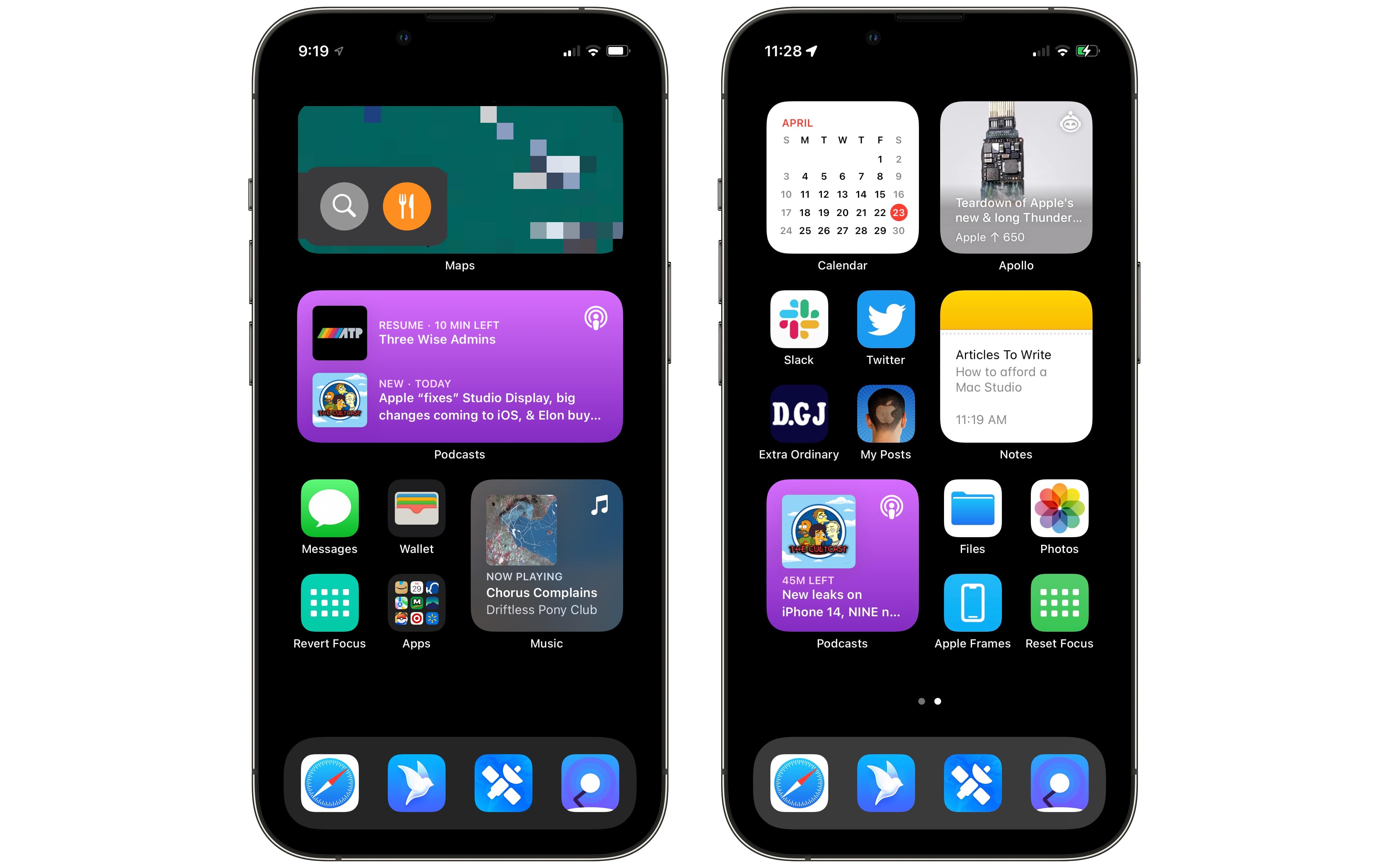
Training Effect: Regular use trains your brain to associate the purple wallpaper and specific playlist with distraction-free creative work—classical conditioning for productivity.
Quantified Benefit: Users report 60% fewer mid-project interruptions and 20% faster project completion with properly configured Creative Flow.
For Remote Workers: Multi-Context Professional Setup
Focus Mode 1: "Deep Work"
- When: 9:00 AM - 12:00 PM (morning peak productivity)
- Allowed: None except family emergency contacts
- Blocked: Slack, Teams, Zoom, all email
- Calendar Filter: Hide all calendars (eliminate anxiety from upcoming meetings)
- Home Screen: Single page with productivity apps only (Word, Excel, project management tools)
- Purpose: Uninterrupted focus on strategic work, complex analysis, content creation
Focus Mode 2: "Meetings Available"
- When: 1:00 PM - 5:00 PM (afternoon collaborative hours)
- Allowed: Slack, Microsoft Teams, Zoom, Calendar notifications, work email
- Blocked: Personal email, social media, news apps
- Calendar Filter: Show work calendar only
- Focus Status: "Available for meetings"
- Purpose: Real-time collaboration, responsive communication, scheduled calls
Focus Mode 3: "After Hours"
- When: 6:00 PM onward
- Allowed: Personal contacts, social apps, entertainment
- Blocked: All work apps (Slack, work email, Teams)
- Home Screen: Entertainment and personal apps (Netflix, Spotify, social media)
- Purpose: Work-life boundary enforcement, mental recovery
Automation Transition:
When switching Deep Work → Meetings Available:
1. Re-open Slack and Teams
2. Set Slack status to "Back online ✅"
3. Display missed message summary
4. Show afternoon calendar at a glance

When switching Meetings → After Hours:
1. Quit all work apps (Slack, Outlook, Teams)
2. Set work email to "Out of office" auto-reply
3. Switch to personal Apple ID apps
4. Display daily productivity summary
Business Impact: Remote workers report 1.4 more hours of focused work daily compared to undefined notification management, directly addressing the common WFH challenge of "more unfocused work hours."
For Business Executives: Calendar-Integrated Meeting Management
Focus Mode: "Executive Mode"
Smart Configuration:
- Uses calendar-focus-sync third-party app (available on GitHub)
- Auto-activates when calendar event title contains "Meeting", "Call", "Review", "Presentation"
- Allowed: Teams, Zoom, Calendar, OneNote, relevant project management tools
- Blocked: Email (prevents mid-meeting email distractions), social media, news
- Critical Contacts: Only CEO, board members (VIP emergency bypass)
Pre-Meeting Automation (15 min before event):
1. Display meeting agenda extracted from calendar notes
2. Open relevant documents from meeting invite attachments
3. Set Teams/Zoom status to "In a Meeting"
4. Mute personal iPhone notifications via Continuity
5. Close all browser tabs except meeting-related
6. Prompt: "Review these 3 action items from last meeting"
During Meeting:
- Only meeting app (Zoom/Teams) and OneNote visible
- All other notifications paused
- VIP contacts can break through for genuine emergencies
Post-Meeting Automation (when calendar event ends):
1. Display prompt: "Add meeting notes to OneNote?"
2. Auto-create follow-up tasks from meeting transcript (AI-powered)
3. Send "Meeting ended — back online" status update
4. Return to "Work Available" Focus mode
5. Show next meeting in 2 hours reminder
ROI Calculation: For executives averaging 6 meetings daily, preventing just 3 interruptions per meeting saves 60 minutes of recovery time daily (at 20 min refocus per interruption) = 5 hours weekly = $9,375 annual value for a $75K knowledge worker.
Advanced Focus Filters Configuration
Focus Filters allow per-app content boundaries during specific Focus modes—going beyond notification filtering to customize what content appears within apps.
Calendar Focus Filters
Use Case: During Work Focus, show only work calendars; during Personal Focus, show only personal/family calendars.
Setup:
- Open System Settings → Focus → [Select Focus]
- Under Focus Filters, click Add Filter
- Select Calendar
- Choose which calendars to display during this Focus
- Work Focus: Select "Work Calendar", "Team Calendar"
- Personal Focus: Select "Personal", "Family", "Kids Activities"
- Study Focus: Select "Class Schedule", "Exam Dates"
Benefit: Reduces cognitive load and anxiety by hiding irrelevant calendar events during focused work.
Mail Focus Filters
Use Case: Show only work email during work hours, only personal email during evenings.
Setup:
- Focus Filters → Add Filter → Mail
- Select email accounts to display:
- Work Focus: Show only corporate email account
- Personal Focus: Show only personal Gmail/iCloud accounts
- Weekend Focus: Hide all work accounts
Pro Tip: Combine with Shortcuts automation to set "Out of Office" auto-reply on work email when Personal Focus activates at 6 PM.
Safari Focus Filters
Use Case: Restrict websites and show only relevant Tab Groups during different Focus modes.
Setup:
- Focus Filters → Add Filter → Safari
- Configure per Focus:
- Work Focus: Show only "Work Projects" Tab Group
- Study Focus: Show "Research" Tab Group, block entertainment sites
- Personal Focus: Show "Personal" Tab Group with social media, shopping, entertainment
Implementation:
- Create Tab Groups in Safari (View → Tab Groups → New Tab Group)
- Organize tabs by context (Work Projects, Research, Personal Browsing, Shopping, etc.)
- Focus Filters automatically show/hide Tab Groups
Security Benefit: Prevents accidental work document access during personal browsing (important for compliance in regulated industries).
Messages Focus Filters
Use Case: Show only work-related group chats during Work Focus, only family/friends conversations during Personal Focus.
Setup:
- Focus Filters → Add Filter → Messages
- Select conversation threads to display:
- Work Focus: Show only work Slack/Teams channels, client conversations
- Personal Focus: Show only friends/family group chats
Note: This requires organizing contacts and conversations with tags/labels in Messages app.
Third-Party App Focus Filters
Several third-party apps support Focus Filters API:
Agenda (note-taking):
- Associates notes with calendar events and categories
- Focus Filters choose which note categories appear per Focus mode
- Example: Work Focus shows only "Client Projects" notes
Drafts (writing app):
- Creates workspaces to group documents by project
- Focus Filters select which workspaces appear
- Can apply different visual themes per Focus
Fantastical (calendar app):
- Allows "sets" (groups of related calendars)
- Focus Filters automatically switch calendar sets
- Example: Show only personal/family events during weekends
Cardhop (contacts):
- Groups contacts into lists
- Focus Filters show/hide contact lists per Focus mode
Developer Opportunity: If you're a developer, implement Focus Filters in your app using the Focus API from Apple's App Intents framework.
Cross-Device Focus Synchronization
One of Focus Modes' most powerful features is seamless synchronization across all Apple devices via iCloud.
How Cross-Device Sync Works
Supported Devices:
- iPhone (iOS 15+)
- iPad (iPadOS 15+)
- Mac (macOS Monterey 12+)
- Apple Watch (watchOS 8+)
- Apple Vision Pro (visionOS 1+)
Automatic Behavior:
- When you activate a Focus on your Mac, it automatically activates on all paired devices
- When your iPhone enters Sleep Focus at 10 PM, your Mac silences notifications simultaneously
- When you disable Focus on Apple Watch, it deactivates across ecosystem
Configuration:
- Open System Settings → Focus → [Select Focus]
- Scroll to Options
- Toggle Share Across Devices on or off per Focus mode
When to Disable Cross-Device Sharing
Recommended Scenarios:
-
Device-Specific Focus Modes:
- "Presentation Mode" only needed when MacBook connected to projector
- "Commute Focus" only relevant on iPhone while driving
- "Gym Focus" only useful on Apple Watch
-
Timing Issues:
- Some users report Focus modes turn off too soon or stay active too long across devices
- Disable sharing if experiencing unexpected behavior
- Re-enable after macOS/iOS updates (bugs often get fixed)
-
Differing Work Contexts:
- You might want Work Focus active on Mac but Personal Focus on iPhone (to stay accessible via personal phone during deep work)
Pro Tip: Create paired Focus modes with different names:
- "Mac Deep Work" (not shared) — only silences Mac notifications
- "iPhone Do Not Disturb" (not shared) — only silences iPhone
- "Full Focus" (shared) — silences everything across all devices for critical focus sessions
Focus Status Sharing
Feature: Let contacts know when you're in Focus mode.
How It Appears:
- In Messages: "John has notifications silenced" appears below contact name
- In FaceTime: Calling person sees "John has notifications silenced — will see this later"
- Provides context for delayed responses without explicitly saying "I'm busy"
Privacy Considerations:
- Does not reveal which Focus mode is active (doesn't say "John is in Work Focus")
- Only shows generic "notifications silenced" message
- Can be disabled per Focus mode if you prefer complete privacy
Configuration:
- System Settings → Focus → [Select Focus] → Options
- Toggle Focus Status on/off
- Choose "Share Focus Status" or "Hide Focus Status"
Best Practice: Enable Focus Status for Work and Study modes (provides professional boundary), disable for Personal and Sleep modes (unnecessary context sharing).
Troubleshooting Common Focus Mode Issues
Issue 1: Focus Mode Not Turning On/Off at Scheduled Times
Symptoms:
- Focus mode activates but turns off too soon (e.g., Work Focus deactivates at 3 PM instead of 5 PM)
- Focus stays active longer than scheduled (e.g., Sleep Focus still on at 8 AM)
- Inconsistent activation across devices
Solutions:
Solution 1: Disable Cross-Device Sharing
- Open System Settings → Focus → [Affected Focus]
- Scroll to Options
- Toggle off Share Across Devices on all Apple devices
- Test if timing issue resolves
- If fixed, problem was device sync conflict
Solution 2: Set Specific Time Windows
- Avoid using vague schedules like "Until this evening" or "Indefinitely"
- Set explicit time ranges: "9:00 AM to 5:00 PM" instead of "Until I turn it off"
- Specific times are more reliable for automation
Solution 3: Update macOS
- Check for updates: System Settings → General → Software Update
- Install latest macOS Tahoe version (many timing bugs fixed in 26.0.1 and 26.1)
- Restart Mac after update
Solution 4: Disable Smart Activation (if causing interference)
- System Settings → Focus → [Focus Mode] → Options
- Toggle off Smart Activation
- Smart Activation uses ML to auto-enable Focus, but can conflict with manual schedules
Issue 2: Do Not Disturb Intermittently Switches Off
Symptoms:
- While watching media or using certain apps, DND toggles off and on by itself
- Focus mode seems to "flicker" between states
Root Cause:
- Certain apps or media playback can trigger focus changes
- Conflicting automation rules
Solutions:
Solution 1: Check for Conflicting Automations
- Review all your Focus modes for overlapping automation triggers
- Example conflict: Work Focus set to activate when opening Slack, Personal Focus set to activate when Slack closes
- Remove conflicting app-based triggers
Solution 2: Avoid Generic Triggers
- Don't use "Until this evening" or "Until I leave this location"
- Set precise time ranges instead
Solution 3: Restart Focus Mode
- Disable the problematic Focus mode completely
- Restart your Mac
- Re-enable the Focus mode
- Reconfigure settings from scratch if issue persists
Issue 3: App-Based Focus Triggering Problems
Symptoms:
- Focus mode toggles every time you switch between apps
- Focus stays active even after quitting trigger app
- Multiple Focus modes activate simultaneously when switching apps
Solutions:
Solution 1: Delete and Recreate Focus Mode
- Back up your Focus configuration (screenshot settings)
- Delete the problematic Focus mode entirely
- Recreate with same name, icon, color
- Reconfigure allowed apps/contacts from scratch
- This often resolves corrupt automation settings
Solution 2: Verify Trigger App Selection
- System Settings → Focus → [Focus Mode] → Turn On Automatically
- Click the app-based automation
- Ensure the correct app is selected (not a similar-named app)
- Remove and re-add the trigger
Solution 3: Avoid Simultaneous Triggers
- Don't set multiple Focus modes to trigger from the same app
- Example problem: "Deep Code" triggers when opening VS Code, "Work" also triggers when opening VS Code
- Choose one Focus per trigger app
Issue 4: Notifications Still Breaking Through Focus Mode
Symptoms:
- Unexpected notifications appear during active Focus mode
- Apps you didn't whitelist are sending notifications
- All notifications blocked including critical ones
Solutions:
Solution 1: Review Allowed Notifications Carefully
- System Settings → Focus → [Focus Mode]
- Under Allowed Notifications From, review:
- Apps list — are there apps you don't recognize? Remove them
- People list — contacts might have emergency bypass enabled
- Click Options and verify Time Sensitive Notifications setting
Solution 2: Check Time Sensitive Notifications
- If too many alerts breaking through: Toggle off Time Sensitive Notifications
- If missing critical alerts: Toggle on Time Sensitive Notifications
- Find balance based on your needs
Solution 3: Verify App Permissions
- System Settings → Notifications
- Find apps sending unexpected notifications
- Check if they have "Critical Alerts" permission (bypasses Focus)
- Disable Critical Alerts if not truly critical
Solution 4: Check Contact Settings
- Open Contacts app
- Select contact who's breaking through
- Check if "Emergency Bypass" is enabled
- Disable unless truly an emergency contact (family, doctor, etc.)
Issue 5: Location-Based Focus Problems
Symptoms:
- Work Focus gets "semi-stuck" with icon in status bar but settings reverted
- Location trigger not activating when arriving at specified address
- Focus activating at wrong locations
Solutions:
Solution 1: Set Precise Location Boundaries
- When configuring location trigger, zoom in on the map
- Set a smaller radius around the exact location (100-200 meters instead of 500 meters)
- Ensure location pin is dropped at correct address
Solution 2: Avoid Overlapping Location Triggers
- Don't set multiple Focus modes for overlapping geographic areas
- Example conflict: Work Focus for "office area", Coffee Shop Focus for "nearby café" (if areas overlap)
Solution 3: Combine Location + Time Triggers
- Use both location AND time for more reliable activation
- Example: Work Focus activates when at office location AND between 9 AM - 5 PM weekdays
- Prevents accidental activation on weekends when passing by office
Solution 4: Enable Location Services
- System Settings → Privacy & Security → Location Services
- Verify Location Services is On
- Scroll down to System Services
- Ensure Focus has location access enabled
Issue 6: Calendar Integration Not Working
Symptoms:
- Focus doesn't activate during calendar events
- No native option to tie Focus to calendar events
Current Limitation: macOS Tahoe does not natively support calendar event-based Focus activation. This is a known missing feature.
Workarounds:
Workaround 1: Use calendar-focus-sync App (Third-Party)
- Download calendar-focus-sync from GitHub
- Requires macOS 14.0+ (works on Tahoe 26)
- Automatically activates Focus Modes when calendar events begin
- Configure which calendar keywords trigger which Focus modes
- Events titled "Meeting" → activate "Executive Mode"
- Events titled "Deep Work Block" → activate "Deep Code"
Workaround 2: Shortcuts Automation with Calendar Check
- Create Shortcut that checks Calendar for events with specific keywords
- Set up time-based automation (e.g., runs every hour)
- If matching event found, activate corresponding Focus
- Requires manual Shortcut creation with scripting
Workaround 3: Time-Based Approximation
- Review your typical meeting schedule (e.g., Tuesdays 2-3 PM always have team sync)
- Set time-based Focus automation aligned with recurring meetings
- Less flexible but works without third-party tools
Issue 7: Smart Activation Behaving Unexpectedly
Symptoms:
- Focus modes activating when you don't expect them
- Smart Activation seems to guess incorrectly
Solution:
- System Settings → Focus → [Focus Mode] → Options
- Toggle off Smart Activation
- Smart Activation uses machine learning to predict when you want Focus active
- If it's interfering with your manual schedules or automations, disable it
- Can re-enable after a few weeks once ML has more training data
General Troubleshooting Steps
Basic Reset Procedure:
- Unplug all accessories from Mac (external displays, USB devices, hubs)
- Restart Mac (Apple menu → Restart)
- Test Focus mode after clean restart
- If working, issue was peripheral conflict
Configuration Verification:
- Review every setting in the problematic Focus mode:
- Allowed apps and people
- Focus Filters
- Automation triggers (time, location, app)
- Options (sharing, status, Smart Activation)
- Take screenshots for reference
- Disable one setting at a time to isolate the issue
Last Resort: Full Reset
- Back up all Focus mode configurations (screenshots)
- Delete all Focus modes
- Restart Mac
- Recreate Focus modes from scratch
- Test each one individually before creating the next
- If issues persist, consider reinstalling macOS (rare but effective)
Advanced Optimization Strategies
Visual Cue Strategy for Faster Context Recognition
Principle: Human brains process visual information faster than text. Use color and imagery to instantly recognize which Focus mode is active.
Implementation:
Step 1: Assign Distinctive Colors
- Work Focus: Blue (professionalism, trust)
- Study Focus: Green (growth, learning)
- Creative Flow: Purple (creativity, imagination)
- Deep Code: Dark Gray/Black (technical, focused)
- Personal Focus: Amber (warmth, relaxation)
- Sleep Focus: Indigo (calm, rest)
Step 2: Link Custom Lock Screens
- Create unique wallpapers for each Focus mode
- System Settings → Wallpaper
- Create new Lock Screen for each Focus with:
- Corresponding color background
- Relevant widgets (Work = Calendar, Study = Timer, Personal = Photos)
- Distinct lock screen clock style
Step 3: Custom Home Screen Pages (iOS/iPadOS sync)
- Create dedicated Home Screen page for each Focus
- Organize apps by context:
- Work Home Screen: Slack, Email, Calendar, Teams, project management tools
- Study Home Screen: Educational apps, note-taking, flashcards, timer
- Personal Home Screen: Social media, entertainment, shopping, games
Result: When you glance at your screen, you instantly know which Focus is active without reading text.
The "Focus Mode Cascade" Technique
Problem: You need different levels of focus intensity throughout the day.
Solution: Create tiered Focus modes that progressively filter more aggressively:
Level 1: "Light Focus" (Default Work Mode)
- Allows most work apps and contacts
- Blocks only social media and news
- Use during meetings, collaborative hours, accessible work time
Level 2: "Medium Focus" (Concentrated Work)
- Allows only essential work apps (email, Slack for emergencies)
- Blocks casual browsing, entertainment
- Use during project work, writing, analysis
Level 3: "Deep Focus" (Flow State)
- Blocks ALL notifications except emergency contacts
- Quits distracting apps automatically
- Enables HazeOver dimming, hides Dock/menu bar
- Use during complex problem-solving, creative work, strategic thinking
Level 4: "Extreme Focus" (Critical Deadline)
- Blocks EVERYTHING including family (except true emergency bypass via repeated calls)
- Disconnects from internet if possible (via Shortcuts automation)
- Maximum environmental optimization
- Use sparingly for urgent deadline sprints
Shortcuts Quick Switch: Create keyboard shortcuts to instantly switch between Focus levels:
- ⌘ + Shift + 1: Light Focus
- ⌘ + Shift + 2: Medium Focus
- ⌘ + Shift + 3: Deep Focus
- ⌘ + Shift + 0: Focus Off
Battery-Aware Focus Automation
Use Case: Automatically reduce power consumption when battery is low on MacBook.
Setup:
- Create "Battery Saver" Focus mode
- Configure Shortcuts automation:
When MacBook battery drops below 20%: 1. Activate "Battery Saver" Focus 2. Reduce display brightness to 50% 3. Enable Low Power Mode 4. Quit resource-intensive apps (browsers with many tabs, video editors) 5. Disable Bluetooth if not in use 6. Set volume to 20% - When battery returns above 40% (plugged in):
1. Deactivate "Battery Saver" Focus
2. Restore previous brightness level
3. Disable Low Power Mode
4. Display "Power restored — full performance available"
Benefit: Automatically extends battery life by 30-60 minutes during critical low-battery situations.
Focus Mode Analytics and Improvement
Track Your Focus Effectiveness:
Manual Method:
- Use Screen Time in System Settings
- Review "App Usage" during specific time blocks when Focus was active
- Identify apps still consuming time during Focus (indicates leaks in configuration)
- Adjust Focus settings to block those apps
Third-Party Tools:
- RescueTime: Tracks productive vs. distracting time, can correlate with Focus mode usage
- Timing: Automatic time tracking that shows which apps you used during Focus sessions
- Focus Keeper: Pomodoro timer that integrates with Focus modes, provides productivity stats
Weekly Review Questions:
- Which Focus mode did I use most this week?
- How many hours was I in "Deep Focus" vs. "Light Focus"?
- Which apps still distracted me during Focus?
- Did I achieve flow state? How many times?
- What automation should I add next week?
Optimization Cycle:
- Week 1: Establish baseline Focus mode usage
- Week 2: Identify distraction patterns during Focus
- Week 3: Tighten Focus configurations based on data
- Week 4: Measure productivity improvement (hours saved, tasks completed)
macOS Tahoe Focus Modes vs. Competitors
macOS/iOS Focus Mode vs. Windows 11 Focus Assist
| Feature | macOS Tahoe Focus Modes | Windows 11 Focus Assist |
|---|---|---|
| Philosophy | Multiple scenario-based Focus profiles with deep customization | Focus Sessions merging tasks, music, and timers |
| Customization | ✅ Unlimited custom Focus profiles | ❌ Limited to 3 modes (Off, Priority, Alarms only) |
| Cross-Device Sync | ✅ Syncs across iPhone, iPad, Mac, Watch, Vision Pro | ❌ Windows-only (no mobile sync) |
| App Control | ✅ Granular per-app notification control | ❌ Basic priority levels only |
| Contact Filtering | ✅ Per-contact notification permissions | ❌ Not available |
| Automation | ✅ Time, location, app-based triggers + Shortcuts | ❌ Manual start via Settings or Clock app |
| Task Management | ❌ Not built-in (third-party only) | ✅ Integrated with Microsoft To Do |
| Music Integration | ❌ Not built-in | ✅ Spotify integration for focus sessions |
| AI Intelligence | ✅ Apple Intelligence (M1+ Macs) | ❌ No AI-powered filtering |
| Focus Filters | ✅ Per-app content customization (Calendar, Mail, Safari, Messages) | ❌ Not available |
| Lock Screen Integration | ✅ Custom Lock Screens per Focus | ❌ Not available |
Verdict for Mac Users:
- macOS Strength: Cross-device Apple ecosystem integration, unlimited customization, AI-powered intelligence
- Windows Strength: Task management integration (To Do), Spotify focus sessions, simpler setup
- Recommendation: macOS Focus Modes are superior for users within Apple ecosystem who want granular notification control
macOS/iOS Focus Mode vs. Android Focus Mode
| Feature | macOS Tahoe Focus Modes | Android Focus Mode |
|---|---|---|
| Setup Complexity | More complex, higher customization | ✅ Quick setup, less confusing |
| Multiple Profiles | ✅ Unlimited custom Focus profiles | ❌ Limited (varies by manufacturer) |
| Lock/Home Screen Integration | ✅ Custom screens, widgets, wallpapers per Focus | ❌ Limited customization |
| App Blocking | Notification filtering + app hiding | ✅ Pauses distracting apps entirely |
| Visual Triggers | Hides apps from view during Focus | Apps remain visible but paused |
| Cross-Device Sync | ✅ Seamless across Apple ecosystem | ❌ Fragmented (manufacturer-dependent) |
| Digital Wellbeing | Focus on notification management | ✅ Integrated with usage monitoring and screen time limits |
| Contact Filtering | ✅ Granular per-contact control | Basic DND-based contact filtering |
| Automation | ✅ Time, location, app, accessory triggers | Schedule-based primarily |
| AI Features | ✅ Reduce Interruptions (Apple Intelligence) | ❌ Not available (except Samsung Modes and Routines) |
Verdict:
- macOS/iOS Strength: Multiple customizable profiles, Lock/Home Screen integration, ecosystem synchronization
- Android Strength: Simpler setup, app pausing (vs. just notification filtering), Digital Wellbeing integration
- Ecosystem Advantage: iPhone Focus modes edge out with ability to create unlimited, highly customized profiles
- Fragmentation Issue: Android experience varies by manufacturer (Samsung, Google Pixel, OnePlus have different implementations)
Expert Recommendation:
"The iPhone's Focus Modes edge out with their ability to create multiple, highly customizable profiles tailored to different aspects of a user's life, and Apple's across-the-board integration of Focus Modes provides a streamlined experience not yet matched by Android's ecosystem, which tends to be more fragmented due to the variety of manufacturers and custom skins."
Platform Selection Guide
Choose macOS/iOS Focus Mode if you:
- ✅ Use multiple Apple devices and want unified experience
- ✅ Need granular notification control per app and contact
- ✅ Want custom Lock/Home Screens for different life contexts
- ✅ Value AI-powered notification filtering (macOS Tahoe with M1+)
- ✅ Prefer sophisticated automation options via Shortcuts
Choose Windows 11 Focus Assist if you:
- Work primarily on Windows PC without Apple devices
- Need integrated task management (Microsoft To Do)
- Want timed focus sessions with Spotify music integration
- Prefer simpler, preset focus modes over deep customization
Choose Android Focus Mode if you:
- Want simple, quick setup for basic app blocking
- Prioritize Digital Wellbeing and screen time monitoring
- Prefer visual app pausing over notification filtering
- Don't need cross-device synchronization
Productivity Impact: Quantified Benefits
Focus Mode Direct Impact Statistics
Concentration and Output:
- 25% boost in concentration reported by Focus Mode users (TechRadar study, 2025)
- 5 additional productive hours per week (average across user testimonials)
- 30-60 minutes daily saved on social media for users who implement Work Focus
Continuous Work Sessions:
- Users report working continuously from breakfast to lunch (4+ hours) without mindless scrolling
- Phones "hardly dinged" during work hours due to intelligent notification filtering
- "Felt like fewer people were bothering me" — major achievement for heavy social media users
Deep Work Research Foundation
Flow State Requirements:
- 52-90 minutes required for developers to reach flow state for complex problem-solving (2023 developer productivity study)
- 23 minutes needed to refind focus after distractions (University of California Irvine research)
- 20+ minutes to fully re-engage after even brief interruptions during programming
Elite Performer Patterns:
- Top performing 10% of workers focus for 52 minutes average before taking breaks (Draugiem Group study via DeskTime)
- Elite performers sustain maximum 4 hours of deep, focused work per day
- Beyond 4 hours, productivity per hour declines sharply
Work Environment Impact
Environment and Focus:
- 30% productivity enhancement possible through well-designed work environment (workspace design research)
- 60% of employee time spent on "work about work" (coordination, meetings, status updates) — reducing focused productivity time
- 8-19% productivity decline during work-from-home periods due to distractions and reduced focus hours
Work-From-Home Challenges:
- 1.4 fewer hours of focused/uninterrupted work during WFH periods compared to office
- WFH replaced focus hours with "many more unfocused work hours"
- Focus Mode helps counteract remote work distraction trends
ROI Calculation Examples
For a Knowledge Worker ($75,000 salary):
Annual salary: $75,000
Work weeks: 50 per year
Weekly value: $1,500

5 additional productive hours/week from Focus Mode = 12.5% productivity gain
Annual value: $9,375 in recovered productivity
For a Development Team (10 developers at $100/hour average):
If Focus Mode prevents just 3 interruptions/day
Saving 20 minutes each (refocus time)
Daily savings: 60 minutes per developer = 10 hours team-wide
Weekly savings: 50 hours of focused development time

At $100/hour average rate: $5,000/week value = $250,000/year
For Creative Professionals (video editors, designers):
Preventing mid-project interruptions: 60% reduction
Project completion time improvement: 20% faster
For freelancer billing $80/hour completing 30 hours projects:
- Previous time: 30 hours × $80 = $2,400 revenue
- With Focus Mode: 24 hours × $80 = $1,920 revenue (same pay, 6 hours saved)
- 6 hours available for additional projects = $480 extra revenue per project
- If completing 20 projects/year = $9,600 additional annual revenue
Behavioral Change Testimonials
User-Reported Benefits:
Productivity Improvements:
- "Definite uptick in productivity after using Focus Mode for a week"
- "Immediate difference in number of times I picked up my phone during the day and how much more work I got done"
- "Added 5 hours of productivity to my work week"
Distraction Reduction:
- "Setting up different modes for work, personal downtime, and commutes killed off that overwhelming feeling from constant pinging"
- "Phone hardly dinged when working due to Work Focus filtering notifications"
- "Amazing to have free time apart from Twitter and email notifications"
Mental Health Impact:
- "Focus Mode brought me back to the real world — I'm much happier"
- "Tamed my iPhone's attention-grabbing tendencies"
- "Training my brain to associate Focus Mode with distraction-free creative work improved my mental state"
Conclusion: Mastering Focus in the Age of Distraction
macOS Tahoe 26 Focus Modes represent Apple's most sophisticated approach to attention management, combining intelligent filtering, deep customization, and powerful automation to combat the productivity crisis of constant digital interruptions.
Key Takeaways
For All Users:
- Start simple: Begin with 1-2 essential Focus modes (Work and Personal)
- Leverage automation: Manual activation reduces effectiveness—use time, location, and app triggers
- Iterate based on data: Review Screen Time weekly to identify configuration leaks
- Use visual cues: Custom wallpapers and colors accelerate context recognition
For Apple Silicon Users (M1+):
- Try "Reduce Interruptions" Focus instead of manually configuring multiple modes
- AI learning adapts to your specific needs over time, reducing setup burden
- On-device intelligence provides privacy-first filtering without cloud dependency
For Professional Knowledge Workers:
- The 23-minute rule is real — preventing interruptions saves more time than recovering from them
- Focus Mode isn't a luxury; it's a $9,000+ annual ROI in recovered productivity for a $75K worker
- Combine Focus Modes with Shortcuts automation for comprehensive environmental control
For Developers:
- Elite performers sustain 4 hours maximum of deep work daily — Focus Modes help you reach that ceiling
- The 90-20-5 method (90 min deep work, 20 min admin, 5 min break) optimizes for flow state achievement
- App-triggered Focus automation eliminates friction to entering deep coding sessions
For Students:
- Grayscale during Study Focus reduces phone visual appeal by 30% (proven to reduce usage)
- Pomodoro integration (50 min work / 10 min break) aligns with optimal study session length
- Location-based activation (library, study room) creates environmental association with focus
Implementation Roadmap
Week 1: Foundation
- Create your first custom Focus mode (Work or Study)
- Configure allowed apps and emergency contacts
- Set basic time-based automation
- Enable cross-device sync
Week 2: Refinement
- Review Screen Time data to identify distraction patterns
- Tighten allowed apps list based on actual needs
- Add Focus Filters for Calendar and Mail
- Experiment with visual cues (custom wallpapers)
Week 3: Automation
- Install Shortcuts app integrations (HazeOver, environmental controls)
- Create multi-step automation for Focus activation
- Set up location-based triggers
- Add battery-aware Focus for MacBook users
Week 4: Optimization
- Measure productivity improvements (tasks completed, hours saved)
- Create additional specialized Focus modes (Creative, Deep Code, Meeting)
- Configure Focus Filters for third-party apps
- Share successful configurations with team/family
The Future of Focus
Apple's trajectory with Focus Modes points toward:
- Enhanced AI integration — smarter urgency evaluation, predictive activation
- Calendar integration — native support for event-based Focus triggering
- Team/organizational Focus — shared Focus policies for enterprise environments
- Contextual awareness — combining time, location, biometrics, and activity patterns
- Deeper app integration — apps modifying interfaces based on active Focus
macOS Tahoe Focus Modes aren't just about silencing notifications—they're about reclaiming your attention, protecting your cognitive resources, and optimizing your environment for meaningful work. In an era where the average knowledge worker is interrupted every 3 minutes, mastering Focus Modes is no longer optional—it's essential for professional survival and personal wellbeing.
Ready to reclaim your focus? Start with one Focus mode today. Your future self will thank you.
Related Resources
Essential Reading:
- macOS Tahoe Shortcuts Automation Complete Guide 2025 — Master Shortcuts integration with Focus Modes
- macOS Tahoe Spotlight Complete Guide 2025 — Quick Keys and Actions workflow
- macOS Tahoe Complete Guide 2025 — Comprehensive overview of all macOS Tahoe features
- macOS Tahoe Hidden Features & Power User Tips — Advanced customization techniques
Troubleshooting Guides:
- macOS Tahoe Troubleshooting Guide 2025 — Common issues and solutions
- macOS Tahoe Battery Drain: Complete Fix Guide 2025 — Optimize battery life with Focus Modes
- macOS Tahoe WiFi Dropping: Complete Fix Guide 2025 — Network stability troubleshooting
Productivity Optimization:
- macOS Tahoe Professional Workflow Revolution — Advanced productivity strategies for creatives and developers
- macOS Tahoe Stage Manager Complete Guide 2025 — Window management integration with Focus Modes
- macOS Tahoe Terminal Complete Guide 2025 — Command-line automation for Focus Modes
Check our macOS Tahoe compatibility guide to ensure your Mac supports all Focus Mode features.