Edge Light macOS Tahoe: Complete Setup & Customization Guide for Video Calls 2025
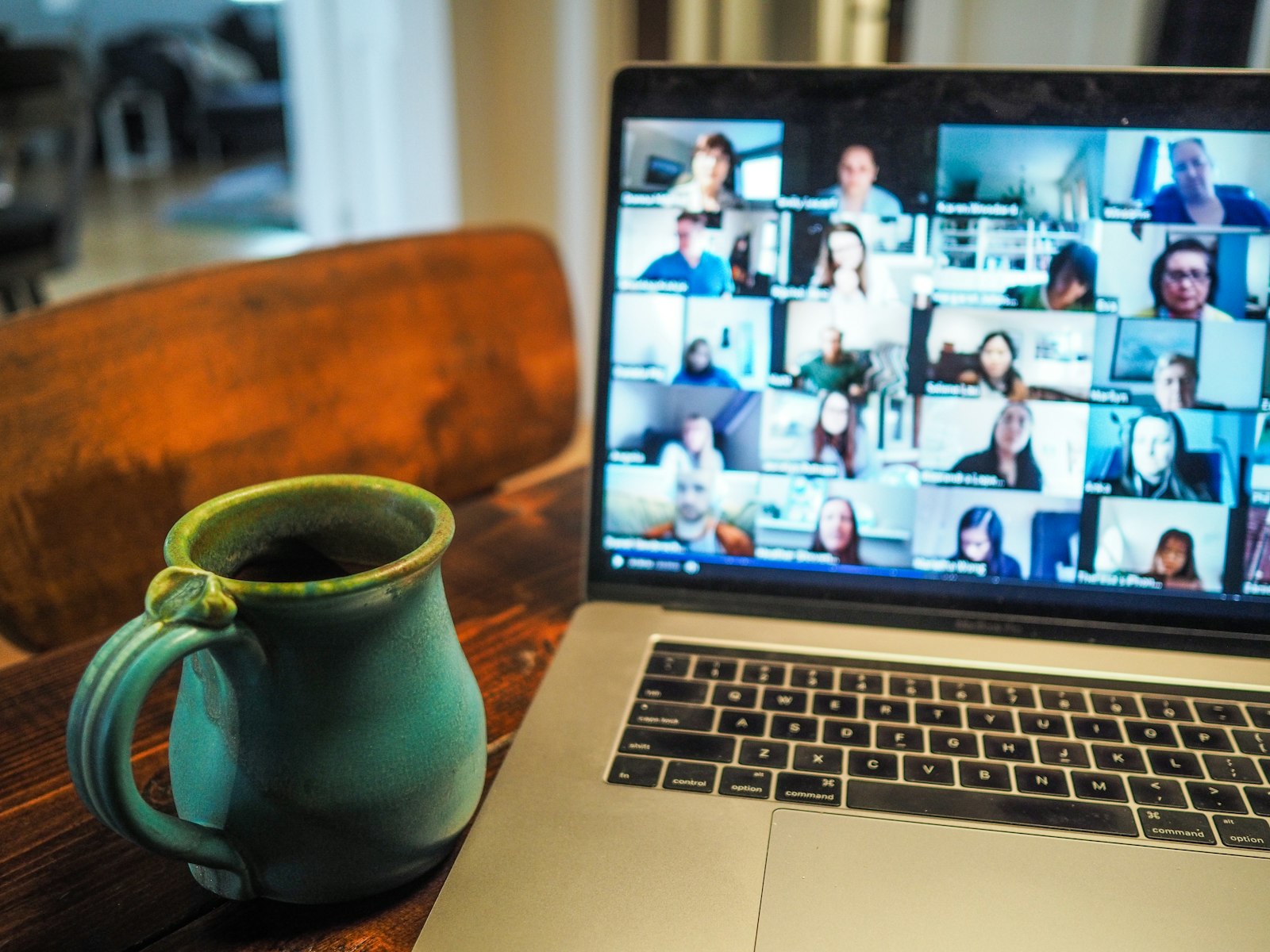
Master Edge Light on macOS Tahoe 26.2, Apple's virtual ring light feature for video calls. Complete guide covering setup, customization, troubleshooting, compatible apps, battery impact, and professional tips for the best video call lighting.
Edge Light is one of the standout features of macOS Tahoe 26.2, transforming your Mac's display into a professional virtual ring light for video calls. This innovative feature uses your screen's brightness to illuminate your face, eliminating the need for external lighting equipment. This comprehensive guide covers everything you need to know about setting up, customizing, and getting the most out of Edge Light.
Quick Summary
Edge Light essentials:
- What it is: Virtual ring light that uses your Mac's display border to illuminate your face during video calls
- Availability: macOS Tahoe 26.2 or later, Apple Silicon Macs only
- Compatible apps: FaceTime, Zoom, Microsoft Teams, Google Meet, Webex, and streaming platforms
- Key customizations: Intensity, width, color temperature, smart dimming
- Battery impact: Moderate (5-15% increased drain during calls)
What Is Edge Light?
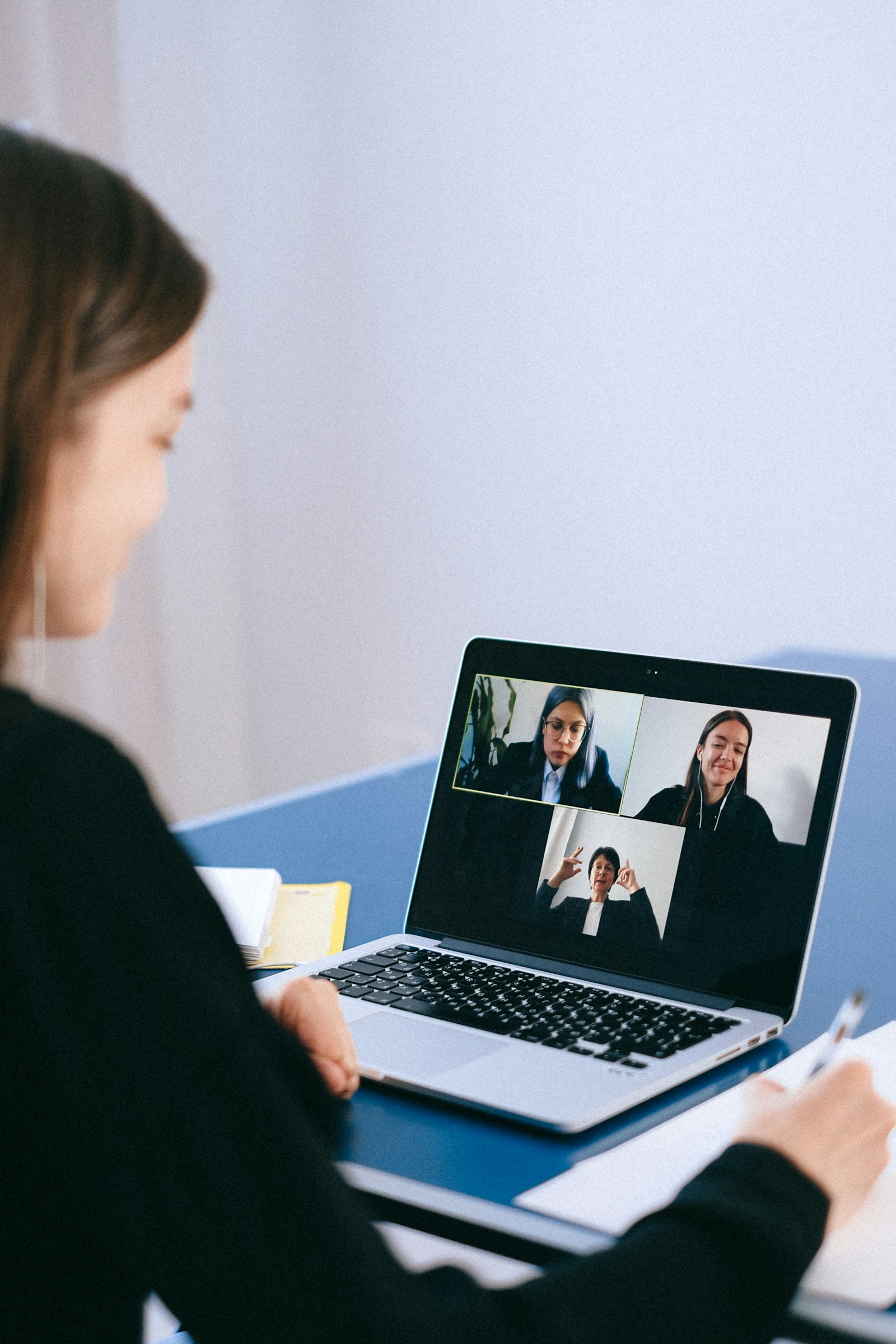
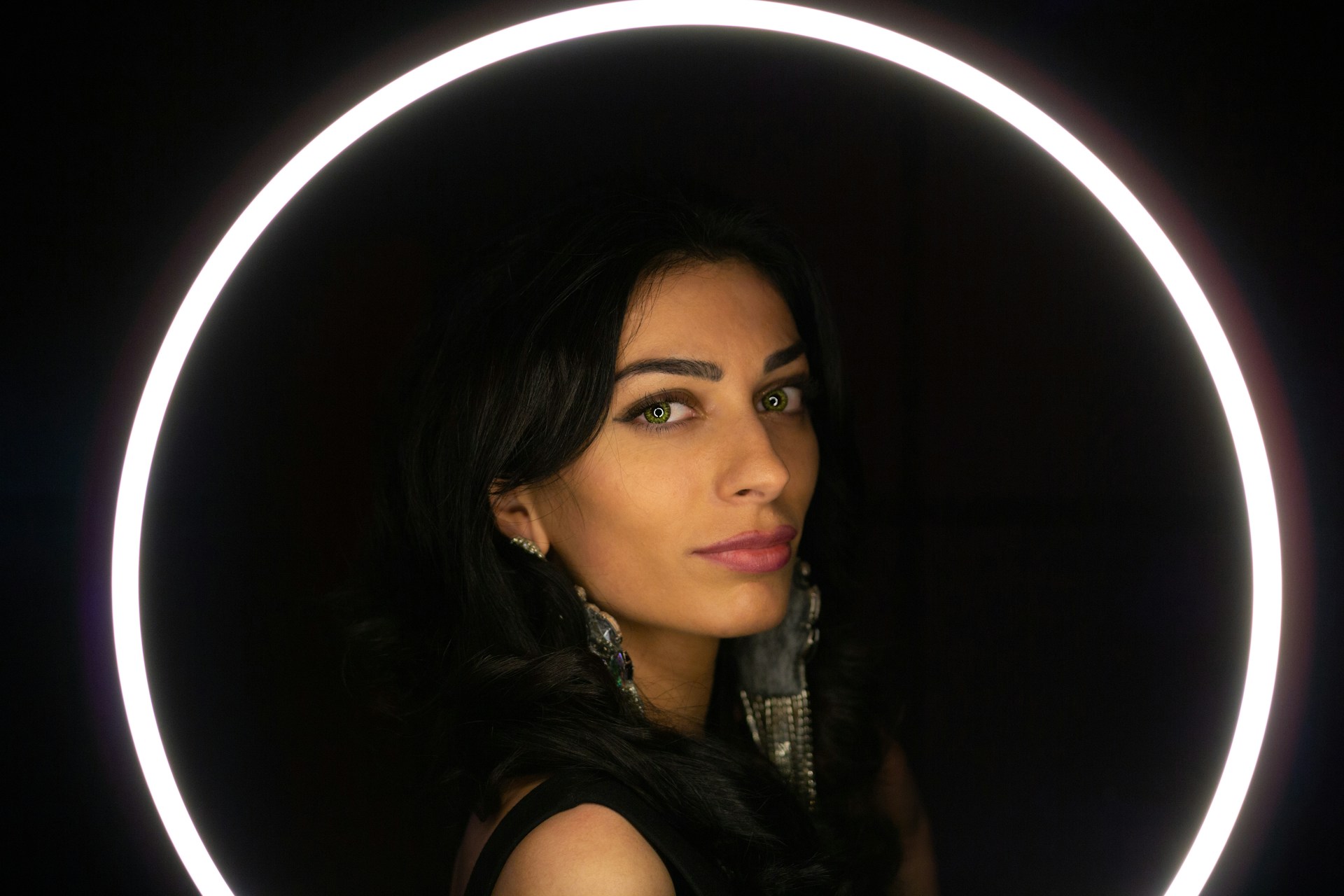
Edge Light is Apple's innovative solution to a common remote work problem: poor lighting during video calls. Instead of requiring external ring lights or professional lighting setups, Edge Light leverages your Mac's display to create a luminous border that illuminates your face.
How It Works
Edge Light uses the Neural Engine in Apple Silicon chips to:
- Detect your face: Identifies your position, size, and location within the camera frame
- Analyze ambient lighting: Measures the current lighting conditions in your environment
- Create optimal lighting: Generates a bright border around your display that acts as a fill light
- Adjust in real-time: Continuously optimizes brightness and color based on your movements and environmental changes
System Requirements
| Requirement | Specification |
|---|---|
| macOS Version | macOS Tahoe 26.2 or later |
| Chip | Apple Silicon (M1, M2, M3, M4, M5) |
| Display | Built-in Retina display or compatible external display |
| Camera | Built-in FaceTime camera or supported external webcam |
Note: Intel Macs are not supported due to the lack of Neural Engine required for face detection and real-time optimization.
How to Enable and Set Up Edge Light
Step 1: Update to macOS Tahoe 26.2
First, ensure you're running macOS Tahoe 26.2 or later:
- Open Apple menu > About This Mac
- Check your macOS version
- If not on 26.2+, go to System Settings > General > Software Update
- Download and install macOS Tahoe 26.2
Step 2: Access Edge Light Settings
There are multiple ways to access Edge Light:
Method 1: System Settings
System Settings > Displays > Edge LightMethod 2: Control Center
Click Control Center in menu bar > Video Effects > Edge LightMethod 3: During a video call
Click the green video camera icon in menu bar > Edge LightStep 3: Enable Edge Light
- Open System Settings > Displays
- Scroll down to find Edge Light
- Toggle Edge Light to On
- Optionally enable Auto-Enable in Low Light (recommended for 2024+ Macs)
Step 4: Configure Initial Settings
Once enabled, you'll see these options:
- Intensity: Controls brightness (0-100%)
- Width: Adjusts the size of the light border
- Temperature: Sets warm (yellow) or cool (blue) tone
- Auto-Enable: Turns on automatically in dark environments
Customization Options Deep Dive
Intensity Control
The intensity slider controls how bright the Edge Light appears:
| Level | Use Case | Battery Impact |
|---|---|---|
| 25% | Well-lit rooms, subtle fill | Minimal |
| 50% | Standard office lighting | Low |
| 75% | Dim rooms, evening calls | Moderate |
| 100% | Very dark environments | Higher |
Recommendation: Start at 50% and adjust based on feedback from meeting participants.
Width Settings
Width controls how much of your display border is used for lighting:
- Narrow: Subtle effect, minimal screen real estate used
- Medium: Balanced lighting coverage (recommended)
- Wide: Maximum lighting effect, covers more screen edge
Pro tip: Wider settings provide more even lighting but may be distracting if you're sharing your screen.
Color Temperature

Adjust the warmth of the light to match your environment:
| Setting | Kelvin Equivalent | Best For |
|---|---|---|
| Warm | ~3000K | Evening calls, cozy atmosphere |
| Neutral | ~4500K | General use (recommended) |
| Cool | ~6500K | Professional settings, daytime calls |
Tip: Match the Edge Light temperature to your room's existing light sources for the most natural appearance.
Smart Dimming Feature
When you hover your cursor over the Edge Light border, that portion automatically dims:
- Allows access to elements behind the light effect
- Useful for clicking on windows or menu items near screen edges
- Resumes full brightness when cursor moves away
To disable smart dimming:
System Settings > Displays > Edge Light > Advanced > Smart Dimming (Off)Auto-Enable Feature
For Macs released in 2024 or later, Edge Light can automatically activate:
- Detects ambient light levels using your Mac's sensors
- Activates when environment is below threshold
- Disables automatically when lighting improves
Configuration:
System Settings > Displays > Edge Light > Auto-Enable in Low LightCompatible Apps and Platforms

Officially Supported Apps
Edge Light works with any app that uses your Mac's camera:
| App | Support Level | Notes |
|---|---|---|
| FaceTime | Full | Best integration, automatic detection |
| Zoom | Full | Works in all meeting modes |
| Microsoft Teams | Full | Desktop app recommended |
| Google Meet | Full | Browser and PWA supported |
| Webex | Full | Desktop app and web |
| Slack Huddles | Full | Video and screen sharing |
| Discord | Full | Video calls and streaming |
| OBS Studio | Full | Great for streaming |
| Twitch Studio | Full | Streaming optimized |
Browser-Based Video Calls
Edge Light works with browser-based video calls in:
- Safari (best performance)
- Google Chrome
- Microsoft Edge
- Firefox
- Arc Browser
Streaming Platforms
For content creators, Edge Light integrates with:
- OBS Studio
- Streamlabs
- Twitch Studio
- YouTube Live
- Instagram Live (via browser)
Optimizing Edge Light for Different Scenarios
Professional Video Meetings

Recommended settings:
- Intensity: 50-70%
- Width: Medium
- Temperature: Neutral (4500K)
- Auto-Enable: On
Tips:
- Position your Mac so the screen faces you directly
- Ensure no bright windows behind you
- Use a solid or blurred background
- Test settings before important meetings
Evening or Night Calls

Recommended settings:
- Intensity: 75-100%
- Width: Wide
- Temperature: Warm (3000K)
- Auto-Enable: On
Tips:
- Reduce other light sources that create harsh shadows
- Higher intensity compensates for lack of ambient light
- Warm temperature appears more natural at night
Content Creation and Streaming

Recommended settings:
- Intensity: 60-80%
- Width: Wide
- Temperature: Neutral to Cool
- Auto-Enable: Off (manual control preferred)
Tips:
- Combine with other light sources for depth
- Use wider setting for more even coverage
- Test on camera before going live
- Consider temperature matching with other lights
Presentations and Webinars
Recommended settings:
- Intensity: 40-60%
- Width: Narrow to Medium
- Temperature: Cool (6500K)
- Auto-Enable: Off
Tips:
- Lower intensity reduces eye strain for long presentations
- Narrow width minimizes distraction during screen sharing
- Cool temperature maintains professional appearance
Troubleshooting Common Issues
Edge Light Not Appearing
Problem: Edge Light option is missing or grayed out.
Solutions:
# Check macOS version
sw_vers -productVersion
# Must be 26.2 or later

# Check chip type
sysctl -n machdep.cpu.brand_string
# Must show Apple Silicon

# Reset display settings
defaults delete com.apple.systempreferences
If still not working:
- Restart your Mac
- Check for macOS updates
- Reset NVRAM: Shut down, then power on and immediately hold Option+Command+P+R for 20 seconds
Edge Light Flickering
Problem: The light border flickers during calls.
Solutions:
- Check for display driver updates
- Reduce intensity setting
- Disable other display effects (Night Shift, True Tone)
- Try a different video call app
# Reset WindowServer (may temporarily disrupt display)
sudo killall WindowServer
Poor Lighting Quality
Problem: Edge Light doesn't seem to improve video quality.
Solutions:
- Increase intensity (try 75-100%)
- Move closer to your Mac's display
- Reduce background lighting
- Use wider setting
- Ensure camera is at eye level
High Battery Drain
Problem: Battery drains quickly during video calls with Edge Light.
Solutions:
- Reduce intensity to 50% or lower
- Use narrower width setting
- Disable Auto-Enable
- Plug in during extended calls
- Close unused apps
Battery Impact and Power Management

Battery Consumption Analysis
Edge Light increases power consumption due to higher display brightness:
| Intensity | Additional Battery Drain | Impact on 1-hour Call |
|---|---|---|
| 25% | ~5% increase | Minimal |
| 50% | ~8% increase | Low |
| 75% | ~12% increase | Moderate |
| 100% | ~15% increase | Noticeable |
Tips for Battery Optimization
- Use Low Power Mode during calls: System Settings > Battery > Low Power Mode
- Reduce intensity when on battery: 50% or less
- Disable Auto-Enable: Manually control when Edge Light activates
- Plug in for extended calls: Best practice for meetings over 30 minutes
Monitoring Power Usage
Check Edge Light's battery impact:
Activity Monitor > Energy tab > Look for WindowServerComparison with External Ring Lights
| Feature | Edge Light | External Ring Light |
|---|---|---|
| Cost | Free (included) | $20-200 |
| Setup | Instant | Requires mounting |
| Portability | Built-in | Extra equipment |
| Adjustability | Good | Excellent |
| Light quality | Good | Excellent |
| Battery impact | Yes | No (separate power) |
| Works everywhere | Yes (Mac only) | Yes (any device) |
When to Use Edge Light
- Quick, impromptu video calls
- Working in cafes or hotel rooms
- Light traveling setup
- Casual meetings and check-ins
When to Consider External Lighting
- Professional content creation
- Extended streaming sessions
- Video production work
- Maximum lighting quality needed
Advanced Tips and Tricks
Keyboard Shortcut (Custom)
Create a keyboard shortcut to toggle Edge Light:
- Open System Settings > Keyboard > Keyboard Shortcuts
- Click App Shortcuts
- Add new shortcut for "Edge Light"
- Assign your preferred key combination
Siri Commands
Control Edge Light with Siri:
- "Hey Siri, turn on Edge Light"
- "Hey Siri, set Edge Light to 75 percent"
- "Hey Siri, turn off Edge Light"
Shortcuts App Automation
Create automated workflows:
Automation example:
WHEN: Video call app opens
THEN: Enable Edge Light at 60% intensity
FAQ
Does Edge Light work on external monitors?
Yes, but only if the external monitor is connected to an Apple Silicon Mac. The light effect will appear on whichever display has the active video call window.
Can I use Edge Light without being in a video call?
Yes, you can enable Edge Light anytime through System Settings or Control Center, even without an active video call. This is useful for testing settings or using it as general illumination.
Does Edge Light work with the camera covered?
Edge Light will still illuminate, but without camera input for face detection, automatic adjustments won't work optimally. Manual settings will still apply.
Is Edge Light available on iPad?
Currently, Edge Light is exclusive to macOS Tahoe 26.2 on Apple Silicon Macs. There's no announcement regarding iPad support.
Can I change Edge Light settings during a call?
Yes, use the video effects menu in the menu bar (green camera icon) during any video call to adjust Edge Light settings in real-time without disrupting the call.
Does Edge Light affect display color accuracy?
While Edge Light is active, the border of your display will show the light effect, which doesn't affect color accuracy of the main display area. The effect only appears on the screen edges.
Conclusion
Edge Light represents Apple's thoughtful approach to solving the universal remote work challenge of video call lighting. By transforming your Mac's display into a virtual ring light, Apple eliminates the need for additional equipment while providing surprisingly effective illumination.
For best results, experiment with different intensity and temperature settings based on your specific lighting conditions and call types. While it may not replace professional lighting setups for content creators, Edge Light is a valuable addition for everyday video calls, impromptu meetings, and situations where external lighting isn't practical.
The feature works seamlessly with all major video conferencing apps and streaming platforms, making it an immediately useful addition to your remote work toolkit.
Related Resources
- macOS Tahoe 26.2 Update Complete Guide
- macOS Tahoe Video Playback Troubleshooting
- Best Free Mac Apps 2025
Last updated: December 29, 2025