macOS 27 Photos AI Editing: Spatial Reframing, Extend & Clean Up
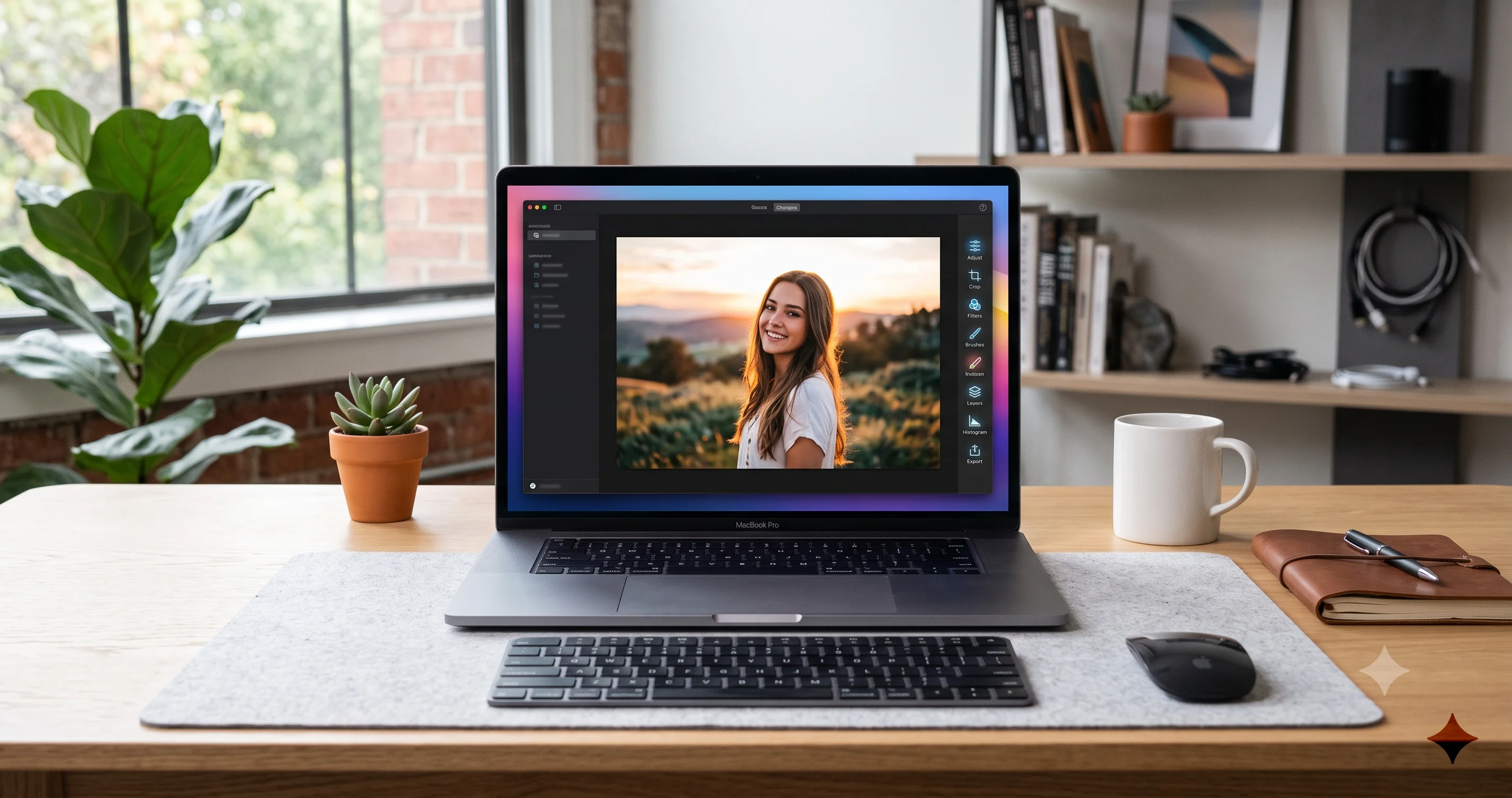
A hands-on guide to macOS 27 Photos AI editing tools — Spatial Reframing, Extend to out-paint backgrounds, and the upgraded Clean Up object remover.
The headline story in macOS 27 "Golden Gate" is not a new wallpaper or a redesigned Dock — it is what Apple has quietly done to the Photos app. macOS 27 Photos AI editing introduces three tools that push the app from "adjust the photo you took" toward "reshape the photo you wish you had taken." The three names to know are Spatial Reframing, which repositions the virtual camera after the shot; Extend, which out-paints new background beyond the original frame; and an upgraded Clean Up, the Apple Intelligence object remover that first shipped on earlier macOS releases and now fills gaps more convincingly. Together, they are the most ambitious set of editing features Apple has added to Photos in years.
Before we go any further, a caveat you should read twice: everything in this article describes beta software. As of early July 2026, macOS 27 is in developer beta (beta 3, build 26A5378j), with the public beta expected to open in July 2026 and the general release expected in the fall. The Photos AI editing tools are described here from beta builds and beta coverage, and Apple routinely renames buttons, moves menus, tightens hardware requirements, and even pulls features between the first beta and the September release. Treat exact labels, panel locations, and behavior as provisional. Where I am not certain of a precise control name, I describe the workflow generically on purpose, because guessing a menu label that changes next month helps nobody.
With that framing in place, this guide walks through what each of the three tools does, how you actually use them in the current beta, where they shine, and — just as important — where they fall down. I will also compare them honestly to Adobe Photoshop's Generative Fill and Generative Expand and to Google Photos' Magic Editor, because Apple is arriving late to generative editing and it is worth knowing what the competition already does well. If you want the broader context on Apple's AI stack, our complete Apple Intelligence feature guide for Mac covers the system these Photos tools plug into.
Key Takeaways
- macOS 27 Photos AI editing centers on three tools — Spatial Reframing (reposition the virtual camera), Extend (out-paint beyond the original borders), and an upgraded Clean Up (remove objects and distractions with cleaner fills).
- These are Apple Intelligence features, which means they require an Apple Silicon Mac, Apple Intelligence enabled in a supported language and region, and macOS 27. Some tools may lean on newer chips for the heaviest generation; treat the hardware tiers as unconfirmed until the fall release.
- Everything here is beta behavior. Control names, menu locations, availability, and output quality can change before the general release, which is expected this fall. Spatial Reframing and Extend in particular are new and still maturing.
- Apple's angle is on-device processing and privacy, but be honest with yourself: cloud tools like Photoshop's Generative Fill and Google Photos' Magic Editor currently produce stronger results in some tricky scenarios. Apple's edits are more conservative by design.
- Edits in Photos remain non-destructive — you can revert to the original at any time — but AI-generated pixels raise real authenticity questions, and Apple applies its own guardrails around what these tools will and will not generate.
What's New in Photos Editing on macOS 27
For most of its life, the Photos editor has been about refining reality: exposure, contrast, color balance, cropping, a bit of retouching. Even when Apple Intelligence added Clean Up in the macOS Sequoia and Tahoe era, the pitch was subtractive — remove the photobomber, erase the trash can, tidy the frame. macOS 27 changes the premise. For the first time, Photos will confidently generate significant new imagery to reshape a picture, not just patch small holes.
The three flagship additions work along different axes. Spatial Reframing is about viewpoint: it uses AI to reposition and reframe the shot as though the camera had moved, synthesizing plausible content to fill the parts of the scene the original photo never captured. Extend is about canvas: it out-paints past the photo's borders, generating new background so you can uncrop a too-tight shot, change the aspect ratio, or give a subject more breathing room. And Clean Up, the one returning tool of the three, gets a quality upgrade — Apple has reworked the fill so that removing an object leaves behind a more believable patch of background rather than the smeary blur that older versions sometimes produced.
What ties them together is that all three are generative. They do not merely move or stretch existing pixels; they invent new ones based on a model's understanding of what probably belongs there. That is a genuine step-change for Photos, and it is why the beta caveat matters so much. Generative features are exactly the kind of thing Apple tends to keep refining right up to release, and sometimes past it in point updates. If you are weighing whether to even put this beta on your Mac to try these tools, read our take on whether to install the macOS 27 developer beta first — early betas break things, and Photos is where your irreplaceable memories live.
One more contextual note. Photos itself was substantially reworked in the previous release; if you are still getting comfortable with the current layout, filtering, and the Clean Up basics, our macOS Tahoe Photos app complete guide is a good foundation, and most of the navigation it describes carries forward into macOS 27.
Requirements: What You Need to Use These Tools
These are Apple Intelligence features, full stop. That has three practical consequences.
First, you need an Apple Silicon Mac. Apple Intelligence has never run on Intel Macs, and nothing about macOS 27 changes that. If your Mac has an Intel processor, you can install macOS 27 only if the model is still supported at all — and even then, the AI editing tools will not appear. Spatial Reframing, Extend, and the upgraded Clean Up all depend on the Neural Engine and unified memory architecture of M-series chips.
Second, you need Apple Intelligence enabled, which in turn depends on your language and region settings. Apple Intelligence has rolled out to supported languages gradually, and it is tied to the device's primary language and, in some cases, the region. You enable it in System Settings under the Apple Intelligence controls, and the first activation downloads a sizable on-device model bundle in the background before any AI feature becomes usable. If you have never turned it on, expect to wait while that download completes.
Third — and this is where I have to hedge — some of these tools may want newer chips. Generative out-painting and camera-reframing are heavier workloads than the notification summaries or Writing Tools that run comfortably on an M1. It would not be surprising if Apple gated the most demanding generation behind M-series chips with more unified memory, or behind a minimum of the M3 or M4 generation, and simply degraded or hid features on the oldest Apple Silicon. Apple has already drawn hardware lines for the fuller AI experience elsewhere in the system; our breakdown of which Macs get the full macOS 27 AI experience explains the M3-and-12GB-memory thinking, and it is reasonable to assume the Photos generative tools sit toward the demanding end of that spectrum. Until the fall release and Apple's final published requirements, treat any specific chip tier as unconfirmed.
A quick checklist before you expect to see these tools:
- An Apple Silicon Mac (M-series), ideally a recent one.
- macOS 27 installed (developer beta now; public beta from July; general release in the fall).
- Apple Intelligence turned on, with a supported language and region.
- The on-device model download completed and enough free storage for it.
- Patience for the fact that, in a beta, a tool that appears one week can be absent or renamed the next.
Spatial Reframing: Reposition the Camera After the Shot
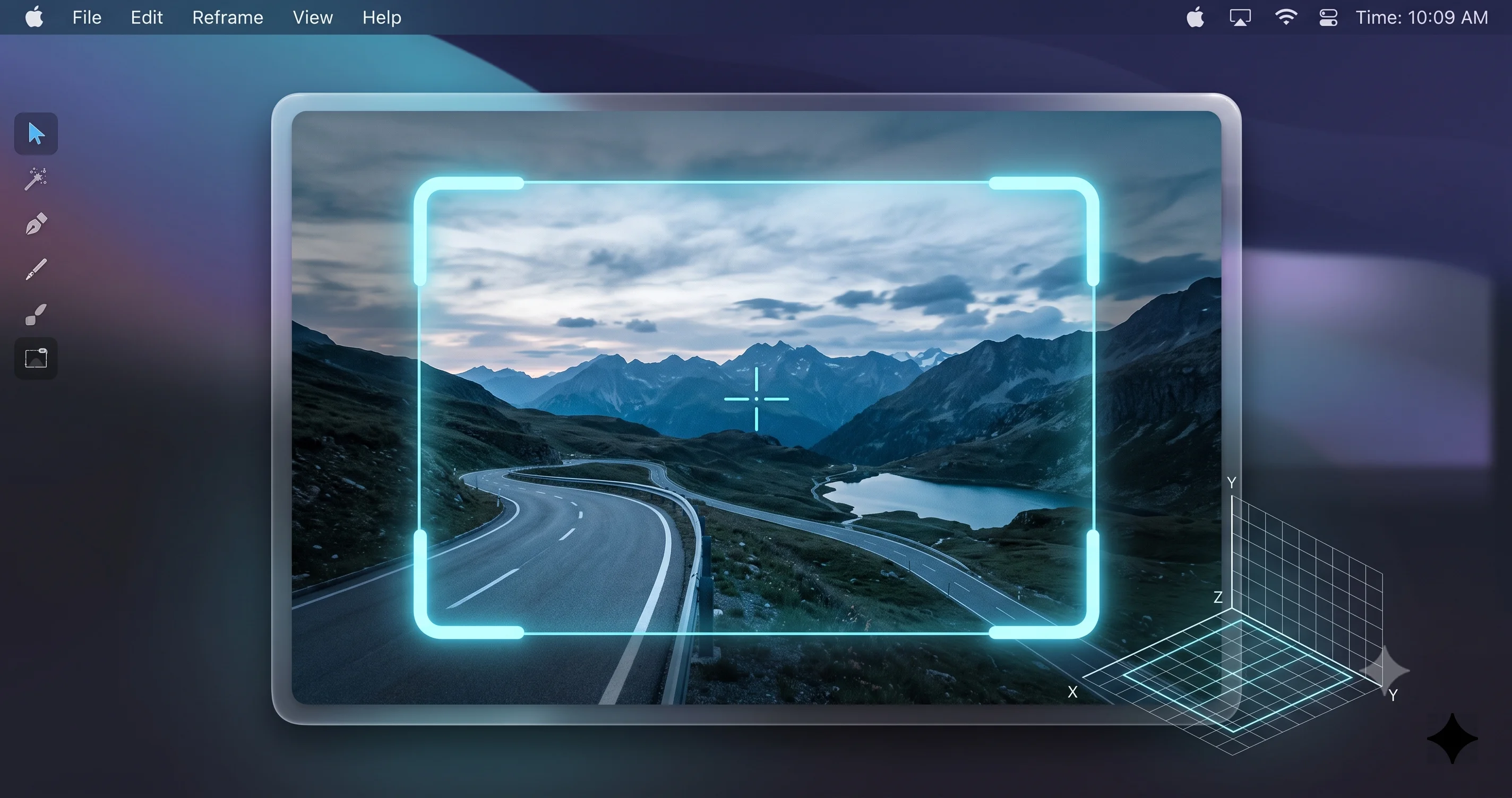
Spatial Reframing is the most conceptually striking of the three tools, and the hardest to describe without sounding like science fiction. The idea, as reported for macOS 27 Photos, is that you can reframe a photo as if the camera had physically moved — nudging the viewpoint, correcting an awkward angle, or shifting the composition — and the AI generates plausible content to fill whatever the new framing reveals that the original never captured.
Think about what that means in practice. A traditional crop can only ever show you less of what the camera already recorded; you throw away pixels to tighten the frame. Spatial Reframing works the other way. When you shift the viewpoint and the reframe exposes an edge or a sliver of scene that was outside the original capture, the tool paints in what it estimates should be there, guided by the surrounding context. It is closer to a mild perspective adjustment plus generative fill than to a simple crop.
How to use it in the current beta
The workflow follows the familiar Photos editing pattern, so if you have edited a photo before, you already know most of the steps:
- Open a photo in the Photos app and click Edit to enter the editor.
- Look in the tools or adjustments panel for the reframing control. In the current beta, the generative tools live alongside the existing edit tools rather than in a separate app, so scan the editing toolbar and adjustments list.
- Select Spatial Reframing and adjust the framing — repositioning or reangling the view using the on-screen controls.
- Let the tool generate the fill for any newly revealed areas. This takes a moment because the work happens on-device.
- Review the result carefully, then either accept the edit or dial it back. Because Photos edits are non-destructive, you can revert to the original at any time.
I am deliberately not quoting exact button labels or a keyboard shortcut here, because in a beta those are precisely the things Apple changes. Trust the general shape of the workflow — open, Edit, pick the tool from the panel, adjust, review — and read whatever the current build actually shows on screen.
Best use cases
Spatial Reframing earns its keep with modest adjustments. Straightening the implied viewpoint on a photo you shot slightly off-axis, nudging a subject away from dead-center, or reclaiming a composition where you did not quite have room to step back — these are the situations where the generated fill has enough real context to work from and only a small area to invent. The less the AI has to imagine, the more believable the result.
It is also handy for salvaging a once-in-a-lifetime shot that is compositionally close but not perfect. If the moment is gone and you cannot reshoot, a small reframe that would otherwise be impossible with a crop can rescue the image.
Limits to expect
Push it hard and it breaks down. Ask Spatial Reframing to shift the viewpoint dramatically and it has to hallucinate a large amount of scene it never saw, which is where you get warped geometry, invented objects that do not belong, and textures that smear or repeat. Scenes with strong straight lines (architecture, tiled floors, window frames) and human faces or hands near the reframed edges are the classic failure zones — small errors there are extremely obvious to the human eye. Complex, busy backgrounds are also harder than smooth ones like sky, grass, or water. Treat this tool as a corrective nudge, not a virtual dolly track, and inspect every result at full size before you trust it.
Extend: Out-Paint to Uncrop and Change Aspect Ratio
If Spatial Reframing moves the camera, Extend grows the canvas. It is out-painting: the tool expands the photo beyond its original borders and AI-generates new background to fill the added space. Where Spatial Reframing reworks the viewpoint within roughly the same scene, Extend keeps the viewpoint and simply gives you more frame than the camera captured.
This solves a very ordinary, very common problem. You framed a shot too tightly. The subject's head is nearly touching the top edge. You need a landscape photo to fit a portrait slot, or vice versa, and cropping would cut into the subject. With Extend, instead of cropping in and losing content, you paint out and gain it — the AI continues the sky, the wall, the grass, the blurred background, whatever sits at the edges, into the newly created margins.
How to use it in the current beta
- Open the photo and click Edit.
- Find the Extend option in the tools or adjustments panel, near the cropping and framing controls where expanding the canvas logically belongs.
- Choose how far to extend and in which direction(s) — you might extend only the top, or push out all four sides, or change to a new aspect ratio and let Extend fill the gaps.
- Generate and review. The tool fills the added area with synthesized background that continues the existing scene.
- Accept or revert. As with every Photos edit, nothing is permanent until you decide it is, and you can always return to the original.
Again, the exact control name and where it sits may shift across beta builds. The reliable part is the concept: you are enlarging the frame and asking the AI to fill the new space.
Best use cases
Extend is at its best filling simple, continuous backgrounds. Sky, water, foliage, a smoothly out-of-focus backdrop, a plain wall — these extend almost invisibly because the model only has to continue a texture it can already see. Changing a tight portrait into a looser one, converting between aspect ratios for a print or a social post, or giving a cramped product shot some negative space are all sweet-spot uses.
It is also genuinely useful for uncropping: recovering breathing room around a subject you framed too aggressively in the moment. When the edges are calm, the seam between real and generated pixels can be hard to spot even at full resolution.
Limits to expect
The failure modes mirror Spatial Reframing's. Extend struggles when the edges of your photo contain complex or structured content the model has to invent and keep coherent — continuing a row of buildings, a crowd, a patterned rug, or text will often produce garbled, repeating, or nonsensical results. The larger the extension, the more the AI has to fabricate and the more likely it drifts into oddness; small, conservative extensions look far better than doubling the canvas. And anything that has to keep a recognizable structure consistent across the seam — a straight roofline, a fence, a shelf of books — is a stress test that on-device generation does not always pass. Extend a little, check the result closely, and be ready to accept that some photos simply cannot be uncropped believably.
Clean Up, Upgraded: Remove Distractions and Objects
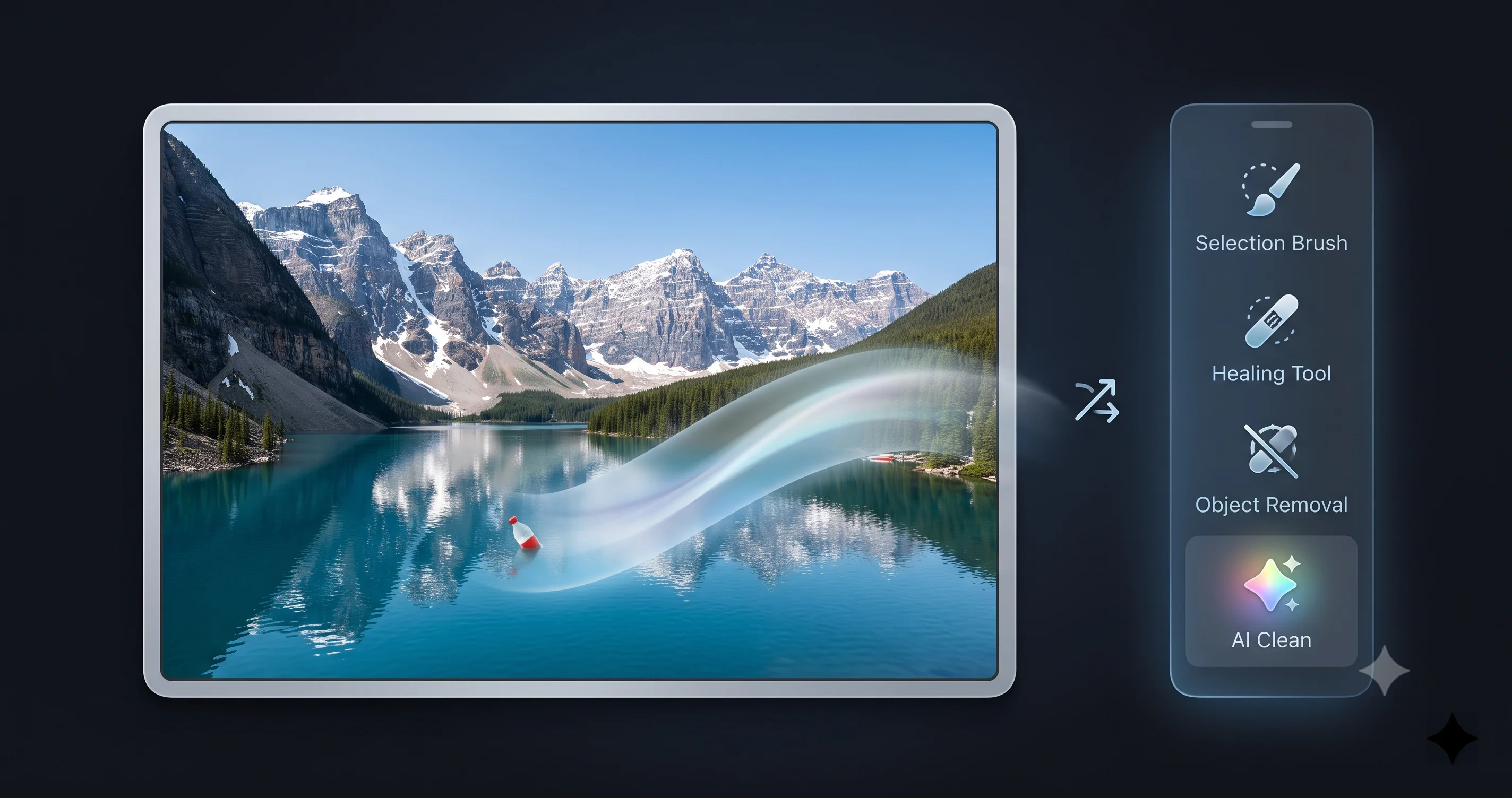
Unlike the other two, Clean Up is not new. Apple introduced it with Apple Intelligence on earlier macOS releases as the object, person, and distraction remover — you brush over the thing you want gone, and the app fills the space with generated background. What macOS 27 brings is an upgrade, not a debut. It is important to be clear about that, because you may already have been using Clean Up for a year or more.
The improvement in macOS 27 is quality of fill. Earlier Clean Up could do a clean job on small, isolated objects against simple backgrounds, but it often struggled with larger removals or busy scenes, leaving behind a tell-tale blur, a smeared patch, or ghostly remnants of the thing you deleted. macOS 27's Clean Up is reported to produce cleaner, more convincing fills — reconstructing the background behind a removed object with fewer artifacts and better texture continuity. If you tried Clean Up before and came away unimpressed, it is worth revisiting on macOS 27.
What changed versus before
- Better background reconstruction. The generated fill after a removal is meant to blend more naturally, with fewer of the blur-smears that gave older Clean Up away.
- Improved handling of larger and more complex removals. Bigger objects and busier backgrounds — historically the weak point — are where the upgrade is supposed to help most.
- Same core interaction. You still identify what to remove and let the app fill it. The idea and the muscle memory are unchanged; the engine underneath is what improved.
How to use it in the current beta
- Open the photo and click Edit.
- Select Clean Up from the tools panel.
- Indicate what to remove — brush over, circle, or tap the distraction, object, or person. Photos may also auto-suggest removable distractions it detects.
- Let it fill. The app removes the target and generates background in its place.
- Inspect the patch at full size and revert if the fill is not convincing.
Limits to expect
Even upgraded, Clean Up is not magic. Removing an object that overlaps a complex subject — someone standing partly in front of a face, a sign attached to an ornate building — asks the model to reconstruct detail it cannot fully know, and results get shaky. Large removals that leave a big hole in a structured scene are harder than plucking a small item off a plain background. And shadows and reflections of the removed object are frequently left behind, a dead giveaway that betrays the edit. The upgrade narrows these gaps; it does not close them. As always, zoom in before you trust the result.
Tips for the Best Results
Across all three tools, the same handful of habits separate a believable edit from an obvious one. Generative fill is at its best when it has the least to invent and the most context to copy from.
- Favor simple, continuous backgrounds. Sky, water, grass, blurred bokeh, and plain walls extend and fill almost invisibly. Busy, detailed, structured backgrounds are where the AI stumbles. If you can choose which edge to extend or which side to reframe toward, choose the calm one.
- Make small moves. A modest reframe, a conservative extension, a compact removal — all look dramatically better than aggressive edits. The more area the model has to fabricate, the more likely it produces artifacts. Do a little, review, and repeat if needed rather than one big generation.
- Watch straight lines and geometry. Architecture, horizons, tiled floors, window frames, and other rigid structures expose generative errors instantly because your eye knows exactly how they should look. Be extra skeptical of any result where a straight line has to continue across the seam.
- Be careful around faces, hands, and text. These are the elements humans are best at spotting when they are wrong. Keep generated fill away from faces and hands where you can, and never trust AI-generated text — it is almost always gibberish on close inspection.
- Mind the lighting and color continuity. A fill that gets the geometry right can still look pasted-in if the light direction, shadows, or color temperature do not match. Check that shadows fall the right way and that the new pixels share the original's warmth or coolness.
- Always inspect at full resolution. A thumbnail hides the smears, warps, and repeats that a 100% view reveals. Zoom in on the edited region — especially the seams — before you accept and share.
- Keep the original. Because Photos is non-destructive, the original is always one revert away. Take advantage of that: if an edit does not hold up, roll it back without a second thought.
How It Compares to Photoshop and Google Photos
Apple is not first to generative editing, and it does its users no favors to pretend otherwise. It is worth setting these tools honestly against the established players.
Adobe Photoshop — Generative Fill and Generative Expand. Photoshop's generative tools, powered by Adobe Firefly, are the mature benchmark. Generative Expand is essentially Extend's direct competitor, and Generative Fill overlaps both Clean Up and Spatial Reframing's fill behavior. In many tricky scenarios — large expansions, complex backgrounds, prompt-guided generation where you type what you want to appear — Photoshop's cloud models currently produce stronger, more controllable results, and it offers multiple variations to choose from. The tradeoffs are real, though: Photoshop is a paid Creative Cloud subscription, it has a steep learning curve, and its generation runs in the cloud, sending your image to Adobe's servers.
Google Photos — Magic Editor and Reimagine. Google's Magic Editor offers object removal, repositioning, and generative background changes, and Reimagine can transform backgrounds from a text prompt. It is impressively capable and, like Apple's tools, lives right inside the photo library most people already use. But the heavy lifting happens in the cloud, and it is tied to Google's ecosystem and account.
Where Apple's approach fits. Apple's pitch is on-device processing and privacy. The generation for these Photos tools runs on your Mac's own silicon rather than uploading your photos to a server, which is a meaningful advantage if you care about keeping personal images off the cloud — and for many people, family photos are exactly the kind of thing they do not want leaving the device. The honest tradeoff is capability: on-device models are smaller and more constrained than the datacenter-scale models Adobe and Google can throw at the problem, so in the hardest cases — big expansions, intricate backgrounds, fine control — the cloud tools may still win on raw output quality today. Apple's edits also tend to be more conservative by design, which is a feature if you value restraint and a limitation if you want aggressive transformation.
The short version: if you live in the Apple ecosystem, value privacy, and want quick fixes without a subscription, macOS 27's Photos tools are a genuine convenience that will handle most everyday edits. If you need maximum quality and control for demanding work, the mature cloud tools still have an edge — for now. Apple is iterating quickly, and on-device models are improving fast.
Limitations, Privacy, and Authenticity
Beyond the per-tool limits already covered, three broader points deserve their own space.
Beta reality. It bears repeating one final time: this is beta software. Availability, control names, behavior, hardware requirements, and output quality can all change before the fall release, and features can be added, renamed, or pulled between now and then. Do not build a workflow that depends on a specific button existing, and do not judge the final product by a beta build. If you plan to try these tools, install responsibly — our guide to installing the macOS 27 public beta safely walks through backing up first and, ideally, testing on a secondary machine or volume so your primary photo library is never at risk.
Privacy. The clearest advantage of Apple's approach is that this generation happens on-device. Your photos are processed by your Mac's own Neural Engine rather than being uploaded to a remote server for editing. For anyone uneasy about sending personal or family images to a cloud service, that is a real and tangible benefit, and it is consistent with how Apple Intelligence handles sensitive work across the system.
Authenticity. This is the part that deserves genuine reflection. All three tools generate pixels that were never captured by the camera. A reframed viewpoint, an extended background, a removed object — each moves the image further from a literal record of what was in front of the lens and toward a plausible fabrication. That is fine for a personal photo you are tidying for your own wall, and it is a real problem for anything that is supposed to be documentary, journalistic, evidentiary, or otherwise truthful. Apple has generally taken a cautious posture with generative imagery — its broader image-generation tools have avoided photorealistic depictions of real people and leaned toward clearly stylized output, and the company has shown interest in signaling when content has been edited. I want to be careful not to over-claim the specifics of how any edited-photo indicator or metadata behaves in macOS 27 Photos, because the details in a beta are unsettled. The principle to carry with you regardless of the specifics: if a photo's truthfulness matters, disclose that it was edited, and think hard before using generative fill on it at all.
Troubleshooting Common Issues
Problem: The AI editing tools are grayed out or missing entirely. Solution: This almost always comes down to Apple Intelligence not being active. Confirm you are on an Apple Silicon Mac (the tools never appear on Intel), that you are running macOS 27, and that Apple Intelligence is turned on in System Settings with a supported language and region selected. If you just enabled it, the on-device model bundle may still be downloading in the background — the generative tools stay unavailable until that finishes and you have enough free storage for it. Give it time and check again.
Problem: The results look warped, smeared, or full of obvious artifacts. Solution: You are likely asking the AI to invent too much. Make a smaller move — a gentler reframe, a shorter extension, a tighter removal — so the model has less to fabricate and more real context to work from. Avoid extending or reframing toward edges with complex structure, straight lines, faces, hands, or text, and favor simple backgrounds like sky or blur. If it still fails, some photos genuinely cannot be edited convincingly this way; revert and accept the original.
Problem: A feature I read about is not in my beta build. Solution: Betas are inconsistent by nature. Apple ships features unevenly across beta builds, sometimes gating a tool to certain hardware, certain regions, or a later beta than the one you have. Update to the latest available beta, confirm your Mac meets the (still-provisional) requirements, and understand that a tool's absence today does not mean it will be missing at the fall release. Coverage of beta features always runs ahead of what every machine actually shows.
Problem: Clean Up leaves a shadow, reflection, or ghost of the removed object. Solution: Clean Up removes the object you indicate but does not always understand that its shadow or reflection should go too. Make a second pass and remove the leftover shadow or reflection as its own target. If a faint outline or halo remains where the object was, a smaller, more precise selection on the remnant sometimes cleans it up better than one large selection did.
FAQ
What is Spatial Reframing in macOS 27 Photos? Spatial Reframing is a new AI tool that repositions and reframes a photo as if the camera had moved, generating plausible content to fill parts of the scene the original shot never captured. It is best for small viewpoint corrections rather than dramatic camera moves, and it is beta software subject to change.
Does Extend really add new background? Yes. Extend is out-painting — it expands the photo beyond its original borders and AI-generates new background to fill the added space, letting you uncrop a tight shot or change aspect ratio. It works best on simple, continuous backgrounds like sky or blur, and struggles with complex or structured edges.
Do I need Apple Intelligence for these tools? Yes. Spatial Reframing, Extend, and the upgraded Clean Up are all Apple Intelligence features. You need Apple Intelligence enabled in a supported language and region, on macOS 27, with the on-device model downloaded. Without Apple Intelligence active, the tools will not appear in the Photos editor.
Will these work on an Intel Mac? No. Apple Intelligence has never run on Intel Macs, and these generative editing tools require Apple Silicon (an M-series chip). Even on supported Intel models running a compatible macOS, the AI editing features will not be available. You need an Apple Silicon Mac, ideally a recent one, to use them.
Are the edits saved non-destructively? Yes. Like other edits in Photos, these AI edits are non-destructive — the original photo is preserved and you can revert to it at any time. That makes it safe to experiment: if a reframe, extension, or removal does not hold up under close inspection, you can roll it back completely.
When will macOS 27 be released? macOS 27 "Golden Gate" is in developer beta now, with the public beta expected in July 2026 and the general release expected in the fall of 2026, following Apple's usual timing. Exact dates are not confirmed, and features may change between the beta and the final release.
Conclusion
macOS 27 Photos AI editing is a real leap in ambition. With Spatial Reframing repositioning the virtual camera, Extend out-painting new background beyond the frame, and an upgraded Clean Up that fills its removals more convincingly, the Photos app moves from refining the photo you took toward reshaping the photo you wanted. For everyday fixes — uncropping a tight shot, nudging a composition, erasing a distraction — these on-device tools are a genuine convenience, and the privacy of keeping your photos on your own Mac is a real advantage over cloud-based rivals.
Keep your expectations calibrated, though. This is beta software, so labels and behavior will shift before the fall release; the tools work best when you ask them to invent as little as possible; and the mature cloud tools from Adobe and Google still win some of the hardest cases today. Most of all, remember that every one of these tools generates pixels that were never really there — a wonderful thing for a personal photo, and a responsibility for anything that is meant to be true.
If you want to go further with macOS 27's AI, explore Visual Intelligence on the Mac for looking things up from images on screen, and see how to use the new Siri AI on Mac to tie these features together with conversational control. Back up before you install any beta, keep your originals, and have fun experimenting — just zoom in before you hit share.