Spotlight Complete Rebuild Guide: Fix Search Not Working, mds_stores High CPU, and Indexing Issues on macOS Tahoe
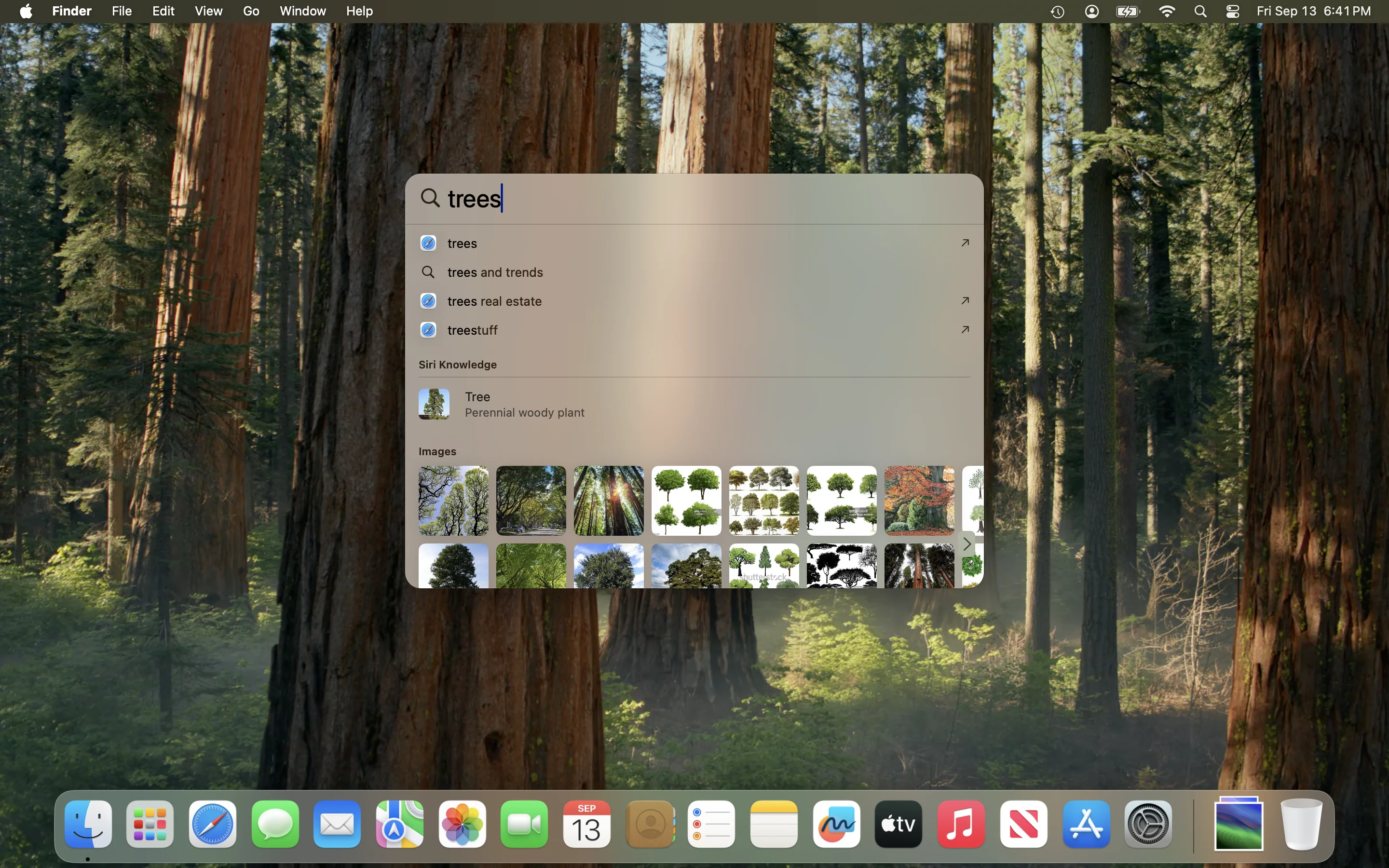
Comprehensive troubleshooting guide for Spotlight search problems on macOS Tahoe 26 and Sequoia. Learn how to rebuild Spotlight index using Terminal commands (mdutil), fix mds_stores high CPU usage, resolve indexing stuck issues, and restore search functionality with step-by-step solutions.
Spotlight search is one of macOS's most essential features, but when it stops working correctly, it can severely impact your productivity. Whether you're experiencing search failures, mds_stores consuming excessive CPU, or indexing that never seems to complete, this comprehensive guide provides proven solutions to restore Spotlight functionality on macOS Tahoe 26 and earlier versions.
Quick Summary: Spotlight Troubleshooting Solutions
Problem: Spotlight not finding files, apps, or returning irrelevant results
Quick Fix (Works for 70% of users):
- Open System Settings > Siri & Spotlight
- Click Spotlight Privacy button
- Drag your Macintosh HD to the exclusion list
- Wait 30 seconds, then remove it
- Allow reindexing to complete (1-4 hours depending on storage size)
If Quick Fix Doesn't Work: Continue reading for Terminal commands and advanced troubleshooting.
Understanding Spotlight and Its Components
What is Spotlight?
Spotlight is macOS's built-in search system that indexes all files, applications, emails, and metadata on your Mac. It enables instant access to anything on your computer through a simple keyboard shortcut (Cmd+Space).
Key Spotlight Processes
Understanding these processes helps diagnose problems:
| Process | Role | Normal Behavior |
|---|---|---|
| mds | Metadata Server - manages overall indexing | Low CPU except during boot |
| mds_stores | Stores and maintains indexed metadata | Low CPU except when indexing new files |
| mdworker | Worker process that performs actual indexing | Multiple instances during heavy indexing |
| corespotlightd | Core Spotlight daemon | Background service |
When Spotlight works correctly, these processes run quietly in the background. Problems arise when they consume excessive resources or fail to index properly.
Common Spotlight Problems on macOS Tahoe 26
Problem 1: Spotlight Not Finding Apps
Symptoms:
- Typing app names returns only web results
- Previously found applications now missing from results
- Only Messages and Documents appear in search
Causes:
- Corrupted Spotlight index after macOS update
- Third-party software interference (Adobe Creative Cloud, Logitech Options+)
- Privacy settings accidentally excluding Applications folder
Problem 2: mds_stores High CPU Usage
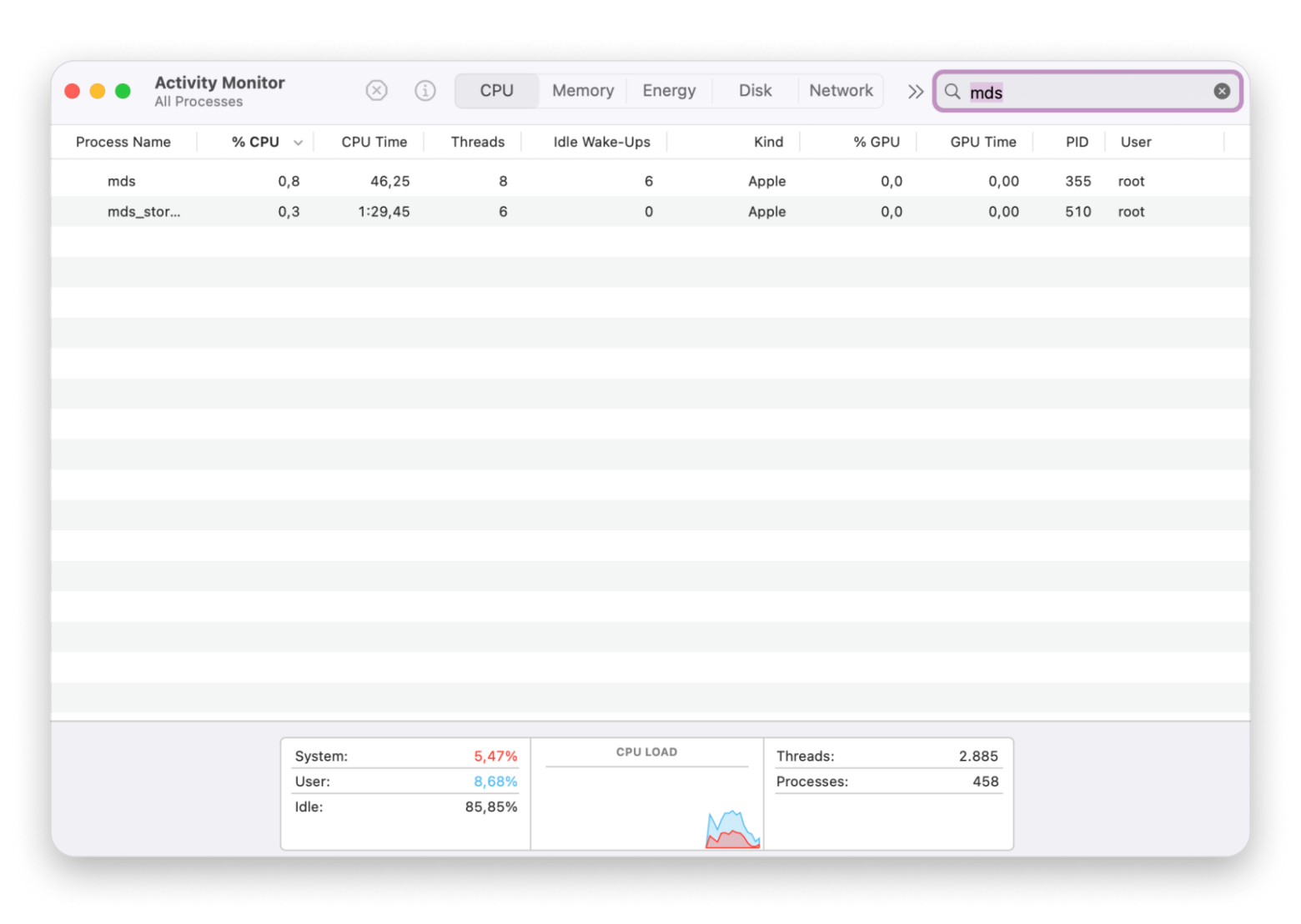
Symptoms:
- mds_stores using 100-600% CPU continuously
- Mac running hot and fans spinning loudly
- System becoming sluggish and unresponsive
- Battery draining rapidly on laptops
Normal vs. Abnormal:
- Normal: High CPU for 15-45 minutes after system updates, large file transfers, or connecting external drives
- Abnormal: Continuous high CPU for hours or days with no end in sight
Problem 3: Excessive Disk Writes (Sequoia Bug)
Critical Warning: A bug in macOS Sequoia caused Spotlight to write up to 26TB of data per night to SSDs. Users experiencing 50GB of daily writes suddenly saw 26TB overnight—equivalent to 4 months of SSD wear in just 2 weeks.
If affected:
# Immediately disable Spotlight to prevent SSD damage
sudo mdutil -a -i off
Problem 4: Spotlight Indexing Stuck
Symptoms:
- "Indexing..." message appears indefinitely
- Search results never update with new files
- Spotlight appears to focus only on web results
Problem 5: Touch ID Bug (macOS Tahoe Specific)
Symptom: Spotlight clipboard history stops working after unlocking with Touch ID
Workaround: Fully type your password instead of using Touch ID to unlock
Method 1: Rebuild Spotlight Index via System Settings
This is the safest and most recommended method for most users.
Step-by-Step Instructions
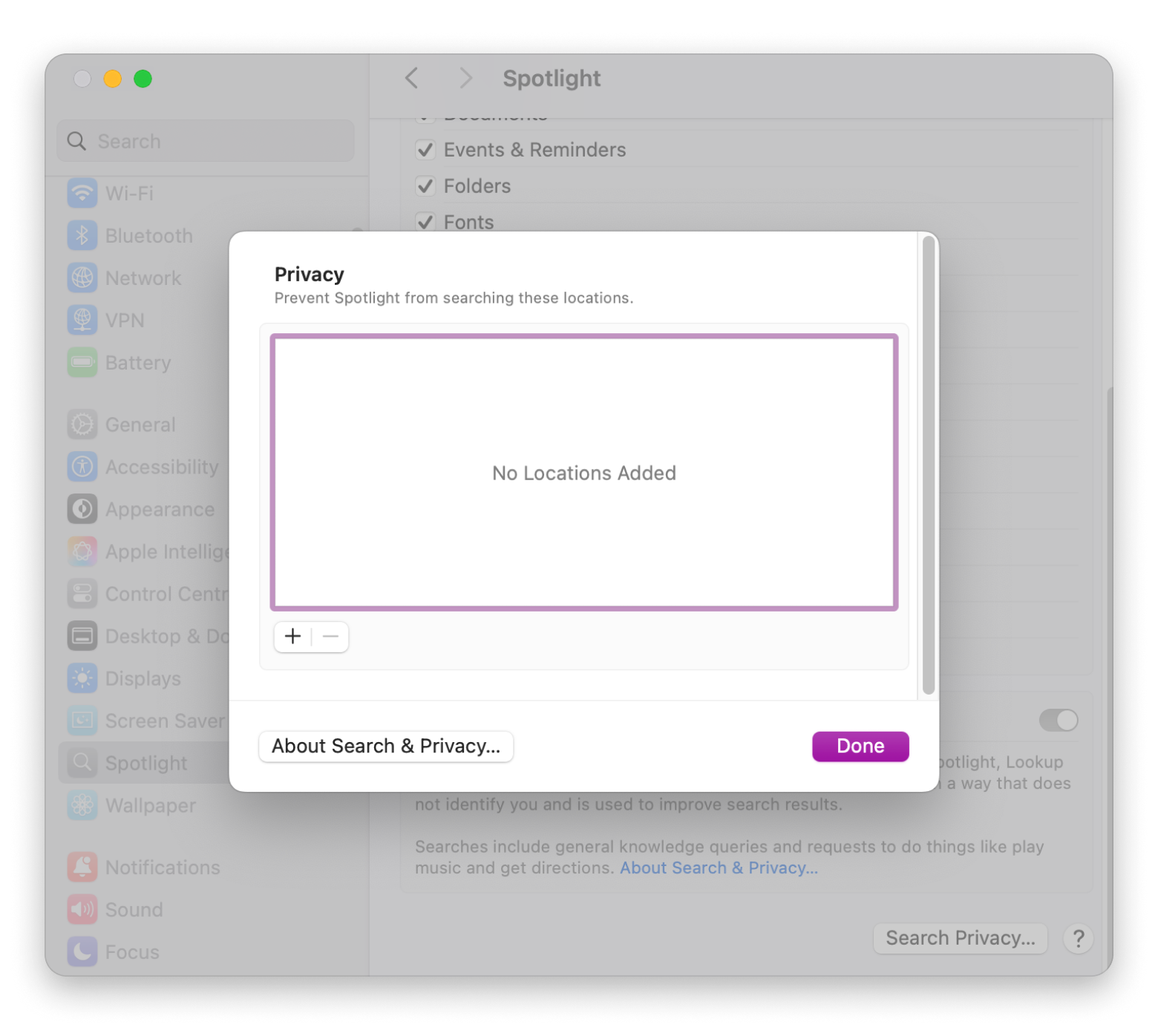
For macOS Ventura 13 and later (including Tahoe 26):
- Click the Apple menu () in the top-left corner
- Select System Settings
- Click Siri & Spotlight in the sidebar (or just Spotlight on some versions)
- Scroll down and click the Spotlight Privacy button
- Click the + button or drag your startup disk (usually "Macintosh HD") into the list
- Wait 30 seconds - this tells Spotlight to stop indexing the drive
- Select the disk you just added and click the - (minus) button to remove it
- Click Done and close System Settings
What happens next:
- Spotlight immediately begins rebuilding the index
- You may see "Indexing..." in the Spotlight window
- Indexing typically takes 1-4 hours depending on your storage size and file count
Expected Indexing Times
| Storage Size | Estimated Time (SSD) | Estimated Time (HDD) |
|---|---|---|
| 100 GB | 30-60 minutes | 1-2 hours |
| 250 GB | 1-2 hours | 2-4 hours |
| 500 GB | 2-4 hours | 4-8 hours |
| 1 TB | 4-8 hours | 8-16 hours |
| 2 TB+ | 8-24 hours | 1-3 days |
Pro Tip: Start the rebuild process at the end of your workday to allow uninterrupted indexing overnight.
Method 2: Terminal Commands for Spotlight Rebuild
When System Settings method doesn't work, Terminal commands provide more control.
Basic Commands
Check Spotlight Status
# Check status of root volume
mdutil -s /

# Check status of all volumes
mdutil -avs
Expected output:
/:
    Indexing enabled.
Simple Index Rebuild
# Erase and rebuild index for root volume
sudo mdutil -E /
What this does:
- Erases the existing Spotlight metadata store
- Triggers a complete rebuild from scratch
- Requires administrator password
Rebuild External Drive Index
# Replace "ExternalDrive" with your drive name
sudo mdutil -E /Volumes/ExternalDrive
Advanced Rebuild (For Persistent Problems)
When the basic rebuild doesn't work, use this 4-step process:
# Step 1: Disable indexing
sudo mdutil -i off /

# Step 2: Remove corrupted Spotlight folder
sudo rm -rf /.Spotlight-V100

# Step 3: Re-enable indexing
sudo mdutil -i on /

# Step 4: Force rebuild
sudo mdutil -E /
Important Notes:
- On macOS Big Sur and later, the Spotlight folder may be at
/System/Volumes/Data/.Spotlight-V100 - Some users report the index at
~/.Spotlight-V100(note the tilde for home directory)
Complete mdutil Command Reference
| Command | Description |
|---|---|
mdutil -s / | Display indexing status |
mdutil -i on / | Enable indexing for volume |
mdutil -i off / | Disable indexing for volume |
mdutil -E / | Erase and rebuild index |
mdutil -a -i off | Disable indexing for ALL volumes |
mdutil -a -i on | Enable indexing for ALL volumes |
mdutil -X / | Remove Spotlight index directory only |
Method 3: Fix mds_stores High CPU Usage
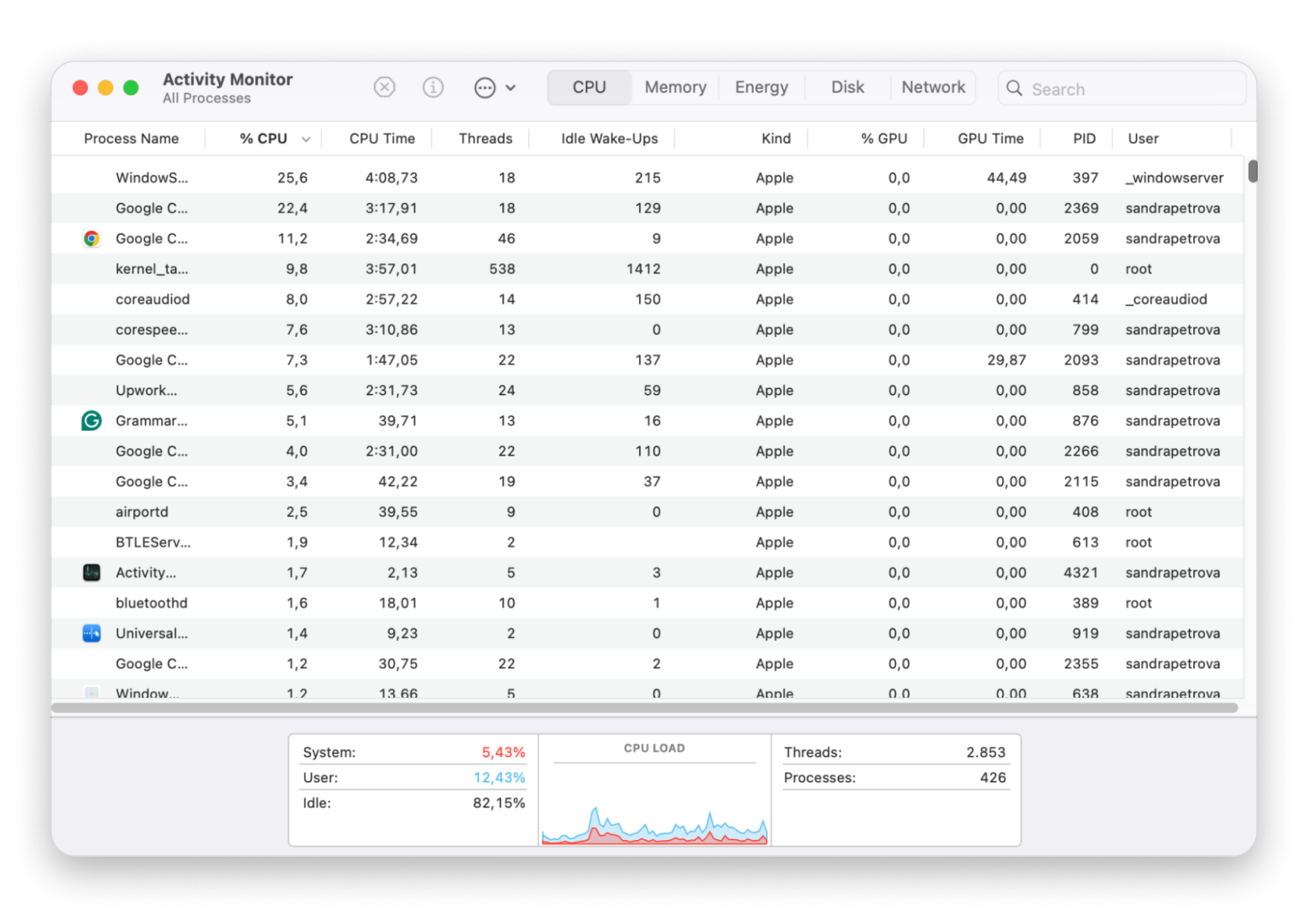
Quick Fixes
1. Restart Your Mac
Sometimes the simplest solution works:
- Save all your work
- Click Apple menu > Restart
- After restart, open Activity Monitor (Utilities folder)
- Check if mds_stores CPU usage has normalized
2. Wait for Indexing to Complete
If you recently:
- Updated macOS
- Transferred large amounts of files
- Connected a new external drive
- Restored from backup
Give Spotlight 15-45 minutes to complete indexing. High CPU usage during this period is normal.
3. Temporarily Disable Spotlight
# Disable Spotlight indexing
sudo mdutil -a -i off

# Verify mds_stores CPU drops in Activity Monitor

# Re-enable when ready
sudo mdutil -a -i on
Exclude Folders from Spotlight Indexing
Reducing what Spotlight indexes can significantly lower CPU usage:
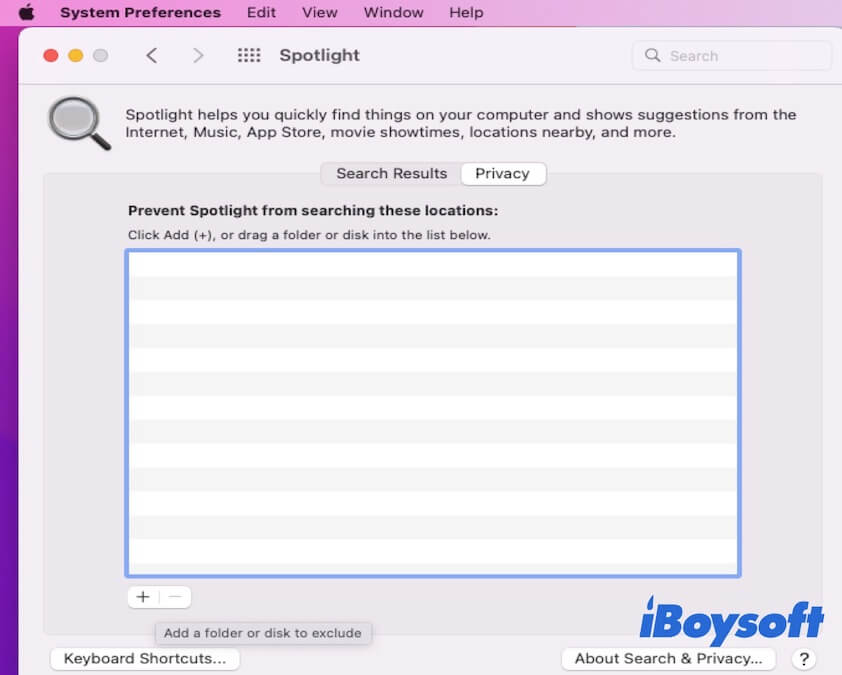
Recommended exclusions:
- Development folders containing
node_modules - Virtual machine disk images
- Large media archives you don't need to search
- Git repository
.gitfolders - Build output directories
How to exclude:
- System Settings > Siri & Spotlight > Spotlight Privacy
- Click + and add folders to exclude
- Click Done
Via Terminal (Alternative Method)
# Create a file that prevents indexing
touch /path/to/folder/.metadata_never_index
Run Disk Utility First Aid
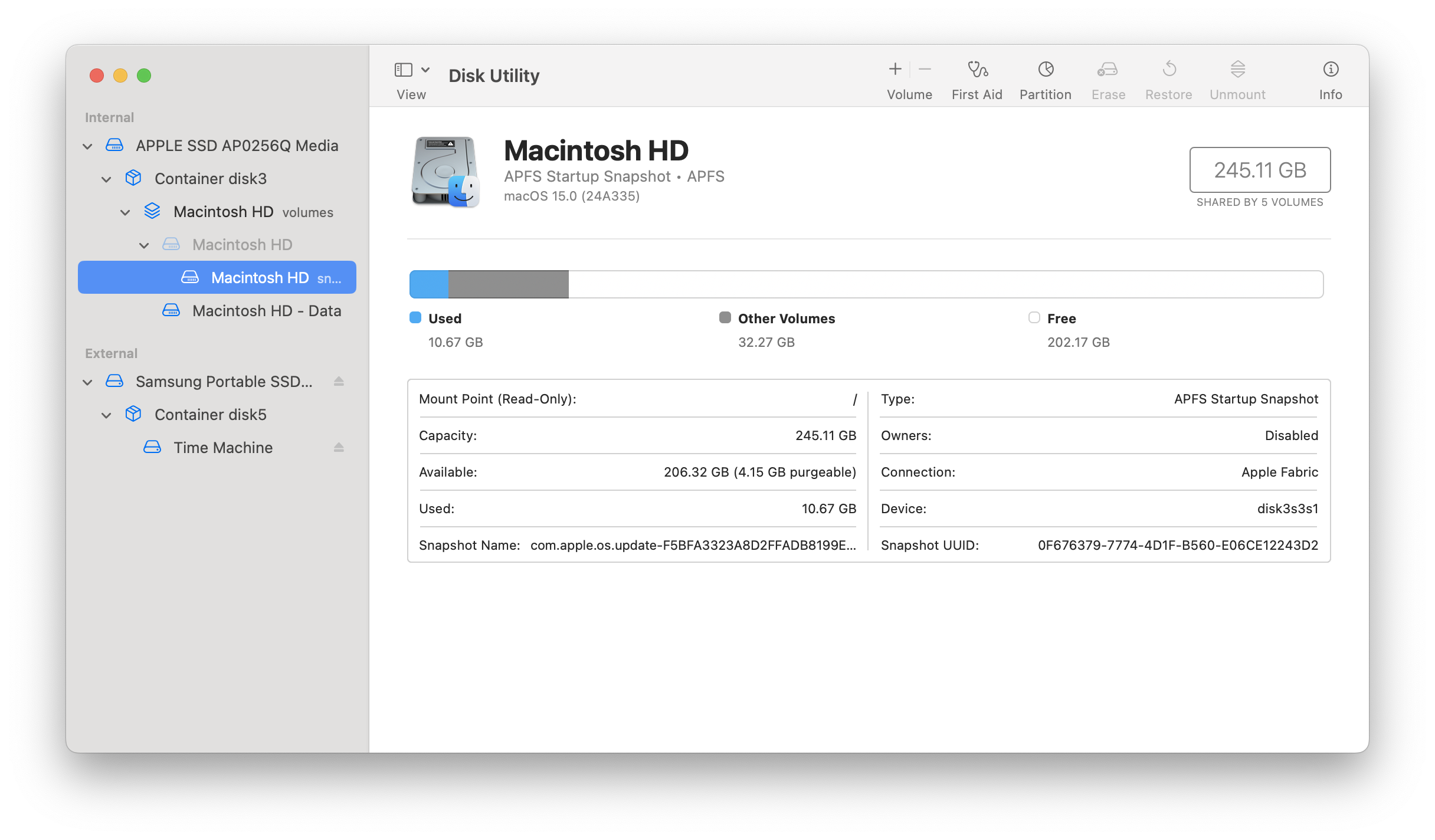
Corrupted file systems can cause indexing problems:
- Open Disk Utility (Applications > Utilities)
- Select your startup disk in the sidebar
- Click First Aid button
- Click Run to verify and repair disk
Method 4: Force Quit and Restart Spotlight Processes
Using Activity Monitor
- Open Activity Monitor (Applications > Utilities)
- Search for "Spotlight" in the search field
- Select Spotlight process
- Click the X button in the toolbar
- Choose Force Quit
- Repeat for spotlightknowledged process
Both processes will automatically restart with fresh state.
Using Terminal
# Kill Spotlight processes (they restart automatically)
killall Spotlight
killall spotlightknowledged

# Or more forcefully
killall -KILL Spotlight
Restart mds Service
# Stop and start mds service
sudo launchctl stop com.apple.metadata.mds
sudo launchctl start com.apple.metadata.mdsNote: On recent macOS versions with System Integrity Protection (SIP), some launchctl operations may fail with "Operation not permitted" errors.
Method 5: Check for Third-Party Software Conflicts
Known Culprits
Based on user reports, these applications commonly interfere with Spotlight:
- Adobe Creative Cloud - Background processes can conflict with indexing
- Logitech Options+ - Energy saver features may pause Spotlight
- Parallels Toolbox - "Pause Spotlight on battery" option
- Antivirus software - May block Spotlight from accessing files
How to Identify the Culprit
- Open System Settings > General > Login Items & Extensions
- Note all items under "Allow in the Background"
- Disable them one by one, restarting between each
- Test Spotlight after each restart
- When Spotlight works, you've found the conflicting app
Fix for Adobe Creative Cloud
Many users report Adobe as the cause:
- System Settings > General > Login Items & Extensions
- Find Adobe Creative Cloud and Adobe Inc
- Turn OFF both entries
- Restart your Mac
- Test Spotlight
Fix for Logitech Options+
# Disable Logitech daemons
launchctl disable gui/$(id -u)/com.logi.manager.daemon
launchctl disable gui/$(id -u)/com.logi.optionsplus.updater

# Restart required
Method 6: Boot into Safe Mode
Safe Mode disables third-party software and performs system checks:
For Apple Silicon Macs (M1/M2/M3/M4)
- Shut down your Mac completely
- Press and hold the power button until "Loading startup options" appears
- Select your startup disk
- Hold Shift and click "Continue in Safe Mode"
For Intel Macs
- Shut down your Mac
- Press power button, then immediately hold Shift
- Release Shift when you see the login window
In Safe Mode
- Test if Spotlight works correctly
- If yes, a third-party app is likely the cause
- Restart normally and investigate Login Items
Method 7: Nuclear Option - Complete Spotlight Reset
Use this only when all other methods fail:
# 1. Disable all indexing
sudo mdutil -a -i off

# 2. Stop Spotlight service
sudo launchctl unload -w /System/Library/LaunchDaemons/com.apple.metadata.mds.plist

# 3. Remove ALL Spotlight folders
sudo rm -rf /.Spotlight-V100
sudo rm -rf /System/Volumes/Data/.Spotlight-V100

# 4. Remove user-specific Spotlight data
rm -rf ~/Library/Metadata/CoreSpotlight

# 5. Restart Spotlight service
sudo launchctl load -w /System/Library/LaunchDaemons/com.apple.metadata.mds.plist

# 6. Re-enable indexing
sudo mdutil -a -i on

# 7. Force rebuild all volumes
sudo mdutil -Ea

# 8. Verify
mdutil -avs
Recovery Mode Rebuild (Last Resort)
If Terminal commands fail due to SIP:
- Restart Mac and enter Recovery Mode:
- Apple Silicon: Hold power button until options appear, then hold Shift
- Intel: Hold Cmd+R during startup
- Select Utilities > Terminal
- Run:
rm -rf /System/Volumes/Data/.Spotlight-V100 - Restart normally
- System will automatically rebuild index
Spotlight Index Structure Explained
Understanding the index helps troubleshoot problems:
Index Location
/.Spotlight-V100/
└── Store-V2/
    └── ${UUID}/
        ├── store.db           # Main SQLite database
        ├── .store.db          # Hidden database file
        ├── dbStr-#.map.*      # Index mappings
        └── [~99 other files]  # Dictionaries, postings
Check Index Size
sudo du -sh /.Spotlight-V100Expected sizes:
- Small system: 50-200 MB
- Medium system: 200-500 MB
- Large system: 500 MB - 5 GB
Warning signs:
- 20+ GB indicates potential problems
- 80+ GB almost certainly corrupted
Advanced Diagnostics: Understanding What's Going Wrong
Using Terminal to Monitor Spotlight Activity
When basic troubleshooting doesn't reveal the problem, these diagnostic commands help identify what Spotlight is doing:
Check Which Files Are Being Indexed
# Monitor Spotlight file operations in real-time
sudo fs_usage -f filesys mds mds_stores mdworker | head -100
This command shows you exactly which files Spotlight is currently processing. If you see it repeatedly accessing the same files, those files may be corrupted or causing issues.
View Spotlight System Logs
# Check recent Spotlight-related log entries
log show --predicate 'process == "mds" OR process == "mdworker" OR process == "mds_stores"' --last 1h

# Look specifically for errors
log show --predicate 'process == "mdworker"' --last 1d | grep -i error
Common error patterns include:
- Importer crashes - Indicates a corrupted file causing repeated failures
- Permission denied - Files with incorrect permissions blocking indexing
- Timeout errors - Very large files taking too long to process
Check Metadata for Specific Files
# View metadata attributes for a file
mdls /path/to/file

# Example output includes:
# kMDItemContentType, kMDItemKind, kMDItemDisplayName
If a file shows minimal or corrupted metadata, it may be causing indexing problems.
Identifying Problematic Files
Sometimes a single corrupted file can cause Spotlight to hang or crash repeatedly:
Step 1: Find files modified recently
# List files modified in last 24 hours
find / -mtime -1 -type f 2>/dev/null | head -50
Step 2: Check for files with special characters
# Find files with unusual names that might confuse Spotlight
find / -name "*[^a-zA-Z0-9._-]*" -type f 2>/dev/null | head -20
Step 3: Look for very large files
# Find files larger than 10GB
find / -size +10G -type f 2>/dev/null
Large files like virtual machine disk images and video files take significantly longer to index and can cause high CPU usage.
Understanding the Spotlight-V100 Folder
The .Spotlight-V100 folder contains Spotlight's database and index files:
.Spotlight-V100/
├── VolumeConfiguration.plist    # Volume-specific settings
└── Store-V2/
    └── {UUID}/                  # Unique store identifier
        ├── store.db             # Main SQLite database
        ├── .store.db            # Secondary database
        ├── dbStr-1.map.buckets  # String map files
        ├── dbStr-1.map.data
        ├── dbStr-1.map.header
        ├── dbStr-1.map.offsets
        └── [additional index files]
Key characteristics:
- store.db: Contains the primary search index (usually 50-500 MB)
- dbStr files: Store string mappings for fast text search
- VolumeConfiguration.plist: Contains exclusion rules and settings
Calculating Expected Index Size
A healthy Spotlight index follows roughly this formula:
Index Size ≈ (Number of Files × 0.5 KB) + (Text Content × 0.1)Typical sizes by storage:
| Storage Used | Files | Expected Index Size |
|---|---|---|
| 100 GB | 50,000 | 50-150 MB |
| 500 GB | 200,000 | 150-400 MB |
| 1 TB | 500,000 | 300-800 MB |
| 2 TB | 1,000,000 | 500 MB - 1.5 GB |
If your index is significantly larger (5x or more), it's likely corrupted and needs rebuilding.
Special Scenarios and Solutions
Spotlight Issues After macOS Update
macOS updates frequently cause Spotlight problems because:
- Index format changes - New macOS versions may use updated index formats
- Permission resets - System updates can modify file permissions
- Cache corruption - Old caches may conflict with new system processes
Recommended post-update procedure:
# After any major macOS update, proactively rebuild
sudo mdutil -E /

# Then reset permissions if needed
sudo diskutil resetUserPermissions / $(id -u)
Spotlight Not Working on External Drives
External drives often have Spotlight issues due to:
- File system incompatibility - FAT32/exFAT drives reindex on every connection
- Permissions - External drives may have different ownership
- Encryption - Encrypted volumes require special handling
Fix for frequently-reconnected drives:
- Convert to APFS or Mac OS Extended (Journaled) if possible
- Or add to Spotlight Privacy to prevent repeated indexing:
# Prevent indexing of external drive
sudo mdutil -i off /Volumes/ExternalDrive
Spotlight Problems with FileVault Encryption
FileVault encryption can affect Spotlight in several ways:
- Initial encryption - Index may be inaccessible during encryption
- Key issues - Corrupted keys can prevent Spotlight access
- Boot volume - Spotlight must decrypt files before indexing
If Spotlight fails with FileVault:
- Verify FileVault status:
fdesetup status-
Ensure encryption is complete (not "Encryption in progress")
-
If stuck, try:
# Pause and resume FileVault
sudo fdesetup changerecovery -personal
Network Drive Indexing Issues
Spotlight has limited support for network volumes:
AFP shares (Apple Filing Protocol):
- Full Spotlight support with server-side indexing
- Requires macOS Server or compatible NAS
SMB shares (Windows/Samba):
- Client-side indexing only
- May cause high network traffic
- Consider excluding from Spotlight
Best practice for network drives:
# Disable Spotlight for all network volumes
defaults write /Library/Preferences/com.apple.SpotlightServer.plist ExternalVolumesIgnore -bool YES
Performance Optimization Tips
Reducing Spotlight's Resource Usage
If Spotlight is consuming too many resources even when working correctly:
Limit Background Activity
System Settings > Battery > Options:
- Enable "Optimize video streaming while on battery"
- This also limits Spotlight's background processing
Schedule Intensive Indexing
Large file imports should be done when you're not actively using the Mac:
- Plan major file transfers for overnight
- Keep Mac plugged in and awake during indexing
- Use
caffeinatecommand to prevent sleep:
# Prevent sleep for 4 hours during indexing
caffeinate -t 14400
Optimize What Gets Indexed
Review and customize Spotlight categories:
- System Settings > Siri & Spotlight
- Under "Search Results," disable categories you don't use:
- Fonts (rarely searched)
- Movies (if you don't use Apple TV app)
- Music (if you use Spotify instead)
- Other (miscellaneous files)
Each disabled category reduces indexing overhead.
SSD vs HDD Performance Considerations
SSD users:
- Indexing completes 5-10x faster than HDD
- Continuous indexing has minimal performance impact
- No concern about disk wear from normal Spotlight usage
HDD users:
- Schedule rebuilds during off-hours
- Consider adding frequently-accessed folders to SSD
- Exclude large media folders to reduce head movement
Preventing Future Spotlight Problems
Best Practices
-
Allow indexing to complete after updates - Don't interrupt or force shutdown during "Indexing..." status
-
Maintain adequate free space - Keep at least 15% of your drive free for Spotlight to work efficiently
-
Exclude unnecessary folders - Development directories, large archives, and temporary folders don't need indexing
-
Keep macOS updated - Apple regularly fixes Spotlight bugs in point releases
-
Monitor disk health - Failing drives cause indexing problems
Regular Maintenance
Monthly:
- Run Disk Utility First Aid
- Check Activity Monitor for abnormal Spotlight processes
After major changes:
- Rebuild index after large file migrations
- Verify Spotlight works after macOS updates
When to Consider Spotlight Alternatives
If Spotlight continues causing problems, consider these alternatives:
Alfred (Free / $34 Powerpack)
- More powerful than Spotlight
- Customizable workflows
- Better file search and preview
Raycast (Free / $8/month Pro)
- Modern, fast interface
- Extensive plugin ecosystem
- Developer-friendly features
Both alternatives can completely replace Spotlight for daily use while you wait for Apple to fix underlying issues.
Troubleshooting FAQ
Q: How long should Spotlight indexing take?
A: For most users with 256GB-1TB SSDs, expect 2-8 hours for a complete rebuild. Leave your Mac powered on overnight for best results. Factors affecting time include:
- Number of files (more files = longer indexing)
- File types (documents with text take longer than images)
- System activity (indexing pauses during intensive tasks)
- Storage speed (SSD is 5-10x faster than HDD)
Q: Will rebuilding Spotlight delete my files?
A: No. Rebuilding only affects the search index, not your actual files. Your documents, photos, and applications are completely safe. The index is simply a database that helps Spotlight find your files faster—deleting it just means Spotlight needs to re-catalog everything.
Q: Why does mds_stores use high CPU after every restart?
A: This indicates an underlying issue—possibly a corrupted index or third-party software conflict. Common causes include:
- Third-party applications interfering with indexing
- Corrupted files causing repeated index failures
- Insufficient disk space for the index
- Software conflicts from recent installations
Follow the troubleshooting steps in this guide to resolve it permanently.
Q: Can I use my Mac while Spotlight indexes?
A: Yes, but performance may be slightly reduced. Spotlight prioritizes background processing and pauses during intensive tasks. However, you might notice:
- Slightly slower app launches
- Increased fan noise
- Higher battery consumption on laptops
- Occasional brief system slowdowns
Q: What if Spotlight still doesn't work after trying everything?
A: Consider these escalation steps:
- Create a new user account to test if the issue is account-specific
- Check disk health with Disk Utility or third-party tools
- Reinstall macOS (without erasing data) using Recovery Mode
- Contact Apple Support for hardware diagnostics if you suspect drive failure
- Use Spotlight alternatives like Alfred or Raycast while waiting for Apple to fix bugs
Q: Is it safe to completely disable Spotlight?
A: Yes, you can disable Spotlight without damaging your system. However, be aware that disabling Spotlight also affects:
- Siri's ability to search your Mac
- Some third-party apps that rely on Spotlight indexing
- Quick Look file previews in Finder
- Mail's search functionality (uses its own index but benefits from Spotlight)
To disable completely:
sudo mdutil -a -i offQ: How do I know if Spotlight has finished indexing?
A: Several ways to check:
- Open Spotlight (Cmd+Space) and look for "Indexing..." progress bar
- Run
mdutil -s /in Terminal - should show "Indexing enabled" without "indexing" status - Check Activity Monitor - mds_stores should have low CPU usage when complete
- Search results should be comprehensive and accurate
Q: Why does Spotlight keep re-indexing the same external drive?
A: This usually happens with FAT32 or exFAT formatted drives. Solutions:
- Reformat the drive to APFS or Mac OS Extended if possible
- Add the drive to Spotlight Privacy to prevent indexing:
- System Settings > Siri & Spotlight > Spotlight Privacy
- Add the external drive
- Create a
.metadata_never_indexfile in the drive's root folder
Q: Does Spotlight index cloud storage like iCloud Drive?
A: Yes, but with limitations:
- Local files: Fully indexed and searchable
- Cloud-only files (with cloud icon): Metadata indexed, but content not searchable until downloaded
- iCloud Photo Library: Photos indexed locally, but requires download for full content search
To ensure complete indexing of important iCloud files, download them locally first.
Q: Can Spotlight issues cause other system problems?
A: Yes, runaway Spotlight processes can cause:
- High CPU usage: Making your Mac slow and unresponsive
- Excessive battery drain: Especially problematic on laptops
- SSD wear: In extreme cases (like the Sequoia bug), writing terabytes of unnecessary data
- Memory pressure: mdworker processes can consume significant RAM
- Thermal throttling: Continuous high CPU can cause overheating
This is why it's important to address Spotlight issues promptly rather than ignoring them.
Q: Are there any differences between Intel and Apple Silicon Macs?
A: Minor differences exist:
- Apple Silicon: Generally faster indexing due to unified memory architecture
- Intel Macs: May experience higher CPU temperatures during indexing
- Recovery Mode access: Different key combinations (see Method 6)
- SIP handling: Some terminal commands work differently on newer systems
The troubleshooting methods in this guide work for both architectures.
Understanding Error Messages
Common Spotlight Error Messages and Solutions
| Error Message | Meaning | Solution |
|---|---|---|
| "Indexing is disabled" | Spotlight manually turned off | Run sudo mdutil -i on / |
| "Unknown error" | Permission issues | Check file/folder permissions |
| "Operation not permitted" | SIP blocking command | Try alternative method or use Recovery Mode |
| "Indexing paused" | Low power or low disk space | Charge Mac and free up space |
| "No index found" | Index corrupted or missing | Rebuild with sudo mdutil -E / |
Interpreting Activity Monitor Data
When monitoring Spotlight processes:
Normal behavior:
- mds: 0-5% CPU when idle
- mds_stores: 0-10% CPU when idle
- mdworker: 0-50% CPU, multiple instances during active indexing
Problematic behavior:
- Any process consistently above 100% CPU for more than 1 hour
- Dozens of mdworker instances running simultaneously
- Memory usage exceeding 1GB for mds_stores
macOS Version-Specific Issues
macOS Tahoe 26
Known issues:
- Touch ID clipboard bug (use password login as workaround)
- Adobe Creative Cloud conflicts
- Occasional indexing failures after 26.0 > 26.1 update
Recommended fix after update:
sudo mdutil -E /
# Wait 24 hours for complete reindex
macOS Sequoia 15
Known issues:
- Excessive SSD writes bug (fixed in 15.1)
- Apps not appearing in search after update
- Logi Options+ conflict
If coming from Sequoia 15.0: Update to 15.1 or later immediately, then rebuild index.
macOS Sonoma 14
Known issues:
- Index location sometimes at
~/.Spotlight-V100 - Some users report index at non-standard paths
Check all possible locations:
ls -la /.Spotlight-V100
ls -la /System/Volumes/Data/.Spotlight-V100
ls -la ~/.Spotlight-V100
Expert Tips and Best Practices
For Developers
If you work with code repositories, consider these optimizations:
1. Exclude development directories: Add these paths to Spotlight Privacy:
/Users/[username]/node_modules(or use global exclusion)- Project directories with heavy build outputs
.gitfolders across all repositories- Virtual environment directories (venv, .venv)
2. Create global gitignore-style Spotlight exclusion:
# Create exclusion file in project roots
touch /path/to/project/.metadata_never_index

# Or use Terminal to exclude all node_modules
find ~ -type d -name "node_modules" -exec touch {}/.metadata_never_index \;
3. Use project-specific search tools: Instead of relying on Spotlight for code search, use:
- VS Code's built-in search (Cmd+Shift+F)
- ripgrep (
rg) for command-line search - IDE-specific indexing (Xcode, IntelliJ)
For Creative Professionals
Large media files require special handling:
1. Separate working and archive storage:
- Keep active project files on indexed drives
- Move completed projects to non-indexed archive drives
2. Optimize for video/photo workflows:
- Final Cut Pro and Premiere Pro maintain their own media databases
- Consider excluding application library folders from Spotlight
- Use application-specific search for media files
3. Manage large photo libraries:
- Photos app has its own search independent of Spotlight
- Consider using Smart Albums instead of Spotlight for photo organization
- Exclude external photo archives from indexing
For System Administrators
Managing Spotlight across multiple Macs:
1. Deploy consistent exclusion settings: Use MDM (Mobile Device Management) to deploy Spotlight configuration:
<!-- Example MDM profile for Spotlight -->
<key>PayloadType</key>
<string>com.apple.spotlight</string>
<key>items</key>
<array>
    <string>/Users/Shared/</string>
    <string>/opt/</string>
</array>
2. Monitor fleet-wide Spotlight health:
- Use scripts to check index sizes across machines
- Alert on machines with abnormally large indexes
- Schedule regular index rebuilds during maintenance windows
3. Standardize troubleshooting procedures: Document and automate common fixes for helpdesk staff.
Summary: Quick Reference Card
Essential Terminal Commands
| Action | Command |
|---|---|
| Check status | mdutil -s / |
| Rebuild index | sudo mdutil -E / |
| Disable Spotlight | sudo mdutil -a -i off |
| Enable Spotlight | sudo mdutil -a -i on |
| Check index size | sudo du -sh /.Spotlight-V100 |
Troubleshooting Flowchart
-
Spotlight not working?
- Try Privacy toggle method first (Method 1)
-
Privacy toggle didn't help?
- Use Terminal rebuild:
sudo mdutil -E /(Method 2)
- Use Terminal rebuild:
-
High CPU from mds_stores?
- Wait 45 minutes, then exclude folders (Method 3)
-
Still having issues?
- Check third-party conflicts (Method 5)
-
Nothing works?
- Complete reset (Method 7) or use alternatives
Conclusion
Spotlight search problems are frustrating but almost always fixable. Start with the simple System Settings method, progress to Terminal commands if needed, and check for third-party software conflicts. Most users resolve their Spotlight issues within the first few troubleshooting steps.
Remember that after any rebuild, Spotlight needs time to reindex—typically several hours for a full system. Be patient, and your search functionality will return to normal.
Whether you're a casual user frustrated by missing search results, a developer dealing with high CPU usage from node_modules indexing, or an IT administrator managing a fleet of Macs, the solutions in this guide should help restore Spotlight to its intended functionality. Keep this guide bookmarked for future reference, and remember that Apple continuously improves Spotlight with each macOS update.
Key Takeaways:
- First try: System Settings > Siri & Spotlight > Privacy toggle method
- For persistent issues: Use Terminal command
sudo mdutil -E / - High CPU: Wait for indexing to complete, or exclude unnecessary folders
- Third-party conflicts: Check Adobe, Logitech, and antivirus software
- Nuclear option: Complete Spotlight reset via Terminal or Recovery Mode
Having other macOS issues? Check our comprehensive guides on general troubleshooting, storage management, and battery optimization for more solutions.
Related Resources
Troubleshooting Guides
If you're experiencing other macOS Tahoe issues, these guides may help:
- WiFi Dropping Fix Guide - Solutions for WiFi connection problems
- Bluetooth Troubleshooting - Fix AirPods and device pairing issues
- Time Machine Problems - Resolve backup failures
- Mail App Issues - Fix Mail app problems
System Optimization
- Storage Management - Free up disk space
- Battery Diagnostics - Optimize battery life
- Login Items Management - Control startup items
Recovery Options
- Downgrade to Sequoia - If Tahoe isn't working for you
- createinstallmedia Guide - Create bootable USB installer