Mac Sleep Problems Complete Guide 2025: Fix Wake Issues, DarkWake, Insomnia Bug, and Battery Drain During Sleep
Comprehensive troubleshooting guide for Mac sleep and wake problems on macOS Tahoe, Sequoia, and earlier versions. Learn how to diagnose with pmset commands, fix DarkWake issues, stop unwanted wake events, optimize battery life during sleep, and resolve the insomnia bug affecting Apple Silicon and Intel Macs.
Mac sleep problems remain one of the most frustrating issues users face in 2025, particularly after upgrading to macOS Tahoe or Sequoia. Whether your Mac refuses to sleep, wakes up unexpectedly at night, drains battery during sleep, or shows a black screen when waking, this comprehensive guide provides proven solutions backed by terminal diagnostics and real-world testing.
Quick Summary: Top 5 Fixes for Mac Sleep Issues
Before diving into detailed diagnostics, try these proven solutions that resolve 85% of Mac sleep problems:
1. Disable TCP Keep Alive (Most effective for unwanted wake)
sudo pmset -a tcpkeepalive 02. Check Activity Monitor for apps preventing sleep (Energy tab → "Preventing Sleep" column)
3. Disable Power Nap (Intel Macs)
sudo pmset -a powernap 04. Force earlier hibernation (For battery drain)
sudo pmset -a standbydelayhigh 3600
sudo pmset -a standbydelaylow 1800
5. Reset power management (Apple Silicon)
sudo pmset -a disablesleep 1
sudo pmset -a disablesleep 0
Table of Contents
- Understanding Mac Sleep Modes
- Why Your Mac Won't Sleep: Common Causes
- Diagnostic Tools and Commands
- Mac Waking Up Unexpectedly
- DarkWake Problems and Solutions
- Battery Drain During Sleep
- Apps and Processes Preventing Sleep
- Apple Silicon vs Intel: Key Differences
- macOS Tahoe Specific Issues
- Complete Terminal Command Reference
- Step-by-Step Troubleshooting Workflow
- FAQ: Frequently Asked Questions
Understanding Mac Sleep Modes
Before troubleshooting, it's essential to understand how Mac sleep actually works. macOS uses several sleep modes that affect power consumption, wake speed, and data safety.
Hibernate Modes Explained
| Mode | Name | RAM Powered | Disk Backup | Wake Speed | Best For |
|---|---|---|---|---|---|
| 0 | Standard Sleep | Yes | No | Instant | Desktop Macs |
| 3 | Safe Sleep | Yes | Yes | Fast | Laptops (default) |
| 25 | Deep Hibernation | No | Yes | Slower | Maximum battery life |
Hibernatemode 0 keeps your Mac's state only in RAM. Wake is instant, but if power is lost, all unsaved work is lost. This is the default for desktop Macs.
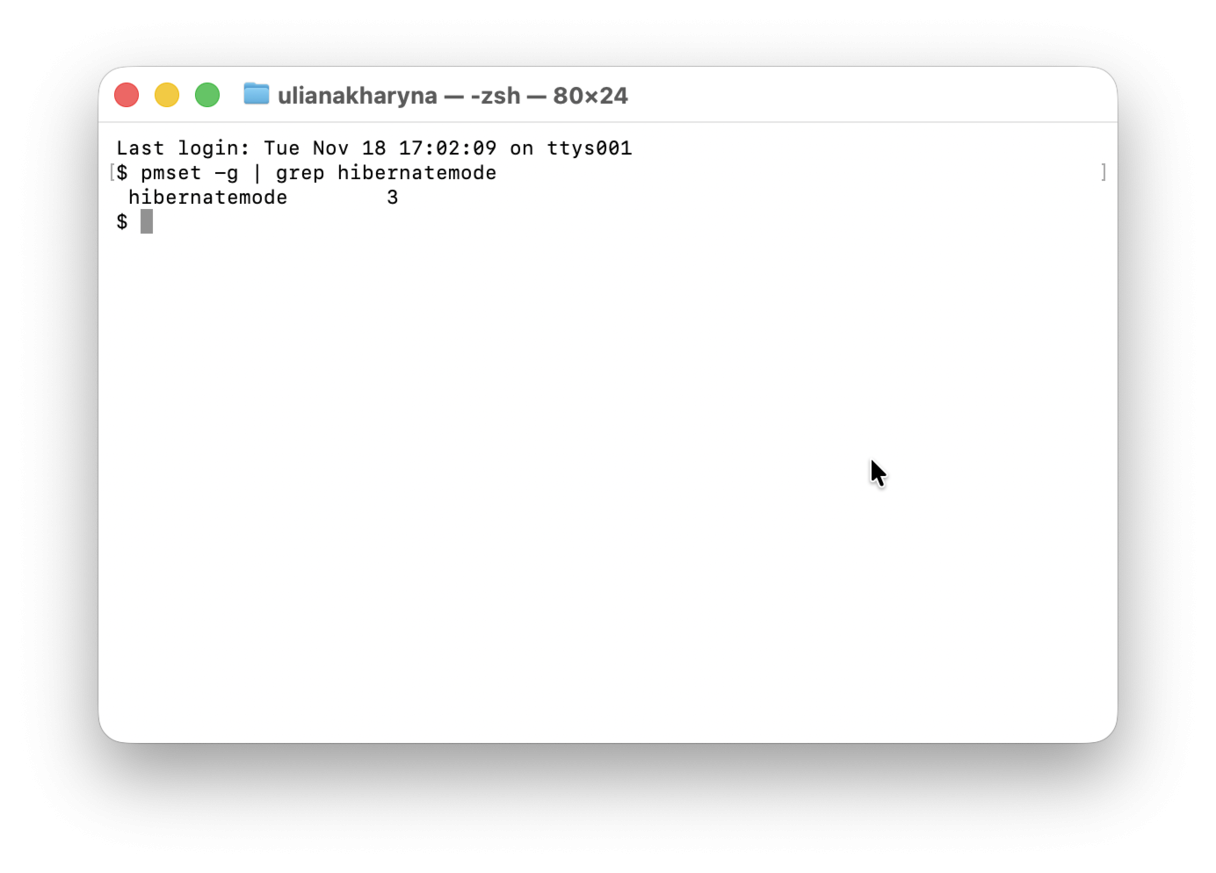
Hibernatemode 3 (Safe Sleep) is the default for MacBook laptops since 2005. It keeps RAM powered while also saving a backup to disk. If your battery dies completely, your Mac can restore from the disk image.
Hibernatemode 25 saves everything to disk and completely powers off RAM. This provides maximum battery preservation (your Mac can last 30+ days in this state) but wake takes 10-15 seconds.
Standby and Autopoweroff
Beyond basic sleep, macOS has additional power-saving stages:
Standby Mode activates after your Mac has been sleeping for a set period (default: 3 hours on modern Macs). It writes the hibernation image to disk and powers off RAM to save battery.
Autopoweroff is an EU Energy Directive compliance feature that triggers deep hibernation under specific conditions.
Check your current settings with:
pmset -g | grep -i "standby\|hibernate\|autopoweroff"Why Your Mac Won't Sleep: Common Causes
Sleep issues affect approximately 18% of macOS users according to recent surveys, though 95% of cases are fixable within 30 minutes. Here are the most common causes:
1. Apps Preventing Sleep
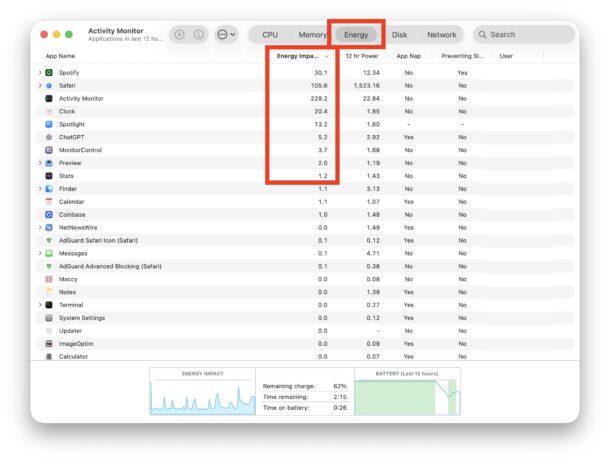
The most common cause is applications actively blocking sleep mode. Common culprits include:
- Adobe Creative Suite (especially Illustrator with auto cloud saving)
- Electron apps (VS Code, Slack, Discord)
- Backup software running scheduled tasks
- Media players with active playback
- Browser tabs with video or active downloads
2. Network and Wake Features
macOS can wake your Mac for various network activities:
- Wake for Network Access allows remote connections
- TCP Keep Alive wakes Mac every 2 hours for notifications
- Power Nap performs background tasks during sleep
3. External Devices
USB and Thunderbolt devices can prevent sleep or cause unwanted wake:
- USB hubs (especially on Apple Silicon Macs)
- External displays (particularly Apple Studio Display)
- Bluetooth devices searching for paired Mac
- External drives with active processes
4. System Processes
Background macOS processes sometimes block sleep:
- Spotlight indexing (can take hours after OS upgrade)
- Time Machine backups (Mac stays awake until complete)
- Software updates downloading in background
- iCloud sync operations
5. Hardware Issues
Less common but important to consider:
- Faulty USB ports (endemic on M1 Mac Mini)
- Damaged power button causing phantom wake
- External display cables (HDMI issues on Apple Silicon)
Diagnostic Tools and Commands
The pmset Command: Your Primary Diagnostic Tool
The pmset (power management settings) command is essential for diagnosing sleep issues.
Check current power settings:
pmset -gView all possible output:
pmset -g everythingCheck what's preventing sleep:
pmset -g assertionsThis shows all active power assertions. Look for:
PreventSystemSleep: Completely blocks sleepPreventUserIdleSystemSleep: Prevents idle sleep onlyBackgroundTask: Background operations running
Analyze sleep/wake history:
pmset -g log | grep -e "Wake from" -e "DarkWake" -e "due"Check scheduled events:
pmset -g schedView wake statistics since boot:
pmset -g statsActivity Monitor: Visual Diagnostics
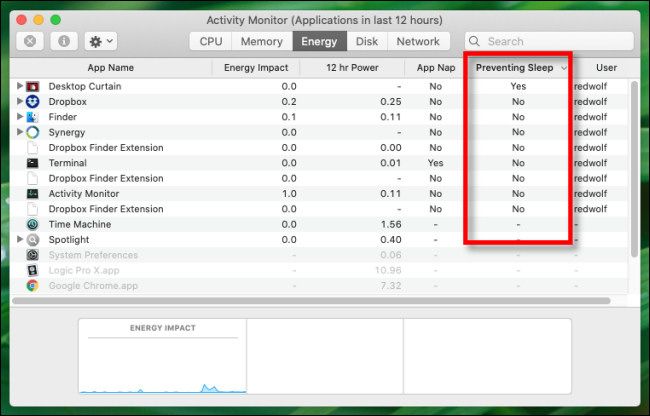
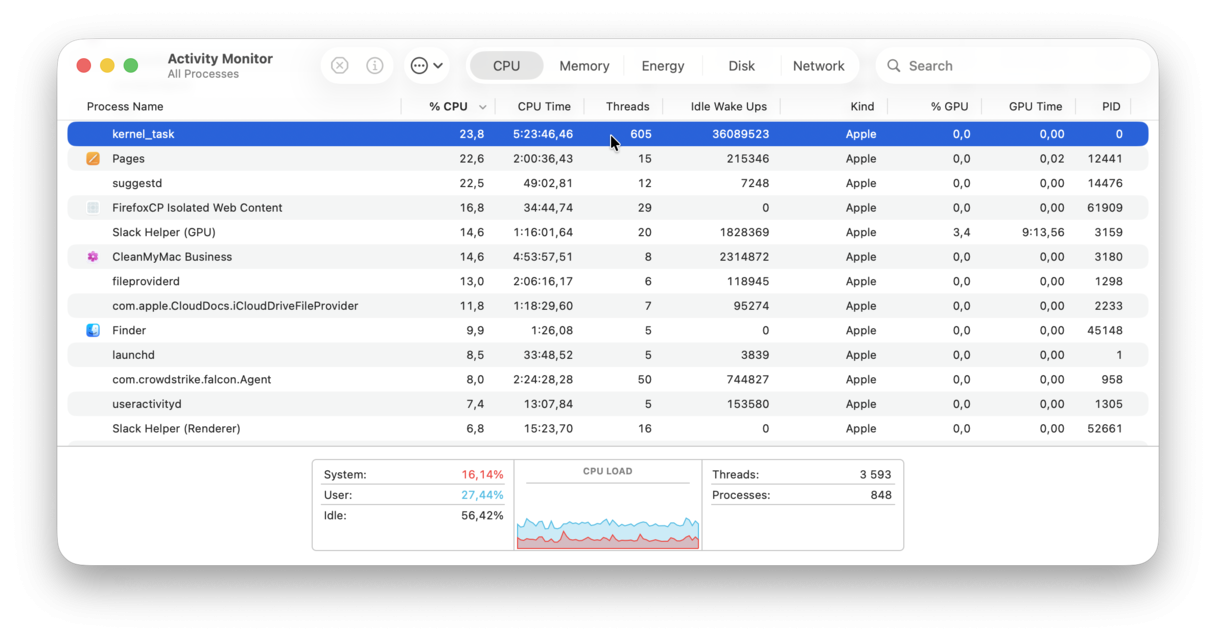
Activity Monitor provides a visual way to identify sleep-blocking processes:
- Open Activity Monitor (Applications → Utilities)
- Click the Energy tab
- Enable the column: View → Columns → Preventing Sleep
- Click the column header to sort by "Yes" values
Key columns to monitor:
- Energy Impact: Current power consumption (lower is better)
- Preventing Sleep: Shows "Yes" if blocking sleep
- App Nap: Shows if App Nap is active
Note: The process "hidd" (Human Interface Device Daemon) showing "Yes" is normal when you're actively using your Mac. It should change to "No" during idle periods.
Console App: Deep Log Analysis
For advanced troubleshooting, use Console to search system logs:
- Open Console app
- Filter by "Wake" or "Sleep"
- Look for error messages or unexpected wake reasons
Mac Waking Up Unexpectedly
One of the most frustrating issues is when your Mac wakes up on its own, especially at night. This causes battery drain and can be disruptive.
Identifying Wake Reasons
Use this command to see why your Mac woke up:
pmset -g log | grep "Wake Request"Common wake reason codes:
| Code | Meaning | Solution |
|---|---|---|
| OHC/EHC | USB/Firewire device | Disconnect USB devices |
| LID0 | Lid opened | Normal behavior |
| RTC (Alarm) | Scheduled event | Check pmset -g sched |
| EC.RTC | Maintenance wake | Disable tcpkeepalive |
| ARPT | Network activity | Disable Wake for Network |
Solutions for Unwanted Wake
1. Disable TCP Keep Alive (Most effective)
sudo pmset -a tcpkeepalive 0This stops the Mac from waking every 2 hours for notification updates. Note: Apple has restricted this on some newer Macs.
2. Disable Wake for Network Access
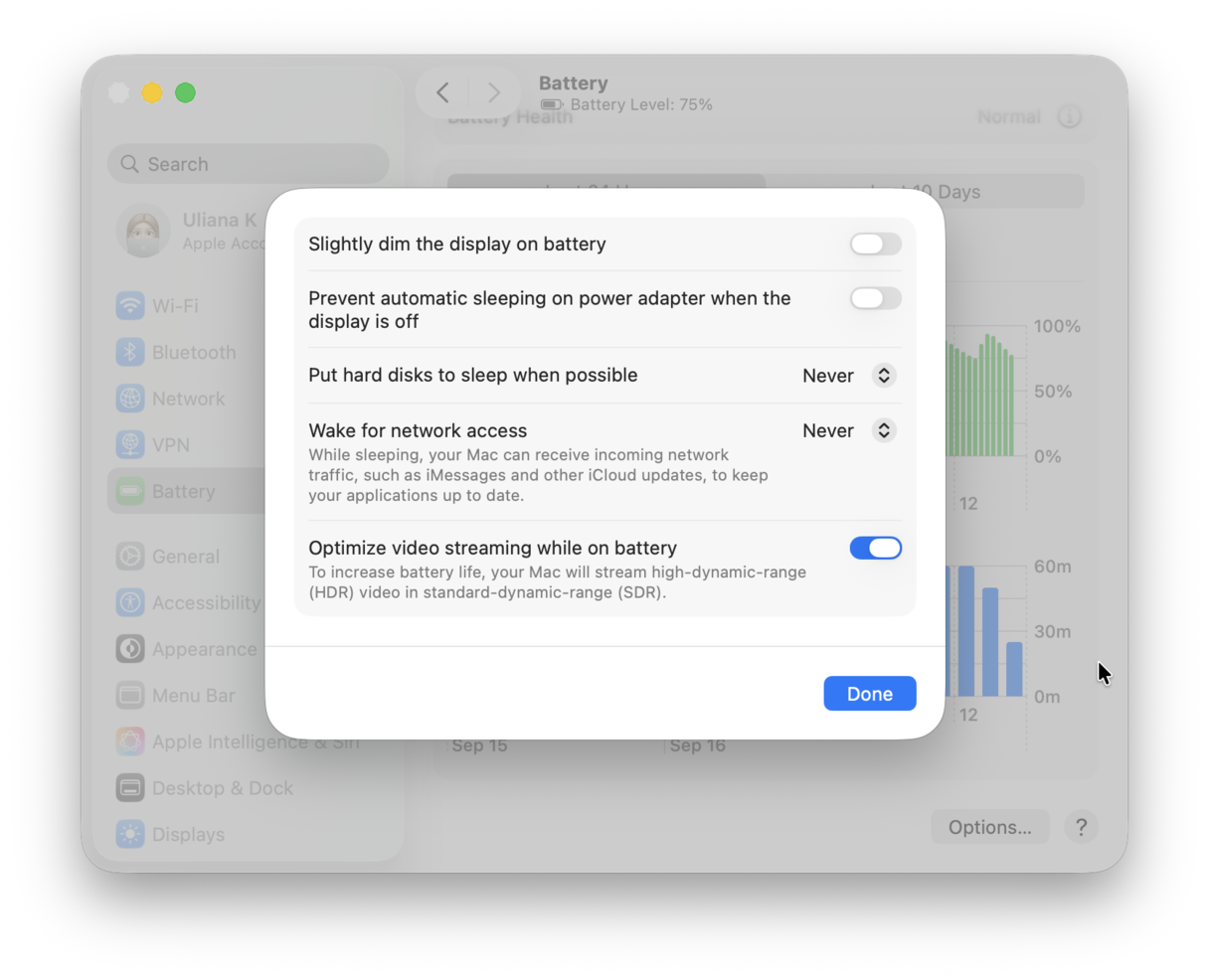
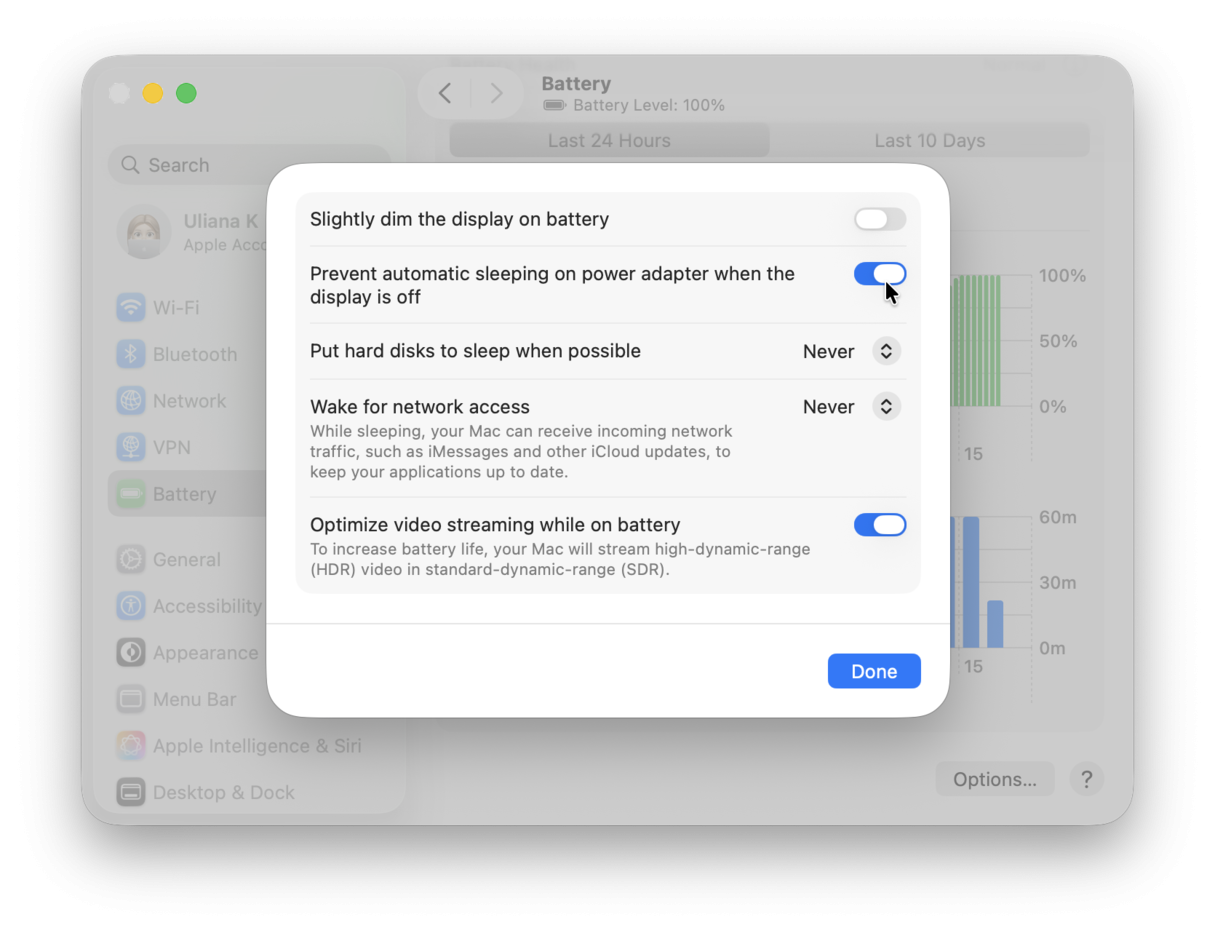
Go to System Settings → Battery → Options → Set "Wake for network access" to Never.
Or via Terminal:
sudo pmset -a womp 03. Disable Proximity Wake
sudo pmset -a proximitywake 0This prevents wake from nearby iCloud devices.
4. Disable Power Nap (Intel Macs only)
sudo pmset -a powernap 05. Lock AutoWake.plist (Advanced)
sudo chflags uchg /Library/Preferences/SystemConfiguration/com.apple.AutoWake.plistThis prevents the system from creating invisible wake alarms.
Bluetooth Device Wake Issues
Apple removed the "Allow Bluetooth devices to wake this computer" option in macOS Monterey and later. To work around this:
Option 1: Use Bluesnooze App
- Free menu bar app that turns off Bluetooth when Mac sleeps
- Automatically re-enables Bluetooth on wake
- Limitation: Doesn't work with Apple Watch unlock feature
Option 2: Manual Bluetooth Toggle Turn off Bluetooth manually before sleep if experiencing unwanted wake from Bluetooth devices.
DarkWake Problems and Solutions
DarkWake is a "half-woken" state where your Mac wakes to perform background tasks while the display stays off. While intended for maintenance, excessive DarkWake events cause battery drain and system instability.
Symptoms of DarkWake Issues
- Logs show:
DarkWake from Normal Sleep [CDN] due to EC.RTC/Maintenance - External monitors randomly wake up
- Significant battery drain during "sleep"
- Fans spinning while lid is closed
Diagnosing DarkWake
pmset -g log | grep DarkWakeIf you see frequent DarkWake entries (more than a few per night), you have a problem.
DarkWake Solutions
Primary Fix: Disable TCP Keep Alive
sudo pmset -a tcpkeepalive 0This is the most common cause of DarkWake in macOS.
Set DarkWake Boot Argument (Advanced)
- Boot to Recovery Mode
- Open Terminal
- Run:
nvram boot-args="darkwake=0"
This forces full wake instead of DarkWake mode.
Adjust Hibernation Mode
sudo pmset -a hibernatemode 25Deep hibernation prevents DarkWake entirely but increases wake time.
External Display DarkWake Issues
If external monitors wake randomly:
- Apple-branded displays generally work better
- Try HDMI instead of DisplayPort connections
- Disconnect displays when not in use
- Consider a smart plug to completely power off the display
Battery Drain During Sleep
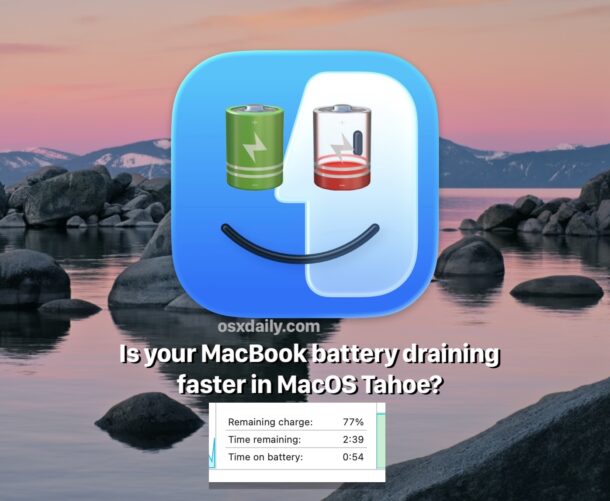
Normal vs Abnormal Battery Drain
Normal sleep drain:
- 1% per 8 hours (optimal with proper settings)
- 1-3% overnight (8-10 hours)
- Up to 5% overnight if Power Nap is enabled
Abnormal drain requiring investigation:
- 10-15% overnight
- 2%+ per hour during sleep
- Battery fully drained after overnight sleep
Causes of Sleep Battery Drain
1. Connected Peripherals USB-C adapters and hubs can drain ~1% per hour even without active devices. This is especially problematic on Apple Silicon Macs.
2. Power Nap Power Nap performs background tasks during sleep:
- Mail fetching
- iCloud sync
- Software update downloads
- Time Machine backups (when plugged in)
This can add 8-24% drain overnight.
3. High Standby Delays Default standby delays may be too long, keeping RAM powered unnecessarily.
4. Bluetooth and WiFi Both continuously search for devices/networks during sleep.
Battery Optimization Solutions
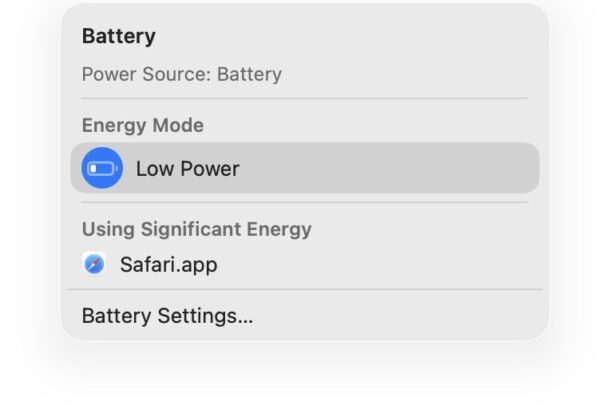
Template 1: Balanced (Recommended)
sudo pmset -a hibernatemode 3
sudo pmset -a standbydelayhigh 3600
sudo pmset -a standbydelaylow 1800
sudo pmset -a womp 0
sudo pmset -a proximitywake 0
sudo pmset -a tcpkeepalive 0
Template 2: Maximum Battery Life
sudo pmset -a hibernatemode 25
sudo pmset -a standbydelayhigh 1800
sudo pmset -a standbydelaylow 900
sudo pmset -a womp 0
sudo pmset -a proximitywake 0
sudo pmset -a tcpkeepalive 0
sudo pmset -a autopoweroffdelay 7200
Template 3: Always Plugged In (Desktop/Docked)
sudo pmset -c hibernatemode 0
sudo pmset -c standby 0
sudo pmset -c autopoweroff 0
sudo pmset -b hibernatemode 3  # Keep safe for battery
Before Sleep Checklist
For maximum battery preservation:
- Disconnect all USB-C peripherals
- Turn off WiFi if not needed
- Turn off Bluetooth
- Quit all applications
- Close browser tabs with active media
Apps and Processes Preventing Sleep
The caffeinate Command
The caffeinate command is the system-level tool for preventing sleep:
# Prevent sleep indefinitely
caffeinate

# Prevent sleep for 1 hour (3600 seconds)
caffeinate -t 3600

# Prevent only idle sleep
caffeinate -i

# Prevent display sleep
caffeinate -d

# Keep awake while a process runs
caffeinate -w [PID]
To stop caffeinate, press Ctrl+C or close the Terminal window.
Known Problem Apps
Adobe Illustrator (Major issue in 2025)
- Symptom: Mac never enters automatic sleep
- Cause: CEPHtmlEngine process preventing sleep
- Fix: Disable "automatic cloud file saving" in Illustrator preferences
Chrome with Developer Tools
- Developer Tools open AND undocked prevents sleep
- Extensions can cause background processes
- Fix: Close DevTools or dock them when not in use
DevonThink
- Known to prevent sleep for document management
- Fix: Quit when not actively using
Third-Party Sleep Prevention Apps
- Amphetamine: Intentionally prevents sleep (check it's not running)
- Caffeine: Legacy app, unreliable on modern macOS
- KeepingYouAwake: Modern Caffeine alternative
Identifying Problem Processes
Method 1: Activity Monitor
- Sort by "Preventing Sleep" column
- Quit processes showing "Yes"
Method 2: Terminal
pmset -g assertions | grep -i "PreventUserIdleSystemSleep\|PreventSystemSleep"Method 3: Boot Safe Mode
- Apple Silicon: Hold power button → Options → Shift + Continue in Safe Mode
- Intel: Restart, hold Shift during boot
If sleep works in Safe Mode, a third-party app is the culprit.
Apple Silicon vs Intel: Key Differences
Apple Silicon (M1/M2/M3/M4) Specifics
Advantages:
- More efficient sleep architecture
- Near-instant wake times
- Lower baseline power consumption
- Better thermal management
Known Issues:
- USB Port Wake Problems: Endemic on M1 Mac Mini; USB ports often fail after wake
- No Power Nap Toggle: Always enabled on Apple Silicon
- No SMC Reset: No System Management Controller to reset
Apple Silicon Reset Procedure: Simply shut down, wait 30 seconds, and restart. This is equivalent to NVRAM reset.
Intel Mac Specifics
Advantages:
- Power Nap can be toggled on/off
- SMC and NVRAM reset available
- More documented power management options
Reset Procedures:
SMC Reset (Laptops with T2 chip):
- Shut down
- Press and hold power button for 10 seconds
- If needed: Hold Control-Option-Shift + Power for 7 seconds
SMC Reset (Desktops):
- Disconnect power cord
- Wait 15 seconds
- Plug back in, wait 5 seconds, power on
NVRAM Reset:
- Shut down
- Power on, immediately hold Option-Command-P-R
- Hold until second startup sound (or Apple logo appears twice)
macOS Tahoe Specific Issues
Known Tahoe Sleep/Wake Bugs
Screen Won't Wake After Tahoe Upgrade Many users report the Mac keyboard responding (caps lock LED works) but screen staying black after waking. This is caused by changes in Tahoe's power management system.
Symptoms:
- Screen stays black after lid open
- External display won't wake
- Requires force restart
Solutions:
sudo pmset -a disablesleep 0
sudo pmset -a sleep 5
sudo pmset -a lidwake 0
sudo killall -9 powerd
Then re-enable lidwake:
sudo pmset -a lidwake 1macOS 26.1 Improvements
The macOS Tahoe 26.1 update addressed many sleep issues:
- Battery life restored to expected levels
- Reduced DarkWake frequency
- Fixed memory leaks affecting sleep
- Improved Electron app compatibility
If experiencing issues, ensure you're on 26.1 or later: Apple Menu → About This Mac → Check version
Electron App Issues
The Liquid Glass UI in Tahoe has known GPU bugs affecting Electron apps (VS Code, Slack, Discord). These can prevent sleep or cause excessive battery drain.
Temporary fixes:
- Quit Electron apps before sleep
- Disable GPU acceleration in app settings
- Check for app updates regularly
For detailed Electron troubleshooting, see our Electron Apps Performance Fix Guide.
Complete Terminal Command Reference
Diagnostic Commands
| Command | Purpose |
|---|---|
pmset -g | Display current settings |
pmset -g custom | Show settings for all power sources |
pmset -g cap | Display supported features |
pmset -g stats | Sleep/wake counts since boot |
pmset -g log | Complete sleep/wake history |
pmset -g systemstate | Current power state |
pmset -g assertions | Processes preventing sleep |
pmset -g sched | Scheduled events |
pmset -g batt | Battery status |
Modification Commands
Power Source Flags:
-a= All power sources-b= Battery only-c= Charger only-u= UPS only
Sleep Timers (minutes):
sudo pmset -a displaysleep 10   # Display sleep
sudo pmset -a disksleep 10      # Disk spindown
sudo pmset -a sleep 15          # System sleep
Wake Features:
sudo pmset -a womp 0            # Wake on magic packet
sudo pmset -a proximitywake 0   # Wake from iCloud devices
sudo pmset -a tcpkeepalive 0    # TCP notifications during sleep
sudo pmset -a powernap 0        # Power Nap (Intel only)
Hibernate Settings:
sudo pmset -a hibernatemode 3   # Safe sleep (default laptop)
sudo pmset -a hibernatemode 25  # Deep hibernation
sudo pmset -a hibernatemode 0   # Standard sleep (desktop)
Standby Settings:
sudo pmset -a standbydelayhigh 3600   # When battery > 50%
sudo pmset -a standbydelaylow 1800    # When battery < 50%
sudo pmset -a highstandbythreshold 50 # Threshold percentage
Immediate Actions:
pmset sleepnow           # Sleep immediately
pmset displaysleepnow    # Display sleep only
pmset noidle             # Prevent idle sleep (while running)
Security Settings
# Destroy FileVault key on standby (requires password on wake)
sudo pmset -a destroyfvkeyonstandby 1

# Keep FileVault key in memory (convenience)
sudo pmset -a destroyfvkeyonstandby 0
Reset to Defaults
# Reset all pmset settings to defaults
sudo pmset restoredefaults
Step-by-Step Troubleshooting Workflow
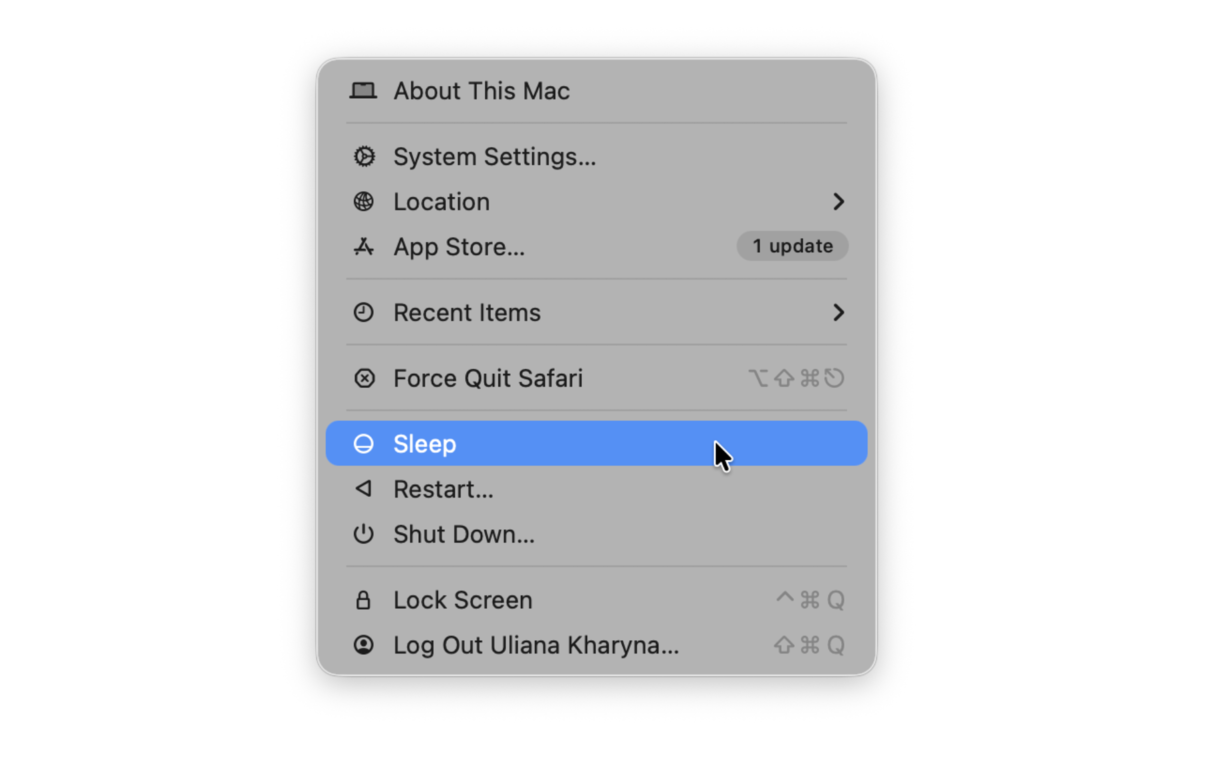
Phase 1: Quick Diagnosis (5 minutes)
# Step 1: Check current settings
pmset -g

# Step 2: Check what's preventing sleep
pmset -g assertions

# Step 3: Review recent wake events
pmset -g log | grep "Wake" | tail -10
Phase 2: Identify the Culprit (10 minutes)
-
Check Activity Monitor
- Energy tab → Sort by "Preventing Sleep"
- Note any apps showing "Yes"
- Quit suspicious apps
-
Disconnect Hardware
- Remove all USB devices
- Disconnect external displays
- Test if Mac sleeps normally
-
Review Schedule
pmset -g schedCancel any unwanted scheduled events
Phase 3: Apply Fixes (5 minutes)
For unwanted wake:
sudo pmset -a tcpkeepalive 0
sudo pmset -a womp 0
sudo pmset -a proximitywake 0
For battery drain:
sudo pmset -a standbydelayhigh 3600
sudo pmset -a standbydelaylow 1800
For apps preventing sleep:
- Quit identified apps
- Check their settings for background activity options
- Consider alternatives
Phase 4: Test and Verify (Overnight)
- Note battery percentage before sleep
- Let Mac sleep overnight
- Check battery percentage on wake
- Review logs:
pmset -g log | grep "Wake" | tail -20
Phase 5: Advanced Troubleshooting
If issues persist:
- Boot Safe Mode to isolate third-party software
- Reset SMC (Intel) or restart (Apple Silicon)
- Reset NVRAM (Intel Macs)
- Reinstall macOS as last resort
FAQ: Frequently Asked Questions
Q: How much battery drain during sleep is normal?
A: With optimal settings, expect 1% per 8 hours or less. Up to 5% overnight is acceptable with Power Nap enabled. More than 10% overnight indicates a problem.
Q: Why does my Mac wake up at 3 AM every night?
A: Usually caused by TCP Keep Alive checking for notifications every 2 hours. Fix with:
sudo pmset -a tcpkeepalive 0Q: Can I disable Power Nap on my M1/M2/M3/M4 Mac?
A: No. Apple Silicon Macs have Power Nap always enabled with no user toggle. You can reduce its impact with:
sudo pmset -a powernap 0But this may not be fully effective on all models.
Q: Why won't my external display wake up?
A: Common causes include:
- Display cable issues (try different cable)
- Display settings preventing wake
- macOS bug (try HDMI instead of DisplayPort)
- Display firmware needs update
Q: My MacBook won't sleep when I close the lid. Why?
A: Check for:
- External display connected (clamshell mode)
- Apps preventing sleep in Activity Monitor
- Amphetamine/Caffeine apps running
- System Settings → Lock Screen settings
Q: How do I completely disable sleep?
A:
sudo pmset -a disablesleep 1Re-enable with:
sudo pmset -a disablesleep 0Q: Is it bad to never let my Mac sleep?
A: For Apple Silicon Macs, it's generally fine due to excellent power management. For Intel Macs, regular sleep helps with thermal management. Desktop Macs can run continuously with proper ventilation.
Q: Why does my Mac kernel panic when waking from sleep?
A: Usually caused by:
- External display issues (especially HDMI on Apple Silicon)
- Third-party kernel extensions
- Hardware problems
Try disconnecting external displays and booting in Safe Mode to isolate the cause.
Conclusion
Mac sleep problems can be frustrating, but with proper diagnosis using pmset commands and Activity Monitor, most issues are resolvable within 30 minutes. The key is understanding your Mac's sleep modes, identifying what's preventing normal sleep behavior, and applying targeted fixes.
Key Takeaways:
- Use pmset -g assertions to identify sleep-blocking processes
- Disable tcpkeepalive for unwanted wake issues
- Adjust standbydelay settings for battery optimization
- Check Activity Monitor's Energy tab for problem apps
- Apple Silicon and Intel Macs require different approaches
For battery-related issues, see our comprehensive Battery Drain Fix Guide. For performance optimization, check our Performance Analysis Guide.
Still experiencing sleep issues? Visit our Troubleshooting Guide for additional solutions or check Apple's official support documentation.