Logi Options+ for Mac: Complete Setup, Customization & Troubleshooting Guide 2026
Master Logi Options+ on your Mac with this comprehensive guide. Learn setup, button customization, Smart Actions, gesture configuration, troubleshooting common issues, and the best alternatives for Logitech peripherals on macOS Tahoe.
Logi Options+ is Logitech's next-generation software for customizing mice and keyboards on Mac. Following the January 2026 certificate expiration incident that left millions of users with non-functional devices, understanding proper setup, configuration, and troubleshooting is more important than ever. This guide covers everything you need to know about Logi Options+ on macOS Tahoe.
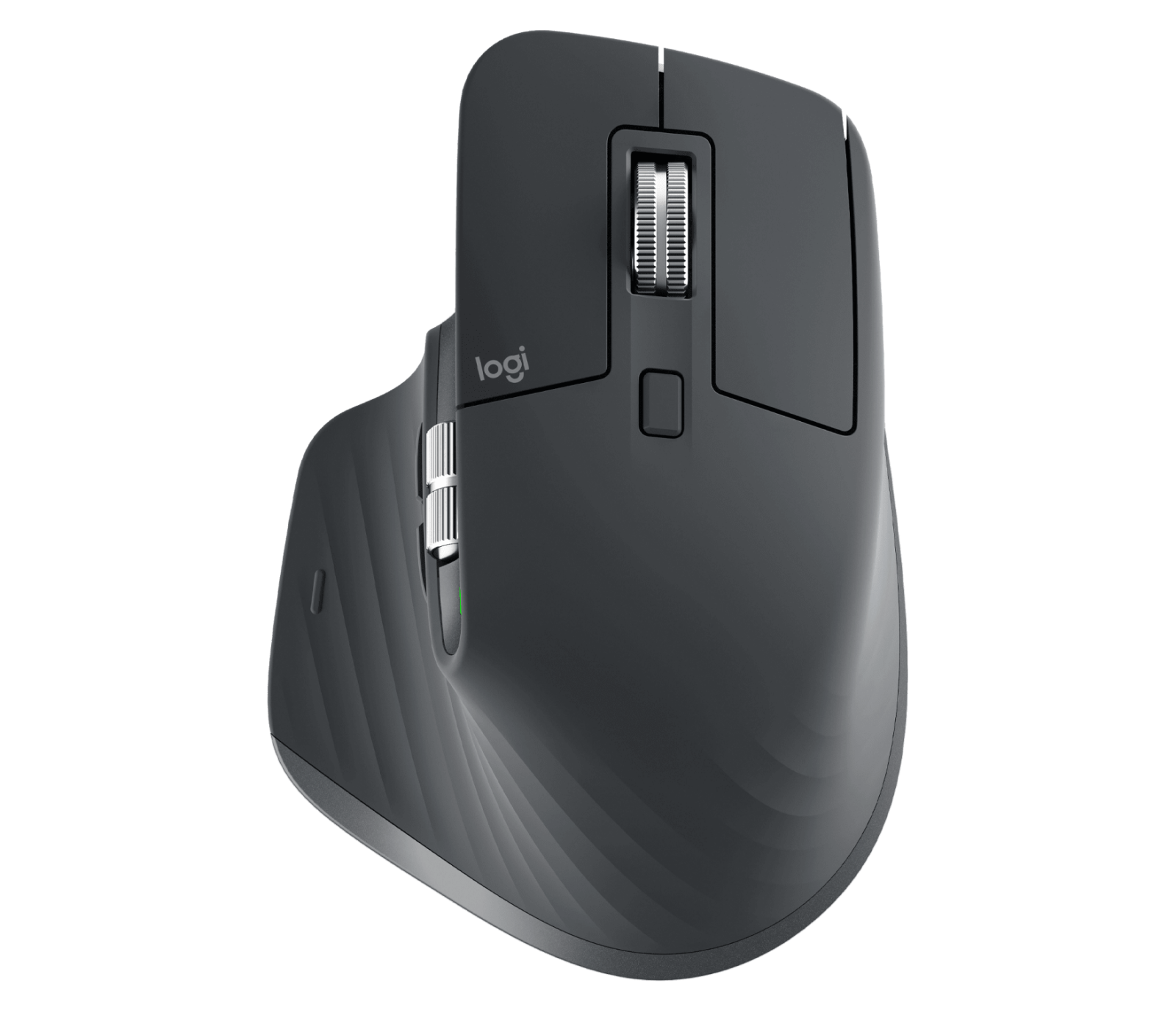
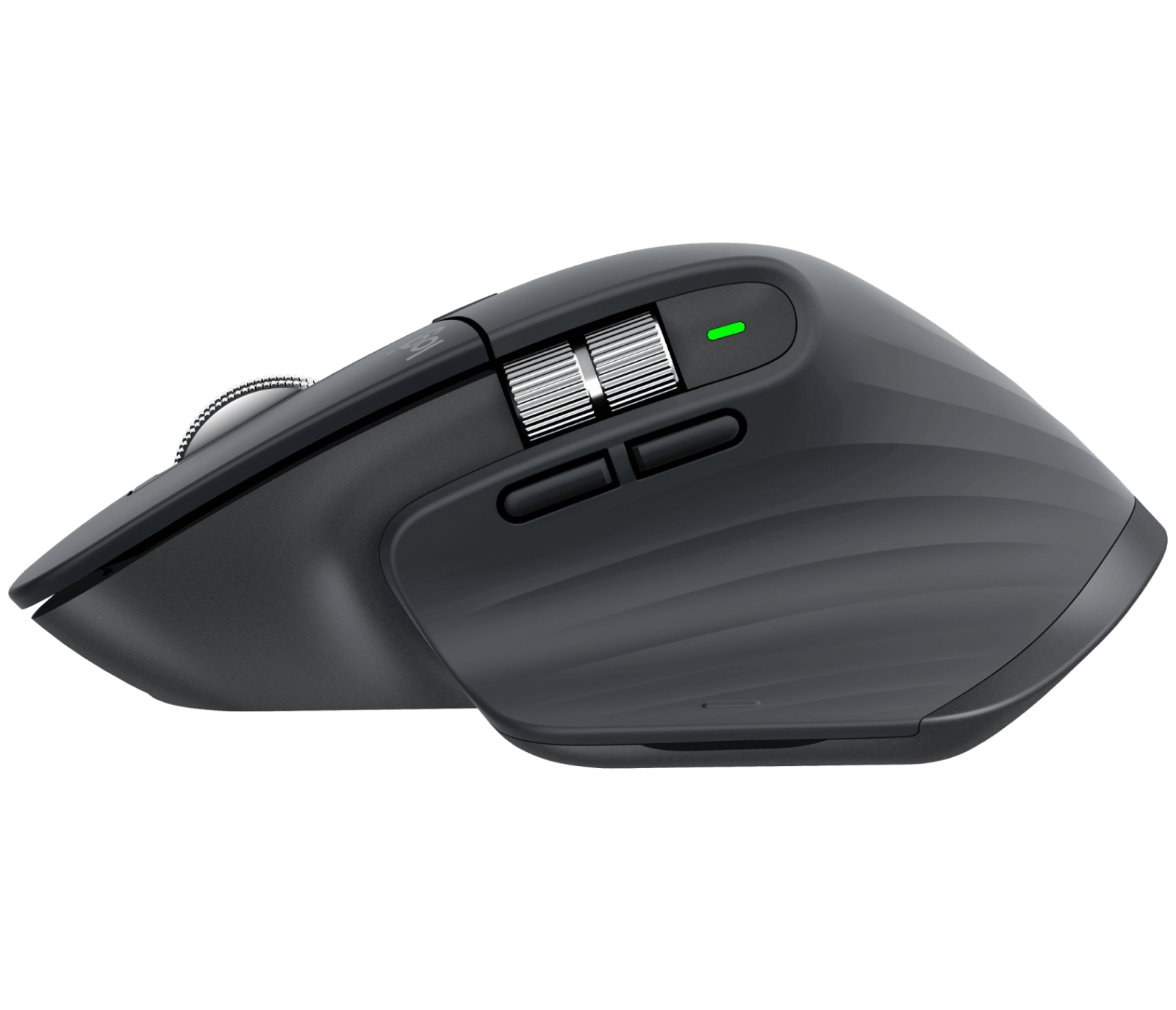
The MX Master 3S is Logitech's flagship productivity mouse, fully customizable with Logi Options+.
What is Logi Options+?
Logi Options+ is Logitech's modern customization software that replaced the legacy Logitech Options app. It provides:
- Button and key customization
- Gesture configuration for MX mice
- Smart Actions (macro automation)
- App-specific profiles
- Firmware updates
- Device management across multiple peripherals
- Flow for multi-computer workflows
Supported Devices
Mice:
- MX Master 3S, MX Master 3, MX Master 2S
- MX Anywhere 3S, MX Anywhere 3, MX Anywhere 2S
- MX Vertical
- MX Ergo, MX Ergo S
- Lift Vertical Ergonomic
- Signature M650
- M720 Triathlon
- Pebble Mouse 2
Keyboards:
- MX Keys S, MX Keys, MX Keys Mini
- MX Mechanical, MX Mechanical Mini
- Craft
- K780, K380
- Signature Slim K950
System Requirements
- macOS 13 Ventura or later (macOS Tahoe fully supported)
- 500MB disk space
- Internet connection for initial setup and updates
Installation and Setup
Fresh Installation
- Download Logi Options+: logitech.com/software/logi-options-plus
- Open the downloaded
.dmgfile - Drag Logi Options+ to Applications
- Launch the app
- Grant permissions when prompted:
- Accessibility
- Input Monitoring
- Automation (optional)
Granting Required Permissions
Logi Options+ needs specific permissions to function:
Accessibility Permission:
- System Settings > Privacy & Security > Accessibility
- Click the lock to make changes
- Enable Logi Options+ and Logi Options Daemon
Input Monitoring:
- System Settings > Privacy & Security > Input Monitoring
- Enable Logi Options+ and Logi Options Daemon
Note: If you don't see the daemon listed, you may need to manually add it:
- Click "+"
- Navigate to
/Library/Application Support/Logitech.localized/LogiOptionsPlus/ - Add the LogiOptions daemon app
Connecting Your Device
Via Logi Bolt Receiver:
- Plug Bolt receiver into USB port
- Turn on your device
- Logi Options+ should detect automatically
- If not, click "Add Device" and follow pairing instructions
Via Bluetooth:
- Enable Bluetooth on your Mac
- Put device in pairing mode (usually hold connection button)
- System Settings > Bluetooth > Connect
- Device appears in Logi Options+
Troubleshooting Connection:
- Try different USB port (avoid hubs for initial setup)
- Ensure device is charged
- Remove and re-pair if needed
- Update firmware through Options+
Customizing Your Mouse
Button Configuration
- Open Logi Options+
- Select your mouse
- Click on any button in the visual diagram
Available Actions:
| Action | Description |
|---|---|
| Middle Button | Default scroll click |
| Back/Forward | Browser navigation |
| Gesture Button | Enable gesture mode |
| Copy/Paste | Quick clipboard actions |
| Screenshot | Trigger Mac screenshot |
| Mission Control | Show all windows |
| App Exposé | Show app windows |
| Desktop | Show desktop |
| Volume/Media | Media controls |
| Scroll Left/Right | Horizontal scroll |
| Keystroke | Custom key combination |
| Smart Action | Run automated workflow |
| Do Nothing | Disable button |
Gesture Configuration (MX Mice)
MX mice support gesture mode—hold the gesture button and move mouse:
Default Gestures:
- Gesture + Up: Mission Control
- Gesture + Down: App Exposé
- Gesture + Left: Move space left
- Gesture + Right: Move space right
Customizing Gestures:
- Click on the gesture button
- Select "Gestures"
- Configure each direction independently
Scroll Wheel Settings
Adjustable Parameters:
- Scroll direction: Natural or traditional
- Smooth scrolling: Enable/disable
- Scroll speed: Adjust sensitivity
- SmartShift: Automatic free-spin threshold
SmartShift (MX Master Series): SmartShift automatically switches between ratchet and free-spin scrolling based on scroll speed.
- Click the scroll wheel in Options+
- Adjust SmartShift sensitivity
- Higher values = easier to trigger free-spin
Pointer Settings
Adjustable Parameters:
- Pointer speed: 1-100%
- Acceleration: Enable/disable
Recommendation: For precise work, consider disabling acceleration and using a moderate pointer speed.
Customizing Your Keyboard
Key Remapping
- Select your keyboard in Options+
- Click on any function key (F1-F12)
- Assign new action
Popular Remaps:
| Original Key | Useful Remap |
|---|---|
| F5 | Dictation |
| F6 | Do Not Disturb |
| F7-F9 | Media controls |
| F10-F12 | Volume controls |
Creating Custom Shortcuts
For keys that support it:
- Click key in Options+
- Select "Keystroke"
- Enter key combination (e.g., ⌘⇧V for paste without formatting)
Backlighting Settings
For backlit keyboards (MX Keys series):
- Select keyboard
- Go to Settings (gear icon)
- Adjust:
- Auto-brightness
- Manual brightness level
- Timeout duration
Smart Actions (Advanced Automation)
What Are Smart Actions?
Smart Actions are automated workflows triggered by button press. They can:
- Open apps
- Type text
- Control media
- Chain multiple actions
- Run AppleScripts
Creating a Smart Action
Example: Meeting Mode
- Click button to customize
- Select "Smart Actions"
- Click "Create Smart Action"
- Name it "Meeting Mode"
- Add steps:
- Open Zoom
- Enable Do Not Disturb
- Set volume to 50%
- Save and assign to button
Smart Action Examples
Quick Email Signature:
- Create Smart Action
- Add "Type Text" action
- Enter your signature
- Assign to button
Screenshot and Annotate:
- Create Smart Action
- Add "Screenshot" action
- Add "Open in Preview" action
- Assign to gesture
Development Setup:
- Create Smart Action
- Open VS Code
- Open Terminal
- Open browser to localhost
App-Specific Profiles
How App Profiles Work
Logi Options+ automatically switches button configurations when you switch apps.
Default App Support:
- Safari, Chrome, Firefox, Edge
- Microsoft Office (Word, Excel, PowerPoint)
- Adobe Creative Cloud (Photoshop, Premiere, Illustrator)
- Final Cut Pro, DaVinci Resolve
- Zoom, Microsoft Teams
- VS Code
- Figma
Creating Custom App Profiles
- Open Options+
- Click "All Applications" dropdown
- Click "Add application"
- Select app from list or browse
- Configure buttons specifically for that app
Profile Examples
Photoshop Profile:
| Button | Action |
|---|---|
| Side Forward | Brush Size + |
| Side Back | Brush Size - |
| Gesture Up | Fit Screen |
| Gesture Down | Actual Pixels |
| Middle Click | Hand Tool (temporary) |
Excel Profile:
| Button | Action |
|---|---|
| Side Forward | Next Sheet |
| Side Back | Previous Sheet |
| Scroll Tilt Left | Scroll Left |
| Scroll Tilt Right | Scroll Right |
Logitech Flow (Multi-Computer)
What is Flow?
Flow lets you use one mouse and keyboard across multiple computers, with seamless cursor movement and copy-paste.
Setting Up Flow
Requirements:
- Logi Options+ on all computers
- Same network (or Bluetooth range)
- Same Logitech account signed in
Setup:
- Open Options+ on primary computer
- Go to Flow tab
- Click "Enable Flow"
- Repeat on secondary computer
- Devices should discover each other
Flow Troubleshooting
Computers Not Connecting:
- Ensure both on same network
- Disable VPN temporarily
- Check firewall settings
- Restart Flow on both computers
Copy-Paste Not Working:
- Enable "Copy/Paste" in Flow settings
- Check file size (large files may timeout)
- Ensure both computers have Flow enabled
Troubleshooting Common Issues
Logi Options+ Won't Launch
Solution 1: Reset Permissions
- System Settings > Privacy & Security
- Remove Logi Options+ from Accessibility
- Remove from Input Monitoring
- Restart Mac
- Re-add permissions
Solution 2: Clean Reinstall
# Remove Logi Options+
rm -rf /Applications/Logi\ Options+.app
rm -rf ~/Library/Application\ Support/Logitech/LogiOptionsPlus
rm -rf ~/Library/Preferences/com.logitech.manager.*.plist
rm -rf /Library/Application\ Support/Logitech.localized/LogiOptionsPlus

# Reinstall from logitech.com
Certificate Expired Issue (January 2026)
If you're experiencing issues from the January 2026 certificate expiration:
- Download the patch from Logitech Support
- Do NOT uninstall Options+ first (preserves settings)
- Run the patch installer
- Restart Mac
- Options+ should work again
Buttons Not Working
Solution 1: Check Permissions
- Verify Accessibility permission is granted
- Verify Input Monitoring permission is granted
Solution 2: Re-pair Device
- Remove device from Options+
- Remove from Bluetooth (if connected via BT)
- Re-pair from scratch
Solution 3: Reset to Defaults In Options+, click gear icon > Reset to Defaults
High CPU Usage
Logi Options+ has known CPU issues. Solutions:
Solution 1: Update to Latest Version Check for updates within the app
Solution 2: Restart the Daemon
# Kill and restart Logi processes
pkill -f "LogiOptions"
# Then reopen Options+
Solution 3: Disable Unused Features
- Turn off Flow if not using
- Disable app-specific profiles not needed
Gestures Not Working
- Verify gesture button is configured
- Check that gesture isn't disabled for current app
- Try disabling and re-enabling gestures
- Reset mouse to factory defaults in Options+
Bluetooth Lag
Common Causes and Fixes:
- WiFi interference: Use 5GHz WiFi instead of 2.4GHz
- Too many Bluetooth devices: Disconnect unused devices
- Distance: Move closer to Mac or use Bolt receiver
Recommendation: For best performance, use the Logi Bolt receiver instead of Bluetooth.
Logi Bolt vs Unifying Receiver
| Feature | Logi Bolt | Unifying |
|---|---|---|
| Technology | Bluetooth Low Energy | Proprietary 2.4GHz |
| Security | Encrypted | Vulnerable to MouseJack |
| Latency | Very low | Low |
| Range | 10m | 10m |
| Devices per receiver | 6 | 6 |
| macOS Compatibility | Excellent | Good |
| New Devices Support | Yes | Legacy only |
Recommendation: Use Bolt for new purchases. Bolt offers better security and Mac compatibility.
Alternatives to Logi Options+
If you're frustrated with Logi Options+, consider these alternatives:
BetterMouse ($4.99)
Features:
- Button remapping
- Smooth scrolling
- Gesture support
- Much lighter than Options+
Best For: Users wanting simple customization without bloat
SteerMouse ($19.99)
Features:
- Comprehensive button mapping
- Cursor speed control
- Chording (multiple buttons)
- Excellent support history
Best For: Power users needing advanced customization
LinearMouse (Free)
Features:
- Pointer speed control
- Scroll customization
- Open source
Limitations: No gesture support for Logitech-specific features
Mac Mouse Fix ($2.99)
Features:
- Smooth scrolling
- Button remapping
- Lightweight
Best For: Basic customization needs
When to Use Alternatives
Consider alternatives if:
- You only need basic button remapping
- Options+ causes performance issues
- You want lower resource usage
- Smart Actions and Flow aren't needed
Keep Options+ if you need:
- Smart Actions automation
- Flow multi-computer support
- App-specific profiles
- Firmware updates
Settings Backup and Sync
Backing Up Configuration
Logi Options+ syncs settings via Logitech account, but for local backup:
Export Settings:
cp -r ~/Library/Application\ Support/Logitech/LogiOptionsPlus ~/Desktop/LogiOptions_BackupImport Settings:
cp -r ~/Desktop/LogiOptions_Backup/* ~/Library/Application\ Support/Logitech/LogiOptionsPlus/Cloud Sync
- Sign into Logitech account in Options+
- Settings automatically sync across devices
- New computer setup pulls your configuration
Conclusion
Logi Options+ is powerful software that unlocks the full potential of Logitech peripherals on Mac. While it has had stability issues—including the notable January 2026 certificate debacle—proper setup and understanding of troubleshooting steps makes it a valuable tool.
Key Takeaways:
- Permissions are crucial: Grant Accessibility and Input Monitoring properly
- Bolt receiver recommended: Better than Bluetooth for stability
- App profiles are powerful: Set up different configurations per app
- Smart Actions save time: Automate repetitive tasks
- Alternatives exist: BetterMouse or SteerMouse if Options+ frustrates you
- Keep updated: Check for updates regularly to avoid issues
With proper configuration, Logitech peripherals become incredibly productive tools that adapt to your workflow across any application.
Related Articles: