Logitech Mac Certificate Expired: Complete Fix Guide for MX Master 3S, Options+ App, and All Logitech Peripherals Not Working in 2026
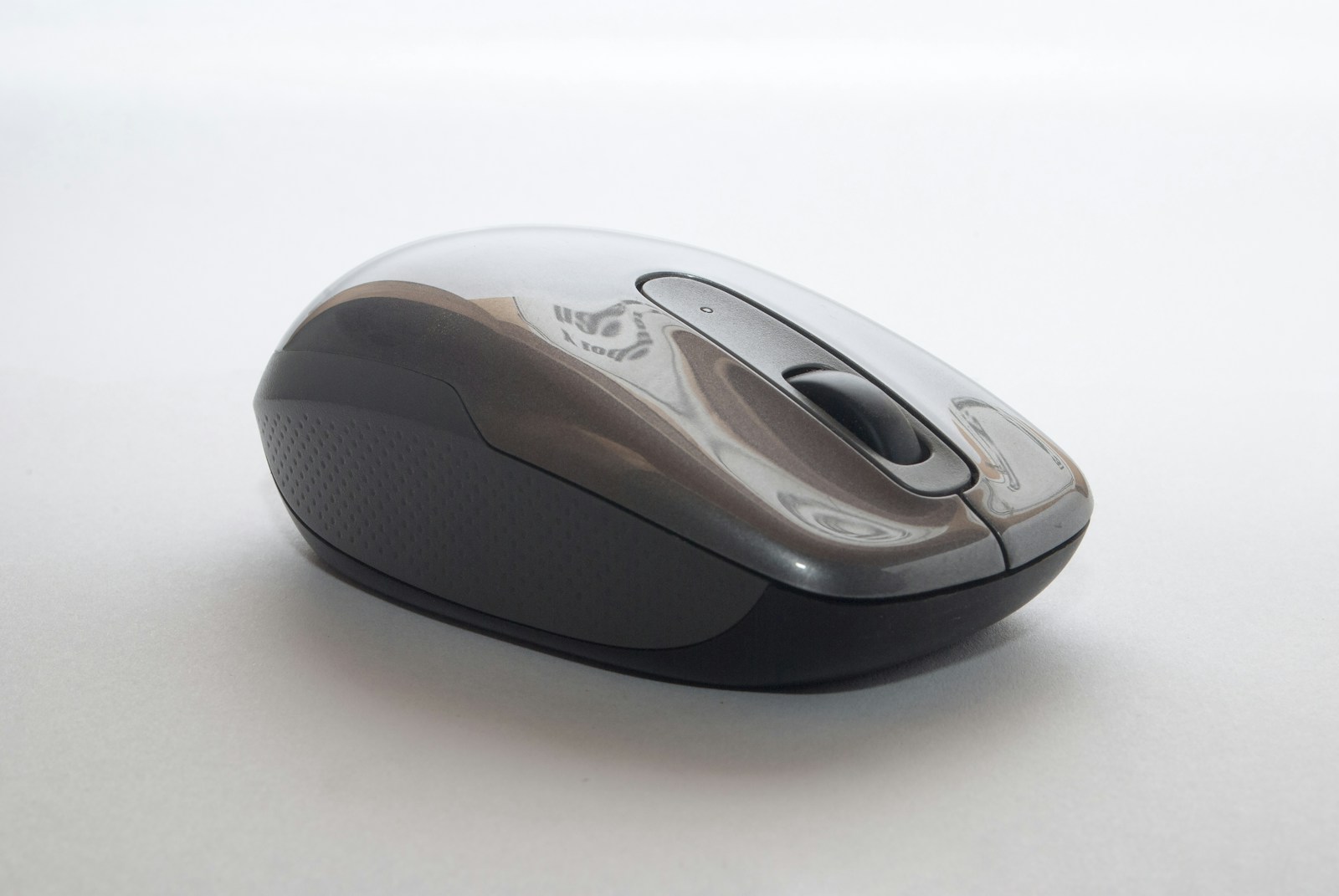
Fix Logitech devices not working on Mac after January 2026 certificate expiry. Complete troubleshooting guide for MX Master 3S, MX Anywhere, MX Keys, and Logi Options+ app crashes with step-by-step solutions.
In early January 2026, thousands of Mac users suddenly found their Logitech mice, keyboards, and webcams malfunctioning. The culprit? Logitech's Apple Developer Certificate expired, breaking the Logi Options+ app and causing widespread peripheral failures. This comprehensive guide covers the issue, all available fixes, and how to restore full functionality to your Logitech devices.
The Problem: What Happened to Logitech Devices on Mac
Certificate Expiration Explained
On January 6, 2026, Logitech's Apple Developer signing certificate expired, causing:
- Logi Options+ app to crash on launch or get stuck in a boot loop
- Advanced features to stop working (custom buttons, gesture controls, scroll settings)
- Scroll direction randomly changing between natural and inverted
- Side buttons and programmable keys becoming unresponsive
- Per-app settings no longer applying correctly
Logitech's Official Statement
A Logitech spokesperson acknowledged the issue on Reddit:
"We dropped the ball here. This is an inexcusable mistake. We sincerely apologize for the inconvenience this has caused our customers."
Affected Devices
Mice:
| Device | Affected Features |
|---|---|
| MX Master 3S | Gesture button, thumb wheel, side buttons, per-app settings |
| MX Master 3 | All programmable buttons, horizontal scroll |
| MX Anywhere 3S | Side buttons, gesture controls |
| MX Anywhere 3 | Custom button mappings |
| MX Vertical | Programmable buttons |
| MX Ergo | Trackball settings, buttons |
| M720 Triathlon | Multi-device switching, buttons |
Keyboards:
| Device | Affected Features |
|---|---|
| MX Keys S | Function key customization, backlighting control |
| MX Keys | Per-app shortcuts, media controls |
| MX Keys Mini | Custom key mappings |
| MX Mechanical | RGB customization, macro keys |
| K380 | Device switching via keyboard |
| Craft | Crown wheel functions |
Webcams and Other Devices:
- Logitech C920, C922, C930e (video settings)
- StreamCam (camera controls)
- Brio 4K (HDR and zoom controls)
- Logitech Spotlight presentation remote
Symptoms of the Certificate Issue
1. Logi Options+ App Crashes:
Error: "Logi Options+" is damaged and can't be opened.or
Error: You should move it to the Trash.2. Boot Loop: The app opens briefly, then crashes repeatedly, sometimes consuming high CPU.
3. Random Setting Changes:
- Scroll direction flipping unexpectedly
- Pointer speed resetting to default
- Custom button mappings disappearing
4. Device Not Recognized: Logitech devices appear in Bluetooth settings but Options+ doesn't detect them.

Solution 1: Update Logi Options+ (Recommended)
Official Fix from Logitech
Logitech has released an updated version of Logi Options+ with a renewed certificate:
Latest Version: Logi Options+ 1.72 or later (released January 10, 2026)
How to Update
If Options+ Opens (Even Briefly):
- Open Logi Options+
- Click your profile icon in the top-right corner
- Select Check for Updates
- Install the latest version
- Restart your Mac after installation
If Options+ Won't Open:
-
Download the latest version directly from Logitech:
- Visit logitech.com/software/logi-options-plus
- Click Download for macOS
-
Before installing, completely remove the old version:
# Close any running Logitech processes
killall "Logi Options+" 2>/dev/null
killall "Logi Options Daemon" 2>/dev/null
killall "LogiMgr" 2>/dev/null

# Remove the application
sudo rm -rf "/Applications/Logi Options+.app"

# Remove supporting files
rm -rf ~/Library/Application\ Support/Logitech
rm -rf ~/Library/Preferences/com.logitech.*
rm -rf ~/Library/Caches/com.logitech.*
rm -rf ~/Library/LaunchAgents/com.logitech.*-
Restart your Mac
-
Install the downloaded Logi Options+ package
-
Open the app and re-pair your devices
Verify Certificate Status
After updating, verify the new certificate:
# Check code signature of Logi Options+
codesign -dv --verbose=4 "/Applications/Logi Options+.app" 2>&1 | grep "Authority"
You should see output indicating a valid Apple Developer certificate with a future expiration date.
Solution 2: Manual Certificate Bypass (Temporary)
If you need immediate functionality while waiting for the update:
Allow Unsigned Apps Temporarily
Warning: This reduces system security. Only use as a temporary measure.
- Open System Settings > Privacy & Security
- Scroll to Security section
- For Allow applications downloaded from: Select App Store and identified developers
- If Logi Options+ still won't open:
- Right-click (Control-click) on Logi Options+ in Applications
- Select Open
- Click Open in the security dialog
Using xattr to Remove Quarantine
# Remove quarantine attribute from Logi Options+
sudo xattr -rd com.apple.quarantine "/Applications/Logi Options+.app"

# Also clear extended attributes
sudo xattr -cr "/Applications/Logi Options+.app"
Restart the app after running these commands.
Solution 3: Use Older Logitech Options (Legacy)
Reverting to Logitech Options (Not Options+)
Some users report that the older "Logitech Options" app (not Options+) may still work:
Note: The legacy app lacks many features of Options+ and may not support newer devices.
- Uninstall Logi Options+ completely (see commands in Solution 1)
- Download Logitech Options from the Logitech support archive
- Install and configure your devices
Limitations:
- No cloud sync of settings
- Limited gesture support
- May not recognize newest hardware
- No Flow feature between computers
Solution 4: Alternative Software Options
SteerMouse (Recommended Alternative)
SteerMouse is a third-party mouse customization tool that works with Logitech devices:
Features:
- Custom button assignments
- Scroll speed and acceleration control
- Per-application settings
- Works without Logitech software
Price: $19.99 (one-time purchase) Website: plentycom.jp/steermouse
USB Overdrive
USB Overdrive provides button customization for USB and Bluetooth devices:
Features:
- Button remapping
- Scroll acceleration
- Works with any HID-compliant device
Price: $20 (one-time purchase) Website: usboverdrive.com
BetterMouse
BetterMouse offers native-feeling mouse acceleration for third-party mice:
Features:
- Natural scroll acceleration matching Apple mice
- Button customization
- Scroll speed adjustment
Price: Free / $4.99 for pro features Website: Better Mouse
Karabiner-Elements
For keyboard customization when MX Keys isn't working:
Features:
- Complete key remapping
- Complex modifications
- Per-device configurations
- Free and open-source
Website: karabiner-elements.pqrs.org

Solution 5: macOS Native Settings
Using Your Logitech Device Without Options+
Even without Logi Options+, your Logitech devices maintain basic functionality. You can configure essential settings through macOS:
Mouse Settings
System Settings > Mouse:
| Setting | Location |
|---|---|
| Tracking Speed | Mouse > Tracking speed slider |
| Natural Scrolling | Mouse > Natural scrolling toggle |
| Secondary Click | Mouse > Secondary click |
| Double-Click Speed | Accessibility > Pointer Control |
Keyboard Settings
System Settings > Keyboard:
| Setting | Location |
|---|---|
| Key Repeat | Keyboard > Key repeat rate |
| Delay Until Repeat | Keyboard > Delay until repeat |
| Modifier Keys | Keyboard > Keyboard Shortcuts > Modifier Keys |
| Function Keys | Keyboard > Keyboard Shortcuts > Function Keys |
Scroll Direction Fix
If your scroll direction keeps inverting:
# Check current scroll setting
defaults read -g com.apple.swipescrolldirection

# Force natural scrolling on
defaults write -g com.apple.swipescrolldirection -bool true

# Force natural scrolling off (traditional)
defaults write -g com.apple.swipescrolldirection -bool false

# Log out and back in to apply
Troubleshooting Persistent Issues
Issue: Device Pairs But Doesn't Work Properly
Solution:
- Forget the device in Bluetooth settings
- Turn off the Logitech device
- Reset the device (hold power button for 10 seconds on most devices)
- Put the device in pairing mode
- Re-pair through System Settings > Bluetooth
Issue: Multiple Logitech Processes Consuming CPU
Solution:
# Kill all Logitech background processes
pkill -f "Logitech"
pkill -f "LogiMgr"
pkill -f "Options"

# Check for remaining processes
ps aux | grep -i logitech

# Remove launch agents
launchctl unload ~/Library/LaunchAgents/com.logitech.* 2>/dev/null
rm -f ~/Library/LaunchAgents/com.logitech.*
Issue: Options+ Detected Malware Warning
Some security software may flag the expired certificate:
Solution:
- Update to the latest Logi Options+ (fixes certificate)
- Temporarily disable your security software during installation
- Add Logi Options+ to your security software's allowed list
- Re-enable security software
Issue: USB Receiver Not Working
For devices using Logitech Unifying or Bolt receivers:
- Unplug the USB receiver
- Restart your Mac
- Plug the receiver into a different USB port
- Wait 30 seconds for driver installation
- Try pairing again
Preventing Future Certificate Issues
Why This Happened
Developer certificates have expiration dates (typically 1-5 years) for security reasons. Companies must renew certificates before expiration to prevent exactly this scenario. Logitech failed to renew their certificate on time.
How to Protect Yourself
- Keep Software Updated: Enable automatic updates in Logi Options+
- Have Backup Settings: Export your settings regularly
- Know Alternative Software: Familiarize yourself with SteerMouse or similar tools
- Monitor Logitech Communications: Follow @LogitechSupport on Twitter/X
Logitech's Response and Prevention
Logitech has stated they are implementing:
- Automated certificate renewal monitoring
- Earlier warning systems for upcoming expirations
- Improved testing of certificate-dependent features
Complete Uninstall and Reinstall Procedure
If nothing else works, perform a complete removal and reinstallation:
Step 1: Backup Your Settings
# Export current settings (if Options+ opens)
# Go to Options+ > Settings > Backup & Restore > Create Backup
Step 2: Complete Removal
# Stop all processes
killall "Logi Options+" 2>/dev/null
killall "Logi Options Daemon" 2>/dev/null
killall "LogiMgr Daemon" 2>/dev/null

# Remove application
sudo rm -rf "/Applications/Logi Options+.app"
sudo rm -rf "/Applications/Logi Options.app"
sudo rm -rf "/Applications/Logitech Options.app"

# Remove user preferences and caches
rm -rf ~/Library/Application\ Support/Logitech
rm -rf ~/Library/Application\ Support/Logi
rm -rf ~/Library/Preferences/com.logitech.*
rm -rf ~/Library/Preferences/com.logi.*
rm -rf ~/Library/Caches/com.logitech.*
rm -rf ~/Library/Caches/com.logi.*

# Remove launch agents
rm -f ~/Library/LaunchAgents/com.logitech.*
rm -f ~/Library/LaunchAgents/com.logi.*

# Remove system-level components
sudo rm -rf /Library/Application\ Support/Logitech*
sudo rm -rf /Library/Preferences/com.logitech.*
sudo rm -f /Library/LaunchDaemons/com.logitech.*

# Clear kernel extension cache (Intel Macs only)
sudo kextcache -i /
Step 3: Restart and Reinstall
- Restart your Mac
- Download the latest Logi Options+ from logitech.com
- Install the fresh copy
- Re-pair your devices
- Restore settings from backup (if available)
FAQ: Common Questions About This Issue
Will this affect my device warranty?
No. This is a software issue caused by Logitech, not hardware damage. Your warranty remains intact.
Do I need to return my Logitech device?
No. The devices themselves are fine. This is purely a software/certificate issue.
Is this a security risk?
The expired certificate itself isn't a security risk. However, disabling Gatekeeper or allowing unsigned apps (as some workarounds suggest) does reduce security. Use the official updated app whenever possible.
Will this happen again?
It shouldn't. Logitech has stated they're implementing systems to prevent certificate expiration issues in the future.
Are Windows users affected?
No. This issue only affects macOS due to Apple's code signing requirements.
My device is working fine without Options+. Do I need to fix this?
If basic functionality is sufficient, you can continue using the device without Options+. However, you'll miss advanced features like:
- Custom button assignments
- Gesture controls
- Per-app settings
- Logitech Flow
- DPI switching
Conclusion: Logitech Certificate Issue Resolution
The Logitech certificate expiration incident of January 2026 caused widespread frustration among Mac users. However, Logitech responded relatively quickly with an updated application. For most users, simply downloading and installing the latest version of Logi Options+ resolves all issues.
Quick Reference: Fix Priority
| Method | Difficulty | Effectiveness | Time Required |
|---|---|---|---|
| Update Logi Options+ | Easy | Excellent | 5 minutes |
| Remove quarantine attribute | Medium | Good | 2 minutes |
| Use alternative software | Medium | Very Good | 15 minutes |
| macOS native settings | Easy | Limited | 5 minutes |
| Complete reinstall | Hard | Excellent | 30 minutes |
Key Takeaways
- Update First: Always try updating to the latest Logi Options+ before other solutions
- Complete Removal: If updating doesn't work, completely remove the old version first
- Alternatives Exist: SteerMouse and other tools provide excellent functionality
- Native Settings Work: Basic mouse/keyboard functions work without any Logitech software
For ongoing issues, contact Logitech Support or visit the Logitech community forums where users actively share solutions.
Experiencing other peripheral issues on macOS? Check our macOS Tahoe Bluetooth Troubleshooting Guide for comprehensive connectivity solutions.