macOS Tahoe Widgets & Customization Complete Guide 2025: Liquid Glass Design, Interactive Widgets, and Advanced Personalization

Master macOS Tahoe 26 widgets with our comprehensive guide covering Liquid Glass design, 4 widget styles (Light/Dark/Tinted/Clear), interactive functionality, third-party recommendations, advanced customization techniques, performance optimization, and troubleshooting for maximum productivity.
macOS Tahoe 26 transforms Mac widgets from passive information displays into powerful, interactive tools that enhance productivity and enable unprecedented personalization. This comprehensive guide explores every aspect of the revolutionary widget system, from the stunning Liquid Glass design to advanced customization techniques that will transform your Mac experience.
Executive Summary: The Widget Revolution in macOS Tahoe 26
What's New in macOS Tahoe Widgets
macOS Tahoe 26, released on September 15, 2025, introduces the most significant widget enhancement in macOS history. For the first time, Mac widgets feature true interactivity matching iOS and iPadOS capabilities, combined with four distinct visual styles and the stunning Liquid Glass design language.
Revolutionary Features:
- Desktop Widget Liberation: Widgets live directly on your desktop, no longer confined to Notification Center
- True Interactivity: Check off reminders, control HomeKit, start Focus modes directly from widgets
- Liquid Glass Design: Translucent, glass-like appearance that reflects and refracts your background
- Four Customization Styles: Light, Dark, Tinted, and Clear for complete personalization
- Enhanced Control Center: Fully customizable with third-party app support and multiple pages
- Live Activities Integration: iPhone activities appear in Mac menu bar via Continuity
- Third-Party Ecosystem: Extensive support for WidgetKit-based third-party widgets
Performance Considerations:
- Increased memory usage (8GB minimum, 16GB+ recommended)
- Liquid Glass effects require GPU resources
- Apple Silicon Macs perform better than Intel systems
- macOS Tahoe 26 is the final release supporting Intel Macs
Who Benefits Most:
- Apple Silicon Mac users with 16GB+ RAM
- Users wanting iOS-like customization on Mac
- Professionals needing at-a-glance information
- Multi-device workflows requiring cross-platform continuity
Understanding the Liquid Glass Revolution
What Makes Liquid Glass Different
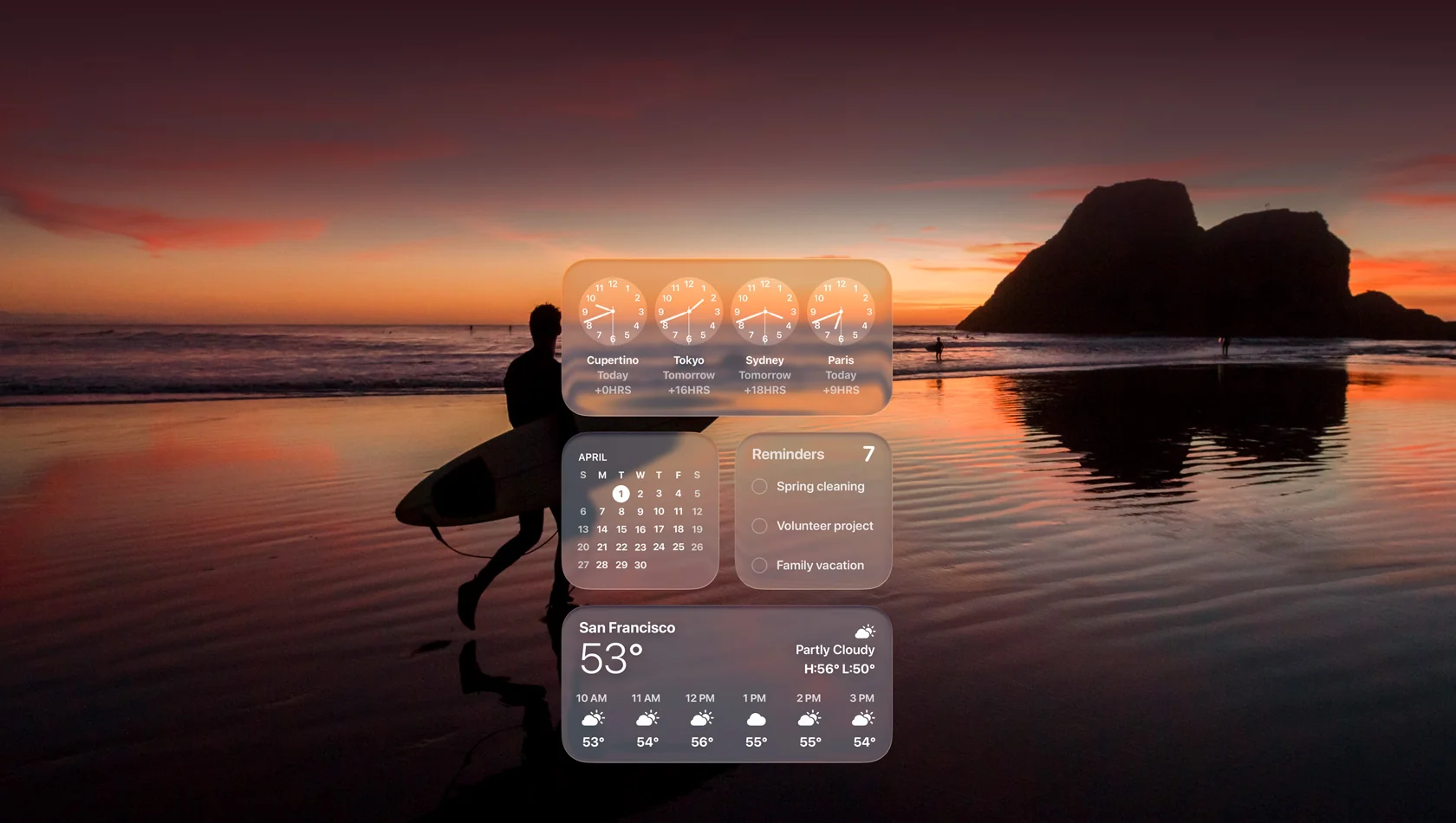
Liquid Glass represents Apple's most ambitious design evolution since the introduction of translucency in Mac OS X. Unlike traditional flat or skeuomorphic designs, Liquid Glass behaves like actual glass—reflecting light, refracting surroundings, and creating depth through multiple translucent layers.
Technical Implementation:
- Multi-Layered Construction: Dock, app icons, and widgets built from multiple Liquid Glass layers
- Real-Time Reflection: Dynamically transforms to bring focus to content
- Specular Highlights: Glass-like appearance with realistic light interaction
- Unified Design Language: Consistent across iOS 26, iPadOS 26, watchOS 26, and tvOS 26
Where Liquid Glass Appears:
- Desktop widgets
- Control Center panels
- Notification Center
- Dock and app icons
- System menus and toolbars
- Navigation bars and sidebars
Liquid Glass Performance Impact
Resource Requirements:
- GPU acceleration required for smooth effects
- Higher memory consumption than Sequoia widgets
- M4/M3 Macs: Negligible performance impact
- M2/M1 Macs: Minor impact during heavy multitasking
- Intel Macs: Noticeable performance overhead
Optimization Strategies:
- Enable "Reduce Transparency" in System Settings → Accessibility → Display
- Choose "Dark" style for less GPU usage than "Clear"
- Limit total widget count on older Macs
- Monitor Activity Monitor for WindowServer CPU usage
Widget Styles: Complete Customization Options
Accessing Widget Style Settings
Navigate to System Settings → Appearance → Icon & Widget Style to access all customization options.
Style #1: Default (Light)
Best For: Users preferring original app designs and maximum compatibility
Characteristics:
- Shows developer-intended icon colors with no theming
- Standard brightness and contrast
- Maintains traditional macOS aesthetic
- Most compatible with all widgets
- Lowest resource usage
When to Choose:
- You want apps to look exactly as developers designed them
- Maximum widget compatibility is priority
- Using many third-party apps with distinctive branding
- Older Mac with limited resources
Style #2: Dark
Best For: Reduced eye strain and low-light environments
Characteristics:
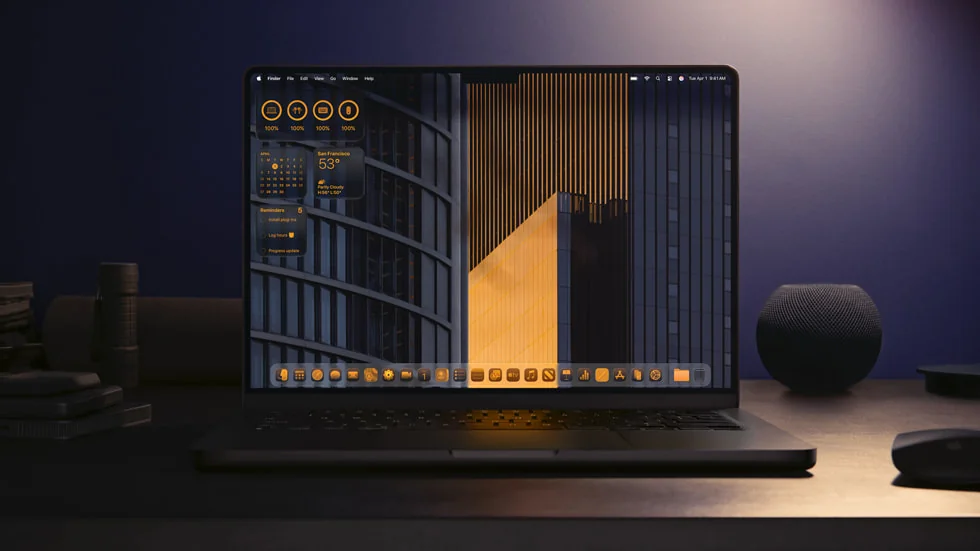
- Black backgrounds applied to icons and widgets throughout interface
- Works in both Light and Dark system modes
- Higher contrast in light mode
- Consistent dark appearance regardless of theme
- Includes System Settings sidebar icons
Practical Benefits:
- Reduces eye fatigue during extended use
- Better for OLED displays (battery savings)
- Professional, minimalist appearance
- Easier focus on content vs. interface
Trade-offs:
- May reduce readability in certain lighting conditions
- Some widgets may not fully support dark theming
- Requires adjustment period for long-time Mac users
Style #3: Clear (Liquid Glass Emphasis)
Best For: Showcasing Liquid Glass design and minimalist aesthetics
Characteristics:
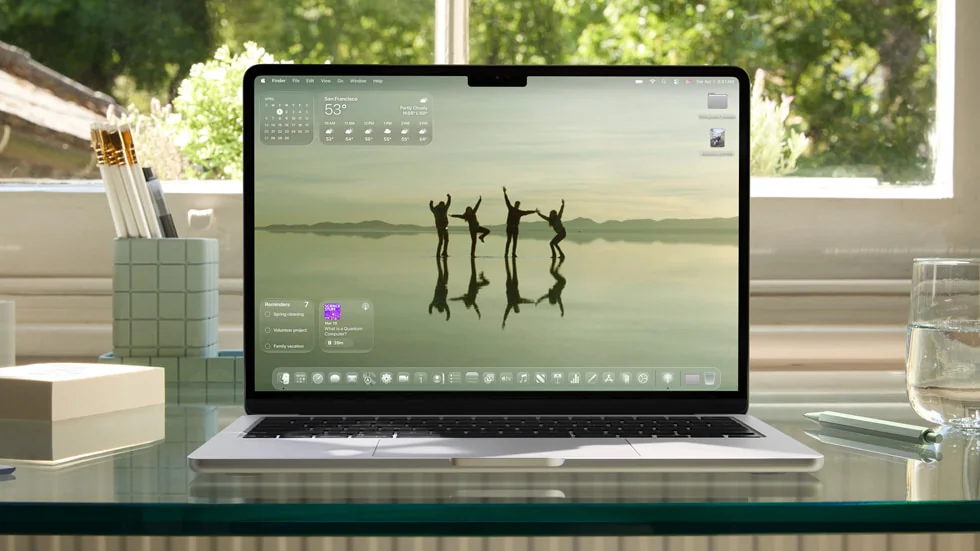
- Maximum transparency with background color pickup
- Reflects and refracts background and surroundings
- Creates translucent interface effects
- Adapts dynamically to wallpaper changes
- Available in Light and Dark variants
- Auto mode for automatic day/night switching
Technical Details:
- Foreground text automatically adjusts contrast for readability
- Changing wallpaper immediately updates widget appearance
- Etched glass appearance with specular highlights
- Most visually striking but potentially resource-intensive
Best Use Cases:
- MacBook Pro M4/M3 Max with powerful GPU
- Minimalist desktop setups
- Photography/design workflows where aesthetics matter
- Users wanting "wow factor" in presentations
Limitations:
- Highest GPU usage of all styles
- May reduce readability with busy wallpapers
- Not all widget elements affected equally
- Performance impact on older Macs
Style #4: Tinted
Best For: Complete color coordination and personal expression
Characteristics:
- Renders icons and widgets in monochrome using custom color
- Unified color scheme across entire interface
- Setting becomes "Icon, widget & folder color" when selected
- Preset color options plus custom color picker
- Applies to icons, widgets, AND folders simultaneously
Color Options:
- System Colors: Blue, Purple, Pink, Red, Orange, Yellow, Green
- Neutral Tones: Various grayscale options
- Custom Colors: Unlimited hues via "Other" option in color picker
Professional Applications:
- Brand color matching for content creators
- Thematic workspace organization (blue for productivity, green for creativity)
- Accessibility enhancement with high-contrast custom tints
- Matching company/institution color schemes
Customization Tips:
- Match tint to dominant wallpaper color for cohesion
- Use complementary colors for visual interest
- Maintain readability with automatic contrast adjustment
- Test different lighting conditions before finalizing
Desktop Widgets: Setup and Management
Adding Widgets to Desktop
Method 1: Right-Click on Wallpaper
- Control-click (right-click) desktop wallpaper
- Select "Edit Widgets" from context menu
- Browse widget gallery or search for specific widget
- Click widget or "Add" button for automatic positioning
- Drag widget to manually position anywhere on desktop
Method 2: From Notification Center
- Click date/time in top-right corner to open Notification Center
- Click "Add Widgets" at bottom
- Select widgets from gallery
- Drag from Notification Center to desktop for persistent visibility
Default Widgets on Fresh Install: macOS Tahoe automatically adds three widgets in upper-left corner:
- Calendar: Upcoming events and appointments
- Weather: Current conditions and forecast
- Photos: Memories and featured photos
Removing Default Widgets:
- Control-click the widget
- Select "Remove Widget" from menu
- Repeat for unwanted widgets
- Note: Toggling off in Settings doesn't reclaim desktop space—widgets must be manually removed
Widget Management Best Practices
Strategic Placement:
- Keep frequently accessed widgets in consistent locations (muscle memory)
- Use corners for primary widgets (Calendar, Weather, System Monitor)
- Group related widgets together (all productivity tools in one area)
- Preserve desktop center for active work windows
- Utilize multiple displays for specialized widget sets
Desktop Organization:
- Maximum 5-10 widgets recommended for optimal performance
- Balance aesthetics with functionality
- Consider workflow patterns when positioning
- Test different arrangements before finalizing
Widget Sizing and Configuration
Available Sizes:
- Small: Compact information display
- Medium: Balanced detail and space usage
- Large: Maximum information density
Resizing Widgets:
- Right-click or Control-click widget
- Select size from menu (Small, Medium, Large)
- Note: Some widgets may not support all sizes
- Certain controls (like Timer) don't support size changes
Customizing Individual Widgets:
- Control-click widget
- Choose "Edit [widget name]"
- Change highlighted information, data source, or display options
- Apply changes
System Widgets: Complete Guide
Built-in Apple Widgets
macOS Tahoe includes comprehensive system widgets providing essential information and controls.
Calendar & Events
Available Views:
- Next event display with countdown
- Full day schedule
- Week overview
- Month view
Interactive Features:
- Tap event to open in Calendar app
- Create new events directly from widget
- Time-sensitive updates for imminent appointments
- Multiple calendar support
Best Practices:
- Use Large widget for full schedule visibility
- Medium widget ideal for next few events
- Small widget for simple next event display
Weather
Information Displayed:
- Current conditions with temperature
- Hourly forecast
- 10-day forecast (Large widget)
- Precipitation probability
- UV index and air quality
Customization:
- Multiple location support
- Automatic location switching
- Choose Fahrenheit or Celsius
- Display options for detail level
Practical Tips:
- Add Weather widget near Calendar for travel planning
- Large widget excellent for morning routine checks
- Enable location services for accurate local weather
Reminders
Revolutionary Interactivity:
- Check off items directly from widget
- No need to open Reminders app
- Supports multiple reminder lists
- Priority task highlighting
Workflow Integration:
- Essential for GTD (Getting Things Done) methodology
- Pair with Calendar widget for comprehensive task management
- Quick glance at day's to-dos
Home (HomeKit Control)
Direct Control Features:
- Toggle scenes with single tap
- Device status at a glance
- Interactive controls for accessories
- Room-based organization
Smart Home Integration:
- Control lights, thermostats, locks, cameras
- Automation status display
- Works with entire HomeKit ecosystem
- Siri Shortcuts integration
Focus & Timer
Productivity Features:
- Activate Focus modes without opening Settings
- Timer controls directly in widget
- Do Not Disturb quick access
- Focus session tracking
Professional Applications:
- Pomodoro Technique support
- Meeting focus activation
- Writing/coding deep work sessions
- Client work time tracking
Additional System Widgets
Clock:
- Oversized numeral displays
- World clock with multiple time zones
- Analog or digital formats
- Perfect for multi-time-zone work
Photos:
- Memory displays with automatic rotation
- Featured photo from library
- Album quick access
- Living wallpaper alternative
Notes:
- Recent notes display
- Quick note creation
- Pinned notes for important information
Stocks:
- Watchlist overview
- Real-time price updates
- Market summary
- Portfolio performance
Music/Podcasts:
- Now playing display
- Playback controls
- Album artwork
- Recently played access
Battery:
- Current battery percentage
- Connected device status (AirPods, Apple Watch, iPhone)
- Power usage by app
- Battery health metrics
Screen Time:
- Daily usage summary
- Most used apps
- Downtime tracking
- App limit reminders
Control Center Revolution
Enhanced Customization
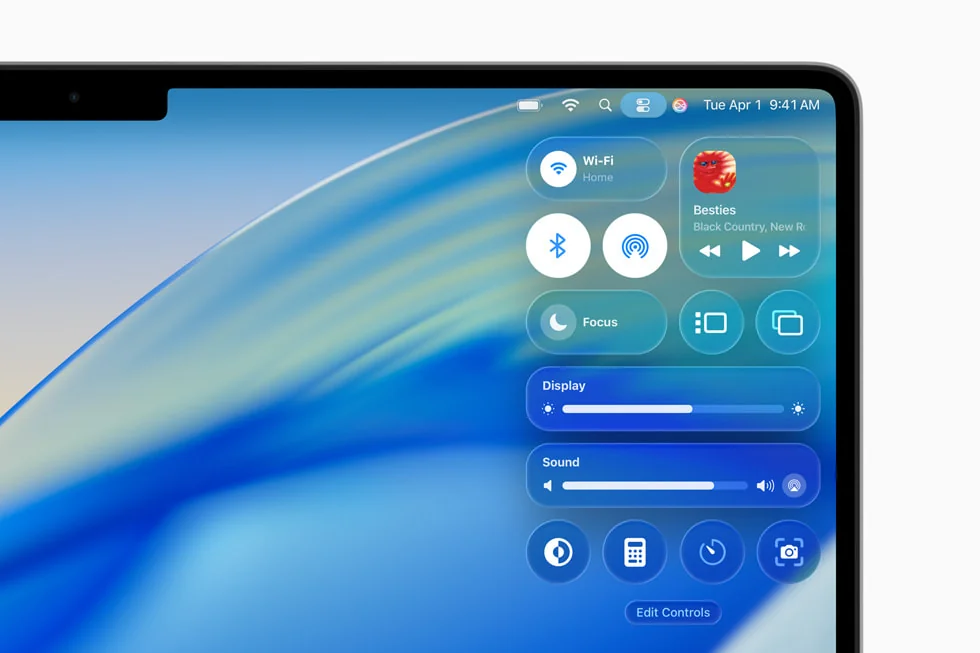
macOS Tahoe 26 introduces fully customizable Control Center matching the comprehensive redesign introduced in iOS 18.
Access Control Center:
- Click Control Center icon in menu bar (top-right)
- Click "Edit Controls" to customize
- Hold Command key while Control Center is open to rearrange
New Capabilities:
- Add controls for window tiling, screenshots, shortcuts
- Third-party app controls (Mac and iPhone apps)
- Create multiple pages of controls for organization
- Resize individual control tiles
- Remove unused controls including previously locked Wi-Fi and Bluetooth
iPhone App Integration:
- Controls from iPhone apps available on Mac
- Requires iPhone Mirroring enabled
- Clicking control launches iPhone Mirroring
- Seamless cross-device control
Menu Bar Widgets
New in Tahoe: Drag widgets and controls from Control Center directly to menu bar for quick access.
Setup Process:
- Open Control Center
- Click "Edit Controls"
- Click "+" button in menu bar
- Select widgets for quick access
Recommended Menu Bar Widgets:
- Focus mode toggle
- Screen Mirroring control
- Sound output selection
- Bluetooth connections
- VPN status
- Do Not Disturb
Space Management:
- Remove unused menu bar items
- Prioritize most-accessed controls
- Use Control Center for less frequent controls
Third-Party Widgets: Top Recommendations
Productivity Widgets
WidgetWall ⭐ Editor's Choice
Rating: Excellent user reviews, 4.8/5 Pricing: Free widgets + Premium ($4.99)
Free Widgets:
- Clock with multiple formats
- Calculator
- Photo displays
- Stopwatch and Timer
- App Shortcuts
Premium Widgets ($4.99 unlock):
- White Noise generator
- Pomodoro timer
- Advanced Weather
- System Stats
- Music controls
- Enhanced Calendar
Unique Features:
- Turn any website into a widget
- Customizable stickers with click actions (open websites, launch apps, adjust settings)
- Extensive customization: colors, sizes, locations, fonts
- No ads
Best For: Users wanting maximum customization and variety
User Testimonial: "I LOVE this app! It's made my desktop look so personal and cute while being incredibly functional."
Widgetter - Custom Desktop
Features:
- Real-time system monitoring (CPU, RAM, disk, network)
- Essential controls in accessible format
- Full customization for colors and fonts
- Performance metrics at a glance
Best For: Developers and power users needing system insights
Value: Users report buying lifetime license after trying free version
System Monitoring
Stats 💰 Best Free Option
Rating: Popular open-source choice Pricing: FREE (Open Source)
Monitoring Capabilities:
- CPU usage and temperature
- GPU utilization
- Memory pressure
- Network activity
- Disk I/O
- Sensors (temperatures, voltages)
- Bluetooth connections
Performance Optimization:
- Disable Sensors and Bluetooth modules to reduce CPU usage by up to 50%
- Lightweight design for maximum efficiency
- Active community development
- No ads, no analytics, no tracking
Best For: Budget-conscious users wanting comprehensive free system monitoring
iStat Menus 7 ⭐ Premium Choice
Rating: Industry standard, most CPU-friendly Pricing: $12 (single user), $16 (family), included in Setapp ($10/month)
Features:
- CPU, GPU, memory, network, disk monitoring
- Temperature and fan information
- Battery health and time remaining
- GPU frames per second display
- Wi-Fi network name in menu bar
- Custom fan curves for thermal management
- Frequency monitoring for Apple Silicon
- Calendar events integration
Privacy: No ads, no analytics, no tracking Trial: 14-day free trial
Best For: Professionals needing comprehensive, polished monitoring with minimal resource usage
Calendar & Time Management
Fantastical ⭐ Premium Calendar
Rating: Award-winning Pricing: $40/year (Fantastical Premium)
Features:
- 10 different widget types
- Natural language text parsing ("Lunch with Sarah tomorrow at 1pm")
- Multi-platform sync (Google, Microsoft 365, Exchange, iCloud)
- 2-way Todoist integration (near-instantaneous sync)
- Apple Watch support
- Scheduling proposals
- Time zone support
Professional Review: "The only calendar app I need, offering more power and flexibility than any alternative"
Best For: Power users needing advanced calendar management and natural language processing
Dato
Rating: Highly recommended Pricing: $16 one-time or included in Setapp
Features:
- Local clock and date
- Multiple world clocks
- Upcoming events in menu bar
- Calendar menu with events
- Sleek, lightweight design
- Time zone calculations
User Quote: "Exactly what I need in a calendar utility 98% of the time"
Best For: Users needing quick calendar and time zone access without complexity
Itsycal 💰 Best Free Calendar
Rating: Long-time user favorite Pricing: FREE
Features:
- Tiny menu bar calendar
- Quick date viewing
- Basic event display
- Minimal resource usage
Limitations: No natural-language entry, can't edit events within app
Best For: Budget-conscious users wanting simple calendar access
Task Management
Things
Platform: Apple ecosystem exclusive Pricing: One-time purchase (varies by platform)
Strengths:
- Beautiful, intuitive UI
- No-nonsense design philosophy
- GTD-lite approach
- Seamless sync across Apple devices
Best For: Apple users preferring elegant simplicity over feature complexity
Todoist
Integration: Fantastical 2-way sync Pricing: Free tier + Premium
Features:
- Cross-platform task management
- Widget support on macOS Tahoe
- Natural language task entry
- Project organization
- Collaboration features
Best For: Users needing cross-platform compatibility and team collaboration
Finance & Budget Tracking
Copilot ⭐ Best Automation
Rating: Best-in-class budgeting Pricing: $95/year or $13/month (free trial available)
Features:
- Automated spending, investment, and net worth tracking
- Bank account sync via Plaid (industry standard)
- AI-powered budget creation based on spending habits
- Dark Mode and comprehensive Widgets
- Mac, iPhone, iPad support
Review: "Not just a pretty face—robust automation with polished design"
Best For: Users wanting automated financial tracking with minimal manual entry
MoneyCoach 💰 Best for Privacy
Pricing: $30/year
Features:
- Manual entry focus (no bank linking required)
- Mac Widgets for quick finance overview
- Lock/Home Screen widgets and Live Activities
- Keyboard shortcuts (predefined + custom)
- Apple Watch support
- Complete data privacy
Best For: Privacy-conscious users preferring manual control over automated bank connections
Crypto Pro
Rating: #1 privacy-focused crypto tracker since 2015
Features:
- Ad-free portfolio management
- Desktop widgets for cryptocurrency quotes
- Menu bar widget
- Customizable price alerts
- Price charts and portfolio analytics
- Privacy-first design (no account required)
Best For: Cryptocurrency investors and traders wanting privacy-focused portfolio tracking
Music Control
Sleeve ⭐ Essential for Music Lovers
Rating: Excellent reviews Pricing: $5 one-time (no ads or in-app purchases)
Features:
- Now playing widget for Apple Music or Spotify
- Beautiful album artwork display
- Playback controls
- Theme system with sharing
- Custom keyboard shortcuts
- Last.fm scrobbling
- Multi-display support
- Pin to any corner or edge
Technical: Native Swift app, works on Intel & Apple Silicon
Best For: Music enthusiasts wanting elegant desktop music control
Package Tracking
Parcel
Rating: Excellent for business and personal use
Features:
- Tracks 300+ delivery services (UPS, USPS, FedEx, DHL, Amazon, and more)
- Automatic Amazon package addition
- Map tracking with real-time updates
- Spotlight search integration
- Multi-device sync (Mac, iPhone, iPad, Apple Watch)
- Web access
Pricing: Free (track up to 3 deliveries) + Premium for unlimited
Value: "Checking packages without opening a browser is a major time-saver"
Best For: Frequent online shoppers and businesses tracking customer shipments
Advanced Customization Techniques
Shortcuts Automation Integration
macOS Tahoe 26 introduces full Shortcuts automation support, previously iOS-only.
Available Automation Triggers:
- Time of day
- App opens/closes
- Display or accessory connection
- Focus mode activation
- Battery level thresholds
- File saved to specific folder
- Network connection changes
Widget + Shortcuts Examples:
Student Use Case:
Trigger: Lecture recording saved to folder
Action:
1. Transcribe audio using Whisper
2. Compare transcription to lecture notes
3. Add missed key points to Notes widget
4. Send summary notification
Developer Use Case:
Trigger: External display connected
Action:
1. Activate "Coding" Focus mode
2. Launch development widget set
3. Open VS Code, Terminal, Docker Desktop
4. Position windows in pre-defined layout
5. Start system monitoring widgets
Designer Use Case:
Trigger: Adobe Creative Cloud app opens
Action:
1. Extract color palette from current wallpaper
2. Display palette in custom widget
3. Activate "Deep Work" Focus
4. Minimize distractions
Setting Up Automations:
- Open Shortcuts app
- Click "Automation" in sidebar
- Click "+" button
- Select trigger type
- Configure automation actions
- Test thoroughly
- Enable automation
Folder Customization Integration
Complete Folder Overhaul in Tahoe:
- Change default color of all folders system-wide
- Add emojis or symbols to individual folders
- Integrated with Tinted widget style for unified theming
Setup Process:
- System Settings → Appearance → Icon & widget style
- Select "Tinted"
- Setting changes to "Icon, widget & folder color"
- Choose color or select "Other" for custom picker
Creative Applications:
- Color-code projects (blue for client work, green for personal)
- Use emojis for quick visual identification
- Match folder colors to widget tint for cohesive design
- Organize by workflow or department
Keyboard-First Workflow
Spotlight Quick Keys:
- Hundreds of system and app actions available via keyboard
- Send messages, create events, run shortcuts
- Spotlight assigns automatic quick keys to frequent actions
- Execute common operations in few characters
Examples:
- Type "nt Work meeting at 3pm" → Creates calendar event
- Type "rm Buy milk" → Adds reminder
- Type "fc Personal" → Activates Personal Focus
- Type "sh Backup files" → Runs backup shortcut
VoiceOver Enhancements:
- Full widget accessibility via VoiceOver
- Custom toolbar in Braille interface
- Keyboard navigation for all widget controls
- Screen sharing VoiceOver support in Apple Remote Desktop
Developer Customization with WidgetKit
For Developers Building Custom Widgets:
WidgetKit Capabilities:
- Create widgets, watch complications, Live Activities
- Written entirely in SwiftUI
- Full access to Liquid Glass styling
- Accented rendering mode support
New in macOS Tahoe:
- Enhanced Smart Stack integration (iOS/iPadOS only, not macOS)
- Additional placement locations
- Improved update mechanisms via AppIntents
Rendering Modes:
- Desaturated: Blend with background (recommended for most widgets)
- Accented Desaturated: Enhanced blend with accent colors
- Full Color: For media content (album art, book covers, photos)
Resources:
- Apple Developer WidgetKit
- WidgetKit Documentation
- WWDC 2025 Session 278: "What's new in widgets"
Performance Optimization Strategies
System-Level Optimizations
For 8GB RAM Systems (Entry-Level):
Recommended Settings:
System Settings → Accessibility → Display:
✓ Reduce Transparency: Enabled
✓ Reduce Motion: Enabled

System Settings → Appearance:
- Icon & Widget Style: Dark (lowest resource usage)

Desktop & Dock:
- Show Widgets: Disable if not essential
- Background App Refresh: Disabled for non-essential apps
Performance Expectations:
- Basic productivity: Excellent
- Light creative work: Good
- Multitasking: Limited (close unused apps)
- Professional workflows: Requires optimization and selective widget use
Widget Recommendations:
- Maximum 3-5 widgets
- Stick to system widgets (more optimized)
- Avoid resource-intensive third-party widgets
- Use Notification Center instead of desktop for less-critical widgets
For 16GB RAM Systems (Professional):
Recommended Settings:
System Settings → Appearance:
- Icon & Widget Style: Any (Full Liquid Glass experience supported)

Desktop & Dock:
- Show Widgets: On Desktop (full functionality)
- Apple Intelligence: All features enabled
Performance Expectations:
- Professional productivity: Excellent
- Creative workflows: Very good
- Development environments: Excellent
- Gaming: Very good with Metal 4
Widget Recommendations:
- Maximum 8-12 widgets
- Mix of system and third-party widgets
- iStat Menus or Stats for system monitoring
- Full Control Center customization
For 32GB+ RAM Systems (Workstation):
Recommended Settings:
All features: Maximum enabled
- Virtual Memory: Optimized for large datasets
- Cache Management: Aggressive caching
- Background Processing: Full utilization
- Developer Tools: Maximum optimization
Performance Expectations:
- All workflows: Excellent
- 8K video editing: Optimal
- Large-scale development: Excellent
- AI/ML workflows: Outstanding
- Extensive widget ecosystem: No limitations
Widget Recommendations:
- Unlimited (limited only by desktop space)
- Comprehensive system monitoring
- Multiple third-party productivity widgets
- Custom WidgetKit widgets without concern
Application-Specific Optimization
Widget Refresh Management:
System-Managed Updates:
- Apple manages refresh rates automatically
- Daily budget: 40-70 refreshes per frequently viewed widget
- Translates to 15-60 minute intervals
- No manual control available
Refresh Rate Factors:
- User interaction patterns
- System resources
- Widget type and data requirements
- Battery status (on portables)
Optimization Strategy:
- System handles optimization—no user action required
- Removing unused widgets improves overall performance
- Widgets in Notification Center vs. Desktop have same refresh rates
Battery Optimization on Portables:
Power-Saving Strategies:
- Lower Screen Brightness: Biggest power draw
- Enable Auto-Brightness: Adapts to environment
- Low Power Mode: Reduces screen brightness and limits peak performance
- Selective Widget Usage: Fewer widgets = longer battery life
Low Power Mode Settings: System Settings → Battery → Low Power Mode
Impact on Widgets:
- Reduced refresh rates
- Lower Liquid Glass effect quality
- Dimmed displays
- Limited background processing
Battery Life Expectations (Mixed Use):
- M4 MacBook Air: 13-14 hours (10-15 widgets)
- M3 MacBook Air: 12-13 hours (10-15 widgets)
- M2 MacBook Pro: 11-12 hours (10-15 widgets)
- M1 MacBook Pro: 10-11 hours (10-15 widgets)
Troubleshooting Common Issues
Widgets Not Working
Symptom Checklist:
- Widgets not responding to interaction
- Widgets stuck or frozen
- Widgets loading slowly
- Widgets not updating
- Widgets quitting unexpectedly
- iPhone widgets not syncing to Mac
Fix #1: Restart Your Mac
Most widget issues resolve with simple restart:
1. Save all work
2. Apple Menu → Restart
3. Wait for complete reboot
4. Check if widgets function normally
Success Rate: 70% of widget issues resolved
Fix #2: Update macOS and Apps
Outdated software causes widget crashes:
1. System Settings → General → Software Update
2. Install all available updates
3. Open App Store
4. Click Profile Icon → Updates
5. Update all apps with available updates
6. Restart Mac
Success Rate: 85% when combined with restart
Fix #3: Check Storage Space
Widget crashes often result from insufficient storage:
1. System Settings → General → Storage
2. Ensure >15% free disk space
3. If low: Use Storage Management to free space
4. Delete unnecessary files, apps, downloads
5. Empty Trash
Minimum Free Space: 10-15% of total capacity
Fix #4: Remove and Re-Add Widget
Resets widget configuration:
1. Control-click problematic widget
2. Select "Remove Widget"
3. Open Notification Center (click time/date)
4. Click "Edit Widgets"
5. Add widget again from gallery
6. Reconfigure settings
Success Rate: 65% for individual widget issues
Fix #5: Check Internet Connectivity
Many widgets require internet:
Widgets Requiring Internet:
- Weather
- Mail
- Safari
- Contacts (cloud sync)
- Third-party news/social widgets
- iPhone widgets (via iCloud/Continuity)

Troubleshooting:
1. Check Wi-Fi connection
2. Verify router connectivity
3. Test with Safari or other app
4. Restart router if necessary
Fix #6: Disable Problematic iPhone Apps
Some iPhone apps incompatible with macOS widgets:
1. Identify crashing pattern (occurs after using specific widget)
2. System Settings → Desktop & Dock
3. Scroll to "Widgets"
4. Toggle OFF "Use iPhone Widgets"
5. Test stability
6. If stable, re-enable and remove specific problematic app
Fix #7: Reset Widget System (Advanced)
Warning: Clears all widget settings and configurations
# Terminal command (use with caution):
killall Dock
killall NotificationCenter
When to Use: Last resort after all other fixes fail
Widget Appearance Issues
Problem: Unreadable icons or text with Clear/Tinted styles
Solution:
1. System Settings → Appearance
2. Try different Icon & Widget Style
3. If using Tinted: Choose higher contrast color
4. If using Clear: Switch to Light or Dark for better readability
5. Test with different wallpapers (simpler backgrounds work better)Problem: Widgets don't match selected theme
Solution:
1. System Settings → Appearance → Icon & Widget Style
2. Verify correct style selected
3. Restart Mac to apply changes
4. Some widgets may not fully support all styles (developer limitation)
5. Update apps for better style support
Desktop Space Issues
Problem: Disabling widgets in Settings doesn't reclaim space
Explanation: Settings toggle only hides widgets, doesn't remove them
Solution:
Manual Removal Required:
1. Control-click each widget individually
2. Select "Remove Widget"
3. Repeat for all widgets
4. Only after complete removal is space usable
Enterprise/Education Management:
MDM Configuration:
- Domain: com.apple.WindowManager
- Key: StandardHideWidgets (for desktop)
- Key: StageManagerHideWidgets (for Stage Manager)
- Value: true (disables automatic widget addition)
Performance Degradation
Symptoms:
- System lag when widgets visible
- High CPU usage by WindowServer
- Excessive battery drain
- Slow animations
Diagnosis:
1. Open Activity Monitor (Applications → Utilities)
2. Click "CPU" tab
3. Sort by "% CPU"
4. Identify processes:
- WindowServer (should be <15%)
- NotificationCenter (should be <5%)
- mediaanalysisd (may spike temporarily)Solutions:
Reduce Visual Effects:
System Settings → Accessibility → Display:
✓ Reduce Transparency
✓ Reduce Motion (optional)Impact: 30-50% reduction in GPU usage
Limit Active Widgets:
Remove unnecessary widgets:
- Keep only essential 3-5 widgets
- Move less-used widgets to Notification Center
- Disable desktop widgets entirely if not needed
Disable Resource-Intensive Modules in Stats:
If using Stats system monitor:
- Right-click Stats icon
- Preferences → Modules
- Disable "Sensors" and "Bluetooth"Impact: Up to 50% CPU reduction for Stats itself
Privacy and Security Considerations
Widget-Specific Security
WidgetKit Security Features:
- Sensitive information protection on Always On displays
- User-controlled content hiding (placeholders/redactions)
- Data Protection capability for privacy-sensitive data
- Widgets show placeholders until device unlock (when configured)
Best Practices:
- Configure widgets to hide sensitive data when locked
- Use placeholders for financial information
- Redact personal identifiers in health/fitness widgets
- Review widget permissions before granting access
App Permission Management
System Settings → Privacy & Security
Categories to Review:
1. Menu Bar Items (New in Tahoe)
- Controls which apps display icons in menu bar
- Affects widget-related menu bar controls
- Toggle ON/OFF for individual apps
2. Full Disk Access
- Only grant to trusted apps
- Required by some widgets for full functionality
- Examples: Backup tools, system monitors
- May require password or Touch ID to modify
3. Location Services
- Weather widgets require location
- Review which widgets access location
- Configure "While Using App" vs. "Always"
4. Contacts, Calendars, Photos
- Widget apps may request access
- Grant only to widgets that genuinely need access
- Periodically audit permissions
Safe Widget Installation:
Best Practices:
- Prefer Mac App Store: Apple-reviewed apps only
- Verify Developer: Check developer signature for non-App Store apps
- Read Reviews: Check ratings and user experiences
- Review Permissions on Install: Question apps requesting extensive access
- Research Unknown Developers: Google search before installing
Privacy-Focused Widget Recommendations:
- iStat Menus: No ads, no analytics, no tracking
- Stats: Open source (community-audited code)
- MoneyCoach: No bank linking (manual entry only)
- Crypto Pro: Privacy-first design, no account required
Future-Proofing Your Setup
Backup and Migration
Before Major Customization:
1. Create Time Machine backup:
   System Settings → General → Time Machine

2. Document current widget configuration:
   - Take screenshots of desktop layout
   - Export Shortcuts automations
   - Note all customization settings
Time Machine Setup:
1. System Settings → General → Time Machine
2. Click "Add Backup Disk"
3. Select external drive
4. Follow setup instructions
5. Enable automatic backups
Important Notes:
- Widget settings included in Time Machine backups
- Some users report Migration Assistant issues with Tahoe backups
- Always verify backup before major system changes
- Keep backup drive separate from Mac for safety
Staying Updated
Regular Maintenance Schedule:
Monthly:
- Check for macOS updates
- Update all widget-enabled apps
- Review and remove unused widgets
- Check storage space (maintain 15%+ free)
Quarterly:
- Audit widget configurations
- Remove widgets no longer used
- Review privacy and security settings
- Clean widget cache if experiencing issues
Annually:
- Complete widget setup review
- Evaluate new third-party widgets
- Update workflow automations
- Reassess productivity needs
Community Resources:
- MacRumors Forums: Latest tips and widget discoveries
- Apple Support Communities: Troubleshooting assistance
- Reddit r/MacApps: Widget recommendations and reviews
- AppleVis: Accessibility information for widgets
Conclusion: Maximizing Your macOS Tahoe Widget Experience
macOS Tahoe 26 delivers the most customizable and powerful widget system in Mac history. The combination of Liquid Glass design, true interactivity, four distinct visual styles, and extensive third-party ecosystem creates unprecedented opportunities for personalization and productivity enhancement.
Key Takeaways
Revolutionary Features:
- Desktop Widget Liberation: Persistent visibility enhances workflow efficiency
- True Interactivity: Complete tasks without opening apps
- Liquid Glass Design: Stunning translucent aesthetics with real-time environmental reflection
- Four Customization Styles: Light, Dark, Tinted, Clear for complete personalization
- Third-Party Ecosystem: Extensive WidgetKit support from developers
Optimization Priorities:
- Match hardware to expectations: 16GB+ RAM recommended for full Liquid Glass experience
- Strategic widget selection: Focus on genuinely useful widgets (5-10 maximum)
- Performance monitoring: Use Stats or iStat Menus to track resource usage
- Regular maintenance: Update apps, remove unused widgets, maintain free storage
- Embrace automation: Shortcuts integration multiplies widget utility
Recommended Next Steps
For New Users:
- Start with built-in Apple widgets (Weather, Calendar, Reminders)
- Choose one widget style and stick with it for one week
- Add one third-party widget based on primary need:
- Productivity: WidgetWall or Things
- System Monitoring: Stats (free) or iStat Menus (premium)
- Finance: MoneyCoach (privacy) or Copilot (automation)
- Music: Sleeve ($5, essential for music lovers)
- Experiment with placement and sizing
- Monitor performance impact via Activity Monitor
For Power Users:
- Consider Setapp subscription ($10/month) for comprehensive widget access
- Implement Shortcuts automation with widget triggers
- Customize Control Center with third-party controls and multiple pages
- Set up multi-display widget layouts optimized for different workflows
- Optimize performance settings (Reduce Transparency if needed)
- Create workflow-specific widget sets (Development vs. Design vs. Communication)
For Professionals:
- Develop widget + keyboard workflow using Spotlight Quick Keys
- Integrate widgets with project management systems (Todoist + Fantastical)
- Implement time tracking widgets (Timery, Toggl)
- Set up client-specific widget configurations
- Use Focus modes to automatically show/hide relevant widgets
- Document your setup for team standardization
Final Recommendations by User Type
Students:
- Calendar + Reminders + Notes widgets for assignment tracking
- Fantastical or Dato for class schedules
- Dark Noise for study focus
- Itsycal (free) for budget-conscious calendar access
Creative Professionals:
- Sleeve for music during creative work
- iStat Menus for performance monitoring during renders
- Color-tinted widgets matching brand/project colors
- Liquid Glass Clear style for aesthetic workspaces
Developers:
- Stats (free) or iStat Menus for system monitoring
- Terminal integration via Shortcuts
- GitHub/GitLab widgets (third-party)
- Custom WidgetKit widgets for project-specific data
Business Users:
- Fantastical for meeting management
- Copilot for expense tracking
- Parcel for shipment tracking
- Dark widget style for professional appearance
Privacy-Conscious Users:
- MoneyCoach (no bank linking)
- Stats (open source)
- iStat Menus (no tracking)
- Crypto Pro (privacy-first)
- Avoid cloud-sync-required widgets
The Future of macOS Widgets
Expected Evolution:
- Deeper Apple Intelligence integration
- Enhanced third-party WidgetKit capabilities
- Performance optimizations in point releases
- Expanded automation triggers
- visionOS widget spatial integration
macOS 27 Expectations (2026):
- Apple Silicon exclusive optimizations
- Metal 5 graphics enhancements
- Possible Smart Stack introduction to macOS
- Enhanced Continuity features
- Further Liquid Glass refinements
Your Widget Journey Starts Now
The macOS Tahoe widget system transforms the Mac from a traditional desktop OS into a personalized, information-rich workspace tailored to your exact needs. Whether you prioritize productivity, aesthetics, system monitoring, or creative workflows, the comprehensive widget ecosystem offers tools to enhance every aspect of your Mac experience.
Remember:
- Start simple and expand gradually
- Monitor performance impact
- Prioritize genuinely useful widgets over aesthetics alone
- Experiment with different styles and layouts
- Join the community for ongoing tips and discoveries
Your perfect widget setup awaits—start customizing today and unlock the full potential of macOS Tahoe 26.
Ready to explore more macOS Tahoe features? Check our complete macOS Tahoe guide for additional customization options and power user tips. For performance optimization strategies, see our macOS Tahoe performance analysis.
Experiencing issues? Visit our macOS Tahoe troubleshooting guide for comprehensive solutions to common problems.