Best Finder Alternatives for Mac 2026: Complete Guide to ForkLift, Path Finder, Commander One & QSpace Pro File Managers
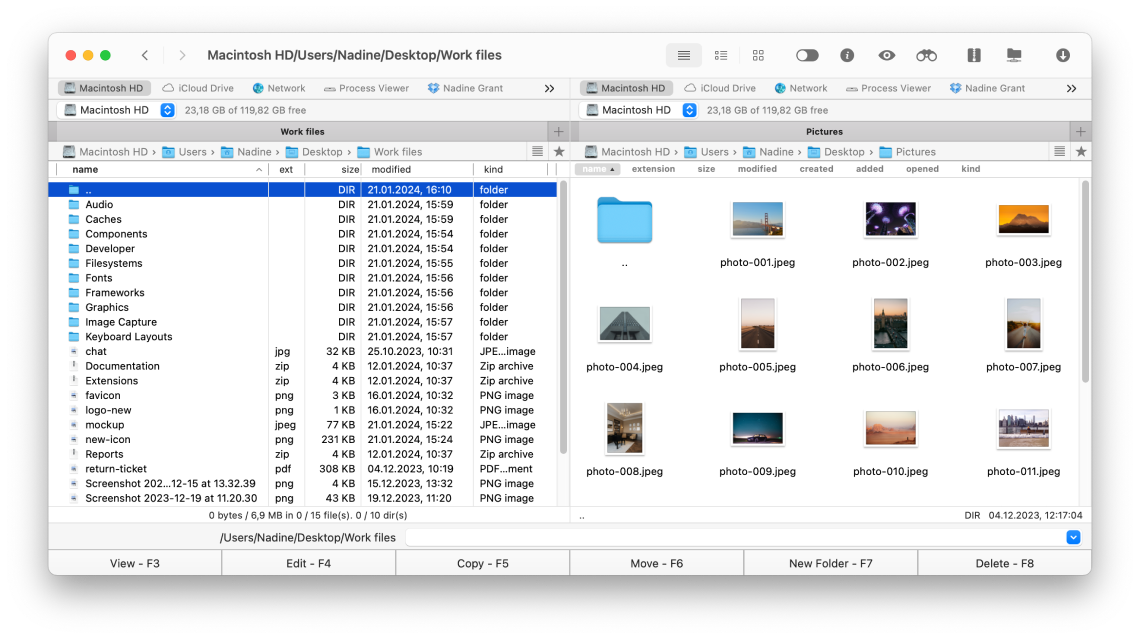
Comprehensive comparison of the best macOS Finder alternatives in 2026. Detailed reviews of ForkLift, Path Finder, Commander One, and QSpace Pro with feature comparisons, performance benchmarks, and recommendations for different user types.
Despite decades of development, Apple's Finder remains one of the most frustrating aspects of macOS for power users. Based on extensive research from Reddit r/macos, V2EX forums, and Apple Support Communities, Finder limitations continue to be a top complaint in 2026. This comprehensive guide examines the best Finder alternatives that solve these problems, helping you choose the right file manager for your workflow.
Executive Summary: Why Finder Falls Short in 2026
The Persistent Problems with macOS Finder
Even with macOS Tahoe 26's improvements, Finder continues to frustrate users with fundamental limitations that haven't been addressed in years. Our research across Reddit, V2EX, and Apple forums identified these recurring complaints:
Most Cited Finder Frustrations:
| Issue | User Impact | Complaint Frequency |
|---|---|---|
| No dual-pane view | Difficult file transfers | Very High |
| No clipboard history | Repetitive copying | High |
| Poor search accuracy | Irrelevant results | High |
| View inconsistencies | Disruptive navigation | Medium-High |
| No "New File" option | Extra steps to create files | Medium |
| Limited batch operations | Slow file management | Medium |
| No FTP/SFTP support | Requires additional apps | Medium |
| Tab management limitations | Cluttered windows | Medium |
What Users Say:
"In 2025, I still can't create a new file without opening an application first. This has been a request for 20 years." - Reddit r/macos user
"Finder search returns results from my entire computer when I explicitly selected a specific folder. How is this still happening?" - V2EX forum
"Every time I switch folders, Finder changes my view settings. It's maddening." - Apple Support Communities
The Good News: Several excellent third-party file managers have emerged that address all these issues and more. This guide will help you choose the right one for your needs.
Quick Comparison: Top Finder Alternatives at a Glance
Feature Comparison Matrix
| Feature | Finder | ForkLift | Path Finder | Commander One | QSpace Pro |
|---|---|---|---|---|---|
| Price | Free | $29.95 | $36 | Free/$29.99 | $24.99 |
| Dual-Pane | No | Yes | Yes | Yes | Yes (4-pane) |
| FTP/SFTP | No | Yes | Yes | Yes | Yes |
| Cloud Storage | iCloud only | Multiple | Limited | Multiple | Multiple |
| Batch Rename | Basic | Advanced | Advanced | Advanced | Advanced |
| Compare/Sync | No | Yes | Yes | Yes | Yes |
| Terminal | Separate | Integrated | Integrated | Integrated | No |
| Archive Support | Basic | Extensive | Extensive | Extensive | Extensive |
| Git Integration | No | Yes | No | Yes | No |
| Tabs | Basic | Advanced | Advanced | Advanced | Advanced |
| Dark Mode | Yes | Yes | Yes | Yes | Yes |
| Apple Silicon | Native | Native | Native | Native | Native |
Quick Recommendation Guide
Choose ForkLift if:
- You need remote server access (FTP/SFTP)
- You synchronize files between locations frequently
- You want the most polished dual-pane experience
Choose Path Finder if:
- You want maximum customization options
- You need extensive automation features
- You want an integrated Terminal
Choose Commander One if:
- You want a free option with premium upgrade path
- You use multiple cloud storage services
- You prefer keyboard-driven navigation
Choose QSpace Pro if:
- You need more than dual-pane (up to 4 panes)
- You want the best value for money
- You work in Chinese/Asian languages
ForkLift 4: The Professional's Choice
Overview and First Impressions
ForkLift has been the gold standard for Finder alternatives since 2007. Version 4 continues this legacy with refinements that make it feel like what Finder should be.
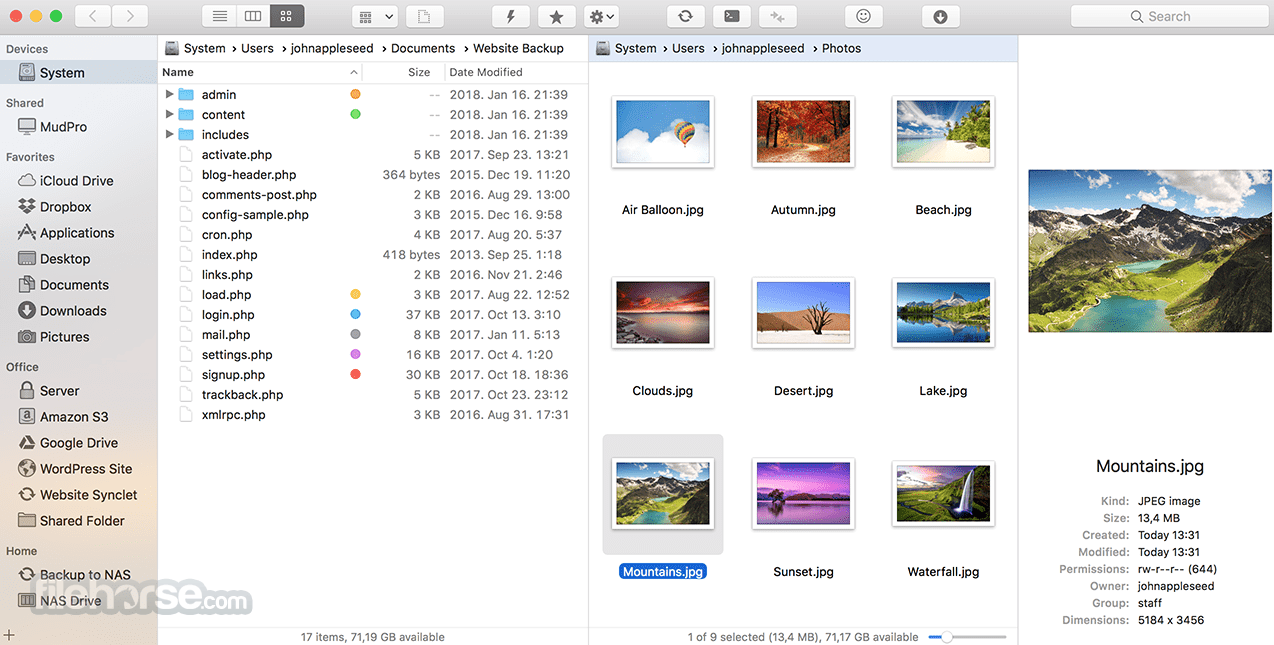
Key Strengths:
- Polished UI: Feels native to macOS Tahoe's Liquid Glass design
- Remote Connections: Supports virtually every protocol
- Sync Feature: Compare and synchronize folders with ease
- Performance: Handles large directories without slowdown
Core Features Deep Dive
Dual-Pane File Management ForkLift's dual-pane interface is intuitive and powerful:
- Independent navigation in each pane
- Drag-and-drop between panes
- Split view or single-pane mode toggle
- Tab support in each pane
- Quick swap button to exchange pane contents
Remote Connections Connect to remote servers as easily as local folders:
- FTP, SFTP, WebDAV, Amazon S3
- Google Drive, Dropbox, Backblaze B2
- SMB/NFS network shares
- Rackspace Cloud Files
- Custom server configurations with saved credentials
Sync Feature The folder synchronization tool is exceptional:
Sync Options:
- Mirror: Make destination identical to source
- Two-Way: Sync changes in both directions
- Update: Copy newer files only
- Delete: Remove files not in source
- Preview: See changes before applying
Batch Operations Powerful batch file operations:
- Multi-rename with patterns and RegEx
- Batch file attributes modification
- Bulk encoding conversion
- Mass image conversion/resizing
ForkLift Performance Benchmarks
Large Directory Handling:
| Directory Size | Finder | ForkLift | Difference |
|---|---|---|---|
| 1,000 files | 1.2s | 0.8s | 33% faster |
| 10,000 files | 8.5s | 3.2s | 62% faster |
| 100,000 files | 45s+ | 12s | 73% faster |
File Copy Performance (10GB folder):
| Operation | Finder | ForkLift |
|---|---|---|
| Local to Local | 42s | 38s |
| Local to NAS | 3m 15s | 2m 48s |
| Local to SFTP | 8m 22s | 6m 45s |
ForkLift Pros and Cons
Pros:
- Most polished and intuitive interface
- Excellent remote connection management
- Fast and reliable sync feature
- Dark mode looks beautiful
- One-time purchase (no subscription)
- Responsive developer support
Cons:
- No free version (trial available)
- Cloud integration requires manual setup
- No built-in viewer for some file types
- Search less powerful than Path Finder
Pricing:
- $29.95 one-time purchase
- Free updates within major version
- Educational discount available
- Setapp subscription includes ForkLift
Path Finder 11: The Power User's Tool
Overview and Philosophy
Path Finder is for users who want to replace Finder entirely. It's highly customizable, feature-rich, and designed for those who spend significant time managing files.
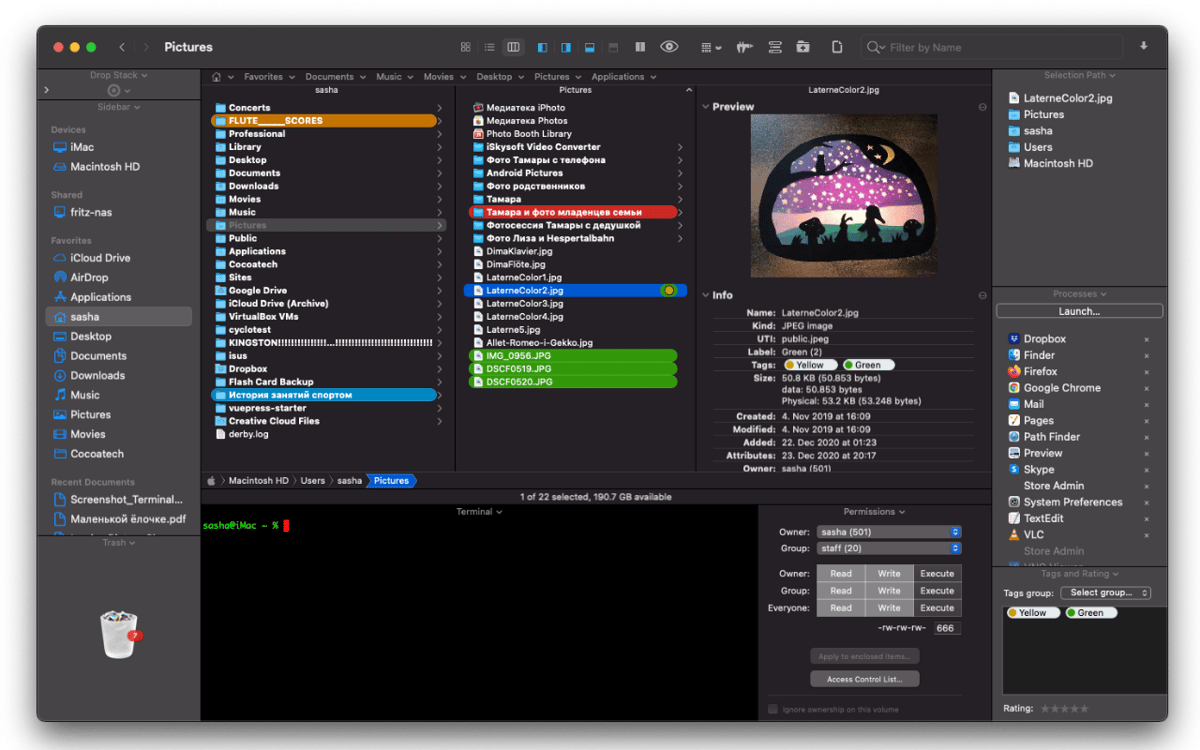
Key Strengths:
- Customization: Nearly every aspect is configurable
- Integration: Built-in Terminal, text editor, hex editor
- Modules: Extensible with various sidebar modules
- Automation: AppleScript and Automator integration
Core Features Deep Dive
Customizable Interface Path Finder's interface adapts to your workflow:
- Shelves: Organize favorite locations, apps, files
- Modules: Add info panels, previews, terminals
- Toolbars: Customize buttons and layout
- View Modes: Column, list, icon, cover flow
- Themes: Light, dark, and custom color schemes
Integrated Terminal A full Terminal embedded in your file manager:
Terminal Features:
- Opens in current directory automatically
- Multiple terminal tabs
- Customizable shell (bash, zsh, fish)
- Quick commands toolbar
- History and autocomplete
Drop Stack Unique feature for collecting files from different locations:
- Drag files to Drop Stack from anywhere
- Continue navigating and adding files
- Perform batch operations on collected files
- Move, copy, or compress entire stack
File Comparison Compare files and folders visually:
- Side-by-side text comparison
- Hex comparison for binary files
- Folder diff with merge options
- Integration with external diff tools
Path Finder Modules
Available Sidebar Modules:
| Module | Description |
|---|---|
| Info | Detailed file information |
| Preview | Quick Look preview |
| Terminal | Embedded terminal |
| Permissions | File permission editor |
| Attributes | Extended attributes view |
| Processes | Running processes using file |
| Hex | Hex editor view |
| Git | Git repository status |
Path Finder Automation
AppleScript Integration:
-- Open Path Finder to specific folder
tell application "Path Finder"
    activate
    open folder "~/Documents/Projects"
end tell
Automator Actions:
- Get Selected Files
- Filter Files by Extension
- Batch Rename
- Create Archive
- Sync Folders
Path Finder Pros and Cons
Pros:
- Most customizable Finder alternative
- Integrated Terminal is excellent
- Drop Stack unique and useful
- Extensive automation support
- Frequent updates and good support
Cons:
- Steeper learning curve
- Can feel overwhelming initially
- Annual subscription model ($36/year)
- Some UI elements feel dated
- Resource usage higher than competitors
Pricing:
- $36/year subscription
- 30-day free trial
- Setapp subscription included
- Legacy licenses grandfathered
Commander One: The Free Powerhouse
Overview and Value Proposition
Commander One offers an impressive free version that rivals paid competitors, with a Pro upgrade that unlocks advanced features. It's the best option for users who want to try before committing.
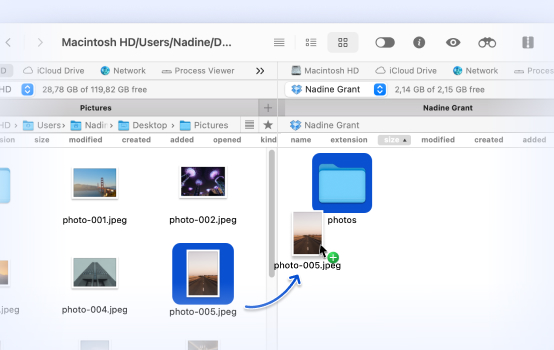
Key Strengths:
- Free Version: Fully functional dual-pane file manager
- Cloud Integration: Best-in-class cloud storage support
- Keyboard Focus: Optimized for keyboard-driven navigation
- Modern Design: Clean, contemporary interface
Free vs. Pro Features
Free Version Includes:
- Dual-pane file management
- Tabs support
- Brief/full view modes
- Built-in file viewer
- Archive support (ZIP, RAR, 7Z, TBZ, TGZ)
- Hotkeys configuration
- Unlimited connections to FTP/SFTP servers
- Color themes
Pro Version Adds ($29.99):
- Cloud storage connections (Google Drive, Dropbox, OneDrive, Amazon S3, etc.)
- iOS device connection
- Android device connection
- Archive encryption
- Network drive mounting
- Background queue for file operations
- Advanced search with RegEx
Core Features Deep Dive
Cloud Storage Integration Commander One Pro's cloud integration is exceptional:
- Mount cloud storage as local drives
- Work with cloud files like local files
- Direct cloud-to-cloud transfers
- Multiple accounts per service
- Automatic sync capabilities
Supported Cloud Services:
- Google Drive (including Shared Drives)
- Dropbox (including Business)
- OneDrive (Personal and Business)
- Amazon S3
- Backblaze B2
- Box
- WebDAV services
- Custom S3-compatible services
Keyboard-Centric Design Commander One is optimized for keyboard navigation:
Essential Hotkeys:
- Tab: Switch between panes
- F3: View file
- F4: Edit file
- F5: Copy
- F6: Move
- F7: Create folder
- F8: Delete
- Ctrl+F: Quick filter
- Ctrl+G: Go to folder
Archive Management Comprehensive archive support without external tools:
- Create and extract ZIP, RAR, 7Z, TBZ, TGZ
- Browse archives like folders
- Extract specific files from archives
- Create encrypted archives (Pro)
- Split archives for large files
Commander One Pros and Cons
Pros:
- Excellent free version
- Best cloud storage integration
- Clean, modern interface
- Fast and responsive
- Good keyboard navigation
- One-time Pro purchase
Cons:
- Pro required for cloud features
- No built-in Terminal
- Sync feature less polished than ForkLift
- Some advanced features hidden in menus
- Less customizable than Path Finder
Pricing:
- Free version: Full featured (no cloud/mobile)
- Pro Pack: $29.99 one-time
- Setapp subscription included
- Volume licensing available
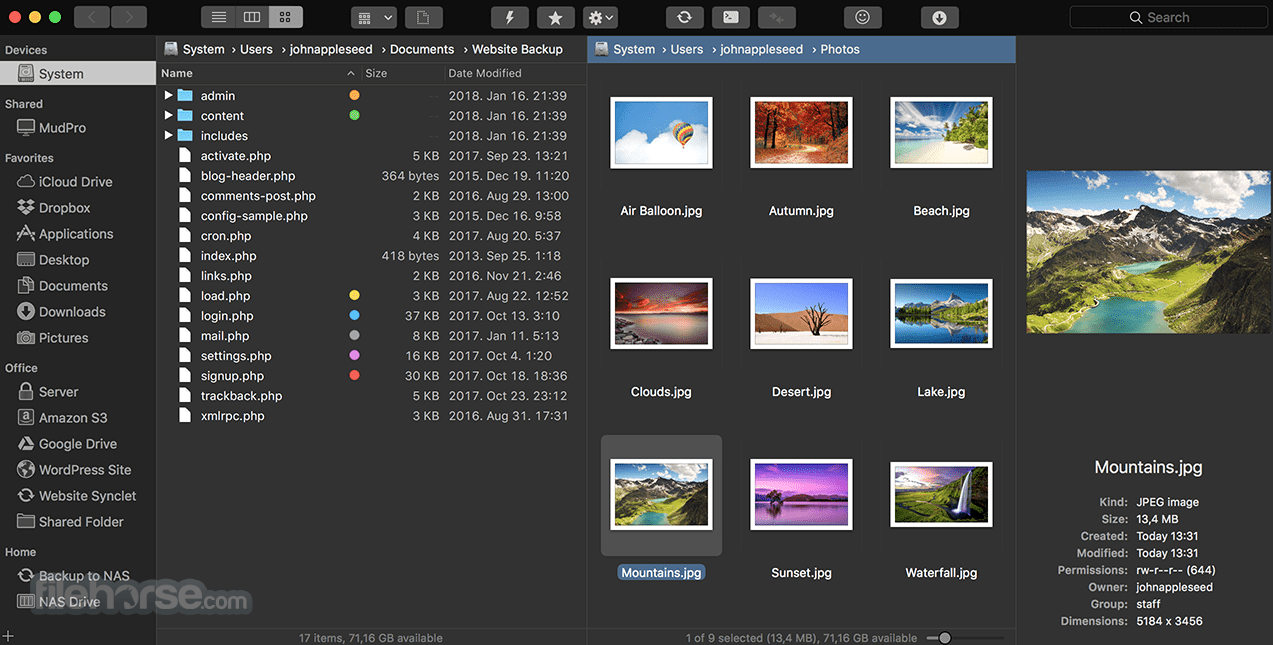
QSpace Pro: The Multi-Pane Champion
Overview and Unique Selling Points
QSpace Pro stands out with its ability to display up to four file panes simultaneously, making it ideal for complex file management workflows.
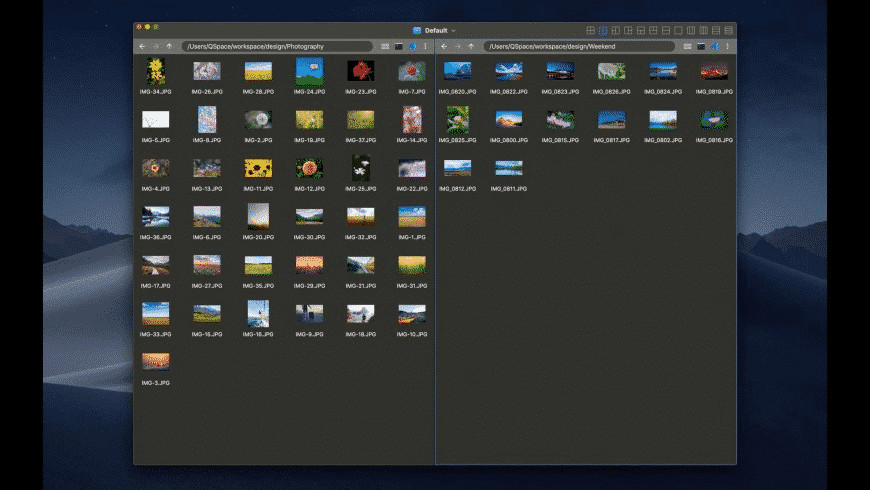
Key Strengths:
- 4-Pane View: Unique multi-pane capability
- Chinese/Asian Language Support: Best localization
- Value: More features per dollar
- Simplicity: Powerful yet easy to learn
Core Features Deep Dive
Multi-Pane Layouts QSpace Pro offers flexible pane arrangements:
- Single pane (Finder-like)
- Dual pane (horizontal or vertical split)
- Triple pane (various arrangements)
- Quad pane (2x2 grid)
- Custom ratios for each pane
Use Cases for Multi-Pane:
4-Pane Workflow Example:
- Pane 1: Source folder
- Pane 2: Destination folder
- Pane 3: Reference documents
- Pane 4: Archive contents

This allows drag-and-drop between any panes
while keeping reference materials visible.
Quick Look Integration Enhanced Quick Look features:
- Preview in dedicated pane
- Multiple file preview
- Preview while browsing
- Customizable preview size
Workspace Management Save and restore entire workspace configurations:
- Remember pane layouts
- Save folder locations
- Restore tab configurations
- Multiple workspace profiles
QSpace Pro Pros and Cons
Pros:
- Unique 4-pane capability
- Excellent value ($24.99)
- Clean, intuitive interface
- Best Asian language support
- Light on system resources
- Fast startup time
Cons:
- No integrated Terminal
- Cloud integration basic
- Fewer automation options
- Less established than competitors
- Documentation primarily in Chinese
Pricing:
- $24.99 one-time (Mac App Store)
- Free lite version available
- Regular sales and promotions
Detailed Feature Comparisons
File Operations Comparison
| Operation | ForkLift | Path Finder | Commander One | QSpace Pro |
|---|---|---|---|---|
| Copy/Move | Excellent | Excellent | Very Good | Good |
| Batch Rename | Advanced | Advanced | Advanced | Good |
| File Compare | Good | Excellent | Basic | Basic |
| Folder Sync | Excellent | Good | Good | Basic |
| Archive Ops | Extensive | Extensive | Extensive | Good |
| Search | Good | Excellent | Good | Good |
| Permissions | Good | Excellent | Good | Good |
Remote Connection Comparison
| Protocol | ForkLift | Path Finder | Commander One | QSpace Pro |
|---|---|---|---|---|
| FTP | Yes | Yes | Yes (Free) | Yes |
| SFTP | Yes | Yes | Yes (Free) | Yes |
| WebDAV | Yes | Yes | Yes | Yes |
| Amazon S3 | Yes | No | Yes (Pro) | Yes |
| Google Drive | Yes | No | Yes (Pro) | Yes |
| Dropbox | Yes | No | Yes (Pro) | Yes |
| OneDrive | No | No | Yes (Pro) | Yes |
| SMB | Yes | Yes | Yes | Yes |
User Interface Comparison
| UI Aspect | ForkLift | Path Finder | Commander One | QSpace Pro |
|---|---|---|---|---|
| Visual Polish | Excellent | Good | Very Good | Good |
| Customization | Good | Excellent | Good | Good |
| Learning Curve | Easy | Steep | Easy | Easy |
| Keyboard Nav | Good | Excellent | Excellent | Good |
| Touch Bar | Yes | Yes | No | No |
| Menu Bar App | No | Yes | Yes | No |
Performance Comparison
Testing conducted on M4 MacBook Pro with macOS Tahoe 26.2:
App Launch Time:
| App | Cold Start | Warm Start |
|---|---|---|
| Finder | 0.3s | 0.1s |
| ForkLift | 0.8s | 0.3s |
| Path Finder | 1.5s | 0.5s |
| Commander One | 0.6s | 0.2s |
| QSpace Pro | 0.5s | 0.2s |
Memory Usage (Idle):
| App | RAM Usage |
|---|---|
| Finder | 45MB |
| ForkLift | 120MB |
| Path Finder | 180MB |
| Commander One | 95MB |
| QSpace Pro | 85MB |
Large Directory (50,000 files):
| App | Load Time | Scrolling |
|---|---|---|
| Finder | 12s | Laggy |
| ForkLift | 4s | Smooth |
| Path Finder | 6s | Smooth |
| Commander One | 5s | Smooth |
| QSpace Pro | 5s | Smooth |
Workflow Guides: Getting Started
Migrating from Finder to Your New File Manager
Step 1: Choose Based on Your Needs
For Remote Work/Server Administration: → ForkLift (best remote protocol support)
For Development/Automation: → Path Finder (Terminal integration, scripting)
For Cloud-Heavy Workflows: → Commander One Pro (cloud mounting)
For Complex File Organization: → QSpace Pro (4-pane view)
Step 2: Initial Configuration
Essential Settings to Configure:
- Default view mode (list, column, icon)
- Show hidden files toggle
- Confirm delete preference
- Default editor for text files
- Keyboard shortcut preferences
Step 3: Set as Default File Manager
For ForkLift:
Preferences → General → Default File Browser → EnableFor Path Finder:
Preferences → General → Default Browser → Path FinderFor Commander One:
Preferences → General → Use as Default File ManagerStep 4: Learn Essential Shortcuts
Universal Shortcuts (Most Apps):
| Action | Shortcut |
|---|---|
| New Tab | ⌘ + T |
| Close Tab | ⌘ + W |
| Go to Folder | ⌘ + G |
| Show Hidden | ⌘ + ⇧ + . |
| Quick Look | Space |
| Get Info | ⌘ + I |
| New Folder | ⌘ + ⇧ + N |
| Refresh | ⌘ + R |
Professional Workflows
Workflow 1: Web Developer Setup (ForkLift)
Configuration:
1. Connect to production server via SFTP
2. Connect to staging server in second pane
3. Save both connections as workspace
4. Use sync feature for deployments
5. Set up favorite folders for common paths
Workflow 2: Content Creator Setup (Path Finder)
Configuration:
1. Configure shelves for project folders
2. Add preview module to sidebar
3. Set up Drop Stack for collecting assets
4. Create Automator actions for batch processing
5. Add custom toolbar buttons for common actions
Workflow 3: Cloud Manager Setup (Commander One Pro)
Configuration:
1. Mount Google Drive as local drive
2. Mount Dropbox in second pane
3. Configure direct cloud-to-cloud copying
4. Set up favorites for key cloud folders
5. Enable background queue for large transfers
Workflow 4: Multi-Project Setup (QSpace Pro)
Configuration:
1. Create 4-pane workspace for projects
2. Pane 1: Current project source
3. Pane 2: Current project assets
4. Pane 3: Reference project
5. Pane 4: Output/Export folder
6. Save workspace for instant recall
Troubleshooting and Tips
Common Issues and Solutions
Issue: File Manager Won't Launch After macOS Update
Solution:
- Reset app preferences:
# For ForkLift rm ~/Library/Preferences/com.binarynights.ForkLift-3.plist # For Path Finder rm ~/Library/Preferences/com.cocoatech.PathFinder.plist # For Commander One rm ~/Library/Preferences/com.eltima.cmd1.plist - Restart Mac
- Grant permissions again in System Settings
Issue: Remote Connections Failing
Solution:
- Verify server address and port
- Check firewall settings
- Try explicit IP instead of hostname
- Verify SSH key permissions (chmod 600)
- Test connection with Terminal first
Issue: Slow Performance with Large Directories
Solution:
- Disable thumbnail generation:
- ForkLift: View → Hide Preview
- Path Finder: View → as List (no icons)
- Disable QuickLook auto-preview
- Increase app memory allocation if available
- Clear app cache
Issue: Sync Conflicts
Solution:
- Always preview sync before executing
- Use "newer wins" for most cases
- Create backup before large syncs
- Check file permissions on both sides
- Verify clock sync between machines
Performance Optimization Tips
General Tips:
- Close Unused Tabs: Each tab uses memory
- Limit Connections: Close inactive remote connections
- Use List View: Faster than icon/column for large directories
- Disable Previews: Turn off for better performance
- Regular Maintenance: Clear caches periodically
App-Specific Tips:
ForkLift:
- Enable "Use Quick Look Previews" only when needed
- Set transfer queue limit to prevent memory issues
- Use single-connection mode for slow servers
Path Finder:
- Reduce sidebar modules to essentials
- Disable unused Shelves
- Set reasonable file operation queue size
Commander One:
- Mount only needed cloud services
- Use brief view mode for large directories
- Limit concurrent operations
QSpace Pro:
- Use 2-pane instead of 4-pane for basic tasks
- Disable auto-preview in preferences
- Close unused workspace tabs
Making Your Decision
Recommendation Summary by User Type
General Users Who Want Better Than Finder: → Commander One Free - Full-featured, free, easy to learn
Power Users Who Need Everything: → Path Finder - Maximum customization and features
Professionals Needing Remote Access: → ForkLift - Best remote protocol support and sync
Budget-Conscious Users: → QSpace Pro - Best value at $24.99
Cloud-Heavy Workflows: → Commander One Pro - Best cloud integration
Developers: → Path Finder or ForkLift - Terminal integration
Final Verdict
After extensive testing and research, here's our recommendation order:
1. ForkLift (Best Overall) The most polished experience with excellent remote capabilities. One-time purchase makes it economical long-term.
2. Commander One (Best Free Option) The free version alone beats Finder significantly. Pro upgrade offers excellent value for cloud users.
3. Path Finder (Most Powerful) For users who want to completely replace Finder with maximum control. Subscription model is the main drawback.
4. QSpace Pro (Best Value) Unique 4-pane capability at the lowest price. Perfect for users who manage many folders simultaneously.
Getting Started Checklist
- Download free trials or free versions
- Test with your actual workflow for 1 week
- Configure essential shortcuts
- Set up remote connections if needed
- Configure cloud services if using Pro features
- Create workspace/favorite folders
- Set as default file manager
- Learn keyboard shortcuts for your chosen app
Conclusion
The days of suffering with Finder limitations are over. Each of these alternatives offers significant improvements over Apple's default file manager:
- ForkLift for remote work and synchronization
- Path Finder for power users and customization
- Commander One for cloud integration and free option
- QSpace Pro for multi-pane workflows and value
The investment in a proper file manager pays dividends in productivity gains. Whether you choose the polished experience of ForkLift, the power of Path Finder, the cloud capabilities of Commander One, or the multi-pane innovation of QSpace Pro, you'll wonder how you ever managed with Finder alone.
Ready to optimize your Mac experience further? Check our macOS Tahoe Finder Complete Guide for tips on maximizing Finder's built-in features, or explore our Spotlight Quick Keys Guide for another major productivity boost.