Mac Free Apps Guide 2026: Best Open Source Alternatives to Paid Software

Discover 20+ free Mac apps to replace Adobe, iStat Menus, Parallels and more. All tested, Apple Silicon native, no subscription traps.
The Mac App Store in 2026 is flooded with subscription traps and Electron wrappers. A few dollars per month seems harmless, but subscribe to a dozen services and you're looking at over $1,000 annually.
Good news: almost every paid app has a free alternative—and many are actually better than the originals.
This guide features 20+ tested free Mac apps. They're either open source or completely free, require no account registration, and have no subscription traps. All natively support macOS Sonoma, Tahoe, and Apple Silicon.
Quick Reference
| Paid App | Free Alternative | Type |
|---|---|---|
| Adobe Photoshop | Pixelmator Pro / Affinity Photo | One-time purchase |
| iStat Menus | Stats | Open Source |
| Alfred Powerpack | Raycast | Free |
| Moom/Magnet | Rectangle | Open Source |
| Parallels | UTM | Open Source |
| Notion | QOwnNotes | Open Source |
| 1Password | Bitwarden | Open Source |
System Utilities
Stats — Replaces iStat Menus
iStat Menus pain point: Subscription model, features exceed most users' needs.
Stats advantages:
- Completely open source and free
- Zero ads, zero subscriptions
- Native Apple Silicon support
- Displays CPU, GPU, memory, network, disk, battery, temperature
- Highly customizable menu bar display
My experience: I've used Stats instead of iStat Menus for two years without missing any features. If you just want to monitor system status and catch runaway processes, Stats is more than enough.
Installation:
brew install statsOr download from: GitHub

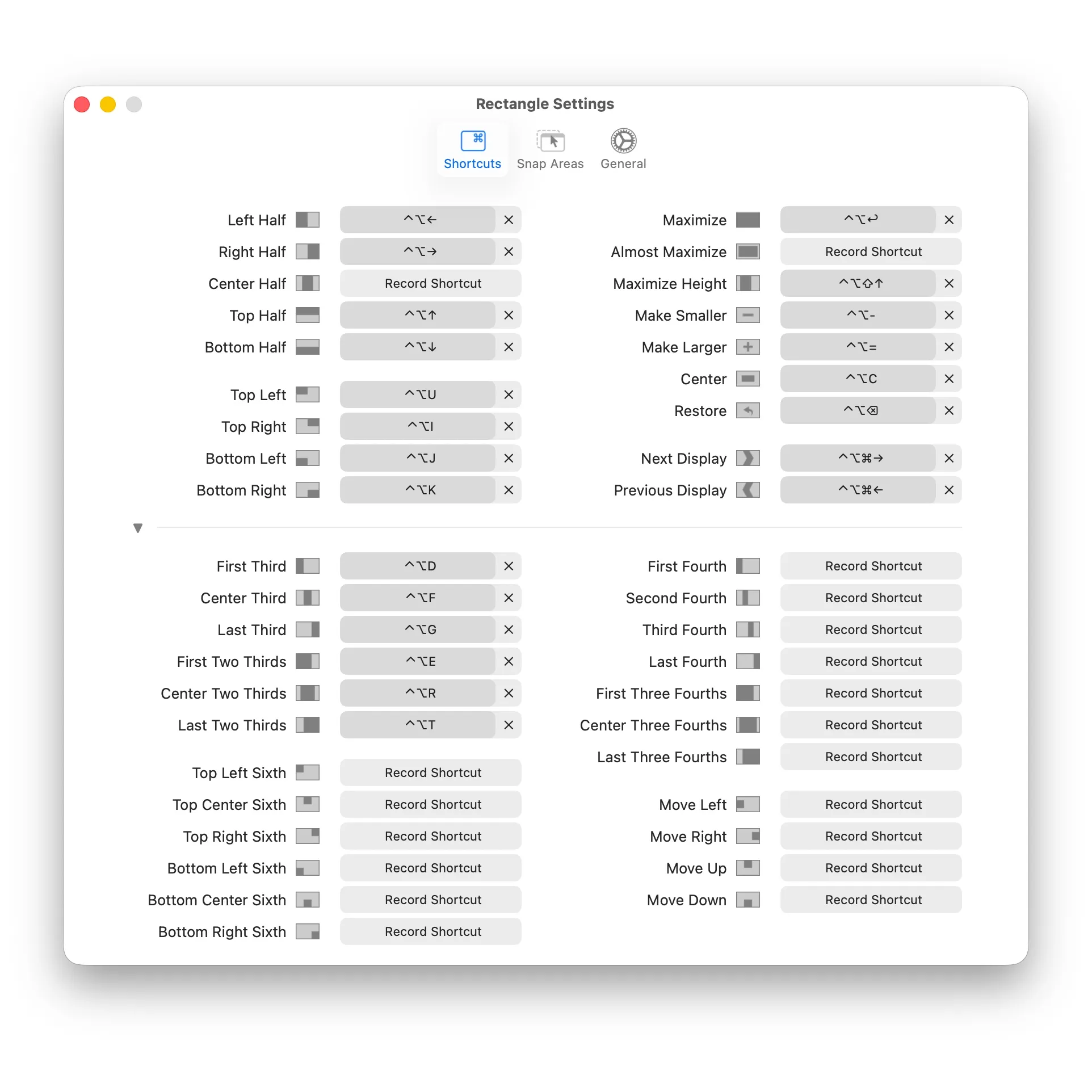
Rectangle — Replaces Moom / Magnet
Paid window manager pain point: Similar features, but all cost money.
Rectangle advantages:
- Open source and free
- Keyboard shortcut window layouts
- Supports drag to screen edges
- Multi-monitor compatible
- Active community, continuous updates
Essential Shortcuts:
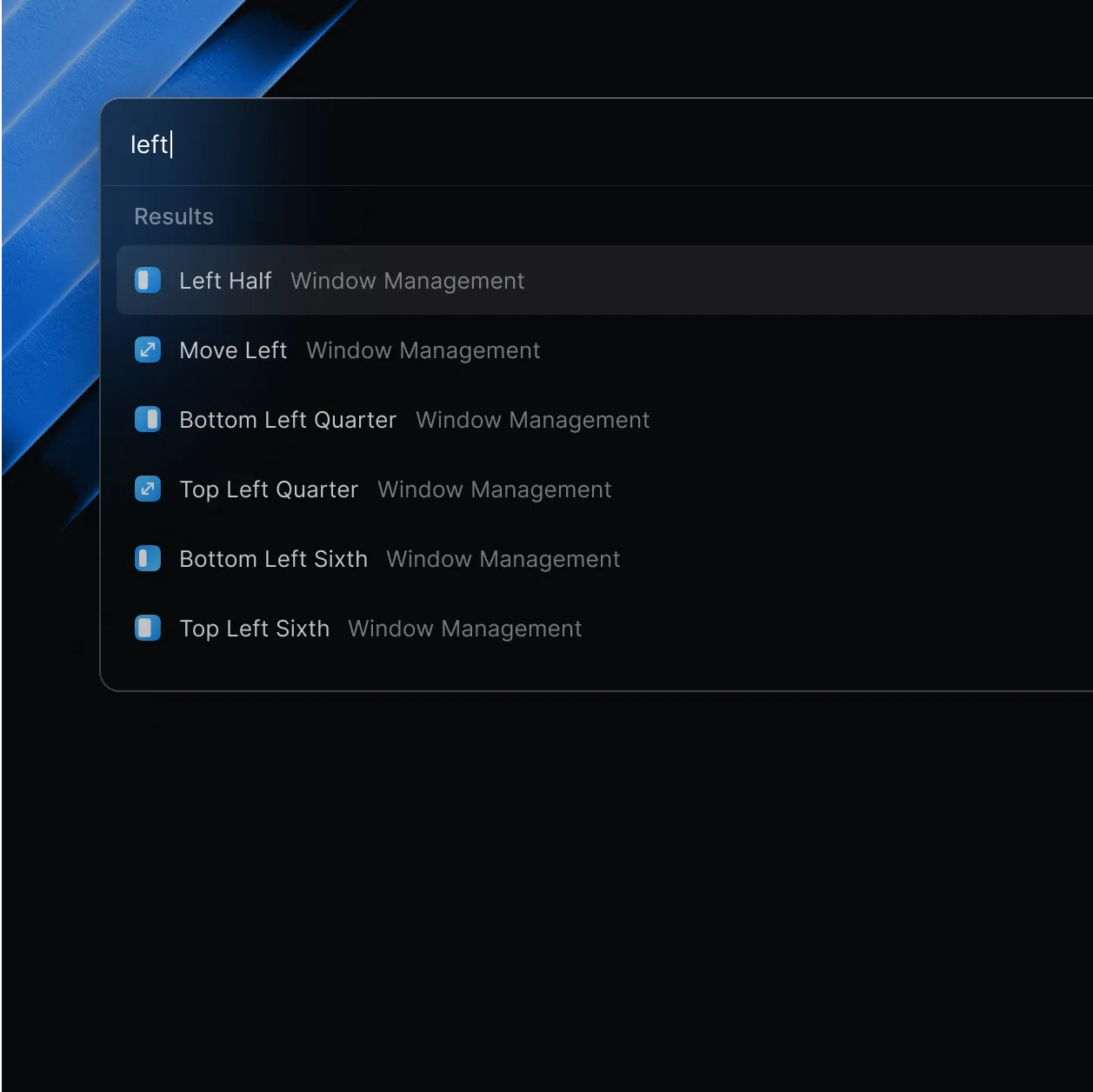
| Action | Shortcut |
|---|---|
| Left Half | ⌥ + ← |
| Right Half | ⌥ + → |
| Top Half | ⌥ + ↑ |
| Bottom Half | ⌥ + ↓ |
| Maximize | ⌥ + Enter |
| Center | ⌥ + C |
| Top Left | ⌃ + ⌥ + U |
| Bottom Right | ⌃ + ⌥ + K |
Download: rectangleapp.com
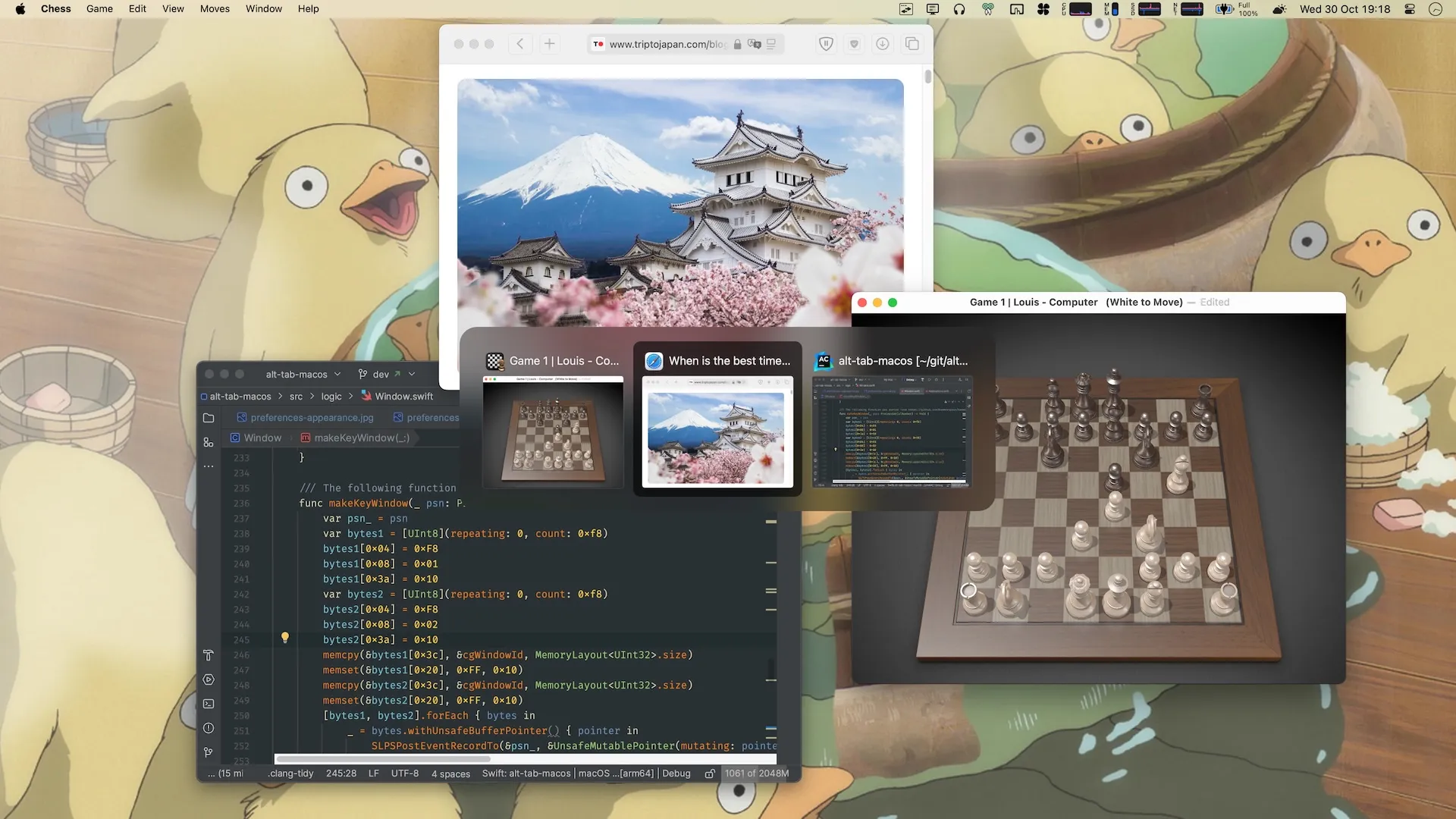
AltTab — Replaces Native ⌘+Tab
macOS native pain point: ⌘+Tab only switches apps, not individual windows.
AltTab advantages:
- Shows thumbnail previews of all windows
- Windows-style switching experience
- Multi-desktop support
- Fully customizable
- Open source and free
My experience: If you frequently have multiple Finder or browser windows open, AltTab will make your workflow much smoother.
Download: GitHub
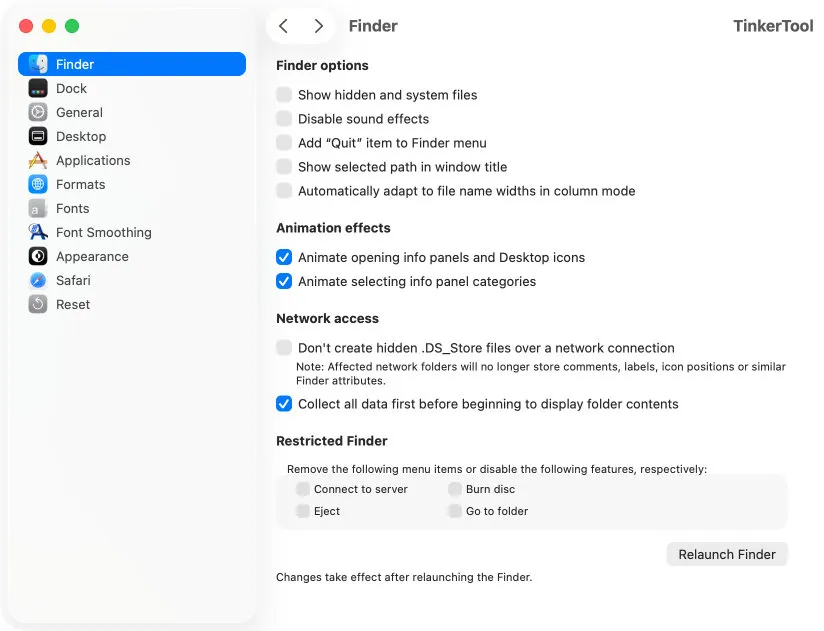
TinkerTool — Unlock Hidden System Settings
Pain point: Many macOS settings are hidden.
TinkerTool features:
- Disable window animations (makes Mac feel faster)
- Remove "Recent Apps" from Dock
- Change default screenshot format and location
- Show hidden files
- Adjust font rendering
- Customize login window
Caution: Modifies deep system settings, understand before using.
Download: bresink.com (Free, not open source)
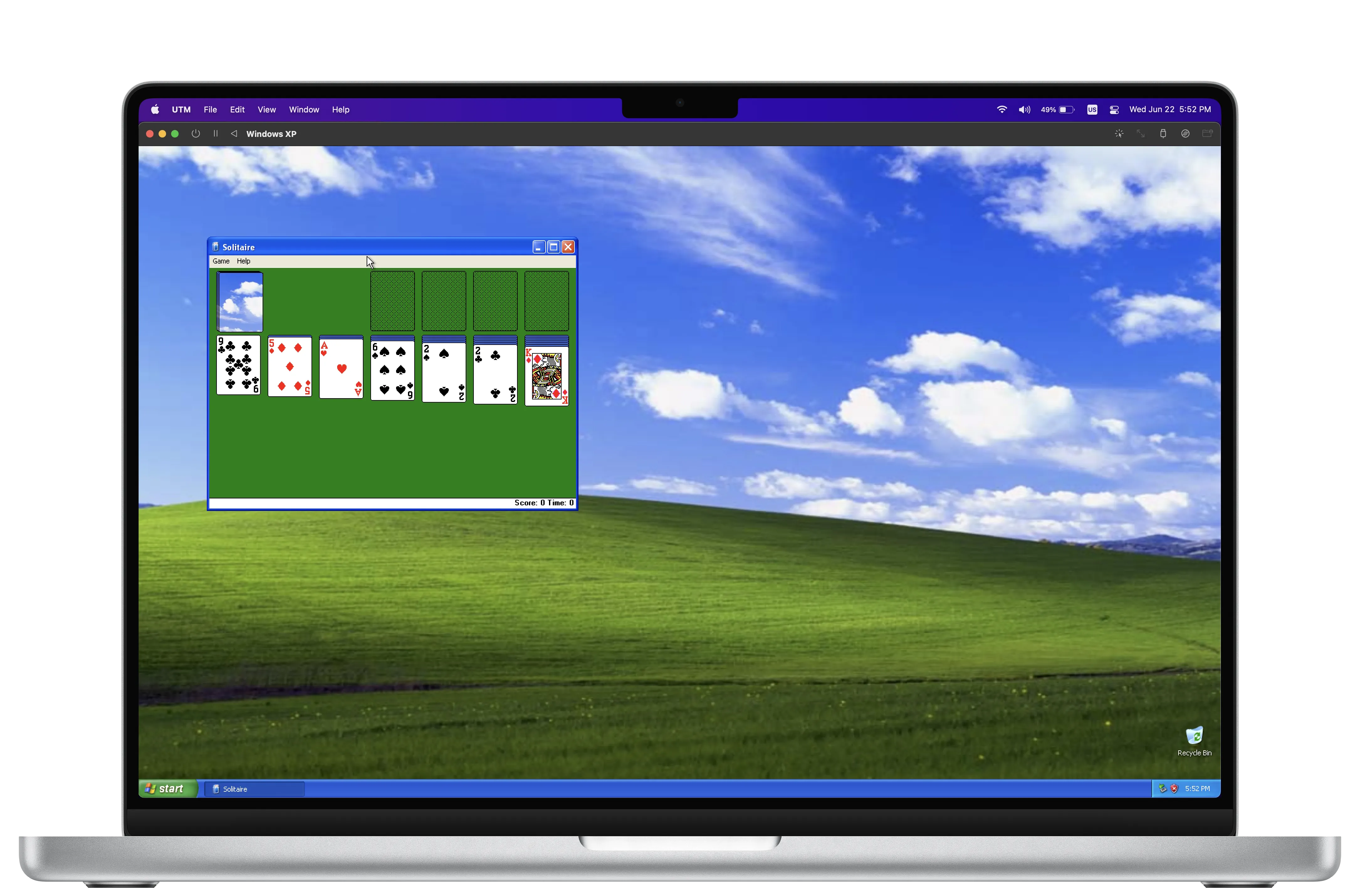
UTM — Replaces Parallels Desktop
Parallels pain point: Subscription model, annual upgrade fees.
UTM advantages:
- Open source and free
- Based on Apple's virtualization framework
- Supports Windows, Linux, older macOS versions
- Simple setup, running in minutes
- Great for testing, legacy software, sandboxed experiments
Use cases:
- Occasional Windows environment needs
- Testing Linux distributions
- Running legacy software
- Secure sandbox experiments
Download: mac.getutm.app
Productivity Tools
Raycast — Replaces Alfred Powerpack
Alfred Powerpack pain point: Advanced features require paid license.
Raycast advantages:
- Core features completely free
- Launcher + clipboard history + code snippets
- Rich extension ecosystem
- Integrates with Notion, GitHub, Todoist
- Built-in window management
- Modern, beautiful interface
Raycast vs Alfred Comparison:
| Feature | Raycast | Alfred Free | Alfred Powerpack |
|---|---|---|---|
| App Launch | ✅ | ✅ | ✅ |
| File Search | ✅ | ✅ | ✅ |
| Clipboard History | ✅ Free | ❌ | ✅ Paid |
| Code Snippets | ✅ Free | ❌ | ✅ Paid |
| Workflows/Extensions | ✅ Free | ❌ | ✅ Paid |
| Window Management | ✅ Built-in | ❌ | ❌ |
My recommendation: If you're a new user, go with Raycast. If you've already purchased Alfred Powerpack with many custom Workflows, stick with it.
Download: raycast.com
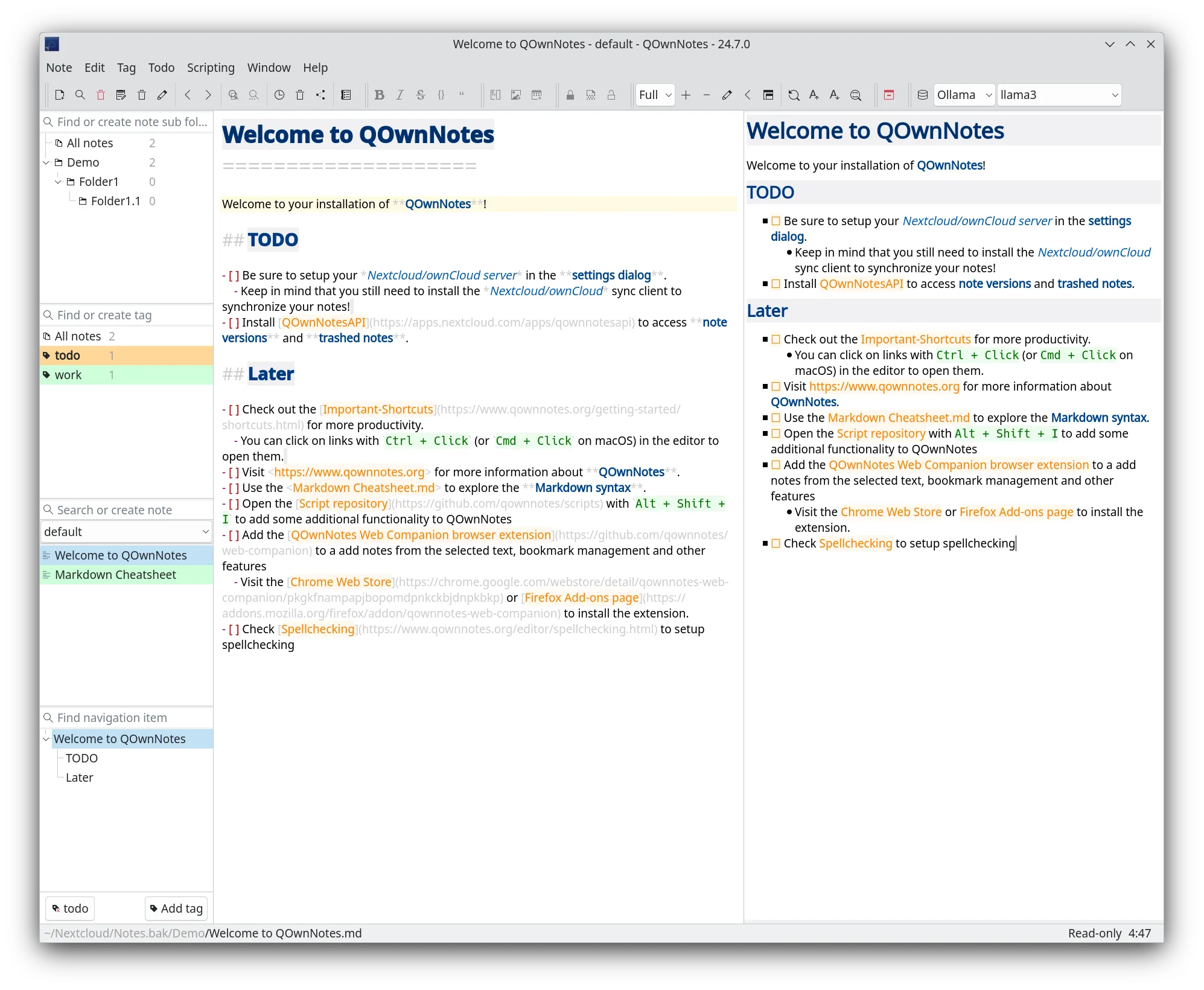
QOwnNotes — Replaces Notion (Local-First)
Notion pain point: Data in cloud, poor offline experience, privacy concerns.
QOwnNotes advantages:
- Open source and free
- Native Markdown support
- Data stored locally
- Can sync with Nextcloud
- Tag system and todo management
- Lightning-fast search
Best for:
- Privacy-conscious users
- Offline usage needs
- Markdown writing preference
- Not wanting cloud service lock-in
Download: qownnotes.org
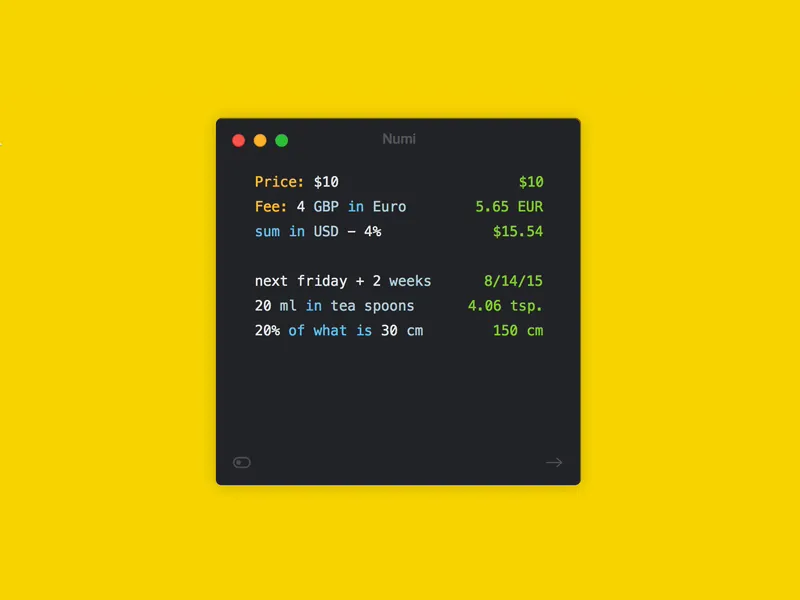
Numi — Smart Calculator
System calculator pain point: Only accepts numbers and operators.
Numi features:
- Understands natural language
- Currency conversion
- Unit conversion
- Date calculations
- Time zone math
- Percentage calculations
Usage examples:
20% of 1500              → 300
100 USD in EUR           → €92.15
3 days from today        → January 31, 2026
what time in Tokyo → 11:30 PMDownload: numi.app (Basic version free)
Creative Tools
Pixelmator Pro — Adobe Photoshop Alternative
Photoshop pain point: Subscription model, $120+/year.
Pixelmator Pro advantages:
- One-time purchase ~$50
- Native Apple Silicon optimization
- AI-powered editing features
- Non-destructive layer editing
- Gentler learning curve than Photoshop
Note: Pixelmator Pro isn't free, but the one-time purchase equals about 3 months of Photoshop subscription.
Affinity Suite — Adobe Creative Cloud Alternative
For professional creative tools, Affinity suite is the best Adobe alternative:
| Adobe Product | Affinity Alternative | Price |
|---|---|---|
| Photoshop | Affinity Photo | ~$70 one-time |
| Illustrator | Affinity Designer | ~$70 one-time |
| InDesign | Affinity Publisher | ~$70 one-time |
Advantages: Buy once, no subscriptions, cross-platform (Mac/Windows/iPad).
File Management
Bloom — Enhanced Finder
Finder pain point: Single window operation, can't view multiple folders simultaneously.
Bloom features:
- Multi-pane layouts (12 configurations)
- Portal floating window
- Enhanced search experience
- Batch renaming (regex support)
- Browse archives like folders
- Complete operation history (undoable)
Price: $16 one-time purchase, 1-week free trial.
Download: bloomapp.club
Keka — Replaces Paid Archive Tools
Pain point: macOS only natively supports ZIP format.
Keka supported formats:
- Compress: 7z, ZIP, TAR, GZIP, BZIP2, XZ, LZIP, DMG, ISO
- Extract: RAR, 7z, LZMA, ZIP, TAR, GZIP, BZIP2, ISO, EXE, CAB, PAX and more
Download: keka.io (Free from website, paid on App Store)

Browsers
Arc Browser — Modern Browsing Experience
Traditional browser pain point: Chaotic tabs, hard to organize.
Arc features:
- Spaces feature separates contexts (work/study/entertainment)
- Sidebar design saves vertical space
- Built-in split-view browsing
- Privacy-first
- Completely free
My usage: I create different Spaces for different projects, archive the entire Space when a project ends.
Download: arc.net
Developer Tools
Mac Mouse Fix — Third-Party Mouse Optimization
Pain point: Logitech, Microsoft and other mice work poorly on macOS.
Mac Mouse Fix features:
- Customize scroll direction and speed
- Button remapping
- Gesture customization
- Fixes laggy scrolling issues
Installation:
brew install mac-mouse-fix2026 Free App Toolkit Recommendations
Starter Setup (Completely Free)
| Category | App | Replaces |
|---|---|---|
| Launcher | Raycast | Spotlight/Alfred |
| Window Management | Rectangle | Moom/Magnet |
| System Monitor | Stats | iStat Menus |
| Window Switching | AltTab | Native ⌘+Tab |
Advanced Setup
| Category | App | Replaces |
|---|---|---|
| Virtual Machine | UTM | Parallels |
| Notes | QOwnNotes | Notion (local) |
| Calculator | Numi | System Calculator |
| Compression | Keka | BetterZip |
| Browser | Arc | Chrome/Safari |
Creative Professional Setup
| Category | App | Replaces |
|---|---|---|
| Photo Editing | Affinity Photo | Photoshop |
| Vector Design | Affinity Designer | Illustrator |
| Publishing | Affinity Publisher | InDesign |
Installation Tips
Batch Install with Homebrew
If you use Homebrew, install multiple apps at once:
# Install Homebrew (if not already installed)
/bin/bash -c "$(curl -fsSL https://raw.githubusercontent.com/Homebrew/install/HEAD/install.sh)"

# Batch install free tools
brew install --cask raycast
brew install --cask rectangle
brew install stats
brew install --cask alt-tab
brew install --cask utm
brew install mac-mouse-fix
brew install --cask keka
brew install --cask arc
Post-Installation Cleanup
After installing new apps:
- Configure auto-start if needed
- Set up keyboard shortcuts (avoid conflicts)
- Uninstall replaced paid apps
- Cancel unused subscriptions
Conclusion
Say goodbye to subscription traps and embrace open source and free alternatives. Not only will you save money, but often you'll get a better experience.
Core principles:
- Prefer open source projects (transparent, secure, community support)
- One-time purchase over subscriptions
- Native apps over Electron wrappers
- Good enough features, don't chase bloat
All these apps have been personally tested and run great on macOS Tahoe. Hope this guide saves you some money while improving your Mac experience.
Sources
This article synthesizes information from multiple sources with personal testing:
- Jannis - "6 Free Mac Apps You've Probably Never Heard Of"
- Arshad - "9 Essential Free Mac Apps" & "Best Mac Apps 2025"
- The Useful Tech - "5 New Mac Apps From 2025"
- Tested on: macOS Tahoe 26.x, MacBook Pro M4