Printer Not Working on macOS Tahoe? The Local Network Privacy Setting Breaking AirPrint (HP, Canon, Epson, Brother Fix)
AirPrint broken on macOS Tahoe? Complete fix for the new Local Network privacy gate — per-brand walkthrough for HP, Canon, Epson, Brother printers, plus CUPS/IPP fallback methods.
If you upgraded to macOS Tahoe and suddenly your printer is gone — not "offline," not "in error," but actually missing from the print dialog as if it never existed — you are not imagining it, and you are not alone. Across HP, Canon, Epson, Brother, Xerox, and Kyocera, users who could print fine on macOS Sequoia are opening Pages or Preview, hitting Command-P, and staring at an empty printer list. Some see the printer appear briefly, only for jobs to sit indefinitely at "Pending." Others can print from an iPhone or iPad on the same Wi-Fi network — AirPrint works there — but their Mac, sitting on the same desk on the same network, refuses to discover the printer at all.
The cause is not a driver problem. It is not a Wi-Fi problem. It is not your printer's fault. It is a deliberate change to how macOS Tahoe handles local network access — a new privacy gate, modeled on the one Apple introduced for iPhones with iOS 14, that silently blocks Bonjour/mDNS discovery for any application that has not been explicitly granted Local Network permission. Printer setup workflows written for macOS Sequoia and earlier never asked for this permission because it did not exist. The result: your Mac is now technically blocked from "seeing" the printer at the network layer, even though the printer is broadcasting itself loudly and your phone can hear it just fine.
This guide walks you through the fix, end to end. We will start with the one-screen System Settings toggle that solves it for most people. We will then go brand by brand — HP, Canon, Epson, Brother, Xerox, Kyocera — because each vendor's setup software needs its own permission grant, and each brand uses slightly different terminology in its menus. We will cover CUPS-level fallbacks for when the GUI fixes don't work, including how to add a printer manually by IPP URL when AirPrint discovery has given up. And we will close with network-level diagnostics, because sometimes the printer really is on the wrong VLAN, and no amount of permission-toggling will fix that.
If you have a Genius Bar appointment tomorrow, cancel it. There is a strong chance you can fix this in the next ten minutes.
Key Takeaways
- macOS Tahoe introduced a new Local Network privacy permission (System Settings → Privacy & Security → Local Network) that gates Bonjour/mDNS discovery — the protocol AirPrint, IPP, and most networked printers rely on to be found.
- If your printer disappears from the print dialog, the most likely cause is that Printer Setup Utility, Image Capture, your printer vendor's app, or the apps you print from have not been granted Local Network access.
- The first thing to try: System Settings → Privacy & Security → Local Network → toggle ON for every print-related app, then restart the Mac.
- USB-connected printers are not affected — the new permission only gates network discovery, so a USB cable always works as a same-day workaround.
- Per-brand setup apps (HP Smart, Canon PRINT, Epson Connect, Brother iPrint&Scan) all need Local Network permission individually before they can complete setup on Tahoe.
- The CUPS web interface at
http://localhost:631lets you bypass discovery entirely by adding a printer via its IPP URL — a reliable fallback when the GUI fixes don't work. - AP isolation, guest networks, and routers that block mDNS forwarding across VLANs will defeat any client-side fix. Verify your Mac and printer are on the same subnet before assuming Tahoe is at fault.
The Symptoms: How You Know This Is Your Problem
The Tahoe Local Network privacy issue shows up in a handful of distinct ways. If any of these match what you are seeing, this guide is for you.
The Print dialog is empty. You open Pages, TextEdit, Safari, or Preview. You hit Command-P. The "Printer" dropdown either shows "No Printer Selected" with no options, or it shows only "Save to PDF" and "Nearby Printers" (which finds nothing). This is the most common symptom. The printer is still configured in System Settings → Printers & Scanners — you can see it there, perhaps even with a green dot — but it does not surface in the print dialog. This is the network layer being blocked at discovery time.
The printer is "discovered" but jobs stay Pending. You can add the printer in System Settings → Printers & Scanners → Add Printer, where it shows up under "Default" or "Bonjour." You click Add. The printer appears in your list. You send a job. The job appears in the queue, status "Pending — Connection in Progress" or "Stopped." It never prints. This happens when the discovery handshake completed at some earlier point (perhaps before you upgraded to Tahoe), but the actual job submission — which also uses network access — is now being blocked.
AirPrint works on iPhone, fails on Mac. This is the diagnostic giveaway. You pull out your iPhone, open the Photos app, hit Share → Print, and your printer appears instantly. The same printer, on the same Wi-Fi network, will not appear on your Mac. iPhones have had Local Network permission since iOS 14 and your printer apps have been requesting it (or operating system-level AirPrint requests it on their behalf) for years. On the Mac, this permission flow is brand new in Tahoe and the printer software has not caught up.
It worked on Sequoia. This is the time-correlation giveaway. The printer worked on macOS Sequoia. You upgraded to Tahoe. Now it does not work. Nothing else changed — same router, same printer firmware, same Wi-Fi password. This pattern is overwhelmingly consistent with the Local Network permission gate, because nothing else about the print stack changed between Sequoia and Tahoe at that magnitude.
The printer shows up, then disappears. Sometimes Tahoe shows the printer for a moment — long enough for you to think the problem is resolved — then it vanishes again. This typically happens when one part of the print stack (say, the system framework) has Local Network permission but another part (the printer vendor's helper agent, or CUPS itself) does not. The discovery briefly succeeds and then fails when the next stage of the workflow tries to query the printer.
If any combination of these matches your experience, read on. The fix is straightforward; it is just buried in a place no one expects to look for a printer problem.
Root Cause: What Tahoe Changed About Local Network Access
To understand why this happens — and why it is genuinely Apple's design choice, not a bug — you need to understand a piece of architecture that Apple has been migrating from iOS to macOS for several releases.
On iOS, since version 14, every app that wants to communicate with devices on the local network — printers, smart bulbs, home automation, casting receivers, network audio devices, Bonjour-discovered services — must explicitly request user permission via the NSLocalNetworkUsageDescription declaration in its Info.plist, and the user must approve it the first time the app tries to use the network. This was Apple's response to research showing that apps were silently scanning local networks to fingerprint users' homes — counting how many smart devices they had, identifying their router model, inferring whether they lived in an apartment or a house. The Local Network permission put a stop to this by requiring a visible, declined-by-default consent dialog.
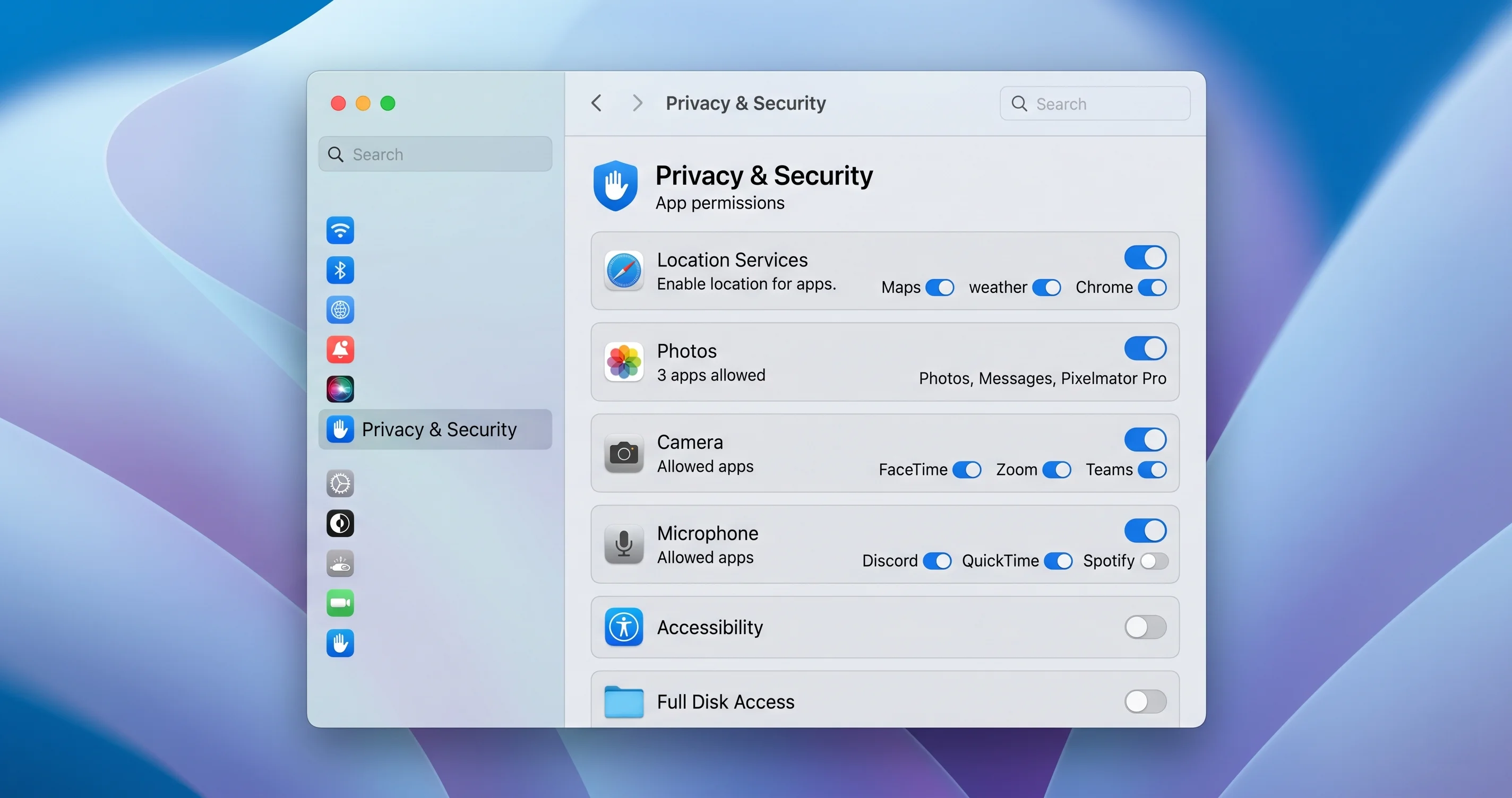
macOS has historically been more permissive. Until Tahoe, any app could send Bonjour queries (the mDNS broadcast that asks "are there any printers here?") without asking the user, because the threat model on the Mac was assumed to be less invasive. With Tahoe, Apple completed the privacy alignment between iOS and macOS. The same NSLocalNetworkUsageDescription model now governs Mac apps. The same System Settings → Privacy & Security → Local Network pane now appears, and it works the same way: apps that need to discover or talk to local devices must be explicitly toggled on.
Apple's intent here is reasonable. The problem is the rollout. On iOS, the permission was introduced alongside developer documentation, sample code, and a forcing function: apps that did not adopt the new pattern would visibly break, and developers had years of warning before iOS 14 shipped. On macOS Tahoe, the equivalent transition has caught a long tail of printer manufacturer software flat-footed. HP Smart, Canon PRINT for Mac, Epson Software Updater, Brother's iPrint&Scan — these apps were ported from older macOS versions where Local Network permission did not exist. Many of them do not yet declare NSLocalNetworkUsageDescription, do not request the permission proactively, and have no UI to tell the user that permission needs to be granted manually.
The result: the user installs the printer software (or upgrades to Tahoe with the software already installed), tries to set up the printer, and the setup silently fails at the Bonjour step. No error dialog. No "permission denied" message. Just an empty list of detected printers, or a setup wizard that hangs at "Searching for printers…" forever. The user assumes the printer is broken, the driver is broken, or Tahoe is broken. The real culprit is a permission toggle in a place no one thinks to look for printer problems.
The good news: now that you know where to look, fixing it takes about a minute per app.
Who Is Affected (and Who Isn't)
Before you start changing settings, confirm that you actually have the network-discovery problem and not something else. The Local Network permission gate affects a specific class of printer connections.
Affected:
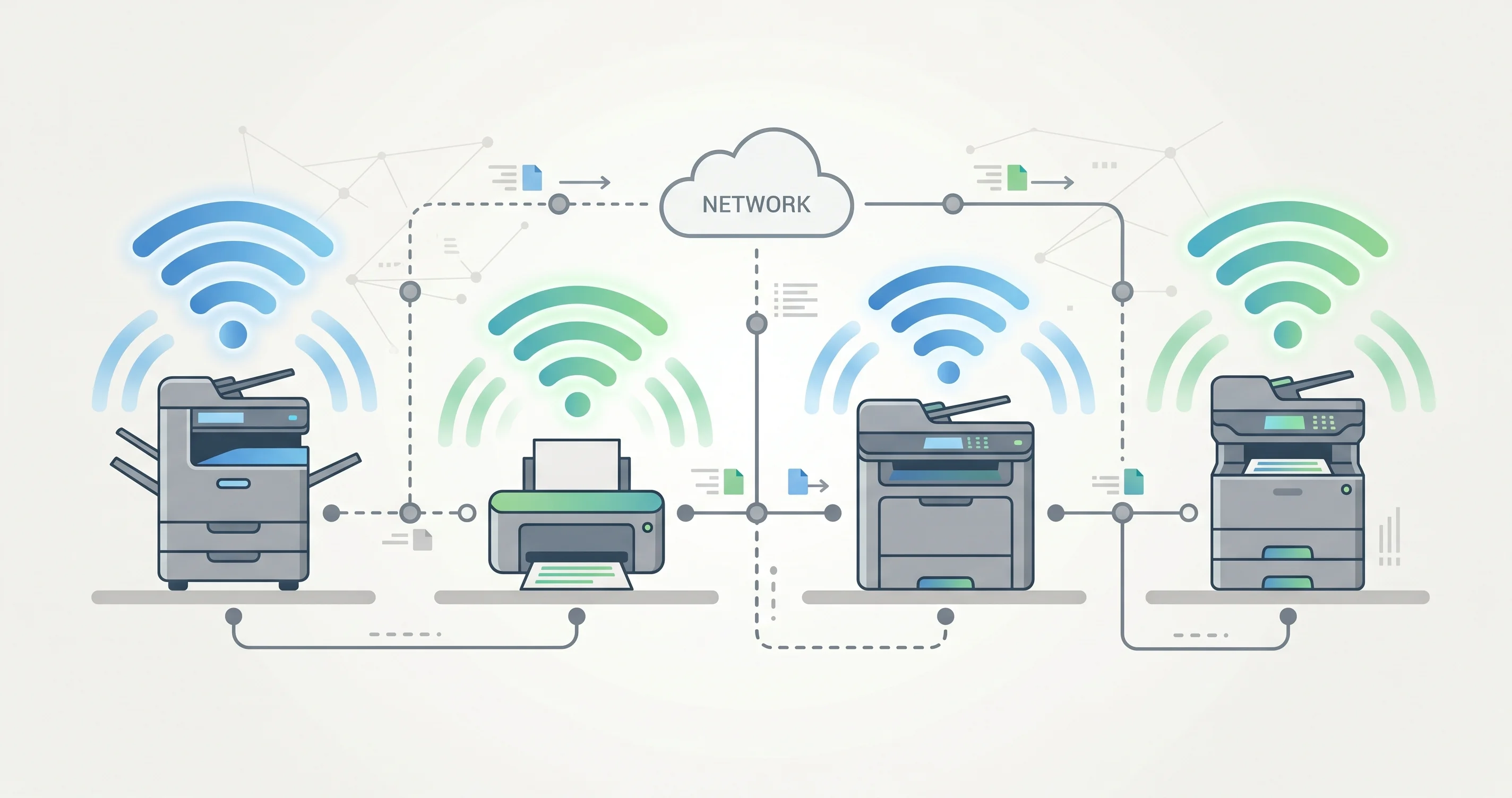
- Wi-Fi networked printers using AirPrint. This is the most common configuration in homes and small offices. The printer is on your Wi-Fi network, you "added" it once via Bonjour, and you have been printing wirelessly ever since. All of these are affected.
- Ethernet-connected office printers using IPP. Larger laser printers — HP LaserJet Enterprise, Canon imageRUNNER, Xerox WorkCentre, Kyocera ECOSYS, Ricoh — typically sit on a wired office LAN and respond to IPP queries from clients on the same subnet. The discovery layer for these also depends on mDNS, so they are affected too.
- Printers behind a print server using Bonjour advertisement. Some offices put a print server (a CUPS box, an old Mac, an AirPort Express, a Synology NAS with print sharing) in front of older printers. If the print server uses Bonjour to advertise the printer, the discovery chain is affected.
- Smart multifunction devices — anything that combines printer, scanner, and fax in one networked unit. Affected on both the print path and the scan path.
Not affected:
- USB-connected printers. A printer plugged directly into your Mac via USB does not use the network stack at all. The Local Network permission is irrelevant. If you have a USB cable handy and the printer has a USB port, this is your immediate workaround — plug in, print, and come back to fix the Wi-Fi side later. Many home all-in-one printers support both USB and Wi-Fi simultaneously; you can flip between them as needed.
- PDF and "Save as" workflows. Apple's built-in "Save as PDF" option in the print dialog does not involve the network at all. It always works regardless of the permission state.
- Cloud-based print services. Google Cloud Print is dead (Google killed it in 2020), but if you happen to use a printer's own cloud submission method — emailing a document to an HP ePrint address, for example — that uses regular Internet access and is not gated by Local Network permission. It is slow and clunky, but it is a same-day fallback.
- Macs that were already configured before Tahoe and had the printer correctly added. A small number of users report that their existing printer configurations survived the Tahoe upgrade because the permission was implicitly grandfathered. Most do not. If you are one of the lucky ones who upgraded and everything still works, do not change anything — but be aware that future printer-software updates may trigger the permission flow.
The Fix: Enable Local Network Permission for Print-Related Services
This is the core of the article. Most readers will be fixed by the time they finish this section.
Step 1. Open System Settings (Apple menu → System Settings, or Cmd-Space and type "System Settings").
Step 2. In the sidebar, click Privacy & Security.
Step 3. Scroll down in the right pane and click Local Network. You will see a list of apps that have, at some point, requested local network access. Some will be toggled on; some will be off. Many will simply be missing because they never requested the permission at all.
Step 4. For every print-related entry in the list, toggle the switch to ON. The print-related entries you should look for, in approximate order of importance:
- Printer Setup Utility — the built-in macOS helper that handles "Add Printer" workflows. Critical. If only one thing is on, make it this.
- Image Capture — handles scanning from network multifunction devices. Important if you also scan.
- Preview — for printing PDFs and images directly. Often missed.
- Print Center (sometimes labeled
PrintCenter) — the print queue manager. - AirPrint Browser — internal helper for AirPrint discovery.
- CUPS Browser (sometimes shown as
cupsdorcups) — the underlying print daemon. This is the single most important toggle for IPP-based printing. - Your printer vendor's app — HP Smart, HP Easy Start, Canon PRINT, Canon IJ Network Tool, Epson Software Updater, Epson Connect Printer Setup, Brother iPrint&Scan Push Scan Tool, Brother Status Monitor, Xerox Smart Start, Kyocera Net Manager, etc. Toggle on every one of them that exists in the list.
- Apps you regularly print from — Microsoft Word, Excel, PowerPoint, Pages, Numbers, Keynote, Adobe Acrobat Reader, Adobe Acrobat Pro, Chrome, Firefox, Edge, Mail, Photos, any specialized graphics or photo software you use.
Step 5. After toggling, quit and reopen any app you want to print from. Local Network permission is read at app launch; an app that was already running when you flipped its switch will not pick up the new permission until it relaunches.
Step 6. Restart your Mac. This is not always necessary, but it forces every daemon — including cupsd and the AirPrint discovery helper — to relaunch with the new permission state. It also clears any cached negative discovery results.
Step 7. Open the print dialog from any app and check whether your printer appears. If it does, you are done. If not, move on to the per-brand walkthrough below — your specific printer vendor may need additional steps.
One gotcha worth flagging: if an app you expect to be in the Local Network list is not there at all — not toggled off, not toggled on, just absent — it means the app has never requested the permission. This is most common for older versions of vendor software. The fix is to launch the app, attempt a printer discovery (which will silently fail), and then return to System Settings. In most cases the app will now appear in the list because it has registered its intent to use local network access. Toggle it on and try again.
Per-Brand Walkthrough
Because each printer vendor's setup software behaves slightly differently on Tahoe, here is a brand-by-brand guide. Find your brand below and follow the steps. If your brand is not listed but uses AirPrint, the generic fix above should work — but be prepared to install (and grant permission to) the vendor's official Mac setup app even if you do not plan to use it, because some printer firmwares only respond to discovery handshakes that the vendor app has initiated.
HP (HP Smart, HP Easy Start)
HP is the most commonly affected brand because HP's macOS setup workflow is the most complex. HP Smart and HP Easy Start both install a background launchctl agent (com.hp.devicemonitor or similar) that runs continuously and listens for printer announcements on the local network. This agent absolutely needs Local Network permission to do its job.
- Open System Settings → Privacy & Security → Local Network.
- Confirm HP Smart is toggled ON.
- Confirm HP Easy Start is toggled ON.
- If you also installed the full HP driver package, look for HP Utility or HP Device Monitor and toggle those ON as well.
- Quit HP Smart entirely (right-click the dock icon → Quit, then verify in Activity Monitor that no
HPprocesses remain). - Open Terminal and run:
launchctl kickstart -k gui/$(id -u)/com.hp.devicemonitor(this restarts the HP background agent so it picks up the new permission). If that exact label doesn't exist, runlaunchctl list | grep -i hpto see the actual agent label and substitute it. - Reopen HP Smart. Click Add Printer. The discovery should now succeed within five to ten seconds.
If HP Smart still cannot find the printer, the secondary cause is often a stale entry in the macOS network cache. Run sudo killall -HUP mDNSResponder in Terminal to flush macOS's mDNS resolver cache, then try HP Smart again.
A note specific to HP Tango, HP Envy, and HP DeskJet home printers: these devices use a separate "HP Smart setup" mode that requires the printer to be in a specific blinking-blue-Wi-Fi state. If discovery is failing on an already-configured printer, you do not need to put it back in setup mode — the Local Network permission fix above should suffice. Re-running setup is only necessary if the printer has been factory-reset or moved to a new network.
Canon (Canon PRINT, Canon IJ Network Tool)
Canon ships two distinct Mac applications: Canon PRINT (the modern unified app, equivalent to HP Smart) and Canon IJ Network Tool (the older but still-supplied utility used to configure the printer's network settings). Tahoe affects both.
- Open System Settings → Privacy & Security → Local Network.
- Toggle ON: Canon PRINT, Canon IJ Network Tool, Canon Inkjet Print Utility, and any other entry beginning with "Canon."
- If you installed Canon's full driver suite from Canon's support website, also look for CIJScannerRegister (Canon's scanner-side helper) and toggle it ON if you scan.
- Quit all Canon applications.
- Open Canon IJ Network Tool (look in Applications → Canon Utilities). When it launches, it should scan the local network. If it finds your printer, you are good — Tahoe's permission gate was the only blocker.
- If Canon IJ Network Tool finds the printer but Canon PRINT does not, install or reinstall Canon PRINT from the Canon support site for your specific printer model. The latest version (released after Tahoe shipped) includes the proper
NSLocalNetworkUsageDescriptiondeclaration and will request permission correctly.
Canon also distributes its own driver package, separate from the AirPrint-via-Apple driver. If you have been printing successfully on Sequoia using the Canon-specific driver, that driver continues to exist on your Mac after the Tahoe upgrade — you do not need to reinstall it. But you do need to make sure the Canon background services (canonijnetworkd) have Local Network permission, which is what step 2 above accomplishes.
Epson (Epson Connect, Epson iPrint, Epson Software Updater)
Epson has historically had the smoothest Mac setup process — and accordingly, Epson users are sometimes surprised that the Tahoe upgrade breaks them. The cause is the same: Epson's network discovery helpers were not designed around the new permission model.
- Open System Settings → Privacy & Security → Local Network.
- Toggle ON: Epson Connect Printer Setup, Epson Software Updater, Epson Scan 2, Epson Printer Utility, and EPSON Status Monitor.
- If you have Epson iPrint installed (less common on Mac, more common on iOS), toggle that ON too if it appears.
- Quit Epson apps. Restart the Mac. Most Epson software listens at login time for printer announcements, so a clean restart helps it pick up the permission state.
- Open Epson Connect Printer Setup. It should walk through the standard discovery flow. If your printer is found, complete setup; if not, the issue is upstream of the permission gate.
A specific note on Epson ET (EcoTank) and Workforce models: these often expose both an AirPrint endpoint and a vendor-specific endpoint. If AirPrint discovery is broken but Epson's own discovery succeeds, you can print via the Epson driver as a workaround while waiting for an Apple-side fix. Conversely, if Epson's discovery fails but AirPrint succeeds, you can add the printer as a generic AirPrint device via System Settings → Printers & Scanners → Add Printer → Default tab, picking the AirPrint-labeled entry.
Brother (Brother iPrint&Scan, Brother Status Monitor)
Brother has the dubious distinction of having the most fragmented Mac software lineup of any major printer brand. Depending on which Brother printer you own, you may have Brother iPrint&Scan, Brother Status Monitor, Brother P-touch Editor (for label printers), or Brother HL-Light (for monochrome lasers). All of them touch the network discovery layer.
- Open System Settings → Privacy & Security → Local Network.
- Toggle ON every Brother-prefixed entry in the list.
- If you do not see any Brother entries at all, this is a sign that none of Brother's apps have ever requested local network access on this Mac. Open one of them (Brother iPrint&Scan is the most common) and attempt to add a printer. Even if the attempt fails, the act of trying should register Brother in the permission list. Return to System Settings and toggle the newly-appeared entries ON.
- Restart any open Brother applications.
- From Brother iPrint&Scan, click Select your Machine → Add Machine. Discovery should work.
Brother laser printers (HL, MFC, DCP series) often support direct IPP connections without needing the Brother app at all. If iPrint&Scan continues to fail after the permission fix, jump down to the CUPS Fallback section below and add the printer manually via IPP — it is reliable on Brother hardware.
Xerox (Xerox Smart Start, CentreWare)
Xerox primarily serves the office market, where printers tend to be Ethernet-connected and on managed VLANs. The Local Network permission gate still applies because mDNS discovery is the standard discovery method even on wired LANs.
- Open System Settings → Privacy & Security → Local Network.
- Toggle ON: Xerox Smart Start, Xerox Print Experience, CentreWare, and any other Xerox-prefixed entry.
- Note that many Xerox office printers do not require any Xerox software at all — they can be added to the Mac via IPP directly. If your office IT has provided you with a printer URL like
ipp://printer.office.local:631/ipp/print, you can use the CUPS Fallback method below to add the printer without touching Xerox's apps. - If you do use Xerox Smart Start for discovery, also make sure your Mac is on the same VLAN as the printer (see Network-Level Diagnostics below) — Xerox office deployments are particularly prone to VLAN-isolation problems that the permission fix alone won't resolve.
Kyocera (Kyocera Net Manager, CentreWare-equivalent)
Kyocera ECOSYS and TASKalfa printers in office environments behave very similarly to Xerox. The permission fix is the same.
- Open System Settings → Privacy & Security → Local Network.
- Toggle ON every Kyocera-prefixed entry, including Kyocera Net Manager, Kyocera KM-NET Viewer, Kyocera Net Admin, and Kyocera Card Authentication Kit if present.
- Restart Kyocera apps.
- For office Kyocera printers, IPP-based manual addition (via the CUPS web interface) is often more reliable than relying on Kyocera's discovery software. See the next section.
CUPS Fallback Methods (When GUI Fixes Fail)
If you have toggled every permission, restarted every app, restarted the Mac, and the print dialog is still empty, it is time to go below the GUI to the underlying print system: CUPS (Common UNIX Printing System), which Apple maintains and which sits beneath every other piece of macOS print infrastructure. CUPS has its own web-based admin interface that lets you add printers by hand, bypassing all of the discovery layers that Tahoe has tightened.
Step 1: Enable the CUPS Web Interface
By default, the CUPS web interface is disabled on macOS for security reasons. Enable it from Terminal:
cupsctl WebInterface=yesThen open Safari (or any browser) and visit:
http://localhost:631You should see the CUPS admin landing page, with a navigation bar across the top: Home, Administration, Classes, Help, Jobs, Printers.
Step 2: Add a Printer Manually via IPP
This is the magic move. If you know your printer's IP address and the name it advertises on the network, you can add it directly without any discovery at all.
-
In the CUPS web interface, click Administration.
-
Click Add Printer. You may be prompted for your macOS administrator username and password.
-
Under Other Network Printers, select Internet Printing Protocol (ipp) or Internet Printing Protocol (ipps) for encrypted IPP. Click Continue.
-
In the Connection field, enter your printer's IPP URL. The format is:
ipp://192.168.1.123:631/ipp/print(most modern AirPrint/IPP printers)ipp://192.168.1.123:631/printers/PrinterName(CUPS-style URL, used by some servers)ipps://192.168.1.123:443/ipp/print(encrypted IPP, used by enterprise printers)
Replace
192.168.1.123with your printer's actual IP address. To find it, check your printer's display panel (usually under Network or Wi-Fi settings) or your router's connected-devices list. -
Click Continue.
-
Enter a Name, Description, and Location for the printer. The Name is what will appear in your print dialogs.
-
Click Continue.
-
Choose the printer Make (HP, Canon, Epson, Brother, etc.). Click Continue.
-
Choose the specific Model. If your exact model is not listed, choose the closest match in the same series, or select Generic IPP Printer as a universal fallback.
-
Click Add Printer. CUPS will install the printer.
Now go back to System Settings → Printers & Scanners. Your manually-added printer should appear in the list, ready to use. Try printing a test page.
This method works because it skips Bonjour discovery entirely. The Local Network permission gate is only a problem when macOS tries to discover devices on the network. Once a printer is configured with an explicit IP address and IPP URL, the Mac connects to it directly using TCP — the same way it would connect to any web server — and the Local Network permission does not come into play.
Step 3: Reinstall the Driver via Apple's Automatic Download
If your printer was added successfully but jobs fail with "Filter failed" or "Job stopped," the driver needs reinstallation:
- In System Settings → Printers & Scanners, select the printer and remove it (the
−button). - Click Add Printer.
- In the dialog that appears, select the IP tab.
- Enter the printer's IP address.
- Set Protocol to Internet Printing Protocol — IPP.
- In the Use dropdown at the bottom, choose AirPrint if available (this uses Apple's generic AirPrint driver, which works for most modern printers without any vendor-specific software). If AirPrint is not offered, choose Select Software… and pick your specific model — macOS will download the driver from Apple's printer driver server automatically.
- Click Add.
The "AirPrint" driver option is often the most reliable on Tahoe because it does not depend on any vendor-installed software and uses the Apple-maintained print stack end to end.
Reset Print System (Last Resort)
If nothing above has worked — you have toggled every permission, you have manually added the printer via CUPS, you have reinstalled drivers — the next escalation is to reset the entire print system. This wipes every printer, every queue, and every CUPS configuration on your Mac and forces you to start from scratch. It is a heavy hammer, but it does fix a class of stuck-state problems that nothing else touches.
- Open System Settings → Printers & Scanners.
- Right-click anywhere in the printer list (or hold Control and click). A contextual menu appears with one option: Reset printing system…
- Click it. You will be warned that all printers and pending jobs will be removed. Confirm.
- Enter your administrator password.
- The printer list will empty out.
- Restart your Mac. Do not skip this step. The reset clears configuration files, but several daemons need to be restarted before the new clean state takes effect.
- After restart, return to System Settings → Printers & Scanners and add your printer fresh. This time, with Local Network permissions correctly set, discovery should succeed cleanly.
A reset will not delete your vendor software (HP Smart, Canon PRINT, etc.) — those apps remain installed. It only wipes the configuration of which printers are added to your Mac and the queue history. If you have important pending print jobs you have not received output for, you will lose them.
Reset Print System is also the right move if you are seeing very strange symptoms — duplicate printer entries that cannot be deleted, "ghost" printers from networks you are no longer on, queues that re-create themselves after deletion. These are signs of corrupted CUPS state that a reset fixes cleanly.
Network-Level Diagnostics
Before you blame Tahoe entirely, it is worth a few minutes to verify that your network itself is configured correctly. The Local Network permission gate is a real cause of printer disappearance, but it is not the only one, and on networks with mixed devices and VLANs you can spend hours fighting Tahoe when the actual problem is on your router.
Verify mDNS via Terminal
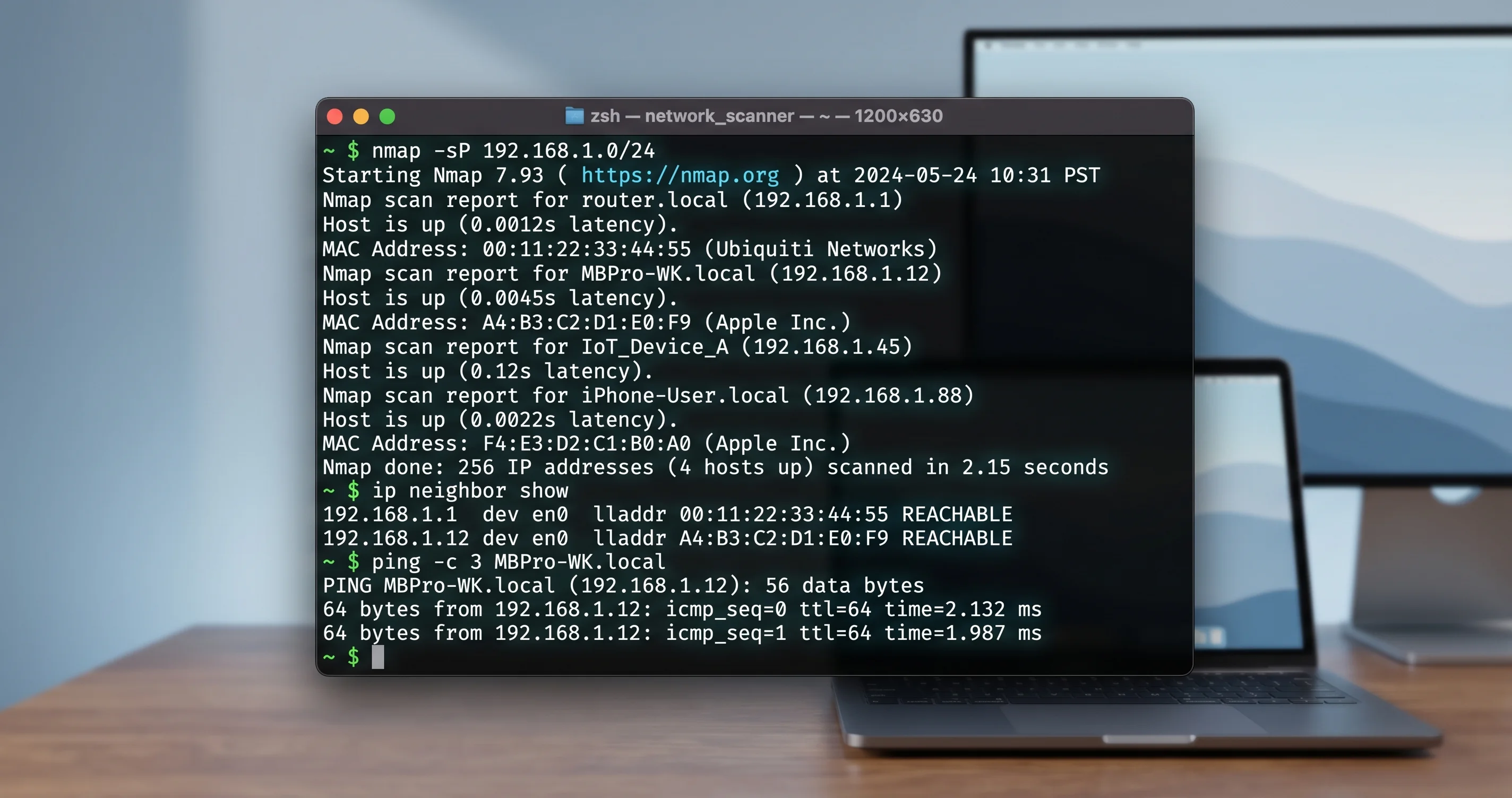
The single most useful diagnostic command on macOS for printer discovery problems is dns-sd. It lets you see exactly what services are being advertised on your network, exactly as your Mac sees them. To check for printers:
dns-sd -B _ipp._tcp local.This subscribes to mDNS announcements for IPP (Internet Printing Protocol) services on the local network. Within a few seconds, you should see output like:
Browsing for _ipp._tcp.local.
DATE: ---Thu 14 May 2026---
14:32:11.234  Add        2   6 local.               _ipp._tcp.           Office HP LaserJet
14:32:11.235  Add        2   6 local.               _ipp._tcp.           Family Brother MFC
Each line is a printer your Mac can see on the network. If you see your printer here, the network layer is working — your Mac can detect the printer. The problem is therefore in the upper layer (application permissions, drivers, CUPS configuration), and one of the fixes above will help. Press Ctrl-C to exit.
If you see no output at all after waiting 30 seconds, the network layer itself is broken — your Mac is not receiving mDNS announcements. This can be caused by:
- Local Network permission denied to Terminal itself. (Yes, even Terminal needs permission. Add it in System Settings → Privacy & Security → Local Network if missing.)
- The printer is powered off, asleep, or disconnected from Wi-Fi.
- The printer is on a different subnet or VLAN than your Mac (see below).
- Your router is blocking mDNS forwarding.
- Your firewall is blocking inbound UDP port 5353.
You can also check for AirPrint specifically:
dns-sd -B _airplay._tcp local.       # AirPlay receivers
dns-sd -B _ipps._tcp local.          # Encrypted IPP printers
dns-sd -B _printer._tcp local.       # Generic printers
dns-sd -B _pdl-datastream._tcp local.  # HP JetDirect printers
Run each of these to see the full picture of what your Mac is discovering.
Verify Same Subnet
Bonjour/mDNS by default works only on a single network segment — devices on the same subnet, broadcasting on the local link. If your Mac is on 192.168.1.x and your printer is on 192.168.2.x (for example because your router has separate networks for guests, IoT, and main devices), they cannot see each other regardless of Tahoe's permission settings.
Find your Mac's IP address: System Settings → Network → click your Wi-Fi or Ethernet connection → look at "IP address."
Find your printer's IP address: print a network status report from the printer's front panel (every printer has this — usually under Network or Reports), or check your router's connected-devices list.
Compare the first three octets. 192.168.1.50 and 192.168.1.75 are on the same subnet (192.168.1.x) and can see each other. 192.168.1.50 and 192.168.2.30 are on different subnets and cannot.
If you have a multi-network router (Eero, Orbi, Asus AiMesh, Unifi), check whether you have it configured to put IoT devices on a separate VLAN. Many routers default to this. The fix is to move the printer to your main network, or to enable mDNS forwarding/Bonjour proxying between the VLANs (Unifi, for instance, has a "mDNS Reflector" setting; Eero has "Smart Home" device handling).
AP Isolation and Guest Networks
A common gotcha: many routers have an AP Isolation or Client Isolation setting, often enabled by default on Guest Networks. This prevents wireless clients from seeing each other. If your printer is on the guest network and your Mac is on the main network — or vice versa — they cannot communicate at all. The fix is to put both devices on the same network with AP isolation disabled.
If you must keep AP isolation enabled (some businesses do, for security), the workaround is to use a wired connection or to set up a print server that bridges between the networks.
Firewall
The built-in macOS firewall (System Settings → Network → Firewall) generally does not block outbound mDNS, but if you have it set to "Block all incoming connections" it will block the replies to your discovery queries. Either disable the firewall temporarily to test, or set it to "Allow built-in software to receive incoming connections" instead of blocking everything.
Third-party firewalls (Little Snitch, LuLu, Radio Silence) can also block local network traffic without obvious indication. Check your firewall rules for any blocks on UDP port 5353 (mDNS) or TCP port 631 (IPP).
What Changed in Tahoe: The Network Permission Architecture Explained
For readers who like to understand why this works the way it does, here is the architecture in plain terms.
Apple's network privacy model is built around a simple question: should this app be allowed to know what is on my local network? On iOS, this question has been gated since version 14. Apps that want to communicate with devices on the user's home network — printers, smart bulbs, casting receivers, anything discoverable via Bonjour/mDNS or directly addressable on the LAN — must declare the intent in their Info.plist using the NSLocalNetworkUsageDescription key, and they must show the user a permission prompt explaining why they need access. The user can approve or deny, and the decision is remembered and exposed in Settings → Privacy → Local Network for later modification.
On macOS, this gate did not exist until Tahoe. Apps could freely send mDNS queries, freely connect to local-network IP addresses, and freely fingerprint the user's home network without any consent dialog. The privacy gap between iOS and macOS had been narrowing for several releases (macOS Sequoia tightened several other privacy areas), but local network access remained a hole.
Tahoe closes that hole. The architecture is now identical to iOS:
- Apps that want to use local network features declare
NSLocalNetworkUsageDescriptionin their Info.plist along with the Bonjour service types they intend to browse (e.g.,_ipp._tcpfor printing). - The first time the app tries to use local network access, macOS shows a one-time permission prompt: "App X wants to find and connect to devices on your local network."
- The user's decision is recorded in the system permission database.
- From then on, every attempt by that app to send mDNS queries, browse Bonjour services, or open TCP/UDP connections to local-network IP ranges is checked against this permission. Denied apps fail silently — they get no results from mDNS queries, no responses from local-network connections, no errors. Just empty results, as if the network were empty.
This last point is the critical part for our problem. Tahoe deliberately makes denied access look like a "no devices found" result, not an explicit "permission denied" error. Apple's rationale is that an app that gets a "permission denied" error can leak information ("the user has denied us local network access, so they probably have something to hide") whereas a "no devices found" result is information-theoretically equivalent to actually being on an empty network. From a privacy standpoint this is the right call.
From a usability standpoint, it is the reason this guide exists. Users encountering the new gate have no error message to search for. They see an empty printer list and reasonably conclude that the printer is broken, the Wi-Fi is broken, or Tahoe is broken. Apple's design choices mean there is no breadcrumb leading them to the actual cause.
The parallel to iOS is exact. iOS 14 was released with the same silent-denial behavior in 2020, and printer apps on iOS went through the same wave of confusion until vendors updated their software to request the permission properly. macOS Tahoe is the Mac-side version of that transition. Within a year or two, every major printer manufacturer's Mac software will declare the permission correctly, and new installs will prompt the user the first time they run setup. Until then — and for users with pre-Tahoe installs of vendor software that have not been updated — the manual System Settings toggle is the workaround.
When You Need to Reinstall the Driver
The permission fix solves most problems, but it does not solve everything. There is a separate class of printer issues — driver-level problems — that look superficially similar but require different action.
Signs you need to reinstall the driver:
- The printer is visible in the print dialog and accepts jobs, but every job fails with "Filter failed" or "Stopped — see Print Queue."
- Pages come out garbled, in the wrong size, or with strange artifacts.
- The printer prints text but cannot print images, or vice versa.
- Print quality has degraded since the Tahoe upgrade in a way that toggling printer settings does not fix.
- The print queue shows the job as "Completed" but no paper comes out.
- Specific features (duplex, color, tray selection) have stopped working.
For these, the driver — not the network — is the problem. The fix:
- Remove the printer from System Settings → Printers & Scanners.
- Visit your printer manufacturer's support page for your specific model and download the latest macOS-Tahoe-compatible driver. Make sure the driver explicitly lists Tahoe support; if only Sequoia is listed, check back in a few weeks or use Apple's AirPrint driver in the meantime.
- Install the driver. You will likely need to grant Local Network permission to the installer.
- Re-add the printer. Choose the newly-installed driver in the "Use" dropdown.
For most users, Apple's built-in AirPrint driver is the best choice on Tahoe, even if a vendor driver is available. The AirPrint driver is maintained by Apple, is updated with the OS, and does not depend on any third-party background services. Vendor drivers offer more advanced features (paper tray management, custom ink levels, vendor-specific stapling/punching for office MFPs) but they also have more places to break. If you do not need those advanced features, stick with AirPrint.
FAQ
Why does my iPhone print fine but my Mac doesn't?
iPhones have had the Local Network permission system since iOS 14 (2020). Printer apps on iOS have been declaring the permission correctly for years, and the system AirPrint flow on iOS uses an OS-level service that is implicitly granted access. On macOS, the permission was added in Tahoe (2025), and the printer ecosystem has not caught up. The iPhone's success on the same network is actually the best diagnostic — it proves the network and printer are fine and isolates the problem to your Mac's permission state.
Will this fix itself when printer manufacturers update their software?
Mostly, yes. As HP, Canon, Epson, Brother, and other vendors release Tahoe-aware versions of their setup software, those versions will declare NSLocalNetworkUsageDescription properly and trigger a clean permission prompt on first launch. New users installing fresh will see the prompt and grant access correctly. Existing users with old versions installed will still need to toggle the permission manually (or update the vendor software and let it re-request access). Expect a long tail — some less-actively-maintained printer drivers will never receive the update.
Can I just turn off the Local Network privacy feature entirely?
No, and this is by design. The Local Network permission is not a global on/off setting; it is per-app. Apple does not offer a "disable all Local Network gating" toggle because the point of the feature is to give users granular control over which apps can fingerprint their home network. The closest equivalent is to grant permission to every app in the list, which is what this article walks through.
Will this come back the next time I update macOS?
The permission state is preserved across macOS point releases. A 26.4 → 26.5 update will not wipe your settings. However, a major version upgrade (Tahoe → its successor) might prompt you to reconfirm certain permissions, especially if Apple changes the privacy categories. Vendor app updates that change the app's bundle identifier (rare but possible) will reset that app's permission and require re-granting.
My company manages my Mac with MDM. Does that change anything?
If your Mac is enrolled in MDM (Jamf, Kandji, Microsoft Intune, etc.), your IT department may be able to pre-grant Local Network permission to approved apps via configuration profiles. The relevant payload is com.apple.TCC.configuration-profile-policy with the kTCCServiceUserTracking service or, more specifically for Tahoe, a Local Network entry. Contact your IT team — if they have a corporate printer fleet, they have probably already encountered this and may have a profile ready to deploy.
What about scanning? My all-in-one's scan function stopped working too.
Scanning over the network uses the same mDNS/Bonjour discovery as printing, and is gated by the same Local Network permission. The fix is the same: make sure Image Capture, your vendor's scan utility (HP Smart, Canon PRINT, Epson Scan 2, Brother iPrint&Scan), and Preview all have Local Network permission. Scanning also uses the additional service type _uscan._tcp (AirPrint Scan); if you want to verify with dns-sd, use dns-sd -B _uscan._tcp local. to see scan-capable devices.
Is this a bug Apple will fix in a point release?
It is not a bug. It is a deliberate architectural change. Apple will not "fix" it because there is nothing to fix from their standpoint — the gate is working as designed. What may improve over time is the discoverability: future versions of macOS could add a more visible "this app is being blocked from local network access" notification, similar to how iOS sometimes prompts the user to re-check permissions when an app silently fails. But the gate itself is here to stay. Coverage by sites like Mac Observer and the official Apple support documentation on Configuring Local Network privacy makes clear that this is the new normal.
Conclusion
If you have followed this guide, your printer should be working. The Local Network privacy gate is one of those macOS Tahoe changes that is genuinely well-designed from a security standpoint and genuinely confusing from a user-experience standpoint. The same architecture that protects iPhone users from being silently fingerprinted by their smart-bulb apps is now protecting Mac users from the same thing — but the transition has caught a generation of printer software in an awkward middle state, where the apps want to discover devices but have not been updated to ask permission.
The fix is reliable. Toggle Local Network permission on for every print-related app. If that does not work, add the printer manually via CUPS at localhost:631. If that does not work, reset the print system and start over. If that does not work, the problem is genuinely upstream — your network, your VLAN, or your router — and no amount of macOS-side configuration will help.
You can cancel that Genius Bar appointment.
For more on the broader macOS Tahoe rollout, see our macOS Tahoe 26.2 all known bugs, issues and fixes tracker, which catalogs every documented Tahoe issue with current workarounds. The macOS Tahoe 26.4 and 26.4.1 complete update guide covers the latest point releases and what they did and did not fix.
If you have also been hitting AirDrop problems on Tahoe — and many people who have printer issues also have AirDrop issues, because both rely on the same Bonjour discovery layer — see our AirDrop not working on Mac fix guide, which walks through the same kind of permission and discovery debugging from the AirDrop angle.
For background on the new privacy architecture, the macOS Tahoe security and privacy complete guide explains every privacy gate added in this release, including how to audit them, manage them at scale via MDM, and understand the trade-offs.
And if your printer problems coincided with a broader networking weirdness — slow connections after about seven weeks of uptime, intermittent drops, "no Internet" warnings that disappear on reboot — check the macOS Tahoe 49-day TCP bug network fix guide. That issue is unrelated to printers but tends to compound the perception that "nothing on my Mac works anymore," and resolving it makes the broader networking experience much cleaner.
Print a test page. Confirm it works. Then go back to whatever you were trying to print before all this happened.