Master Apple Intelligence in 10 Minutes: Complete AI Features Guide 2025
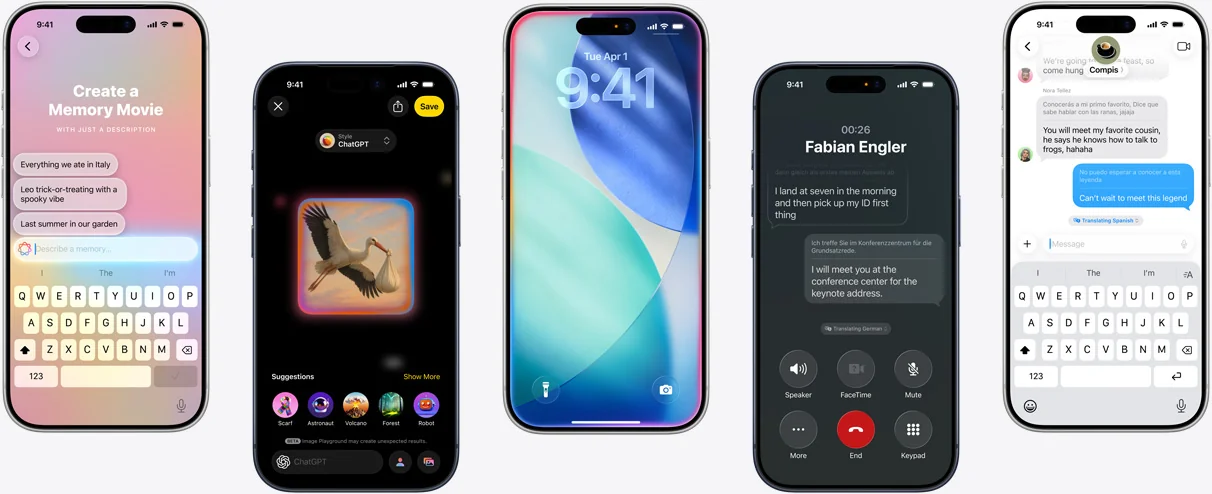
Comprehensive guide to mastering Apple Intelligence core features, from Writing Tools to Genmoji, from beginner to expert ultimate tutorial, supporting iOS 18.2 latest features.
Apple Intelligence represents Apple's major breakthrough in the AI field, deeply integrating personal intelligent assistants into iOS, iPadOS, and macOS systems. After extensive testing and hands-on experience, we bring you this complete 10-minute mastery guide to help you quickly master all core features.
Apple Intelligence Feature Overview
Core AI Capabilities
Apple Intelligence is not just a simple AI tool collection, but a complete personal intelligence system:
Device-First Processing:
- 3 billion parameter on-device language model
- A17 Pro and higher chip support
- Neural Engine with 35 trillion operations per second
- Privacy-protected local AI processing
Private Cloud Compute:
- Stateless cloud computing
- Apple Silicon dedicated server hardware
- Immediate data deletion after processing
- Verifiable transparency guarantees
Hybrid Intelligence Architecture:
- Common functions processed locally
- Complex tasks assisted by cloud
- Intelligent routing with automatic decisions
- Seamless user experience
Compatibility and System Requirements
Supported Device List:
- iPhone: iPhone 15 Pro series, iPhone 16 all models
- iPad: iPads with M1 and higher chips, iPad mini (A17 Pro)
- Mac: All Mac devices with M-series chips
- Apple Vision Pro: visionOS 2.4 and higher
System Version Requirements:
- iOS 18.1+ (full features require iOS 18.2+)
- iPadOS 18.1+ (full features require iPadOS 18.2+)
- macOS Sequoia 15.1+
- Storage space: Up to 7GB for AI model download
Step One: Activate Apple Intelligence (2 Minutes)
Quick Setup Process
Basic Preparation:
- System Update: Settings → General → Software Update
- Language Setting: Settings → General → Language & Region → Set to American English
- Network Connection: Ensure stable Wi-Fi connection (not hotspot)
Activation Steps:
- Enable Apple Intelligence: Settings → Apple Intelligence & Siri → Turn on Apple Intelligence
- Join Waitlist: First-time activation requires joining waitlist
- Wait for Approval: Usually get access within 1-24 hours
- Download Models: AI models download automatically (up to 7GB)
Troubleshooting Tips:
- If download gets stuck, double-tap "Preparing" status
- Can pause and continue when network is unstable
- Ensure device has sufficient battery and storage space
Regional Restrictions Solutions
Supported Regions:
- United States (full feature support)
- Australia, Canada, New Zealand, South Africa, United Kingdom, etc.
- EU and mainland China not yet supported
Setup Recommendations:
- Siri language must be set to American English
- System region can keep original settings
- English interaction required when using
Writing Tools: Smart Writing Assistant (2 Minutes to Master)
Access Methods and Interface
iPhone/iPad Operations:
- Select any text → tap "Writing Tools"
- Use Apple Intelligence button on keyboard
- Supports third-party app text boxes
Mac Operations:
- Select text → right-click → Writing Tools
- Shortcut: Command + Shift + W (in supported apps)
Four Core Functions Explained
1. Smart Proofreading (Proofread)
Feature Highlights:
- Grammar error detection and correction
- Spelling check and suggestions
- Punctuation optimization
- Changed content highlighted display
Practical Operation:
- Select text to proofread
- Click Writing Tools → Proofread
- View highlighted suggested changes
- Use arrows to accept or reject changes one by one
- Click "Done" to apply all accepted changes
Usage Tips:
- Supports multilingual mixed text proofreading
- Technical terms and brand names may be mis-flagged
- Can partially accept suggestions
2. Smart Rewrite (Rewrite)
Three Preset Styles:
- Friendly: Warm and approachable tone
- Professional: Formal business expression
- Concise: Refined and direct statement
Custom Rewrite:
- Input specific requirements: "more enthusiastic", "add technical details"
- Supports tone adjustment: formal, casual, persuasive, etc.
- Can request to increase or decrease content length
Real Application Scenarios:
- Email reply optimization
- Social media content adjustment
- Work report tone unification
- Creative copywriting revision
3. Smart Summary (Summarize)
Three Summary Modes:
- Key Points: Extract core information
- List Format: Structured point organization
- Table Format: Row-column comparison display
Best Practices:
- Most effective for long documents
- Supports webpage content summarization
- Can summarize multiple times to refine content
- Preserves original key concepts and data
4. Create New Content (ChatGPT Integration)
Usage Method:
- Empty text box → Writing Tools → swipe up
- Select "Compose" → describe requirements
- Wait for ChatGPT to generate content
- Can request modifications and improvements
Content Types:
- Email drafts
- Creative stories
- Technical descriptions
- Marketing copy
Image Playground: AI Image Creation Factory (2 Minutes to Get Started)
Start Creating
Launch Methods:
- Standalone app: Image Playground
- Integrated within Messages app
- Direct use in Keynote and other apps
Basic Operation Flow:
- Open Image Playground app
- Tap "+" button to start creating
- Select creation method and style
- Wait for AI generation (usually 3-10 seconds)
- Select satisfactory version and save
Three Creation Methods
Method 1: Text Description Creation
Operation Steps:
- Tap "Describe an image"
- Input detailed English description
- System generates real-time preview
- Can modify description to optimize results
Description Tips:
- Use specific adjectives: bright, cozy, futuristic
- Include action descriptions: running, dancing, cooking
- Specify environmental scenes: beach, office, mountain
- Add emotional elements: happy, mysterious, excited
Method 2: Concept Combination Creation
Available Concept Categories:
- Themes: animals, objects, food
- Clothing: casual, formal, sports
- Accessories: hats, glasses, jewelry
- Locations: urban, nature, indoor
Combination Tips:
- Combine up to 6 concepts (7 on Mac)
- Related concepts work better together
- Can mix concepts from different categories
Method 3: Adding Real People
Operation Requirements:
- People must be tagged with names in photo library
- Must be known contacts
- Supports adding descriptive words and scenes
Privacy Explanation:
- Only uses people from local photo library
- Doesn't upload real photos to cloud
- AI processes facial features locally
Style Selection and Adjustment
Available Styles:
- Animation: 3D cartoon effect
- Illustration: Hand-drawn artistic feel
- Sketch: Coming soon
Generation Results:
- Generates 4 different versions each time
- Can swipe to view more variants
- Supports regeneration and fine-tuning
Genmoji: Personal Emoji Creation Magic (2 Minutes to Master)
Creating Basic Genmoji
Access Entry:
- Any text input box
- Open emoji keyboard
- Tap Genmoji button to the right of search bar
Creation Flow:
- Input Description: Describe desired emoji in English
- Wait for Generation: AI processes for about 5-10 seconds
- Select Version: Swipe to view multiple generation options
- Add to Use: Tap "Add" to include emoji in message
Description Examples:
- "cat wearing sunglasses surfing"
- "robot drinking coffee happily"
- "dragon playing guitar"
People Genmoji Creation
Using Real People:
- Input person's name from photo library
- System shows "Choose Person" option
- Confirm using that person's likeness
- Add expression, action, accessory descriptions
Personalized Customization:
- Expressions: smile, surprise, anger
- Actions: dancing, waving, thinking
- Accessories: hats, glasses, scarves
- Scenes: birthday, sports, work
Privacy Protection:
- Facial features processed locally
- No real photos uploaded
- Only generates cartoon-style emojis
Managing and Using Genmoji
Finding Created Genmoji:
- Swipe right in emoji keyboard
- Or tap sticker icon to view favorites
Deleting Unwanted Genmoji:
- Long press emoji
- Select "Remove" to confirm deletion
Sharing and Usage:
- Send as emoji
- Convert to sticker use
- Supports Tapback reactions
Siri Enhanced Features: Smarter Voice Assistant (1 Minute Overview)
Brand New Interactive Experience
Visual Effect Changes:
- Rainbow halo effect around screen edges
- Can continue other operations when activated
- More natural animation transitions
Input Method Upgrades:
- Voice Input: Traditional "Hey Siri" or button activation
- Text Input: Double-tap bottom of screen to activate text mode
- Mixed Use: Voice and text can switch at any time
Core Capability Improvements
Enhanced Language Understanding:
- Stronger contextual understanding ability
- Supports mid-conversation corrections
- Maintains conversational context continuity
- Handles complex and ambiguous inquiries
Product Knowledge Base:
- Built-in Apple product feature explanations
- Device setup step guidance
- Troubleshooting suggestions
- Best practice recommendations
Deep ChatGPT Integration:
- Complex questions automatically invoke ChatGPT
- Creative tasks and content generation
- Detailed explanations and analysis
- Privacy-maintained intelligent routing
Practical Application Scenarios
Daily Operation Optimization:
- "How do I set Do Not Disturb mode on iPhone?"
- "Help me summarize today's schedule"
- "Create a shopping list"
Smart Suggestion Features:
- Personalized recommendations based on usage habits
- App recommendations and feature discovery
- Shortcut automation suggestions
Visual Intelligence: Vision Recognition Expert (1 Minute Application)
Activation Methods
iPhone 16 Series:
- Long press Camera Control button
- Point at content you want to recognize
iPhone 15 Pro Series:
- Set Action Button to Visual Intelligence function
- Or add shortcut button in Control Center
- Activate and point at target content
Core Recognition Functions
Business Information Recognition:
- Store names and basic information
- Business hours and contact phone
- User reviews and ratings
- Navigation and route planning
Text Processing Capabilities:
- Text recognition and extraction
- Multi-language translation support
- Content summary generation
- Text reading function
Smart Content Analysis:
- Plant and animal species identification
- Landmark and building information
- Artwork and cultural artifact introductions
- Product information queries
Real Application Scenarios
Daily Life Assistant:
- Restaurant Selection: Scan restaurants to get reviews and menus
- Learning Aid: Recognize documents for quick translation or summarization
- Shopping Decisions: Scan products for price comparisons
- Travel Guide: Identify attractions for detailed introductions
Work Efficiency Enhancement:
- Meeting documents quick digitization
- Business card information automatic entry
- Poster event calendar reminder creation
- Complex chart data extraction
ChatGPT Enhanced Analysis:
- Tap "Ask" button for deep analysis
- Detailed explanations of complex scenes
- Creative ideas and suggestion generation
- Professional knowledge Q&A
Advanced Usage Tips and Best Practices
Writing Tools Advanced Applications
Chain Operation Strategy:
- First use "Proofread" to fix basic errors
- Then use "Rewrite" to adjust tone and style
- Finally use "Summarize" to refine core content
- Repeat specific steps as needed
Custom Prompt Optimization:
- Use specific and detailed descriptions
- Include target audience information
- Specify expected output format
- Provide reference examples or styles
Multi-Scenario Applications:
- Email: Professional↔Friendly style quick switching
- Social Media: Content length and tone adjustment
- Work Documents: Formality level and detail control
- Academic Writing: Accuracy and readability balance
Image Playground Creative Tips
Element Combination Principles:
- Subject + Environment + Emotion = Complete scene
- Use contrasting elements to add interest
- Maintain style consistency
- Use color descriptive words moderately
Series Creation Methods:
- Keep subject unchanged, change scenes
- Same scene different character interactions
- Progressive scene changes
- Thematic series (holidays, seasons, etc.)
Quality Optimization Tips:
- Detailed English descriptions
- Avoid overly complex combinations
- Generate multiple times to select best version
- Utilize concept combination features
Privacy and Security Best Practices
Data Protection Settings:
- Check Permissions: Settings → Privacy & Security → Check app permissions one by one
- Enable Two-Factor Authentication: Settings → (Your Name) → Sign-In & Security
- Regular Security Checks: Settings → Privacy & Security → Safety Check
Usage Recommendations:
- Avoid cloud processing for sensitive content
- Regularly clear generated content
- Understand different feature data processing methods
- Keep system and apps updated
Cross-Device Collaboration Optimization
Sync Settings:
- Ensure all devices logged into same Apple ID
- Enable iCloud sync for related services
- Keep device system versions consistent
- Unify language and region settings
Collaborative Workflows:
- iPhone create, iPad edit, Mac refine
- Cross-device Genmoji and image sharing
- Writing Tools result synchronization
- Visual Intelligence content seamless transfer
Common Problem Solutions
Compatibility and Activation Issues
Device Doesn't Support Apple Intelligence:
- Confirm device model is in support list
- Check chip version (requires A17 Pro or M-series)
- Update to latest system version
Activation Failed or Stuck:
- Check network connection stability
- Confirm region and language settings correct
- Restart device and try again
- Wait for waitlist approval
Features Partially Unavailable:
- Verify system version (some features require 18.2+)
- Check storage space (models need space)
- Confirm Apple Intelligence fully activated
Issues During Usage
Writing Tools Slow Response or No Response:
- Check network connection (some features require internet)
- Restart app or system
- Clear device storage space
- Check text length (overly long text processes slowly)
Image Playground Generation Failed:
- Simplify description content
- Check network connection
- Avoid sensitive or inappropriate content descriptions
- Restart application
Genmoji Can't Create:
- Confirm using English descriptions
- Check if people correctly tagged in photo library
- Avoid overly complex descriptions
- Restart keyboard application
Siri Understanding Errors:
- Use clear English expressions
- Avoid dialects or slang
- Break complex requests into simple steps
- Check microphone permission settings
Performance Optimization Suggestions
Improve Response Speed:
- Keep device sufficiently charged
- Close unnecessary background apps
- Regularly restart device to clear memory
- Ensure good network connection
Save Battery and Data:
- Prioritize using device-side features
- Use complex features in Wi-Fi environment
- Adjust AI feature usage frequency
- Manage model download and update timing
Future Development and Update Expectations
2025 Feature Roadmap
Spring 2025 Expected Updates:
- Siri personal context understanding enhancement
- Significant improvement in in-app operation capabilities
- Real-time translation feature official release
- More language support (including Chinese)
Language Localization Plan:
- Chinese support (Simplified/Traditional)
- Indian English, Singapore English
- French, German, Italian
- Japanese, Korean, Portuguese
- Spanish, Vietnamese
Developer Ecosystem Development
Foundation Models Framework:
- Direct access to device-side foundation models
- Native Swift API support
- 3 lines of code to integrate AI features
- Completely free, no API call fees
Third-Party App Integration:
- Writing Tools API open
- Image Playground integration capabilities
- Genmoji creation API
- Deeper in-app AI features
Competitive Landscape and Positioning
Comparison with Major Competitors:
vs. ChatGPT:
- Advantages: Privacy protection, system deep integration, local processing
- Disadvantages: Relatively limited feature scope, requires English interaction
vs. Google AI:
- Advantages: Device-side AI, no continuous network needed, privacy-first
- Disadvantages: Knowledge base update frequency, complex reasoning ability
vs. Microsoft Copilot:
- Advantages: Cross-app seamless experience, hardware-software integration
- Disadvantages: Platform limitations, relatively weak enterprise features
Purchase and Usage Recommendations
Device Selection Recommendations
Entry Users:
- iPhone 15 Pro: Minimum threshold to experience all features
- iPad (M1): Better large screen experience
- MacBook Air M1: More convenient keyboard input
Professional Users:
- iPhone 16 Pro Max: Latest hardware best performance
- iPad Pro M2: Best choice for creative work
- MacBook Pro M3: Optimal for heavy workloads
Budget Considerations:
- Prioritize selecting latest devices supporting Apple Intelligence
- Consider long-term device usage value
- Pay attention to storage space requirements (recommend 256GB+)
Usage Recommendations and Precautions
New User Guidance:
- Start with Simple Features: Prioritize mastering Writing Tools
- Gradual Exploration: Try one new feature daily
- Build Habits: Integrate AI tools into daily workflows
- Stay Updated: Update system timely to get new features
Professional User Recommendations:
- Build personalized AI workflows
- Explore cross-app integrated usage methods
- Follow developer resources and API updates
- Participate in beta programs for latest features
Summary
Apple Intelligence represents Apple's strategic transformation in the AI era, bringing artificial intelligence from the cloud to users' fingertips. Through local processing and privacy-first design philosophy, it provides users with both powerful and secure AI experiences.
Core Values:
- Privacy Protection: Device-side processing and Private Cloud Compute ensure data security
- Deep Integration: System-level AI features provide seamless user experience
- Practical Orientation: Focus on improving daily efficiency rather than showing off
- Continuous Evolution: Rapid iteration and feature updates
Target Audience Assessment:
Highly Recommended:
- Users who value privacy protection
- Deep users of Apple ecosystem
- Professionals needing cross-app AI features
- Tech enthusiasts wanting to try cutting-edge AI technology
Consider Carefully:
- Users primarily using non-English languages (before Chinese support in 2025)
- Professional applications requiring complex AI reasoning capabilities
- Users with limited budgets and incompatible existing devices
Apple Intelligence is still in early development stages but has already shown tremendous potential. As features continue to improve and language support expands, it promises to become an important benchmark in the mobile AI field. For Apple users, now is the best time to start exploring and mastering these AI tools.
The coming months will be a critical period for Apple Intelligence's rapid development. Users are advised to stay tuned, update timely, and fully utilize these powerful AI features to improve work and life efficiency.
Want to learn more about the latest developments and usage tips for Apple Intelligence? Please follow our subsequent updates, where we will continue to bring you the most comprehensive analysis of the Apple AI ecosystem.