Apple Notes App Complete Guide for macOS Tahoe 26: Markdown Support, Troubleshooting, and Power User Tips

Comprehensive guide to Apple Notes app on macOS Tahoe 26. Master Markdown import/export, fix lag and crash issues, learn power user features, compare with Evernote and OneNote, and optimize your note-taking workflow.
Apple Notes has evolved from a simple note-taking utility into a powerful productivity application with macOS Tahoe 26. This comprehensive guide covers everything you need to know about using Apple Notes effectively, from the long-awaited Markdown support to fixing performance issues and mastering power user features that rival dedicated note-taking applications.
Executive Summary: Apple Notes in macOS Tahoe 26
What's New in macOS Tahoe 26 Notes
macOS Tahoe 26 brings significant updates to the Notes app that address many long-standing user requests while introducing the new Liquid Glass design language. Here's what you need to know:
Major New Features:
- Markdown Import/Export: Finally, users can import and export notes in Markdown format (.md files)
- Voice Recording & Transcription: Record voice notes directly with Apple Intelligence-powered transcriptions
- Liquid Glass UI: Completely redesigned interface with translucent elements
- Adaptive Toolbar: Intelligent toolbar that shows relevant formatting options based on context
- Enhanced Search: App-specific Spotlight filtering for faster note discovery
- Phone Call Recordings: Save conversations from the Phone app with automatic transcriptions
Key Performance Considerations:
- Increased memory usage with Liquid Glass effects
- Potential lag issues with large notes (35MB+ or 50,000+ words)
- Improved iCloud sync reliability but still occasional issues
- Better collaboration features but some bugs remain
Who This Guide Is For
This guide serves multiple user types:
- New Apple Notes Users: Complete introduction to features and best practices
- Migrating Users: Detailed comparison for those considering switching from Evernote or OneNote
- Power Users: Advanced tips, shortcuts, and automation strategies
- Troubleshooting: Comprehensive solutions for common Notes app problems
New Features Deep Dive: macOS Tahoe 26 Notes
Markdown Support: The Most Requested Feature
After years of user requests, Apple Notes finally supports Markdown—though with some important limitations to understand.
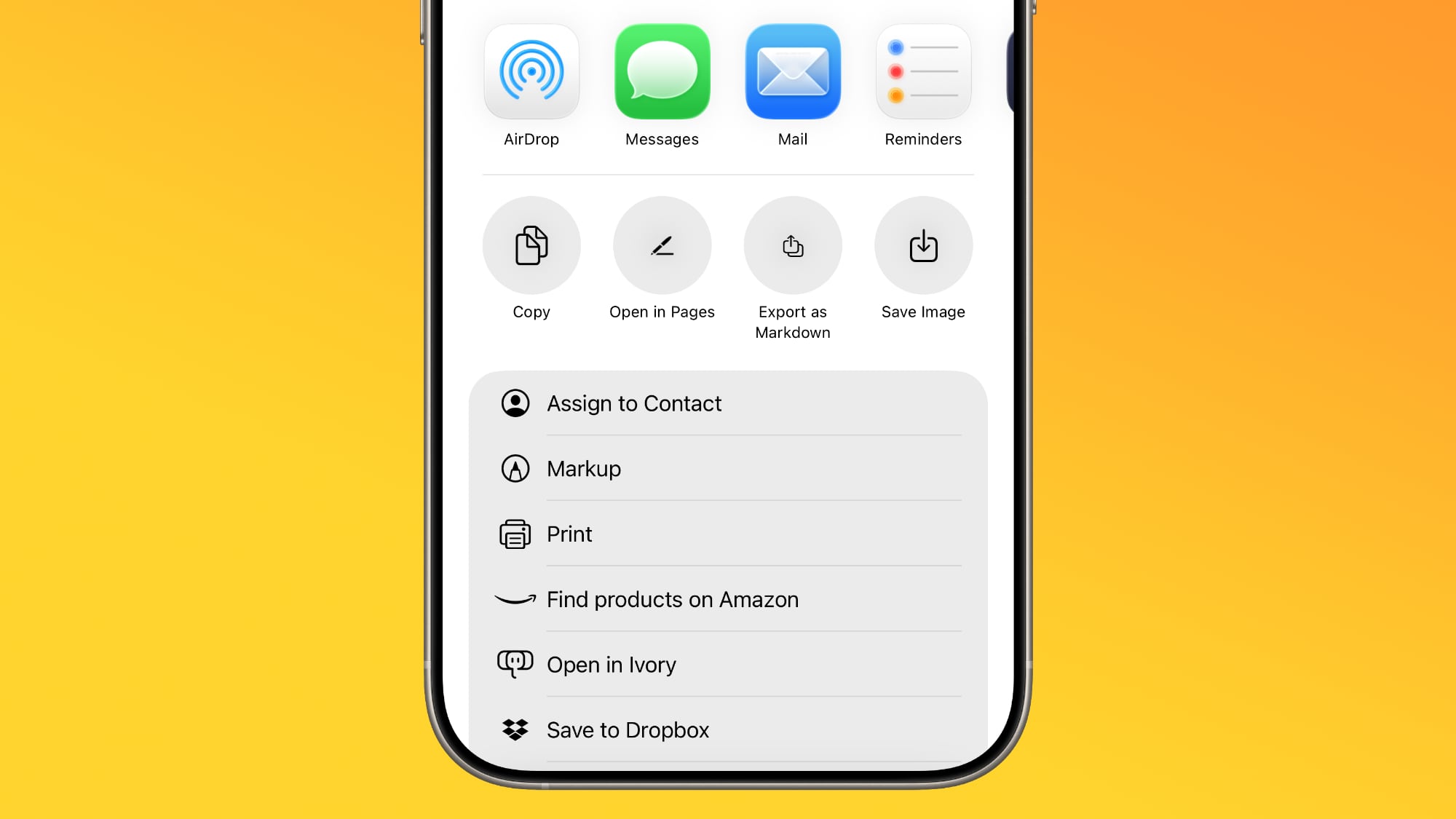
How Markdown Import Works
Step-by-Step Import Process:
- Open Notes and select the target folder
- Navigate to File → Import to Notes
- Select one or more Markdown (.md) files
- Notes converts the Markdown to rich text format
What Gets Preserved:
- Headings (H1-H6)
- Bold and italic formatting
- Bullet and numbered lists
- Links and URLs
- Code blocks
- Basic tables
Import Limitations:
- Complex nested structures may not convert perfectly
- Some Markdown flavors (GitHub-specific syntax) may not be fully supported
- Inline HTML is stripped
- Front matter metadata is not preserved
How Markdown Export Works
Single Note Export:
- Right-click on the note or use File → Export
- Select Markdown as the format
- Choose your save location
- The note exports as a .md file
Bulk Export (New in Tahoe):
- Select multiple notes using Shift+Click or Command+Click
- Right-click and choose Export
- Select Markdown format
- All notes export as individual files in a folder
Export Quality:
- Headers, lists, and basic formatting convert accurately
- Images are exported to a separate folder
- Attachments may require manual handling
- Tables maintain structure in most cases
Markdown Composition Limitation
Important: Apple Notes does NOT support composing notes using Markdown syntax. You cannot type **bold** and have it render as bold text. The Markdown support is strictly for import and export operations.
For users who want native Markdown editing, alternatives like Obsidian or iA Writer remain necessary.
Voice Recording and Transcription
macOS Tahoe 26 introduces powerful audio features to Notes, integrated with Apple Intelligence.
Recording Features:
- Direct Voice Notes: Record audio directly within any note
- Phone Call Recordings: Automatically save Phone app conversations
- Real-Time Transcription: Apple Intelligence transcribes as you record
- Searchable Audio: Search within transcriptions to find specific moments
Transcription Requirements:
- Apple Silicon Mac (M1 or later)
- Apple Intelligence enabled
- English, Spanish, French, German, Japanese, Korean, Chinese, Portuguese supported
- Requires approximately 4GB of Neural Engine processing space
Best Practices for Audio Notes:
- Use a quiet environment for better transcription accuracy
- Speak clearly and at a moderate pace
- Review transcriptions for accuracy before sharing
- Tag audio notes for easier discovery later
Liquid Glass User Interface
The Notes app receives a complete visual overhaul with the Liquid Glass design system.
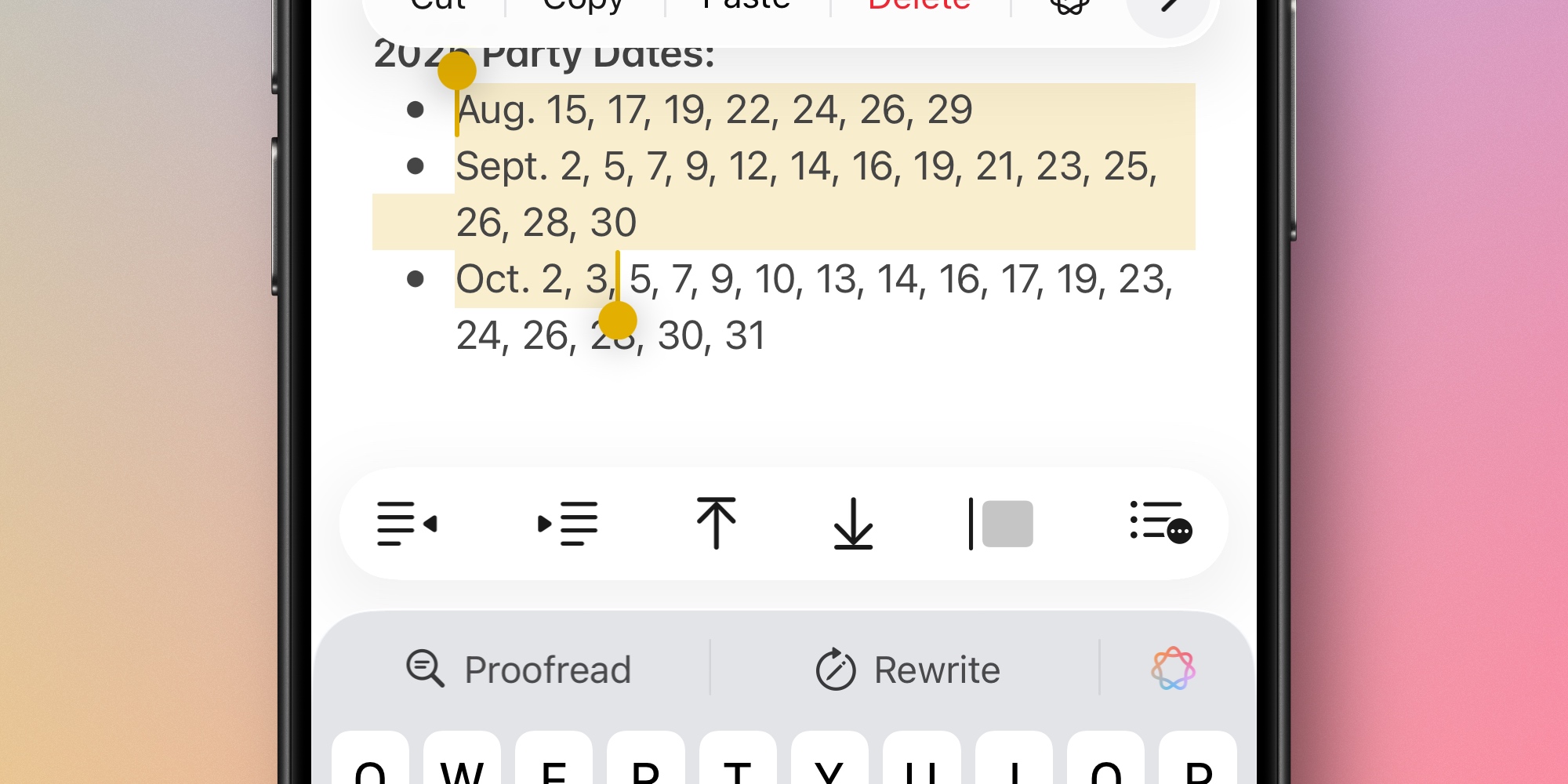
Visual Changes:
- Translucent sidebars that reflect background content
- Floating toolbars with frosted glass appearance
- Rounded corner design elements
- Dynamic color adaptation based on wallpaper
- Reduced visual weight on controls
Adaptive Toolbar Behavior: The toolbar now intelligently changes based on your current action:
- Editing text: Shows bold, italic, underline, lists
- Working with images: Shows crop, annotate, rotate
- Using checklists: Shows indent, outdent, move options
- Drawing: Shows pen tools, colors, shapes
Performance Impact:
- Approximately 10-15% more GPU usage
- Disable with: System Settings → Accessibility → Display → Reduce Transparency
- Higher impact on Intel Macs and older Apple Silicon
Enhanced Search and Organization
Spotlight Integration: New app-specific search capability:
- Open Spotlight (Command + Space)
- Type "Notes" and press Tab
- Your search is now limited to Notes content only
Smart Folders Improvements:
- More filter criteria available
- Faster smart folder updates
- Better performance with large note libraries
Tag System Enhancements:
- Hashtag creation works inline
- Cross-note tag browsing improved
- Tag suggestions based on content
Drawing and Apple Pencil Features
macOS Tahoe 26 brings enhanced drawing capabilities that work seamlessly with iPad integration via Sidecar.
New Reed Pen Tool: The reed pen provides a traditional calligraphy experience with:
- Variable stroke width based on pressure
- Natural ink flow simulation
- Angle-sensitive brush tips
- Six preset stroke angles for consistency
Drawing Tool Overview:
| Tool | Best Use Case | Pressure Sensitive |
|---|---|---|
| Pen | Fine lines, writing | Yes |
| Marker | Highlighting | Yes |
| Pencil | Sketching, shading | Yes |
| Reed Pen | Calligraphy | Yes |
| Fill | Shapes, backgrounds | No |
| Eraser | Corrections | Yes (size) |
Color Management:
- Recent colors palette remembers last 8 colors
- Custom color picker with hex value support
- Opacity slider for transparency effects
- Color matching from images
Sidecar Integration for Drawing:
- Connect iPad as secondary display (Sidecar)
- Open note with drawing on Mac
- Use Apple Pencil on iPad for precision drawing
- Changes sync instantly to Mac Notes
Security and Privacy Features
Apple Notes includes robust security options that distinguish it from competitors.
Note Locking:
- Individual notes can be password-protected
- Face ID / Touch ID unlock support
- Locked notes show only title in lists
- Cannot share or collaborate on locked notes
Setting Up Note Lock:
- Open the note you want to lock
- Click the Lock icon or use File → Lock Note
- Create a password (or use device password)
- Confirm with Touch ID / Face ID
End-to-End Encryption:
- Available for notes stored in iCloud
- Uses AES-256 encryption
- Keys stored only on your devices
- Even Apple cannot access encrypted notes
Privacy Considerations:
- Notes content is used for on-device Apple Intelligence
- Transcriptions process locally on Apple Silicon
- iCloud sync uses standard iCloud encryption
- Siri suggestions based on note content can be disabled
Integration with Other Apple Apps
Mail Integration:
- Drag emails into Notes to create linked references
- Quick link back to original email
- Works with attachments from emails
Safari Integration:
- Share webpage to Notes via Share Sheet
- Capture full page or selection
- Web links remain clickable in notes
Calendar and Reminders:
- Create reminders directly from note content
- Link notes to calendar events
- Due dates sync with Reminders app
Files and Finder:
- Drag and drop files into notes
- Quick Look preview without opening
- PDF annotation directly in notes
Photos Integration:
- Insert photos from library
- Live Photos preserve motion
- Markup tools for image annotation
- OCR search within images
Apple Intelligence Features in Notes
macOS Tahoe 26 deeply integrates Apple Intelligence into the Notes experience.
Writing Tools:
- Proofread: Grammar and spelling correction
- Rewrite: Tone adjustment (professional, casual, concise)
- Summarize: Condense long notes to key points
- Key Points: Extract main ideas as bullet list
Smart Summarization: For lengthy notes, Apple Intelligence can generate:
- Executive summaries
- Action item lists
- Key takeaways
- Meeting highlights
How to Use Writing Tools:
- Select text in your note
- Right-click and choose "Writing Tools"
- Select desired transformation
- Preview changes before applying
Limitations:
- Requires Apple Silicon Mac (M1+)
- English works best, other languages improving
- Complex technical content may not summarize well
- No custom training on your notes
Templates and Workflows
While Apple Notes doesn't have built-in templates, you can create effective template workflows.
Creating Template Notes:
-
Create a "Templates" folder
-
Design your template note with:
- Headings and structure
- Placeholder text in brackets
- Checklists for common items
- Formatting you'll reuse
-
To use: Duplicate the template, move to working folder
Common Template Examples:
Meeting Notes Template:
## Meeting: [Title]
**Date**: [Date]
**Attendees**: [Names]

### Agenda
- [ ] Item 1
- [ ] Item 2
- [ ] Item 3

### Notes


### Action Items
- [ ] [Task] - [Owner] - [Due Date]

### Next Steps
Project Planning Template:
## Project: [Name]
**Status**: [Planning/Active/Complete]
**Deadline**: [Date]

### Objectives
1.
2.
3.

### Milestones
- [ ] Milestone 1 - [Date]
- [ ] Milestone 2 - [Date]

### Resources
-
-

### Notes
Daily Journal Template:
## [Date] - Daily Journal

### Morning Intentions
-

### Tasks
- [ ]
- [ ]
- [ ]

### Notes & Ideas


### End of Day Reflection
Troubleshooting Common Notes App Issues
Problem 1: Notes App Lag and Freezing
This is the most reported issue after upgrading to macOS Tahoe 26, affecting users across all Mac models.
Symptoms:
- Multi-second delays when typing
- Rainbow beach ball appearing frequently
- Scrolling stutters and freezes
- Apple Pencil input lag on iPad sync
- Drawing strokes appearing with delays
Root Causes:
- Large Notes: Files over 35MB or with 50,000+ words
- Complex Content: Notes with many tables, images, or attachments
- Background Indexing: Spotlight rebuilding after update
- Memory Pressure: Insufficient RAM for Liquid Glass effects
Solutions:
Immediate Fixes:
# Fix 1: Disable Autofill Heuristics (resolves input lag)
defaults write -g NSAutoFillHeuristicControllerEnabled -bool false

# Restart Notes app or reboot for changes to take effect
# Fix 2: Clear CoreSpotlight Index (resolves post-update sluggishness)
rm -rf ~/Library/Metadata/CoreSpotlight/*
# Then restart your MacOptimization Strategies:
- Split Large Notes: Divide notes over 50,000 words into multiple smaller notes
- Reduce Visual Effects: Enable "Reduce Transparency" in Accessibility settings
- Wait for Indexing: Allow 24-48 hours after update for background processes to complete
- Free Up RAM: Close unnecessary applications when working with complex notes
Model-Specific Recommendations:
| Mac Model | RAM | Recommended Action |
|---|---|---|
| MacBook Air M1/M2 (8GB) | 8GB | Enable Reduce Transparency, limit open tabs |
| MacBook Pro M3 (16GB) | 16GB | Wait for indexing, split large notes |
| Mac Studio M4 (32GB+) | 32GB+ | Should work smoothly after indexing |
| Intel Mac (any) | Any | Strongly consider Reduce Transparency |
Problem 2: Notes Crashing and Data Loss
Users report crashes while typing, with potential loss of unsaved content.
Prevention Strategies:
- Enable Auto-Save Verification: Notes should auto-save, but force-save with Command+S regularly
- Use iCloud Sync: Ensures notes are backed up continuously
- Monitor Memory Usage: Use Activity Monitor to watch Notes memory consumption
Recovery Options:
# Access Time Machine snapshots
tmutil listlocalsnapshots /

# Navigate to Notes backup location
cd ~/Library/Group\ Containers/group.com.apple.notes/
If Notes Won't Open:
- Force quit Notes (Command+Option+Escape)
- Open in Safe Mode: Hold Shift while clicking Notes icon
- Rebuild Notes database: Restart Mac in Safe Mode, then normal boot
Problem 3: iCloud Sync Failures
Sync issues remain one of the most frustrating Notes problems.
Common Sync Error Messages:
- "An Error Occurred, unable to start collaboration"
- "Checking for Changes" spinning indefinitely
- Notes showing different content across devices
Diagnostic Steps:
# Check iCloud sync status
brctl log --wait --info | grep Notes

# Force sync refresh
killall CloudKeychainProxy
Comprehensive Fix Procedure:
- Verify iCloud Status: Check apple.com/support/systemstatus
- Check Storage: Ensure iCloud isn't full (Settings → Apple ID → iCloud)
- Toggle Notes Sync: Disable and re-enable Notes in iCloud settings
- Sign Out/In: As last resort, sign out of iCloud entirely and back in
Preventing Sync Issues:
- Keep notes under 50,000 words
- Avoid adding attachments during collaboration
- Ensure all devices run latest software
- Don't edit the same note simultaneously on multiple devices
Problem 4: Table Editing Bugs
macOS Tahoe introduced specific bugs with table functionality.
Known Issues:
- Text appearing backwards in cells ("Hello" shows as "olleH")
- Last character jumping to wrong position
- Copy/paste changing text color and font
Workarounds:
- Type Slowly: Give the app time to process each keystroke
- Use External Editor: Draft tables in TextEdit, then paste
- Avoid Large Tables: Keep under 10 columns, 50 rows
- Report to Apple: Use Feedback Assistant to report specific instances
Problem 5: Export Limitations
Current Export Options:
- PDF (single or batch)
- Markdown (new in Tahoe)
- Share sheet integrations
Bulk Export Workarounds:
For users needing comprehensive export beyond native options:
# Using notes-exporter (third-party tool)
# https://github.com/KrauseFx/notes-exporter

# This tool exports all notes including:
# - Full text content
# - Attachments
# - Folder structure
# - Creation/modification dates
GDPR Data Portability: Apple's built-in export still doesn't fully satisfy data portability requirements. Consider:
- Regular Markdown exports as backup
- Third-party export tools for complete archives
- Time Machine backups of Notes database
Apple Notes vs Competitors: Complete Comparison
Apple Notes vs Evernote 2025
| Feature | Apple Notes | Evernote |
|---|---|---|
| Price | Free | $15/month (Free tier severely limited) |
| Platforms | Apple devices + web | All platforms |
| Markdown | Import/Export only | Limited support |
| OCR Search | Yes (images, PDFs) | Yes (paid plans only) |
| Web Clipper | Basic (Share Sheet) | Advanced (dedicated extension) |
| Collaboration | Basic sharing | Spaces & team features |
| Storage | iCloud storage | Plan-dependent |
| Offline Access | Full | Paid plans only |
| AI Features | Apple Intelligence | Evernote AI |
Detailed Feature Analysis:
Organization Systems: Apple Notes uses a simple folder hierarchy with tags (hashtags) for cross-referencing. This works well for most users but lacks the depth of Evernote's notebook stacks, saved searches, and advanced filtering. Evernote's organizational power comes at the cost of complexity—many users never fully utilize its capabilities.
Search Capabilities: Both apps offer robust search, but with different strengths. Apple Notes excels at on-device search speed and OCR is included free. Evernote's search is more powerful with boolean operators, tag filtering, and date ranges, but OCR requires a paid subscription.
Web Clipping: Evernote's web clipper remains industry-leading with options to capture full pages, simplified articles, bookmarks, or screenshots. Apple Notes relies on the system Share Sheet, which captures content but lacks formatting preservation and organizational options.
Data Portability: Apple Notes' new Markdown export significantly improves portability, though bulk operations remain limited. Evernote exports to .enex format, which while comprehensive, requires conversion for use in other apps. Neither offers ideal portability for users concerned about vendor lock-in.
When to Choose Apple Notes:
- You're fully in the Apple ecosystem
- Price is a concern (Evernote is expensive at $180/year)
- You value privacy (end-to-end encryption available)
- Your needs are moderate (not managing thousands of notes)
- You prefer simplicity over feature depth
- You want seamless Siri and Shortcuts integration
When to Choose Evernote:
- Cross-platform access is essential (Windows, Android, Linux)
- You need advanced web clipping
- Team collaboration is primary use case
- You manage large, complex note libraries (10,000+ notes)
- You need advanced search operators
- You rely heavily on third-party integrations
Apple Notes vs Microsoft OneNote 2025
| Feature | Apple Notes | OneNote |
|---|---|---|
| Price | Free | Free |
| Organization | Folders, Tags | Notebooks, Sections, Pages |
| Drawing | Good | Excellent |
| Handwriting | Apple Pencil support | All styluses |
| Integration | Apple ecosystem | Microsoft 365 |
| Collaboration | Basic | Advanced real-time |
| Storage | iCloud | OneDrive (5GB free) |
Organizational Philosophy:
OneNote's three-tier hierarchy (Notebooks → Sections → Pages) mirrors physical binders and offers more organizational depth than Apple Notes' two-tier system (Folders → Notes). For users managing complex projects with multiple sub-categories, OneNote's structure feels more natural.
However, Apple Notes' simplicity can be an advantage. Fewer organizational decisions means faster note creation. The addition of tags in recent versions partially bridges this gap, allowing flexible cross-referencing without rigid hierarchies.
Drawing and Annotation:
OneNote is widely considered the best note-taking app for handwritten content and annotation. Its canvas is infinite (scrolling in all directions), pen tools are sophisticated, and handwriting recognition is excellent across all platforms.
Apple Notes' drawing tools have improved significantly in macOS Tahoe 26, particularly with the new reed pen and Sidecar integration. However, the fixed-page metaphor limits freeform creation compared to OneNote's infinite canvas approach.
Collaboration Features:
OneNote's real-time collaboration is more mature, showing cursor positions and allowing simultaneous editing by multiple users. Apple Notes' collaboration works but can feel less refined, with occasional sync conflicts during simultaneous editing.
When to Choose OneNote:
- You use Microsoft 365 for work
- You need complex organizational hierarchies
- Windows is part of your workflow
- Drawing and annotation is primary use case
- You need free-form infinite canvas
- Real-time team collaboration is essential
When to Choose Apple Notes:
- You prefer Apple ecosystem integration
- You want seamless iPhone/iPad/Mac sync
- Simplicity matters more than organizational depth
- You use Siri and Shortcuts for automation
- Privacy features (note locking, encryption) are important
Apple Notes vs Obsidian
| Feature | Apple Notes | Obsidian |
|---|---|---|
| Markdown | Import/Export | Native editing |
| Linking | Basic | Bi-directional linking |
| Plugins | None | Extensive ecosystem |
| Local Storage | iCloud | Local files |
| Learning Curve | Minimal | Moderate |
| Price | Free | Free (Sync $8/month) |
Philosophy Difference:
Apple Notes and Obsidian represent fundamentally different approaches to note-taking. Apple Notes is a polished consumer application focused on ease of use. Obsidian is a "second brain" tool designed for knowledge workers building interconnected idea networks.
Markdown Workflows:
Obsidian's native Markdown editing means you type **bold** and see it rendered immediately. Your notes are plain text files on disk, readable by any application. Apple Notes' Markdown support is limited to import/export—useful for portability but not for daily Markdown composition.
For writers who think in Markdown, Obsidian is significantly more comfortable. For users who prefer visual formatting (clicking Bold button), Apple Notes feels more natural.
Knowledge Graph and Linking:
Obsidian's killer feature is bi-directional linking with a visual knowledge graph. When you link Note A to Note B, Note B automatically shows a backlink to Note A. The graph view visualizes these connections, revealing patterns in your thinking.
Apple Notes' linking is traditional: you can insert links manually, but there's no automatic backlink tracking or graph visualization. This limits its utility for building interconnected knowledge bases.
Plugin Ecosystem:
Obsidian's plugin system transforms it into whatever tool you need: task manager, calendar, kanban board, daily planner, or writing environment. Over 1,000 community plugins extend functionality in every direction imaginable.
Apple Notes has no plugin system. What you see is what you get. This is both a limitation and a benefit—no configuration paralysis, no broken plugins after updates.
Data Ownership:
Obsidian stores notes as local Markdown files. You own your data completely. Move to another app by dragging files. Back up by copying folders. No proprietary format, no lock-in.
Apple Notes stores data in a SQLite database managed by the system. While you can export, the native format isn't designed for portability. iCloud sync adds convenience but ties you to Apple infrastructure.
When to Choose Obsidian:
- You want native Markdown editing
- Knowledge management with linking is important
- You prefer local file storage and full data ownership
- You want extensive customization via plugins
- You're building a "second brain" or zettelkasten
- You value portability over polish
When to Choose Apple Notes:
- You want zero configuration setup
- You prefer visual, WYSIWYG editing
- You use multiple Apple devices and want seamless sync
- Note-taking is straightforward (not knowledge management)
- You don't want to maintain plugins or configurations
- Apple Intelligence features matter to you
Apple Notes vs Notion
While not covered in detail above, Notion deserves mention as a popular alternative:
| Aspect | Apple Notes | Notion |
|---|---|---|
| Use Case | Personal notes | Team workspace |
| Database | No | Yes, powerful |
| Offline | Full | Limited |
| Price | Free | Free tier, $8-15/user/month |
| Complexity | Low | High |
When Notion Makes Sense:
- You need databases, kanban boards, and wikis
- Team collaboration is primary use case
- You want all-in-one workspace (notes + projects + docs)
- You're comfortable with complex tools
When Apple Notes is Better:
- Personal use, not team workspace
- You want instant, frictionless capture
- Offline access is essential
- Complexity is a turn-off
Power User Tips and Advanced Features
Essential Keyboard Shortcuts
Navigation:
| Shortcut | Action |
|---|---|
| ⌘+N | New note |
| ⌘+⇧+N | New folder |
| ⌘+⌥+N | New note in new window |
| ⌘+1 | Show all notes |
| ⌘+2 | Show folders |
| ⌘+3 | Show attachments browser |
Formatting:
| Shortcut | Action |
|---|---|
| ⌘+B | Bold |
| ⌘+I | Italic |
| ⌘+U | Underline |
| ⌘+⇧+H | Heading |
| ⌘+⇧+L | Checklist |
| ⌘+⇧+7 | Bulleted list |
| ⌘+⇧+8 | Numbered list |
Advanced:
| Shortcut | Action |
|---|---|
| ⌘+F | Find in note |
| ⌘+⇧+F | Search all notes |
| ⌘+K | Add link |
| ⌘+⇧+T | Add table |
| ⌘+L | Lock note |
Smart Folders and Tags Strategy
Creating Effective Smart Folders:
- By Date: Notes created or modified within specific timeframes
- By Attachment Type: Notes containing PDFs, images, or audio
- By Tag Combination: Multiple tags for complex filtering
- By Checklist Status: Notes with incomplete items
Tag Naming Conventions:
#project/clientname    - Project-specific
#status/active         - Status tracking
#type/meeting          - Content type
#priority/high         - Priority level
@person/john           - Person-related
Siri and Shortcuts Integration
Useful Siri Commands:
- "Create a note titled [title]"
- "Show my notes from today"
- "Search notes for [keyword]"
- "Add [item] to my grocery list note"
Shortcuts Automation Ideas:
- Daily Journal Entry: Create timestamped note with template
- Meeting Notes: Generate note from calendar event
- Quick Capture: Add text to specific note from anywhere
- Weekly Review: Compile notes with specific tag into summary
Collaboration Best Practices
Sharing Notes Effectively:
- Create note in iCloud (not "On My Mac")
- Click Share button or use File → Share Note
- Choose "Collaborate" for editing access
- Set permissions (Can make changes / View only)
- Share via Messages, Mail, or copy link
Collaboration Limitations to Know:
- Locked notes cannot be shared
- "On My Mac" notes cannot be shared
- Simultaneous editing may cause sync conflicts
- Maximum 100 collaborators per note
Performance Optimization Guide
Memory Management
Monitoring Notes Memory Usage:
- Open Activity Monitor (Applications → Utilities)
- Search for "Notes"
- Watch Memory column
- If exceeding 2GB, consider optimization
Reducing Memory Footprint:
- Limit attachments in single notes
- Archive old notes to separate folders
- Use tags instead of duplicating content
- Split multimedia-heavy notes
Storage Optimization
Cleaning Up Notes Storage:
# Check Notes database size
du -sh ~/Library/Group\ Containers/group.com.apple.notes/

# Typical healthy size: Under 5GB for most users
Strategies for Large Libraries:
- Export and archive notes older than 2 years
- Use external storage for large attachments
- Compress images before adding to notes
- Review and delete unused notes quarterly
Backup Strategies
Time Machine:
- Automatic backup of Notes database
- Restore individual notes or entire library
- Access via: Enter Time Machine → Library → Group Containers
Manual Backup:
- Regular Markdown exports of important notes
- Keep copies of critical notes in iCloud Drive
- Use third-party tools for comprehensive exports
Migration Guide: Switching to Apple Notes
From Evernote
Evernote Export Process:
- In Evernote, select notebooks to export
- File → Export Notes → Export as .enex
- Import to Notes: File → Import to Notes
- Select .enex file
What Migrates:
- Note content and basic formatting
- Images and attachments
- Creation and modification dates
- Notebook structure (converted to folders)
What Doesn't Migrate:
- Tags (must be recreated manually)
- Shortcuts
- Reminders attached to notes
- Web clips may lose formatting
From OneNote
OneNote Export Process:
- Export sections as .docx from OneNote
- Convert .docx to Markdown using pandoc or online converter
- Import Markdown files to Notes
Alternative: Copy-Paste Method:
- Open both apps side by side
- Select content in OneNote
- Paste into new Apple Note
- Format as needed
From Google Keep
Google Keep Export:
- Use Google Takeout to export Keep data
- Notes export as .html or .json
- Convert to Markdown using converters
- Import to Apple Notes
Future Outlook: Apple Notes Development
Expected in macOS Tahoe 26.2 and Beyond
Based on current beta releases and Apple's patterns:
Confirmed (26.2):
- Urgent Reminders integration
- Performance optimizations
- Bug fixes for table editing
Anticipated (26.3+):
- Improved Markdown rendering
- Enhanced collaboration features
- Better AI-powered organization
- Performance improvements for large notes
Long-Term Direction
Apple appears committed to making Notes a serious productivity tool:
- Continued Apple Intelligence integration
- Better cross-device sync reliability
- More export options
- Enhanced business/team features
Practical Recommendations
For Students
Recommended Setup:
- Create folder structure by subject
- Use tags for assignment types (#homework, #exam, #reading)
- Enable iCloud sync for multi-device access
- Use checklists for assignment tracking
Best Practices:
- Keep lecture notes focused (one topic per note)
- Use voice recording for reviewing later
- Export important notes to Markdown for backup
- Collaborate with study groups via shared notes
For Professionals
Recommended Setup:
- Organize by project and client
- Use Smart Folders for active items
- Enable note locking for sensitive content
- Regular export schedule for compliance
Best Practices:
- Meeting notes with clear action items
- Use templates for recurring note types
- Archive completed projects quarterly
- Share read-only notes for transparency
For Creative Professionals
Recommended Setup:
- Dedicated folders for inspiration, projects, references
- Heavy use of image attachments and sketches
- Integration with other creative tools
- Regular backups of creative content
Best Practices:
- Sketch ideas directly in notes
- Link notes to project files
- Use tags for creative stages (#concept, #draft, #final)
- Export visual notes to PDF for sharing
Conclusion: Is Apple Notes Right for You?
Apple Notes in macOS Tahoe 26 has matured into a capable note-taking application that serves most users well. The addition of Markdown support addresses a major gap, while Apple Intelligence features point toward an AI-enhanced future. For millions of Apple users, Notes has transformed from an afterthought to a legitimate productivity tool.
Apple Notes Excels At:
- Simple, quick note-taking with zero friction
- Apple ecosystem integration across iPhone, iPad, Mac, and Apple Watch
- Privacy-conscious users who value on-device processing and encryption
- Moderate note libraries (under 5,000 notes)
- Users who value free software without subscription fatigue
- Voice recording and transcription with Apple Intelligence
- Casual collaboration with family and small teams
Apple Notes Falls Short For:
- Cross-platform requirements (Windows, Android, Linux)
- Power users needing advanced features and customization
- Large-scale organizational systems and knowledge management
- Native Markdown composition workflows
- Team collaboration at enterprise scale
- Users building interconnected "second brain" systems
- Those requiring advanced search operators and filters
The Verdict:
For users fully invested in the Apple ecosystem, Apple Notes provides exceptional value at zero cost. The macOS Tahoe 26 updates address many historical complaints while maintaining the simplicity that makes Notes accessible to everyone from students to executives.
The performance issues reported by some users are concerning but typically resolvable with the troubleshooting steps outlined in this guide. Apple's track record suggests these will be addressed in future point releases.
However, users with cross-platform needs, complex organizational requirements, or professional collaboration demands should evaluate dedicated alternatives like Evernote, Notion, or Obsidian based on their specific workflows.
Final Recommendation:
Start with Apple Notes. It's free, pre-installed, and surprisingly capable. If you hit limitations—particularly around cross-platform access, advanced organization, or Markdown workflows—then evaluate alternatives. Most users never need more than what Notes offers, and the tight integration with iPhone, iPad, and Apple Watch creates a seamless capture experience that third-party apps struggle to match.
The best note-taking app is the one you'll actually use. For millions of Apple users, that's Notes.
Looking for more productivity tips? Explore our Spotlight Complete Guide for mastering macOS search or check out our Shortcuts Automation Guide for workflow automation strategies.