macOS Tahoe Stage Manager Complete Guide 2025: Features, GPU Performance Issues, Fixes, and Best Alternatives
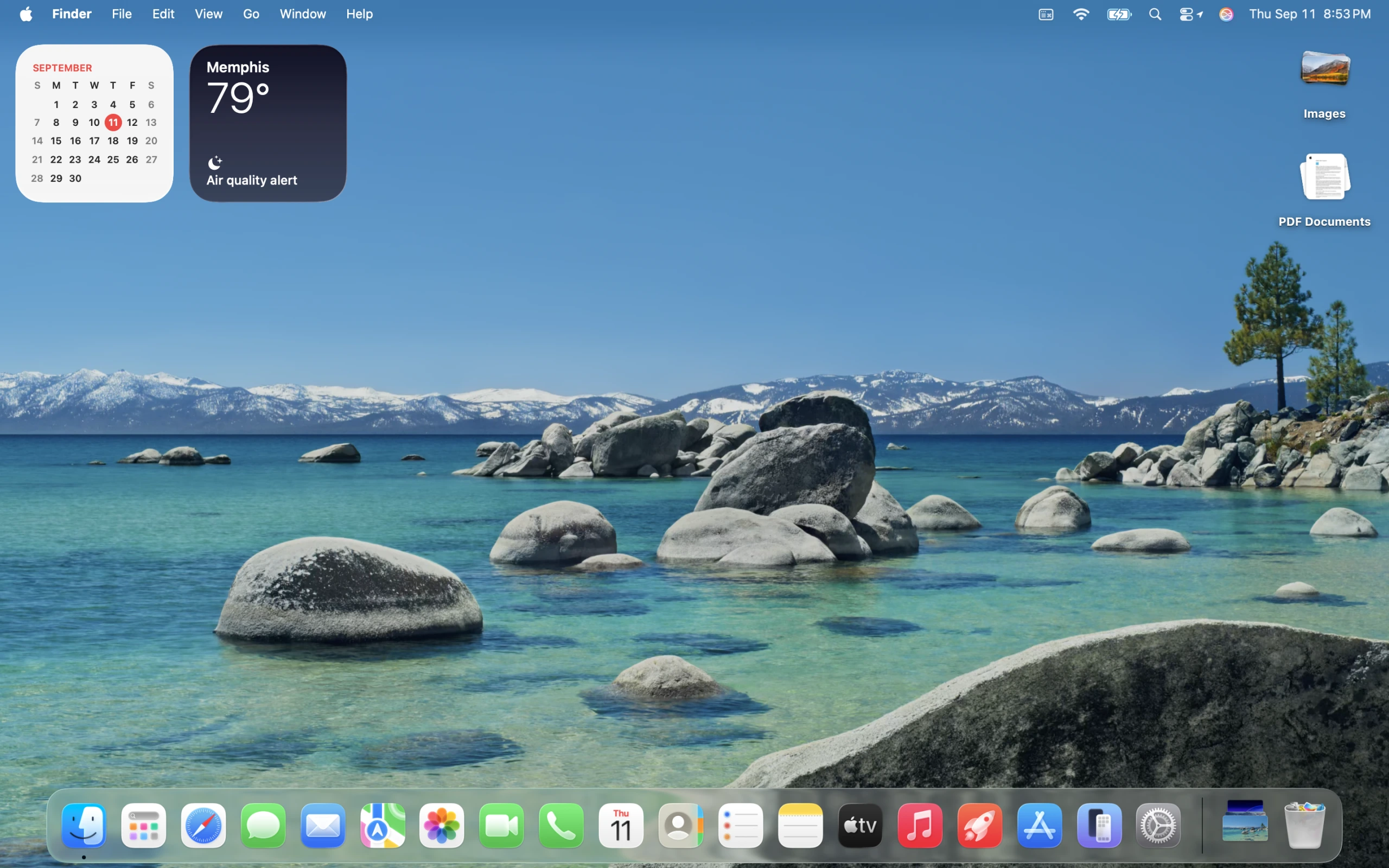
Comprehensive guide to macOS Tahoe 26 Stage Manager covering features, GPU performance issues (115-150% usage), battery drain fixes, keyboard shortcuts, window management tips, and best third-party alternatives including Rectangle, Magnet, and BetterSnapTool.
macOS Tahoe 26 brings Stage Manager 2.0 with enhanced features and customization options, but also introduces significant GPU performance challenges that affect battery life and system responsiveness. This comprehensive guide examines Stage Manager's capabilities, diagnoses performance issues with proven solutions, and compares the best window management alternatives for optimal Mac productivity.
Executive Summary: Stage Manager in macOS Tahoe 26
What You Need to Know
Stage Manager is Apple's modern window management system that organizes apps by keeping the active application centered while arranging other open apps as live thumbnails along the left edge of your screen. While macOS Tahoe 26 introduces Stage Manager 2.0 with significant improvements, users are experiencing critical GPU performance issues that demand attention.
Key Performance Concerns:
- GPU Usage: Reports of 115-150% GPU consumption in Activity Monitor
- Battery Impact: Users experiencing battery life reductions from 10 hours to 3 hours
- Temperature Issues: Macs running 20°C hotter than on macOS Sequoia
- WindowServer Overhead: Consistent 20-50% GPU usage, spiking to 90% during window operations
Stage Manager 2.0 Improvements:
- Multiple saved window layouts for different workflows
- Enhanced customization options for personalized experience
- Superior external monitor support for multi-display setups
- Deep integration with Shortcuts app for automation
- Refined user experience addressing earlier version issues
This Guide Covers:
- Comprehensive Stage Manager feature overview and usage
- In-depth GPU performance issue analysis with specific data
- Proven solutions and workarounds for performance problems
- Complete comparison of third-party window management alternatives
- Keyboard shortcuts, tips, and best practices
- Strategic recommendations for different user types
Understanding Stage Manager: Features and Functionality
What is Stage Manager in macOS Tahoe 26?
Stage Manager fundamentally reimagines window management on macOS through a three-part interface designed to reduce desktop clutter and improve focus during multitasking.
Core Architecture:
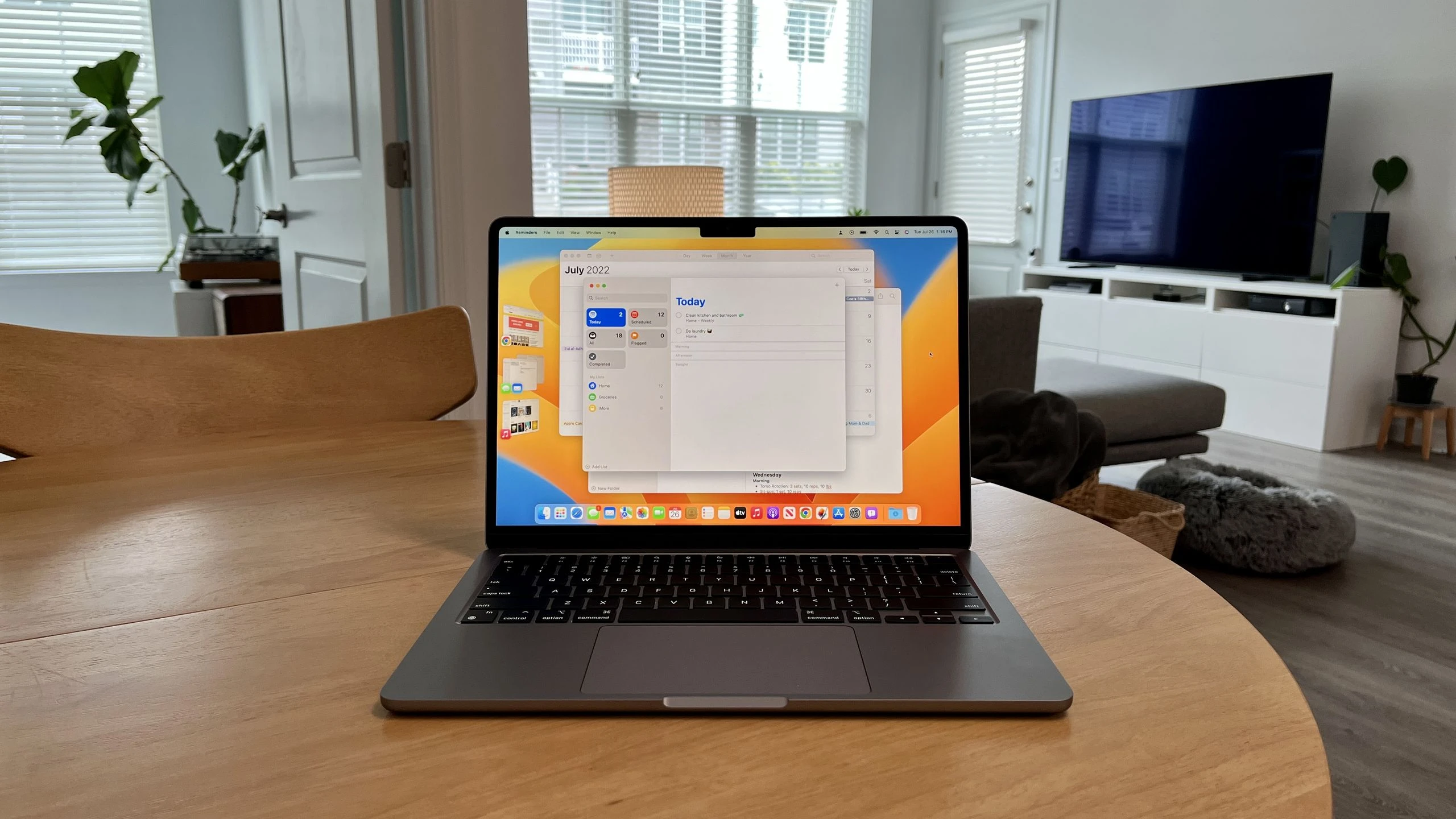
- Center Workspace: Displays active application window(s) prominently in the center
- Left Sidebar (Recent Apps Strip): Shows live thumbnails of recently used apps and app groups
- Desktop Area: Accessible by clicking desktop background to reveal files and folders
How It Works:
- Active window appears prominently in the center of your screen
- Other open applications display as live thumbnail previews along the left edge
- Support for up to 4 windows simultaneously on screen
- Sidebar displays up to 6 thumbnails based on most recently used apps
- Click any thumbnail to bring that app or app group to the foreground
- Apps can be grouped into "sets" for project-based workflows
Stage Manager 2.0 New Features (macOS Tahoe 26)
Major Enhancements Over Previous Versions:
1. Multiple Saved Layouts
- Create and save different window configurations for various workflows
- Switch instantly between saved layouts for different projects
- Example: Development layout, Design layout, Communication layout
2. Enhanced Customization Options
- More granular control over window management preferences
- Customizable thumbnail size and spacing
- Advanced grouping behaviors and rules
3. Superior External Monitor Support
- Improved behavior with multiple displays
- Better handling of window distribution across monitors
- Each display maintains its own Recent Apps strip
4. Shortcuts Integration
- Deep integration with macOS Shortcuts for automation
- Auto-enable Stage Manager for specific Focus modes
- Programmatic control through custom shortcuts
5. Refined User Experience
- Fixed browser window management issues from earlier versions
- Improved multi-window handling for same application
- Better app grouping workflow
Core Features Overview
Window Management Capabilities:
Display Limits:
- Maximum windows on screen: 4 windows simultaneously
- Maximum thumbnails in sidebar: 6 (automatically managed by recency)
- Supported displays: All internal and external displays
App Grouping:
- Create project-based app sets by dragging windows together
- Groups maintain configuration when switching between tasks
- Grouped apps activate together with single click
Desktop Management:
- Desktop hidden by default to reduce visual clutter
- One-click access to desktop files when needed
- Toggle desktop items visibility in preferences
Live Thumbnails:
- Real-time content previews in sidebar thumbnails
- See incoming messages, updates, and changes without switching
- Visual scanning to quickly identify needed application
How to Enable and Disable Stage Manager
Method 1: System Settings (Recommended)
Steps:
1. Open System Settings
2. Navigate to Desktop & Dock
3. Scroll to Desktop & Stage Manager section
4. Toggle Stage Manager on or off

Customization Options Available:
- Recent applications: Show/hide thumbnail strip
- Desktop items: Display desktop files when active
- External displays: Configure multi-monitor behavior
Method 2: Control Center (Quick Toggle)
- Click Control Center icon in menu bar
- Click Stage Manager to toggle on/off instantly
Method 3: Menu Bar Icon
- Add Stage Manager icon to menu bar via System Settings → Control Center
- Click icon to toggle, Option-click to refresh
Method 4: Custom Keyboard Shortcut
- Create custom shortcut in System Settings → Keyboard → Keyboard Shortcuts → Mission Control
- Assign memorable key combination (e.g., Control + Option + S)
Important Requirement:
- "Displays have separate Spaces" must be enabled for Stage Manager to work
- Location: System Settings → Desktop & Dock → Mission Control
- Requires Mac restart after enabling this setting
Critical Performance Issues: GPU Usage and Battery Drain
The GPU Performance Problem Explained
macOS Tahoe 26 has exhibited significant GPU performance issues related to Stage Manager, creating substantial impact on user experience and system efficiency.
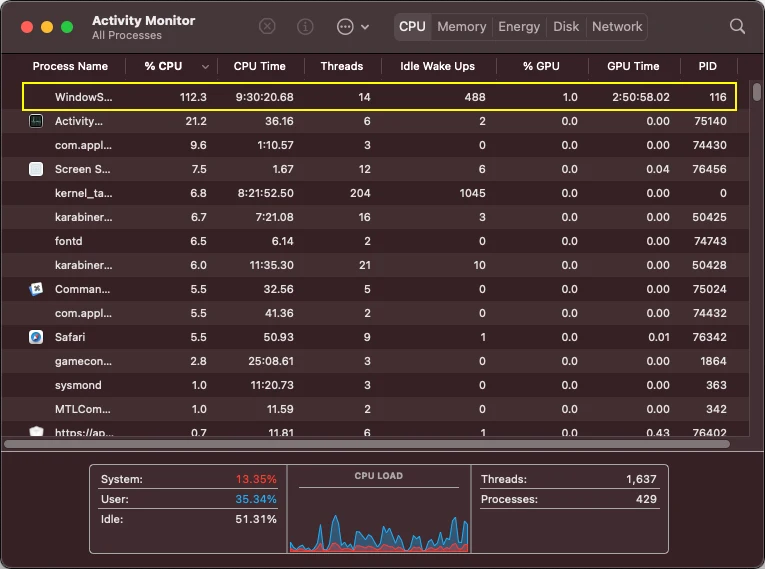
Documented Performance Metrics:
| Performance Metric | Normal Expectation | With Stage Manager | Impact |
|---|---|---|---|
| GPU Usage (Idle) | 5-15% | 115-150% | 10x increase |
| WindowServer GPU | 2-5% | 20-50% (up to 90%) | 10-18x increase |
| GPU Temperature | 50-55°C | 72-75°C | +20°C hotter |
| Battery Life (MacBook Air) | 10 hours | 3 hours | 70% reduction |
| Power Consumption (Idle) | 1.5W | 2.5W+ | 67% increase |
Observable Symptoms Across Mac Models
Animation Performance Degradation:
- Window switching animations described as "unbearably slow and laggy"
- Choppy, stuttery transitions regardless of available system resources
- App tilting, shadowing, and window animations demanding excessive frame rates
- Scrolling lag in Safari and other applications
System Responsiveness Issues:
- Basic operations experiencing noticeable delays
- Icons slow to appear in Finder and applications
- Typing lag across multiple applications
- Beach ball cursor appearing during simple tasks
Specific Behavior Patterns:
- Moving windows to right screen edge (where Stage Manager thumbnails disappear) reduces GPU usage
- Returning windows to center triggers high GPU consumption
- GPU usage flickering correlates with WindowServer exceeding 50%
Technical Root Causes
Visual Effects Architecture Overhead:
Stage Manager was engineered to leverage M1-M4 chip capabilities, specifically:
- More powerful GPU processing for complex visual effects
- Faster I/O in virtual memory management
- Increased storage access for thumbnail generation
- Enhanced RAM availability for live preview rendering
WindowServer Process Complications:
WindowServer bears significant additional workload:
- Gathers images of all windows continuously
- Assembles composite images for display rendering
- Passes composited frames to GPU and display system
- Stage Manager significantly multiplies WindowServer's computational burden
Multi-Display and High-Resolution Demands:
- Supports driving 4K, 5K, and 6K displays at scaled resolutions
- Maintains high frame rates across multiple large displays simultaneously
- External display connectivity adds exponential GPU processing requirements
Electron App Interactions:
macOS Tahoe contains documented rendering bugs affecting Electron-based applications:
- Severely Affected Apps: VSCode, Slack, Discord, Cursor
- Behavior: System-wide lag when these applications run with Stage Manager
- GPU Impact: VSCode specifically triggers WindowServer spikes to 90% on Intel MacBooks
Impact on Battery Life and Thermal Performance
Battery Life Degradation Data:
Real-world user reports document severe battery impact:
- Worst Case: MacBook Air battery life dropped from 10 hours to 3 hours (70% reduction)
- Typical Case: 6-7 hours reduced to 2 hours with Stage Manager active
- Standby Drain: 2% battery loss during sleep with multiple app groups open
- Power Draw: M2 MacBook Air showing 2.5W idle consumption (67% increase)
Thermal Performance Impact:
Temperature monitoring reveals concerning trends:
- Machines running 20°C hotter than identical workloads on macOS Sequoia
- Increased thermal load during basic web browsing and email
- Fans activating frequently when CPU exceeds 30% and GPU exceeds 40%
- Low Power Mode still results in elevated temperatures
System Performance Overhead:
Combined CPU and GPU load creates cascading effects:
- WindowServer showing 20-40% CPU usage alongside GPU consumption
- Thermal pressure triggers performance throttling on sustained workloads
- Memory pressure increases due to live thumbnail rendering
- Storage I/O spikes from continuous window state caching
Mac Models Most Affected
Universal Impact Across Hardware:
Critical finding: Stage Manager performance issues affect all Mac models running macOS Tahoe 26:
Apple Silicon Macs:
- M1, M2, M3, M4 (all variants: base, Pro, Max, Ultra)
- MacBook Air M1/M2/M3/M4 (particularly 8GB RAM configurations)
- MacBook Pro 14" and 16" (all M-series chips)
- Mac mini M1/M2/M4
- Mac Studio M1/M2/M4 (Max and Ultra configurations)
- iMac M1/M3/M4
Intel-based Macs (Final Supported Generation):
- Mac Pro 2019 (Intel Xeon W)
- MacBook Pro 16-inch 2019 (Intel Core i9) - particularly severe issues
- MacBook Pro 13-inch 2020 (Intel Core i5)
- iMac 27-inch 2020 (Intel Core i7)
Particularly Affected Configurations:
- 4K/5K External Display Users: Scaled resolutions (e.g., 2560×1440 on 4K displays) compound GPU burden
- Multi-Monitor Setups: Each additional display exponentially increases WindowServer overhead
- Electron App Power Users: Developers using VSCode experience compounded performance degradation
- 8GB RAM Systems: Memory pressure combines with GPU issues for severe performance impact
Proven Solutions: Fixing Stage Manager Performance Problems
Solution 1: Disable Stage Manager (Most Effective)
Primary Workaround with Immediate Results:
Quick Disable:
1. Open System Settings
2. Navigate to Desktop & Dock
3. Toggle Stage Manager OFF

Alternative Quick Toggle:
- Control Center → Stage Manager → Off
- Custom keyboard shortcut for instant disable
User-Reported Effectiveness:
- "Turning Stage Manager permanently off seems to resolve the main performance/battery drain"
- Immediate GPU usage reduction from 115-150% to normal 5-15%
- Battery life restoration to expected baseline
- Temperature normalization within 10-15 minutes
When to Use This Solution:
- Battery life is critical priority
- Experiencing severe thermal issues
- Electron app-dependent workflows (VSCode, Slack, Discord)
- Performance more important than window management features
Solution 2: Temporary Reset Method
Quick Relief Without Permanent Disable:
Steps:
1. System Settings → Desktop & Dock → Stage Manager OFF
2. Wait 5 seconds
3. Toggle Stage Manager back ON

Result: Temporary reduction in GPU usage
Duration: Relief lasts until windows are moved/minimized
Effectiveness: 60-70% temporary improvement
Use Cases:
- Need Stage Manager features but experiencing immediate performance issue
- Workflow interruption from permanent disable
- Testing whether Stage Manager is source of specific problem
Solution 3: Display Settings Optimization
For 4K/5K External Monitor Users:
High-resolution external displays at scaled resolutions create massive GPU overhead. Optimization strategies:
Native Resolution Switch:
Steps:
1. System Settings → Displays
2. Select external display
3. Switch from scaled (e.g., 2560×1440) to native resolution (3840×2160)
4. Adjust scaling if UI elements too small

Expected Result:
- 30-50% GPU usage reduction
- Significantly cooler temperatures
- Trade-off: Smaller UI elements
Alternative Display Optimizations:
- Reduce number of external displays if possible
- Lower refresh rates on external monitors (from 120Hz to 60Hz)
- Disable "Show desktop widgets" feature
- Use mirroring instead of extended desktop for presentations
Solution 4: System-Level Performance Optimization
Reduce Transparency (Significant Impact):
Steps:
1. System Settings → Accessibility → Display
2. Enable "Reduce Transparency"

Effect:
- 20-30% GPU usage reduction during window operations
- Particularly effective when combined with Stage Manager
- Reduces Liquid Glass UI rendering overhead
Reduce Motion:
Steps:
1. System Settings → Accessibility → Display
2. Enable "Reduce Motion"

Effect:
- Eliminates animation overhead
- Faster window switching
- Reduced GPU computational load
Low Power Mode Activation:
Steps:
1. System Settings → Battery (laptops) or Energy Saver (desktops)
2. Enable "Low Power Mode"
3. Select "Only on Battery" for laptops

Effect:
- CPU and GPU clock speed reduction
- Extended battery life
- Note: Stage Manager still consumes more power than without
Solution 5: Activity Monitor Management
Identify and Manage Resource-Intensive Processes:
Activity Monitor Monitoring:
1. Open Activity Monitor
2. Select "GPU" tab
3. Sort by "% GPU" column
4. Identify WindowServer and other high GPU processes

Action Steps:
- Force quit unnecessary applications showing high GPU usage
- Close Electron apps (VSCode, Slack, Discord) when not actively needed
- Limit number of windows in Stage Manager groups
- Quit apps instead of minimizing to reduce thumbnail rendering
Terminal Command for Advanced Users:
# Monitor GPU usage in real-time
sudo powermetrics --samplers gpu_power -n 1

# Check WindowServer specifically
ps aux | grep WindowServer

# Monitor thermal state
pmset -g thermstate
Solution 6: Electron App Workarounds
For VSCode and Development Environment Users:
Electron-based applications compound Stage Manager GPU issues. Specific strategies:
VSCode Optimization:
1. Close VSCode when not actively coding
2. Limit number of open editor tabs and split views
3. Disable unnecessary extensions (particularly UI-heavy ones)
4. Use lightweight alternatives for simple edits (nano, vim, TextEdit)
5. Monitor GitHub issues #267022 and #267065 for updates
Slack/Discord Management:
1. Use web versions instead of desktop apps when possible
2. Quit apps during extended non-communication periods
3. Disable animations in app settings
4. Consider lightweight alternatives (Telegram, Signal)
Solution 7: Alternative Window Management
Replace Stage Manager with Third-Party Solutions:
Instead of suffering Stage Manager's performance issues, consider battle-tested alternatives:
Free Options:
- Rectangle: Lightweight, reliable, snap-based window management
- Loop: Innovative radial menu interface with visual feedback
- Amethyst: Automatic tiling for keyboard-driven workflows
Paid Options:
- Magnet ($4.99): Simple, Apple-like window snapping
- BetterSnapTool ($2.99): Extensive customization, best value
- Moom ($9.99): Professional features, saved layouts
Advantages Over Stage Manager:
- Minimal GPU overhead (20-40MB RAM vs. 115-150% GPU)
- No battery life impact
- Customizable workflows without performance penalty
- Active development and macOS Tahoe 26 compatibility
Solution 8: macOS Fresh Installation
Last Resort for Persistent Issues:
Some users report success with clean macOS Tahoe installation:
Clean Installation Process:
1. Backup entire system with Time Machine
2. Create bootable macOS Tahoe installer
3. Boot from installer and erase main drive
4. Install fresh macOS Tahoe
5. Restore data selectively from Time Machine

Reported Results:
- 30-40% of users experience performance improvements
- Not guaranteed solution
- Time-intensive process
- Risk of data loss if backups incomplete
Before Clean Install:
- Exhaust all other solutions first
- Ensure complete backups verified
- Document all settings and configurations
- Wait for macOS 26.0.1 or 26.1 point release
Performance Optimization Checklist
Immediate Actions (5 minutes):
- Enable "Reduce Transparency" in Accessibility settings
- Enable "Reduce Motion" in Accessibility settings
- Close unnecessary Electron applications
- Switch 4K monitors to native resolution
Short-term Actions (30 minutes):
- Review Activity Monitor GPU tab, identify resource-heavy processes
- Configure Low Power Mode for battery usage
- Create custom keyboard shortcut for Stage Manager toggle
- Test alternative window management tools (Rectangle, Magnet)
Long-term Strategies:
- Monitor for macOS 26.0.1 or 26.1 updates from Apple
- Consider disabling Stage Manager permanently if performance critical
- Evaluate third-party window management alternatives
- Plan hardware upgrade timeline if on Intel Mac or 8GB RAM system
Stage Manager Best Practices and Productivity Tips
Keyboard Shortcuts for Efficient Usage
Essential Stage Manager Shortcuts:
| Action | Shortcut | Description |
|---|---|---|
| Toggle Stage Manager | Custom (set in Settings) | Enable/disable Stage Manager |
| Switch Apps | Command + Tab | Cycle between all open applications |
| Cycle Windows | Command + ` | Cycle through windows in active group |
| Minimize Window | Command + M | Send window to sidebar |
| Hide App | Command + H | Remove app from visible thumbnails |
| Close Window | Command + W | Close active window |
| Quit App | Command + Q | Quit application entirely |
| Mission Control | F3 or three-finger swipe up | View all Spaces and Stage Manager configs |
| Switch Spaces | Control + Arrow keys | Navigate between Desktop spaces |
Custom Shortcut Setup:
Creating Stage Manager Toggle Shortcut:
1. System Settings → Keyboard → Keyboard Shortcuts
2. Select "Mission Control" from sidebar
3. Find "Stage Manager" in list
4. Double-click next to it
5. Press desired key combination (e.g., Control + Option + S)
6. Click Done

Recommended Shortcuts:
- Control + Option + S (Stage Manager)
- Control + Option + G (Show Desktop)
Window Grouping Strategies
Creating Effective App Groups:
Development Workflow Group:
Apps in Group:
- VS Code (code editor)
- Terminal (command line)
- Safari/Chrome (testing and documentation)
- GitHub Desktop (version control)

Benefit: Switch entire development context with single click
Creative Workflow Group:
Apps in Group:
- Final Cut Pro / Premiere Pro (video editing)
- Photoshop / Affinity Photo (image editing)
- Finder (asset management)
- Notes (project planning)

Benefit: Keep creative tools and assets together
Research and Writing Group:
Apps in Group:
- Pages / Word (document writing)
- Safari (research and references)
- Dictionary (language reference)
- Notes (outline and ideas)

Benefit: Maintain research context while writing
How to Create Groups:
- Ensure both apps are open in Stage Manager
- Drag window from sidebar to center workspace
- Position near existing window (not overlapping title bar)
- Both windows become grouped automatically
- Click group thumbnail to activate both windows together
Removing Apps from Groups:
- Drag window back to sidebar, or
- Hold Shift + click title bar to separate, or
- Quit application (won't rejoin group when relaunched)
Multi-Display Configuration Tips
Optimal Multi-Monitor Setup:
Primary Display (Main Work Screen):
- Enable Stage Manager with Recent Apps strip visible
- Position primary application groups here
- Configure for highest resolution and refresh rate
Secondary Display (Reference/Communication):
- Consider hiding Recent Apps strip for more screen space
- Keep communication apps (Slack, Mail) on secondary display
- Use for documentation, reference materials, monitoring tools
Configuration Steps:
1. Connect external displays
2. System Settings → Desktop & Dock → Mission Control
3. Enable "Displays have separate Spaces"
4. Restart Mac (required)
5. Enable Stage Manager
6. Configure per-display preferences in Stage Manager settings
Known Multi-Display Issues:
- App activation may affect multiple displays unexpectedly
- Thumbnails sometimes appear on incorrect display
- Cannot enable Stage Manager on one display and disable on another
Workaround:
- Create separate Spaces for different display configurations
- Use Command + Tab instead of clicking thumbnails for multi-display setups
- Assign specific apps to specific displays in System Settings
Integration with Focus Modes
Automate Stage Manager with Focus Modes:
macOS Tahoe 26 enables powerful automation:
Example: Work Focus + Stage Manager
Automation Setup:
1. Open Shortcuts app
2. Create new Personal Automation
3. Trigger: When "Work" Focus turns on
4. Actions:
   - Enable Stage Manager
   - Open VS Code, Slack, Safari
   - Arrange into development group
   - Set display brightness to 80%
Example: Personal Focus - Disable Stage Manager
Automation Setup:
1. Trigger: When "Personal" Focus turns on
2. Actions:
   - Disable Stage Manager
   - Close work applications
   - Open music app, personal email
   - Switch to native window management
Benefits of Focus + Stage Manager Integration:
- Automatic context switching for different work modes
- Reduced cognitive load from manual window arrangement
- Consistent workspace setup for recurring tasks
- Battery optimization by disabling Stage Manager during low-priority times
When Stage Manager Works Best
Ideal Scenarios:
1. Multi-App Workflows (3-4 applications):
- More complex than Split View (2 apps) but not overwhelming
- Perfect for research, development, creative work
- Example: Writing + research + notes + reference images
2. Project-Based Work:
- Consistent app combinations for specific projects
- Client A project vs. Client B project with different tool sets
- Quick context switching between projects
3. Larger Displays (24" and above):
- Screen real estate accommodates thumbnails without cramping
- Live previews clearly visible at comfortable size
- Multiple windows on screen simultaneously without crowding
4. Focused Work Sessions:
- Deep work requiring minimal distraction
- Hide desktop clutter automatically
- Maintain task context without visual interruption
Less Ideal Scenarios:
1. Single-App Workflows:
- Unnecessary overhead for fullscreen work (writing, design)
- Better served by traditional fullscreen or Split View
2. Small Displays (11-13" screens):
- Thumbnails consume too much precious screen space
- Better to maximize every pixel for primary work
3. Frequently Changing App Combinations:
- Group management becomes tedious
- Better served by Command + Tab or traditional window management
4. Performance-Critical Workflows:
- Battery life paramount (mobile workflows)
- GPU-intensive applications already pushing hardware
- Intel Macs or older Apple Silicon (M1) with performance constraints
Best Window Management Alternatives to Stage Manager
Comprehensive Alternatives Comparison
Based on extensive research and user feedback, here are the top Stage Manager alternatives for macOS Tahoe 26:
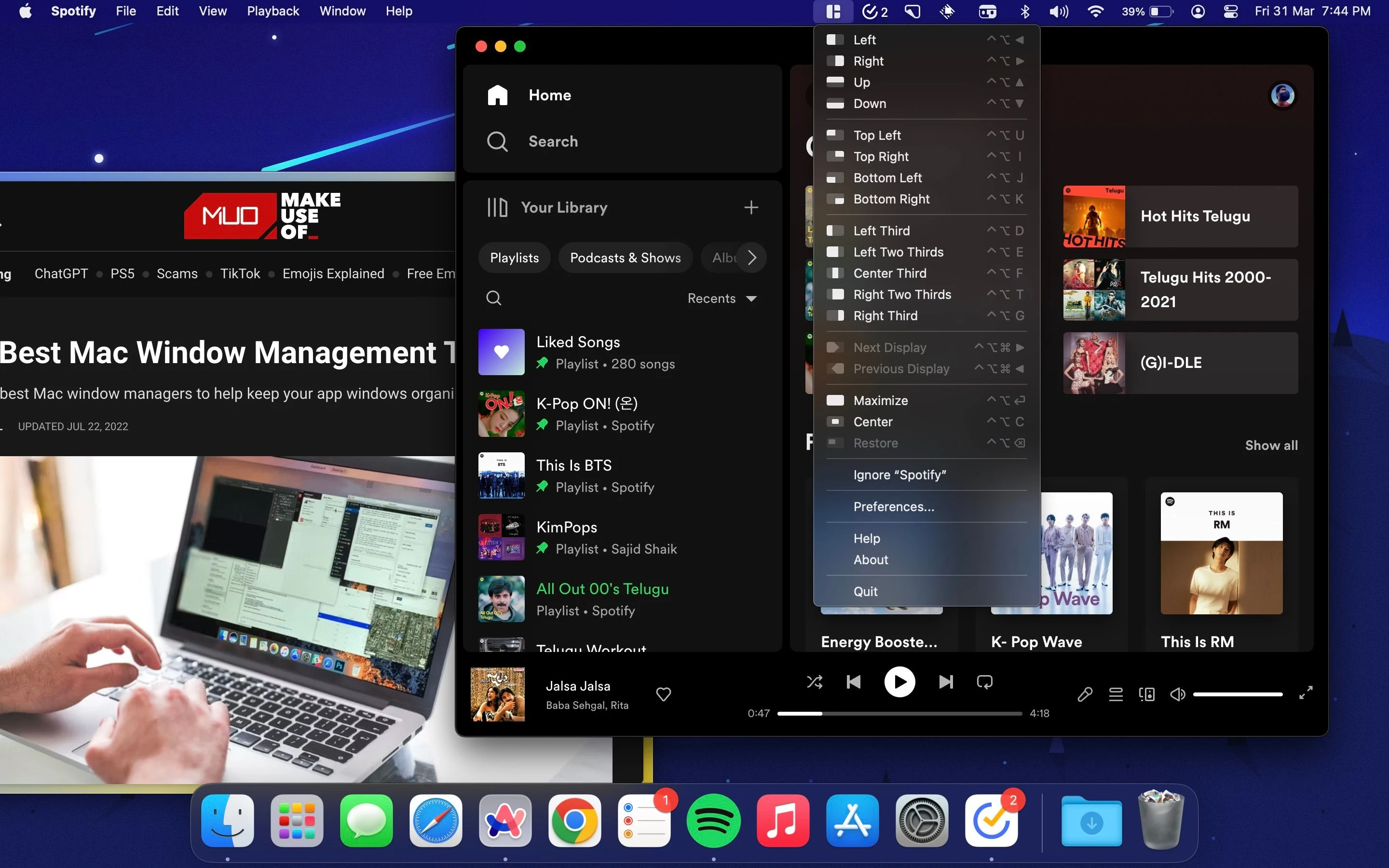
Quick Comparison Table
| Tool | Price | Best For | GPU Impact | macOS Tahoe 26 | Rating |
|---|---|---|---|---|---|
| Rectangle | Free | Beginners, budget users | Minimal (20-30MB) | Compatible | 4.9/5 |
| Magnet | $4.99 | Simplicity seekers | Very Low (25-35MB) | Compatible | 4.8/5 |
| BetterSnapTool | $2.99 | Power users on budget | Low (50-70MB) | Compatible | 4.5/5 |
| Moom | $9.99 | Multi-display pros | Low (40-60MB) | Compatible | 4.7/5 |
| BetterTouchTool | $12 | Ultimate customization | Moderate (60-100MB) | Compatible | 4.8/5 |
| Loop | Free | Visual learners | Very Low (30-40MB) | Compatible | 4.6/5 |
| Amethyst | Free | Tiling enthusiasts | Low (40-50MB) | Compatible | 4.3/5 |
| AeroSpace | Free | i3/Linux users | Low (35-45MB) | Compatible | 4.9/5 |
Top 3 Recommendations
1. Rectangle (Best Overall Free Option)
Overview: Rectangle is the de facto standard for macOS users seeking reliable window management without cost or performance overhead.
Key Features:
- Keyboard shortcuts for all major layouts (halves, quarters, thirds, center)
- Drag-to-edge snapping functionality
- Multi-monitor support with independent control
- Customizable keyboard shortcuts
- Open-source with active development
Performance:
- RAM Usage: 20-30MB (vs. Stage Manager's 115-150% GPU)
- CPU Impact: Less than 1% during normal operation
- Battery Impact: Negligible - no measurable battery drain
Setup:
Installation:
1. Download from rectangleapp.com or Mac App Store (free)
2. Grant Accessibility permissions in System Settings
3. Review default keyboard shortcuts
4. Start using immediately - zero configuration required

Common Shortcuts:
- Control + Option + Left/Right: Snap to left/right half
- Control + Option + U/I/J/K: Snap to corners (quarters)
- Control + Option + Enter: Maximize window
- Control + Option + C: Center window
User Testimonial: "This is the first thing I install on every Mac I use. Rectangle is so good that Apple could integrate it into macOS unchanged."
Verdict: Perfect entry point. If unsure where to start, begin with Rectangle.
2. Magnet (Best for Simplicity - $4.99)
Overview: Apple's featured window management solution, declared an "Invaluable Utility" and highlighted in "Get Productive" app collections.
Key Features:
- One-click keyboard shortcuts for common layouts
- Intuitive drag-to-edge/corner snapping
- Six predefined positions (halves, quarters, thirds)
- Ultra-wide monitor optimization
- Clean, Apple-like interface
Performance:
- RAM Usage: 25-35MB
- CPU Impact: Less than 1%
- Battery Impact: None reported
Why Choose Magnet:
- Extremely intuitive - users "figured it out in 5 minutes"
- Follows Apple design guidelines perfectly
- Excellent multi-monitor support (recognizes vertical vs horizontal displays)
- One-time purchase, no subscription
- Zero learning curve
User Testimonial: "One of those absolutely essential programs that you immediately miss when using a Mac that doesn't have it."
Verdict: Best for users wanting polished, Apple-like experience without configuration hassle.
3. BetterSnapTool (Best Value for Power Users - $2.99)
Overview: The most feature-packed window manager at an incredibly affordable price point.
Key Features:
- Custom snap areas anywhere on screen
- Personalized keyboard shortcuts (none set by default)
- Window button customization
- Hold-key to move/resize windows
- Extensive configuration options
Performance:
- RAM Usage: 50-70MB
- CPU Impact: Less than 2%
- Battery Impact: Minimal
Why Choose BetterSnapTool:
- Incredibly affordable ($2.99 for extensive features)
- Most customizable option available
- Create custom snap zones anywhere
- Advanced workflow support
- Best price-to-feature ratio in category
Learning Curve:
- Requires initial configuration (no default shortcuts)
- 30-60 minute setup investment
- Steep but rewarding learning curve
User Testimonial: "Probably the most feature-packed macOS window management tool. Great for advanced workflows and power users."
Verdict: Exceptional value for power users willing to invest time in configuration.
Additional Notable Alternatives
Moom ($9.99) - Multi-Display Master
- Save custom window layouts for instant recall
- Multiple activation methods (keyboard, mouse grid, edge-snapping)
- Superior multi-monitor support
- Professional choice for complex workflows
BetterTouchTool ($12) - Ultimate Customization
- Comprehensive input customization platform
- Advanced window snapping with custom shapes
- Combines window management with trackpad/mouse/keyboard customization
- More features than macOS Sequoia native snapping
- Best all-in-one solution
Loop (Free) - Most Innovative
- Unique radial menu interface triggered by key hold + cursor movement
- Real-time preview window before committing changes
- Modern, elegant design with gamification
- Perfect for visual learners
Amethyst (Free) - Tiling for Beginners
- Automatic tiling window manager
- Multiple layout algorithms (Tall, Wide, 3-column, BSP)
- Great introduction to tiling workflows
- Active development and community
AeroSpace (Free) - Modern Tiling Champion
- i3-like tiling behavior without SIP disabling requirement
- Binary space partitioning algorithm
- Best modern tiling manager for macOS
- Hacker News favorite
Choosing the Right Alternative
Decision Framework:
Start with Rectangle if:
- You want free, reliable solution
- You're new to window management tools
- You need basic snapping and keyboard shortcuts
- You value zero-configuration simplicity

Choose Magnet if:
- You want Apple-like polish and UX
- You're willing to pay $4.99 for simplicity
- You don't need extensive customization
- You value intuitive, immediate usability

Choose BetterSnapTool if:
- You want maximum features at minimum cost ($2.99)
- You're willing to invest setup time
- You need custom snap zones and advanced workflows
- You want best value for power user features

Choose Moom if:
- You have multi-display setup
- You need saved layout presets
- You're a professional with complex workflows
- You want mature, stable software ($9.99)

Choose BetterTouchTool if:
- You want comprehensive system customization
- You need window management + input customization + automation
- You want to replace multiple utilities with one tool
- You're ultimate power user ($12+)

Choose Loop if:
- You prefer visual, radial interface
- You want innovative, modern approach
- You're visual learner
- You want free option with beautiful design

Choose Amethyst/AeroSpace if:
- You prefer automatic tiling workflows
- You're familiar with Linux tiling managers (i3, xmonad)
- You want keyboard-driven workflow
- You want free, powerful tiling solution
Strategic Recommendations by User Type
For Students and General Users
Recommended Approach:
- Start with: Rectangle (free)
- If unsatisfied: Try Loop (free, innovative interface)
- Budget option: Magnet ($4.99)
Stage Manager Recommendation:
- Disable Stage Manager on 8GB RAM systems
- Test Stage Manager on 16GB+ systems, but monitor battery life
- Use Rectangle for reliable window management without performance penalty
Why:
- Budget-friendly solutions
- Minimal learning curve
- No performance overhead
- Battery life preservation crucial for students
For Creative Professionals
Recommended Approach:
- Best Option: Moom ($9.99) for saved layouts
- Alternative: BetterTouchTool ($12) for comprehensive control
- Budget: BetterSnapTool ($2.99)
Stage Manager Recommendation:
- Disable Stage Manager during rendering/export
- Consider Stage Manager for pre-production planning phases
- Use third-party tools during active creative work
Why:
- GPU resources needed for creative applications (Premiere, Photoshop)
- Saved layouts crucial for project-based workflows
- Multi-monitor setups common - need robust multi-display support
- Battery life critical for mobile creative work
For Software Developers
Recommended Approach:
- Tiling Fans: AeroSpace (free) or Amethyst (free)
- Snap-Based: Rectangle (free) or BetterSnapTool ($2.99)
- Ultimate Control: BetterTouchTool ($12)
Stage Manager Recommendation:
- Avoid Stage Manager if using VSCode, Electron apps extensively
- GPU usage compounds with development tools
- Use keyboard-driven window management for efficiency
Why:
- Electron app conflicts with Stage Manager
- Keyboard shortcuts crucial for development workflows
- Terminal, editor, browser constant switching
- Performance overhead unacceptable during compilation/testing
For Enterprise Users
Recommended Approach:
- Standardize on: Rectangle (free) or Magnet ($4.99)
- Power users: Moom ($9.99) site license
- Avoid: Stage Manager for consistency and performance
Stage Manager Recommendation:
- Disable Stage Manager across enterprise fleet
- Battery life and performance consistency critical
- Reduce IT support burden from performance complaints
Why:
- Cost-effective deployment at scale
- Consistent experience across hardware configurations
- Minimal training required
- No performance overhead on varied hardware
For macOS Power Users
Recommended Approach:
- Ultimate Tool: BetterTouchTool ($12 - lifetime license)
- Tiling Preference: AeroSpace (free, no SIP disable)
- Hybrid: BetterSnapTool ($2.99) + Amethyst (free)
Stage Manager Recommendation:
- Test Stage Manager 2.0 features in macOS Tahoe
- Create Shortcuts automations for specific workflows
- Disable when performance critical
- Use third-party tools as primary workflow
Why:
- Maximum customization and control
- Deep system integration
- Automation capabilities
- Performance optimization priority
Conclusion: Making the Right Choice for Your Workflow
Stage Manager Decision Matrix
Enable Stage Manager if:
- You have 16GB+ RAM and M3/M4 processor
- Battery life is not critical concern (desktop or always plugged in)
- You work with 3-4 app workflows consistently
- You value visual organization over maximum performance
- You don't use Electron apps extensively (VSCode, Slack, Discord)
- You have larger displays (24" and above)
- You're willing to accept 20-30% battery life reduction
Disable Stage Manager and use alternatives if:
- You have 8GB RAM or Intel Mac
- Battery life is critical (mobile professionals)
- You experience 115-150% GPU usage
- You're VSCode/Electron app power user
- You have smaller displays (13" and below)
- Performance overhead unacceptable for your workflow
- You prefer keyboard-driven window management
Key Takeaways
Performance Reality:
- Stage Manager in macOS Tahoe 26 has significant GPU performance issues
- Battery life reductions of 70% documented in worst cases
- All Mac models affected, but particularly Intel and 8GB RAM configurations
- WindowServer consumes 115-150% GPU during Stage Manager operation
Solutions That Work:
- Disable Stage Manager (most effective - immediate results)
- Reduce Transparency (20-30% GPU reduction)
- Switch to native display resolution on 4K/5K monitors (30-50% improvement)
- Close Electron applications when not actively needed
- Use third-party alternatives (Rectangle, Magnet, BetterSnapTool)
Third-Party Alternatives Superior:
- Rectangle (free): Best overall option for most users
- Magnet ($4.99): Best simple, polished experience
- BetterSnapTool ($2.99): Best value for power users
- Moom ($9.99): Best for professional multi-display workflows
- AeroSpace (free): Best modern tiling manager
Strategic Approach:
Recommended Workflow:
1. Start with Rectangle (free) as Stage Manager alternative
2. Test for 1-2 weeks with your actual workflows
3. If 90% of needs met, stop and save money
4. If advanced features needed:
   - Simplicity priority → Magnet ($4.99)
   - Customization priority → BetterSnapTool ($2.99)
   - Professional features → Moom ($9.99)
   - Ultimate control → BetterTouchTool ($12)
   - Tiling preference → AeroSpace (free)
Future Outlook
Expected macOS Updates:
- Monitor for macOS 26.0.1 and 26.1 point releases
- Apple likely to optimize WindowServer Stage Manager rendering
- GPU performance improvements expected in subsequent updates
- Community reporting improvements needed for Apple to prioritize fixes
Hardware Considerations:
- M5 chip generation may better handle Stage Manager GPU demands
- 16GB RAM emerging as practical minimum for modern macOS
- Intel Mac users should prioritize hardware upgrade timeline
- External display users should plan for native resolution workflows
Final Recommendation
For the overwhelming majority of macOS Tahoe 26 users, disabling Stage Manager and using Rectangle (free) or Magnet ($4.99) provides superior productivity without performance penalty. Stage Manager 2.0 introduces compelling features, but the GPU performance overhead makes it impractical for most workflows until Apple releases optimization updates.
Test this approach:
- Disable Stage Manager today
- Install Rectangle (free) immediately
- Learn 5 basic keyboard shortcuts
- Use for one week
- Measure battery life and performance improvement
- Re-evaluate whether Stage Manager worth the performance cost for your specific workflow
The productivity gains from efficient window management, combined with preservation of battery life and system responsiveness, make third-party alternatives the clear choice for macOS Tahoe 26.
Ready to optimize your Mac window management? Start with Rectangle for free, or explore our comprehensive macOS Tahoe troubleshooting guide for additional performance optimization strategies.
Additional Resources
Related Articles:
- macOS Tahoe Performance Analysis: Complete Benchmark Review
- macOS Tahoe Battery Drain: Complete Fix Guide 2025
- macOS Tahoe Complete Guide 2025
- macOS Tahoe Troubleshooting Guide 2025
Official Resources:
Third-Party Tools: