macOS Tahoe 26.2 Post-Update Problems: Complete Troubleshooting Guide with 15+ Proven Fixes for Common Issues

Experiencing issues after updating to macOS Tahoe 26.2? This comprehensive troubleshooting guide covers 15+ common problems including memory leaks, WindowServer high CPU, wallpaper resolution bugs, Finder rendering issues, and external drive failures with step-by-step solutions.
macOS Tahoe 26.2 was released on December 12, 2025, bringing exciting new features like Edge Light for video calls and Thunderbolt 5 Mac clustering. However, many users have encountered frustrating issues after updating. This comprehensive troubleshooting guide addresses the most common macOS Tahoe 26.2 post-update problems with proven fixes gathered from Apple Support Communities, Reddit, MacRumors forums, and expert recommendations.
Executive Summary: macOS Tahoe 26.2 Issues Overview
What You'll Learn in This Guide
macOS Tahoe 26.2 (build 25C56) has been met with mixed reactions from users. While Apple addressed the notorious Electron app performance bug and patched 46 security vulnerabilities, new issues have emerged that affect daily productivity. This guide provides:
- 15+ documented issues with detailed symptoms and causes
- Step-by-step solutions tested by the community
- Terminal commands for advanced troubleshooting
- Workarounds for issues awaiting official fixes
- Recommendations on when to wait for macOS 26.3
Critical Issues Covered:
| Issue Category | Severity | Status in 26.2 |
|---|---|---|
| Memory Leak / High RAM Usage | High | Unfixed |
| WindowServer High CPU | High | Partially Fixed |
| mediaanalysisd CPU Spikes | Medium | Unfixed |
| Wallpaper Low Resolution | Medium | New Bug |
| Finder Rendering Problems | Medium | Unfixed |
| External Volume Access | High | New Bug |
| Animation Stuttering | Low | Unfixed |
| Local Network Failure | High | New Bug |
| Safari Stability | Medium | Improved |
Issue 1: Memory Leak and "Out of Application Memory" Errors
Symptoms
One of the most reported issues after updating to macOS Tahoe 26.2 is excessive memory consumption leading to system slowdowns and application crashes.
Common Signs:
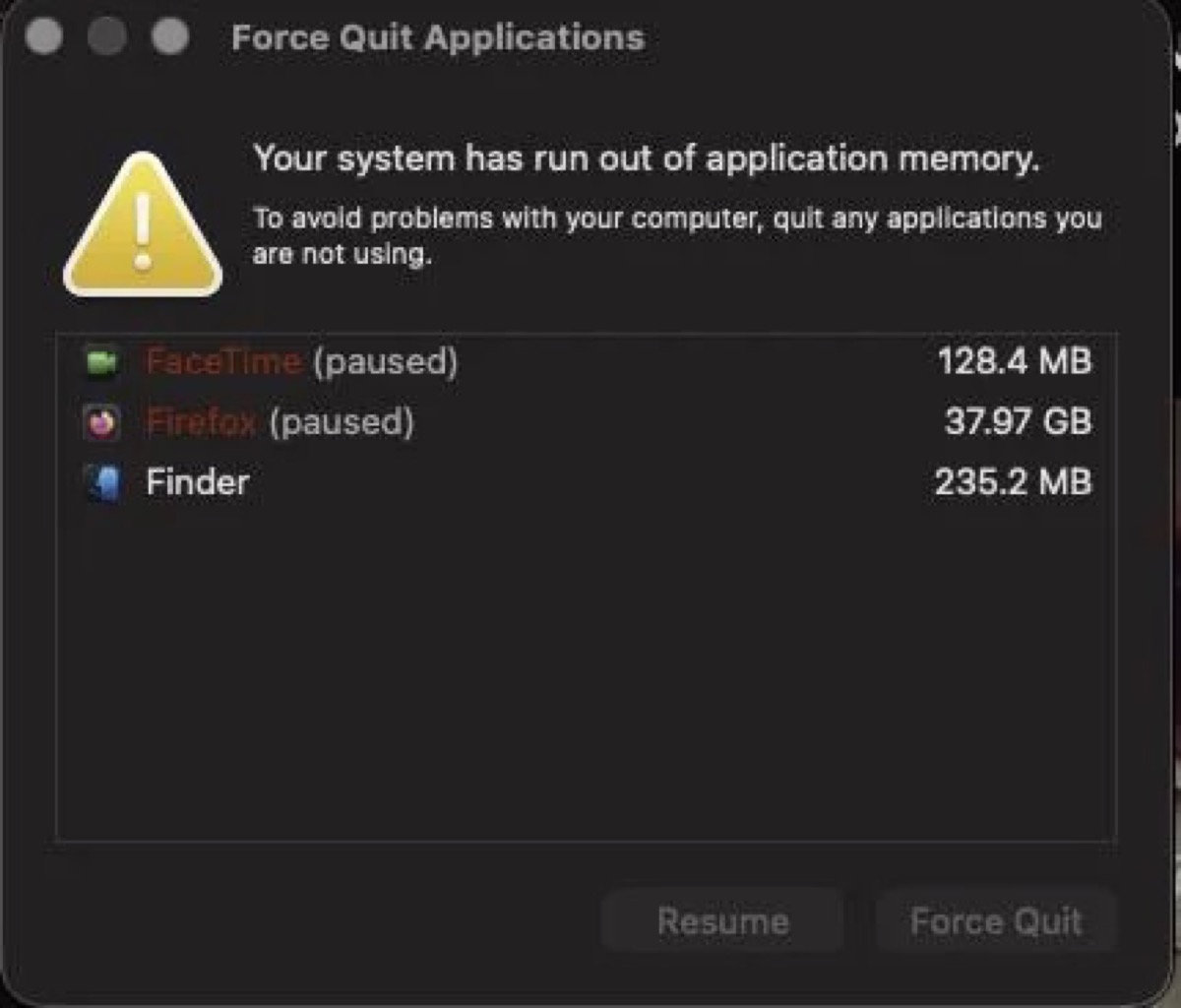
- "Your system has run out of application memory" alert appears
- Force Quit Applications dialog shows unexpectedly
- Swap file usage exceeds 2GB or more
- System becomes unresponsive during multitasking
- Activity Monitor shows abnormally high memory usage for common processes
Root Cause
Multiple processes have been identified as potential memory hogs in macOS Tahoe 26.2:
- mds_stores: Spotlight indexing process consuming 20-40GB of RAM
- WindowServer: Display rendering consuming excessive memory
- mediaanalysisd: Photo analysis running continuously
- kernel_task: System process showing inflated memory usage
- Safari: Browser tabs not releasing memory properly
- contextstore: Siri and app suggestions consuming resources
Solutions
Solution 1: Force Quit and Restart When you receive the memory alert:
- Select the paused applications in the dialog
- Click Force Quit to release their memory
- Restart your Mac to clear system caches
- Open Activity Monitor to monitor memory usage
Solution 2: Identify Memory-Intensive Processes
# Open Terminal and run:
top -o mem

# Or check memory pressure
memory_pressure
Solution 3: Reset System Caches
# Clear user caches
rm -rf ~/Library/Caches/*

# Clear system caches (requires sudo)
sudo rm -rf /Library/Caches/*

# Restart your Mac after clearing caches
sudo reboot
Solution 4: Reduce Visual Effects The Liquid Glass design in macOS Tahoe consumes more memory than previous versions:
- Open System Settings → Accessibility → Display
- Enable Reduce Transparency
- Enable Reduce Motion
This can reduce memory usage by 15-25% on systems with 8GB RAM.
Solution 5: Manage Background Processes
# Check for runaway processes (sorted by memory usage)
ps aux -m | head -20

# Force quit specific process (replace PID)
kill -9 [PID]
Issue 2: WindowServer High CPU and GPU Usage
Symptoms
WindowServer is the core macOS process responsible for rendering the graphical interface. In macOS Tahoe 26.2, many users report:
- Constant high CPU usage (50-120%) from WindowServer
- Fans running at full speed during normal usage
- System lag and stuttering when moving windows
- Increased heat generation on MacBooks
- Reduced battery life on portable Macs
Root Cause
The Liquid Glass design language introduced in macOS Tahoe 26 relies heavily on transparency, blur effects, and dynamic shadows. These visual effects require:
- Continuous GPU rendering for real-time blur calculations
- More complex compositing of overlapping windows
- Higher memory bandwidth for transparency effects
Additionally, certain third-party applications conflict with the new rendering pipeline, particularly Electron-based apps (though Apple partially addressed this in 26.2).
Solutions
Solution 1: Reduce Transparency (Most Effective)
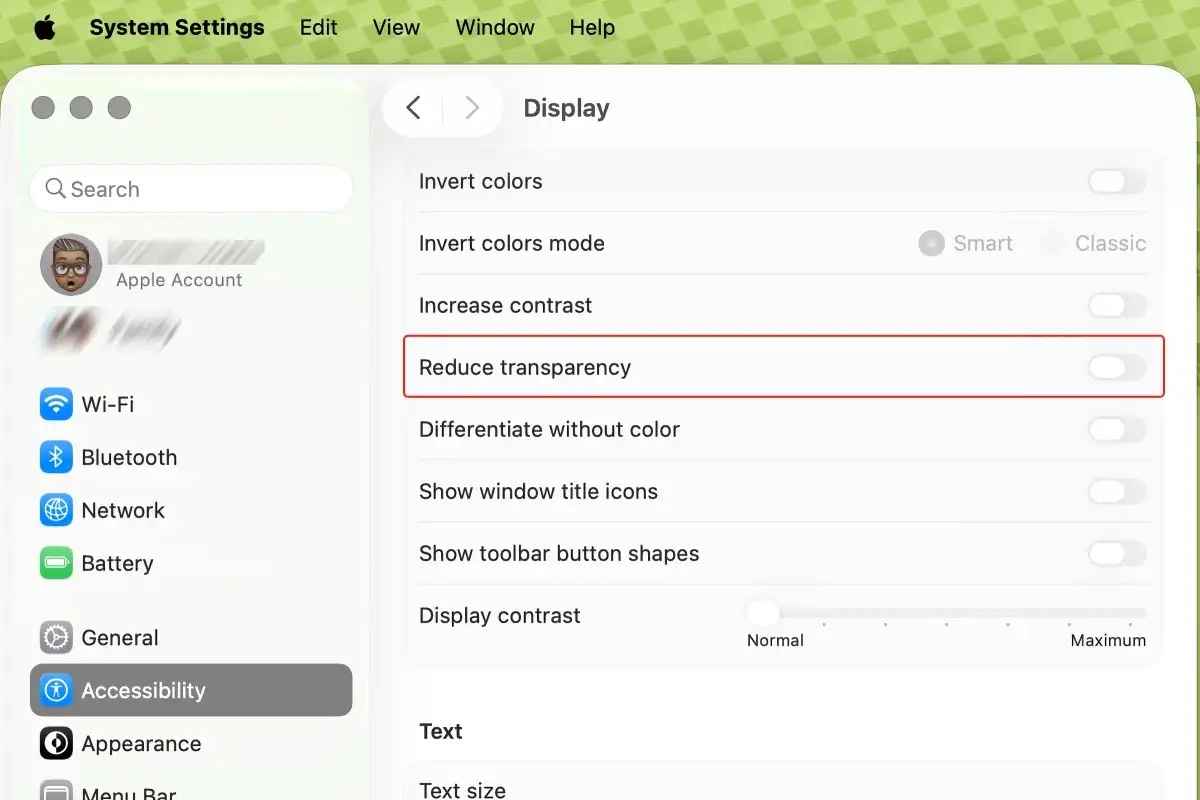
- Open System Settings → Accessibility → Display
- Enable Reduce Transparency
- Observe immediate reduction in WindowServer CPU usage
Many users report WindowServer CPU dropping from 50-80% to 10-20% after enabling this setting.
Solution 2: Declutter Your Desktop Each icon on your desktop is treated as a separate rendering element:
- Move files to folders
- Keep desktop minimal (under 20 items)
- Use a solid color wallpaper temporarily
Solution 3: Close Unnecessary Desktops
- Press F3 or swipe up with three fingers to open Mission Control
- Hover over unused desktops and click the X to close them
- Each desktop requires additional rendering resources
Solution 4: Identify Problem Applications Some applications cause disproportionate WindowServer usage:
# Monitor GPU usage
sudo powermetrics --samplers gpu_power -n 5

# Check WindowServer specifically
top -pid $(pgrep -x WindowServer)
Known Problem Apps:
- Grammarly Desktop (reported to cause 90%+ CPU)
- Microsoft Office apps (especially Word and Excel)
- Older Electron apps not updated for Tahoe
Solution 5: Delete WindowServer Preferences
# Backup first
sudo cp /Library/Preferences/com.apple.windowserver.displays.plist /Library/Preferences/com.apple.windowserver.displays.plist.backup

# Then delete preferences
sudo rm /Library/Preferences/com.apple.windowserver.displays.plist

# Restart to regenerate preferences
sudo reboot
Note: This fix may only last 12-24 hours before the issue returns. Monitor and reapply as needed.
Solution 6: Boot in Safe Mode
- Shut down your Mac completely
- For Apple Silicon: Hold power button until "Loading startup options" appears
- Select your startup disk, then hold Shift and click Continue in Safe Mode
- After startup, restart normally
Safe Mode clears certain system caches and disables third-party extensions, often resolving persistent WindowServer issues.
Issue 3: mediaanalysisd High CPU and Storage Consumption
Symptoms
The mediaanalysisd process is responsible for analyzing photos and videos to enable features like Live Text, object recognition, and QR code detection. In macOS Tahoe 26.2:
- MacBooks run hot constantly
- CPU usage at 100-200% from mediaanalysisd
- Fans running loudly during idle periods
- Battery drain even when Mac is asleep
- Cache folder consuming 15-140GB of storage
Root Cause
mediaanalysisd performs machine learning analysis on your media library. After a major update, it often needs to reprocess your entire photo library, which can take days or weeks depending on library size.
Solutions
Solution 1: Wait for Processing to Complete The most patient approach is to simply wait. For large libraries (50,000+ photos), this can take:
- 24-72 hours of continuous processing
- Longer if you frequently add new photos
- Processing pauses when Mac is in use, then resumes during idle time
Solution 2: Keep Photos App Open Counterintuitively, having the Photos app open prevents mediaanalysisd from running in the background:
- Open the Photos app
- Leave it running in the foreground
- This pauses background analysis
Solution 3: Disable iCloud Photos Temporarily
- Open System Settings → Apple ID → iCloud → Photos
- Toggle off iCloud Photos
- This stops syncing and reduces analysis load
- Re-enable after CPU usage normalizes
Solution 4: Force Quit and Clear Cache
# Kill the process
killall mediaanalysisd

# Remove cache (frees storage)
rm -r ~/Library/Containers/com.apple.mediaanalysisd/Data/Library/Caches/*

# Restart Mac
sudo reboot
Warning: Clearing the cache means analysis will restart from scratch. Only use this if you're experiencing critical storage issues.
Solution 5: Lock the Cache Folder (Aggressive)
# Prevent cache from growing
sudo chflags schg ~/Library/Containers/com.apple.mediaanalysisd/Data/Library/Caches
This prevents mediaanalysisd from creating new cache files. Some Live Text and photo search features may be affected.
Solution 6: Reduce Feature Usage Disable features that trigger mediaanalysisd:
- System Settings → Siri & Spotlight → Spotlight Privacy
- Add your Photos library to prevent indexing
- Photos → Settings → General
- Disable "Enhance Photos" auto-processing
Issue 4: Desktop Wallpaper Low Resolution After Sleep
Symptoms
This is a new bug introduced in macOS Tahoe 26.2:
- Custom wallpaper appears blurry or pixelated after first sleep/wake cycle
- Photos-based wallpaper shows low resolution version
- Issue affects both Apple Silicon and Intel Macs
- Restarting temporarily fixes the issue until next sleep
Root Cause
macOS Tahoe 26.2 has a bug in how it handles Photos-based wallpapers during sleep/wake transitions. The system fails to restore the full-resolution image after waking from sleep.
Apple Bug Report: FB21259665 (Desktop wallpaper image fidelity cut to 50% for non-Apple photos)
Solutions
Solution 1: Use Apple-Provided Wallpapers Apple's stock wallpapers don't exhibit this issue:
- Open System Settings → Wallpaper
- Choose from Apple's Dynamic Desktop or standard options
- These maintain full resolution after sleep
Solution 2: Create a Duplicate Desktop (Temporary Fix) When wallpaper appears low resolution:
- Open System Settings → Desktop & Dock → Desktops
- Add a new desktop with the same wallpaper image
- Delete the duplicate desktop
- Original desktop should restore to full resolution
Solution 3: Use an Image File Instead of Photos
- Export your desired wallpaper from Photos as a JPEG/PNG
- Save it to your Pictures folder
- Set wallpaper using the exported file instead of Photos library
Solution 4: Disable Dynamic Wallpapers Dynamic wallpapers that change based on time may exacerbate this issue:
- Choose a static wallpaper instead of Dynamic Desktop
- Light and Dark mode specific wallpapers work better
Solution 5: Wait for macOS 26.3 This is a known bug that Apple is expected to fix in the next point release. If the issue significantly impacts your experience, consider reverting to a static wallpaper until 26.3.
Issue 5: Finder Rendering and Scrolling Problems
Symptoms

Users report various Finder-related visual glitches in macOS Tahoe 26.2:
- Files overlap when scrolling in Finder windows
- Click targets are offset by approximately half an inch
- Columns don't resize properly when scrollbars are visible
- Icons appear corrupted or misaligned
- Window contents fail to redraw after scrolling
Root Cause
The Liquid Glass rendering pipeline in Finder has introduced rendering race conditions when displaying large numbers of files. The issue is more pronounced in:
- Column view with many files
- Folders containing 500+ items
- When using external displays
- After extended uptime without restart
Solutions
Solution 1: Resize the Window When rendering issues occur:
- Grab any edge of the Finder window
- Resize it slightly (even 1 pixel works)
- This forces a complete re-render and fixes the display
Solution 2: Restart Finder
# Restart Finder process
killall Finder
Or use the GUI method:
- Hold Option and right-click Finder icon in Dock
- Select Relaunch
Solution 3: Change Scrollbar Settings
- Open System Settings → Appearance
- Under "Show scroll bars," change from "Always" to "When scrolling"
- This resolves some column resize issues
Solution 4: Use List View Instead of Column View Column view appears more affected:
- In Finder, press Command + 2 for List View
- Or Command + 1 for Icon View
- These views have fewer rendering issues
Solution 5: Clear Finder Preferences
# Backup and remove Finder preferences
mv ~/Library/Preferences/com.apple.finder.plist ~/Desktop/finder.plist.backup

# Restart Finder
killall Finder
Solution 6: Check for Bartender Conflicts The popular menu bar utility Bartender has been identified as causing scrolling lag:
- Quit Bartender completely
- Test Finder scrolling
- If improved, check for Bartender updates or disable temporarily
Issue 6: External Volume and Drive Access Failures
Symptoms
After updating to macOS Tahoe 26.2, some users report:
- External SSDs/HDDs not mounting
- Thunderbolt dock-connected drives disappearing
- NAS shares (Synology, QNAP) inaccessible
- "Connection failed" errors when accessing network drives
- Drives visible in Disk Utility but not Finder
Root Cause
macOS Tahoe 26.2 introduced changes to the storage subsystem that affect:
- Thunderbolt device enumeration
- SMB protocol handling
- APFS external volume mounting
- Third-party dock compatibility
Solutions
Solution 1: Reconnect the Drive Sometimes a simple reconnection resolves mounting issues:
- Safely eject the drive if possible
- Unplug the cable completely
- Wait 10 seconds
- Reconnect to a different port if available
Solution 2: Reset USB/Thunderbolt Controllers
# Reset NVRAM (Intel Macs)
# Restart and hold Option + Command + P + R for 20 seconds

# For Apple Silicon, shut down and wait 30 seconds before restarting
Solution 3: Mount Manually via Disk Utility
- Open Disk Utility (Applications → Utilities)
- Select the unmounted drive in the sidebar
- Click Mount in the toolbar
- If that fails, try First Aid to repair the volume
Solution 4: Fix SMB Network Drives For network-attached storage:
# Reset SMB cache
rm -rf ~/Library/Caches/NetBIOS/

# Force SMB version 3
sudo defaults write /Library/Preferences/nsmb.conf signing_required -bool false
sudo defaults write /Library/Preferences/nsmb.conf force_v3 -bool true
Solution 5: Check Dock Firmware Many Thunderbolt dock manufacturers (OWC, CalDigit, Anker) have released firmware updates for macOS Tahoe compatibility:
- Visit your dock manufacturer's website
- Download and install latest firmware
- Restart Mac with dock disconnected
- Reconnect dock after startup completes
Solution 6: Use Alternative Connection If Thunderbolt dock fails:
- Connect drive directly to Mac's USB-C port
- Use a different cable (some cables lose compatibility)
- Try USB-A connection if adapter is available
Issue 7: Dock Display Glitches and Stacks Problems
Symptoms
The macOS Dock exhibits various visual anomalies in 26.2:
- Folder stacks in grid view appear corrupted
- Apps appear duplicated in the Dock
- Icons display with wrong colors or sizes
- Dock items don't respond to clicks
- Animation glitches when opening/closing apps
Solutions
Solution 1: Restart Dock Process The quickest fix for most Dock issues:
killall DockThis restarts the Dock process, clearing most visual glitches.
Solution 2: Reset Dock to Default For persistent issues:
# Remove Dock preferences
defaults delete com.apple.dock

# Restart Dock
killall Dock
Warning: This resets your Dock layout and preferences. You'll need to re-add custom apps.
Solution 3: Remove and Re-add Problematic Apps
- Drag the problematic app icon off the Dock until you see "Remove"
- Release to remove
- Re-add from Applications folder
Solution 4: Disable Magnification Dock magnification can cause rendering issues:
- Open System Settings → Desktop & Dock
- Disable Magnification
- Or reduce magnification size if needed
Issue 8: Animation Stuttering and UI Lag
Symptoms

Despite macOS Tahoe 26.2 being marketed as performance-focused, many users experience:
- Stuttering when emptying trash (dialog animation)
- Quick Look animation choppy
- Mission Control transitions lag
- Window minimize/maximize stuttering
- Launchpad scroll lag
Confirmed on: M4 Max Mac Studio, M4 Mac Mini, M1 MacBook Pro, and other Apple Silicon Macs.
Root Cause
The Liquid Glass design requires more complex animations that appear to have timing issues in the current implementation. The problem persists even on high-end hardware.
Solutions
Solution 1: Enable Reduce Motion This replaces most animations with simple fades:
- Open System Settings → Accessibility → Display
- Enable Reduce Motion
- Most stuttering should disappear
Solution 2: Reduce Transparency Combined with Reduce Motion, this provides the smoothest experience:
- System Settings → Accessibility → Display
- Enable both Reduce Transparency and Reduce Motion
Solution 3: Wait for Updates Animation stuttering is a known issue that Apple is aware of. No complete workaround exists besides disabling the affected animations. Expect fixes in macOS 26.3 or 26.4.
Issue 9: Safari Stability and Performance Problems
Symptoms
Safari in macOS Tahoe 26.2 (build 25C56) shows:
- Scrolling sometimes stops working mid-page
- Tabs crash when closing rapidly
- Address bar input lag
- High memory usage for single tabs
- Extension compatibility issues
Solutions
Solution 1: Clear Safari Data
# Clear Safari caches
rm -rf ~/Library/Caches/com.apple.Safari/
rm -rf ~/Library/Safari/LocalStorage/
Or via Safari:
- Safari → Settings → Privacy
- Click Manage Website Data → Remove All
Solution 2: Disable Problematic Extensions
- Safari → Settings → Extensions
- Disable all extensions
- Re-enable one by one to identify the problematic one
Solution 3: Reset Safari Completely
- Quit Safari
- Hold Option and click Safari menu
- If no reset option, manually clear preferences:
mv ~/Library/Safari ~/Desktop/Safari.backup
mv ~/Library/Preferences/com.apple.Safari.plist ~/Desktop/
Solution 4: Use Alternative Browser Temporarily If Safari issues persist:
- Chrome, Firefox, and Arc have been updated for macOS Tahoe compatibility
- Use alternatives for critical work until Safari is patched
Issue 10: Local Network and File Sharing Failures
Symptoms
A new bug in macOS 26.2 affects local networking:
- File sharing between Tahoe and Sequoia Macs fails
- AirDrop connections intermittently fail
- Screen sharing connections time out
- Remote Desktop stops working
- Bonjour services not discovered
Root Cause
macOS Tahoe 26.2 introduced networking stack changes that create compatibility issues with Macs running older macOS versions, particularly Sequoia.
Solutions
Solution 1: Use iCloud Drive for File Sharing As a workaround for local sharing:
- Save files to iCloud Drive on one Mac
- Access from the other Mac via iCloud
Solution 2: AirDrop for Smaller Files AirDrop still works for most transfers:
- Enable AirDrop on both Macs
- Set visibility to "Everyone" temporarily
- Transfer files directly
Solution 3: Reset Network Settings
# Reset network preferences
sudo rm /Library/Preferences/SystemConfiguration/com.apple.airport.preferences.plist
sudo rm /Library/Preferences/SystemConfiguration/NetworkInterfaces.plist
sudo rm /Library/Preferences/SystemConfiguration/preferences.plist

# Restart to regenerate
sudo reboot
Solution 4: Use Third-Party Transfer Tools
- Send Anywhere - Cross-platform file transfer
- Resilio Sync - Peer-to-peer file sync
- Syncthing - Open-source alternative
Solution 5: Wait for macOS 26.3 This is a high-priority bug that Apple is expected to address in the next update. For enterprise environments, delaying the 26.2 update may be advisable.
Issue 11: Alarms and Reminders Not Playing
Symptoms
- Alarms from Reminders app don't sound
- Notifications appear but no audio plays
- Issue occurs after display sleeps for extended periods
- Critical reminders are missed
Apple Bug Report: FB10086690 (present since macOS 13.0)
Solutions
Solution 1: Prevent Display Sleep
- Open System Settings → Lock Screen
- Set "Turn display off on battery when inactive" to Never
- Keep "Turn display off on power adapter when inactive" at a longer duration
Solution 2: Use Full Alarms The new Urgent toggle in Reminders (added in 26.2) uses the full alarm system:
- Open Reminders
- Create or edit a reminder
- Enable the Urgent toggle
- This triggers the Clock app alarm sound instead of standard notification
Solution 3: Third-Party Alarm Apps Consider dedicated alarm apps that maintain audio playback:
- Wake Up Time Pro
- Alarm Clock Pro
- Due (reminders app with persistent alarms)
Issue 12: Screenshot System Problems
Symptoms
macOS Tahoe 26.2 introduces screenshot issues:
- Screenshots disappear after floating thumbnail appears
- Saved screenshots are tinted with selection color
- Window capture (Cmd+Shift+4+Space) creates transparent images
- Screenshots default to HEIC format unexpectedly
Solutions
Solution 1: Disable Floating Thumbnail
- Press Shift + Command + 5
- Click Options
- Uncheck Show Floating Thumbnail
- Screenshots now save directly without the preview
Solution 2: Change Screenshot Format If HEIC format is causing issues:
# Change to PNG format
defaults write com.apple.screencapture type png

# Restart SystemUIServer
killall SystemUIServer
Solution 3: Disable HDR Screenshots
- Press Shift + Command + 5
- Click Options
- Ensure HDR mode is off (check at bottom of menu)
Issue 13: Touch ID Not Working
Symptoms
After updating to macOS Tahoe 26.2:
- Touch ID fails to recognize fingerprints
- "Unable to activate Touch ID" errors
- Touch ID preference pane shows no fingerprints
- System prompts for password constantly
Solutions
Solution 1: Re-enroll Fingerprints
- Open System Settings → Touch ID & Password
- Remove all existing fingerprints
- Re-add fingerprints one by one
- Restart Mac after enrollment
Solution 2: Reset SMC (Intel Macs) For Intel-based Macs with Touch Bar:
- Shut down completely
- Press and hold Control + Option + Shift (left side) for 7 seconds
- While holding, press and hold the power button
- Hold all keys for another 7 seconds
- Release all keys, wait a few seconds
- Press power button to start Mac
Solution 3: Check for Hardware Issues
# Check Touch ID sensor status
ioreg -l | grep -i touchid
If no Touch ID device is detected, contact Apple Support.
When to Wait for macOS 26.3
Based on the issues documented above, consider waiting for macOS 26.3 if:
Wait for 26.3 If:
- Local file sharing is critical for your workflow (Tahoe ↔ Sequoia sharing is broken)
- Reduce Transparency is essential for accessibility (setting remains non-functional)
- You have large photo libraries and can't tolerate mediaanalysisd CPU usage
- You rely on external displays extensively (rendering issues persist)
- Safari is your primary browser and you can't switch alternatives
Update to 26.2 Now If:
- Security is your priority (46 vulnerabilities patched, including 2 actively exploited)
- You use Electron apps daily (VSCode, Slack, Discord now work properly)
- You have an M5 Mac (MLX framework optimization requires 26.2)
- Edge Light would benefit your workflow (new video call feature)
- You have a Mac Studio M3 Ultra (26.2 fixes the installation block)
Terminal Commands Reference: Quick Troubleshooting
System Diagnostics
# Check system version
sw_vers

# View system logs for errors
log show --predicate 'eventMessage contains "error"' --last 1h

# Monitor CPU usage
top -o cpu -n 10

# Check memory pressure
memory_pressure

# View disk usage
df -h

# Check for runaway processes
ps aux -r | head -20   # Sort by CPU usage
ps aux -m | head -20   # Sort by memory usage
Process Management
# Restart WindowServer (logs you out!)
sudo killall -HUP WindowServer

# Restart Finder
killall Finder

# Restart Dock
killall Dock

# Kill specific process by name
killall [ProcessName]

# Kill by PID
kill -9 [PID]
Cache and Preferences
# Clear user caches
rm -rf ~/Library/Caches/*

# Clear DNS cache
sudo dscacheutil -flushcache
sudo killall -HUP mDNSResponder

# Rebuild Spotlight index
sudo mdutil -E /
sudo mdutil -i on /

# Reset NVRAM (Intel: restart + Option+Command+P+R)
# Apple Silicon: shut down, wait 30 seconds, restart
Network Troubleshooting
# Check network interfaces
ifconfig

# Test DNS resolution
nslookup apple.com

# Ping test
ping -c 5 8.8.8.8

# Show routing table
netstat -nr

# Reset network settings
sudo rm /Library/Preferences/SystemConfiguration/*.plist
Conclusion: Navigating macOS Tahoe 26.2 Issues
macOS Tahoe 26.2 is a significant update that brings important security patches and new features, but it's not without its challenges. The issues documented in this guide reflect real problems experienced by users across Apple Silicon and Intel Macs.
Key Takeaways:
- Most issues have workarounds - While not ideal, the solutions in this guide can restore productivity
- Performance issues often relate to Liquid Glass - Reducing transparency and motion resolves many problems
- Background processes normalize over time - mediaanalysisd and Spotlight indexing complete eventually
- Some bugs require patience - Local networking and wallpaper issues await official fixes
- Security updates are critical - The 46 vulnerability patches make updating worthwhile despite bugs
Looking Ahead:
Apple typically releases point updates (26.3, 26.4) on a 4-6 week cycle. Based on the severity of reported issues, expect macOS 26.3 in late January or early February 2026 with fixes for:
- Local networking between Tahoe and Sequoia
- Reduce Transparency accessibility setting
- Safari stability improvements
- Animation stuttering resolution
Final Recommendation:
For most users, updating to macOS Tahoe 26.2 and applying the workarounds in this guide provides the best balance of security and functionality. Monitor Apple's release notes and community forums for updates on specific issues affecting your workflow.
Need more help troubleshooting macOS Tahoe? Explore our complete troubleshooting guide or check the macOS Tahoe 26.2 update guide for detailed feature coverage.
Frequently Asked Questions
Q: Should I update to macOS Tahoe 26.2?
A: If you're already on macOS Tahoe 26.0 or 26.1, yes. The security patches and Electron fix make it worthwhile. If you're on Sequoia, weigh your need for new features against the documented issues.
Q: How long do post-update optimization processes take?
A: Spotlight indexing typically completes in 2-24 hours. Photo analysis (mediaanalysisd) can take days to weeks for large libraries. Initial slowness usually resolves within 48-72 hours.
Q: Can I downgrade from 26.2 to 26.1?
A: Yes, but it requires erasing your Mac and restoring from a Time Machine backup made before the update. Apple doesn't provide an official downgrade path.
Q: Why is my Mac running hot after the 26.2 update?
A: This is typically caused by Spotlight re-indexing, photo analysis, or the Liquid Glass rendering. Allow 48-72 hours for processes to complete, then apply the WindowServer and mediaanalysisd fixes in this guide if issues persist.
Q: When will Apple fix these bugs?
A: Based on Apple's typical release schedule, expect macOS 26.3 in late January 2026. Critical security issues may receive faster patches via supplemental updates.
Related Resources
- macOS Tahoe 26.2 Update Guide - Complete feature overview
- macOS Tahoe Troubleshooting Guide - General troubleshooting
- Electron Apps Performance Fix - VSCode, Slack, Discord fixes
- Battery Optimization Guide - Improve battery life
- WindowServer High CPU Fix - Performance optimization
This guide is updated regularly as new issues and solutions emerge. Last updated: December 23, 2025.