macOS Error Codes Complete Guide 2025: How to Fix Common Mac Errors (-36, -43, -50, -8003) with Expert Solutions

Comprehensive guide to macOS error codes including -36, -43, -50, -8003, and recovery mode errors. Learn what each error means, step-by-step solutions, Terminal commands, and expert troubleshooting tips for macOS Tahoe and earlier versions.
Encountering cryptic error codes on your Mac can be frustrating. Whether you're seeing "Error -36: An unexpected error occurred" while copying files or facing recovery mode errors like -2003F, understanding these error codes is the first step toward fixing them. This comprehensive guide covers the most common macOS error codes, explains what they mean, and provides step-by-step solutions that work on macOS Tahoe and earlier versions.
Understanding macOS Error Codes: What You Need to Know

Why Do Mac Error Codes Use Negative Numbers?
macOS error codes trace their origins back to classic Mac OS, where negative numbers were reserved for system errors while positive numbers indicated application-specific errors. This convention has continued through decades of macOS evolution, from Mac OS 9 through macOS Tahoe 26.
Key Points About Mac Error Codes:
- Negative codes (like -36, -43) typically indicate system-level file or I/O errors
- Positive codes (like 1309, 8003) often relate to file format or permission issues
- Recovery mode codes (like -2003F) use alphanumeric formats for hardware/firmware issues
- Error codes are inherited from decades of Mac development, so solutions from older macOS versions often still work
How Error Codes Are Structured
macOS error codes fall into several categories based on their source:
| Error Range | Category | Common Examples |
|---|---|---|
| -128 to -1 | User-level errors | -43 (file not found), -36 (I/O error) |
| -2000 to -1000 | File Manager errors | -1407 (invalid volume), -1309 (file too large) |
| -10000 to -10100 | Launch Services errors | -10810 (app won't launch), -10827 (permission denied) |
| 0 to 10000 | General errors | 0 (file too large for FAT32), 8003 (unexpected error) |
| Recovery codes | Firmware/Hardware | -1008F, -2002F, -2003F, -5101F |
Most Common macOS Error Codes and Solutions
Error Code -36: I/O Error When Copying Files
What It Means: Error -36 is one of the most frequently encountered Mac errors. It indicates an input/output error during file operations, typically when copying files to or from external drives.

Common Causes:
- Corrupted files with extended attributes
- Incompatible characters in file names
- Issues with external drive file systems (especially when copying between APFS and FAT32/exFAT)
- Hidden
.DS_Storefiles causing conflicts - Drive connection issues or failing hardware
Step-by-Step Solutions:
Solution 1: Use the dot_clean Command
The dot_clean command removes extended attributes and hidden files that often cause error -36:
dot_clean /Volumes/YourExternalDriveReplace YourExternalDrive with your actual drive name. This command merges hidden "._" files with their corresponding native files.
Solution 2: Remove .DS_Store Files
Delete all .DS_Store files from the problematic folder:
cd /path/to/folder
find . -name '.DS_Store' -type f -delete
For external drives:
find /Volumes/YourDrive -name '.DS_Store' -type f -deleteSolution 3: Use ditto Instead of Finder
The ditto command often succeeds where Finder fails:
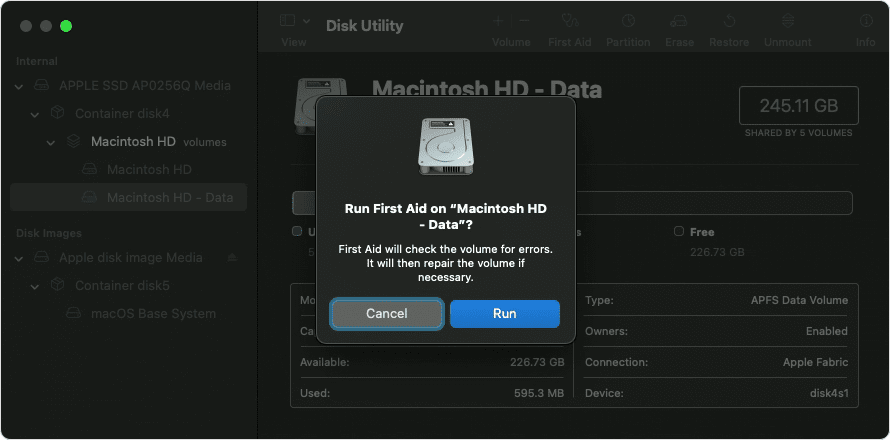
ditto /path/to/source /path/to/destinationSolution 4: Run Disk Utility First Aid
- Open Disk Utility (Applications > Utilities > Disk Utility)
- Select the problematic drive in the sidebar
- Click First Aid and then Run
- Repeat for both your startup disk and external drive
Error Code -43: File Not Found
What It Means: Error -43 indicates that macOS cannot locate a file during an operation, even when the file appears to exist in Finder.
Common Causes:
- File name contains special characters that macOS can't process
- Hidden characters in file names (copied from web or other systems)
- File was moved or deleted during operation
- Cross-platform file naming conflicts
- Long file paths exceeding macOS limits
Step-by-Step Solutions:
Solution 1: Rename the File
Remove special characters from file names:
- Avoid:
/ \ : * ? " < > | - Avoid leading or trailing spaces
- Keep file names under 255 characters
- Avoid starting with periods (unless intentional)
Solution 2: Use Terminal to Identify Problem Characters
List files with their raw names:
ls -la /path/to/folder | cat -vThis reveals hidden characters that might be causing the issue.
Solution 3: Force Delete Using Terminal
If you can't delete a file showing error -43:
rm -rf "/path/to/problematic\ file"Caution: The -rf flag is powerful. Double-check your path before executing.
Solution 4: Reset File Permissions
sudo chmod -R 755 /path/to/folder
sudo chown -R $(whoami) /path/to/folder
Error Code -50: Parameter Error
What It Means: Error -50 signals that a parameter in the file operation is invalid. This commonly occurs during file transfers, especially with external storage devices.
Common Causes:
- File system incompatibility (NTFS drives on Mac)
- Corrupted preference files
- Drive formatting issues
- SMB/network share permission problems
- File size exceeds destination format limits
Step-by-Step Solutions:
Solution 1: Check Drive Format Compatibility
Identify your drive's format:
diskutil info /Volumes/YourDrive | grep "File System"File System Compatibility Guide:
| Format | Mac Read | Mac Write | Windows | Max File Size |
|---|---|---|---|---|
| APFS | Yes | Yes | No | 8 EB |
| HFS+ | Yes | Yes | No | 8 EB |
| exFAT | Yes | Yes | Yes | 16 EB |
| FAT32 | Yes | Yes | Yes | 4 GB |
| NTFS | Yes | No* | Yes | 16 EB |
*Requires third-party software for write access
Solution 2: Reformat External Drive
For cross-platform compatibility, reformat to exFAT:
- Open Disk Utility
- Select your external drive
- Click Erase
- Choose exFAT format and GUID Partition Map scheme
- Click Erase to confirm
Warning: This erases all data on the drive. Back up first.
Solution 3: Delete Cache Files
sudo rm -rf ~/Library/Caches/*
sudo rm -rf /Library/Caches/*
Then restart your Mac.
Error Code 0: File Too Large for Destination
What It Means: Error code 0 specifically indicates that a file exceeds the maximum file size limit of the destination file system—typically when copying files larger than 4GB to a FAT32-formatted drive.
Common Causes:
- Copying files >4GB to FAT32 drives
- USB flash drives pre-formatted with FAT32
- Some older SD cards with FAT32 format
- External drives formatted for compatibility with older devices
Step-by-Step Solutions:
Solution 1: Reformat to exFAT
The most reliable solution is reformatting to exFAT:
- Back up all data from the drive
- Open Disk Utility
- Select the drive and click Erase
- Choose exFAT format
- Copy your files again
Solution 2: Split Large Files
If you can't reformat, split large files using the split command:
# Split into 3.9GB chunks
split -b 3900m largefile.zip largefile_part_

# On the destination, recombine:
cat largefile_part_* > largefile.zip
Solution 3: Use Compression with Splitting
zip -s 3900m archive.zip largefileThis creates split zip files that work with FAT32.
Error Code 8003: Unexpected Error
What It Means: Error 8003 typically appears when trying to empty the Trash or perform file operations on files that are locked, in use, or have permission issues.
Common Causes:
- Files are locked or protected
- System Integrity Protection (SIP) blocking deletion
- Files in use by running processes
- Corrupted Trash folder
- Extended attributes preventing deletion
Step-by-Step Solutions:
Solution 1: Secure Empty Trash (Terminal)
sudo rm -rf ~/.Trash/*Solution 2: Unlock Files First
Unlock all files in Trash:
chflags -R nouchg ~/.Trash/*
sudo rm -rf ~/.Trash/*
Solution 3: Check for Running Processes
Find processes using the file:
lsof | grep "filename"Then quit those applications before deleting.
Solution 4: Safe Mode Deletion
- Restart your Mac and hold Shift to boot into Safe Mode
- Try emptying Trash in Safe Mode
- Restart normally
Error Code 1309: File Too Large (for destination format)
What It Means: Similar to error 0, error 1309 occurs when transferring files that exceed the destination drive's file size limits or when the destination doesn't have enough space.
Common Causes:
- Large file transfers to FAT32 volumes
- Insufficient disk space
- Corrupted drive allocation tables
- Network drive limitations
Step-by-Step Solutions:
Solution 1: Verify Available Space
df -h /Volumes/YourDriveSolution 2: Check and Repair Drive
diskutil verifyVolume /Volumes/YourDrive
diskutil repairVolume /Volumes/YourDrive
Solution 3: Use Terminal for Transfer
rsync -avP --progress /source/file /Volumes/YourDrive/The rsync command handles large file transfers more reliably than Finder.
Error Code -8058: Finder Issues
What It Means: Error -8058 indicates problems with Finder operations, often related to corrupted Finder preferences or conflicts with file operations.
Common Causes:
- Corrupted Finder preference files (plist)
- Spotlight indexing conflicts
- File system inconsistencies
- Third-party Finder extensions causing conflicts
Step-by-Step Solutions:
Solution 1: Reset Finder Preferences
rm ~/Library/Preferences/com.apple.finder.plist
killall Finder
Solution 2: Rebuild Spotlight Index
sudo mdutil -E /This forces Spotlight to reindex your entire drive.
Solution 3: Remove Extended Attributes
xattr -cr /path/to/problematic/folderRecovery Mode Error Codes
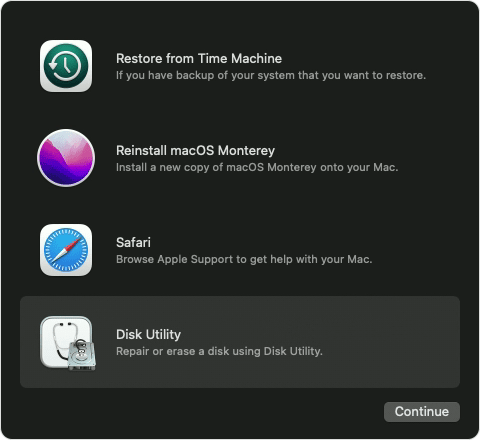
Recovery mode errors are particularly frustrating because they prevent you from accessing your Mac normally. These alphanumeric codes indicate issues with Internet Recovery, firmware, or hardware.
Error -1008F: Internet Recovery Failure
What It Means: Your Mac cannot connect to Apple's servers to download recovery tools.
Common Causes:
- Network connectivity issues
- Firewall blocking Apple servers
- Router/DNS configuration problems
- Apple server outages
Step-by-Step Solutions:
-
Check Network Connection
- Ensure Wi-Fi is connected and has internet access
- Try connecting via Ethernet instead of Wi-Fi
-
Reset Network Settings in Recovery
- Press Command + Q to quit the failing process
- Use Terminal from recovery menu
- Try
ping apple.comto test connectivity
-
Use Bootable USB Installer
- Create a bootable USB installer on another Mac
- Boot from USB using Option key at startup
Error -2002F: Connectivity Error
What It Means: Similar to -1008F, this indicates network communication failure with Apple servers.
Step-by-Step Solutions:
- Move closer to your Wi-Fi router
- Use a 2.4GHz network instead of 5GHz (better range)
- Try a different network entirely
- Temporarily disable firewall on your router
- Try at a different time (server congestion)
Error -2003F: Download Failed
What It Means: The recovery image download started but failed to complete.
Common Causes:
- Unstable internet connection
- Connection timeout
- Insufficient server response
- Network interruption during download
Step-by-Step Solutions:
-
Use Ethernet Connection
Ethernet provides more stable download than Wi-Fi -
Try Different Network
- Use mobile hotspot as alternative
- Try different Wi-Fi network
-
Wait and Retry
- Apple servers may be under heavy load
- Try during off-peak hours
-
Create Bootable Installer
- Download macOS on another Mac
- Use
createinstallmediacommand to create USB installer
Error -5101F: Hardware Communication Error
What It Means: This error indicates potential hardware issues or secure boot problems.
Step-by-Step Solutions:
-
Reset NVRAM/PRAM
- Shut down Mac
- Turn on and immediately press Option + Command + P + R
- Hold for 20 seconds
- Release and let Mac restart
-
Reset SMC (Intel Macs)
- Shut down Mac
- Press Shift + Control + Option + Power for 10 seconds
- Release all keys and power on
-
Apple Silicon Macs
- Simply restart the Mac (SMC is automatic)
- If issues persist, contact Apple Support
System Error Codes

Error -10810: Application Won't Launch
What It Means: macOS cannot launch an application due to code signing issues, corruption, or permission problems.
Common Causes:
- App bundle is corrupted
- Code signing verification failed
- Gatekeeper blocking unsigned apps
- Insufficient permissions
- App conflicts with system extensions
Step-by-Step Solutions:
Solution 1: Allow App in Security Settings
- Open System Settings > Privacy & Security
- Look for blocked app message
- Click Open Anyway
Solution 2: Remove Quarantine Attribute
xattr -d com.apple.quarantine /Applications/AppName.appSolution 3: Reinstall the Application
- Delete app from Applications folder
- Empty Trash
- Download fresh copy from developer or App Store
- Install again
Error -10827: Permission Error
What It Means: The application lacks necessary permissions to access required resources.
Step-by-Step Solutions:
-
Grant Permissions in System Settings
- System Settings > Privacy & Security
- Check relevant categories (Full Disk Access, Files and Folders)
- Add the problematic app
-
Reset Permissions via Terminal
sudo chmod -R 755 /Applications/AppName.app -
Repair Disk Permissions (Older macOS)
- Open Disk Utility
- Select startup disk
- Run First Aid
Network Error Codes
Error -1009: Network Connection Lost
What It Means: The network request failed because the device has lost its network connection.
Common Causes:
- Wi-Fi disconnection during operation
- Network timeout
- DNS resolution failure
- Server unreachable
Step-by-Step Solutions:
Solution 1: Reset Network Configuration
sudo dscacheutil -flushcache
sudo killall -HUP mDNSResponder
Solution 2: Renew DHCP Lease
- System Settings > Network > Wi-Fi > Details
- Click TCP/IP tab
- Click Renew DHCP Lease
Solution 3: Delete Network Preferences
sudo rm /Library/Preferences/SystemConfiguration/NetworkInterfaces.plist
sudo rm /Library/Preferences/SystemConfiguration/preferences.plist
Restart your Mac after running these commands.
Disk and Storage Error Codes
Error -69877: APFS Container Issue
What It Means: There's a problem with the APFS container structure, often after failed updates or improper shutdowns.
Step-by-Step Solutions:
-
Boot into Recovery Mode
- Intel Mac: Command + R at startup
- Apple Silicon: Hold power button, select Options
-
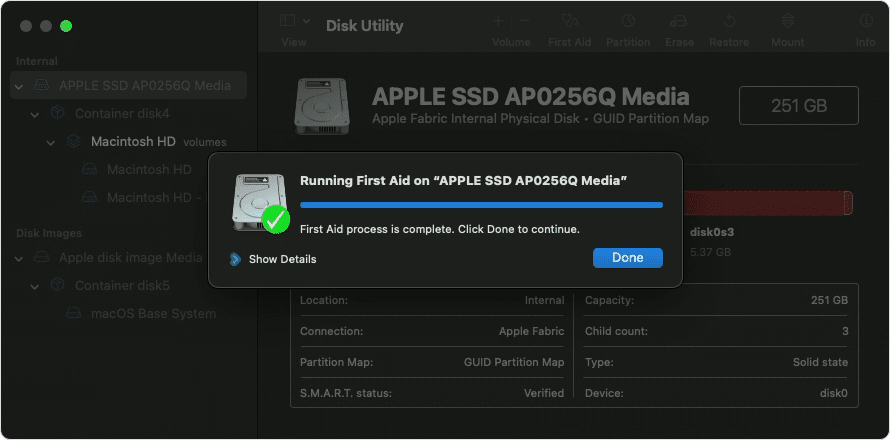
Run First Aid on Container
- Open Disk Utility
- View > Show All Devices
- Select the APFS Container
- Run First Aid
- Use Terminal in Recovery
diskutil apfs repairContainer disk1
Error -69888: Volume Corruption
What It Means: The APFS volume has corruption that First Aid may or may not be able to repair.
Step-by-Step Solutions:
-
Run First Aid Multiple Times
- Sometimes multiple passes are needed
- Run on volume, then container, then physical disk
-
Boot from External Drive
- Create bootable macOS installer
- Boot from it and run First Aid on internal drive
-
Last Resort: Erase and Restore
- Back up what you can via Target Disk Mode
- Erase and reinstall macOS
- Restore from Time Machine
Using Disk Utility for Error Resolution
Disk Utility is your primary tool for resolving many macOS error codes. Here's how to use it effectively:
Running First Aid
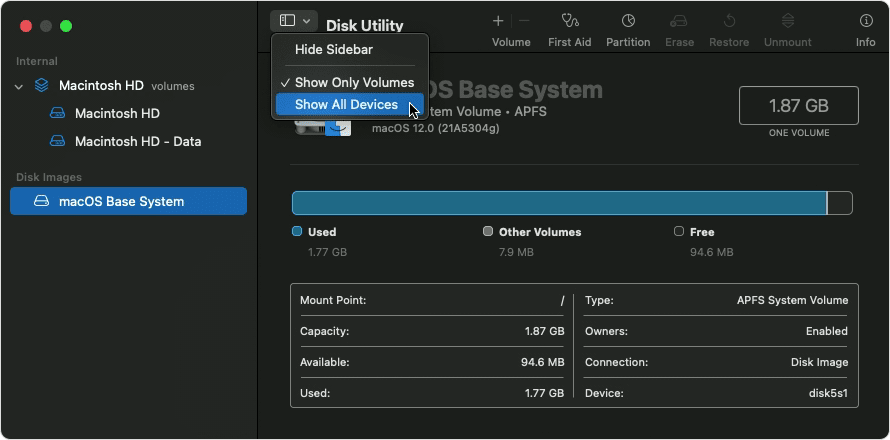
From macOS:
- Open Disk Utility (Applications > Utilities > Disk Utility)
- Click View > Show All Devices
- Select your disk in the sidebar
- Click First Aid button
- Click Run
From Recovery Mode:
- Boot into Recovery Mode
- Select Disk Utility from utilities window
- Run First Aid on your startup disk
- If issues found, run again until "no issues" or contact support
Understanding First Aid Results
| Result | Meaning | Action |
|---|---|---|
| No errors found | Disk is healthy | No action needed |
| Errors were repaired | Issues fixed | Verify by running again |
| Could not repair | Serious corruption | Back up and consider reformatting |
| Disk is about to fail | Hardware failing | Replace drive immediately |
Terminal Commands for Error Resolution

Essential Troubleshooting Commands
1. Check Disk Health:
diskutil list
diskutil info /dev/disk0
2. Verify and Repair Volumes:
diskutil verifyVolume /
diskutil repairVolume /
3. Check S.M.A.R.T. Status:
diskutil info disk0 | grep SMART4. Force Quit Stuck Processes:
killall Finder
killall Dock
5. Clear System Caches:
sudo rm -rf /Library/Caches/*
sudo rm -rf ~/Library/Caches/*
sudo rm -rf /System/Library/Caches/*
6. Reset Launch Services:
/System/Library/Frameworks/CoreServices.framework/Frameworks/LaunchServices.framework/Support/lsregister -kill -r -domain local -domain system -domain userAdvanced Terminal Fixes
For Persistent File Errors:
# Remove extended attributes recursively
xattr -cr /path/to/folder

# Fix permissions on home folder
sudo chown -R $(whoami):staff ~/
chmod -R u+rwX ~/

# Repair disk permissions (legacy but sometimes helpful)
sudo diskutil resetUserPermissions / `id -u`
Error Prevention Best Practices

1. Regular Maintenance
- Run First Aid Monthly: Catch issues before they become critical
- Keep macOS Updated: Apple regularly fixes file system bugs
- Monitor Disk Health: Check S.M.A.R.T. status periodically
2. Safe File Operations
- Eject Drives Properly: Always use "Eject" before physically disconnecting
- Avoid Special Characters: In file and folder names
- Don't Interrupt Transfers: Wait for copy operations to complete
3. Backup Strategy
- Use Time Machine: Automatic, reliable backups
- Multiple Backup Destinations: Local + cloud backup
- Test Restores: Periodically verify backups work
4. Storage Best Practices
- Maintain 15-20% Free Space: File systems need room to operate
- Use Compatible Formats: exFAT for cross-platform drives
- Replace Aging Drives: HDDs over 5-7 years should be replaced
When to Contact Apple Support
Some error codes indicate hardware issues that require professional attention:
Contact Apple If:
- Error -5101F persists after NVRAM/SMC reset
- Disk Utility shows "Disk is about to fail"
- Recovery mode errors continue across all networks
- You hear clicking or grinding from your Mac
- Error codes appear immediately after physical damage
Apple Support Resources:
- Apple Support
- Apple Store Genius Bar appointment
- Authorized Apple Service Providers
Error Code Quick Reference Table
| Error Code | Category | Quick Fix |
|---|---|---|
| -36 | File I/O | dot_clean on drive |
| -43 | File Not Found | Remove special characters from filename |
| -50 | Parameter Error | Check drive format compatibility |
| 0 | File Size | Reformat drive to exFAT |
| 8003 | Trash Error | Terminal: sudo rm -rf ~/.Trash/* |
| 1309 | File Too Large | Check space, reformat to exFAT |
| -8058 | Finder | Reset Finder preferences |
| -10810 | App Launch | Remove quarantine attribute |
| -1008F | Recovery | Check network, use USB installer |
| -2003F | Download | Use Ethernet, try later |
| -69877 | APFS Container | First Aid from Recovery |
| -1009 | Network | Flush DNS cache |
Use Our Error Code Encyclopedia Tool
Can't find your error code in this guide? Use our interactive Error Code Encyclopedia tool for instant lookup of hundreds of macOS error codes with detailed explanations and solutions.
Related Troubleshooting Guides
For more detailed help with specific macOS issues, check out these comprehensive guides:
- macOS Tahoe Troubleshooting Guide: Complete Solutions
- Time Machine Complete Troubleshooting Guide 2025
- Mac Storage Management Optimization Guide
- Mac Terminal Mastery: Command Line Guide
- macOS Downgrade Complete Guide 2025
- Fix Mac Running Slow: Complete Guide
- Mac Activity Monitor Complete Guide
Conclusion
macOS error codes, while initially cryptic, follow patterns that make them understandable and fixable. The key to resolving these errors is:
- Identify the error category (file, system, network, or hardware)
- Understand the root cause using the information in this guide
- Apply the appropriate solution starting with the simplest fix
- Escalate to more advanced solutions if initial fixes don't work
- Know when to seek professional help for hardware-related issues
Most Mac errors can be resolved using Disk Utility's First Aid, Terminal commands, or simple file system maintenance. By following the prevention best practices outlined in this guide, you can minimize your chances of encountering these errors in the future.
Remember: Always back up your important data before attempting any disk repairs or system modifications. Time Machine provides an excellent safety net that can save you from data loss when errors do occur.
Last updated: December 2025 | Covers macOS Tahoe 26 and earlier versions