macOS Tahoe Printer Not Working: Complete Fix Guide for Filter Failed, USB & Network Printer Issues in 2026
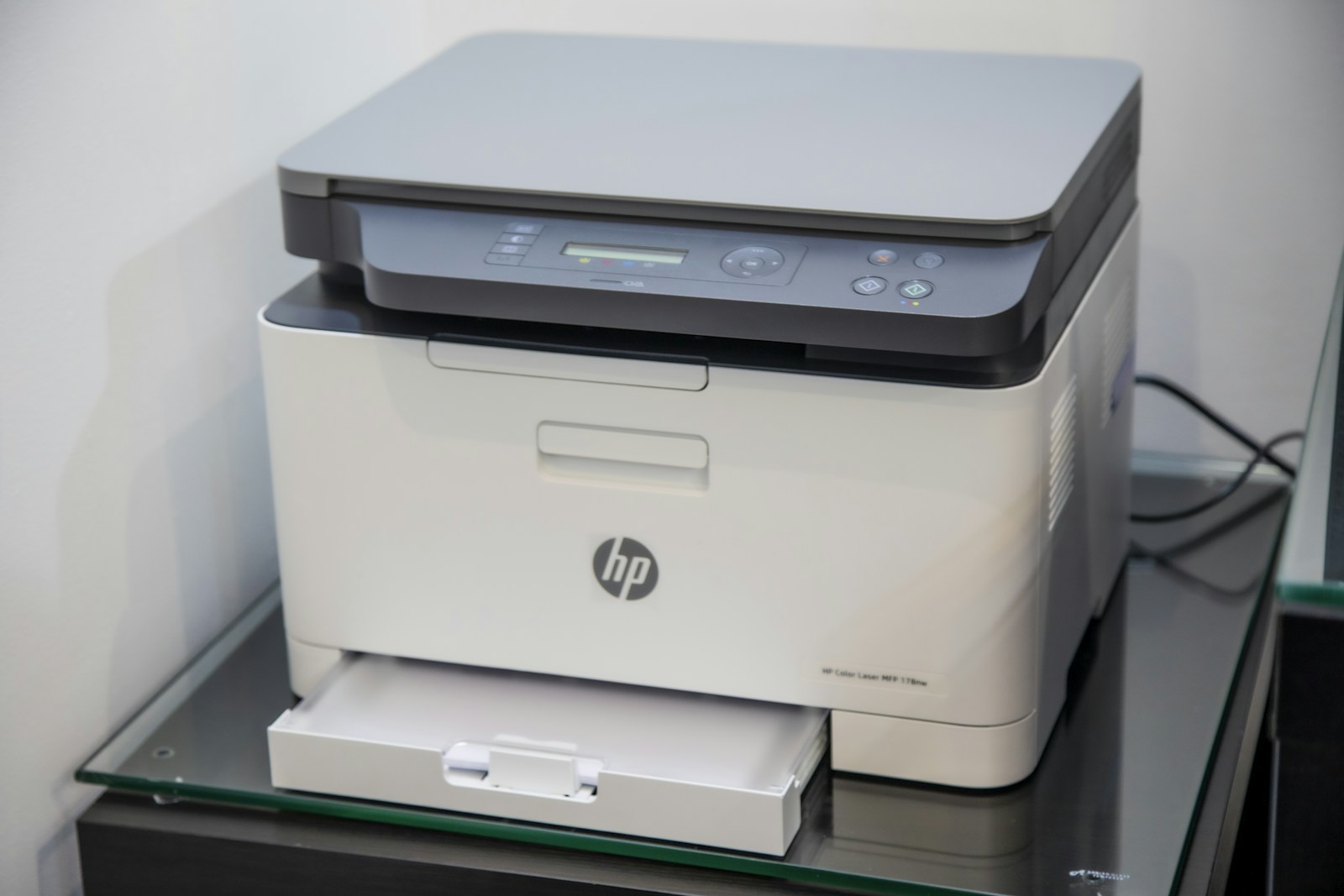
Fix all macOS Tahoe 26 printer problems including Filter Failed error, printer disappeared, jobs stuck in queue, USB/network printer issues. Covers HP, Canon, Epson, Brother, and other brands with step-by-step solutions.
After upgrading to macOS Tahoe 26, many users have discovered their printers no longer work correctly. From the dreaded "Filter failed" error to printers completely disappearing from System Settings, printer issues have become one of the most common complaints about Apple's latest operating system. This comprehensive guide covers every known printer problem and provides tested solutions for all major printer brands.
Common macOS Tahoe Printer Problems Overview
Primary Symptoms Users Report
| Issue | Frequency | Affected Connections |
|---|---|---|
| Printer disappeared after upgrade | Very Common | All types |
| "Filter failed" error | Common | USB, Network |
| Jobs stuck in queue | Common | All types |
| AirPrint not working | Common | WiFi |
| Printer offline (when it's on) | Common | Network |
| No drivers available | Moderate | Older printers |
| Print quality degradation | Less Common | All types |
Affected Printer Brands
Based on user reports and forum discussions, the following brands are most commonly affected:
High Impact:
- HP (especially older LaserJet and OfficeJet models)
- Canon (ImageClass, PIXMA series)
- Epson (EcoTank, WorkForce)
- Brother (HL, MFC series)
Moderate Impact:
- Xerox (WorkCentre, VersaLink)
- Kyocera (ECOSYS)
- Lexmark (various models)
- Samsung (legacy printers)
- Ricoh (MP series)
Root Causes Identified
- SMB Protocol Changes: macOS Tahoe enforces SMB 3.x only, dropping SMBv1 support
- Driver Incompatibility: Older printer drivers not compatible with macOS 26
- CUPS Configuration Corruption: Upgrade process can corrupt CUPS (printing subsystem) settings
- Local Network Permission Changes: New privacy controls affect printer discovery
- Security Software Conflicts: ESET, SentinelOne, and other security software can block printing
Quick Fixes: Try These First
Fix 1: Check Local Network Permission
macOS Tahoe requires explicit permission for apps to access local network devices:
- Open System Settings > Privacy & Security
- Scroll down and click Local Network
- Ensure the toggle is ON for:
- Preview
- Safari
- Any apps you print from
- If your printer software appears, enable it as well
- Restart your Mac
Fix 2: Reset the Printing System
This is the most effective universal fix:
- Open System Settings > Printers & Scanners
- Right-click (or Control-click) anywhere in the printer list
- Select Reset printing system...
- Enter your administrator password
- Click Reset
- Restart your Mac
- Add your printer again

Fix 3: Update Printer Firmware
Many printer issues resolve after firmware updates:
- Visit your printer manufacturer's website
- Navigate to Support > Downloads > Firmware
- Download the latest firmware for your model
- Follow the manufacturer's update instructions
- Restart both the printer and your Mac
Fix 4: Delete CUPS Log Files
Corrupted CUPS logs can prevent printing:
# Stop CUPS service
sudo launchctl stop org.cups.cupsd

# Delete log files
sudo rm -rf /var/log/cups/*

# Restart CUPS
sudo launchctl start org.cups.cupsd
"Filter Failed" Error: Complete Solution
What Causes "Filter Failed"
The "Filter failed" error occurs when the CUPS printing system cannot process print data through its filter chain. In macOS Tahoe, this commonly happens due to:
- Incompatible or corrupted printer drivers
- Missing filter binaries after upgrade
- Security software blocking filter execution
- Incorrect printer configuration
Solution 1: Reinstall Printer with Generic Driver
-
Remove the problematic printer:
- System Settings > Printers & Scanners
- Select your printer
- Click the minus (-) button
-
Add the printer with a generic driver:
- Click the plus (+) button
- Select your printer from the list
- For Use/Driver, select:
- Generic PCL Laser Printer (for laser printers)
- Generic PostScript Printer (for PostScript-compatible printers)
- Click Add
-
Test printing
Solution 2: Use LPD Protocol
If your network printer supports LPD:
- Click + to add a printer
- Right-click the toolbar and choose Customize Toolbar
- Add the IP icon to the toolbar
- Click the IP icon
- Configure:
- Protocol: Line Printer Daemon - LPD
- Address: Your printer's IP address
- Queue: Leave empty or enter "raw"
- Name: Your printer name
- Use: Generic PCL or PostScript driver
- Click Add
Solution 3: Clear Filter Cache
# Navigate to CUPS filters directory
cd /usr/libexec/cups/filter/

# Check if filters are present
ls -la

# If filters seem corrupted, reinstall CUPS
# (This requires Xcode Command Line Tools)
sudo softwareupdate --install-rosetta --agree-to-license
Solution 4: Disable Security Software Temporarily
If you use ESET, SentinelOne, or similar software:
- Temporarily disable real-time scanning
- Try printing
- If successful, add an exception for:
/usr/libexec/cups//usr/sbin/cupsd- Your printer driver location
USB Printer Issues
USB Printer Not Detected
Check Physical Connection:
- Disconnect the USB cable
- Try a different USB port (avoid hubs)
- Try a different USB cable
- Restart your Mac with the printer connected
Check System Information:
# List USB devices
system_profiler SPUSBDataType | grep -A 5 -i "printer"
If your printer doesn't appear, the issue is likely hardware-related.
Reset USB Ports:
# Reset USB controller (Apple Silicon)
sudo nvram -c
sudo shutdown -r now

# Reset SMC (Intel Macs)
# Shut down, hold Shift+Control+Option+Power for 10 seconds
USB Printer Recognized But Won't Print
- Open System Settings > Printers & Scanners
- Select your USB printer
- Click Options & Supplies
- Check the Driver tab shows the correct driver
- If not, click Change... and select the appropriate driver
Force USB Discovery:
# Restart CUPS to trigger USB discovery
sudo launchctl stop org.cups.cupsd
sleep 2
sudo launchctl start org.cups.cupsd
Network Printer Issues
Printer Shows Offline
Step 1: Verify Network Connectivity
# Find your printer's IP address (check printer's network settings page)
# Then ping it
ping -c 5 192.168.1.XXX
If ping fails, the printer isn't reachable on the network.
Step 2: Check Printer IP Configuration Many issues occur when printers have dynamic IP addresses:
- Access your printer's web interface (usually http://printer-ip-address)
- Navigate to Network Settings
- Set a Static IP Address outside your router's DHCP range
- Save and restart the printer
- Update the printer IP in macOS if it changed
Step 3: Add Printer by IP Address
- System Settings > Printers & Scanners
- Click +
- Click the IP icon in the toolbar
- Enter:
- Protocol: Internet Printing Protocol - IPP
- Address: Your printer's static IP
- Queue: ipp/print (or check your printer's documentation)
- Click Add
SMB/Windows Shared Printer Issues
macOS Tahoe removed SMBv1 support, breaking many Windows-shared printers:
Solution 1: Enable SMB3 on Windows
On the Windows computer sharing the printer:
- Open PowerShell as Administrator
- Run:
Set-SmbServerConfiguration -EnableSMB2Protocol $true - Restart the Windows computer
Solution 2: Connect via Different Protocol
Instead of SMB, use IPP or LPD:
- Find the printer's direct IP address
- Add as a network printer using IPP protocol
Solution 3: Manually Enable SMB1 (Not Recommended)
This reduces security but may be necessary for legacy printers:
# Add SMB1 negotiation (use with caution)
echo "[default]" | sudo tee -a /etc/nsmb.conf
echo "protocol_vers_map=7" | sudo tee -a /etc/nsmb.conf
echo "signing_required=no" | sudo tee -a /etc/nsmb.conf
AirPrint Issues
AirPrint Printer Not Found
Step 1: Verify AirPrint Support Not all printers support AirPrint. Check your printer's specifications.
Step 2: Check Network Requirements
- Mac and printer must be on the same network (same subnet)
- Multicast DNS (mDNS/Bonjour) must not be blocked by your router
- Router's "AP Isolation" must be disabled
Step 3: Restart Bonjour
# Restart mDNS responder
sudo killall -HUP mDNSResponder
Step 4: Check Firewall Settings
- System Settings > Network > Firewall
- Click Options
- Ensure Block all incoming connections is OFF
- Or add specific printer software to allowed apps
AirPrint Shows Printer But Won't Print
- Open System Settings > Printers & Scanners
- Remove the AirPrint printer
- Restart your Mac
- Add the printer again, but choose AirPrint specifically from the Use dropdown
- Test printing a simple document
Brand-Specific Solutions
HP Printers
HP Smart App Issues: HP Smart may not work correctly on macOS Tahoe. Try HP Easy Start instead:
- Uninstall HP Smart completely
- Download HP Easy Start from hp.com
- Let it detect and install drivers for your printer
HP LaserJet Filter Failed:
# Remove corrupted HP drivers
sudo rm -rf /Library/Printers/hp
sudo rm -rf /Library/Printers/PPDs/Contents/Resources/HP*

# Reinstall via Apple's built-in driver catalog
softwareupdate --list | grep HP
softwareupdate --install [HP-Printer-Driver-Package-Name]
Reset HP Printer WiFi: Most HP printers: Hold WiFi and Cancel buttons for 5 seconds
Canon Printers
Canon ImageClass:
- Download the latest UFR II/UFRII LT driver from Canon's website
- Install in this order:
- macOS Print Driver
- Scanner Driver (if applicable)
- IJ Network Device Setup Utility
- Restart before adding the printer
Canon PIXMA: If wireless setup fails:
- Connect via USB temporarily
- Use Canon IJ Network Tool to configure WiFi
- Disconnect USB after WiFi is working
Epson Printers
Epson Drivers for macOS Tahoe:
# Check installed Epson drivers
pkgutil --pkgs | grep -i epson

# If outdated, remove and reinstall
sudo pkgutil --forget [package-name]
Download the "Epson Software Updater" from epson.com for automatic driver management.
EcoTank Ink System Issues: EcoTank printers may show "ink out" incorrectly after upgrade:
- Run the printer's head cleaning from the printer's control panel
- Reset ink levels if your printer supports this feature
Brother Printers
Brother ControlCenter Issues: Brother ControlCenter4 may not work on Tahoe. Use:
- iPrint&Scan (newer replacement)
- Or access scanner directly from Image Capture
Network Brother Printer:
- Download "Full Driver & Software Package" from brother.com
- Run the installer
- When prompted, enter the printer's IP address manually
Advanced Troubleshooting
CUPS Web Interface
For advanced diagnostics, enable the CUPS web interface:
# Enable CUPS web interface
cupsctl WebInterface=yes

# Access at http://localhost:631
open http://localhost:631
In the CUPS interface:
- Printers tab: View printer status and queued jobs
- Classes tab: Manage printer classes
- Administration tab: Add printers, view logs
- Jobs tab: See job history and errors
View Printing Logs
# View CUPS error log
tail -f /var/log/cups/error_log

# View page log (successful prints)
tail -f /var/log/cups/page_log

# Filter for specific errors
grep -i "error\|failed\|warning" /var/log/cups/error_log
Test Page via Command Line
# Print a test page
lp -d printer_name /usr/share/cups/data/testprint

# Check job status
lpstat -p

# Cancel stuck jobs
cancel -a
Complete CUPS Reset
If nothing else works:
# Stop CUPS
sudo launchctl stop org.cups.cupsd

# Backup current configuration
sudo cp -r /etc/cups /etc/cups.backup

# Remove all printer configurations
sudo rm /etc/cups/printers.conf
sudo rm /etc/cups/printers.conf.O
sudo rm -rf /etc/cups/ppd/*

# Remove printer-related caches
sudo rm -rf /var/spool/cups/*
sudo rm -rf /var/log/cups/*

# Reset CUPS to defaults
sudo rm /etc/cups/classes.conf
sudo rm /etc/cups/subscriptions.conf

# Restart CUPS
sudo launchctl start org.cups.cupsd

# Restart Mac
sudo shutdown -r now
Printer Not Appearing After Upgrade
Check Print Queue Recovery
Sometimes printers are present but hidden:
- Open Terminal
- Run:
lpstat -p - If printers are listed but not in System Settings:
# Enable printer that may be disabled
cupsenable [printer-name]
cupsaccept [printer-name]
Restore from Time Machine (Last Resort)
If you have a Time Machine backup from before the upgrade:
- Open Migration Assistant (in Applications > Utilities)
- Select From a Mac, Time Machine backup, or Startup disk
- Choose your Time Machine backup
- Select only Printers to transfer
- Complete the migration
Note: This may restore older, incompatible drivers.
Preventing Future Printer Issues
Before macOS Updates
-
Export printer list:
lpstat -p > ~/Desktop/printer-list.txt -
Document printer IP addresses and settings
-
Visit manufacturer websites to verify Tahoe compatibility
-
Consider delaying upgrade until printer compatibility is confirmed
Maintenance Tips
- Update printer firmware regularly
- Use static IP addresses for network printers
- Keep manufacturer software updated
- Avoid using USB hubs for printer connections
- Clear print queue periodically if you experience issues
FAQ: Common Questions
Q: Why did my printer work on Sequoia but not Tahoe?
macOS Tahoe includes driver changes, security enhancements (like SMB3-only), and CUPS updates that can affect older printer compatibility. Most issues are resolved by updating drivers or using the reset printing system option.
Q: Should I contact my printer manufacturer?
Yes, if:
- Your printer is less than 5 years old
- The manufacturer doesn't list macOS Tahoe support yet
- You've tried all troubleshooting steps
Many manufacturers release Tahoe-compatible drivers weeks or months after macOS releases.
Q: Can I downgrade to fix printing?
While possible, downgrading macOS is not recommended for printer issues alone. The solutions in this guide should resolve most problems without requiring a system downgrade.
Q: My printer is very old. What are my options?
For unsupported printers:
- Use the Generic PostScript or PCL driver
- Print to PDF and print from another computer
- Consider upgrading to a macOS Tahoe-compatible printer
Conclusion
Printer issues after upgrading to macOS Tahoe can be frustrating, but they're almost always solvable. The key approaches are:
- Reset the printing system - Fixes most issues
- Check Local Network permissions - Required for printer discovery
- Update or reinstall drivers - Ensures compatibility
- Use alternative protocols - IPP or LPD instead of SMB
Quick Reference Solution Order
| Try This First | Then This | Last Resort |
|---|---|---|
| Check Local Network permission | Reset printing system | Complete CUPS reset |
| Update printer firmware | Reinstall drivers | Use generic driver |
| Clear print queue | Add printer by IP | Contact manufacturer |
Most users find their printers working again after the printing system reset and driver update combination. If you continue experiencing issues, the CUPS web interface provides detailed logs that can help identify the specific problem.
Having other macOS Tahoe issues? Check our macOS Tahoe Troubleshooting Guide for comprehensive solutions to common problems.