Reset PRAM, NVRAM and SMC on Mac: Intel Keys + Apple Silicon Fix
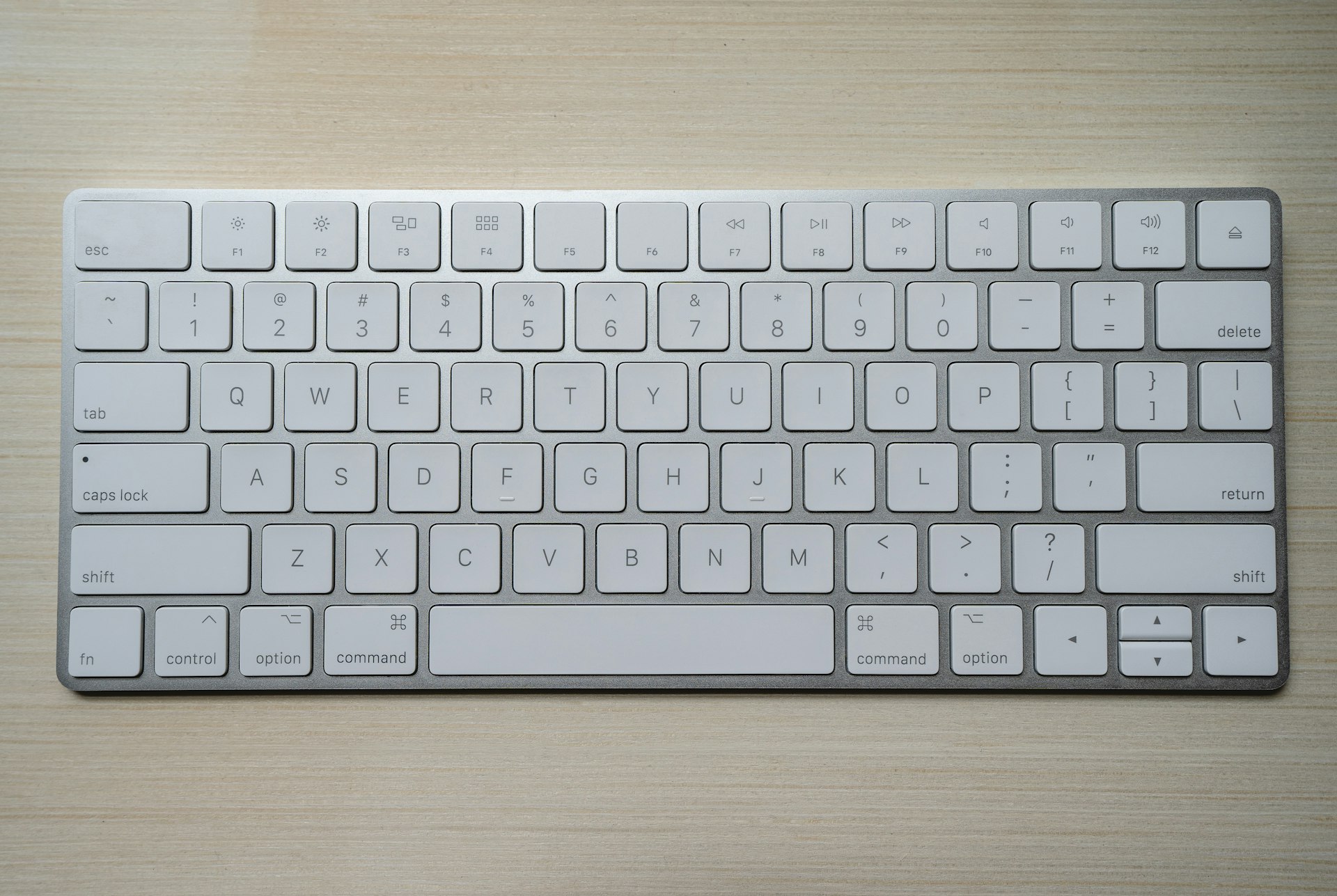
Intel Mac: hold Option-Command-P-R for 20 seconds. Apple Silicon has no key combo: shut down, wait 30 seconds, restart. Full steps for every Mac model.
Resetting NVRAM, PRAM, and SMC are classic Mac troubleshooting techniques that can resolve various hardware-related issues. However, these processes work differently on Intel Macs versus Apple Silicon Macs. This comprehensive guide explains what each reset does, when to use them, and how to perform them on every Mac model.
NVRAM and SMC resets use specific keyboard combinations to resolve hardware issues.


Quick Reference: Which Reset Do You Need?
| Issue | Intel Mac Solution | Apple Silicon Solution |
|---|---|---|
| Display resolution problems | Reset NVRAM | Restart Mac |
| Sound/volume issues | Reset NVRAM | Restart Mac |
| Startup disk selection | Reset NVRAM | Restart Mac |
| Timezone/clock problems | Reset NVRAM | Restart Mac |
| Kernel panic at startup | Reset NVRAM + SMC | Shut down, wait 30 sec |
| Fan running constantly | Reset SMC | Shut down, wait 30 sec |
| Battery not charging | Reset SMC | Shut down, wait 30 sec |
| Keyboard/trackpad issues | Reset SMC | Shut down, wait 30 sec |
| Power button unresponsive | Reset SMC | Hold power 10 sec |
| Sleep/wake problems | Reset SMC | Shut down, wait 30 sec |
Understanding NVRAM, PRAM, and SMC
What is NVRAM/PRAM?
NVRAM (Non-Volatile Random-Access Memory) stores settings that your Mac needs to access quickly:
- Display resolution and refresh rate
- Startup disk selection
- Speaker volume
- Time zone setting
- Recent kernel panic information
- Bluetooth device information
PRAM (Parameter RAM) is the older term for essentially the same thing on PowerPC Macs. Modern Macs use NVRAM, but the terms are often used interchangeably.
What is SMC?
SMC (System Management Controller) manages low-level hardware functions:
- Power management (sleep, wake, shutdown)
- Battery charging and management
- Thermal management (fans)
- Status indicator lights (LED)
- Keyboard backlight
- Trackpad behavior
- Video mode switching
- Sudden Motion Sensor response
Apple Silicon Difference
Important: Apple Silicon Macs (M1, M2, M3, M4, M5) don't have a traditional SMC or user-resettable NVRAM. These functions are integrated into the chip itself and managed automatically.
On Apple Silicon:
- NVRAM is checked and refreshed automatically at every startup
- SMC functions are handled by the chip itself
- A simple restart or shutdown often achieves what NVRAM/SMC resets do on Intel Macs
Part 1: Apple Silicon Mac Reset Procedures
For M1, M2, M3, M4, and M5 Macs
Apple Silicon Macs handle these settings differently. There's no manual NVRAM reset key combination because the system automatically verifies and repairs NVRAM at startup.
Basic Reset (Equivalent to NVRAM/SMC Reset)
Step 1: Complete Shutdown
- Click Apple menu () > Shut Down
- Wait for Mac to fully power off
- Wait 30 seconds (important!)
- Press power button to restart
This simple process allows the system to reset various parameters that might be causing issues.
Extended Reset (For Persistent Issues)
Step 1: Force Shutdown
- Press and hold the power button for 10 seconds
- Release when Mac turns off
- Wait 10 seconds
- Press power button normally to restart
Using Recovery Mode for Deeper Reset
If issues persist, boot into Recovery Mode:
- Shut down your Mac completely
- Press and hold the power button
- Keep holding until you see "Loading startup options"
- Select Options > Continue
- From Utilities menu, open Terminal
- Type:
nvram -cand press Enter - Type:
shutdown -r nowto restart
Note: The nvram -c command clears NVRAM settings. This is the closest equivalent to the Intel Mac NVRAM reset.
Resetting Specific Settings via Terminal
You can reset individual NVRAM variables:
# View all NVRAM settings
nvram -xp

# Reset startup disk selection
sudo nvram -d SystemAudioVolume

# Clear boot arguments
sudo nvram boot-args=""

# Reset to default startup volume
sudo bless --mount / --setBoot
When to Use Each Method
| Situation | Recommended Action |
|---|---|
| Minor display/audio glitches | Simple restart |
| Bluetooth pairing issues | Shut down, wait 30 sec, restart |
| Mac won't wake from sleep | Hold power 10 sec, restart |
| Kernel panics | Recovery Mode + nvram -c |
| Boot loop | Recovery Mode troubleshooting |
Part 2: Intel Mac Reset Procedures
Resetting NVRAM on Intel Macs
Compatible Models: All Intel-based Macs (2006-2020)
Step 1: Shut Down
- Apple menu () > Shut Down
- Wait for Mac to fully power off
Step 2: Start and Hold Keys
- Press the power button
- Immediately press and hold: ⌘ + Option + P + R
- Hold these four keys for about 20 seconds
Step 3: Release Keys
- On Macs with startup chime: Release after hearing the second startup sound
- On Macs without chime (2016+): Release after the Apple logo appears and disappears twice
- On Macs with T2 chip: Release after the Apple logo appears and disappears twice
What Happens After Reset:
- Screen may flash or go blank briefly
- You may need to reconfigure:
- Display resolution
- Startup disk
- Sound volume
- Time zone
Resetting SMC on Intel Macs
SMC reset procedures vary by Mac type:
MacBook with T2 Chip (2018-2020)
- Shut down your Mac
- Press and hold: Control + Option + Shift (left side) for 7 seconds
- While still holding those keys, also press and hold the power button
- Hold all four keys for another 7 seconds
- Release all keys
- Wait a few seconds
- Press the power button to turn on your Mac
MacBook without T2 Chip (2017 and earlier)
With Removable Battery:
- Shut down Mac
- Remove the battery
- Press and hold power button for 5 seconds
- Reinstall battery
- Press power button to turn on
With Non-Removable Battery:
- Shut down Mac
- Press and hold: Shift + Control + Option (left side) + Power button for 10 seconds
- Release all keys
- Press power button to turn on
Desktop Mac with T2 Chip (iMac Pro, 2018+ Mac mini)
- Shut down Mac
- Unplug the power cord
- Wait 15 seconds
- Plug power cord back in
- Wait 5 seconds
- Press power button to turn on
Desktop Mac without T2 Chip (Older iMac, Mac Pro, Mac mini)
- Shut down Mac
- Unplug the power cord
- Wait 15 seconds
- Plug power cord back in
- Wait 5 seconds
- Press power button to turn on
How to Check if Your Mac Has a T2 Chip
- Hold Option key and click Apple menu ()
- Select System Information
- In sidebar, select Controller (under Hardware)
- Look for "Apple T2 Security Chip" on the right
Part 3: Troubleshooting Specific Issues
Display and Resolution Problems
Symptoms:
- Wrong resolution after connecting external display
- Screen flickering or artifacts
- Display not detected
Solution (Apple Silicon):
# In Terminal
sudo nvram -d display-resolution
Then restart.
Solution (Intel):
- Reset NVRAM (⌘ + Option + P + R)
- If issue persists, also reset SMC
Audio and Sound Issues
Symptoms:
- No sound from speakers
- Volume controls not working
- Audio crackling or distortion
Solution (Apple Silicon):
- System Settings > Sound
- Check Output device
- If wrong, shut down, wait 30 sec, restart
Solution (Intel):
- Reset NVRAM
- Check Audio MIDI Setup for sample rate issues
Startup Disk Problems
Symptoms:
- Mac boots to wrong disk
- "No bootable device" error
- Startup disk not found
Solution (Both):
- Restart holding Option key
- Select correct startup disk
- Click arrow to boot
- System Settings > General > Startup Disk to set default
Battery and Charging Issues
Symptoms:
- Not charging when plugged in
- Wrong battery percentage
- "Battery Not Charging" message
Solution (Apple Silicon):
- Check System Settings > Battery for charging status
- Shut down, wait 30 seconds, restart
- If persists, check MagSafe/USB-C connection
Solution (Intel):
- Reset SMC (see instructions above)
- Check System Information > Power for battery health
Fan Running Constantly
Symptoms:
- Fans at full speed constantly
- Mac running hot with low CPU usage
- Fans don't respond to load changes
Solution (Apple Silicon):
- Check Activity Monitor for runaway processes
- Quit problematic apps
- Shut down, wait 1 minute, restart
Solution (Intel):
- Reset SMC
- Check for dust blocking vents
- Verify fans in Apple Diagnostics
Keyboard and Trackpad Issues
Symptoms:
- Keys not responding
- Trackpad not clicking
- Keyboard backlight not working
Solution (Apple Silicon):
- Connect USB keyboard to test
- Shut down, wait 30 seconds, restart
- If persists, try Recovery Mode
Solution (Intel):
- Reset SMC
- Reset NVRAM if issue persists
- Check for physical damage
Part 4: Safe Mode and Apple Diagnostics
Booting into Safe Mode
Safe Mode can help diagnose and fix issues by:
- Running disk repair
- Loading only essential kernel extensions
- Clearing system caches
Apple Silicon Safe Mode:
- Shut down Mac
- Press and hold power button until "Loading startup options" appears
- Select your startup disk
- Press and hold Shift key
- Click "Continue in Safe Mode"
Intel Mac Safe Mode:
- Shut down Mac
- Turn on and immediately hold Shift key
- Release when you see login window
Running Apple Diagnostics
Apple Silicon:
- Shut down Mac
- Press and hold power button
- Release when you see startup options
- Press ⌘ + D
Intel Mac:
- Shut down Mac
- Turn on and immediately hold D key
- Release when you see language selection
Common Error Codes:
| Code | Meaning | Action |
|---|---|---|
| ADP000 | No issues found | Issue may be software-related |
| PPF001-PPF004 | Fan issue | Check for dust, may need service |
| PPT001-PPT007 | Battery issue | May need battery replacement |
| VDH001-VDH006 | Display issue | Try external display, may need service |
| CNW001-CNW008 | WiFi issue | Reset network settings |
Part 5: When Resets Don't Help
Signs of Hardware Failure
If resets don't resolve issues, you may have hardware problems:
- Consistent kernel panics with same error
- Physical damage visible
- Liquid contact indicator triggered
- Apple Diagnostics reports errors
- Issue occurs in Safe Mode
Alternative Troubleshooting Steps
1. Create New User Account Test if issue occurs with fresh user account (software vs hardware issue)
2. Boot from External Drive Test macOS installation on external drive
3. Reinstall macOS From Recovery Mode, reinstall macOS without erasing data
4. Erase and Clean Install Last resort before hardware service
When to Seek Professional Help
Contact Apple Support or visit Apple Store if:
- Multiple resets haven't resolved the issue
- Apple Diagnostics reports errors
- Physical damage is visible
- Issue affects basic functionality
- Mac is under warranty or AppleCare
Part 6: Preventive Maintenance
Regular Maintenance Tasks
Weekly:
- Restart Mac at least once
- Check for macOS updates
Monthly:
- Review Activity Monitor for resource hogs
- Clear browser caches
- Verify backup is working
Quarterly:
- Check battery health
- Clean dust from vents (desktop Macs)
- Review startup items
Monitoring System Health
Built-in Tools:
- Activity Monitor: CPU, memory, energy, disk, network
- System Information: Hardware details
- Console: System logs
- Disk Utility: Storage health
Recommended Third-Party:
- iStat Menus: Comprehensive monitoring
- coconutBattery: Battery health
- DriveDx: SSD health monitoring
Command Reference
Useful Terminal Commands
# View NVRAM settings
nvram -xp

# Clear all NVRAM (requires restart)
sudo nvram -c

# Check battery health (Intel)
system_profiler SPPowerDataType

# View thermal status
pmset -g thermstate

# Check SMC version (Intel)
system_profiler SPHardwareDataType | grep SMC

# Reset Bluetooth module
sudo pkill bluetoothd

# View recent kernel panics
log show --predicate 'eventMessage contains "panic"' --last 24h
Conclusion
Understanding when and how to reset NVRAM, PRAM, and SMC can save you trips to the Apple Store and resolve common Mac issues quickly. The key differences between Intel and Apple Silicon Macs mean different approaches are needed.
Key Takeaways:
- Apple Silicon Macs automatically manage NVRAM/SMC functions—a simple restart or shutdown often suffices
- Intel Macs require specific key combinations for NVRAM and SMC resets
- Try the simplest solution first: restart before attempting resets
- Safe Mode and Apple Diagnostics help determine if issues are hardware or software-related
- When resets fail, the problem may require professional service
These resets are safe, non-destructive procedures that won't delete your data. When troubleshooting Mac issues, they should be among your first steps before more drastic measures like reinstalling macOS.
Related Articles: