macOS Tahoe Window Resizing Bug: Why Apple Pulled the Fix and How to Work Around Liquid Glass Issues
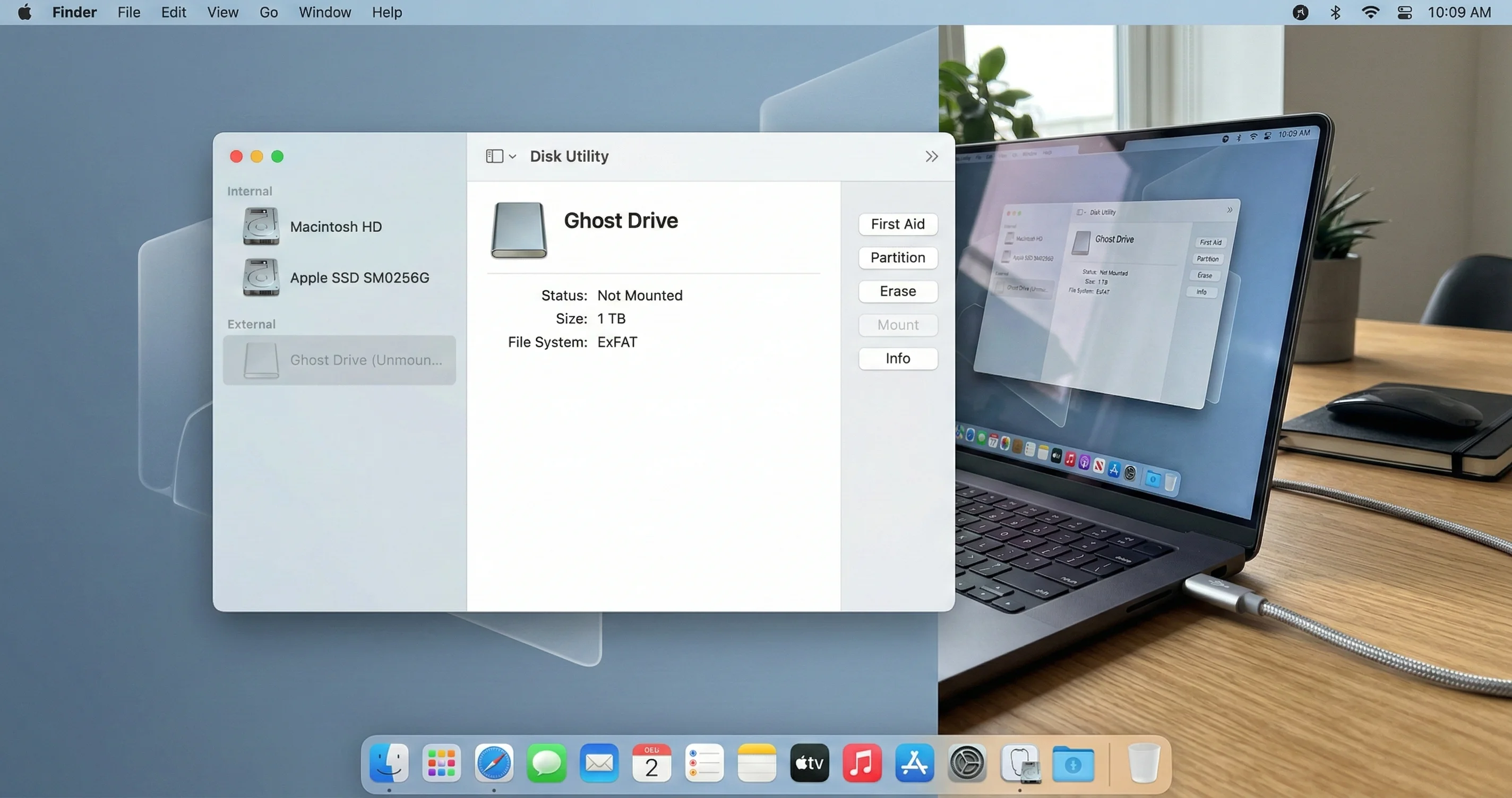
The macOS Tahoe Liquid Glass window resizing bug makes windows nearly impossible to resize. Learn why Apple reverted the 26.3 fix, workarounds using Rectangle and BetterSnapTool, and what's next.
macOS Tahoe introduced Liquid Glass, Apple's boldest visual redesign since iOS 7. The frosted, translucent aesthetic gave windows a beautiful, modern appearance -- but it also introduced a fundamental usability regression that has frustrated Mac users for months. The heavily rounded window corners, a hallmark of the Liquid Glass design language, broke one of the most basic interactions in desktop computing: resizing a window by dragging its corner.
What followed is one of the stranger episodes in recent Apple software history. Apple acknowledged the bug, listed a fix in the macOS 26.3 Release Candidate, and then quietly pulled that fix before the final release shipped to the public. The window resizing problem remains unresolved as of February 2026, and the Mac community is left relying on third-party tools and workarounds.
This guide explains exactly what went wrong at a technical level, walks through the full timeline of Apple's attempted fix and reversal, and provides comprehensive workarounds -- including the best third-party window management apps -- so you can resize and organize your windows without frustration.
Table of Contents
- Understanding the Window Resizing Bug
- The Technical Root Cause: Corner Radius vs. Hit Area Geometry
- Timeline: The Fix That Was Pulled
- Other Liquid Glass UI Issues in macOS Tahoe
- Native macOS Workarounds
- Third-Party Window Management Solutions
- Detailed Comparison of Window Management Apps
- Setting Up Your Workaround Workflow
- What Apple Needs to Fix
- Key Takeaways
- Frequently Asked Questions
Understanding the Window Resizing Bug
If you have upgraded to macOS Tahoe, you have almost certainly experienced this: you move your cursor to the corner of a window to resize it, and nothing happens. The familiar diagonal resize cursor does not appear. You inch closer to the edge, wiggle the cursor around, and still nothing. Eventually, after several seconds of hunting for the right pixel, you either stumble into the active zone or give up entirely.
This is the macOS Tahoe window resizing bug, and it is not a subtle glitch. It is a fundamental mismatch between what your eyes see and what the system recognizes as a valid interaction target. The issue affects every single application window on macOS Tahoe -- from Finder and Safari to third-party apps like Visual Studio Code and Photoshop -- because the problem exists at the operating system level, in AppKit's window management framework.
Who Is Affected
Every Mac user running macOS Tahoe 26.0 through 26.3 is affected. The severity of the annoyance depends on your workflow:
- Power users and developers who frequently resize windows to arrange multiple applications side by side are hit hardest. If you are constantly adjusting window sizes throughout the day, the cumulative frustration is significant.
- Designers and creative professionals who rely on precise window sizing for reference images, tool palettes, and preview panels find the bug especially disruptive.
- Casual users may not notice the issue immediately but will encounter it whenever they try to manually resize a window by dragging its corner -- a basic Mac interaction that has worked reliably for decades.
What Changed from macOS Sequoia
In macOS Sequoia (macOS 15) and every previous version of macOS, window corners had a relatively small radius. The resize hit area -- the invisible zone near each corner where your cursor turns into a resize handle -- was a square region that aligned closely with the visible window boundary. Most of the clickable area fell inside the window, making it easy and intuitive to grab the corner and drag.
macOS Tahoe's Liquid Glass design dramatically increased the corner radius of every window. The corners are now large, sweeping curves that define the visual identity of the new design language. The problem is that while the visual corners changed, the underlying hit-testing code did not immediately adapt. The result is a collision between new aesthetics and old geometry.
The Technical Root Cause: Corner Radius vs. Hit Area Geometry
Understanding why this bug exists requires looking at how macOS determines where you can click to resize a window. This is not a simple oversight -- it is a geometric problem that emerges directly from the Liquid Glass design decisions.
How Window Resize Hit Areas Work
In AppKit, Apple's framework for building macOS user interfaces, every window has invisible interaction zones near its edges and corners. When your cursor enters one of these zones, it changes shape to indicate that you can resize the window by clicking and dragging. The corner zones are the most commonly used, as they allow you to resize both horizontally and vertically simultaneously.
Before macOS Tahoe, these zones were defined as square regions. For corner resizing, the active area was approximately 19 by 19 pixels positioned at the geometric corner of the window frame. Because window corners in previous versions of macOS had a small radius, the vast majority of this 19x19 pixel square fell inside the visible window boundary. Users could position their cursor anywhere near the corner and reliably find the resize handle.
The Geometry Problem
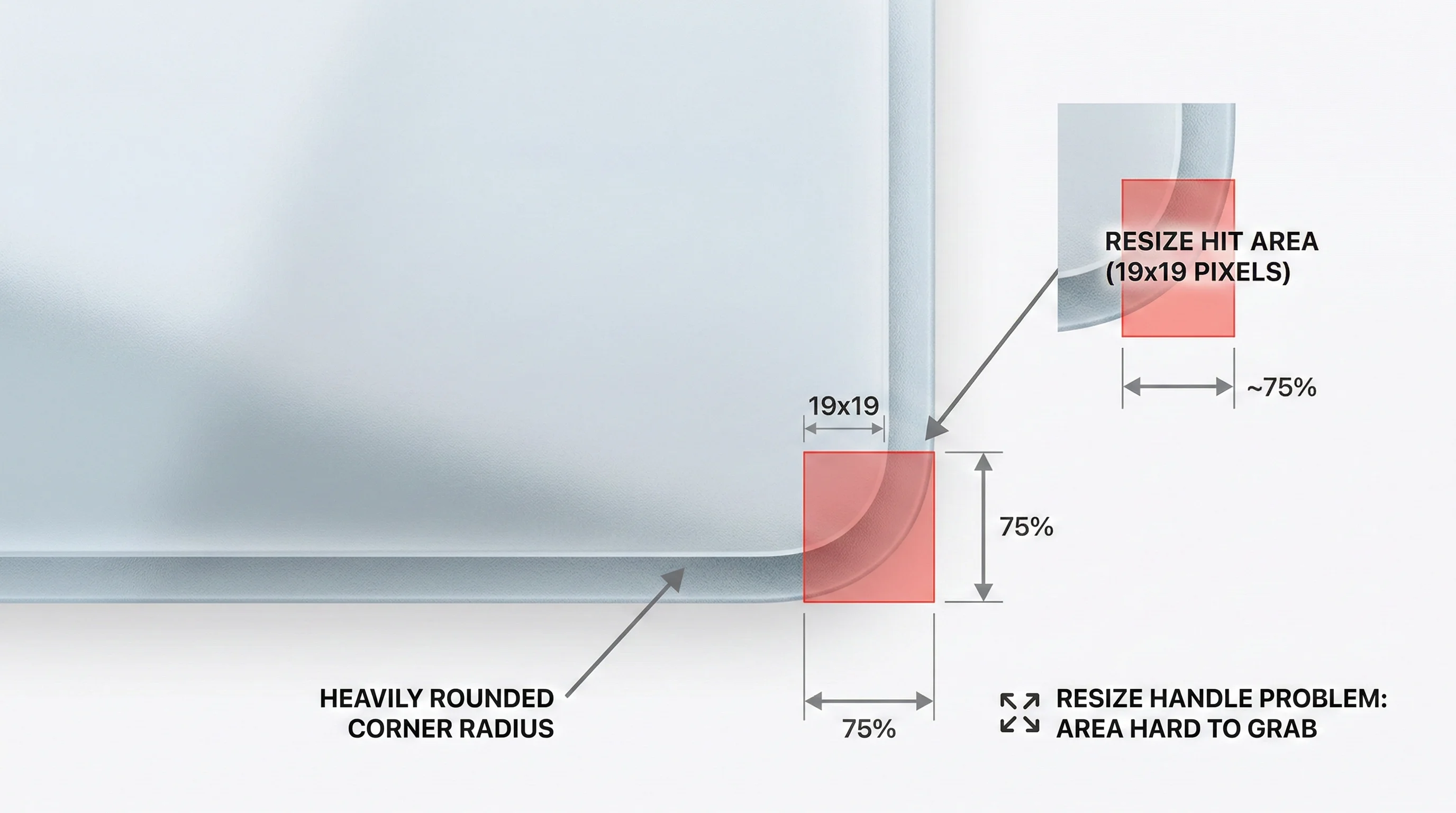
macOS Tahoe introduced a much larger corner radius as part of the Liquid Glass aesthetic. The window corners are now deeply rounded curves rather than subtle arcs. This creates a critical geometric mismatch:
- The resize hit area remains a 19x19 pixel square positioned at the geometric corner of the window's bounding rectangle.
- The Liquid Glass corner radius carves away most of the visible window surface in that corner region.
- Approximately 75% of the hit area now falls outside the visible window boundary, in the empty space beyond the rounded corner.
Think of it this way: imagine a square box in the corner of a piece of paper. Now round the corner of the paper with a large arc. Most of the square box is no longer on the paper -- it hangs off into empty space. That is exactly what happened to the resize hit areas in macOS Tahoe.
The Numbers
The geometry is unforgiving:
- Total resize hit area: 19 x 19 = 361 pixels
- Effective area inside the visible window: approximately 25% = ~90 pixels
- Area outside the visible window (unusable): approximately 75% = ~271 pixels
This means users have roughly a quarter of the original target area to click on when trying to resize a window. For practical purposes, you need to position your cursor within a narrow sliver of pixels between the window edge and the curve of the rounded corner. The target is small enough that even users with excellent fine motor control find it frustrating.
Why This Is a Design Flaw, Not Just a Bug
Norbert Heger, a developer whose blog post "The Struggle of Resizing Windows on macOS Tahoe" brought widespread attention to the issue in January 2026, demonstrated the problem with visual diagrams and measurements. His analysis showed that the interaction failure is not intermittent or hardware-dependent -- it is a direct, predictable consequence of the geometric relationship between the old square hit areas and the new rounded corners.
John Gruber of Daring Fireball picked up Heger's analysis and published his own detailed examination titled "Why It's Difficult to Resize Windows on MacOS 26 Dyehoe" -- pointedly using the derisive nickname "Dyehoe" that has gained traction in the Mac community. Gruber argued that Apple made a mistake by not only changing the corner radius but also by removing the visual resize affordance (the small diagonal lines) that older versions of macOS displayed in the lower-right corner of windows. Without this visual indicator, users have no way to know where to click.
Michael Tsai compiled additional commentary and user reports on his blog, noting that the issue is particularly problematic for users who do not use a trackpad with macOS's gesture-based resizing options. Mouse users are disproportionately affected because they rely entirely on precise cursor positioning rather than two-finger gestures.
The discussion spread across Hacker News, Lobsters, Slashdot, and the MacRumors forums, where the consensus was clear: this is a usability regression that should have been caught in beta testing. The Liquid Glass design may be visually striking, but it broke a fundamental desktop interaction that dates back to the earliest days of the Macintosh.
Timeline: The Fix That Was Pulled
The story of Apple's response to the window resizing bug is unusual even by Apple standards. Here is the full chronology:
January 11, 2026: The Problem Goes Public
Norbert Heger publishes "The Struggle of Resizing Windows on macOS Tahoe" on his blog (noheger.at), providing detailed measurements and diagrams of the hit area problem. The post goes viral on Hacker News (item 46579864), Lobsters, and developer communities.
January 12, 2026: Gruber and the Press Pick It Up
John Gruber writes his analysis on Daring Fireball, using the title "Why It's Difficult to Resize Windows on MacOS 26 Dyehoe." The "Dyehoe" nickname gains traction as a shorthand for the various Liquid Glass usability issues. Michael Tsai publishes a roundup post on his blog linking to multiple sources and developer reactions. Six Colors, Heise Online, Slashdot, and other tech publications cover the story.
Late January 2026: macOS 26.3 Beta Cycle Begins
Apple begins seeding macOS Tahoe 26.3 betas to developers and public beta testers. Initial betas do not appear to include a fix for the window resizing issue.
February 4, 2026: macOS 26.3 Release Candidate Ships
Apple releases the macOS Tahoe 26.3 Release Candidate (build 25D122) to developers. The release notes include a significant entry: "Window resize areas now follow corner radius instead of using square regions." The entry references bug report FB149726089 and lists the window resizing issue as a "Resolved Issue."
The Mac community celebrates. 9to5Mac runs the headline "macOS Tahoe 26.3 fixes two annoying design problems," noting that both the window resizing bug and a Finder column view issue have been addressed. Developers who install the RC confirm that window resizing feels significantly improved -- the hit area now conforms to the rounded corner shape rather than using the old square geometry.
February 11, 2026: macOS 26.3 Final Release -- Without the Fix
Apple releases macOS Tahoe 26.3 to the general public. Almost immediately, users and developers notice that the window resizing behavior has not changed. The fix that was present in the Release Candidate is not in the final build.
Apple quietly updates the macOS 26.3 release notes on its developer documentation page. The window resizing entry is changed from "Resolved Issue" to "Known Issue." The release note text that previously described the fix is either removed or amended to acknowledge the problem still exists.
9to5Mac updates its headline to add "[Update: Nope]" -- an unusually blunt editorial acknowledgment that the fix was pulled at the last minute.
February 12, 2026: Heger Publishes a Follow-Up
Norbert Heger publishes "Resizing windows on macOS Tahoe -- the saga continues" on his blog, confirming through testing that the 26.3 final release reverted to the old square resize areas. He notes that the fix appears to have been removed sometime between the Release Candidate and the final build.
February 13, 2026: MacRumors Deepens the Story
MacRumors publishes "macOS Tahoe Finder Bug Underscores Apple's Slipping UI Polish," contextualizing the window resizing revert within a broader pattern of UI quality issues in macOS Tahoe.
February 23, 2026: Gruber Returns to the Story
Gruber links to Heger's follow-up post on Daring Fireball with the characteristically unrestrained title "The Pants-Shitting Saga of Resizing Windows on MacOS 26 Tahoe Continues," expressing frustration that a fix was implemented, proven to work in the RC, and then removed from the shipping version.
February 28, 2026: Still No Fix
As of this writing, macOS Tahoe 26.3 is the current release, and the window resizing bug remains. Apple is working on macOS 26.4, which is in beta, but there has been no public confirmation that the fix will return. The window resizing issue remains listed as a "Known Issue" in the developer release notes.
Why Did Apple Pull the Fix?
Apple has not publicly explained why the fix was reverted. Several theories have been discussed in the developer community:
-
Regression in other interactions: The new corner-radius-aware hit areas may have introduced unintended side effects in other window interactions, such as window dragging, corner menu positioning, or accessibility features. If the fix broke something else, Apple may have decided the known problem was preferable to an unknown new one.
-
Third-party app compatibility: The change to hit-testing geometry could have caused issues with applications that implement custom window chrome or non-standard resize behavior. Electron apps, games, and creative tools often have unusual window configurations that might not handle the geometry change gracefully.
-
Timing pressure: The 26.3 release may have had a hard deadline (possibly related to security patches or hardware launches), and Apple may not have had time to fully validate the fix before the ship date.
-
A more comprehensive fix is in progress: Rather than shipping a partial geometric fix, Apple may be working on a more thorough solution that also addresses visual affordances, accessibility, and the broader set of Liquid Glass interaction issues.
Whatever the reason, the result is the same: Mac users are left with a broken interaction in February 2026, more than five months after macOS Tahoe's September 2025 launch.
Other Liquid Glass UI Issues in macOS Tahoe
The window resizing bug is the most prominent, but it is not the only interaction problem that Liquid Glass introduced. Understanding the full scope of issues helps contextualize why the Mac community has been unusually vocal about macOS Tahoe's design.
Finder Column View: Scroll Bar Overlaps Resize Handles
When you enable "Always Show Scroll Bars" in System Settings (a common preference for users who find auto-hiding scroll bars disorienting), macOS Tahoe's Finder column view breaks in a significant way. The horizontal scroll bar renders on top of the column resize handles at the bottom of each column divider. This makes it impossible to click the resize widgets to adjust column widths without first scrolling the horizontal bar out of the way.
Jeff Johnson of Lapcat Software documented this issue in detail on his blog (lapcatsoftware.com), noting that it appears to be a z-ordering problem where the scroll bar layer sits above the column resize layer. The 26.3 RC release notes indicated that this issue had also been resolved, but like the window resizing fix, the column view fix was also pulled from the final release (or the issue persists despite partial fixes).
This is particularly frustrating for users who rely on column view for navigating deep directory structures -- a workflow common among developers, system administrators, and power users.
Finder Drag-and-Drop Unreliability
Multiple users have reported that drag-and-drop operations in Finder have become unreliable since upgrading to macOS Tahoe. Common symptoms include:
- Files "bouncing back" to their original location after a drag attempt, as if the drop target was not recognized
- Drag operations failing silently in List view, especially when trying to drag files onto folder icons rather than folder names
- Inconsistent behavior depending on whether you use a trackpad or a mouse, and whether Force Click is enabled
- Desktop-to-folder drag failures, particularly with screenshots dragged from the desktop into a Finder folder
Community workarounds include disabling "Force click & haptic feedback" in Trackpad settings, turning off pointer acceleration, and deleting Trackpad-related PLIST files from Library/Preferences. None of these are official fixes, and results vary.
Window Dragging Issues
Some users report difficulty dragging windows by their title bars, with windows occasionally "sticking" or failing to follow the cursor. This appears to be related to the Liquid Glass title bar rendering, which uses a translucent, blurred effect that may interfere with the hit area for the title bar drag zone. This problem is less universally experienced than the resize bug but has been reported on Apple Community forums and the MacRumors forums.
Visual Legibility Concerns
Beyond interaction bugs, the Liquid Glass aesthetic itself has drawn criticism for reducing legibility. The heavy use of translucency, blur effects, and variable-opacity surfaces can make text, icons, and controls harder to see, especially on complex desktop backgrounds or in bright lighting conditions. While not a "bug" in the traditional sense, it is part of the broader usability conversation around Liquid Glass. For an in-depth look at customizing and reducing these effects, see our macOS Tahoe Liquid Glass customization guide.
Native macOS Workarounds
While Apple has not released an official fix, there are several built-in macOS features and techniques that can help you resize and manage windows without relying on the broken corner drag interaction.
1. Use Window Edge Resizing Instead of Corners
The window resizing bug is most severe at the corners, where the rounded Liquid Glass design most dramatically reduces the effective hit area. However, the edge resize zones (top, bottom, left, right) are less affected because they run along the straight portions of the window frame where the corner radius has minimal impact.
How to use edge resizing:
- Position your cursor along any straight edge of a window (not a corner)
- The cursor will change to a horizontal or vertical resize arrow
- Click and drag to resize in one dimension at a time
This is slower than corner resizing because you can only change one dimension per drag, but it is far more reliable. If you need to resize both width and height, resize one edge first, then the other.
2. Double-Click Title Bar to Maximize
A quick way to make a window fill the screen without manual resizing:
- Double-click the title bar of any window
- The window will toggle between its current size and filling the available screen space
You can configure this behavior in System Settings > Desktop & Dock > Double-click a window's title bar to -- options include "Fill" (maximize), "Minimize," or "Do Nothing."
3. Green Button Window Tiling (macOS Tahoe Native)
macOS Tahoe introduced built-in window tiling when you hover over or click the green traffic light button:
- Hover over the green button in the top-left corner of any window
- A menu appears showing tiling options: Left Half, Right Half, Full Screen, and quarter positions
- Click your desired position to snap the window
You can also click and hold the green button and drag the window to the left or right edge of the screen to snap it to half-screen.
For a comprehensive walkthrough of all native tiling options, including advanced multi-window layouts, see our macOS Tahoe window management guide.
4. Keyboard-Based Window Resizing
macOS includes several keyboard-based methods for managing windows that bypass the mouse-based resize interaction entirely:
Accessibility Zoom (for visual resizing):
- Enable in System Settings > Accessibility > Zoom
- Use Ctrl + Scroll to zoom in and out
- This does not actually resize the window but can help you work with smaller windows by magnifying the content
Full Screen Toggle:
- Press Ctrl + Cmd + F to toggle any window to full screen
- Press the same shortcut again to exit full screen
- Alternatively, press Fn + F on newer Macs
Mission Control and Spaces:
- Use Ctrl + Up Arrow to enter Mission Control
- Use Ctrl + Left/Right Arrow to switch between Spaces
- Create multiple desktops and assign specific apps to specific spaces for an alternative to window resizing
For a complete list of keyboard shortcuts including window management, see our macOS Tahoe keyboard shortcuts guide.
5. Stage Manager as a Resize Alternative
If you are open to changing your window management paradigm entirely, Stage Manager can reduce the need for manual window resizing:
- Activate via Control Center > Stage Manager or System Settings > Desktop & Dock > Stage Manager
- Stage Manager automatically sizes and positions windows based on your usage patterns
- You can create window groups for different workflows
- The recently used apps sidebar provides quick switching without manual arrangement
While Stage Manager has its own performance considerations (GPU usage can spike to 115-150% in some configurations), it effectively sidesteps the resize bug for many workflows. See our macOS Tahoe Stage Manager guide for detailed setup instructions and performance optimization tips.
6. AppleScript and Shortcuts for Precise Sizing
For technically inclined users, AppleScript can set exact window dimensions programmatically:
tell application "System Events"
    tell process "Safari"
        set position of window 1 to {0, 25}
        set size of window 1 to {960, 1050}
    end tell
end tell
You can save these as Shortcuts workflows and assign keyboard shortcuts to them, giving you one-key access to predefined window sizes without ever touching the resize handle.
Third-Party Window Management Solutions
Given that Apple's own fix was pulled and no timeline for a resolution has been communicated, third-party window management apps are the most reliable solution for macOS Tahoe users who need to resize windows frequently. Here is a comprehensive comparison of the six best options.
1. Rectangle (Free, Open Source)
Website: rectangleapp.com | Price: Free (Rectangle Pro: $9.99 one-time)
Rectangle is the most recommended free window manager for macOS and the default suggestion for users affected by the Tahoe resize bug. It is open source, lightweight, and provides exactly the functionality most users need.
Key Features:
- Keyboard shortcut-driven resizing: Snap windows to halves, quarters, thirds, or sixths with configurable key combinations
- Edge snapping: Drag a window to the edge or corner of the screen to snap it to a predefined size
- Custom sizes: Define your own snap zones and window sizes
- Multi-monitor support: Keyboard shortcuts to move windows between displays
- Spectacle compatibility: Uses the same keyboard shortcuts as the discontinued Spectacle app, making migration easy
Default Keyboard Shortcuts:
| Action | Shortcut |
|---|---|
| Left Half | Ctrl + Option + Left Arrow |
| Right Half | Ctrl + Option + Right Arrow |
| Top Half | Ctrl + Option + Up Arrow |
| Bottom Half | Ctrl + Option + Down Arrow |
| Center | Ctrl + Option + C |
| Maximize | Ctrl + Option + Return |
| Top Left Quarter | Ctrl + Option + U |
| Top Right Quarter | Ctrl + Option + I |
| Bottom Left Quarter | Ctrl + Option + J |
| Bottom Right Quarter | Ctrl + Option + K |
| First Third | Ctrl + Option + D |
| Center Third | Ctrl + Option + F |
| Last Third | Ctrl + Option + G |
Why It Is Best for the Resize Bug: Rectangle completely eliminates the need to use the broken resize handles. Instead of dragging window corners, you press a keyboard shortcut to snap the window to a predefined size and position. For 90% of window management tasks -- arranging two apps side by side, maximizing a window, centering a window -- Rectangle's keyboard shortcuts are actually faster than manual resizing even when the resize handles work properly.
Rectangle Pro adds additional features including custom snap areas, app-specific settings, and the ability to define pixel-precise window positions. At $9.99 one-time, it is excellent value for power users.
2. BetterSnapTool ($3.99)
App Store: Available on the Mac App Store | Price: $3.99 one-time
BetterSnapTool is one of the oldest and most established window management tools for macOS, developed by Andreas Hegenberg (who also created BetterTouchTool). It is particularly well-suited for users who prefer mouse-based window management over keyboard shortcuts.
Key Features:
- Snap areas: Drag windows to screen edges and corners to snap them to predefined sizes
- Custom snap zones: Create up to 10 custom snap areas with exact pixel dimensions
- Right-click menu: Access window management options from the title bar or dock icon
- App-specific rules: Set different window sizes and positions for specific applications
- Pixel threshold control: Fine-tune how close to the screen edge you need to drag before snapping activates -- this prevents accidental snapping
- BetterTouchTool integration: If you also use BetterTouchTool, the two apps share settings and work together seamlessly
Why It Is Good for the Resize Bug: BetterSnapTool's primary value for Tahoe users is its drag-to-snap functionality. Instead of trying to find the tiny resize handle, you simply drag the window by its title bar (which still works reliably) to the edge or corner of the screen. The app handles the resizing for you. The custom snap zones are particularly useful for users with specific window size requirements.
Considerations: BetterSnapTool's interface is functional but not as modern as some competitors. The extensive customization options can feel overwhelming for users who just want simple half-screen snapping. That said, it is rock-solid reliable and has been continuously updated for over a decade.
3. Magnet ($7.99)
App Store: Available on the Mac App Store | Price: $7.99 one-time
Magnet is the most popular paid window management app on the Mac App Store, with consistently high ratings and a focus on simplicity and polish.
Key Features:
- Drag-and-drop snapping: Drag windows to screen edges for half, quarter, or third positions
- Keyboard shortcuts: Full set of configurable keyboard shortcuts for window positioning
- Menu bar access: Quick access to all tiling options from the menu bar
- Multi-monitor support: Easily move windows between displays
- Vertical and horizontal halving: Split screen horizontally (top/bottom) as well as vertically (left/right)
- Up to 6 positions per monitor: Support for halves, thirds, quarters, and sixths
Why It Is Good for the Resize Bug: Magnet's strength is its simplicity. It does one thing well: snap windows to predefined positions using either drag-and-drop or keyboard shortcuts. For users who want a "set it and forget it" solution without extensive configuration, Magnet is the easiest option. The Mac App Store distribution means it is sandboxed and follows all Apple security guidelines, which some users prefer.
Magnet vs. Rectangle: Magnet is a paid app that offers fewer arrangement options than Rectangle but provides a more polished, Apple-like user experience. Rectangle is free, open source, and more flexible. For most users affected by the Tahoe resize bug, Rectangle is the better value proposition -- but Magnet is a perfectly fine choice if you prefer the App Store experience.
4. Loop (Free, Open Source)
Website: github.com/MrKai77/Loop | Price: Free
Loop is a newer entry in the window management space that takes a unique approach: instead of keyboard shortcuts or edge snapping, it uses a radial menu triggered by a key press. It is free, open source, and designed for users who prefer a visual, gestural interface.
Key Features:
- Radial menu interface: Hold a modifier key and a circular menu appears, showing window positions visually
- Visual preview: A preview rectangle shows exactly where the window will be placed before you release
- Customizable colors and settings: Personalize the radial menu appearance
- Import Rectangle keybindings: If you are migrating from Rectangle, Loop can import your existing keyboard shortcuts
- Lightweight: Minimal resource usage
Why It Is Good for the Resize Bug: Loop's radial menu provides a completely different interaction paradigm that avoids the broken resize handles entirely. Instead of dragging corners, you trigger the radial menu, point toward the desired position, and release. It is intuitive once you get used to it, and the visual preview eliminates guesswork. For users who find keyboard shortcuts hard to memorize, Loop's visual approach can be more accessible.
Considerations: Loop requires macOS 13 or later. Its radial menu paradigm takes some getting used to, and some users find it slower than keyboard shortcuts once the shortcuts are memorized. However, for users who strongly prefer visual interfaces over keyboard-driven workflows, Loop is an excellent choice.
5. Moom ($9.99)
Website: manytricks.com/moom | Price: $9.99 one-time
Moom, by Many Tricks, is a mature window management tool that combines a hover-based interface with extensive customization options. It appeals to users who want both visual control and the power of saved layouts.
Key Features:
- Green button hover menu: Hover over the green traffic light button to access Moom's snap grid
- Custom grid: Define a snap grid with any number of rows and columns
- Saved window layouts: Save complete multi-window layouts and restore them with a keyboard shortcut
- Chaining: Apply multiple resize/move operations in sequence with a single keyboard shortcut
- Trigger-based automation: Automatically arrange windows when you connect or disconnect displays
Why It Is Good for the Resize Bug: Moom's green button integration is particularly clever in the context of the Tahoe resize bug. The green button is one window control that remains fully functional and easy to click. By hovering over it, you access a visual grid that lets you resize and position the window precisely -- no corner dragging required. The saved layouts feature is invaluable for users who switch between different workflows and want to restore their window arrangement instantly.
6. Swish ($16)
Website: highlyopinionated.co/swish | Price: $16 one-time
Swish takes a gesture-based approach to window management, turning trackpad gestures into window commands. It is the most intuitive option for users who heavily use the trackpad.
Key Features:
- Trackpad gesture control: Swipe on the title bar or menu bar to snap windows
- Hot corners with gestures: Combine hot corners with swipe directions for 20+ window positions
- Pinch to center: Pinch on the title bar to center a window
- Smooth animations: Window movements are animated for a polished feel
- Minimal configuration: Works well out of the box with intuitive gesture mapping
Why It Is Good for the Resize Bug: If you primarily use a trackpad (MacBook users), Swish transforms the title bar from a passive drag handle into a rich gesture target. Instead of hunting for the resize corner, you swipe up on the title bar to maximize, swipe left to snap to the left half, and so on. The gesture vocabulary is natural and quick to learn. For trackpad-centric workflows, Swish can feel like a native macOS feature.
Detailed Comparison of Window Management Apps
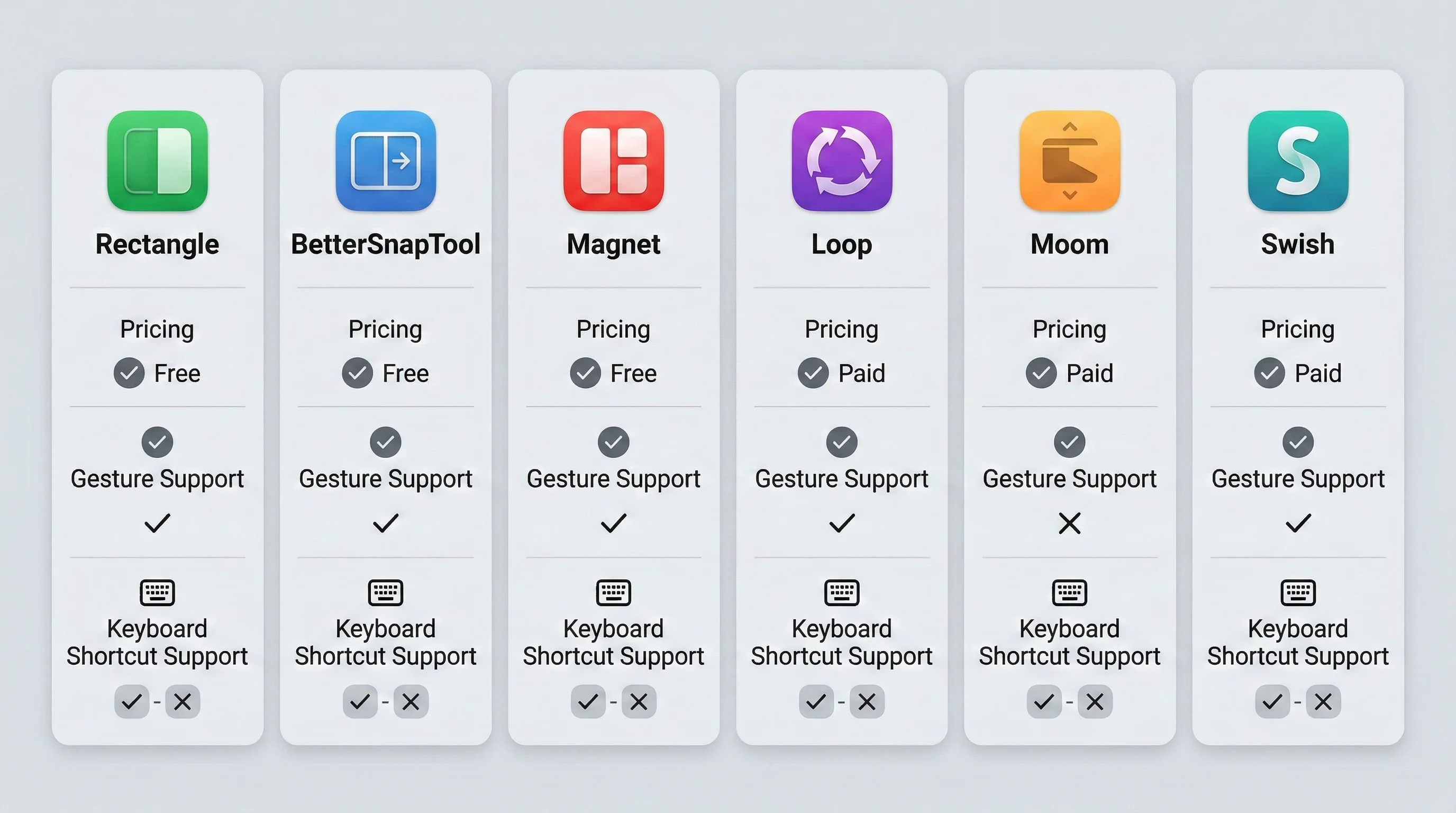
Feature Comparison Table
| Feature | Rectangle | BetterSnapTool | Magnet | Loop | Moom | Swish |
|---|---|---|---|---|---|---|
| Price | Free | $3.99 | $7.99 | Free | $9.99 | $16 |
| Open Source | Yes | No | No | Yes | No | No |
| Keyboard Shortcuts | Extensive | Basic | Good | Via import | Extensive | Limited |
| Edge Snapping | Yes | Yes | Yes | No | No | Via gestures |
| Custom Snap Zones | Pro only | Yes | No | No | Yes | No |
| Saved Layouts | Pro only | No | No | No | Yes | No |
| Radial Menu | No | No | No | Yes | No | No |
| Trackpad Gestures | No | No | No | No | No | Yes |
| Multi-Monitor | Yes | Yes | Yes | Yes | Yes | Yes |
| Menu Bar App | Yes | Yes | Yes | Yes | Yes | Yes |
| App Store | No | Yes | Yes | No | Yes | No |
| Spectacle Migration | Yes | No | No | Yes | No | No |
| Best For | Most users | Mouse users | Simplicity | Visual learners | Power users | Trackpad users |
Recommendation by User Type
Casual Mac Users: Start with Rectangle (free). Its keyboard shortcuts cover the most common window arrangements, and the edge snapping feature is intuitive. You will likely never need to use the broken corner resize handles again.
Developers and Power Users: Use Rectangle Pro ($9.99) or Moom ($9.99). Both offer saved layouts and advanced customization that match developer workflows. Rectangle Pro's custom snap zones are ideal for multi-monitor setups with specific IDE and terminal layouts. Moom's chaining feature lets you create complex multi-step window arrangements.
Designers and Creative Professionals: Consider BetterSnapTool ($3.99) for its pixel-precise custom snap zones, or Moom ($9.99) for its saved layout system. If you work with multiple reference images and tool palettes, the ability to restore exact window positions with a single shortcut is invaluable.
MacBook (Trackpad-Primary) Users: Swish ($16) is the standout choice. Its gesture-based interface leverages the hardware you are already using, and the learning curve is gentle. Pair it with macOS Tahoe's native green button tiling for a comprehensive setup.
Users Who Hate Memorizing Shortcuts: Loop (free) is designed for you. Its radial menu shows you all available positions visually, so there is nothing to memorize. Point toward where you want the window and release.
Setting Up Your Workaround Workflow
Here is a step-by-step guide to setting up a reliable window management workflow that completely bypasses the Tahoe resize bug.
Step 1: Install Your Chosen Window Manager
For this walkthrough, we will use Rectangle as the example, since it is free and covers the most use cases.
- Download Rectangle from rectangleapp.com
- Move the app to your Applications folder
- Open Rectangle and grant Accessibility permissions when prompted (System Settings > Privacy & Security > Accessibility)
- Rectangle will appear as a menu bar icon
Step 2: Learn the Essential Shortcuts
You only need to memorize four shortcuts to cover 90% of window management tasks:
| Action | Shortcut | When to Use |
|---|---|---|
| Left Half | Ctrl + Option + Left | Side-by-side app comparison |
| Right Half | Ctrl + Option + Right | Side-by-side app comparison |
| Maximize | Ctrl + Option + Return | Full-screen work on a single app |
| Center | Ctrl + Option + C | Centering a moderately-sized window |
Practice these four shortcuts for a day, and manual window resizing will feel like a relic of a less efficient workflow.
Step 3: Set Up Your Common Layouts
If you have consistent workflows, define layouts for them:
Development Layout:
- Code editor: Left two-thirds (Ctrl + Option + E for "First Two Thirds" in Rectangle)
- Terminal: Right third, top half
- Browser: Right third, bottom half
Writing Layout:
- Writing app: Center, maximized (Ctrl + Option + Return)
- Research browser: use Ctrl + Option + Left/Right to toggle between apps
Communication Layout:
- Email: Left half
- Chat (Slack/Messages): Right half
Step 4: Combine with Native macOS Features
For the best experience, combine your window manager with macOS Tahoe's built-in features:
- Spaces: Create multiple desktops for different contexts (Work, Personal, Communication)
- Hot Corners: Set up hot corners for Mission Control and desktop access
- Green Button Tiling: Use the native green button hover menu for quick half-screen and quarter-screen layouts
- Stage Manager: Consider enabling Stage Manager for specific workflows where automatic window arrangement is helpful
For a deeper dive into combining these features, see our macOS Tahoe window management guide and our overview of app launchers for macOS Tahoe.
What Apple Needs to Fix
The window resizing bug is symptomatic of a broader tension in macOS Tahoe between visual ambition and interaction quality. Here is what Apple needs to address, in order of priority.
1. Fix the Corner Hit Area Geometry
The most urgent fix is the one Apple already built and then pulled: making the resize hit areas conform to the actual corner radius of the window. The 26.3 RC demonstrated that this is technically feasible. Whatever regression or compatibility issue caused Apple to revert the fix needs to be resolved, and the geometry-aware hit areas need to ship.
Additionally, Apple should consider enlarging the hit areas beyond the minimum 19x19 pixel square. Modern displays have high pixel densities, and a larger interaction zone would improve usability without any visual impact. The hit areas are invisible -- making them bigger costs nothing visually and gains everything in terms of usability.
2. Restore Visual Resize Affordances
As Gruber and others have argued, Apple should bring back the visual resize grip -- the small diagonal lines in the lower-right corner of windows that were present in older versions of macOS. This visual indicator serves two purposes:
- It tells the user where to click to initiate a resize
- It communicates that the window can be resized (as opposed to fixed-size windows)
In the Liquid Glass design, this affordance could be rendered as a subtle frosted-glass element or a set of translucent dots that fit the aesthetic while remaining functional.
3. Fix the Finder Issues
The Finder column view scroll bar overlap and drag-and-drop reliability issues need to be addressed. Finder is the most frequently used application on macOS, and these interaction failures undermine user confidence in the entire operating system.
4. Improve Liquid Glass Accessibility
The broader Liquid Glass accessibility story -- text legibility over translucent surfaces, sufficient contrast ratios, and the effectiveness of the "Reduce Transparency" setting -- deserves ongoing attention. For more on this topic, see our analysis of the Liquid Glass design controversy.
5. Communicate More Transparently
The "fix then revert" episode with macOS 26.3 was handled poorly from a communication standpoint. A "Known Issue" label in developer release notes is inadequate for a bug that affects every Mac user. Apple should:
- Acknowledge the issue publicly in a support article
- Provide an estimated timeline for the fix
- Offer official workaround guidance (even if it is as simple as "use the green button tiling feature")
What to Expect in macOS 26.4 and Beyond
macOS 26.4 is currently in beta testing. Based on developer reports and Apple's release note history, here is what we can reasonably expect:
Near-Term (macOS 26.4)
- The window resize geometry fix may return. Apple has already built and validated the solution -- the question is whether the regression that caused the revert has been resolved.
- Finder column view scroll bar fix is likely, as it is a more straightforward rendering issue.
- Drag-and-drop reliability improvements are possible but harder to predict, as the root cause appears to involve trackpad gesture recognition rather than pure rendering.
Medium-Term (macOS 26.5 or later)
- Enhanced visual affordances for resize handles could appear as Apple processes the sustained community feedback about Liquid Glass usability.
- Possible improvements to the "Reduce Transparency" and "Increase Contrast" accessibility settings to better address Liquid Glass legibility concerns.
Long-Term (macOS 27)
- A more fundamental reconsideration of the Liquid Glass corner radius is possible if usability complaints persist. Apple may choose to slightly reduce the corner radius as a compromise between visual identity and interaction reliability.
- Expanded native window management features could make the need for third-party window managers less acute.
Key Takeaways
-
The macOS Tahoe window resizing bug is a geometry problem, not a random glitch. The Liquid Glass design's large corner radius places approximately 75% of the 19x19 pixel resize hit area outside the visible window boundary, leaving users with only about 25% of the original target area.
-
Apple built a fix, tested it, and pulled it. The macOS 26.3 Release Candidate included geometry-aware resize areas that followed the corner radius. The fix was changed from "Resolved Issue" to "Known Issue" before the final release shipped on February 11, 2026.
-
There is no official Apple workaround. Apple has not published a support article or provided any guidance for affected users.
-
Third-party window managers are the best solution right now. Rectangle (free) is the recommended starting point for most users. BetterSnapTool, Magnet, Loop, Moom, and Swish each offer unique approaches that may better suit specific workflows.
-
Native macOS features help but do not fully solve the problem. Green button tiling, Stage Manager, edge-only resizing, and keyboard shortcuts can reduce the impact of the bug but do not replace the ability to freely resize windows by dragging corners.
-
macOS 26.4 may bring the fix back. The fix exists in Apple's codebase -- it shipped in the 26.3 RC. The question is when, not if, it will return. In the meantime, invest 10 minutes in setting up a window manager and you will find your workflow actually improves.
Frequently Asked Questions
Is the macOS Tahoe window resizing bug fixed in macOS 26.3?
No. Although Apple included a fix in the macOS 26.3 Release Candidate (build 25D122) that made window resize areas follow the corner radius, the fix was removed before the final public release on February 11, 2026. Apple changed the status of the window resizing issue from "Resolved Issue" to "Known Issue" in the release notes. As of February 28, 2026, the bug remains in the current version of macOS Tahoe.
Why did Apple remove the window resizing fix from macOS 26.3?
Apple has not publicly explained why the fix was reverted. The most plausible theories in the developer community include: the fix may have introduced regressions in other window interactions, it may have caused compatibility issues with third-party applications that use custom window chrome, or Apple may be working on a more comprehensive solution that addresses additional Liquid Glass usability issues beyond just the resize geometry. Whatever the reason, the fix was confirmed working in the RC by multiple developers and community members, so the technology to solve the problem exists.
What is the best free workaround for the window resizing bug?
Rectangle is the best free workaround. It is an open-source macOS window management app that lets you resize and position windows using keyboard shortcuts or by dragging windows to screen edges. The four essential shortcuts -- Ctrl+Option+Left (left half), Ctrl+Option+Right (right half), Ctrl+Option+Return (maximize), and Ctrl+Option+C (center) -- cover the vast majority of window management tasks and completely bypass the broken corner resize handles. Download it from rectangleapp.com.
Does the window resizing bug affect all applications or only certain ones?
The bug affects all applications because it exists at the operating system level, in AppKit's window hit-testing code. Every standard macOS window -- whether it is Finder, Safari, Mail, Terminal, or a third-party app like Slack, VS Code, or Photoshop -- uses the same window frame rendering and resize interaction zones. Applications with completely custom window chrome (some games, some Electron apps with frameless windows) may behave differently, but any app using standard macOS window controls will exhibit the bug.
Will macOS 26.4 fix the window resizing bug?
As of this writing, macOS 26.4 is in beta and there has been no official confirmation from Apple that the window resizing fix will be included. However, because Apple successfully implemented the fix in the 26.3 RC and the solution is known to work, it is reasonable to expect that the fix will return in a future update -- whether that is 26.4, 26.5, or later. Monitor Apple's release notes at developer.apple.com for updates. In the meantime, a third-party window manager like Rectangle, Magnet, or BetterSnapTool is the most reliable solution.
Final Thoughts
The macOS Tahoe window resizing bug is a cautionary tale about what happens when visual design runs ahead of interaction design. Liquid Glass is beautiful -- the translucent surfaces, the depth effects, the way light seems to refract through the interface. But beauty must serve usability, not undermine it. A window that you cannot resize is a fundamental failure of a desktop operating system, no matter how good it looks.
The community response -- from Norbert Heger's meticulous technical analysis to Gruber's pointed commentary to the thousands of frustrated forum posts -- demonstrates that Mac users hold Apple to a high standard. They expect their operating system to be both beautiful and functional. macOS has historically delivered on both counts. The Tahoe resize bug, and Apple's halting response to it, falls short of that standard.
The good news is that the fix exists. Apple built it, shipped it in a Release Candidate, and confirmed it works. The question is not whether the bug can be fixed but when Apple will ship the fix. Until then, tools like Rectangle, BetterSnapTool, Magnet, and the other window managers discussed in this guide provide a better window management experience than macOS Tahoe's native resize handles -- and in many cases, they provide a better experience than the native handles ever did, even when they worked correctly.
Set up a window manager today. You will wonder why you ever spent time manually dragging window corners in the first place.
Last updated: February 28, 2026. This article will be updated when Apple releases a fix for the window resizing bug.