macOS Tahoe Gaming Performance Issues: Complete Fix Guide for FPS Drops, Stuttering, and Frame Rate Problems in 2026
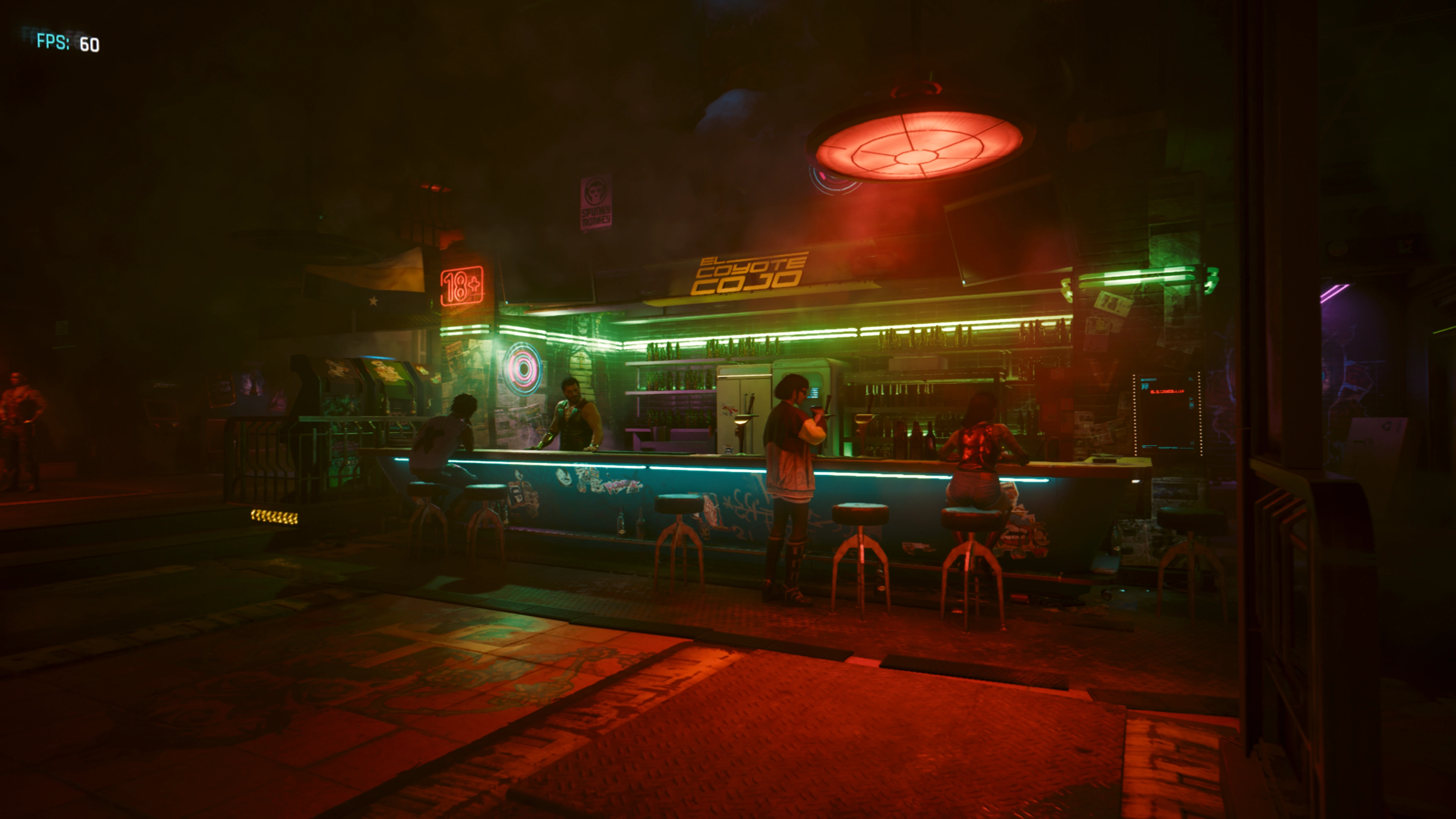
Experiencing gaming performance issues on macOS Tahoe 26? This comprehensive troubleshooting guide covers FPS cap problems, stuttering fixes, 26.3 beta regressions, Metal 4 optimization, and 15+ proven solutions to restore smooth gaming on your Mac.
macOS Tahoe 26 promised a gaming revolution with Metal 4, Game Overlay, and the new Games app. While many users experience significantly improved gaming performance, others report frustrating issues including FPS caps, stuttering, frame rate drops, and performance regressions—especially in the recent 26.3 beta. This comprehensive troubleshooting guide provides 15+ proven solutions to fix gaming performance problems on macOS Tahoe.
Understanding macOS Tahoe Gaming Issues
Common Problems Reported
Since the release of macOS Tahoe 26.0 in September 2025, gamers have reported several performance issues:
Frame Rate Problems:
- Games capped at 120 FPS regardless of hardware capability
- Sudden FPS drops during gameplay
- VSync-related stuttering in fullscreen mode
- Lower frame rates compared to macOS Sequoia
Input and Responsiveness:
- Input lag in games and creative applications
- Mouse movement feeling "off" or delayed
- Controller response time degradation
System-Wide Gaming Impact:
- Moonlight/Sunshine streaming microstutter
- CrossOver and Wine compatibility issues
- Electron-based game launchers slowing down the system
- Game Porting Toolkit (GPTK) performance regressions
macOS Tahoe 26.3 Beta Gaming Regression
Critical Warning: macOS Tahoe 26.3 Beta 3 (released January 26, 2026) introduced significant gaming performance regressions. Apple has acknowledged "some major graphical issues may be present in this beta."
Reported Issues in 26.3 Beta 3:
- Significantly reduced gaming FPS compared to 26.2
- Path of Exile 2 framerates severely impacted
- Major CrossOver performance regressions
- Graphics stack changes causing widespread problems
Recommendation: If you're a serious gamer, stay on macOS Tahoe 26.2 until 26.3 final release with fixes confirmed.
Quick Fixes: Start Here
Before diving into advanced solutions, try these quick fixes that resolve most gaming issues:
Fix 1: Wait for Background Indexing (48 Hours)
macOS Tahoe performs extensive background indexing after installation that can severely impact gaming performance.
What's Happening:
- Spotlight indexing your entire drive
- Photos analyzing images with Apple Intelligence
- Time Machine preparing initial snapshots
- System optimizing for new features
Solution:
- Leave your Mac plugged in overnight (ideally 24-48 hours after update)
- Check indexing status in Activity Monitor (look for "mds" and "mds_stores")
- Let background tasks complete before gaming
Verify Indexing is Complete:
sudo mdutil -s /Output should show "Indexing enabled" without "currently indexing."
Fix 2: Disable Low Power Mode
macOS Tahoe's Low Power Mode aggressively limits GPU performance, causing FPS issues.
Steps:
- Open System Settings > Battery
- Click Options...
- Turn off Low Power Mode
- For MacBooks: Also check Battery and Power Adapter sections
For Persistent Gaming Sessions: Enable "Prevent automatic sleeping when the display is off" to maintain performance during long gaming sessions.
Fix 3: Update All Applications
Many third-party apps and games weren't optimized for macOS Tahoe at launch.
Update Everything:
- Open App Store > Updates > Update All
- Open Steam > Steam menu > Check for Steam Client Updates
- Update individual games in Steam library
- Check Epic Games Launcher for updates
- Visit developer websites for non-Store apps
Priority Updates:
- Steam client itself (major Tahoe optimizations released)
- GPU-intensive applications
- Electron-based apps (Discord, Slack, VS Code)
Advanced Fixes for Persistent Issues
Fix 4: Resolve the 120 FPS Cap Issue
The Problem: macOS Tahoe 26 enforces a frame rate cap related to the new fullscreen compositor and VSync behavior.
Understanding the Cap:
- Games that ran at 300+ FPS now cap at 120 FPS
- The cap appears tied to display refresh rate handling
- Affects both native and compatibility layer games
Workarounds:
Option A: Use Windowed Fullscreen Some games perform better in borderless windowed mode:
- Open game settings
- Change display mode from "Fullscreen" to "Windowed" or "Borderless"
- Set window size to match your resolution
Option B: Disable VSync in Games
- Find game's graphics settings
- Disable VSync/Vertical Sync
- Test performance improvement
Option C: Use Game Overlay Settings
- Press
⌘ + ESCduring gameplay - Adjust Game Mode settings
- Try disabling "Optimize for Battery Life"
Fix 5: Fix Input Lag with Terminal Command
The Problem: macOS Tahoe's autofill heuristics can cause severe input lag in games and applications.
The Fix:
defaults write -g NSAutoFillHeuristicControllerEnabled -bool falseApply the Change:
- Restart all open applications, OR
- Reboot your Mac
To Revert (if needed):
defaults delete -g NSAutoFillHeuristicControllerEnabledFix 6: Fix Spotlight/CoreSpotlight Issues
The Problem: Corrupt Spotlight indexes cause system-wide performance degradation affecting gaming.
Nuclear Option - Rebuild Spotlight Index:
# Remove CoreSpotlight data
rm -rf ~/Library/Metadata/CoreSpotlight/

# Restart Mac
sudo reboot
Alternative Method via System Settings:
- Open System Settings > Spotlight
- Click Privacy tab
- Add your main drive (Macintosh HD)
- Wait 30 seconds
- Remove the drive from Privacy list
- Wait for reindexing to complete
Fix 7: Fix Electron App Performance Drain
The Problem: Electron-based apps (Discord, Slack, VS Code, Steam's new UI) cause system-wide slowdown on macOS Tahoe.
Temporary Fix (requires re-running after reboot):
launchctl setenv CHROME_HEADLESS 1Permanent Fix via Shell Profile:
Add to ~/.zshrc or ~/.bash_profile:
export CHROME_HEADLESS=1Alternative: Use Native Alternatives
- Discord: Consider using browser version
- Slack: Use the Mac App Store version
- Steam: Close Steam when not actively gaming
Fix 8: Clear System Caches
The Problem: Corrupt caches from the upgrade can cause performance issues.
Safe Cache Clearing:
# Clear user caches
rm -rf ~/Library/Caches/*

# Clear font caches
sudo atsutil databases -remove

# Restart
sudo reboot
Or Use Disk Utility:
- Open Disk Utility
- Select your main drive
- Click First Aid > Run
Game-Specific Optimizations
Steam Games
Optimize Steam Launch Options: Right-click game > Properties > Launch Options:
# For better Metal performance
DXVK_ASYNC=1 %command%

# For CrossOver/Proton games
PROTON_USE_WINED3D=1 %command%
Steam Client Optimization:
- Steam > Settings > Interface
- Disable "Enable GPU accelerated rendering in web views"
- Steam > Settings > Downloads
- Clear download cache
CrossOver and Wine Games
CrossOver Tahoe Optimization:
- Update to CrossOver 24.0+ (Tahoe-optimized)
- Create new bottles for problematic games
- Use Windows 10 (64-bit) bottle type
- Enable DXVK in bottle settings
Wine/Whisky Settings:
# Enable better Metal translation
export WINEESYNC=1
export WINEFSYNC=1
export DXVK_ASYNC=1
Apple Arcade and Native Games
Optimize Native Game Performance:
- Open Games app
- Select the problematic game
- Click ... > Game Settings
- Adjust quality presets
- Enable "Prioritize Performance"
Check for Game Updates: Native Apple Arcade games receive frequent updates. Ensure automatic updates are enabled:
- App Store > Settings
- Enable "Automatic Updates"
Hardware-Specific Fixes
M1/M2 Mac Optimization
These chips can throttle under sustained gaming loads.
Thermal Management:
- Ensure adequate ventilation
- Consider a laptop stand with airflow
- Avoid gaming on soft surfaces (beds, couches)
- In hot environments, use air conditioning
Check Thermal State:
pmset -g thermlogMemory Pressure (especially 8GB models):
- Close unnecessary applications before gaming
- Check Activity Monitor for memory-hungry processes
- Consider using Safari instead of Chrome during gaming
M3/M4 Mac Optimization
These chips support hardware ray tracing but may need optimization.
Enable Hardware Ray Tracing (when available):
- Check game settings for ray tracing options
- Enable "Hardware Accelerated Ray Tracing" if available
- May require specific quality presets
Metal 4 Specific Settings: Some games have Metal 4-specific options:
- MetalFX Upscaling (similar to DLSS)
- MetalFX Frame Interpolation
- Hardware-accelerated denoising
External GPU (eGPU) Users
eGPU support is limited on Apple Silicon.
Intel Mac with eGPU:
- Ensure eGPU is connected before launching games
- Set games to use external GPU in Finder:
- Right-click app > Get Info
- Check "Prefer External GPU"
- Disconnect before sleep to avoid wake issues
System-Level Optimizations
Fix 9: Optimize System Settings for Gaming
Reduce Transparency:
- System Settings > Accessibility > Display
- Enable "Reduce Transparency"
- Enable "Reduce Motion"
Disable Unnecessary Animations:
# Disable dock animations
defaults write com.apple.dock autohide-time-modifier -float 0
defaults write com.apple.dock autohide-delay -float 0
killall Dock

# Disable window animations
defaults write NSGlobalDomain NSAutomaticWindowAnimationsEnabled -bool false
Fix 10: Clean Up Login Items
Remove Unnecessary Startup Items:
- System Settings > General > Login Items
- Remove items you don't need at startup
- Disable "Allow in the Background" for non-essential apps
Check for Hidden Launch Agents:
ls ~/Library/LaunchAgents/
ls /Library/LaunchAgents/
Remove any suspicious or unnecessary items.
Fix 11: Reset SMC/NVRAM (Intel Macs)
For Intel Macs experiencing performance issues:
Reset NVRAM:
- Shut down Mac
- Power on and immediately hold
Option + Command + P + R - Hold for 20 seconds
- Release and let Mac boot normally
Reset SMC:
- Shut down Mac
- Hold
Shift + Control + Option + Powerfor 10 seconds - Release all keys
- Power on normally
Fix 12: Boot in Safe Mode to Diagnose
Safe Mode disables third-party extensions:
- Shut down Mac
- Apple Silicon: Hold Power button until "Loading startup options" appears, then hold Shift
- Intel: Hold Shift during startup
- Test if gaming issues persist
If Safe Mode works better: Third-party software is causing issues. Remove recently installed apps.
Dealing with macOS 26.3 Beta Issues
If You're on 26.3 Beta and Gaming is Broken
Option 1: Wait for Beta Updates Apple is aware of the graphical issues. Check for new betas:
- System Settings > General > Software Update
- Look for 26.3 Beta 4 or newer
Option 2: Downgrade to 26.2 If gaming is critical:
- Backup your data (Time Machine recommended)
- Download macOS Tahoe 26.2 installer from Apple
- Boot to Recovery Mode
- Erase and reinstall 26.2
Note: Downgrading requires erasing your drive. Ensure complete backup first.
Reporting Issues to Apple
Help Apple fix gaming issues faster:
- Open Feedback Assistant app
- File under macOS Tahoe > Graphics & Games
- Include:
- Specific game names and versions
- FPS numbers before/after update
- System configuration
- Logs from Console app
Prevention: Maintaining Gaming Performance
Regular Maintenance Checklist
Weekly:
- Update all games and apps
- Clear browser caches (especially if using browser games)
- Check for macOS updates
Monthly:
- Run Disk Utility First Aid
- Review login items
- Check storage space (maintain 15-20% free)
After macOS Updates:
- Wait 48 hours for indexing
- Test game performance
- Check for app updates
- Review any new System Settings
Monitoring Tools
Activity Monitor:
- CPU tab: Watch for runaway processes
- Memory tab: Check for memory pressure
- Energy tab: Identify energy-hungry apps
- GPU tab: Monitor GPU usage
Terminal Commands:
# Check GPU usage
sudo powermetrics --samplers gpu_power -n 1

# Check thermal state
pmset -g thermlog

# Check for processes using GPU
ioreg -l | grep "PerformanceStatistics"
When to Contact Apple Support
Consider Professional Help If:
-
Hardware Issues Suspected:
- Persistent thermal throttling despite good ventilation
- GPU artifacts or crashes
- System crashes during gaming
-
After Trying All Fixes:
- Performance still significantly degraded
- Issues persist across multiple games
- Problems started immediately after hardware changes
-
Under Warranty:
- AppleCare+ covers performance issues
- Apple Stores can run diagnostics
Preparing for Support
Gather this information:
- macOS version and build number
- Mac model and year
- List of affected games
- When issues started
- Fixes already attempted
- System logs from Console app
Conclusion
Gaming performance issues on macOS Tahoe can be frustrating, but most problems have solutions. The key takeaways:
Quick Wins:
- Wait 48 hours after updates for indexing
- Disable Low Power Mode
- Update all apps and games
- Fix input lag with the Terminal command
For Persistent Issues: 5. Rebuild Spotlight index 6. Address Electron app performance 7. Apply game-specific optimizations 8. Adjust system settings for gaming
macOS 26.3 Beta Users:
- Stay on 26.2 if gaming is critical
- Report issues to Apple via Feedback Assistant
- Wait for stable release with confirmed fixes
The Mac gaming experience has improved dramatically with Metal 4 and native Apple Silicon optimization. While some issues persist, Apple continues to address them with each update. Keep your system updated and optimized, and you'll enjoy the best Mac gaming experience yet.
Related Articles: