MacBook Neo Teardown: iFixit's 6/10 Repairability Score and Complete DIY Repair Guide
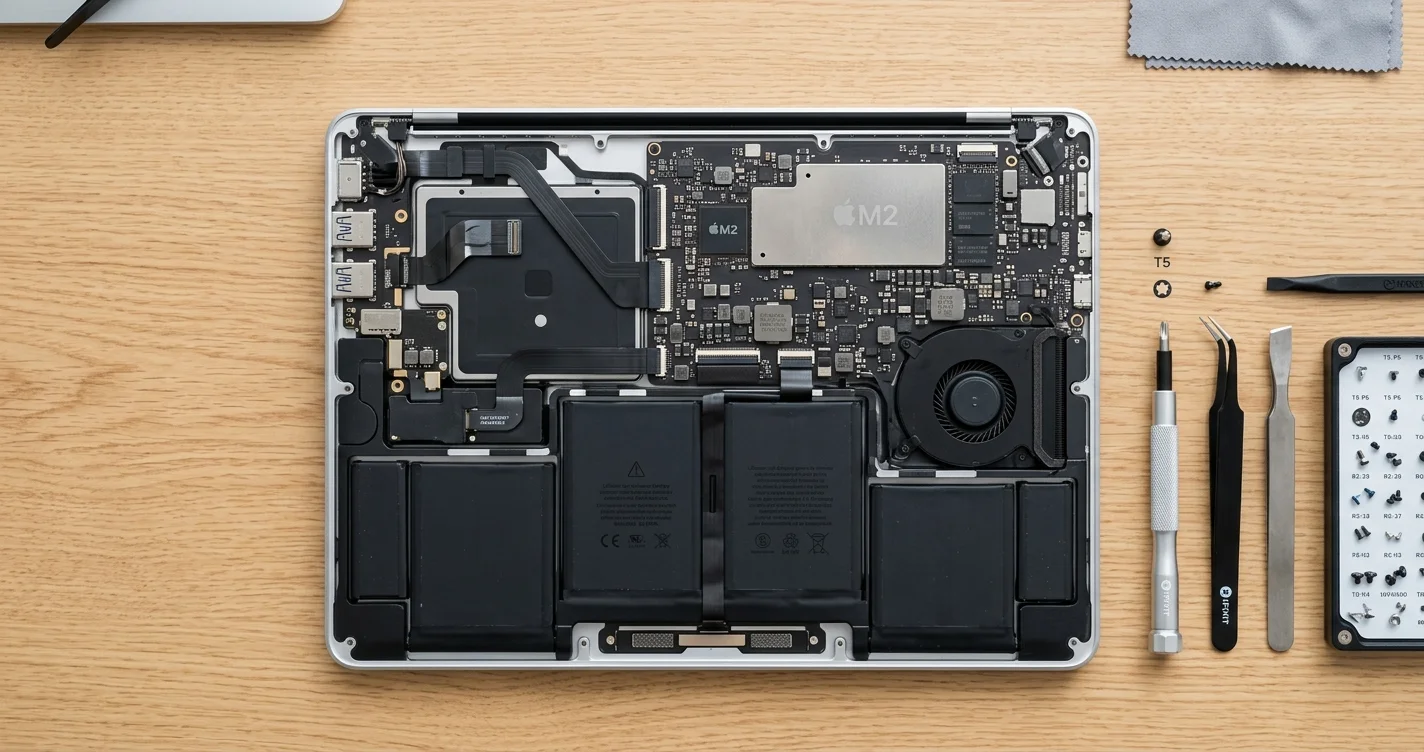
iFixit's MacBook Neo teardown reveals the most repairable MacBook in 14 years. Screwed-in battery, modular ports, 41 keyboard screws, and what you can fix yourself.
For the first time in over a decade, you can open a MacBook and not feel like Apple is punishing you for trying. iFixit's teardown of the MacBook Neo — Apple's $599 entry-level laptop powered by the A18 Pro chip — has revealed something genuinely unexpected: a machine that Apple actually designed with repair in mind. The final verdict? A 6 out of 10 repairability score, making the MacBook Neo the most repairable MacBook since the 2012 MacBook Pro. That is not a typo. Fourteen years of glued-in batteries, proprietary fasteners, and soldered-everything, and Apple has finally reversed course — at least partially.
If you have been following the MacBook Neo's launch at Apple's March 2026 event, you already know the headline specs. But this teardown tells a different story. One about pull tabs on batteries, Phillips screws alongside pentalobe, modular USB-C ports, and a keyboard held in place by 41 individual screws instead of rivets. It is a story about a MacBook you can actually fix at your kitchen table.
Let's walk through everything iFixit found, what it means for you, and exactly how to tackle the most common repairs yourself.
Key Takeaways
- iFixit scored the MacBook Neo 6/10 for repairability — the highest score for any MacBook since 2012, and a significant jump from the MacBook Air M2's 4/10.
- The battery is screwed in with pull tabs, not glued down. Battery replacement is now a 15-minute job instead of a frustrating hour with adhesive remover.
- USB-C ports are modular and individually replaceable, connected via small ribbon cables rather than soldered to the logic board.
- SSD and RAM remain non-upgradeable — the 256GB or 512GB storage is soldered to the logic board, and the 8GB unified memory is part of the A18 Pro package.
- Apple's Self Service Repair program already lists MacBook Neo parts, including the battery ($49), USB-C port modules ($19 each), and keyboard assembly ($89).
iFixit Teardown: What They Found
When iFixit's teardown team got their hands on the MacBook Neo in early March 2026, they started where every MacBook teardown begins — with the bottom case. And the first surprise came immediately.
The Bottom Case: Familiar But Friendlier
The MacBook Neo uses the same pentalobe screws on the bottom case that Apple has used since the Retina MacBook Pro era. Ten P5 pentalobe screws hold the bottom plate in place. This is not new, but what matters is that Apple did not introduce any additional adhesive or clips to the bottom case design. Once the screws are out, the panel lifts off cleanly. No prying tools needed. No risk of cracking a plastic clip that Apple designed to be used exactly once.
Inside, the layout is immediately recognizable as a MacBook — but the details tell a different story.
The Battery: The Biggest Win
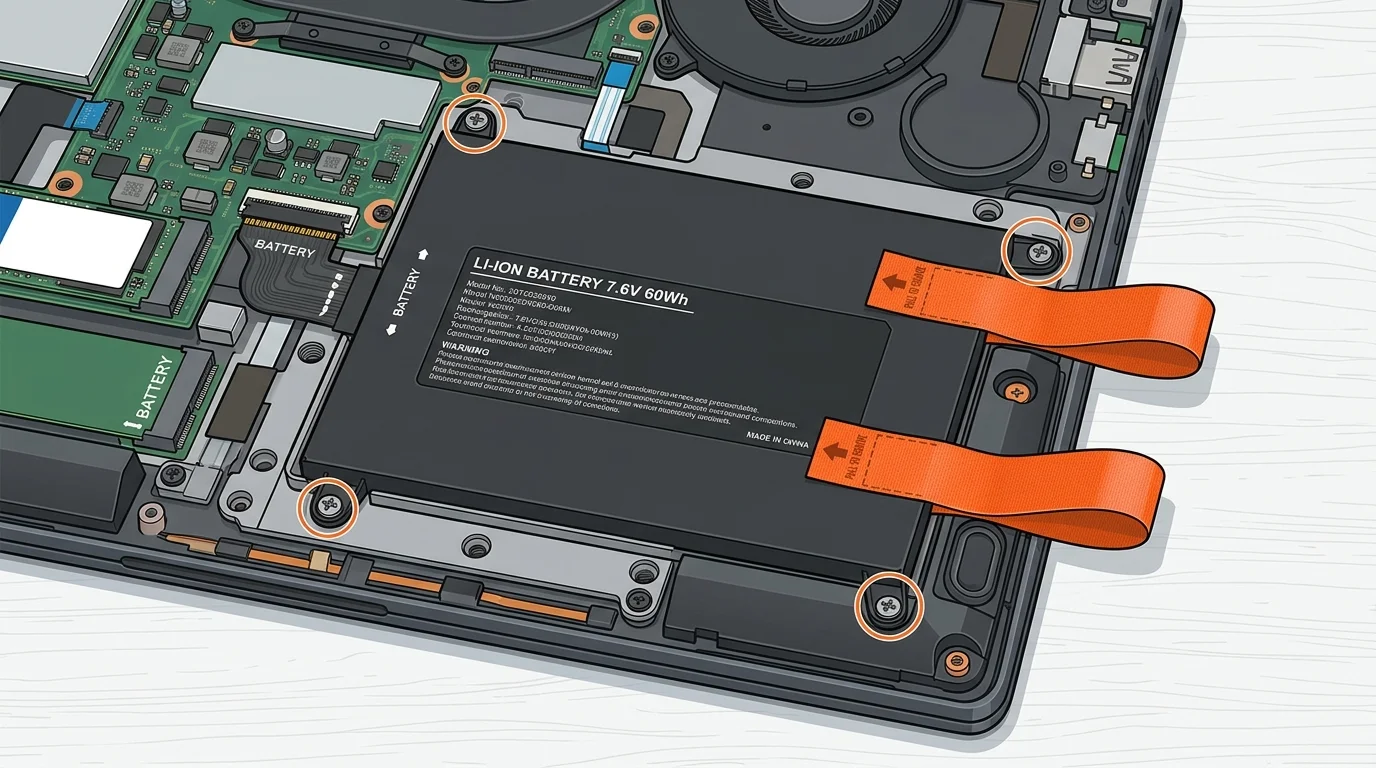
This is the headline feature of the teardown, and it deserves attention because it represents a genuine philosophical shift from Apple. The MacBook Neo's 52.6Wh lithium-polymer battery is held in place by six Phillips screws and features adhesive pull tabs — similar to what you find in iPhones. Pull the tabs, disconnect the battery cable, remove the screws, and the battery lifts right out.
Compare this to the MacBook Air M2, where the battery was glued to the chassis with stretch-release adhesive that frequently tore during removal, requiring isopropyl alcohol or iFixit's adhesive remover kit to complete the job. The MacBook Air M3 and M4 made marginal improvements, but the fundamental approach was the same: the battery was stuck down and Apple did not want you touching it.
The Neo's battery is genuinely designed to be replaced. The pull tabs are color-coded (blue for the main battery cable disconnect, black for the adhesive pulls), and iFixit noted that the tabs did not tear during their removal — a common failure point in iPhone battery pull tabs of previous generations.
For anyone who has followed our guide to battery charge limits in macOS Tahoe, this is excellent complementary news. You can optimize your charging behavior in software and, when the battery eventually degrades, replace it yourself without an appointment at the Genius Bar.
The Logic Board: Small But Mighty, and Very Much Off-Limits
The MacBook Neo's logic board is remarkably compact — roughly 60% the size of the MacBook Air M2's logic board. This is a direct consequence of using the A18 Pro chip (an iPhone-derived SoC) rather than an M-series chip. The A18 Pro, its 8GB of unified LPDDR5X memory, and either 256GB or 512GB of NAND storage are all part of a single package-on-package (PoP) assembly soldered to the board.
This means no RAM upgrades and no SSD upgrades. Period. What you buy is what you get for the life of the machine. iFixit flagged this as the primary reason the Neo did not score higher than 6/10. If the SSD were replaceable — even with a proprietary Apple module like in the Mac Pro — the score would have been a 7 or possibly an 8.
The logic board itself is connected to the rest of the machine via a series of ribbon cables and board-to-board connectors. iFixit noted that the connectors are of a standard ZIF (zero insertion force) type, making disconnection straightforward with a plastic spudger. No soldered ribbon cables. No proprietary snap connectors that require Apple's specialized tools.
USB-C Ports: Modular and Replaceable
The MacBook Neo has two USB-C (Thunderbolt 3) ports, one on each side of the chassis. Each port is a separate module connected to the logic board via a short flexible printed circuit (FPC) cable. The modules are held in place by two Phillips screws each and can be removed independently.
This is a significant improvement. USB-C ports are one of the most common failure points on laptops — debris in the port, bent pins from misaligned cables, or damage from a yanked cable can all render a port useless. On previous MacBooks, a damaged USB-C port often meant a logic board replacement ($300-$800 depending on the model). On the Neo, it is a $19 part and a 10-minute job.
The Keyboard: 41 Screws Instead of Rivets
Apple's keyboard saga is well-documented. The butterfly keyboard era (2015-2019) was defined by reliability problems, and even the switch to scissor-switch mechanisms did not address the fundamental repairability issue: keyboards in modern MacBooks were typically riveted to the top case assembly, making individual keyboard replacement impossible without replacing the entire top case (palm rest, trackpad, and keyboard together — a $200-$400 repair).
The MacBook Neo takes a different approach. The keyboard assembly is attached to the top case with 41 Phillips screws. This means the keyboard can be removed and replaced independently of the top case. iFixit described this as "the most keyboard-friendly design Apple has shipped in a MacBook since the 2015 MacBook Pro."
The keyboard itself uses Apple's scissor-switch mechanism with 1mm of key travel — the same mechanism found in current MacBook Air and MacBook Pro models. The keycaps pop off for cleaning, and the scissor mechanisms are individually replaceable (though finding the parts outside of Apple's supply chain will be challenging initially).
Speakers and Fan Assembly
The MacBook Neo uses a single fan design (as expected for an A18 Pro-powered machine that draws far less power than M-series chips). The fan is held in place by three Phillips screws and connects via a standard 4-pin connector. Replacement is trivial.
The stereo speakers (two modules, one on each side) are similarly accessible. Each speaker module is held by two screws and connects via a small cable. Speaker failures are not common, but when they happen, this design means a $29 part swap rather than a trip to Apple or a third-party repair shop.
The Display: The Weak Point
iFixit identified the display assembly as the most repair-hostile component of the MacBook Neo. The 15.3-inch Liquid Retina display is bonded to the display glass, and the hinge mechanism uses a proprietary cable routing that makes display removal complex. The display cable itself passes through the hinge in a way that requires partial disassembly of the hinge to disconnect.
Apple uses four Torx T3 screws on the display hinges, and the display cable connector on the logic board is a delicate board-to-board connector that iFixit cautioned requires "precision and patience" to disconnect without damage.
A cracked display still means either an Apple repair ($299 through Self Service Repair) or a third-party shop. This is not a kitchen-table job for most people.
The Trackpad
The Force Touch trackpad in the MacBook Neo is similar to previous MacBook designs — it is screwed in (not glued) and connects via a single ribbon cable. Replacement is straightforward but rarely necessary, as trackpad failures are uncommon. iFixit noted the trackpad uses the same haptic engine design as the MacBook Air M3/M4/M5.
The 6/10 Score: What It Means
To understand why a 6 out of 10 is remarkable for a MacBook, you need context. Here is how recent MacBooks have scored on iFixit's repairability scale:
| Model | Year | iFixit Score | Key Issue |
|---|---|---|---|
| MacBook Pro (Retina) | 2012 | 1/10 | Everything glued and soldered |
| MacBook Air | 2013-2017 | 2/10 | Proprietary screws, glued battery |
| MacBook Pro Touch Bar | 2016-2019 | 1/10 | Butterfly keyboard, glued everything |
| MacBook Air M1 | 2020 | 3/10 | Glued battery, soldered SSD |
| MacBook Air M2 | 2022 | 4/10 | Slightly better battery access |
| MacBook Pro M3 Pro/Max | 2023 | 4/10 | Modular SSD, but glued battery |
| MacBook Air M4 | 2025 | 4/10 | Minimal repairability changes |
| MacBook Neo | 2026 | 6/10 | Screwed battery, modular ports |
The jump from 4/10 to 6/10 is the largest single-generation improvement in MacBook repairability that iFixit has ever recorded. For comparison, the Framework Laptop 16 scores 10/10, the Dell Latitude 5440 scores 8/10, and most ThinkPads score 7-8/10.
A 6/10 puts the MacBook Neo in roughly the same territory as mid-range Windows laptops from HP and Acer — not best-in-class, but solidly in the "you can fix most things yourself" category.
The four points lost come from:
- Soldered SSD (-2 points): This is the biggest repairability penalty. Storage failure means a dead machine or an expensive logic board replacement.
- Soldered unified memory (-1 point): While expected for an Apple Silicon device, it still limits the machine's lifespan and upgradeability.
- Display complexity (-0.5 points): The bonded display and complex cable routing make screen replacement a professional-level job.
- Proprietary pentalobe screws on the bottom case (-0.5 points): While pentalobe drivers are widely available now, Apple still uses a proprietary fastener where a standard Phillips would work fine.
What You CAN Fix Yourself
Based on iFixit's teardown and Apple's Self Service Repair parts list, here are the components that a reasonably handy person can replace at home:
Battery Replacement (Difficulty: Easy)
- Time: 15-20 minutes
- Cost: $49 (Apple Self Service Repair) or $35-$45 (third-party)
- Tools needed: P5 pentalobe driver, Phillips #00 driver, plastic spudger
- Risk level: Low
The battery is the component most likely to need replacement over the life of the machine. After 500-1000 charge cycles, capacity drops below 80%, and the Neo's 52.6Wh battery will follow this same curve. With the screwed-in design and pull tabs, this is genuinely a beginner-friendly repair.
If you are running macOS Tahoe, you can check your battery's current health using the built-in battery diagnostics tools before deciding whether replacement is necessary.
USB-C Port Replacement (Difficulty: Easy)
- Time: 10-15 minutes
- Cost: $19 per port (Apple Self Service Repair)
- Tools needed: P5 pentalobe driver, Phillips #00 driver, plastic spudger
- Risk level: Low
Each USB-C port is an independent module. You do not need to touch the logic board, battery, or any other component. Open the bottom case, disconnect the FPC cable, remove two screws, swap the module, reverse the process. This is the easiest repair on the MacBook Neo.
Keyboard Replacement (Difficulty: Moderate)
- Time: 45-60 minutes
- Cost: $89 (Apple Self Service Repair)
- Tools needed: P5 pentalobe driver, Phillips #00 driver, plastic spudger, magnetic screw mat (recommended)
- Risk level: Moderate (41 screws means 41 opportunities to strip a screw or lose one)
The keyboard replacement is straightforward in concept but tedious in execution. You need to remove 41 screws, disconnect the keyboard ribbon cable, and carefully lift the assembly out. A magnetic screw mat is strongly recommended — those 41 screws come in at least three different lengths, and mixing them up can damage the top case on reassembly.
Speaker Replacement (Difficulty: Easy)
- Time: 10-15 minutes per speaker
- Cost: $29 per speaker module (Apple Self Service Repair)
- Tools needed: P5 pentalobe driver, Phillips #00 driver
- Risk level: Low
Fan Replacement (Difficulty: Easy)
- Time: 10-15 minutes
- Cost: $25 (Apple Self Service Repair)
- Tools needed: P5 pentalobe driver, Phillips #00 driver
- Risk level: Low
The fan is held by three screws and a single connector. If your Neo starts making grinding or clicking noises, this is a quick fix.
Trackpad Replacement (Difficulty: Moderate)
- Time: 20-30 minutes
- Cost: $59 (Apple Self Service Repair)
- Tools needed: P5 pentalobe driver, Phillips #00 driver, plastic spudger
- Risk level: Moderate (alignment is important for proper Force Touch functionality)
What You CANNOT Fix
Some components of the MacBook Neo remain firmly in the "do not attempt" or "impossible to upgrade" category:
SSD (Soldered — Not Upgradeable)
The NAND flash storage is soldered directly to the logic board as part of the A18 Pro package. There is no M.2 slot. There is no removable storage module. If you buy the 256GB configuration and later wish you had 512GB, your options are:
- Use external storage (USB-C SSD)
- Use iCloud storage
- Sell the machine and buy a new one
This is the single most frustrating design decision on the MacBook Neo. The MacBook Neo complete guide covers storage configuration recommendations in detail, but the short version is: if you can possibly afford the 512GB configuration, buy it. You cannot change this later.
If your SSD fails — which is rare but not impossible — it means a logic board replacement. Apple charges $349 for this through Self Service Repair, or $299 at a Genius Bar or Apple Authorized Service Provider.
RAM (Unified Memory — Not Upgradeable)
The MacBook Neo ships with 8GB of unified LPDDR5X memory, and that is all you will ever have. The memory is physically part of the A18 Pro chip package. There are no memory slots. There is no way to add more.
For most MacBook Neo users, 8GB of unified memory is adequate for light to moderate workloads — web browsing, document editing, media consumption, and light creative work. If you need guidance on maximizing performance with 8GB, our macOS Tahoe 8GB RAM survival guide covers specific optimizations.
For users who need more memory, the MacBook Neo is not the right machine. The MacBook Air M5 starts at 16GB and offers 24GB and 32GB configurations.
Display Assembly
As noted above, the 15.3-inch Liquid Retina display is bonded to the cover glass and routed through a complex hinge mechanism. While technically replaceable, this is a professional-level repair that requires:
- Specialized suction cups for display removal
- A heat gun or heat mat to soften adhesive around the display edges
- Precision handling of the display cable through the hinge
- Recalibration of True Tone after replacement (requires Apple's proprietary calibration tool or System Configuration process)
Apple charges $299 for a display replacement through Self Service Repair. Third-party repair shops typically charge $200-$350 depending on location. This is not a DIY job.
Logic Board
If the logic board fails, the machine is essentially totaled for self-repair purposes. The logic board contains the A18 Pro chip, all memory, all storage, the T2 security successor, and the Secure Enclave. A logic board replacement is $349 through Apple and involves transferring every other component to a new board. Leave this to professionals.
Apple's Self Service Repair for MacBook Neo
Apple launched its Self Service Repair program in 2022 for iPhones and expanded it to M1 MacBooks later that year. The MacBook Neo was added to the program on launch day — a first for any new Mac product.
Available Parts and Pricing
| Part | Apple Part Number | Price | Includes |
|---|---|---|---|
| Battery | SP-NEO-BATT | $49 | Battery, pull tabs, screws |
| USB-C Port Module (Left) | SP-NEO-USBC-L | $19 | Port module, FPC cable, screws |
| USB-C Port Module (Right) | SP-NEO-USBC-R | $19 | Port module, FPC cable, screws |
| Keyboard Assembly | SP-NEO-KB-US | $89 | Keyboard, backlight, screws (US layout) |
| Speaker Module (Left) | SP-NEO-SPK-L | $29 | Speaker, cable, screws |
| Speaker Module (Right) | SP-NEO-SPK-R | $29 | Speaker, cable, screws |
| Fan Assembly | SP-NEO-FAN | $25 | Fan, cable, screws |
| Trackpad Assembly | SP-NEO-TP | $59 | Trackpad, cable, screws |
| Display Assembly | SP-NEO-DISP | $299 | Complete display, hinges, cable |
| Logic Board (256GB) | SP-NEO-LB-256 | $349 | Logic board, A18 Pro, 8GB, 256GB |
| Logic Board (512GB) | SP-NEO-LB-512 | $399 | Logic board, A18 Pro, 8GB, 512GB |
| Bottom Case | SP-NEO-BCASE | $39 | Bottom panel, screws, rubber feet |
| Top Case (no keyboard) | SP-NEO-TCASE | $149 | Top case, palm rest (keyboard sold separately) |
Tool Rental
Apple offers a tool rental kit for $49 (one-week rental) that includes all the specialized tools needed for MacBook Neo repairs. However, for most Neo repairs, you do not need Apple's kit. A basic iFixit toolkit covers everything except display replacement.
The System Configuration Process
After replacing certain components (battery, display, logic board), you need to run Apple's System Configuration process. This is a software step that pairs the new component with the machine's serial number and re-enables features like battery health monitoring, True Tone, and Find My Mac.
For the MacBook Neo, System Configuration can be run:
- Automatically — the machine detects the new component on boot and runs configuration
- Via Apple Diagnostics — hold D during startup, then follow prompts
- Via Apple Configurator 2 — using a second Mac connected via USB-C
This process requires an internet connection and an Apple ID. It is free and takes 5-10 minutes.
Why Apple Made the Neo More Repairable
The MacBook Neo's improved repairability did not happen in a vacuum. Several converging forces pushed Apple toward this design:
EU Right to Repair Regulations
The European Union's Right to Repair Directive, which took full effect in early 2026, requires electronics manufacturers to make spare parts available for at least 10 years after a product's last sale date, provide repair manuals, and design products that can be repaired with "commonly available tools." Non-compliance can result in fines up to 4% of EU revenue.
Apple chose to implement these changes globally rather than creating EU-specific hardware variants — a pattern it has followed with USB-C adoption and the Digital Markets Act. The MacBook Neo's screwed-in battery and modular ports appear to be a direct response to these requirements.
The Education Market Strategy
The MacBook Neo is priced at $599 ($499 for education) and is explicitly positioned as a competitor to Chromebooks in the education market. Schools and universities have long complained about MacBook repair costs — a single broken USB-C port on a MacBook Air could cost $300+ to fix at an Apple Store, making fleet management expensive.
By making the Neo more repairable, Apple makes it more attractive to IT departments that need to maintain hundreds or thousands of machines. A $19 USB-C port module that a school technician can replace in 10 minutes is dramatically more appealing than shipping the machine to Apple for a week-long repair.
Cost Engineering
The MacBook Neo is Apple's most affordable Mac laptop ever, and repairability may actually be a cost-saving measure. Gluing batteries requires precision adhesive application during manufacturing and adds complexity to the assembly line. Screwing in batteries is simpler, faster, and cheaper at scale. Similarly, modular USB-C ports reduce the cost of quality control failures — a defective port can be replaced on the assembly line without scrapping the entire logic board.
PR and Brand Perception
Apple has taken significant public criticism for its repair practices over the past decade. The MacBook Neo, as a new product line without legacy design constraints, gave Apple an opportunity to reset the narrative. The 6/10 iFixit score has generated overwhelmingly positive press coverage, and Apple clearly anticipated and welcomed this.
DIY Repair: Tools You Need
If you plan to do your own MacBook Neo repairs, here is the complete tool list:
Essential Tools
-
P5 Pentalobe Screwdriver — For the bottom case screws. This is a must-have. iFixit sells a dedicated P5 driver for $7.99, or it is included in their toolkit sets.
-
Phillips #00 Screwdriver — For internal screws (battery, ports, keyboard, speakers, fan). This is a standard size available at any hardware store, but a precision-grade driver with a rotating cap makes the work much easier.
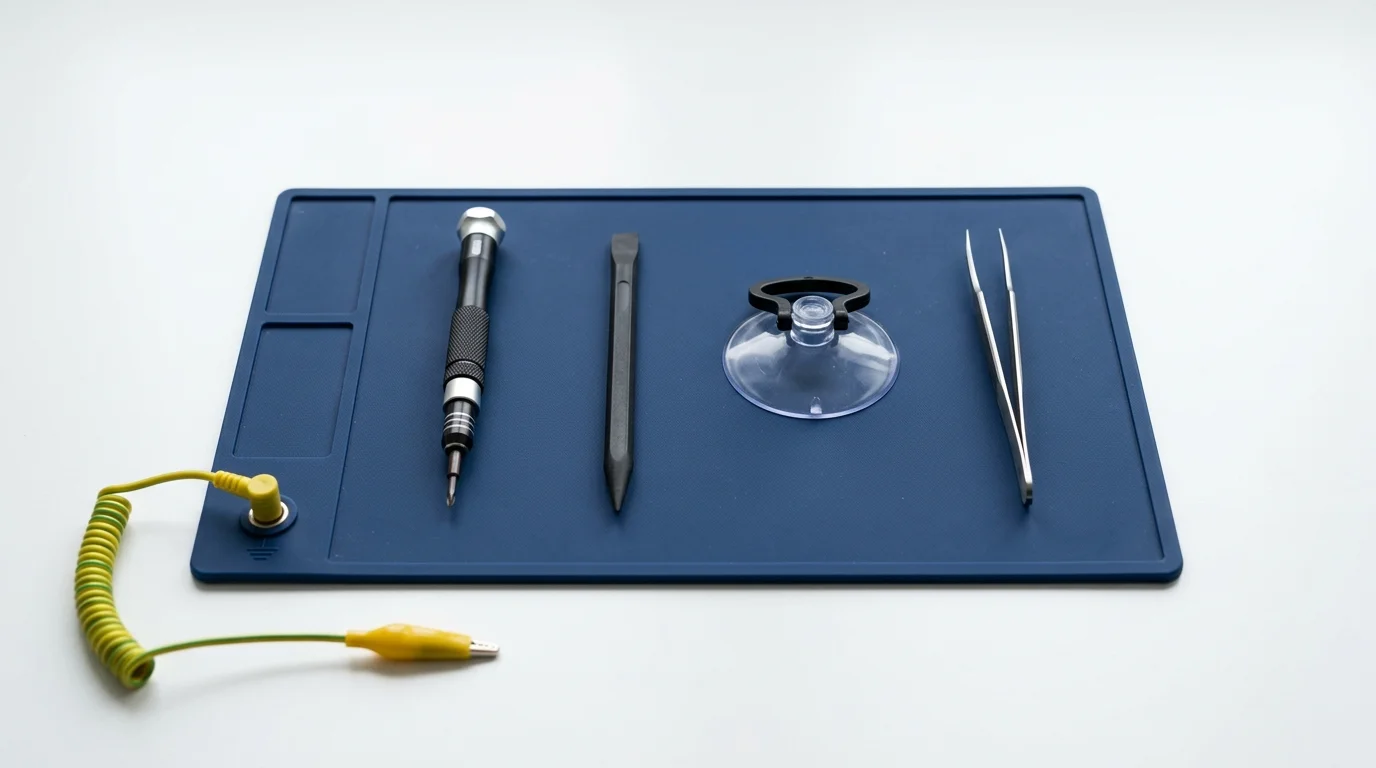
-
Plastic Spudger — For disconnecting ribbon cables and ZIF connectors. Do not use metal tools for this — you risk shorting components or tearing cables. The nylon spudger from iFixit ($3.99) or any ESD-safe plastic pry tool works.
-
Magnetic Screw Mat — Strongly recommended for keyboard replacement (41 screws of different lengths). iFixit's magnetic project mat ($14.99) or any magnetic parts tray keeps screws organized and prevents loss.
-
Anti-Static Wrist Strap — Not strictly required for every repair, but good practice when working near the logic board. Available for $5-$10 from any electronics supplier.
Nice-to-Have Tools
-
Torx T3 Screwdriver — Only needed if you are replacing the display assembly. Not required for battery, port, keyboard, speaker, or fan replacement.
-
iFixit Pro Tech Toolkit ($74.99) — Includes everything listed above plus dozens of additional bits and tools. If you plan to do more than one repair over the life of the machine, this is the best value purchase.
-
Suction Cup Pair — Only needed for display removal. Not required for any other repair.
-
ESD-Safe Tweezers — Helpful for handling small screws and positioning ribbon cables, but not strictly necessary.
Where to Buy Parts (Beyond Apple)
As of March 2026, Apple's Self Service Repair store is the only source for genuine MacBook Neo parts. However, based on patterns from previous MacBook launches, third-party parts from suppliers like iFixit, OWC, and various Chinese manufacturers on AliExpress typically become available within 3-6 months of launch. Third-party batteries are usually the first to arrive, followed by USB-C port modules and keyboard assemblies.
iFixit has already announced that they will carry MacBook Neo battery and USB-C port replacement kits "before summer 2026," bundled with the necessary tools and step-by-step guides.
Step-by-Step: Common Repairs
Battery Replacement — Complete Walkthrough
Before you start:
- Shut down the MacBook Neo completely (Apple menu > Shut Down)
- Disconnect all cables and peripherals
- Discharge the battery below 25% if possible (reduces the risk of thermal events if a cell is punctured)
- Work on a clean, flat, non-conductive surface
Step 1: Remove the Bottom Case
Place the MacBook Neo upside down on a soft cloth or anti-static mat. Using the P5 pentalobe driver, remove the ten screws from the bottom case. Note that the screws are all the same length on the Neo — this is different from the MacBook Air, which uses two different screw lengths.
Set the screws aside on your magnetic mat. Lift the bottom case straight up and off. There are no clips or adhesive to contend with.
Step 2: Disconnect the Battery
Locate the battery connector — it is a black rectangular connector near the center-top of the battery, connecting to the logic board. Using your plastic spudger, gently lever the connector straight up from its socket. Do not pull the cable; pry the connector itself.
Important: Always disconnect the battery before doing any other work inside the machine. This prevents accidental short circuits.
Step 3: Remove the Battery Screws
Using the Phillips #00 driver, remove the six screws holding the battery to the chassis. The screws are located around the perimeter of the battery — two at the top, two in the middle, and two at the bottom. Set them aside.
Step 4: Pull the Adhesive Tabs
The battery has three adhesive pull tabs, visible as black strips beneath the battery cells. Grip each tab near its end and pull slowly, at a shallow angle (less than 45 degrees), away from the battery. Pull steadily — do not jerk. Each tab should stretch and release cleanly.
If a tab tears (unlikely but possible), use a plastic spudger to gently lever the battery cell up from the chassis. Do not use metal tools, and do not bend the battery cells.
Step 5: Remove the Old Battery
With the screws removed and adhesive tabs pulled, the battery lifts out freely. Set it aside for proper recycling. Do not throw lithium-polymer batteries in regular trash — most electronics stores (Best Buy, Apple Store) accept them for free recycling.
Step 6: Install the New Battery
Place the new battery into the chassis, aligning the screw holes. The replacement battery from Apple comes with pre-applied adhesive strips. Press the battery firmly into place.
Replace the six Phillips screws. Do not overtighten — snug is sufficient.
Reconnect the battery cable by pressing the connector straight down into its socket until it clicks.
Step 7: Replace the Bottom Case
Align the bottom case and press it into place. Replace the ten pentalobe screws. Again, do not overtighten.
Step 8: System Configuration
Power on the MacBook Neo. On first boot after a battery replacement, macOS Tahoe will detect the new battery and prompt you to run System Configuration. Follow the on-screen instructions — you will need an internet connection and your Apple ID. This process takes about 5 minutes and enables battery health monitoring for the new battery.
USB-C Port Replacement — Complete Walkthrough
Step 1: Remove the Bottom Case (same as battery replacement above)
Step 2: Disconnect the Battery (same as above — always disconnect the battery first)
Step 3: Locate the USB-C Port Module
The left and right USB-C port modules are located on their respective sides of the chassis, near the front edge. Each module is a small PCB with the USB-C connector attached, connected to the logic board via a flexible printed circuit cable.
Step 4: Disconnect the FPC Cable
Using a plastic spudger, flip up the ZIF connector latch on the logic board end of the FPC cable. The latch is a thin flap that hinges up 90 degrees. Once the latch is up, the cable slides out freely. Do not force it — if the cable is not sliding out, the latch is not fully open.
Step 5: Remove the Port Module Screws
Remove the two Phillips #00 screws holding the port module to the chassis. The module lifts out.
Step 6: Install the New Port Module
Place the new module in position, replace the two screws, slide the FPC cable into the ZIF connector on the logic board, and flip the latch down to secure it.
Step 7: Reconnect Battery and Close (reverse of opening steps)
No System Configuration is needed for USB-C port replacement.
MacBook Neo vs MacBook Air: Repairability Comparison
For buyers deciding between the MacBook Neo ($599) and the MacBook Air M5 ($1,199), repairability is a factor worth considering, especially if you plan to keep the machine for several years.
| Feature | MacBook Neo | MacBook Air M5 |
|---|---|---|
| iFixit Score | 6/10 | 4/10 (estimated, based on M4 Air) |
| Battery | Screwed in, pull tabs | Glued with stretch-release adhesive |
| USB-C Ports | Modular, replaceable ($19 each) | Soldered to logic board |
| Keyboard | 41 screws, removable | Riveted to top case |
| SSD | Soldered (256GB/512GB) | Soldered (256GB-2TB) |
| RAM | 8GB, soldered | 16GB-32GB, soldered |
| Display | Bonded, complex replacement | Bonded, complex replacement |
| Self Service Repair | Full parts availability | Full parts availability |
| Battery Replacement Cost | $49 | $99 |
| USB-C Port Repair Cost | $19 (port module) | $299+ (logic board) |
| Keyboard Repair Cost | $89 (keyboard only) | $199+ (top case assembly) |
The repairability difference is significant. Over a 5-year ownership period, the MacBook Neo's lower repair costs could save you hundreds of dollars compared to the MacBook Air, assuming similar failure rates. This is particularly relevant for the budget-conscious Mac buyer who needs to maximize the value of every dollar spent.
However, repairability alone should not drive your purchase decision. The MacBook Air M5 is a substantially more powerful machine with its M5 chip, 16GB+ of memory, and faster storage. If you need that performance, no amount of repairability on the Neo compensates for not having enough machine for your workload.
Frequently Asked Questions
Can I upgrade the MacBook Neo's SSD later?
No. The NAND storage is soldered to the logic board as part of the A18 Pro package. There is no M.2 slot or any other removable storage interface. If you need more storage, use an external USB-C SSD or choose the 512GB configuration at purchase.
Can I upgrade the MacBook Neo's RAM from 8GB to 16GB?
No. The 8GB of LPDDR5X unified memory is physically integrated into the A18 Pro chip package. It cannot be upgraded. If 8GB is insufficient for your workflow, consider the MacBook Air M5 (16GB base) or MacBook Pro (18GB+ base).
Is the MacBook Neo's battery the same as any other MacBook battery?
No. The MacBook Neo uses a unique battery (Apple part SP-NEO-BATT) that is not interchangeable with any MacBook Air or MacBook Pro battery. It has a capacity of 52.6Wh and a unique form factor designed for the Neo's chassis.
How long will Apple sell replacement parts for the MacBook Neo?
Under the EU Right to Repair Directive, Apple is required to offer spare parts for at least 10 years after the MacBook Neo's last date of sale. In practice, Apple typically maintains parts availability for 7-8 years for Mac products, and the EU regulation extends this further.
Do I void my warranty by doing my own repairs?
Under US law (Magnuson-Moss Warranty Act), Apple cannot void your warranty solely because you performed a repair yourself or used third-party parts. However, if a self-repair causes damage to the machine (e.g., you strip a screw and crack the logic board), that damage is not covered under warranty. The same applies in the EU under consumer protection directives.
Apple's Self Service Repair program explicitly supports owner-performed repairs using genuine parts. Repairs performed with genuine Apple parts through the Self Service Repair program do not affect your warranty or AppleCare+ coverage.
How does the MacBook Neo's repairability compare to Chromebooks?
Most modern Chromebooks score between 6/10 and 8/10 on iFixit's scale. The MacBook Neo's 6/10 puts it at the lower end of the Chromebook range but significantly above where MacBooks have historically been. Key advantages of Chromebooks over the Neo include replaceable storage (many models use standard M.2 SSDs) and replaceable RAM (some models). Key advantages of the Neo over most Chromebooks include build quality, display quality, and the macOS ecosystem.
Will iFixit sell MacBook Neo repair kits?
Yes. iFixit announced in March 2026 that they will offer MacBook Neo battery replacement kits and USB-C port replacement kits "before summer 2026." These kits will include the replacement part, all necessary tools, and a step-by-step guide. Pricing has not been announced but will likely be competitive with or slightly below Apple's Self Service Repair pricing.
Conclusion
The MacBook Neo's 6/10 repairability score from iFixit is a genuine milestone for Apple. After 14 years of MacBooks that fought you every step of the way when something broke, the Neo represents a meaningful shift in philosophy. A screwed-in battery with pull tabs, modular USB-C ports, a keyboard held by screws instead of rivets — these are deliberate design choices, not accidents.
Is the Neo perfectly repairable? No. The soldered SSD and RAM are real limitations that will shorten the usable lifespan of the machine for some users. The display remains complex to replace. And Apple still uses proprietary pentalobe screws where standard Phillips would work fine.
But for a $599 laptop — $499 for students — the repairability story is compelling. A battery replacement that costs $49 and takes 15 minutes instead of $129 and a week at the Apple Store. A USB-C port fix that costs $19 instead of a $300 logic board replacement. A keyboard swap that is tedious but possible, instead of impossible.
The MacBook Neo is not a Framework Laptop. It is not designed to be modular or upgradeable. But it is designed to be fixable, and for a MacBook, that is a revolution.
Whether the Neo's improved repairability will trickle up to the MacBook Air and MacBook Pro lines remains to be seen. But the precedent is set, the parts are available, and iFixit has shown the world what is inside. If you are considering a MacBook Neo, the repairability alone should give you confidence that this machine can serve you well for years — and when something eventually breaks, you can fix it yourself.
For a complete look at the MacBook Neo's specifications, performance benchmarks, and buying advice, check out our comprehensive MacBook Neo guide.