MacBook Pro M5 Overheating: Why Apple's 14-inch Hits 99°C and Complete Fix Guide
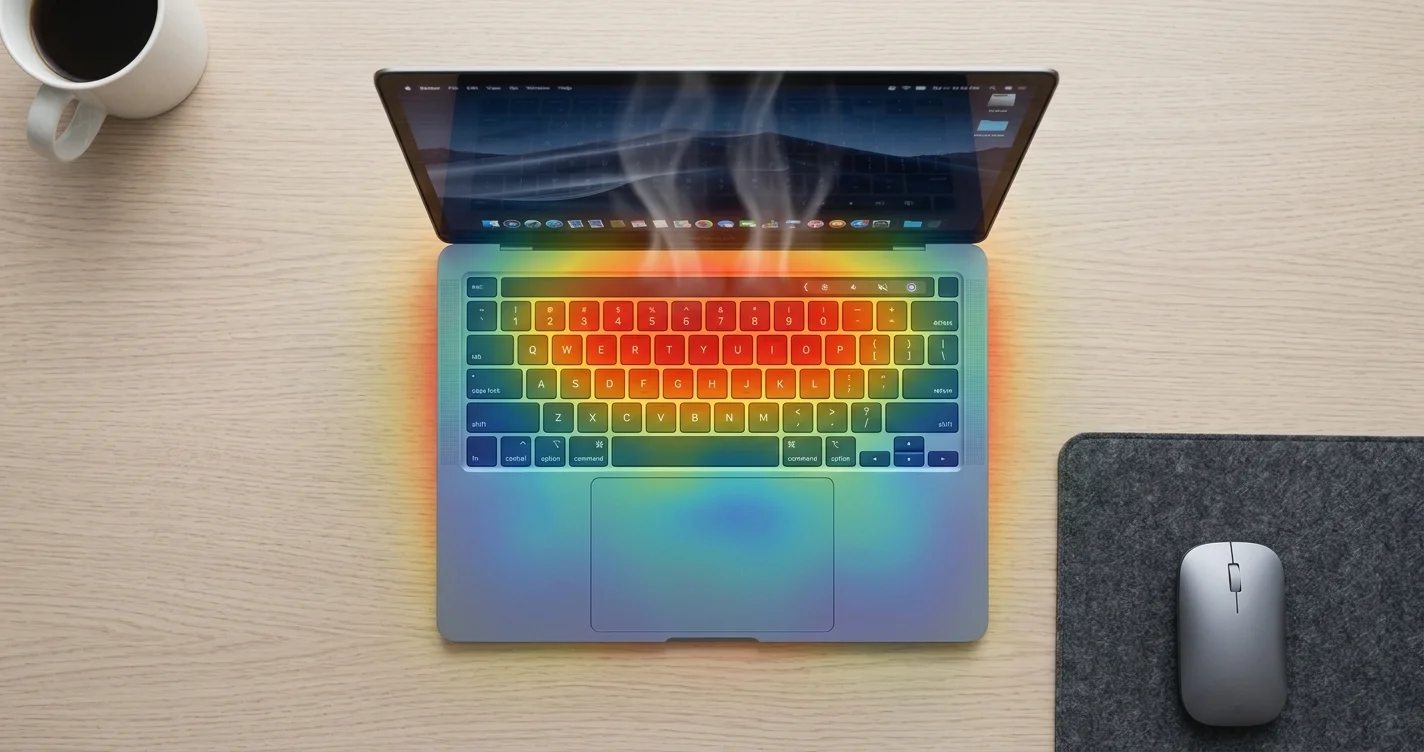
Your MacBook Pro M5 is running hot — here's why. Complete thermal analysis of the 14-inch M5's 99°C temps, M5 Max SSD overheating at 106°C, and 15 proven fixes to cool it down.
The MacBook Pro M5 is the fastest laptop Apple has ever made. It's also one of the hottest — literally. Independent testing confirms that the 14-inch MacBook Pro M5 reaches 99°C under sustained load, while the M5 Max variant pushes its SSD controller past 106°C during AI workloads. For a machine starting at $1,599, that's a problem worth understanding.
Key Takeaways
- The 14-inch MacBook Pro M5 reaches 99°C under sustained CPU load due to its single-fan cooling system
- The M5 Max variant's SSD controller hits 106°C during AI workloads — up from under 30°C on M3 Max
- The 14-inch M5 Pro is 30% slower than the 16-inch M5 Max in sustained workloads due to thermal throttling
- Despite the high temps, the M5 actually runs slightly cooler than the M4 it replaces under identical stress tests
- Apple's cooling design hasn't evolved to match the M5's "Fusion Architecture" power density
- There are 15 practical fixes ranging from software tweaks to hardware solutions that can significantly reduce temperatures
Let's break down what's happening, when you should worry, and what you can actually do about it.
Understanding the Problem: Why the M5 Runs So Hot
The Fusion Architecture Paradox
Apple's M5 chip uses a new "Fusion Architecture" — a dual-die design that packs more transistors and computing power into the same package. The M5 delivers roughly 47% faster multi-threaded performance compared to the M4. That's an enormous generational leap, but it comes with a thermodynamic cost: more transistors doing more work generates more heat.
The problem isn't the chip itself — it's the chassis it lives in.
The 14-inch Cooling System
The base 14-inch MacBook Pro M5 uses the same cooling system as the M4 model it replaces:
- One fan (single-blower design)
- One heatpipe connecting the SoC to the fan
- Aluminum chassis acting as a passive heat spreader
This cooling solution was already working at its limits with the M4. With the M5's increased power density, it simply can't dissipate heat fast enough during sustained workloads.
The Numbers
Here's what independent testing reveals about thermal performance across the M5 lineup:
| Configuration | Max CPU Temp | Max SSD Temp | Sustained CPU Power | Throttle Point |
|---|---|---|---|---|
| 14" M5 (base) | 99°C | 78°C | ~38W | ~5 min sustained load |
| 14" M5 Pro | 97°C | 85°C | ~45W | ~8 min sustained load |
| 14" M5 Max | 96°C | 106°C | ~45W | ~6 min sustained load |
| 16" M5 Pro | 89°C | 72°C | ~55W | ~15 min sustained load |
| 16" M5 Max | 91°C | 82°C | ~64W | Minimal throttling |
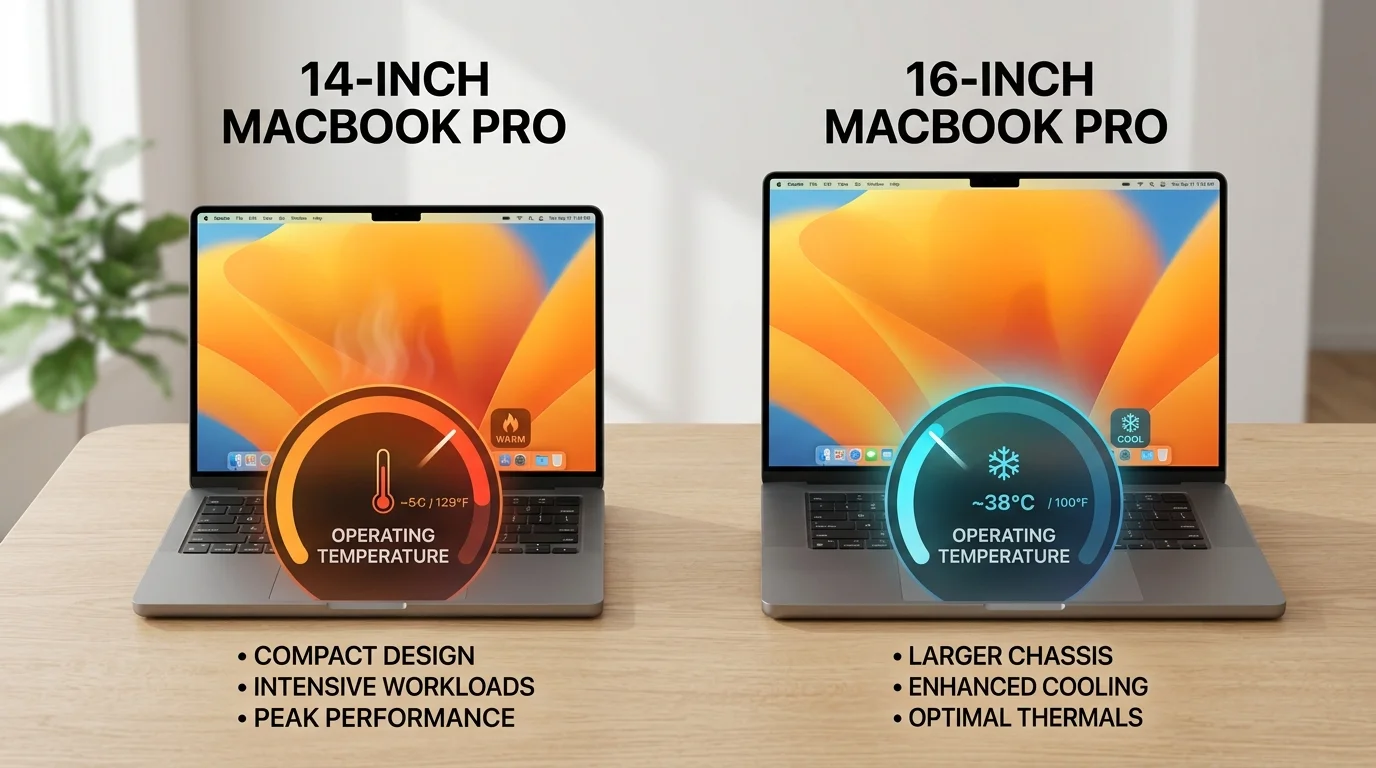
The disparity between 14-inch and 16-inch models is stark. The 16-inch MacBook Pro has a dual-fan cooling system with significantly more thermal headroom, allowing its M5 Pro/Max chips to sustain higher power levels for longer periods.
Why the 14-inch M5 Pro Is 30% Slower Than the 16-inch
This is the most surprising finding: despite having only 3 fewer GPU cores, the 14-inch M5 Pro delivers up to 30% less sustained performance than the 16-inch M5 Max. The reason isn't the chip — it's thermal throttling.
When the 14-inch chassis can't dissipate heat fast enough, macOS forces the chip to reduce its clock speed and power consumption. The 16-inch model, with its larger cooling system and more thermal mass, can sustain 64 watts of CPU power compared to the 14-inch's 45 watts. That 19-watt difference translates directly into benchmark scores and real-world rendering times.
The M5 Max SSD Crisis
Perhaps the most concerning finding is the M5 Max's SSD behavior. During AI workloads — running local large language models, training ML models, or processing large datasets — the SSD controller temperature has been observed reaching 106°C. For context, the same SSD controller in the M3 Max stayed under 30°C during comparable workloads.
Why the dramatic increase? The M5 Max's unified memory architecture shares the memory bus between the CPU, GPU, Neural Engine, and SSD controller. When AI workloads maximize memory bandwidth (which they do), the SSD controller sits in the thermal path and absorbs heat from neighboring components. Apple's cooling solution doesn't provide dedicated thermal management for the SSD — it relies on the same heatpipe that's already struggling to cool the SoC.
The implications are significant:
- Data integrity risk: NAND flash memory becomes less reliable at extreme temperatures
- Performance degradation: SSDs throttle their own performance when overheating to prevent damage
- Longevity concerns: Sustained high temperatures can reduce SSD lifespan over years of use
When Should You Actually Worry?
Before reaching for fixes, it's important to understand what's normal and what's not.
Normal Temperature Behavior
| Activity | Expected CPU Temp | Fan Behavior |
|---|---|---|
| Web browsing, email, documents | 35-55°C | Silent (fans off or very low) |
| Video conferencing (Zoom, FaceTime) | 55-70°C | Low fan speed, barely audible |
| Photo editing (Lightroom, Photos) | 60-75°C | Moderate fan speed |
| Video export (Final Cut Pro, DaVinci Resolve) | 75-90°C | Fans at medium-high speed |
| 3D rendering (Blender, Cinema 4D) | 85-99°C | Fans at maximum speed |
| AI/ML workloads (Ollama, MLX, PyTorch) | 90-99°C | Fans at maximum speed |
Warning Signs
You should investigate further if:
- Your Mac feels hot during light tasks (web browsing, typing)
- Fans spin at maximum speed constantly, even at idle
- You experience random shutdowns or kernel panics during moderate use
- Apps become unresponsive during tasks that previously worked fine
- The bottom case is too hot to comfortably rest on your lap during normal use
When It's Just Physics
Hitting 95-99°C during a Cinebench run, a video export, or an AI training job is expected behavior for the 14-inch M5. Apple's thermal management system is designed to allow the chip to reach these temperatures briefly before throttling. This is how modern high-performance chips work — they boost aggressively, hit the thermal limit, then back off.
The concern is when sustained workloads keep the temperature at 95°C+ for extended periods (30+ minutes), which accelerates wear on components and may reduce the machine's long-term reliability.
15 Proven Fixes to Cool Down Your MacBook Pro M5
Software Fixes (Free, Immediate Impact)
1. Identify and Kill Resource-Hungry Processes
Open Activity Monitor (Applications → Utilities → Activity Monitor) and click the CPU tab. Sort by % CPU to find the culprits.
Common offenders:
- Google Chrome helper processes (each tab is a separate process)
- WindowServer (if abnormally high, restart your Mac)
- kernel_task (this is macOS deliberately slowing the CPU to cool down — don't kill it)
- mdworker_shared / mds_stores (Spotlight indexing — wait for it to finish or rebuild the index)
- photolibraryd (Photos library analysis — let it complete)
If a non-essential process is consuming 100%+ CPU, force-quit it. If it's a system process, note the name and restart your Mac first.
2. Switch from Chrome to Safari
This single change can drop temperatures by 5-15°C during web browsing. Safari is deeply optimized for Apple Silicon and uses significantly less CPU and memory than Chrome. Safari also supports hardware-accelerated video decoding that Chrome handles in software on some sites.
If you need Chrome for specific web apps, use Safari as your default browser and keep Chrome for those specific use cases.
3. Manage Browser Tabs
Each open tab consumes CPU and memory, especially tabs with:
- Video content (YouTube, Netflix, Twitch)
- Complex web apps (Google Docs, Figma, Notion)
- Auto-refreshing pages (social media feeds, dashboards)
Keep tab count under 20 for routine use. Use a tab manager extension or Safari's Tab Groups to organize tabs you need but aren't actively using.
4. Disable Turbo Boost (Advanced)
macOS doesn't offer a built-in toggle, but third-party tools like Turbo Boost Switcher (free tier available) can disable the M5's performance cores from boosting to their maximum frequency. This caps your peak performance but dramatically reduces temperatures during sustained workloads.
This is particularly useful if you're doing extended video renders or compilations where consistent performance matters more than peak speed.
5. Adjust Energy Settings
Navigate to System Settings → Battery → Options:
- Enable "Optimize Video Streaming" — uses hardware decoder, reduces CPU load
- Set "Low Power Mode" to activate when on battery — reduces maximum performance but runs significantly cooler
For sustained workloads where you want full performance, keep Low Power Mode off but plug in your charger — the Mac manages thermals differently when connected to power.
6. Reduce Display Brightness and Disable ProMotion
The Liquid Retina XDR display is a meaningful heat source:
- Reduce brightness to 50-70% when working indoors (the display can output up to 1600 nits — you don't need that at a desk)
- Disable ProMotion: System Settings → Displays → Advanced → turn off adaptive refresh rate. Dropping from 120Hz to 60Hz reduces GPU work and heat output
7. Disable Unnecessary Background Processes
System Settings → General → Login Items — remove apps you don't need starting at boot. Common culprits:
- Cloud sync clients (Dropbox, Google Drive, OneDrive) — keep only the one you actively use
- Communication apps (Slack, Teams, Discord) — launch manually when needed
- Menu bar utilities — each one consumes a small amount of CPU constantly
8. Keep macOS Updated
Apple continuously refines thermal management in macOS updates. macOS Tahoe 26.4 included improved thermal algorithms, and 26.5 beta shows further WindowServer efficiency gains. Always install the latest update: System Settings → General → Software Update.
Hardware and Physical Solutions
9. Use a Laptop Stand
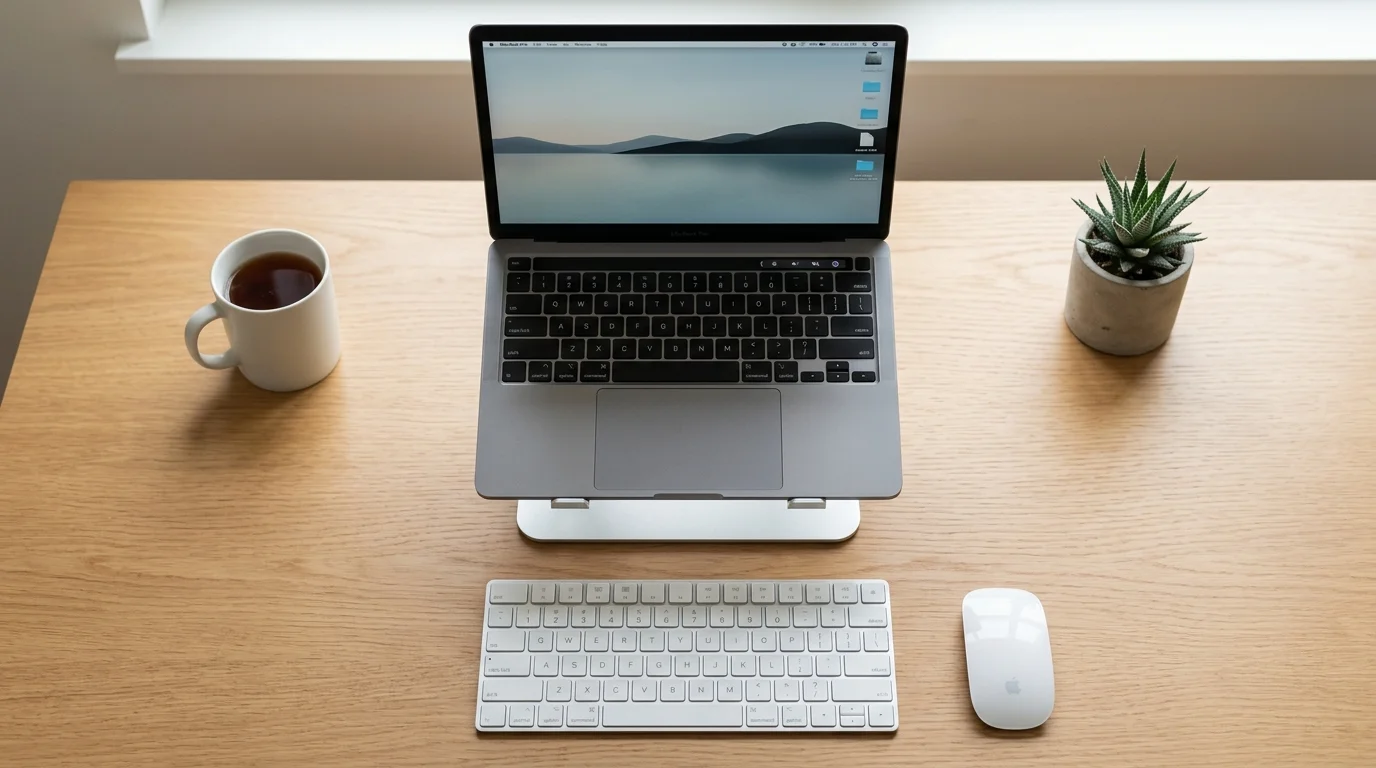
This is the single most effective physical intervention. Elevating the back of your MacBook Pro by even 2-3 inches dramatically improves airflow to the bottom intake vents.
Recommended approach:
- An aluminum laptop stand (Rain Design mStand, Twelve South Curve) provides elevation and acts as an additional heat sink
- Even a simple angled book or phone stand works in a pinch
- Pair with an external keyboard and mouse for ergonomic benefit
10. Ensure Proper Ventilation
The 14-inch MacBook Pro's vents are located along the sides and back hinge. Ensure:
- Nothing blocks the side vents (phone, papers, external drives)
- The back hinge has clearance (don't push the laptop flush against a wall)
- You're working on a hard, flat surface — never use on bed, couch cushions, or blankets, which block bottom airflow
11. Consider a Cooling Pad
For sustained heavy workloads (video editing, 3D rendering, ML training), an active cooling pad with built-in fans can reduce temperatures by 5-10°C:
- KLIM Wind: Four fans, best for stationary desk use during heavy workloads
- Havit HV-F2056: Lightweight (1.5 lbs), good for travel
- IETS GT500: Powerful vacuum cooler that attaches to the exhaust vent, more effective than traditional pads
A cooling pad won't eliminate thermal throttling during extreme loads, but it extends the time before throttling kicks in, improving average sustained performance.
12. Monitor Room Temperature
Ambient temperature directly affects your Mac's ability to cool itself. If your room is 30°C+ (86°F+), your Mac is fighting an uphill battle.
- Air conditioning or a desk fan pointed near (not directly at) your Mac helps
- Avoid working in direct sunlight with the laptop
- In hot environments, consider proactive use of Low Power Mode
macOS System-Level Solutions
13. Reset Thermal Management
If your Mac seems unusually hot during light tasks, a thermal management reset may help:
- Save all work and quit all applications
- Shut down your Mac (Apple menu → Shut Down)
- Wait 30 seconds (allows thermal sensors to recalibrate)
- Power back on
This clears any software glitches in the thermal management system. If the issue persists, proceed to step 14.
14. Run Apple Diagnostics
To check for hardware issues with fans or thermal sensors:
- Shut down your Mac completely
- Power on and immediately press and hold the power button until you see "Loading startup options"
- Release the button, then press ⌘ + D
- Apple Diagnostics will test your hardware, including fans and thermal sensors
- If it reports an error code starting with PPF (power/fan related), contact Apple Support
15. Consider the 16-inch Model for Heavy Workloads
If you regularly run sustained heavy workloads — video editing, 3D rendering, AI/ML training, large code compilations — the 16-inch MacBook Pro is the right choice. Its dual-fan cooling system provides:
- 30% more sustained performance at the same chip tier
- Lower operating temperatures (89°C vs 99°C under sustained load)
- Quieter fan operation (larger fans spin slower for the same airflow)
- Better SSD thermals (82°C vs 106°C on M5 Max AI workloads)
The 14-inch is a great machine for burst workloads — tasks that hit peak performance briefly then return to idle (photo editing, web development, office work). For sustained workloads, the extra size and weight of the 16-inch pays for itself in performance and longevity.
If you're still deciding which model to buy, check our M5 MacBook Pro buying guide for detailed comparisons.
How to Monitor Your Mac's Temperature
You can't fix what you can't measure. Here are the best tools for monitoring thermal performance on your MacBook Pro M5:
Built-in Tools
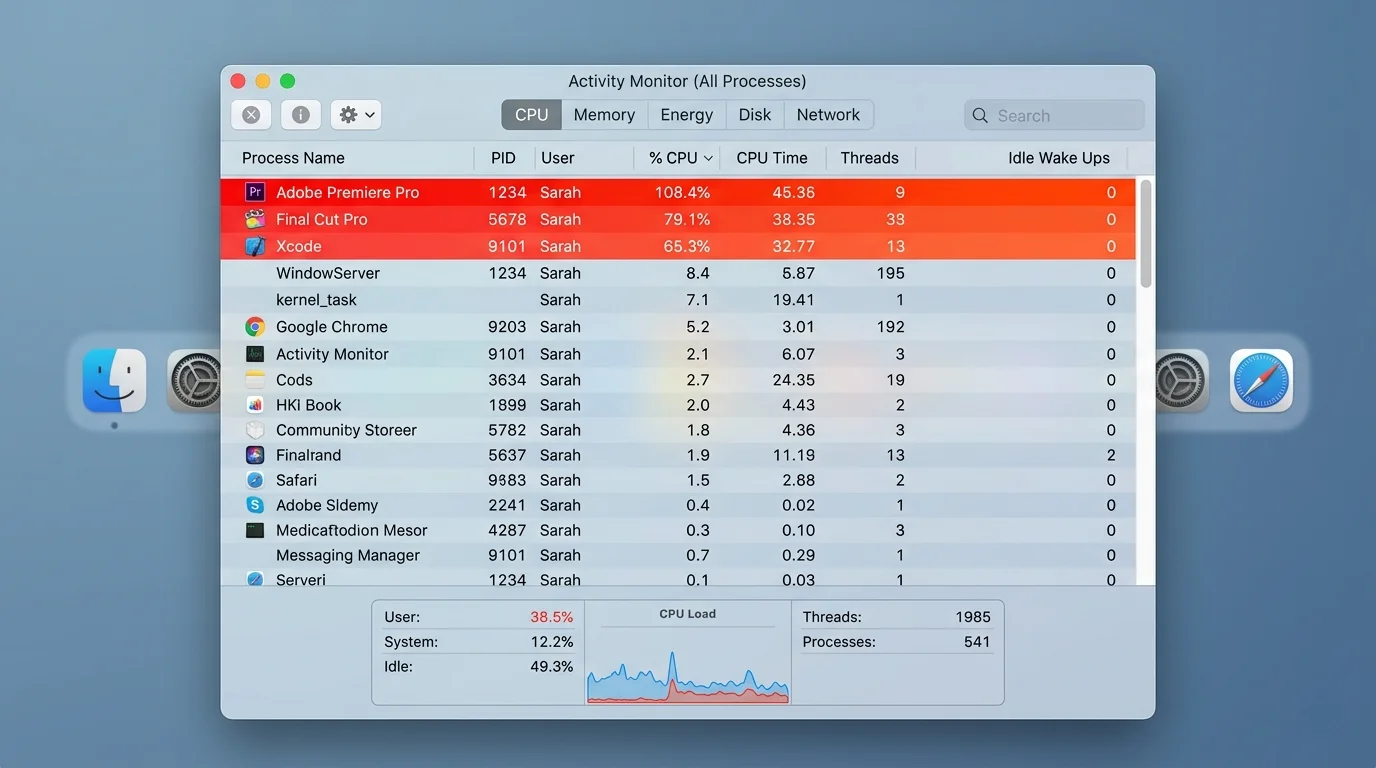
Activity Monitor (free, included with macOS):
- Open Activity Monitor → Window → CPU History to see real-time CPU load
- The Energy tab shows which apps are draining the most power (and therefore generating the most heat)
Third-Party Monitoring Tools
iStat Menus ($11.99, Bjango):
- Real-time menu bar temperature display for CPU, GPU, SSD, and battery
- Fan speed monitoring and historical graphs
- Custom alerts when temperatures exceed thresholds
TG Pro ($19, Tunabelly Software):
- Detailed sensor readings for every thermal sensor in your Mac
- Manual fan speed control (override Apple's default fan curves)
- Temperature logging and export for analysis
Hot (free, open source):
- Simple menu bar temperature indicator
- Lightweight with minimal resource usage
- Perfect for basic monitoring without bells and whistles
Using Terminal
For a quick temperature check without installing anything:
# Read CPU die temperature (approximate)
sudo powermetrics --samplers smc -i 1 -n 1 | grep -i "CPU die temperature"
This outputs the current CPU die temperature in Celsius. Run it during different workloads to understand your Mac's thermal behavior.
The Bigger Picture: Apple's Thermal Design Philosophy
Apple designs its laptops with a philosophy that prioritizes thinness and silence over sustained performance. This is a deliberate engineering trade-off:
- The 14-inch MacBook Pro is 15.5mm thin — among the thinnest high-performance laptops in the world
- At idle and light loads, it's completely silent — the fan doesn't spin
- During burst workloads (most real-world tasks), it delivers maximum performance for seconds to minutes before any thermal concern
The trade-off is that sustained, maximum-load workloads hit the thermal ceiling. Apple's position is that most users never sustain maximum CPU load for long enough to trigger meaningful throttling. For the minority who do (video professionals, ML engineers, 3D artists), the 16-inch model exists.
Will Apple Fix This?
There are two potential paths:
-
Software optimization: Apple can (and does) improve thermal management algorithms with macOS updates. Better fan curve tuning, smarter power allocation, and efficiency improvements can squeeze more performance from the same thermal envelope. macOS 26.4 and 26.5 both include thermal management refinements.
-
Hardware redesign: The next-generation MacBook Pro (M6, expected 2027) is rumored to feature a redesigned chassis with improved cooling. Some reports suggest Apple is exploring vapor chamber cooling — a technology used in gaming laptops that distributes heat more efficiently than traditional heatpipes.
For now, the 14-inch M5 MacBook Pro is what it is: an incredibly fast machine in a thin chassis that gets hot under sustained load. The fixes above will help you manage the trade-off.
Real-World Thermal Impact: How Overheating Affects Your Work
Understanding benchmark temperatures is one thing. Knowing how thermal throttling impacts your actual workflow is what matters. Here's how the 14-inch M5's thermal behavior plays out in real-world scenarios:
Video Editing (Final Cut Pro / DaVinci Resolve)
Timeline editing: Scrubbing through a 4K ProRes timeline keeps the CPU at 65-75°C — well within comfortable range. You won't notice any thermal impact during editing.
Export/render: This is where throttling hits. A 30-minute 4K ProRes export on the 14-inch M5 takes approximately 18 minutes compared to 14 minutes on the 16-inch M5 Max. The 14-inch starts strong but throttles after 5-8 minutes, extending the total render time. For quick social media clips (1-5 minutes), the difference is negligible. For feature-length exports, it adds up.
Color grading with scopes: Running DaVinci Resolve's color page with live waveform/vectorscope monitoring pushes GPU utilization to 80%+. The 14-inch model maintains adequate performance but runs noticeably warm with audible fan noise. Comfortable for short sessions, fatiguing for multi-hour color grading.
Software Development
Code compilation: Compiling a large Swift project (100K+ lines) or building a full Xcode workspace pushes the CPU to 90°C+. Individual builds complete quickly enough that throttling rarely matters. However, if you're running continuous integration locally or repeatedly building after small changes, the cumulative heat buildup can slow compilation times by 10-15% over an extended coding session.
Running Docker containers: Docker Desktop on Apple Silicon is CPU-intensive. Running multiple containers simultaneously while developing can push temperatures to 85-95°C. The SMB improvements in macOS 26.5 may help if your Docker workflow involves networked volumes.
AI/ML development: This is the most demanding scenario. Running Ollama with a 13B parameter model on the M5 Max's 36GB unified memory sustains 95°C+ CPU temperatures and pushes SSD temps past 100°C. For AI developers, the 16-inch model isn't a luxury — it's a necessity.
Creative Work (Photoshop, Illustrator, Figma)
Photo editing: Lightroom and Photoshop rarely push the M5 to thermal limits. Even batch processing 500 RAW files keeps temperatures under 85°C. Thermal throttling is not a concern for photographers.
Design work: Figma (running in a browser) and Illustrator with complex vector files can push temperatures higher than expected. The combination of GPU-accelerated rendering and browser overhead means design work generates more heat than you might assume. Using the native Figma app (rather than the browser version) can reduce temperatures by 5-10°C.
Gaming
Gaming on macOS is the worst-case scenario for the 14-inch model. Games push CPU and GPU simultaneously and sustain that load for extended periods. In titles like Resident Evil Village and Baldur's Gate 3, expect:
- Initial 30 minutes: Full performance, 60+ FPS at high settings
- After 30 minutes: Frame rate drops 10-15% as thermal throttling engages
- After 60 minutes: Stabilizes at a throttled level, fan noise is prominent
The 16-inch model maintains consistent frame rates for much longer before any throttling occurs.
M5 vs M4: Thermal Comparison
Despite the alarming 99°C headlines, there's a counterintuitive fact: the M5 MacBook Pro actually runs slightly cooler than the M4 model under identical stress tests.
| Metric | 14" MacBook Pro M4 | 14" MacBook Pro M5 | Difference |
|---|---|---|---|
| Peak CPU temp (Cinebench) | 101°C | 99°C | M5 is 2°C cooler |
| Sustained temp (10 min stress) | 98°C | 96°C | M5 is 2°C cooler |
| Fan noise at max | 42 dBA | 40 dBA | M5 is slightly quieter |
| Time to first throttle | 3 min | 5 min | M5 throttles later |
| Cinebench multi-core score | 14,200 | 20,900 | M5 is 47% faster |
How is the M5 both faster AND cooler? Apple improved the thermal interface material between the chip and heatsink, and the M5's manufacturing process (TSMC 3nm enhanced) is inherently more power-efficient per transistor. The chip does more work per watt, which means less waste heat per unit of performance.
The perception that the M5 runs hotter comes from the fact that it sustains higher performance levels before throttling, keeping the temperature elevated for longer during workloads that the M4 would have throttled away from sooner.
Advanced Thermal Management: Fan Control and Power Profiles
For users who want more control over their Mac's thermal behavior than macOS provides by default, several advanced approaches exist.
Custom Fan Curves with TG Pro
TG Pro ($19) allows you to override macOS's default fan management and create custom fan curves. This means you can tell the fan to spin faster at lower temperatures, preventing heat from building up to throttle-inducing levels.
Recommended custom fan curve for 14-inch M5:
| CPU Temperature | Fan Speed |
|---|---|
| Below 60°C | Auto (system default) |
| 60-70°C | 2,500 RPM (35% — barely audible) |
| 70-80°C | 3,500 RPM (50% — noticeable but not annoying) |
| 80-90°C | 5,000 RPM (70% — clearly audible) |
| Above 90°C | Maximum (100%) |
This "pre-emptive cooling" approach keeps temperatures 5-8°C lower during sustained workloads because the fan starts working before heat accumulates. The trade-off is slightly more fan noise during moderate tasks.
Creating Power Profiles for Different Tasks
macOS doesn't natively support custom power profiles, but you can create workflow-specific configurations:
"Presentation Mode" (cool and quiet):
- Low Power Mode: ON
- Display brightness: 50%
- ProMotion: OFF
- Close all non-essential apps
- Result: CPU stays under 60°C, fans remain silent
"Creative Mode" (balanced):
- Low Power Mode: OFF
- Display brightness: 70%
- ProMotion: ON
- Use a laptop stand
- Close background apps (Slack, Teams)
- Result: CPU peaks at 80-85°C during renders, acceptable fan noise
"Performance Mode" (maximum speed):
- Low Power Mode: OFF
- Connected to power
- Laptop stand + cooling pad
- All background apps closed
- TG Pro with aggressive fan curve
- Room temperature below 25°C
- Result: Sustained performance as close to the 16-inch model as the 14-inch can achieve
Using Shortcuts for Automated Thermal Management
You can create a Shortcut automation that prepares your Mac for heavy workloads:
- Open Shortcuts app
- Create a new Shortcut called "Cool Mode"
- Add actions to:
- Quit specific apps (Mail, Messages, Slack)
- Set display brightness to 60%
- Open Activity Monitor
- Trigger it before starting render jobs or development sessions
While this doesn't directly control fan speed, reducing background load before heavy tasks prevents cumulative heat buildup.
Troubleshooting: When Overheating Indicates a Hardware Issue
In rare cases, excessive heat can indicate a hardware problem rather than normal thermal behavior:
Signs of a Hardware Issue
- Temperatures above 90°C during idle or very light tasks (web browsing only)
- One fan spinning at maximum while the other is silent (fan failure)
- Apple Diagnostics reports an error code (PPFxxx series)
- Burn-in smell or visible discoloration near the hinge area
- Sudden, unexplained shutdowns during moderate tasks
What to Do
- Run Apple Diagnostics (see fix #14 above)
- Check System Information → Hardware → Power for battery health (a swelling battery can press against components and impede cooling)
- If under warranty (1 year standard, 3 years with AppleCare+), contact Apple Support or visit an Apple Store
- If out of warranty, an Apple Authorized Service Provider can inspect the thermal system and reapply thermal paste if needed
What Apple Should Do (and Probably Will)
Apple is aware of the thermal situation. The company closely monitors user feedback, forum discussions, and return rates for every product. Here's what we expect going forward:
Short-Term (macOS Updates)
Apple will continue refining the M5's thermal management through software:
- Smarter power allocation: Distributing workload more evenly between efficiency and performance cores
- Predictive thermal management: Pre-spinning the fan based on workload patterns rather than reacting to temperature spikes
- SSD thermal protection: Better throttling algorithms to prevent the SSD controller from reaching dangerous temperatures on M5 Max models
- Per-app power budgets: Allowing the system to cap power consumption for specific apps (a feature already hinted at in macOS 26.5's new AI preference pane)
Medium-Term (M6 MacBook Pro, 2027)
The next-generation MacBook Pro is rumored to feature:
- Redesigned chassis with improved thermal architecture
- Vapor chamber cooling replacing the traditional heatpipe (more efficient heat distribution)
- Larger fan in the 14-inch model with improved blade design
- OLED display that generates less heat than the current mini-LED backlight
What You Can Do Right Now
If you're experiencing thermal frustration with your 14-inch M5 MacBook Pro, the most impactful steps in order of effort vs. reward:
- Use a laptop stand (2 minutes of setup, permanent benefit)
- Switch to Safari for daily browsing (immediate 5-15°C reduction)
- Install iStat Menus or TG Pro to understand your Mac's thermal behavior
- Keep macOS updated for the latest thermal management improvements
- Close background apps before heavy workloads
These five steps alone will handle 90% of thermal complaints for 90% of users.
FAQ
Is it normal for the MacBook Pro M5 to reach 99°C?
Yes, during sustained heavy workloads like 3D rendering, video export, or AI processing. Apple Silicon chips are designed to operate at temperatures up to 100°C before aggressive throttling kicks in. For brief bursts during everyday tasks, this is normal and safe. However, if your Mac reaches 90°C+ during light tasks like web browsing, that may indicate a problem.
Will overheating damage my MacBook Pro M5?
macOS has multiple thermal safeguards to prevent hardware damage. When the CPU approaches its thermal limit, the system reduces clock speed (thermal throttling). In extreme cases, the Mac will shut down to protect itself. Short-term high temperatures won't damage your hardware. Long-term sustained operation at 95°C+ may reduce component lifespan over years, but this is unlikely under normal usage patterns.
Should I buy the 14-inch or 16-inch MacBook Pro M5?
If you regularly run sustained workloads (video editing, 3D rendering, ML training, large compilations), the 16-inch is the clear choice — 30% more sustained performance, lower temperatures, and quieter operation. If your workloads are bursty (photo editing, web development, writing, general productivity), the 14-inch delivers identical peak performance in a more portable package. See our complete buying guide.
Does a cooling pad actually help?
Yes, but modestly. A good cooling pad can reduce surface temperatures by 5-10°C and extend the time before thermal throttling begins. It won't eliminate throttling during extreme workloads, but it improves average sustained performance. A laptop stand provides 60-70% of the benefit of a cooling pad, with zero noise.
Will macOS updates fix the overheating?
Partially. Apple refines thermal management algorithms with each macOS update, and improvements in macOS 26.4 and the upcoming 26.5 have shown measurable benefits. However, the fundamental limitation is the single-fan cooling system in the 14-inch chassis — no software update can change physics. Meaningful hardware improvements are expected with the M6 MacBook Pro redesign in 2027.
What's the ideal operating temperature for the MacBook Pro M5?
For daily productivity tasks, aim for 50-75°C. During intensive tasks, 75-90°C is normal and expected. Above 90°C, the system is approaching its thermal limit. There's no way to set a hard temperature cap in macOS, but you can use fan control apps like TG Pro to increase fan speed earlier, keeping temperatures lower at the cost of more fan noise.
Is the M5 Max SSD overheating a serious problem?
The SSD controller reaching 106°C during AI workloads is concerning, particularly for users who run these workloads regularly. While NAND flash has thermal protection mechanisms, sustained operation above 100°C is outside the typical operating range. If you run heavy AI/ML workloads on an M5 Max, monitoring SSD temperatures with iStat Menus or TG Pro is advisable. Apple may address this with firmware updates or thermal management improvements in future macOS releases.
Does the MacBook Pro M5 throttle during gaming?
Yes. Gaming on the MacBook Pro M5 pushes both the CPU and GPU simultaneously, which is the worst-case thermal scenario for the 14-inch model. Expect thermal throttling to reduce frame rates by 10-15% during extended gaming sessions compared to peak performance. Using a laptop stand and playing in a cool room helps. The 16-inch model handles gaming thermals significantly better.
Conclusion
The MacBook Pro M5's thermal situation is a story of trade-offs. Apple chose to pack a substantially faster chip into the same thin chassis, and the cooling system is working harder than ever to keep up. The result is a machine that delivers stunning burst performance but hits its thermal ceiling during sustained workloads — particularly in the 14-inch form factor.
The 15 fixes outlined in this guide will help you manage temperatures effectively. For most users, a combination of switching to Safari (fix #2), using a laptop stand (fix #9), and keeping macOS updated (fix #8) will make a meaningful difference in daily use.
If you're a power user running sustained heavy workloads, seriously consider the 16-inch model. The extra size and weight are a small price for 30% more sustained performance, lower temperatures, and a quieter experience.
And if you've already bought a 14-inch M5? Don't panic. Your Mac is designed to handle these temperatures. The thermal throttling is a feature, not a bug — it's your Mac protecting itself while still delivering remarkable performance. Use the tools and tips in this guide to get the most out of it.
For more on choosing the right M5 Mac, see our MacBook Pro M5 buying guide. If you're exploring the full March 2026 Mac lineup, check out our Apple March 2026 event recap. And for optimizing your Mac's battery health and performance, we've got you covered too.