Apple Intelligence Grayed Out or Not Available on Mac? Fix It
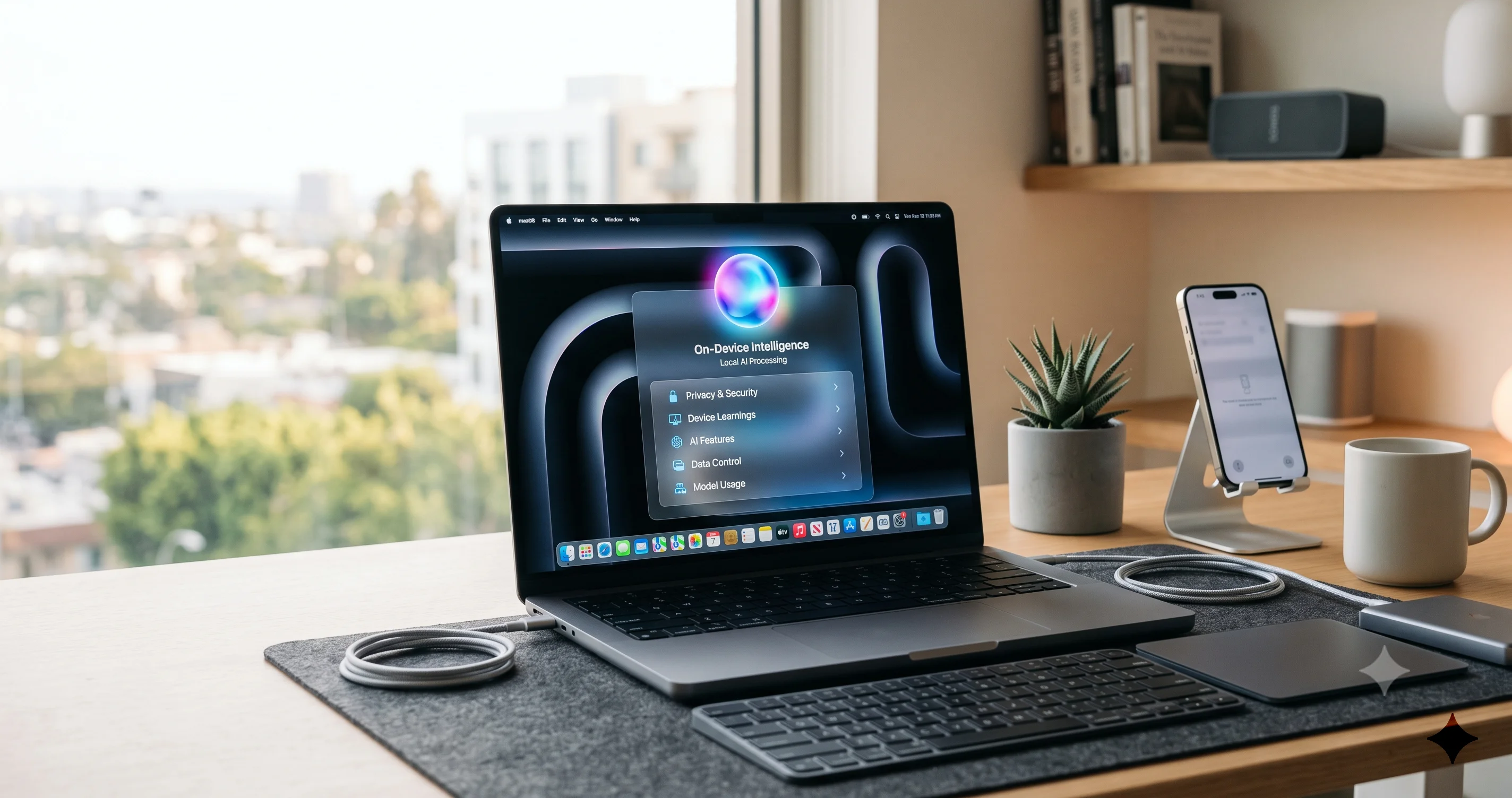
Apple Intelligence missing, grayed out, or stuck on Preparing on your Mac? Fix region, language, storage, and waitlist issues to enable it on macOS.
You updated your Mac, opened System Settings, and went looking for the shiny new AI features everyone is talking about, only to find that Apple Intelligence is either completely missing, dimmed out so you cannot tap it, or stuck forever on a spinning "Preparing" message. If that sounds familiar, you are not alone. With the macOS 27 public beta rolling out in July 2026 and a fresh wave of on-device AI features arriving, more people than ever are trying to switch Apple Intelligence on for the first time, and running straight into a wall.
The frustrating part is that "Apple Intelligence not available on Mac" is not a single problem with a single cause. It is a symptom that can come from at least a dozen different underlying issues: an unsupported Intel chip, an outdated version of macOS, the wrong language or region setting, a device that is not signed into an Apple Account, a work profile that quietly blocks the feature, or simply a model download that has not finished yet. Each of those has its own fix, and applying the wrong fix wastes time you could spend actually using the feature.
This guide walks through every reason Apple Intelligence shows up grayed out, missing, or stuck on your Mac, and gives you the exact fix for each one. We will go in the order that resolves the most cases fastest, starting with the hardware check that accounts for the single largest share of "not available" reports, then moving through software, language and region, sign-in and storage, and finally the managed-device restrictions that catch a lot of people using company or school Macs. Work through the steps in sequence and, in the vast majority of cases, you will have Apple Intelligence enabled and downloading by the end.
Key Takeaways
- Apple Intelligence requires an Apple Silicon Mac (M1 or newer). Intel-based Macs cannot run it at all, and this is by far the most common reason it appears "not available." On macOS 27, the operating system itself is Apple-Silicon-only.
- Your macOS version, language, Siri language, and Region all have to line up. Apple Intelligence needs a recent enough macOS plus a supported primary language, Siri language, and device Region set in System Settings.
- After you enable it, models download in the background. Seeing "Preparing" or a waitlist for a while is normal. It needs Wi-Fi, power, free storage (roughly several GB), and Low Power Mode turned off to finish.
- Work and school Macs can block Apple Intelligence entirely. Mobile Device Management (MDM) profiles and Screen Time content restrictions can hide or gray out the setting with no obvious explanation.
- Most stuck states clear with a simple reset. Signing out and back into your Apple Account, toggling Siri, freeing storage, or restarting the Mac resolves the majority of "Preparing" and waitlist hangs.
Why Apple Intelligence Is Missing or Grayed Out
Before you start changing settings, it helps to understand the handful of gates that stand between your Mac and a working Apple Intelligence setup. Every "not available" or grayed-out case traces back to one of these, and knowing which gate you are stuck at saves you from trying fixes that do not apply.
1. Hardware. Apple Intelligence runs its models on-device using the Neural Engine in Apple Silicon. That means it needs an Apple Silicon chip, meaning M1 or newer. If your Mac has an Intel processor, Apple Intelligence will never appear, no matter what else you change. On macOS 27, this is a non-issue in the sense that the OS only installs on Apple Silicon anyway, but plenty of people are still on older machines or older versions of macOS where an Intel Mac shows the setting missing.
2. Software. Apple Intelligence first launched on macOS Sequoia 15.1. If you are on an older release, the feature simply does not exist yet in your version of macOS. By macOS Tahoe 26 and macOS 27 it is built in, so keeping your Mac updated removes this gate entirely.
3. Language and Region. Apple gates Apple Intelligence behind your device's primary language, your Siri language, and your device Region. Historically the feature required these to be set to a supported combination (it began with English for the United States), and support has broadened over time to cover more English locales and additional languages. If any of these three settings is on an unsupported value, the toggle can be missing or greyed.
4. Account and setup state. You need to be signed into an Apple Account. A device that skipped iCloud sign-in, or one caught in a half-finished setup state, can hide or disable Apple Intelligence until you complete sign-in.
5. Download and resources. Even after you flip the switch, the actual AI models have to download. Low storage, Low Power Mode, no Wi-Fi, or being unplugged can pause that download and leave you staring at "Preparing" or a waitlist message indefinitely.
6. Restrictions. On a Mac managed by an employer or school, an administrator can disable Apple Intelligence through an MDM profile. Screen Time content restrictions can do the same on a personal Mac. In both cases the setting is typically greyed out, sometimes with a small note explaining that it is managed.
The rest of this guide takes those gates in order. Start at Step 1 and only move on once each check passes.
One more thing worth setting expectations on before you dive in: the order of these gates is deliberate. There is no point in fiddling with language and region settings if your Mac has an Intel chip, and no point in chasing a stuck download if a work profile is blocking the feature outright. Each step below is designed to fail fast, meaning it tells you quickly whether that particular gate is your problem so you can either fix it and move on or rule it out and continue. If you are the impatient type who wants to skip ahead, the two checks that resolve the most cases are the Apple Silicon check in Step 1 and the language, Siri language, and Region alignment in Step 3, so start there if you must, but do come back and read the rest if those do not solve it.
Step 1: Confirm Your Mac Can Run It
This is the first thing to check because it accounts for more "Apple Intelligence not available on Mac" reports than every other cause combined. Apple Intelligence requires Apple Silicon, which is Apple's own chip family: M1, M2, M3, M4, and their Pro, Max, and Ultra variants, plus whatever newer generations ship alongside macOS 27. Intel-based Macs, meaning any Mac sold with an Intel processor, are not supported and never will be. There is no setting, workaround, or update that adds Apple Intelligence to an Intel Mac. The Neural Engine hardware it depends on is not present.
Here is how to check which chip your Mac has:
- Click the Apple menu in the top-left corner of the screen.
- Choose About This Mac.
- Look at the Chip line. If it says something like "Apple M1," "Apple M2 Pro," "Apple M3," or "Apple M4," you have Apple Silicon and you can run Apple Intelligence. If it says "Processor" followed by an Intel model (for example "2.6 GHz 6-Core Intel Core i7"), your Mac is Intel-based and cannot run the feature.
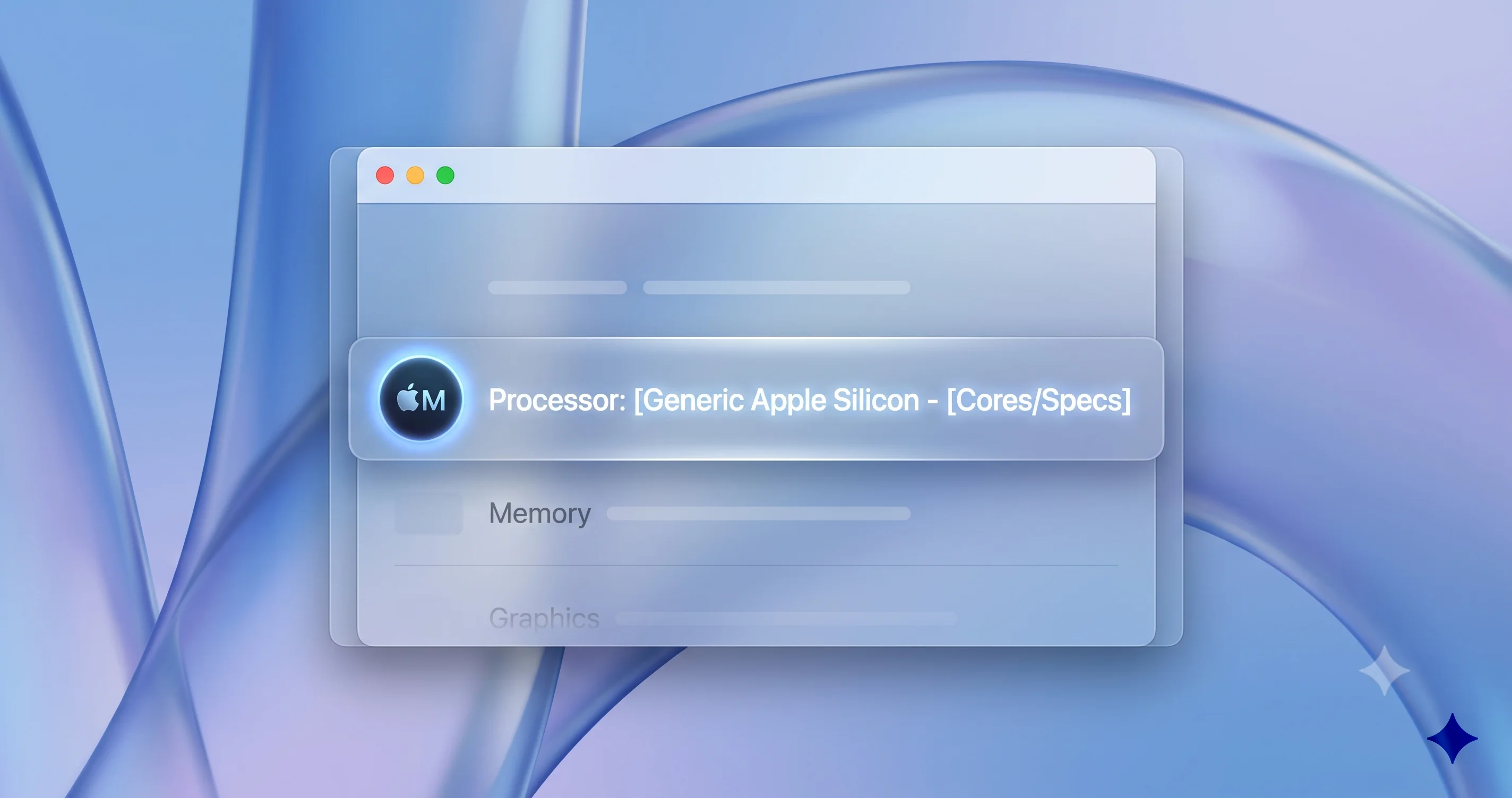
If you are on macOS 27, you already have Apple Silicon, because macOS 27 does not install on Intel Macs. That does not automatically mean every Apple Intelligence feature is available to you, though. There is an important nuance worth understanding here.
While the baseline of Apple Intelligence runs on any M1-or-newer Mac, some of the more advanced on-device features are reported to need more unified memory or a newer chip generation. The reasoning is that larger on-device models require more RAM to hold in memory, so machines with more unified memory can run capabilities that lighter-spec machines cannot. Apple has not published a single simple table that maps every feature to an exact gigabyte figure, and the requirements have shifted as the models have evolved, so treat any specific number you see as reported rather than gospel. If you have an M1 with a modest amount of memory, expect the core experience to work while a handful of the newest, heaviest features may be limited. If you want to dig into exactly which Macs get the full experience versus a reduced set, our guide on which Macs get the full Siri AI experience breaks down the reported chip and memory tiers in detail and covers the supported models across the Mac lineup.
The takeaway for this step: if About This Mac shows an Intel processor, stop here, because no amount of troubleshooting will enable Apple Intelligence, and consider that a full Apple Intelligence experience is one of the strongest reasons to move to an Apple Silicon Mac. If it shows Apple Silicon, continue to Step 2.
Step 2: Update macOS
Once you have confirmed you are on Apple Silicon, the next gate is your macOS version. Apple Intelligence did not exist before macOS Sequoia 15.1. If your Mac is running an older release, the feature is simply not part of the operating system yet, which is why the setting is nowhere to be found. On macOS Tahoe 26 and macOS 27, Apple Intelligence is built in, and staying current also ensures you have the latest models, bug fixes, and expanded language and region support.
Updating is the single most reliable way to make a missing Apple Intelligence setting appear, because Apple frequently expands availability, adds languages, and fixes enablement bugs in point releases. Here is how to update:
- Open the Apple menu and choose System Settings.
- In the sidebar, click General.
- Click Software Update.
- Wait for your Mac to check for updates. If one is available, click Update Now or Upgrade Now.
- Let the download and installation finish. Your Mac will restart one or more times.
A few things to keep in mind while updating:
- Plug in and connect to Wi-Fi. Large macOS updates will not install on battery power in some cases, and the download can be several gigabytes.
- Leave enough free storage. A major update needs a meaningful chunk of free space to download and install. If your disk is nearly full, the update can fail or stall. We cover freeing space in Step 4.
- Consider whether you want the beta. As of July 2026, macOS 27 is available as a public beta. If you are trying Apple Intelligence features that are specific to macOS 27 and you are comfortable running pre-release software, you can enroll in the beta. Betas can be less stable, so back up first. If you decide to go that route, follow our walkthrough on how to install the macOS 27 public beta safely so you do not lose data or end up unable to roll back.
After the update completes and your Mac restarts, open System Settings and look for Apple Intelligence & Siri in the sidebar. If it now appears and is tappable, great, move on to enabling it in Step 4. If it appears but is grayed out, or still does not appear at all, the problem is most likely language, region, sign-in, or a restriction, which the next steps address.
Step 3: Set Language, Siri Language & Region
This is the step that trips up the largest number of people who have the right hardware and an up-to-date Mac but still cannot enable Apple Intelligence. Apple ties availability to three separate settings that all have to be on a supported value at the same time: your Mac's primary language, your Siri language, and your device Region. If any one of them is set to something Apple Intelligence does not yet support, the feature can be missing or dimmed.
Historically, Apple Intelligence launched with support only for English as used in the United States. Over the months that followed, Apple expanded support to additional English locales such as Australia, Canada, Ireland, New Zealand, South Africa, and the United Kingdom, and then to more languages including localized variants of Chinese, French, German, Italian, Japanese, Korean, Portuguese, Spanish, and others. The exact list keeps growing with each macOS release, so rather than trusting a fixed list, the reliable approach is to set your language, Siri language, and Region to a combination you know is supported, confirm the feature appears, and check Apple's current supported-language documentation if your preferred language is not yet listed. If you rely on multiple languages day to day, our Apple Intelligence multi-language features guide explains how the language settings interact and which combinations unlock which capabilities.
Set your primary language
- Open System Settings and click General in the sidebar.
- Click Language & Region.
- Under Preferred Languages, make sure a supported language, for example English (United States), is at the top of the list. The language at the top is your primary language.
- If you need to add one, click the Add button (the plus), choose the language, and drag it to the top.
- If prompted to restart to change the language, do so.
Set your Region
- Still in Language & Region, find the Region dropdown.
- Set it to a supported country or area that matches a region where Apple Intelligence is available.
- Note that region availability has been staggered historically. Some regions, such as parts of the European Union, saw delays before Apple Intelligence arrived, and mainland China had its own separate timeline tied to a local partnership. These situations evolve, so if your region has not had it before, an update plus a supported Region setting is the thing to try. Do not assume a region is permanently excluded.
Set your Siri language
- Go back to the top level of System Settings and open Apple Intelligence & Siri (on some versions this is under Siri & Spotlight).
- Find the Language setting for Siri.
- Set it to a supported language that matches your primary language and region. A common source of a grayed-out Apple Intelligence is a Siri language that does not match a supported Apple Intelligence language, so aligning all three, primary language, Region, and Siri language, is the key move here.
After setting all three, give your Mac a moment, and if the Apple Intelligence setting was grayed out, check whether it becomes tappable. Sometimes a restart is needed for the change to register. If the language and region are all supported and aligned but the setting is still dimmed, move on, because the cause is more likely sign-in state or a restriction.
Step 4: Sign In, Free Storage, and Enable It
With the hardware, software, language, and region gates cleared, you are ready to actually turn Apple Intelligence on. Two prerequisites matter here: you must be signed into an Apple Account, and you must have enough free storage for the models to download.
Make sure you are signed into your Apple Account
Apple Intelligence requires an Apple Account (formerly called an Apple ID) to be signed in on the Mac. If you skipped sign-in during setup, the feature can be hidden or disabled.
- Open System Settings.
- At the very top of the sidebar, check whether your name and account appear. If you see Sign in instead, click it and sign in with your Apple Account.
- If you are already signed in but Apple Intelligence is behaving strangely, a sign-out and sign-in can clear a stuck state. Scroll to the bottom of your account panel, choose Sign Out, restart, and sign back in.
Free up storage for the models
The Apple Intelligence models are downloaded to your Mac and stored locally. That download needs free space, roughly several gigabytes, and the system will not begin or complete it if your disk is too full. To check and free up space:
- Open System Settings, go to General, then Storage.
- Look at how much space is available. If you are down to a couple of gigabytes, you almost certainly need to clear room.
- Use the recommendations there to empty the Trash, remove large unused files, offload films and TV shows you have finished, or clear caches and old downloads.
Aim to leave a comfortable buffer beyond the download size, because macOS also needs working space for the update and for everyday operation. If storage was your bottleneck, freeing space often lets a stuck "Preparing" download resume on its own.
Turn on Apple Intelligence
- Open System Settings and select Apple Intelligence & Siri.
- Turn on the Apple Intelligence switch.
- Follow any on-screen prompts to set it up.

Here is what to expect after you flip the switch, because this is where a lot of people think something is broken when it is actually working normally. Depending on when you enable it and how busy Apple's servers are, you may see one of two things:
- A waitlist or "Join Waitlist" message. When Apple Intelligence first became broadly available, and at times of heavy demand, enabling it added you to a queue rather than starting immediately. You request access, then get a notification when you are cleared, usually within hours. This waitlist behavior has largely faded as availability expanded, but you may still encounter it, especially right after a major release like macOS 27 when many people are enabling it at once.
- A "Preparing" or downloading state. Once you are cleared, the models download in the background. This can take anywhere from a few minutes to several hours depending on your connection and how large the current model set is. During this time, features may be unavailable or partially available.
For the download to complete promptly, keep your Mac connected to Wi-Fi, plugged into power, and awake or at least not in Low Power Mode. If you set the switch and walk away with the lid closed on battery, the download will likely pause. Once it finishes, you will have full access to the feature set. To see what you can actually do with it once it is running, our complete Apple Intelligence feature guide for Mac walks through Writing Tools, image features, the redesigned Siri, and more.
Step 5: Check for Restrictions
If you have Apple Silicon, an up-to-date macOS, correct language and region, and you are signed in, but Apple Intelligence is still grayed out, the culprit is very often a restriction placed on the Mac. There are two kinds to check: managed-device (MDM) restrictions and Screen Time restrictions.
Managed devices (work and school Macs)
If your Mac was issued by an employer or school, or you enrolled it in a company program, it may be under Mobile Device Management. An administrator can use MDM to disable Apple Intelligence entirely, and when they do, the setting is typically grayed out, sometimes accompanied by a small note indicating the device is managed. To check:
- Open System Settings, go to General, then Device Management (it appears only if your Mac is enrolled in a profile).
- If you see a management profile from your organization, your IT department controls what features are allowed.
- There is no user-side override for an MDM restriction. If Apple Intelligence is blocked by your organization, you will need to ask your IT administrator to permit it, and they may have policy reasons for keeping it off. On a personally owned Mac, you would not normally see a management profile at all.
If you thought your Mac was personal but you do see a management profile you do not recognize, that is worth investigating separately, because it means some profile is installed that you may not have intended.
Screen Time content restrictions
On a personal Mac, Screen Time can hide or disable Apple Intelligence through its content and privacy restrictions. This catches people who set up Screen Time for a child account, or who turned on restrictions and forgot. To check:
- Open System Settings and click Screen Time.
- Look at Content & Privacy. If it is turned on, open it.
- Look through the restrictions for anything that would limit Apple Intelligence, Siri, or related features, and allow it.
- If Screen Time is protected by a passcode you do not know, for example on a managed child account, the person who set it up will need to make the change.
Between MDM and Screen Time, one of these is behind most cases where every other requirement is met but the setting stays stubbornly dimmed. Clear the restriction and the toggle should become available.
Still Stuck on "Preparing" or Waitlist?
Say you have done everything right, the switch is on, but it has been hours and Apple Intelligence is still saying "Preparing," still showing a waitlist, or the features just are not working. Here is a focused checklist to break the logjam, roughly in order of how often each one helps.
Confirm the basics for downloading. The model download is resource-sensitive. Make sure all of these are true at the same time:
- Your Mac is connected to Wi-Fi (a stable connection, not a captive-portal hotspot that keeps dropping).
- Your Mac is plugged into power.
- Low Power Mode is off. Go to System Settings, then Battery, and make sure Low Power Mode is not set to Always or On Battery in a way that keeps it active. Low Power Mode pauses background downloads including the AI models.
- You have enough free storage (revisit Step 4).
- Your Mac is awake, or at least not sleeping with the lid closed on battery for long stretches.
Give it genuine time. Right after a major release like the macOS 27 public beta, Apple's servers are under heavy load and both the waitlist and the model download can be slow. It is not unusual for the whole process to take several hours across a day. If everything above is set correctly, sometimes the fix is simply patience.
Toggle Siri or Apple Intelligence off and on. In System Settings, under Apple Intelligence & Siri, turn Apple Intelligence off, wait a moment, and turn it back on. Toggling Siri off and on can also nudge a stuck state loose. This forces the system to re-evaluate and often restarts a stalled download.
Sign out and back into your Apple Account. A stuck "Preparing" state is sometimes tied to an account hiccup. Sign out of your Apple Account, restart, and sign back in, then re-enable Apple Intelligence.
Restart the Mac. It sounds basic, but a full restart clears a surprising number of stuck download and enablement states. Do this before assuming something is genuinely broken.
Check your date and time and network. An incorrect system clock or a restrictive network (such as a corporate firewall or a VPN that blocks Apple's servers) can interfere with reaching Apple's services. Set date and time to update automatically, and try a different network if you can.
One more subtle cause worth ruling out: a paused download that never resumes because macOS deprioritized it. macOS treats the Apple Intelligence model download as a low-priority background task, which means it will happily defer it while you are doing bandwidth-heavy work, on a metered connection, or running low on battery. If you have left it "preparing" while streaming video, downloading large files, or working on cellular tethering all day, the system may simply have kept deferring it. Clear that competition, leave the Mac plugged in on a fast Wi-Fi network with the display on for an hour, and the download will usually catch up on its own.
If you run through all of that and Apple Intelligence still will not finish preparing after a full day of trying with everything set correctly, that is the point at which contacting Apple Support makes sense, because it may be an account-specific or server-side issue on Apple's end rather than something you can fix locally. When you do reach out, mention exactly which step you are stuck at, your Mac's chip and macOS version, and how long it has been preparing, because that detail helps them rule out the common causes quickly and get to the account-specific ones.
Troubleshooting Common Issues
Here are the specific scenarios people hit most often, framed as a problem and its fix, so you can jump straight to the one that matches you.
Problem: The Apple Intelligence & Siri setting does not appear in System Settings at all. Solution: This almost always means one of the hard requirements is not met. First confirm you are on Apple Silicon via Apple menu, then About This Mac, because an Intel Mac will never show it. Next confirm your macOS is recent enough by running Software Update, since versions before macOS Sequoia 15.1 do not include the feature. Finally, check that your primary language and Region are set to a supported combination. When the requirement is hardware, there is no fix other than moving to an Apple Silicon Mac.
Problem: The Apple Intelligence toggle is visible but grayed out and cannot be turned on. Solution: A visible-but-dimmed toggle usually points to a restriction or a mismatched setting rather than missing hardware. Check for an MDM management profile under General, then Device Management, since work and school Macs can block it. Check Screen Time content and privacy restrictions. Then confirm your Siri language matches a supported Apple Intelligence language and that your Region is supported. Aligning language, Siri language, and Region, or removing the restriction, typically makes the toggle active.
Problem: It is stuck on "Preparing" and never finishes. Solution: The download is being paused or blocked. Connect to Wi-Fi, plug in to power, turn off Low Power Mode, and free up storage so there are several gigabytes available. Then toggle Apple Intelligence off and on, or restart the Mac. If it is soon after a major release, expect it to take hours because of server load. Persistent failure after a full day with everything set correctly is worth a call to Apple Support.
Problem: Apple Intelligence worked, then disappeared or turned itself off after an update or restart. Solution: This is often a transient state after a macOS update re-downloads or re-verifies models, or a sign-in that dropped. Give it time to re-prepare, confirm you are still signed into your Apple Account, and check that a recent update did not change your Region or language. Signing out and back in, or toggling the feature, restores it in most cases. If it followed enrolling in a beta or a managed profile, re-check restrictions.
FAQ
Why is Apple Intelligence grayed out on my Mac? A grayed-out toggle usually means a restriction or a mismatched setting rather than missing hardware. Check for a work or school MDM profile under General, then Device Management, review Screen Time content restrictions, and make sure your Siri language and Region match a supported Apple Intelligence combination. Fixing whichever applies typically enables the toggle.
Does Apple Intelligence work on Intel Macs? No. Apple Intelligence requires an Apple Silicon chip, meaning M1 or newer, because it runs its models on the Neural Engine. Intel-based Macs cannot run it, and no update or workaround changes that. On macOS 27 the point is moot, since that version only installs on Apple Silicon Macs in the first place.
How long does Apple Intelligence take to download? It varies widely. After you enable it, the models download in the background, which can take anywhere from a few minutes to several hours depending on your connection speed and current server load. Right after a major release like the macOS 27 public beta, expect it to run slower because many people are downloading at once.
Why is it stuck on Preparing? "Preparing" means the models are still downloading, and something is likely pausing that download. Make sure your Mac is on Wi-Fi, plugged into power, not in Low Power Mode, and has several gigabytes of free storage. Toggling the feature off and on, or restarting, usually restarts a stalled download and lets it finish.
Can my work Mac block Apple Intelligence? Yes. A Mac managed by your employer or school through Mobile Device Management can have Apple Intelligence disabled by an administrator, in which case the setting appears grayed out, sometimes with a note that the device is managed. There is no user-side override; you would need to ask your IT department to permit the feature.
Which languages does Apple Intelligence support? It launched with English for the United States and has expanded over time to more English locales and additional languages such as Chinese, French, German, Italian, Japanese, Korean, Portuguese, and Spanish variants. The list keeps growing with each macOS release, so set your language, Siri language, and Region to a supported combination and check Apple's current supported-language documentation for the latest.
Conclusion
When Apple Intelligence shows up as not available, grayed out, or stuck on "Preparing," it feels like a dead end, but it is almost always one of a small number of well-understood gates standing in the way. Start by confirming your Mac is Apple Silicon, because an Intel processor is the single most common reason the feature never appears. Update macOS so the feature actually exists in your version and you have the latest availability expansions. Line up your primary language, Siri language, and Region on a supported combination. Sign into your Apple Account, free up several gigabytes of storage, and then enable it, giving the background download the Wi-Fi, power, and time it needs. Finally, if the toggle is dimmed despite everything else being right, check for MDM and Screen Time restrictions.
Work through those steps in order and you will resolve the overwhelming majority of "Apple Intelligence not available on Mac" situations. The timing matters too: with the macOS 27 public beta live in July 2026 and heavy demand on Apple's servers, a little patience during the download stage goes a long way.
Once you have it running, do not stop at flipping the switch. Explore what the feature can actually do, from the rebuilt, more conversational Siri on macOS 27 to camera-and-screen-aware tools like Visual Intelligence. Enabling Apple Intelligence is the hard part; getting real value out of it is the fun part. If you got stuck on a step above, revisit it slowly, because the fix is almost always hiding in a setting you have not checked yet.