macOS Ventura End of Support December 2025: Complete Migration Guide to Sequoia and Tahoe
macOS Ventura reaches end of support November 30, 2025. Comprehensive migration guide covering security risks, upgrade paths to Sequoia/Tahoe, compatibility checklist, backup strategies, and enterprise considerations. Updated December 2025.
Executive Summary
macOS Ventura (version 13) reached its end of support on November 30, 2025, following Apple's standard three-year support cycle. After this date, Ventura no longer receives security updates, leaving users vulnerable to cyber threats, compliance violations, and software incompatibility issues.
Critical Information:
- Release Date: October 24, 2022
- End of Support: November 30, 2025 (some institutions cite December 31, 2025)
- Last Security Update: macOS Ventura 13.7.8 (August 20, 2025)
- Supported Versions Now: macOS Tahoe (26), Sequoia (15), Sonoma (14)
This comprehensive guide provides everything you need to safely migrate from macOS Ventura to a supported operating system, including step-by-step upgrade instructions, compatibility requirements, backup best practices, and alternatives for older Macs.
Table of Contents
- Understanding Apple's Support Policy
- Security Implications of Running Unsupported macOS
- Which Macs Are Affected
- Migration Options: Sequoia vs Tahoe
- Pre-Upgrade Checklist
- Step-by-Step Migration Guide
- Data Backup Best Practices
- Enterprise Considerations
- What Happens After Support Ends
- Alternatives for Older Macs
- Preparation Timeline
- Frequently Asked Questions
Understanding Apple's Support Policy
How Apple Handles macOS End of Life
Apple typically provides security updates for the latest three macOS versions. While Apple doesn't officially publish end-of-life dates, the company follows a predictable three-year support pattern.

Current Support Status (December 2025):
| macOS Version | Version Number | Status | Release Date |
|---|---|---|---|
| macOS Tahoe | 26 | Fully Supported | September 15, 2025 |
| macOS Sequoia | 15 | Fully Supported | September 16, 2024 |
| macOS Sonoma | 14 | Fully Supported | September 26, 2023 |
| macOS Ventura | 13 | End of Life | October 24, 2022 |
| macOS Monterey | 12 | End of Life | October 25, 2021 |
Institutional End of Support Dates
Various organizations have established their own cutoff dates for Ventura support:
| Institution | End Date |
|---|---|
| Carnegie Mellon University SCS | November 30, 2025 |
| Harvard Medical School IT | December 31, 2025 |
| UCSF IT | November 1, 2025 |
Important Note: Even if some institutions allow Ventura through December 31, Apple stopped providing security updates after November 30, 2025.
Security Implications
Immediate Risks After Support Ends
Running an unsupported macOS version exposes your Mac to significant security vulnerabilities:

1. Security Vulnerabilities
Recent Critical Example - CVE-2025-43300:
| Aspect | Details |
|---|---|
| CVSS Score | 8.8 (Critical) |
| Target | Apple's ImageIO framework |
| Impact | Arbitrary code execution, privilege escalation |
| Status | Added to CISA Known Exploited Vulnerabilities |
| Exploitation | Actively exploited in targeted attacks |
Without security updates, vulnerabilities like this remain unpatched on Ventura systems indefinitely.
2025 Threat Landscape:
- 65 more vulnerabilities reported in 2025 compared to 2024
- Higher average CVE base scores indicate more severe threats
- Unsupported devices become prime targets for attackers
2. Compliance Failures
Running unsupported software can have serious legal and financial consequences:
GDPR Implications:
- Failure to implement "appropriate technical and organizational measures"
- Fines up to €20 million or 4% of annual global turnover
- Potential data breach liability
Cyber Insurance:
- Unsupported OS versions may invalidate coverage
- Claims could be denied if breach occurred on unpatched system
- Increased premiums for organizations with unsupported software
3. Software Compatibility Issues
After Ventura's end of support:
| Software | Status on Ventura |
|---|---|
| Pages, Numbers, Keynote | No updates |
| GarageBand | No updates |
| Safari | No updates after Tahoe release |
| Microsoft 365 | Requires macOS Sonoma as of September 2025 |
| Third-party apps | Developers dropping Ventura support |
What Protection Continues
Not everything stops working immediately:
XProtect Malware Definitions:
- Macs continue receiving periodic XProtect updates regardless of OS age
- XProtect Remediator available on macOS Monterey, Big Sur, and Catalina
- Updates delivered automatically based on threat intelligence
However, XProtect alone cannot compensate for unpatched OS vulnerabilities.
Which Macs Are Affected
Macs Running macOS Ventura
macOS Ventura supports Macs released between 2017 and 2022:
| Mac Model | Minimum Year |
|---|---|
| iMac | 2017 and later |
| iMac Pro | 2017 |
| MacBook Air | 2018 and later |
| MacBook Pro | 2017 and later |
| Mac Pro | 2019 and later |
| Mac mini | 2018 and later |
| MacBook | 2017 |
| Mac Studio | 2022 |
Macs That Cannot Upgrade to Sequoia (15)
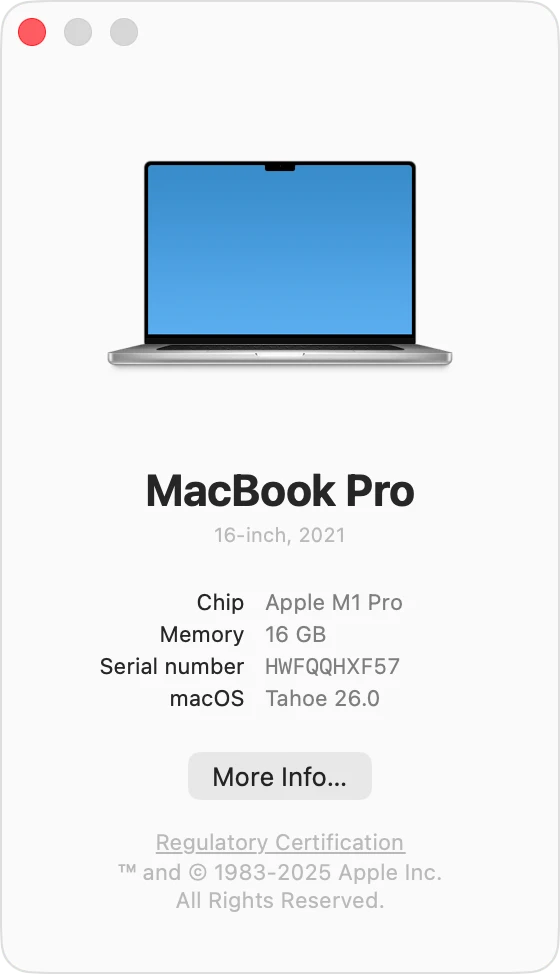
The following Macs running Ventura cannot upgrade to macOS Sequoia:
- MacBook Air (2018-2019 with Intel 8th-gen CPUs)
- Any Mac released before 2018
Macs That Cannot Upgrade to Tahoe (26)
The following Macs cannot upgrade to macOS Tahoe:
| Mac Model | Excluded Years/Models |
|---|---|
| MacBook Air | Retina, 13-inch, 2020 (Intel) |
| MacBook Pro | 13-inch, 2019, Two Thunderbolt 3 ports |
| MacBook Pro | 15-inch, 2019 |
| MacBook Pro | 13-inch, 2018 |
| MacBook Pro | 15-inch, 2018 |
| Mac mini | 2018 |
| iMac Pro | 2017 |
| iMac | 2019 and earlier |
Critical Note: macOS Tahoe is the final version supporting any Intel processors. Future macOS versions will require Apple Silicon exclusively.
Migration Options
Option A: Upgrade to macOS Sequoia (15)
Best for: Users who want stability with current-generation features.
Compatible Macs:
- MacBook Pro (2018 and later)
- MacBook Air (M1, 2020 and later)
- iMac (2019 and later)
- Mac mini (2018 and later)
- Mac Studio (2022 and later)
- Mac Pro (2019 and later)
- iMac Pro (2017)
Key Features:
- iPhone Mirroring
- Enhanced Safari with AI summaries
- Improved Passwords app
- Apple Intelligence support (Apple Silicon Macs)
Option B: Upgrade to macOS Tahoe (26)
Best for: Users with Apple Silicon Macs who want the latest features.
Compatible Macs:
- All Apple Silicon Macs (M1, M2, M3, M4, M5)
- MacBook Pro (16-inch, 2019) - Intel
- MacBook Pro (13-inch, 2020, Four Thunderbolt 3 ports) - Intel
- iMac (2020 and later)
- Mac mini (2020 and later)
- Mac Pro (2019 and later)
Key Features:
- Full Apple Intelligence integration
- Enhanced Siri with LLM capabilities
- Advanced privacy features
- Improved window management
Comparison: Sequoia vs Tahoe
| Aspect | Sequoia (15) | Tahoe (26) |
|---|---|---|
| Intel Support | Broader | Limited (final version) |
| Apple Intelligence | Partial | Full |
| Stability | Proven (1+ year) | New (first months) |
| Future Updates | 2 more years | 3 years |
| Recommendation | Conservative users | Early adopters |
Pre-Upgrade Checklist
Before upgrading, complete this comprehensive checklist:
Hardware Compatibility
- Verify Mac model supports target macOS version
- Click Apple menu > About This Mac
- Note model name and year
- Check printer driver availability for your printer model
- Verify external device compatibility (RAID, audio interfaces)
- Confirm monitor/display compatibility
Software Compatibility

- Check all business-critical applications
- Verify no 32-bit applications (not supported since Catalina)
- Update all App Store applications
- Check third-party software licenses
How to Check for 32-bit Apps:
# Using Terminal
system_profiler SPApplicationsDataType | grep -B 2 "64-Bit (Intel): No"
Or manually:
- Click Apple menu > About This Mac > System Report
- Scroll to Software > Applications
- Look at "64-bit (Intel)" column
- Apps with "No" will not work
Microsoft 365 Considerations
"As of September 2025, Microsoft 365 requires macOS Sonoma or later. Update Word, Excel, PowerPoint, Outlook, and OneNote before upgrading."
Storage Requirements
| macOS Version | Minimum Free Space | Recommended |
|---|---|---|
| macOS Sequoia | 25-35GB | 50GB+ |
| macOS Tahoe | 34-60GB | 75GB+ |
Best Practice: Maintain 20-25% of total drive capacity as free space.
Step-by-Step Migration Guide
Step 1: Check Your Mac Model
- Click the Apple menu
- Select About This Mac
- Note your Mac model and year
- Verify compatibility with your target macOS version
Step 2: Create a Complete Backup

Before making any changes:
- Connect an external drive (ideally 2x your Mac's storage capacity)
- Go to System Settings > General > Time Machine
- Select your backup disk
- Click Back Up Now
- Wait for backup to complete fully
Important: Do not proceed until backup verification is complete.
Step 3: Prepare Your System
Remove potential conflicts:
- Remove cleaning/optimizing applications
- Remove third-party antivirus software
- Disconnect VPN services
- Disable any kernel extensions
Run First Aid:
- Open Applications > Utilities > Disk Utility
- Select "Macintosh HD" from sidebar
- Click First Aid button
- Allow process to complete
Step 4: Update Your Apps
- Open Mac App Store
- Click Updates in toolbar
- Click Update All
- Check third-party apps for Sequoia/Tahoe compatibility
Step 5: Download and Install

- Go to System Settings > General > Software Update
- Click on the upgrade option (Sequoia or Tahoe)
- Click Upgrade Now
- Follow on-screen instructions
- Keep your Mac plugged in—it will restart multiple times
Estimated Time: 30 minutes to 2 hours depending on Mac model and storage speed.
Step 6: Post-Installation Verification
- Complete setup prompts
- Verify all applications work correctly
- Test hardware (printer, external drives, displays)
- Run another backup to capture new system state
Data Backup Best Practices
The 3-2-1 Backup Strategy
For maximum data protection, follow the industry-standard 3-2-1 rule:
- 3 copies of your data
- 2 different types of media
- 1 copy stored offsite (cloud or physical location)
Time Machine Backup
Requirements:
- External drive 2x the size of your Mac's storage
- APFS format recommended for improved performance
- Dedicated drive for Time Machine only
Setup Steps:
1. Connect external drive
2. System Settings > General > Time Machine
3. Select backup disk
4. Enable "Back Up Automatically"
Clone Backup Options
For bootable backups or complete system clones:
| Tool | Price | Key Features |
|---|---|---|
| Carbon Copy Cloner | $49.99 | Full clones, version history, ransomware protection |
| SuperDuper | Free/$27.95 | Simple clones, incremental updates |
Important for Apple Silicon Macs: Bootable clones are more complex on Apple Silicon. Both CCC and SuperDuper recommend "Standard Backup" rather than bootable clones.
Pre-Upgrade Backup Checklist
- Complete Time Machine backup
- Verify backup by browsing contents
- Create separate pre-upgrade backup on dedicated drive
- Document important settings and preferences
- Export browser bookmarks
- Sync important files to cloud storage
Enterprise Considerations
MDM Updates for 2025-2026
Declarative Device Management (DDM):
- Apple deprecated legacy MDM software update commands
- Will be completely removed in 2026
- Declarative software updates offer simpler, more efficient management
Key Enterprise Changes
MDM Migration Without Device Wipe:
- New in macOS Tahoe: migrate devices between MDM solutions without factory resets
- Uses Apple Business Manager as orchestration layer
- Administrators can set enrollment deadlines
Platform SSO Enhancements:
- "Simplified Setup for Platform SSO" in macOS Tahoe
- Can be set up as first required step during enrollment
Enterprise Pre-Deployment Checklist
- Test OS in controlled environments before mass rollout
- Verify VPN configurations
- Check application compatibility (especially legacy/industry-specific)
- Audit MDM profiles
- Update declarative update schedules
- Review privacy controls
- Plan hardware lifecycle (Intel vs Apple Silicon)
Compliance Considerations
| Concern | Recommendation |
|---|---|
| Cyber Insurance | Document upgrade timeline |
| GDPR | Ensure security measures in place |
| Industry Regulations | Verify compliance requirements |
| Audit Trail | Maintain records of update decisions |
What Happens After Support Ends
Immediate Impact
| Category | Effect |
|---|---|
| Security Patches | None - vulnerabilities remain unpatched |
| Bug Fixes | None - system issues will not be resolved |
| Technical Support | Apple will not troubleshoot Ventura issues |
Software Ecosystem Impact
Apple Apps:
- No updates to Pages, Numbers, Keynote, GarageBand
- Safari will not receive updates
Third-Party Apps:
- Developers dropping Ventura support
- New app versions may not install
What Continues to Work
| Component | Status |
|---|---|
| XProtect | Malware definitions continue |
| Firefox | Supports Catalina and later |
| Brave/Opera | Supports Big Sur and later |
| Chrome/Edge | Supports Monterey and later |
| Existing Apps | Continue working until compatibility breaks |
Risk Timeline
| Period | Risk Level | Description |
|---|---|---|
| 1-6 months | Increasing | Some app incompatibilities, growing security risks |
| 6-12 months | High | Major app updates unavailable, significant exposure |
| 12+ months | Critical | Widespread vulnerabilities, major compatibility issues |
Alternatives for Older Macs
Option 1: OpenCore Legacy Patcher (OCLP)
For Macs that can't officially upgrade to newer macOS versions:
What It Is:
- Open-source tool allowing older Macs to run newer macOS
- Supports Macs from 2008 or later
- Enables Big Sur, Monterey, Sonoma, and Sequoia (beta)
How It Works:
- Uses OpenCore bootloader
- Injects patches to overcome compatibility hurdles
- Patches system files for graphics, Wi-Fi, sound
- Enables OTA (Over-the-Air) updates
Limitations:
- Not officially supported by Apple
- Does not support PowerPC or Apple Silicon
- USB drive recommended for major OS upgrades
- Some features may not work perfectly
Website: OpenCore Legacy Patcher
Option 2: Continue Running Ventura
If you must stay on Ventura, implement mitigation strategies:
| Strategy | Implementation |
|---|---|
| Third-Party Security | Install reputable security software |
| Browser Updates | Use Firefox, Brave, or Chrome |
| Network Security | Implement firewall, use VPN |
| Sensitive Activities | Avoid banking, sensitive transactions |
| Regular Scans | Run malware scans weekly |
Option 3: Replace Hardware
When to Consider:
- Mac is more than 7 years old
- Hardware showing signs of failure
- Business-critical security requirements
- Need Apple Intelligence features
Cost-Benefit Analysis: Replacing hardware is often more cost-effective than:
- Productivity loss from security incidents
- Compliance fines
- Insurance claim denials
- Manual security workarounds
Preparation Timeline
Immediate Actions (Now)
- Inventory all Macs running Ventura
- Identify which Macs can upgrade vs. cannot
- Begin testing macOS Sequoia/Tahoe in pilot group
- Audit critical applications for compatibility
Short-Term (January-March 2026)
- Create comprehensive backup strategy
- Update MDM profiles for new OS versions
- Train IT staff on upgrade procedures
- Communicate upgrade plans to users
Medium-Term (April-June 2026)
- Begin phased rollout of upgrades
- Address application compatibility issues
- Plan hardware replacements for unsupported Macs
Final Push (July-December 2026)
- Complete remaining upgrades
- Document exceptions and mitigation strategies
- Complete compliance documentation
Key Dates Reference
| Event | Date |
|---|---|
| macOS Ventura Released | October 24, 2022 |
| macOS Sonoma Released | September 26, 2023 |
| macOS Sequoia Released | September 16, 2024 |
| macOS Tahoe Released | September 15, 2025 |
| macOS Ventura EOL | November 30, 2025 |
| macOS Tahoe: Last Intel Support | Future version drops Intel |
Frequently Asked Questions
When did macOS Ventura reach end of support?
macOS Ventura reached end of support on November 30, 2025. Some organizations have set their own cutoff dates extending to December 31, 2025, but Apple stopped providing security updates after November 30.
What happens if I keep using macOS Ventura?
You'll face increasing security risks as vulnerabilities remain unpatched. Software compatibility will degrade over time, and you may encounter issues with:
- Banking and financial applications
- Enterprise software requiring current OS
- New app installations
- Cloud service integrations
Can I still use my Mac after Ventura reaches end of life?
Yes, your Mac will continue to function. However, you'll be running an unsupported operating system with known security vulnerabilities. Consider the risks carefully, especially for business or sensitive personal use.
Which macOS should I upgrade to: Sequoia or Tahoe?
Choose Sequoia if:
- You have an older Intel Mac
- You prefer stability over cutting-edge features
- You want a proven operating system
Choose Tahoe if:
- You have an Apple Silicon Mac
- You want full Apple Intelligence features
- You want maximum future-proofing
My Mac can't upgrade to Sequoia or Tahoe. What are my options?
- OpenCore Legacy Patcher: Run newer macOS on unsupported hardware
- Continue on Ventura: Implement security mitigations
- Replace Hardware: Consider a new Mac, especially if yours is 7+ years old
Does XProtect still work on Ventura after end of support?
Yes, Apple continues to deliver XProtect malware definition updates to older macOS versions. However, XProtect alone cannot protect against unpatched OS vulnerabilities.
Will my apps stop working immediately?
No, existing apps will continue working. However, you won't receive updates for Apple apps (Pages, Numbers, Safari), and third-party developers may drop Ventura support for new versions.
How long does the upgrade process take?
The upgrade typically takes 30 minutes to 2 hours, depending on:
- Your Mac's storage speed (SSD vs HDD)
- Amount of data on your Mac
- Internet connection speed for download
- Mac model and age
Should I back up before upgrading?
Absolutely yes. Create a complete Time Machine backup before upgrading. This is the most important step in the migration process.
What if the upgrade fails?
With a proper Time Machine backup, you can:
- Boot into Recovery Mode (Command + R on Intel, hold power button on Apple Silicon)
- Use Time Machine to restore your previous system
- Try the upgrade again after resolving any issues
Conclusion
macOS Ventura's end of support marks a critical milestone for Mac users. With security threats increasing in both frequency and severity, continuing to run an unsupported operating system presents unacceptable risks for most users.
Key Recommendations
| Priority | Action |
|---|---|
| High | Create complete backup immediately |
| High | Check hardware compatibility |
| High | Plan upgrade path (Sequoia or Tahoe) |
| Medium | Test applications for compatibility |
| Medium | Update enterprise MDM configurations |
| Low | Consider hardware replacement for old Macs |
Final Thoughts
For Macs seven years or older, hardware replacement is often the most cost-effective and secure solution. For newer Macs that support Sequoia or Tahoe, upgrading is straightforward and provides continued security updates, new features, and software compatibility.
Don't wait until you experience a security incident or software incompatibility. Start your migration planning today.
Related Articles
- macOS Tahoe Performance Analysis: Complete Benchmark Review 2025
- M5 MacBook Air 2026: Complete Guide to Release Date & Features
- macOS Security Best Practices: Complete Guide 2025
- Time Machine Backup Guide: Complete Tutorial
Sources
- Apple Support - Update macOS on Mac
- Apple Support - macOS Sequoia Compatibility
- Apple Support - macOS Tahoe Compatibility
- endoflife.date - Apple macOS
- OpenCore Legacy Patcher
Last updated: December 30, 2025