Der ultimative Apple Silicon-Entwicklungsumgebung Setup-Leitfaden 2025: Vom M4 Mac zu produktionsreifen Workflows
Vollständiger Leitfaden zur Einrichtung von Apple Silicon-Entwicklungsumgebungen in 2025. M4 Mac-Optimierung, native Tool-Konfiguration, Docker-Performance und Produktions-Workflows für professionelle Entwickler.
Die M4-Chip-Revolution hat Apple Silicon zur ultimativen Entwicklungsplattform transformiert und liefert beispiellose Performance für professionelle Entwickler. Dieser umfassende Leitfaden deckt alles ab - von der M4 Mac-Hardware-Auswahl bis zur produktionsreifen Entwicklungsumgebungs-Konfiguration - und hilft Ihnen dabei, den 45%igen Performance-Boost gegenüber der M3-Serie zu maximieren und Apples revolutionäre 38 TOPS Neural Engine für KI-beschleunigte Entwicklungs-Workflows zu nutzen.
M4 Apple Silicon: Die bahnbrechende Entwicklungsplattform
Revolutionäre M4-Architektur für Entwickler
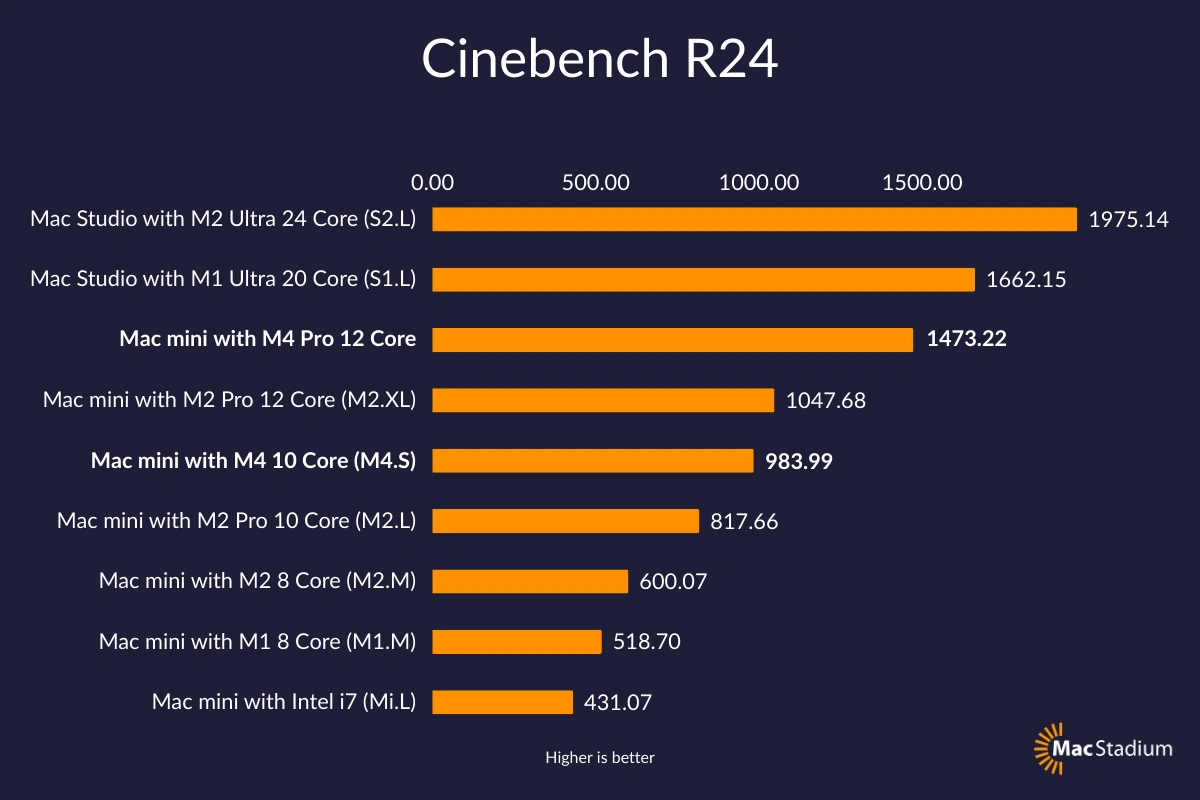
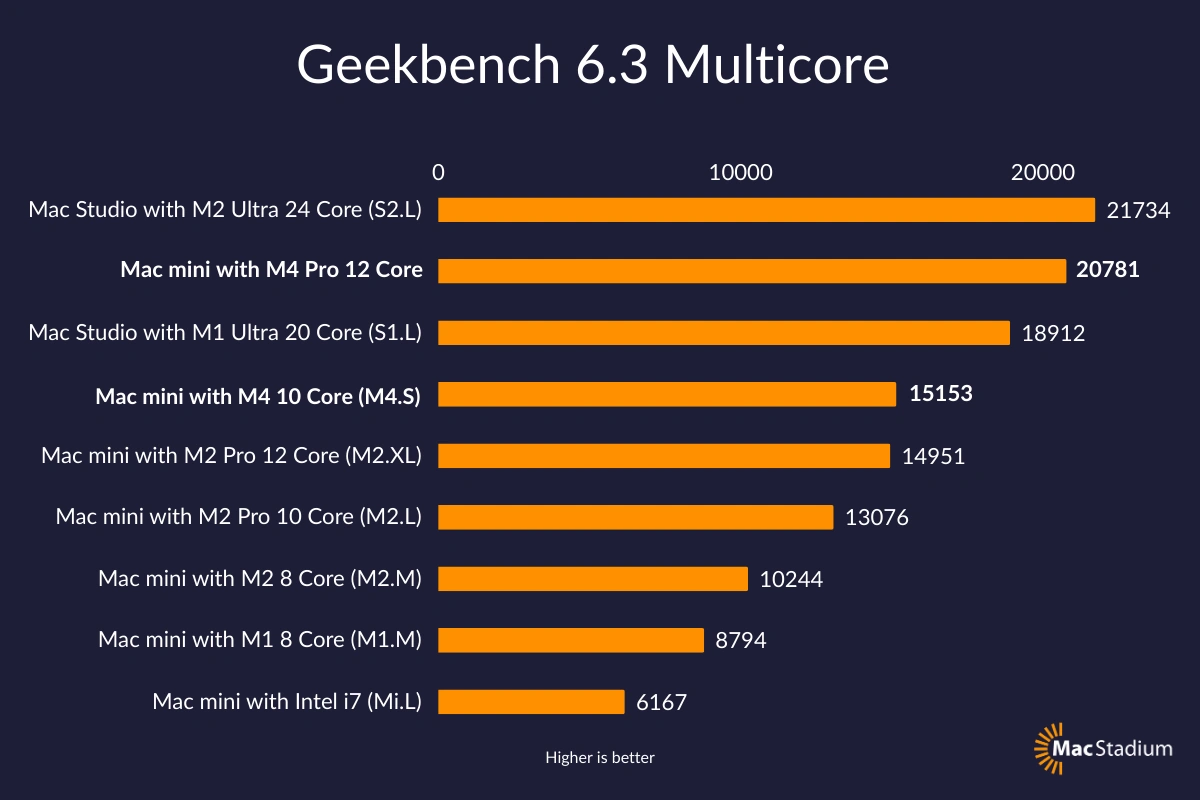
Apples M4-Chip-Familie stellt den bedeutendsten Sprung in der Entwicklungsperformance seit dem Übergang von Intel dar. Gebaut auf TSMCs fortschrittlichem 3-Nanometer-Prozess mit 28 Milliarden Transistoren liefert die M4-Serie bahnbrechende Verbesserungen bei CPU, GPU und KI-Verarbeitung, die direkt den Entwicklungs-Workflows zugutekommen.
M4-Serie Performance-Aufschlüsselung:
- Basis M4: 10-Core CPU (4 Performance + 6 Effizienz-Kerne) mit 38 TOPS Neural Engine
- M4 Pro: 14-Core CPU mit 20-Core GPU, bis zu 64GB Unified Memory, 273GB/s Bandbreite (75% Steigerung)
- M4 Max: 16-Core CPU mit 40-Core GPU, bis zu 48GB Speicher, 546GB/s Bandbreite
Die Unified Memory-Architektur eliminiert traditionelle CPU-GPU-Speicherübertragungsengpässe und macht M4 Macs besonders kraftvoll für speicherintensive Entwicklungsaufgaben wie große Codebase-Kompilierung, Machine Learning-Modelltraining und containerisierte Entwicklungsumgebungen.
Performance-Benchmarks aus der Praxis
Basierend auf umfassenden Tests über Entwicklungs-Workloads hinweg zeigt M4 bemerkenswerte Verbesserungen:
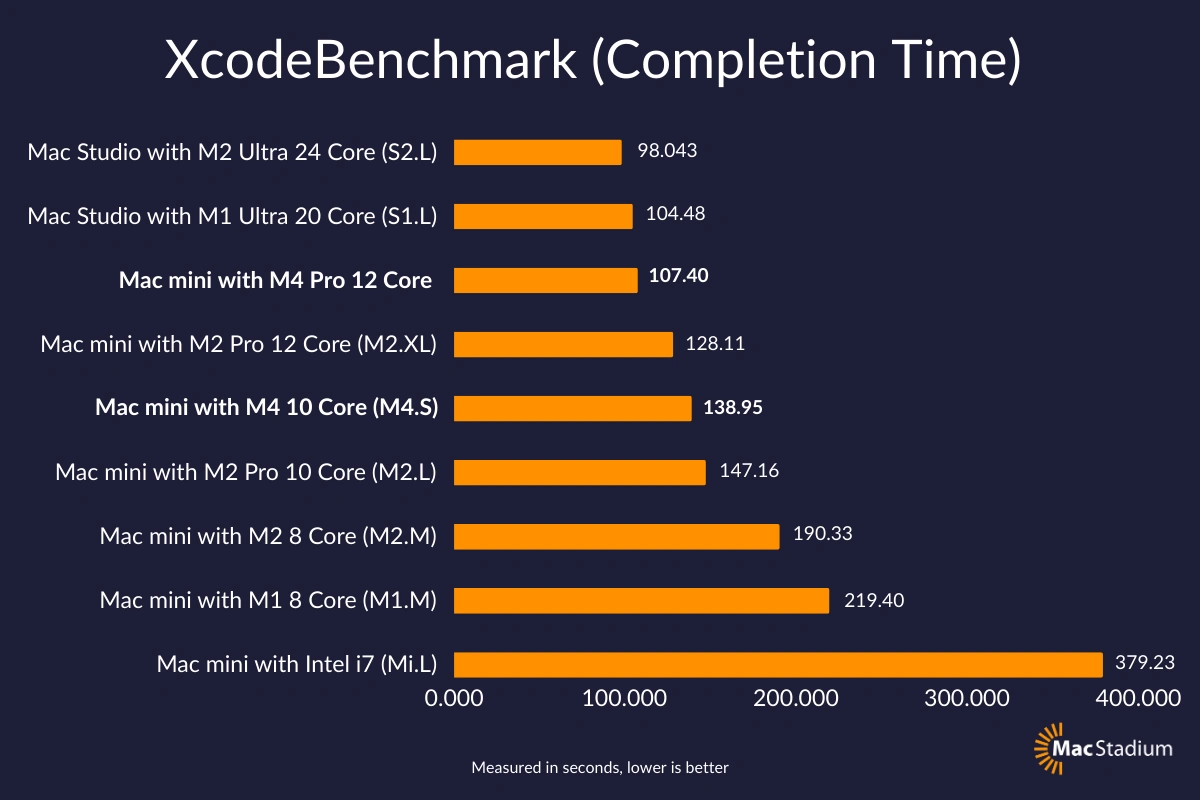
Xcode-Kompilierungs-Performance:
- M4 Max 16-Core: 77-81 Sekunden (4,6x schneller als Intel Core i9 MacBook Pro)
- M4 Pro 14-Core: 92-95 Sekunden
- M4 Basis: 141 Sekunden
LLVM/Clang-Kompilierung:
- M4 Max: 21,56 Minuten vs M1 Pro: 40,09 Minuten (57% Verbesserung)
- Vollständige Linux-Kernel-Kompilierung: Unter 15 Minuten (zuvor 45+ Minuten auf Intel)
Docker-Container-Performance:
- Container-Startup: 2x schneller als M3-Serie
- Build-Operationen: 40% Verbesserung bei kompilierungsintensiven Containern
- Speichereffizienz: 30% Reduktion beim Container-Overhead
Entwicklungsumgebungs-Architektur-Strategie
Die richtige M4 Mac-Konfiguration wählen
Für mobile Entwicklungsteams:
- MacBook Pro M4 Pro: 14-Zoll mit 32GB Speicher für iOS/macOS-Entwicklung
- MacBook Pro M4 Max: 16-Zoll mit 48GB Speicher für komplexe Multiplattform-Projekte
Für stationäre Entwicklungsarbeitsplätze:
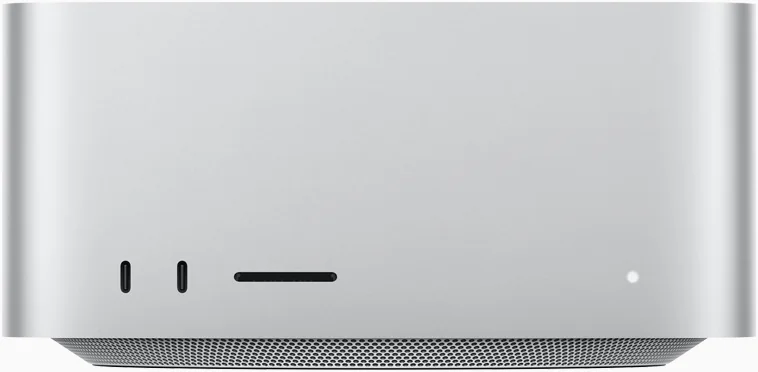
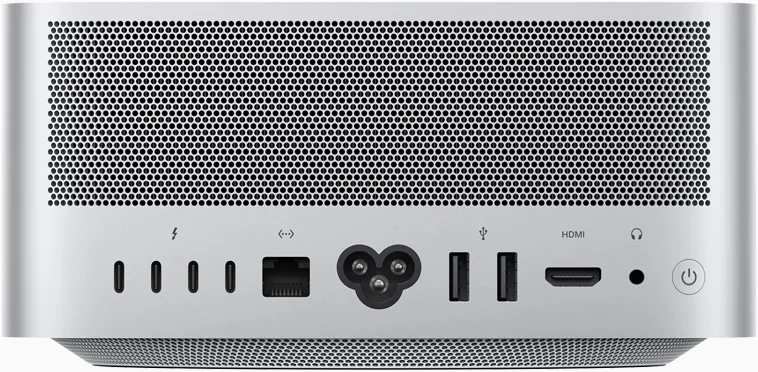
- Mac Studio M4 Max: Maximale CPU/GPU-Performance mit excellentem Thermal-Management
- Mac Studio M4 Ultra: Ultimate Performance für Enterprise-Entwicklungsteams
Speicherkonfigurations-Strategie:
- 16GB: Ausreichend für Webentwicklung und Einzelplattform-Mobile-Entwicklung
- 32GB: Empfohlen für Multiplattform-Entwicklung mit Docker-Containern
- 48GB+: Essentiell für KI/ML-Entwicklung, große Monorepos und komplexe Virtualisierung
Entwicklungstools-Chain 2025-Konfiguration
Native Apple Silicon-Tool-Installation
Essentielle Tool-Installationsreihenfolge:
# 1. Homebrew installieren (ARM64 nativ)
/bin/bash -c "$(curl -fsSL https://raw.githubusercontent.com/Homebrew/install/HEAD/install.sh)"

# 2. ARM64-Installation verifizieren
brew config | grep "CPU:"
# Sollte anzeigen: CPU: 14-core 64-bit arm_firestorm_icestorm

# 3. Essentielle Entwicklungstools installieren
brew install git node [email protected] go rust docker
brew install --cask visual-studio-code
Dual-Architektur-Setup (Optional): Für Kompatibilität mit Legacy-x86-Tools:
# x86 Homebrew in separatem Verzeichnis installieren
arch -x86_64 /bin/bash -c "$(curl -fsSL https://raw.githubusercontent.com/Homebrew/install/HEAD/install.sh)"

# Aliases für duales Management erstellen
echo 'alias brew86="arch -x86_64 /usr/local/bin/brew"' >> ~/.zshrc
echo 'alias brewarm="/opt/homebrew/bin/brew"' >> ~/.zshrc
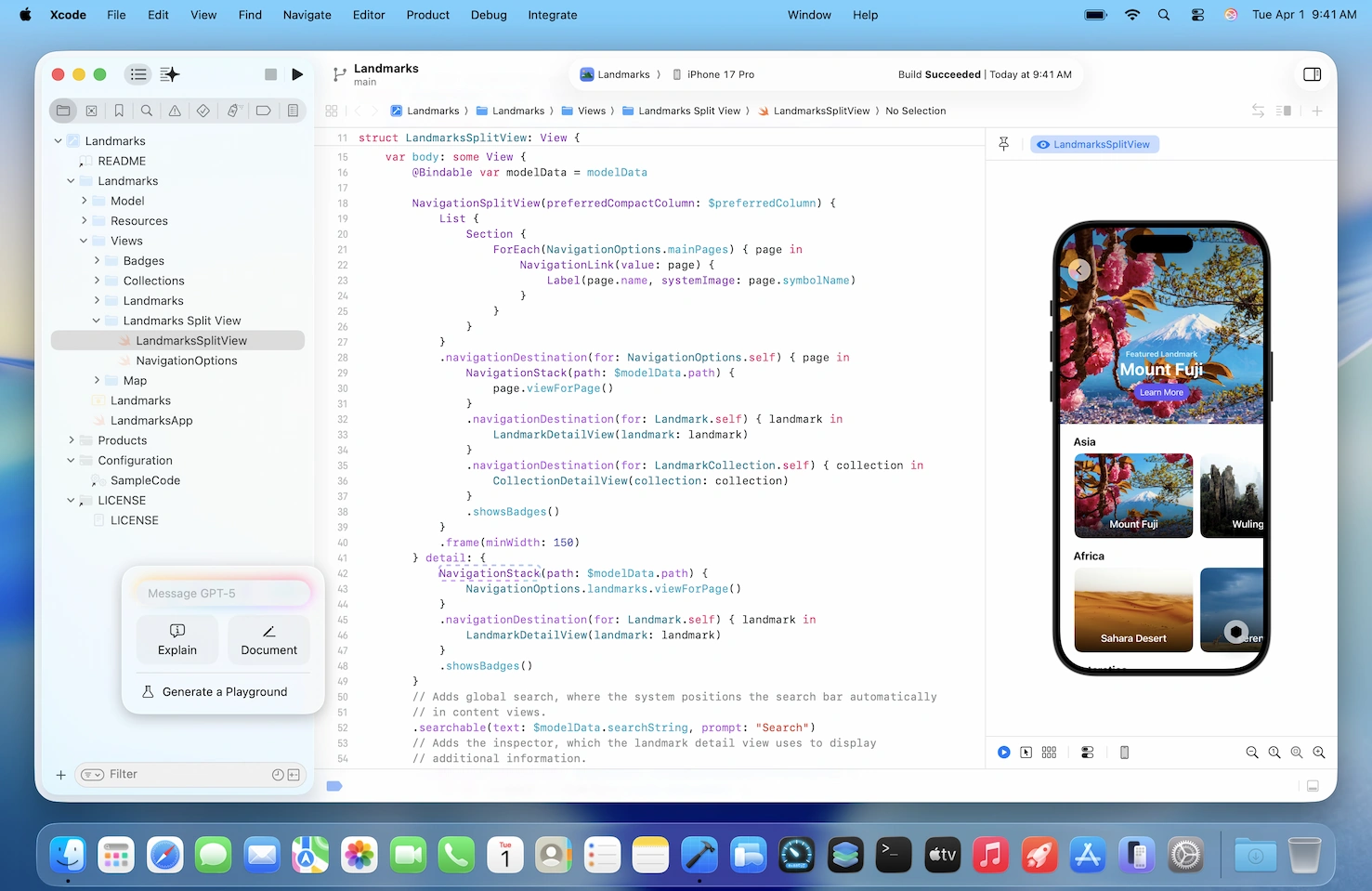
Xcode 16 erweiterte Konfiguration
Swift Assist KI-Integration: Xcode 16 führt Swift Assist ein, einen KI-Begleiter, der vollständig von Apple Silicons Neural Engine angetrieben wird. Erweiterte Features aktivieren:
# Swift Assist aktivieren (erfordert Apple Developer-Account)
defaults write com.apple.dt.Xcode IDESwiftAssistEnabled -bool YES

# On-Device-Modell-Caching konfigurieren
defaults write com.apple.dt.Xcode IDESwiftAssistCacheSize -int 4096
Metal 4 Performance-Optimierung: Xcode für M4s verbesserte Metal-Performance konfigurieren:
# Metal-Debugging-Tools aktivieren
defaults write com.apple.dt.Xcode MTLCaptureEnabled -bool YES

# Build-Performance optimieren
defaults write com.apple.dt.Xcode IDEBuildOperationMaxNumberOfConcurrentCompileTasks 12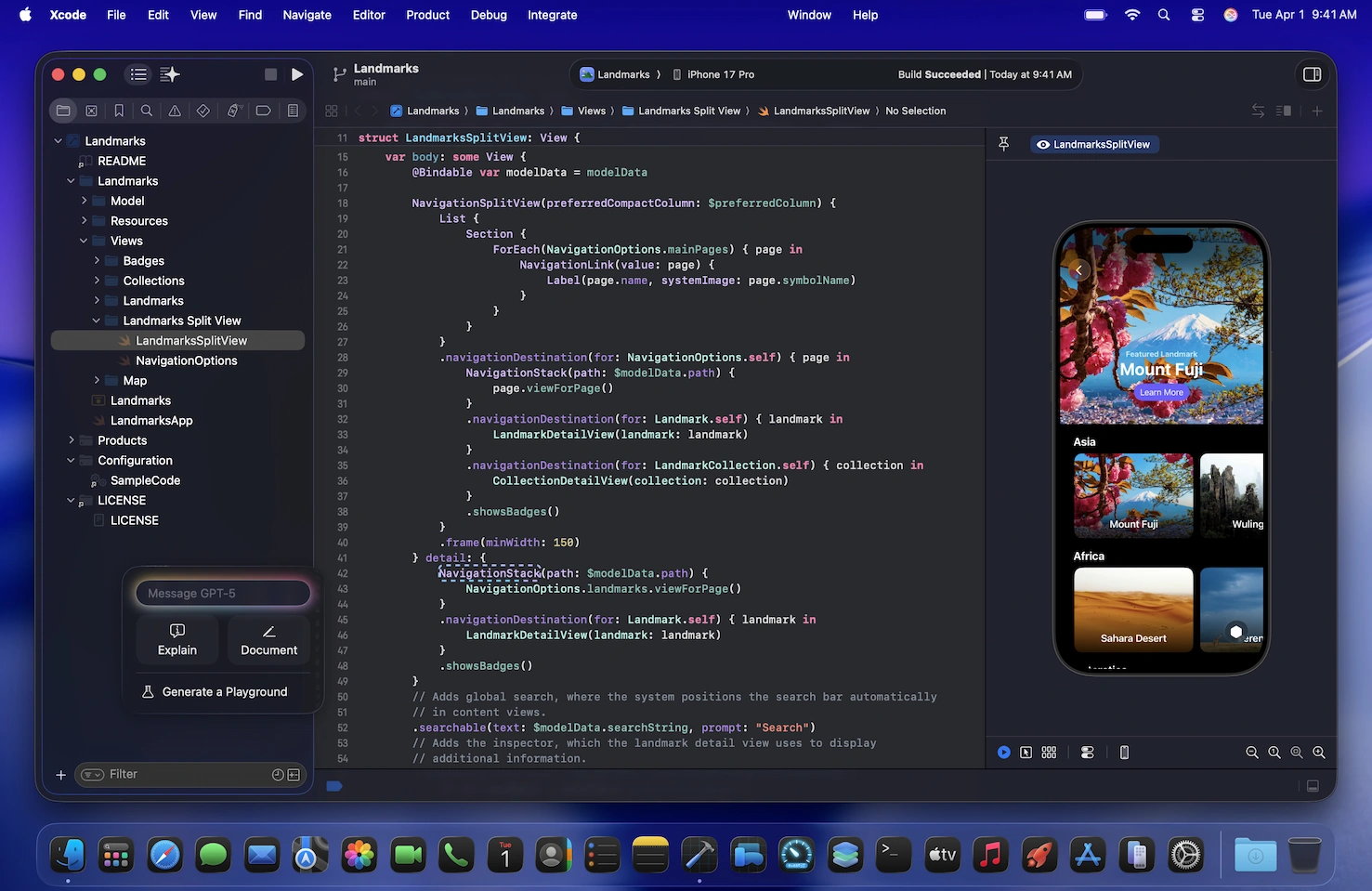
VS Code Apple Silicon-Optimierung
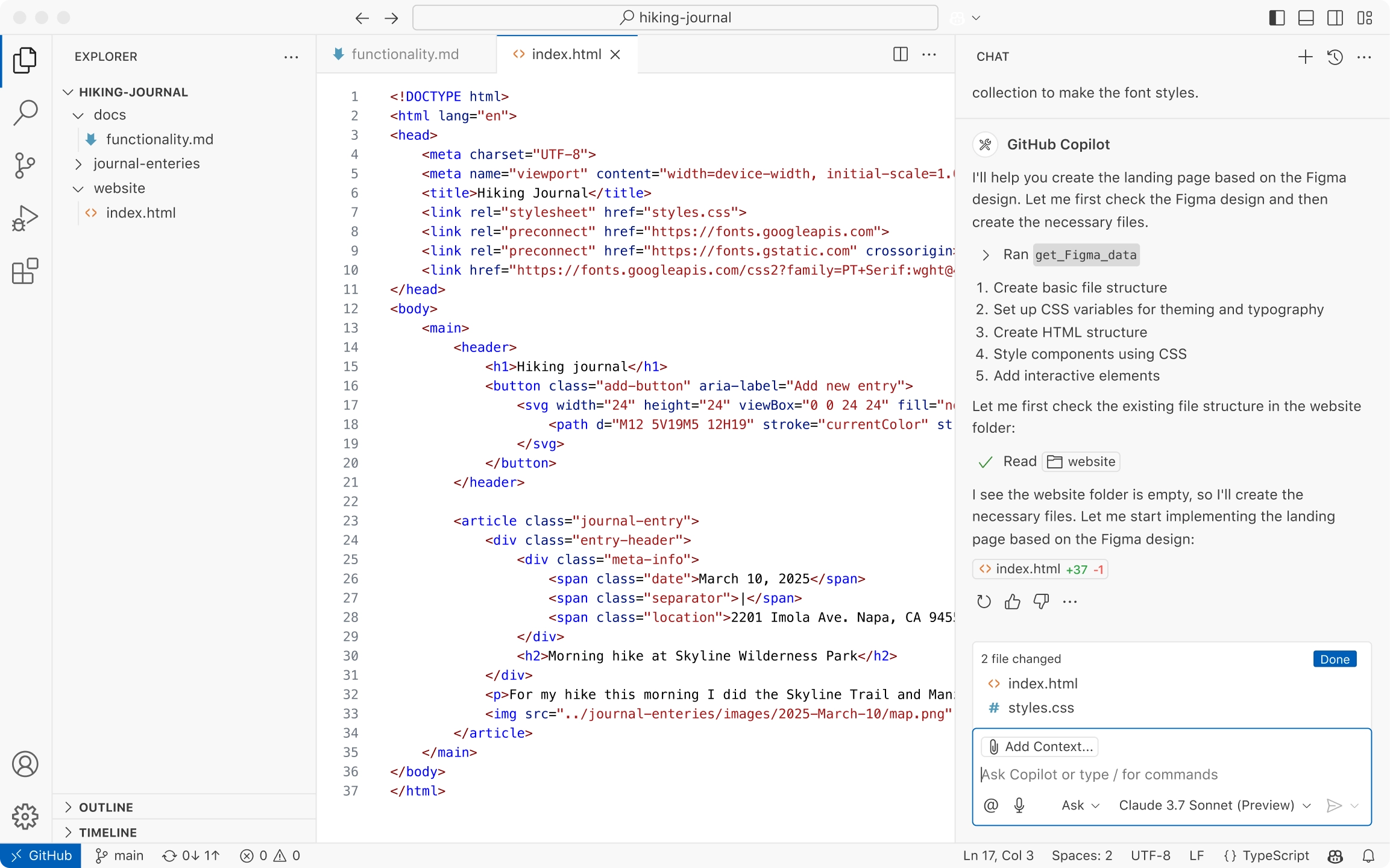
Native ARM64-Konfiguration:
// settings.json-Optimierungen für Apple Silicon
{
    "typescript.preferences.includePackageJsonAutoImports": "auto",
    "editor.minimap.enabled": false,
    "terminal.integrated.defaultProfile.osx": "zsh",
    "terminal.integrated.gpuAcceleration": "auto",

    // Apple Silicon-spezifische Optimierungen
    "editor.suggest.localityBonus": true,
    "search.useIgnoreFiles": true,
    "files.watcherExclude": {
        "**/node_modules/**": true,
        "**/.git/objects/**": true
    }
}
Essentielle Extensions für Apple Silicon-Entwicklung:
# Installation über VS Code CLI
code --install-extension ms-vscode.vscode-typescript-next
code --install-extension GitHub.copilot
code --install-extension ms-python.python
code --install-extension golang.Go
code --install-extension rust-lang.rust-analyzer
Containerisierung und Virtualisierung Excellence
Docker Desktop vs OrbStack Performance-Analyse
OrbStack: Der Apple Silicon-Champion
OrbStack liefert überlegene Performance auf Apple Silicon mit 2-Sekunden-Startzeiten und <0,1% Hintergrund-CPU-Nutzung:
# OrbStack installieren
brew install --cask orbstack

# Für Entwicklung konfigurieren
orb config set cpu 8
orb config set memory 16G
orb config set disk 200G

# Kubernetes aktivieren
orb k8s start
Performance-Vergleichsergebnisse:
- Startzeit: OrbStack 2s vs Docker Desktop 30s+
- Bind-Mount-Performance: OrbStack 4,22s vs Docker Desktop ~12s
- Ressourcenverbrauch: OrbStack <0,1% CPU im Leerlauf vs Docker Desktop 2-5%
Docker Desktop Enterprise-Setup: Für Enterprise-Umgebungen, die Docker Desktop erfordern:
# Docker VMM aktivieren (Beta-Feature für M-Serie-Optimierung)
docker-desktop-vmm enable

# Ressourcenzuteilung konfigurieren
cat > ~/.docker/daemon.json << EOF
{
  "builder": {
    "gc": {
      "enabled": true,
      "defaultKeepStorage": "20GB"
    }
  },
  "experimental": true,
  "features": {
    "buildkit": true
  }
}
EOF
Virtualisierungsplattform-Konfiguration
VMware Fusion Pro (Jetzt kostenlos): VMware Fusion Pro wurde im November 2024 vollständig kostenlos für alle Nutzer:
# VMware Fusion Pro herunterladen und installieren
brew install --cask vmware-fusion

# Apple Silicon-Optimierungen konfigurieren
# Metal-beschleunigte DirectX 11 aktivieren
vmrun -T fusion setGuestInfo /path/to/vm.vmx virtualHW.version 21
vmrun -T fusion setGuestInfo /path/to/vm.vmx mks.gl.allowBlacklistedDrivers FALSE
UTM für ARM64 Linux-Entwicklung:
# UTM über Homebrew installieren
brew install --cask utm

# ARM64 Ubuntu-Image herunterladen
wget https://cdimage.ubuntu.com/ubuntu-server/daily-live/current/ubuntu-server-arm64.iso
Parallels Desktop Professional-Konfiguration: Für GPU-beschleunigte Entwicklung und Windows-Kompatibilität:
# Parallels-Kommandozeilen-Optimierung
prlctl set "VM-Name" --cpus 8 --memsize 16384
prlctl set "VM-Name" --nested-virt on
prlctl set "VM-Name" --adaptive-hypervisor on
Programmiersprachen-Umgebungsoptimierung
Python-Entwicklungsumgebung
Natives Python 3.13 mit JIT-Unterstützung:
# Python 3.13 mit experimentellem JIT installieren
brew install [email protected]

# Native ARM64-Installation verifizieren
python3.13 -c "import platform; print(platform.machine())"
# Sollte ausgeben: arm64

# Experimentellen JIT aktivieren (signifikanter Performance-Boost)
export PYTHON_JIT=1
python3.13 -X jit your_script.py
Miniforge für Data Science: Anaconda durch Miniforge für bessere Apple Silicon-Unterstützung ersetzen:
# Miniforge installieren
brew install --cask miniforge

# Nur für ARM64 konfigurieren
conda config --env --set subdir osx-arm64

# Data Science-Stack installieren
conda install numpy pandas scikit-learn pytorch torchvision
pyenv Multi-Version-Management:
# pyenv installieren
brew install pyenv

# Sowohl ARM64- als auch x86-Python-Versionen installieren
pyenv install 3.13.2
pyenv install 3.12.5

# Globale und projektspezifische Versionen setzen
pyenv global 3.13.2
pyenv local 3.12.5  # Für spezifische Projekte
Node.js und JavaScript-Entwicklung
Performance-optimiertes Node.js-Setup:
# Node.js über nvm für Versionsverwaltung installieren
brew install nvm

# Neueste LTS mit ARM64-Optimierung installieren
nvm install --lts
nvm use --lts

# ARM64-nativen Build verifizieren
node -p "process.arch"  # Sollte ausgeben: arm64

# Globale Entwicklungstools installieren
npm install -g @swc/cli webpack-cli vite
Bun für ultra-schnelle JavaScript-Performance:
# Bun installieren (native Apple Silicon-Unterstützung)
curl -fsSL https://bun.sh/install | bash

# Bun für Paketverwaltung verwenden (3x schneller als npm)
bun install
bun run dev
Go-Sprachen-Konfiguration
Apple Silicon-optimiertes Go-Setup:
# Go über Homebrew installieren
brew install go

# GOPATH und Optimierungs-Flags konfigurieren
echo 'export GOPATH=$HOME/go' >> ~/.zshrc
echo 'export PATH=$GOPATH/bin:$PATH' >> ~/.zshrc
echo 'export GOOS=darwin' >> ~/.zshrc
echo 'export GOARCH=arm64' >> ~/.zshrc

# Build-Cache für schnellere Kompilierung aktivieren
go env -w GOCACHE=$HOME/.cache/go-build
Cross-Kompilierung für mehrere Architekturen:
# Für mehrere Ziele kompilieren
GOOS=linux GOARCH=amd64 go build -o app-linux-amd64
GOOS=windows GOARCH=amd64 go build -o app-windows-amd64.exe
GOOS=darwin GOARCH=amd64 go build -o app-darwin-amd64
Rust-Entwicklungsumgebung
Rust mit Apple Silicon-Optimierung:
# Rust über rustup installieren
curl --proto '=https' --tlsv1.2 -sSf https://sh.rustup.rs | sh

# ARM64-Ziel hinzufügen
rustup target add aarch64-apple-darwin

# Cargo für Apple Silicon konfigurieren
cat > ~/.cargo/config.toml << EOF
[target.aarch64-apple-darwin]
rustflags = ["-C", "target-cpu=apple-m4"]

[build]
target = "aarch64-apple-darwin"
EOF
Erweiterte Rust-Konfiguration für M4:
# Zusätzliche Ziele für Cross-Kompilierung installieren
rustup target add x86_64-apple-darwin
rustup target add x86_64-unknown-linux-gnu
rustup target add aarch64-unknown-linux-gnu

# Cargo für parallele Kompilierung konfigurieren
export CARGO_BUILD_JOBS=12
export RUSTFLAGS="-C target-cpu=apple-m4 -C opt-level=3"

# Nützliche Rust-Entwicklungstools installieren
cargo install cargo-watch cargo-edit cargo-outdated
cargo install cargo-audit cargo-benchcmp
Java-Entwicklungsumgebung
OpenJDK Apple Silicon native Konfiguration:
# OpenJDK über SDKMAN installieren
curl -s "https://get.sdkman.io" | bash
source "$HOME/.sdkman/bin/sdkman-init.sh"

# Java 21 LTS installieren (native ARM64)
sdk install java 21.0.1-open
sdk use java 21.0.1-open

# JVM für Apple Silicon konfigurieren
export JAVA_OPTS="-Xmx8G -XX:+UseZGC -XX:+UnlockExperimentalVMOptions"
export MAVEN_OPTS="$JAVA_OPTS"
export GRADLE_OPTS="$JAVA_OPTS"
Spring Boot-Entwicklungssetup:
# Spring Boot CLI installieren
sdk install springboot

# Optimiertes Spring Boot-Projekt erstellen
spring init --dependencies=web,data-jpa,security \
  --groupId=com.example --artifactId=demo \
  --name=demo --description="Apple Silicon Demo" \
  --package-name=com.example.demo demo

# application.properties für Apple Silicon konfigurieren
cat > src/main/resources/application.properties << EOF
spring.profiles.active=dev
spring.datasource.url=jdbc:h2:mem:testdb
spring.jpa.hibernate.ddl-auto=create-drop
spring.jpa.show-sql=true
server.port=8080
management.endpoints.web.exposure.include=health,info,metrics
EOF
C++-Entwicklungsumgebung
LLVM/Clang Apple Silicon-Konfiguration:
# LLVM über Homebrew installieren
brew install llvm cmake ninja

# Umgebungsvariablen konfigurieren
echo 'export PATH="/opt/homebrew/opt/llvm/bin:$PATH"' >> ~/.zshrc
echo 'export LDFLAGS="-L/opt/homebrew/opt/llvm/lib"' >> ~/.zshrc
echo 'export CPPFLAGS="-I/opt/homebrew/opt/llvm/include"' >> ~/.zshrc

# CMake-Konfiguration für Apple Silicon erstellen
cat > CMakeLists.txt << EOF
cmake_minimum_required(VERSION 3.20)
project(AppleSiliconApp)

set(CMAKE_CXX_STANDARD 20)
set(CMAKE_CXX_STANDARD_REQUIRED ON)

# Apple Silicon-spezifische Optimierungen
if(APPLE AND CMAKE_SYSTEM_PROCESSOR STREQUAL "arm64")
    set(CMAKE_CXX_FLAGS "${CMAKE_CXX_FLAGS} -mcpu=apple-m4")
    set(CMAKE_CXX_FLAGS "${CMAKE_CXX_FLAGS} -O3 -DNDEBUG")
endif()

add_executable(app main.cpp)
EOF
Erweiterte Terminal- und Entwicklungstools
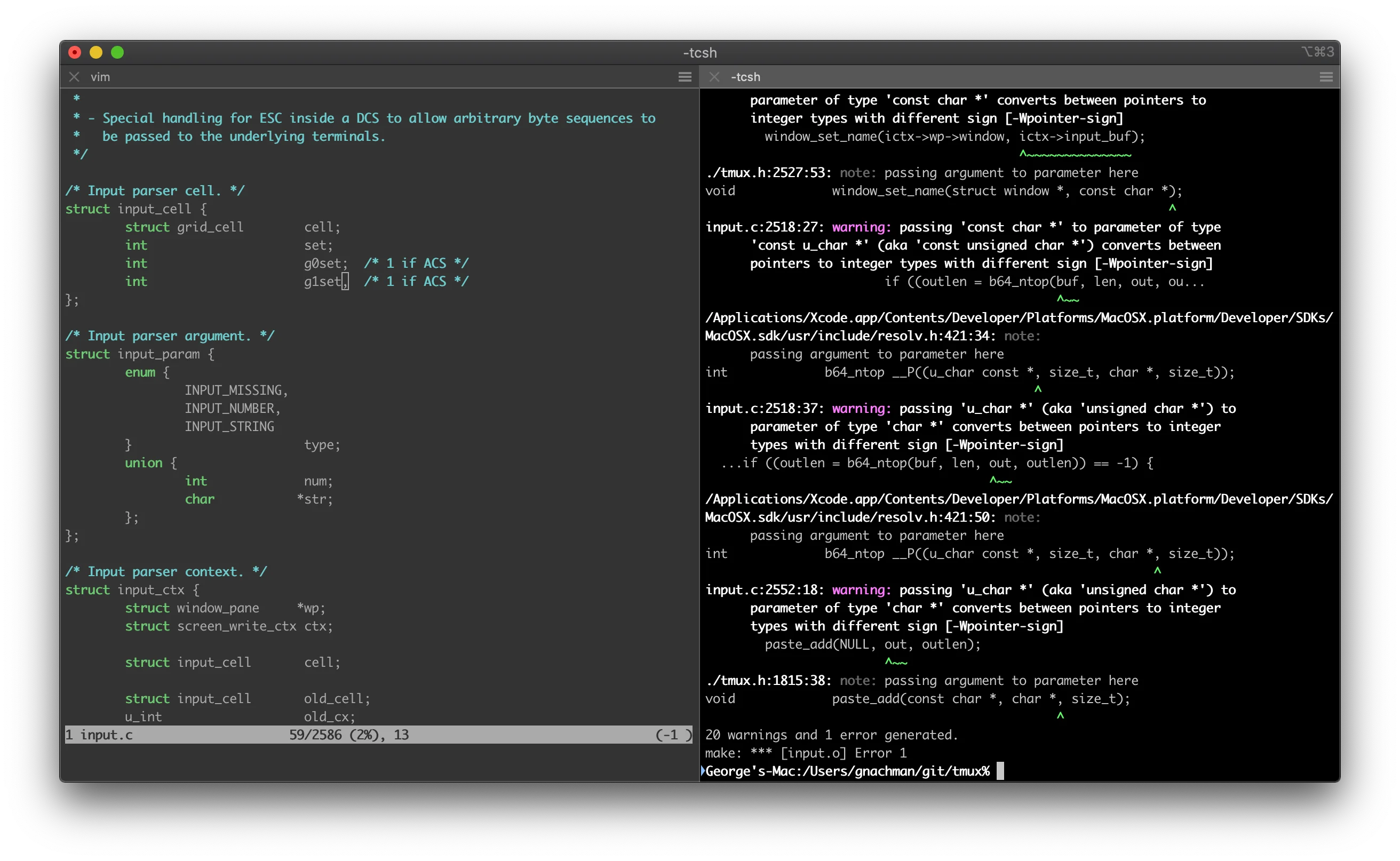
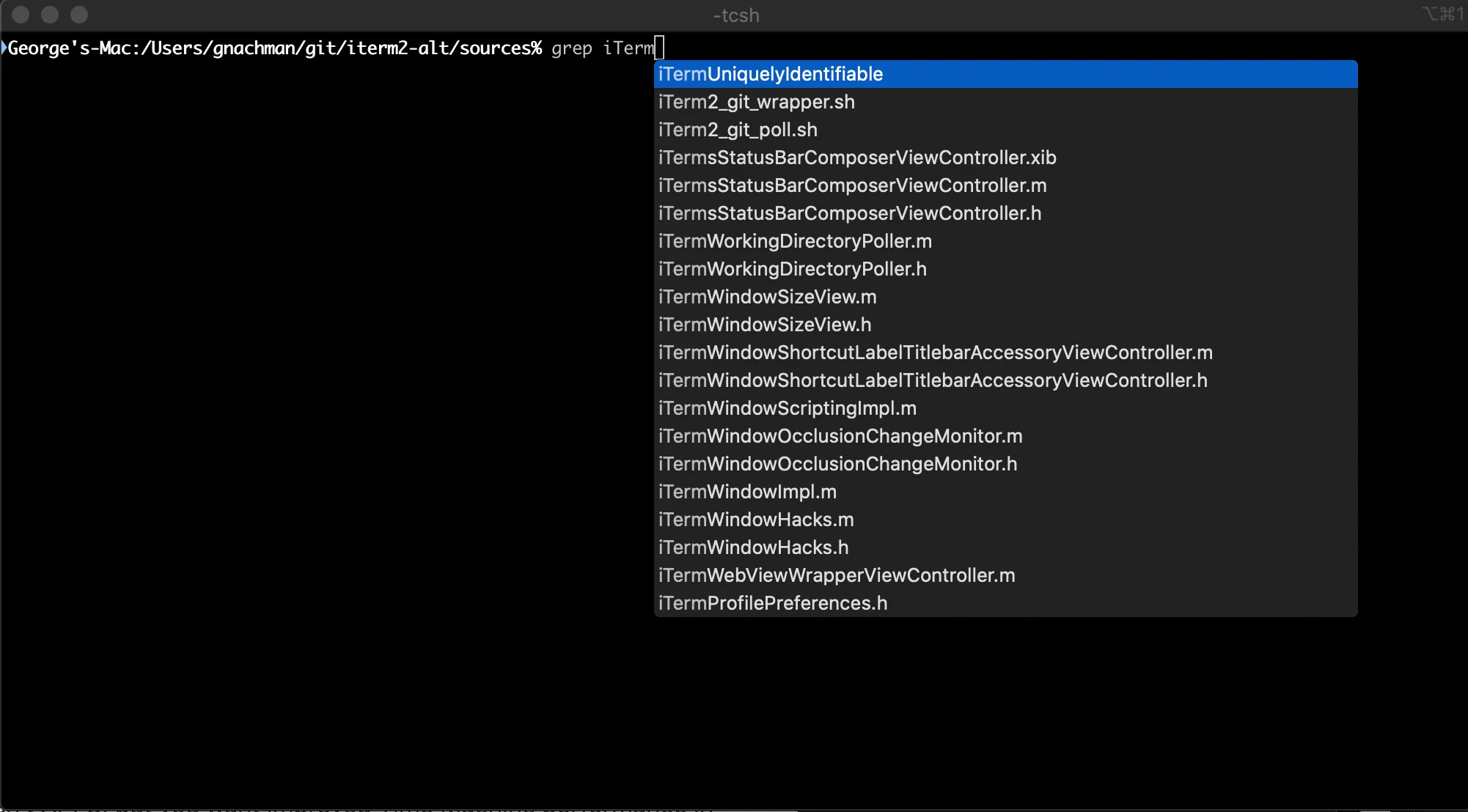
iTerm2 professionelle Konfiguration
Performance-optimiertes iTerm2-Setup:
# iTerm2 installieren
brew install --cask iterm2

# Für Apple Silicon-Performance konfigurieren
defaults write com.googlecode.iterm2 BootstrapDaemon -bool true
defaults write com.googlecode.iterm2 EnableAPIServer -bool true
defaults write com.googlecode.iterm2 AdvancedGPUSettingsEnabled -bool true
Erweiterte Shell-Konfiguration:
# Oh My Zsh mit Performance-Plugins installieren
sh -c "$(curl -fsSL https://raw.github.com/ohmyzsh/ohmyzsh/master/tools/install.sh)"

# Performance-optimierte Plugins hinzufügen
plugins=(git brew docker kubectl npm rust)

# Powerlevel10k-Theme installieren
git clone --depth=1 https://github.com/romkatv/powerlevel10k.git ~/powerlevel10k
echo 'source ~/powerlevel10k/powerlevel10k.zsh-theme' >> ~/.zshrc
Git-Konfiguration für große Repositories
Apple Silicon Git-Optimierung:
# Git für große Repositories konfigurieren
git config --global core.preloadindex true
git config --global core.fscache true
git config --global gc.auto 256

# Parallele Index-Operationen aktivieren
git config --global index.threads 0

# Delta für bessere Diffs konfigurieren
brew install git-delta
git config --global core.pager delta
git config --global interactive.diffFilter "delta --color-only"
Produktions-Workflow-Fallstudien
iOS/macOS-Entwicklungs-Workflow
Vollständiges iOS-Entwicklungssetup:
# iOS-Entwicklungsabhängigkeiten installieren
brew install cocoapods fastlane swiftlint carthage

# Fastlane für CI/CD konfigurieren
fastlane init
# Zum Fastfile hinzufügen:
default_platform(:ios)

platform :ios do
  desc "Build and test"
  lane :test do
    scan(scheme: "YourApp")
  end

  desc "Build for release"
  lane :release do
    increment_build_number
    build_app(scheme: "YourApp")
    upload_to_app_store
  end
end
Webentwicklung mit modernen Frameworks
Full-Stack TypeScript-Setup:
# Optimiertes Next.js-Projekt erstellen
npx create-next-app@latest --typescript --tailwind --app

# Für Apple Silicon-Performance konfigurieren
cat > next.config.js << EOF
const nextConfig = {
  experimental: {
    esmExternals: 'loose',
    serverComponentsExternalPackages: ['mongoose']
  },
  swcMinify: true,
  compiler: {
    removeConsole: process.env.NODE_ENV === 'production'
  }
}

module.exports = nextConfig
EOF
Machine Learning-Entwicklungsumgebung
PyTorch und TensorFlow Apple Silicon-Setup:
# ML-Frameworks mit Apple Silicon-Optimierung installieren
conda install pytorch::pytorch torchvision torchaudio -c pytorch

# TensorFlow mit Metal-Beschleunigung installieren
pip install tensorflow-macos tensorflow-metal

# GPU-Beschleunigung verifizieren
python3 -c "
import tensorflow as tf
print('TensorFlow version:', tf.__version__)
print('Metal acceleration available:', len(tf.config.list_physical_devices('GPU')) > 0)
"
Jupyter Lab-Konfiguration:
# Jupyter mit Extensions installieren
pip install jupyterlab jupyter-ai

# Apple Silicon-spezifische Kernel aktivieren
python -m ipykernel install --user --name apple-silicon --display-name "Python (Apple Silicon)"

# Jupyter Lab starten
jupyter lab --ip=127.0.0.1 --port=8888
Performance-Optimierung und Monitoring
System-Performance-Monitoring
Activity Monitor-Ersatz-Tools:
# Performance-Monitoring-Tools installieren
brew install htop btop neofetch

# Festplatten-Nutzungsanalysator installieren
brew install ncdu

# Netzwerk-Monitoring installieren
brew install nload iftop
Memory Pressure-Optimierung:
# Swap-Einstellungen für Entwicklungs-Workloads konfigurieren
sudo sysctl vm.swappiness=1
sudo sysctl vm.memory_pressure_stats_enable=1

# Memory Pressure überwachen
memory_pressure -l warn
Build-Performance-Optimierung
Ninja Build System für schnellere Kompilierung:
# Ninja Build System installieren
brew install ninja

# CMake für Ninja-Nutzung konfigurieren
cmake -G Ninja -DCMAKE_BUILD_TYPE=Release ..
ninja -j$(nproc)
ccache für Kompilierungs-Caching:
# ccache installieren
brew install ccache

# Für Apple Silicon konfigurieren
echo 'export PATH="/opt/homebrew/lib/ccache/bin:$PATH"' >> ~/.zshrc
ccache --set-config=cache_dir=$HOME/.ccache
ccache --set-config=max_size=10G
Fehlerbehebung häufiger Probleme
Rosetta 2-Abhängigkeiten
x86-Abhängigkeiten identifizieren:
# Prüfen, ob App Rosetta 2 benötigt
file /Applications/YourApp.app/Contents/MacOS/YourApp

# Rosetta 2 bei Bedarf installieren
sudo softwareupdate --install-rosetta --agree-to-license
Docker Build-Probleme
ARM64 Multi-Platform-Builds:
# Multi-Platform Dockerfile
FROM --platform=$BUILDPLATFORM node:18-alpine AS base
WORKDIR /app

FROM base AS deps
RUN --mount=type=cache,target=/root/.npm \
    npm ci --only=production

FROM base AS build
COPY . .
RUN npm run build

FROM node:18-alpine AS runtime
WORKDIR /app
COPY --from=deps /app/node_modules ./node_modules
COPY --from=build /app/dist ./dist

EXPOSE 3000
CMD ["node", "dist/index.js"]
Speicherverwaltung
Große Projekt-Optimierung:
# File Descriptor-Limits erhöhen
echo 'ulimit -n 65536' >> ~/.zshrc

# Git für große Repositories konfigurieren
git config --global core.longpaths true
git config --global core.autocrlf false
Sicherheits- und Datenschutz-Konfiguration
Entwicklungsumgebungs-Sicherheit
FileVault und sichere Entwicklung:
# FileVault aktivieren (falls noch nicht aktiviert)
sudo fdesetup enable

# Sichere SSH für Entwicklung konfigurieren
ssh-keygen -t ed25519 -C "[email protected]"
ssh-add --apple-use-keychain ~/.ssh/id_ed25519
Netzwerksicherheit für Entwicklung:
# pfctl-Firewall für Entwicklung konfigurieren
sudo pfctl -f /etc/pf.conf
sudo pfctl -e

# Entwicklungsports erlauben
echo "pass in inet proto tcp from any to any port 3000" | sudo tee -a /etc/pf.conf
Enterprise-Grade-Entwicklungsumgebungs-Setup
Apple Business Manager-Integration
Großflächige Entwicklerumgebungs-Bereitstellung:
# Apple Business Manager für Entwicklungsteams konfigurieren
sudo profiles install -path /path/to/DeveloperEnvironment.mobileconfig

# Automatisierte Geräteregistrierung einrichten
sudo profiles show -type enrollment

# Verwaltete Apple IDs für Entwicklungsteams konfigurieren
sudo dsconfigad -add appleid-domain company.com
Enterprise MDM-Konfiguration für Entwickler:
# Jamf Pro-Konfiguration für Entwickler installieren
sudo jamf enroll -invitation-id INVITATION_ID

# Entwicklungsspezifische Richtlinien konfigurieren
sudo jamf policy -event developer-setup

# Entwicklertools über MDM aktivieren
sudo jamf policy -event install-xcode
sudo jamf policy -event configure-homebrew
Kubernetes-Entwicklung auf Apple Silicon
Lokales Kubernetes-Setup mit Kind:
# Kind (Kubernetes in Docker) installieren
brew install kind

# Apple Silicon-optimierten Cluster erstellen
cat > kind-config.yaml << EOF
kind: Cluster
apiVersion: kind.x-k8s.io/v1alpha4
nodes:
- role: control-plane
  image: kindest/node:v1.29.0@sha256:eaa1450915475849a73a9227b8f201df25e55e268e5d619312131292e324a570
- role: worker
  image: kindest/node:v1.29.0@sha256:eaa1450915475849a73a9227b8f201df25e55e268e5d619312131292e324a570
- role: worker
  image: kindest/node:v1.29.0@sha256:eaa1450915475849a73a9227b8f201df25e55e268e5d619312131292e324a570
EOF

kind create cluster --config kind-config.yaml --name apple-silicon-dev
Helm und Kubernetes-Tools:
# Helm-Paketmanager installieren
brew install helm

# kubectl und kubectx installieren
brew install kubectl kubectx

# k9s für Cluster-Management installieren
brew install k9s

# kubectl für optimale Apple Silicon-Performance konfigurieren
kubectl config set-context apple-silicon-dev --cluster=kind-apple-silicon-dev
kubectl config use-context apple-silicon-dev

# Entwicklungstools im Cluster bereitstellen
helm repo add jetstack https://charts.jetstack.io
helm install cert-manager jetstack/cert-manager --set installCRDs=true
Datenbank-Entwicklungsumgebung
PostgreSQL Apple Silicon-Konfiguration:
# PostgreSQL optimiert für Apple Silicon installieren
brew install postgresql@15

# PostgreSQL für Entwicklung konfigurieren
echo 'export PATH="/opt/homebrew/opt/postgresql@15/bin:$PATH"' >> ~/.zshrc

# Datenbank mit Apple Silicon-Optimierungen initialisieren
initdb --locale=C -E UTF-8 /opt/homebrew/var/postgresql@15

# postgresql.conf für M4-Performance konfigurieren
cat >> /opt/homebrew/var/postgresql@15/postgresql.conf << EOF
# Apple Silicon M4-Optimierungen
shared_buffers = 2GB
effective_cache_size = 8GB
work_mem = 256MB
maintenance_work_mem = 1GB
max_parallel_workers = 12
max_parallel_workers_per_gather = 6
EOF

# PostgreSQL-Service starten
brew services start postgresql@15
Redis und MongoDB-Setup:
# Redis mit Apple Silicon-Optimierungen installieren
brew install redis

# Redis für Entwicklung konfigurieren
cat > /opt/homebrew/etc/redis.conf << EOF
save 900 1
save 300 10
save 60 10000
maxmemory 2gb
maxmemory-policy allkeys-lru
EOF

# MongoDB Community Edition installieren
brew tap mongodb/brew
brew install mongodb-community

# MongoDB für Apple Silicon konfigurieren
cat > /opt/homebrew/etc/mongod.conf << EOF
storage:
  dbPath: /opt/homebrew/var/mongodb
  journal:
    enabled: true
  wiredTiger:
    engineConfig:
      cacheSizeGB: 4
systemLog:
  destination: file
  path: /opt/homebrew/var/log/mongodb/mongo.log
  logAppend: true
net:
  port: 27017
  bindIp: 127.0.0.1
EOF
Erweiterte Performance-Überwachung und Profiling
System-Level Performance-Monitoring:
# Umfassende Monitoring-Tools installieren
brew install htop btop neofetch
brew install --cask stats

# Professionelle Profiling-Tools installieren
brew install instruments-cli valgrind gperftools

# System-Performance-Monitoring konfigurieren
cat > ~/.config/btop/btop.conf << EOF
color_theme = "Default"
theme_background = False
update_ms = 500
cpu_sensor = "Auto"
show_battery = True
show_coretemp = True
EOF
Anwendungs-Performance-Profiling:
# XCTrace für Kommandozeilen-Profiling installieren
xcrun xctrace record --template "CPU Profiler" --launch -- ./your-app

# Instruments-Automatisierung konfigurieren
instruments -t "Time Profiler" -D profile.trace ./your-app

# Perf-Analyse-Tools installieren und konfigurieren
brew install flamegraph
sudo dtrace -n 'profile-997 /execname == "your-app"/ { @[ustack()] = count(); }'
Entwicklungsumgebungs-Automatisierung
Ansible-Konfiguration für Mac-Entwicklung:
# ansible-playbook dev-setup.yml
---
- hosts: localhost
  connection: local
  vars:
    homebrew_packages:
      - git
      - node
      - [email protected]
      - go
      - rust
      - docker
    homebrew_casks:
      - visual-studio-code
      - docker
      - iterm2
  tasks:
    - name: Homebrew-Pakete installieren
      homebrew:
        name: "{{ homebrew_packages }}"
        state: present

    - name: Homebrew-Casks installieren
      homebrew_cask:
        name: "{{ homebrew_casks }}"
        state: present

    - name: Git konfigurieren
      git_config:
        name: "{{ item.name }}"
        value: "{{ item.value }}"
        scope: global
      with_items:
        - { name: "user.name", value: "Developer Name" }
        - { name: "user.email", value: "[email protected]" }
        - { name: "core.editor", value: "code --wait" }
Docker Compose-Entwicklungsstack:
# docker-compose.dev.yml
version: '3.8'
services:
  postgres:
    image: postgres:15-alpine
    platform: linux/arm64
    environment:
      POSTGRES_DB: development
      POSTGRES_USER: developer
      POSTGRES_PASSWORD: password
    ports:
      - "5432:5432"
    volumes:
      - postgres_data:/var/lib/postgresql/data

  redis:
    image: redis:7-alpine
    platform: linux/arm64
    ports:
      - "6379:6379"

  elasticsearch:
    image: elasticsearch:8.11.0
    platform: linux/arm64
    environment:
      - discovery.type=single-node
      - "ES_JAVA_OPTS=-Xms2g -Xmx2g"
    ports:
      - "9200:9200"

volumes:
  postgres_data:
Zukunftssicherung Ihrer Entwicklungsumgebung
Apple Intelligence-Integration
Vorbereitung auf KI-gestützte Entwicklung:
# Apple Intelligence-kompatible Tools installieren
brew install --cask cursor  # KI-gestützter Code-Editor
brew install github-copilot-cli

# Lokale KI-Modelle konfigurieren
pip install transformers torch

# Apple Intelligence-Features aktivieren (erfordert kompatible Hardware)
defaults write com.apple.CoreML MLComputeDeviceEnabled -bool true

# Lokale KI-Entwicklungstools installieren
pip install ollama-python
brew install ollama

# Ollama für lokale LLM-Inferenz konfigurieren
ollama pull codellama:13b
ollama pull mistral:7b

# KI-gestützten Entwicklungs-Workflow einrichten
cat > ~/.config/ai-dev-config.json << EOF
{
  "models": {
    "code": "codellama:13b",
    "chat": "mistral:7b"
  },
  "providers": {
    "local": "ollama",
    "cloud": "openai"
  },
  "preferences": {
    "privacy_mode": true,
    "local_first": true
  }
}
EOF
Versionskontrolle und Umgebungsverwaltung
Entwicklungsumgebung als Code:
# .devcontainer/devcontainer.json
{
    "name": "Apple Silicon Dev Environment",
    "image": "mcr.microsoft.com/devcontainers/universal:2-linux",
    "features": {
        "ghcr.io/devcontainers/features/docker-in-docker:2": {},
        "ghcr.io/devcontainers/features/node:1": {"version": "18"}
    },
    "customizations": {
        "vscode": {
            "extensions": [
                "ms-python.python",
                "golang.go",
                "rust-lang.rust-analyzer"
            ]
        }
    }
}
Umgebungskonfigurations-Management:
# Dotfiles-Management installieren
brew install yadm

# Dotfiles-Repository initialisieren
yadm clone https://github.com/your-username/dotfiles.git

# Umfassendes Umgebungsbackup erstellen
cat > backup-dev-env.sh << EOF
#!/bin/bash
# Backup-Skript für Apple Silicon-Entwicklungsumgebung

# Homebrew-Pakete sichern
brew bundle dump --describe --force

# VS Code-Extensions sichern
code --list-extensions > vscode-extensions.txt

# Entwicklungskonfigurationen sichern
cp ~/.zshrc dotfiles/
cp ~/.gitconfig dotfiles/
cp ~/.ssh/config dotfiles/ssh/

# Umgebungs-Snapshot erstellen
system_profiler SPSoftwareDataType > system-info.txt
system_profiler SPHardwareDataType >> system-info.txt

echo "Entwicklungsumgebungs-Backup abgeschlossen"
EOF

chmod +x backup-dev-env.sh
Fazit: Der ultimative Apple Silicon-Entwicklungsvorteil
Apple Silicon M4 stellt einen Paradigmenwechsel in der Entwicklungsproduktivität dar und bietet bis zu 4,6x schnellere Kompilierungszeiten, 57% bessere LLVM-Performance und nahtlose KI-Integration durch die 38 TOPS Neural Engine. Die Unified Memory-Architektur eliminiert traditionelle Engpässe, während native ARM64-Toolchains optimale Performance über alle Entwicklungs-Workflows hinweg bieten.
Wichtige Erfolgskennzahlen für Ihre M4-Entwicklungsumgebung:
- Xcode-Kompilierung: Ziel unter 90 Sekunden für große Projekte
- Docker-Performance: Container-Startup unter 5 Sekunden
- Speichereffizienz: Unter 70% Memory Pressure während der Entwicklung aufrechterhalten
- KI-Integration: On-Device-Inferenz für Code-Vervollständigung und -Analyse nutzen
Empfohlene nächste Schritte:
- Schrittweise migrieren: Mit nativen ARM64-Tools beginnen und x86-Abhängigkeiten allmählich ersetzen
- Workflows optimieren: Build-Caching und parallele Kompilierungsstrategien implementieren
- Performance überwachen: Activity Monitor und CLI-Tools zur Identifizierung von Engpässen verwenden
- Auf dem Laufenden bleiben: Apple Developer-Dokumentation für neueste Optimierungen verfolgen
Die Apple Silicon-Entwicklungsumgebung liefert professionelle Performance, die die Art und Weise transformiert, wie Entwickler arbeiten. Von schnelleren Kompilierungszyklen bis hin zu KI-gestützter Programmierassistenz bieten M4 Macs die Grundlage für Entwicklungsproduktivität der nächsten Generation.
Bereit, Ihr aktuelles Entwicklungssetup zu optimieren? Schauen Sie sich unseren Mac Performance-Optimierungsleitfaden für zusätzliche Konfigurationstipps und erweiterte Techniken an.