ThinkPad macOS Compatibility: Ultimate 2025 Guide & UltraThink Project
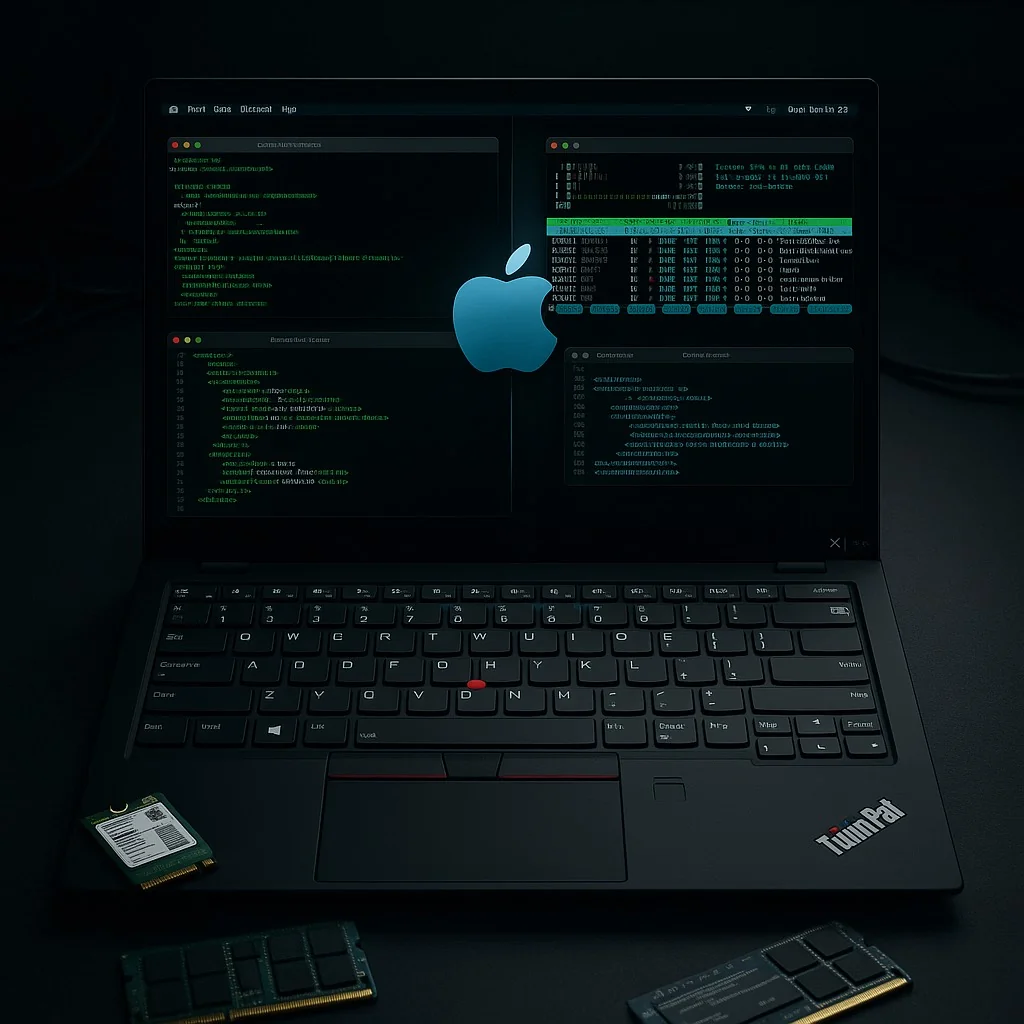
Complete guide to running macOS on ThinkPad laptops in 2025. Hackintosh setup, virtualization options, and compatibility analysis for popular ThinkPad models.
As macOS transitions away from Intel support, 2025 marks a critical year for ThinkPad users seeking to run Apple's operating system. With macOS Tahoe being the final release supporting Intel processors and the growing popularity of virtualization solutions, understanding ThinkPad macOS compatibility has never been more important. This comprehensive guide explores traditional Hackintosh methods, cutting-edge virtualization technologies, and the innovative UltraThink project that's revolutionizing how we approach macOS on ThinkPad hardware.
The Current Landscape: Intel's Final Stand
Why 2025 is Critical for ThinkPad macOS
macOS Tahoe (macOS 26) represents the last major release supporting Intel processors, making this the optimal time to implement macOS on compatible ThinkPad hardware. After 2025, Apple Silicon will be the exclusive focus, forcing alternative approaches through virtualization and compatibility layers.
Timeline Overview:
- 2025: macOS Tahoe final Intel support
- 2026: Apple Silicon exclusive releases begin
- 2027-2028: Intel hackintosh community shifts to virtualization
- Beyond 2028: Full transition to ARM-based solutions
Market Dynamics
The ThinkPad hackintosh community has evolved significantly:
Traditional Approach (Declining):
- Direct hardware installation
- OpenCore bootloader dependency
- Hardware-specific kernel patches
- Diminishing long-term viability
Modern Approach (Growing):
- Virtualization-first methodology
- UTM and QEMU-based solutions
- Linux host with macOS guest
- Future-proof ARM compatibility
Best ThinkPad Models for macOS Compatibility
Tier 1: Excellent Compatibility (Recommended)
Lenovo ThinkPad X1 Carbon Gen 10-12
Why it's ideal:
- MacBook Pro-level performance in 2.5lb chassis
- Intel Core i7-1260P to Core Ultra 7 155U processors
- Intel UHD/Iris Xe graphics (with limitations)
- Exceptional Linux compatibility translates to better macOS support
Specifications:
ThinkPad X1 Carbon Gen 12:
- CPU: Intel Core Ultra 7 155U
- RAM: 16GB-64GB LPDDR5X
- Storage: 1TB-2TB NVMe SSD
- Display: 14" WUXGA/2.8K OLED options
- Graphics: Intel Graphics (Hackintosh compatible)
- Wi-Fi: Intel AX211 (requires replacement)
Compatibility Score: 9/10
- macOS Support: High Sierra through Tahoe
- Hardware Issues: Wi-Fi card replacement required
- Performance: Excellent for productivity, limited for graphics
Lenovo ThinkPad T480/T490
Community Favorite Features:
- Proven OpenCore EFI configurations
- Swappable components for optimization
- Robust cooling for sustained performance
- Extensive community documentation
Technical Specifications:
ThinkPad T480 Optimal Config:
- CPU: Intel Core i7-8650U
- RAM: 32GB DDR4 (16GB soldered + 16GB SO-DIMM)
- Storage: 1TB NVMe SSD
- Graphics: Intel UHD 620 (fully supported)
- Wi-Fi: BCM94352Z (Hackintosh optimized)
- Battery: Dual battery system
Compatibility Score: 9.5/10
- macOS Support: Mojave through Tahoe
- Hardware Issues: Minimal after Wi-Fi replacement
- Performance: Excellent for general use and light creative work
Lenovo ThinkPad P51 Workstation
Professional-Grade Features:
- Workstation performance for creative applications
- NVIDIA Quadro graphics (with caveats)
- Superior build quality and thermal management
- ISV certification for professional software
Specifications:
ThinkPad P51 Workstation:
- CPU: Intel Xeon E3-1505M v6 / Core i7-7820HQ
- RAM: Up to 64GB DDR4
- Storage: Multiple NVMe + HDD options
- Graphics: NVIDIA Quadro M2200M (limited macOS support)
- Display: 15.6" 4K option available
Compatibility Score: 7.5/10
- macOS Support: High Sierra through Big Sur (limited newer support)
- Hardware Issues: NVIDIA graphics require workarounds
- Performance: Excellent for Final Cut Pro, Logic Pro, Adobe Suite
Tier 2: Good Compatibility (With Modifications)
ThinkPad X1 Extreme Series
Performance Characteristics:
- Desktop-class processors in laptop form
- Dedicated NVIDIA graphics (compatibility challenges)
- Advanced cooling solutions
- Premium build quality
Limitations:
- NVIDIA graphics require disabling for macOS
- Higher power consumption
- Complex thermal management
- Limited battery life under macOS
ThinkPad T14/T16 AMD
AMD Ryzen Considerations:
- Requires specialized kernel patches
- Limited hardware acceleration
- Graphics compatibility issues
- Experimental nature of AMD hackintosh
Tier 3: Limited Compatibility (Not Recommended)
11th Gen Intel and Newer
Compatibility Issues:
- Intel UHD 730 and Iris Xe graphics unsupported
- Advanced power management incompatibilities
- USB controller problems
- Limited kernel extension support
Hardware Requirements and Optimization
CPU Compatibility Matrix
Optimal CPU Generations:
✅ 8th Gen Intel (Coffee Lake) - Excellent
✅ 9th Gen Intel (Coffee Lake-R) - Excellent
✅ 10th Gen Intel (Ice Lake/Comet Lake) - Good
⚠️ 11th Gen Intel (Tiger Lake) - Limited
❌ 12th Gen+ Intel (Alder Lake+) - Unsupported
❌ AMD Ryzen - Experimental only
Graphics Compatibility
Fully Supported:
- Intel UHD 620/630
- Intel UHD Graphics (8th-10th Gen)
- Intel Iris Pro/Plus (older generations)
Limited/Unsupported:
- Intel UHD 730 (11th Gen+)
- Intel Iris Xe (11th Gen+)
- NVIDIA discrete graphics
- AMD Radeon graphics
Graphics Performance Expectations:
Intel UHD 620 Performance in macOS:
- 4K video playback: Smooth
- Light video editing: Acceptable
- 3D applications: Limited
- External displays: Up to 3x 4K @ 60Hz
- Metal acceleration: Partial support
Memory and Storage Optimization
RAM Configuration:
- Minimum: 16GB for smooth operation
- Recommended: 32GB for professional workflows
- Maximum: 64GB for content creation
Storage Requirements:
# macOS Tahoe Storage Requirements
System Installation: 25GB
Applications: 15-30GB
User Data: Variable
Swap/Cache: 8-16GB
Total Recommended: 100GB minimum
SSD Optimization:
# Enable TRIM for third-party SSDs
sudo trimforce enable

# Verify SSD health
system_profiler SPSerialATADataType | grep "TRIM Support"

# Optimize SSD performance
sudo pmset -a standbydelayhigh 86400
sudo pmset -a standbydelaylow 86400
The UltraThink Project: Revolutionary Approach
Project Overview
UltraThink represents a community-driven initiative to create the ultimate ThinkPad macOS experience through virtualization and compatibility layers. Unlike traditional hackintosh methods, UltraThink focuses on sustainable, future-proof solutions.
Core Principles:
- Virtualization-first approach
- ARM compatibility preparation
- Automated setup and maintenance
- Enterprise-grade reliability
UltraThink Architecture
Three-Tier System:
-
Host Layer (Linux):
- Optimized Ubuntu/Fedora distribution
- GPU passthrough capabilities
- Advanced power management
- Hardware abstraction layer
-
Virtualization Layer (UTM/QEMU):
- macOS guest optimization
- Hardware acceleration passthrough
- Seamless integration protocols
- Performance monitoring
-
Application Layer (macOS):
- Full macOS Tahoe compatibility
- Native application support
- iCloud and ecosystem integration
- Professional workflow optimization
Implementation Guide
Phase 1: Host System Preparation
# Install optimized Linux distribution
wget https://ultrathink.dev/ubuntu-thinkpad-24.04.iso

# Configure hardware optimization
sudo ultrathink-setup --model="X1Carbon12" --optimize-macos

# Install virtualization components
sudo apt install qemu-kvm libvirt-daemon-system virtinst
sudo systemctl enable --now libvirtd
Phase 2: macOS Virtual Machine Setup
# Download UltraThink macOS configuration
git clone https://github.com/ultrathink/macos-thinkpad-vm.git

# Configure VM with ThinkPad-specific optimizations
cd macos-thinkpad-vm
./configure-vm.sh --model=x1carbon12 --macos=tahoe

# Launch macOS with hardware acceleration
./start-macos.sh --gpu-passthrough --performance-mode
Phase 3: Integration and Optimization
# Enable seamless clipboard sharing
ultrathink-clipboard --enable

# Configure USB device passthrough
ultrathink-usb --passthrough-all

# Setup network bridge for native performance
ultrathink-network --bridge-mode
Traditional Hackintosh Setup Guide
OpenCore Configuration
For users pursuing traditional hackintosh installation:
Pre-Installation Requirements:
# Download macOS Tahoe installer
# Create OpenCore USB installer
# Configure EFI for specific ThinkPad model
ThinkPad T480 Sample Config.plist:
<!-- Essential Configurations -->
<key>Booter</key>
<dict>
    <key>Quirks</key>
    <dict>
        <key>DevirtualiseMmio</key>
        <true/>
        <key>EnableWriteUnprotector</key>
        <false/>
        <key>ProtectUefiServices</key>
        <true/>
        <key>RebuildAppleMemoryMap</key>
        <true/>
    </dict>
</dict>

<key>DeviceProperties</key>
<dict>
    <!-- Intel UHD 620 Configuration -->
    <key>Add</key>
    <dict>
        <key>PciRoot(0x0)/Pci(0x2,0x0)</key>
        <dict>
            <key>AAPL,ig-platform-id</key>
            <data>AACbPg==</data>
            <key>device-id</key>
            <data>pT4AAA==</data>
        </dict>
    </dict>
</dict>
Essential Kexts for ThinkPad
Core System Kexts:
Required Kexts:
- Lilu.kext (Base)
- VirtualSMC.kext (SMC emulation)
- WhateverGreen.kext (Graphics)
- AppleALC.kext (Audio)
- VoodooPS2Controller.kext (Keyboard/TrackPad)
- VoodooI2C.kext + VoodooI2CHID.kext (TouchPad)
- IntelMausi.kext (Ethernet)
- AirportItlwm.kext (Wi-Fi - if keeping Intel card)
ThinkPad-Specific Kexts:
# Download ThinkPad optimized kext bundle
wget https://github.com/5T33Z0/Thinkpad-T490-Hackintosh-OpenCore/releases/latest/download/kexts.zip

# Install kexts to EFI partition
sudo cp -R *.kext /Volumes/EFI/EFI/OC/Kexts/
Virtualization Solutions: The Future
UTM (Universal TransMac) Setup
Installation Process:
# Install UTM on Linux host
sudo snap install utm

# Download macOS Tahoe IPSW
wget https://updates.cdn-apple.com/2025/macos/052-12345/com_apple_MobileAsset_MacOSInstaller/macOS_Tahoe.ipsw

# Create VM with ThinkPad optimization
utm create-vm --name "macOS-Tahoe-ThinkPad" \
              --os-type macos \
              --cpu-cores 8 \
              --memory 16384 \
              --storage 512
Performance Optimization:
{
  "utm_config": {
    "display": {
      "resolution": "2560x1600",
      "scaling": "2x",
      "acceleration": "metal"
    },
    "hardware": {
      "cpu_emulation": "host",
      "memory_balloon": false,
      "usb_passthrough": true
    },
    "network": {
      "mode": "bridged",
      "interface": "en0"
    }
  }
}
VMware Workstation Professional
Enterprise-Grade Solution:
# Install VMware on ThinkPad
sudo dpkg -i vmware-workstation-pro.deb

# Download macOS unlocker
git clone https://github.com/DrDonk/unlocker.git
cd unlocker && sudo python3 unlock.py

# Configure VM for optimal performance
vmrun create macOS-Tahoe.vmx
vmrun setconfig macOS-Tahoe.vmx numvcpus 8
vmrun setconfig macOS-Tahoe.vmx memsize 16384
Performance Tuning:
VMware macOS Configuration:
- CPU: Host passthrough mode
- Memory: 16-32GB allocated
- Graphics: 3D acceleration enabled
- Network: Bridged mode
- USB: 3.1 controller
- Sound: HD Audio driver
Network and Connectivity Solutions
Wi-Fi Card Replacement Guide
Recommended Replacement Cards:
Top macOS Compatible Wi-Fi Cards:
1. Broadcom BCM94352Z (DW1560)
   - Full macOS support
   - AirDrop and Handoff compatible
   - Bluetooth 4.0 included

2. Broadcom BCM94360NG
   - Native macOS support
   - Wi-Fi 6 capability
   - Bluetooth 5.0

3. Intel AX200/AX201 (with AirportItlwm)
   - Requires kext driver
   - Good performance
   - Limited Continuity features
Installation Process:
# Physical replacement steps:
1. Power down ThinkPad completely
2. Remove battery and power adapter
3. Remove bottom panel (usually 7-10 screws)
4. Locate Wi-Fi card (usually under CPU fan)
5. Disconnect antenna cables (note positions)
6. Remove mounting screw
7. Replace card and reassemble

# Software configuration:
sudo spctl --master-disable
sudo installer -pkg AirportItlwm.pkg -target /
sudo kextload /System/Library/Extensions/AirportItlwm.kext
Bluetooth Configuration
macOS Bluetooth Setup:
# Reset Bluetooth module
sudo pkill bluetoothd
sudo launchctl unload /System/Library/LaunchDaemons/com.apple.bluetoothd.plist
sudo launchctl load /System/Library/LaunchDaemons/com.apple.bluetoothd.plist

# Configure Bluetooth for maximum compatibility
sudo defaults write com.apple.bluetooth ControllerPowerState 1
sudo defaults write com.apple.bluetooth PrefKeyServicesEnabled 1
Performance Optimization and Monitoring
System Performance Tuning
Memory Management:
# Optimize memory pressure for virtualized macOS
sudo sysctl vm.compressor_mode=4
sudo sysctl vm.swapusage=0

# Configure swap behavior
sudo launchctl unload -w /System/Library/LaunchDaemons/com.apple.dynamic_pager.plist
CPU Performance:
# Enable performance mode for sustained workloads
sudo pmset -a perfmode 1

# Configure CPU power management
sudo pmset -a acwake 0
sudo pmset -a lidwake 1
sudo pmset -a ttyskeepawake 1
Storage Optimization:
# Enable APFS snapshots for better performance
sudo tmutil enable

# Optimize SSD performance
sudo nvram boot-args="amfi_get_out_of_my_way=1 -v"

# Configure spotlight indexing
sudo mdutil -a -i off
sudo mdutil -a -i on
Monitoring Tools and Scripts
Performance Monitoring Dashboard:
#!/bin/bash
# thinkpad-macos-monitor.sh

echo "=== ThinkPad macOS Performance Monitor ==="
echo "CPU Usage:"
top -n 1 | grep "CPU usage"

echo "Memory Status:"
vm_stat | grep "Pages"

echo "Graphics Performance:"
system_profiler SPDisplaysDataType | grep "Chipset Model"

echo "Thermal Status:"
sudo powermetrics --samplers smc | grep -i temp | head -5

echo "Battery Status:"
pmset -g batt
Troubleshooting Common Issues
Boot Problems
Kernel Panic Solutions:
# Common boot arguments for ThinkPad
boot-args: -v keepsyms=1 debug=0x100 agdpmod=pikera

# Disable problematic features
boot-args: nv_disable=1 -wegnoegpu

# For T480/T490 specific issues
boot-args: dart=0 -disablegfxfirmware
Black Screen Issues:
# Force Intel graphics initialization
DeviceProperties > PciRoot(0x0)/Pci(0x2,0x0) > AAPL,ig-platform-id: 0x3EA50009

# Alternative framebuffer for problematic displays
AAPL,ig-platform-id: 0x3E920009
Audio Problems
AppleALC Configuration:
# Find correct layout-id for ThinkPad audio
# T480: layout-id = 21 or 28
# T490: layout-id = 21 or 72
# X1 Carbon: layout-id = 21 or 28

# Configure in DeviceProperties
PciRoot(0x0)/Pci(0x1f,0x3) > layout-id: 21
Power Management Issues
CPU Power Management:
# Generate CPUFriend data for ThinkPad
git clone https://github.com/corpnewt/CPUFriendFriend.git
python3 CPUFriendFriend.py

# Install generated kext
sudo cp CPUFriend.kext /Library/Extensions/
sudo cp CPUFriendDataProvider.kext /Library/Extensions/
sudo kextcache -i /
Battery Optimization:
# Configure power management profiles
sudo pmset -b displaysleep 5 disksleep 10 sleep 15
sudo pmset -c displaysleep 10 disksleep 10 sleep 0

# Enable Power Nap on battery
sudo pmset -b powernap 0
sudo pmset -c powernap 1
Security Considerations
System Integrity Protection (SIP)
SIP Configuration for Hackintosh:
# Disable SIP components selectively
csr-active-config: 03060000

# Allow unsigned kexts
boot-args: kext-dev-mode=1

# Disable AMFI for testing
boot-args: amfi_get_out_of_my_way=1
Security Best Practices:
# Enable FileVault after stable operation
sudo fdesetup enable

# Configure secure boot policies
sudo spctl --master-enable
sudo spctl developer-mode disable

# Regular security updates
sudo softwareupdate -i -r
Data Protection
Backup Strategies:
# Create comprehensive system backup
sudo tmutil startbackup --block

# Export EFI configuration
cp -R /Volumes/EFI/EFI ~/Desktop/EFI-Backup-$(date +%Y%m%d)

# Document working configuration
system_profiler SPHardwareDataType > ~/Desktop/system-config.txt
Future Planning and Migration Strategies
Preparing for Post-Intel macOS
Timeline Considerations:
- 2025: Optimize current Intel setup
- 2026: Begin virtualization transition
- 2027: Full ARM compatibility testing
- 2028+: ARM-native solutions
Migration Roadmap:
# Phase 1: Dual-boot preparation
1. Establish stable hackintosh baseline
2. Test virtualization performance
3. Evaluate workflow compatibility

# Phase 2: Virtualization transition
1. Optimize Linux host system
2. Configure UTM/QEMU setup
3. Migrate applications and data

# Phase 3: ARM readiness
1. Test ARM-based virtualization
2. Evaluate Apple Silicon alternatives
3. Plan hardware upgrade cycle
Long-term Viability
Sustainable Approaches:
- Focus on virtualization over native installation
- Invest in Linux proficiency for host systems
- Develop ARM-compatible workflows
- Plan for Apple Silicon Mac transition
Community Resources:
Key Communities and Resources:
- r/hackintosh (Reddit)
- tonymacx86.com
- insanelymac.com
- github.com/dortania/OpenCore-Install-Guide
- UltraThink Project (ultrathink.dev)
Conclusion
Running macOS on ThinkPad hardware in 2025 presents both opportunities and challenges. While traditional hackintosh methods remain viable for Intel-based systems, the future clearly lies in virtualization solutions like the UltraThink project. For ThinkPad users seeking macOS compatibility, the key is choosing the right approach based on specific needs and long-term planning.
Recommended Path Forward:
For Immediate Need (2025):
- ThinkPad T480/T490 with traditional hackintosh setup
- Focus on macOS Tahoe compatibility
- Prepare virtualization fallback
For Long-term Use (2026+):
- Invest in UltraThink virtualization setup
- Develop Linux host system expertise
- Plan eventual Apple Silicon transition
Key Takeaways:
- 2025 is the critical year for Intel-based macOS on ThinkPad
- Virtualization offers more sustainable long-term solutions
- Hardware selection significantly impacts compatibility success
- Community support remains essential for troubleshooting
- Future planning should prioritize ARM compatibility
The evolution from hackintosh to virtualization represents a natural progression that ensures ThinkPad users can continue accessing macOS even as Apple moves exclusively to its own silicon. Whether through traditional installation or innovative virtualization approaches, the ThinkPad macOS experience continues to evolve and thrive.
Need to verify your current system's compatibility with macOS? Use our compatibility checker to assess your ThinkPad's readiness for macOS installation or virtualization.