Mac Malware Threats 2026: SimpleStealth, GlassWorm & Notarized Malware - Complete Protection Guide

Comprehensive guide to the latest Mac malware threats in 2026 including AI-assisted SimpleStealth, GlassWorm VSCode attacks, and Apple-notarized malware. Learn how to detect, remove, and protect your Mac from these sophisticated threats.
The Mac malware landscape has evolved dramatically in early 2026. New threats like SimpleStealth (the first confirmed AI-assisted Mac malware), GlassWorm's VSCode extension attacks, and an alarming rise in Apple-notarized malware are challenging the long-held belief that Macs are inherently safe. This comprehensive guide covers the latest threats and provides actionable protection strategies.
The Current Mac Threat Landscape
Why Mac Malware Is Increasing
The growth in Mac malware can be attributed to several factors:
1. Market Share Growth: Mac market share has increased significantly, making it a more attractive target for attackers. More users mean more potential victims.
2. Cryptocurrency Adoption: Many Mac users hold cryptocurrency, making credential-stealing malware highly profitable.
3. Developer Targeting: Mac's dominance in software development makes developers high-value targets. Stealing developer credentials can lead to supply chain attacks.
4. AI-Assisted Development: Malware authors are now using AI tools to generate code, lowering the barrier to creating sophisticated threats.
5. Notarization Bypass: Attackers have found ways to pass Apple's notarization process, making malware appear legitimate.
2026 Threat Statistics
| Metric | 2025 | 2026 (YTD) | Trend |
|---|---|---|---|
| New Mac Malware Families | 48 | 12 (projected 52+) | Increasing |
| Info-Stealer Variants | 23 | 8 (projected 35+) | Increasing |
| Notarized Malware | 5 | 3 | Concerning |
| Zero-Day Exploits | 9 | 2 | Similar |
SimpleStealth: First AI-Assisted Mac Malware
Discovery
On January 9, 2026, security firm Mosyle identified SimpleStealth as one of the first confirmed Mac malware samples containing AI-generated code. This marks a significant evolution in the malware development landscape.
How It Works
Distribution Method: SimpleStealth is distributed through a fake website impersonating Grok AI, Elon Musk's AI chatbot. Users searching for Grok download what they believe is the legitimate application.
Technical Characteristics:
- Contains code patterns consistent with AI generation
- Employs advanced obfuscation techniques
- Targets browser credentials and cookies
- Attempts to access cryptocurrency wallets
- Evades traditional antivirus detection
AI-Generated Elements: Security researchers identified several indicators of AI involvement:
- Consistent coding style uncommon in human-written malware
- Sophisticated but formulaic obfuscation
- Comments and structure suggesting AI assistance
- Rapid iteration between variants
Detection Status
At discovery, SimpleStealth was undetected by all major antivirus engines. This highlights the challenge AI-assisted malware poses to traditional signature-based detection.
Protection Against SimpleStealth
Immediate Actions:
- Only download Grok from official sources (grok.x.ai)
- Verify application signatures before installation
- Use reputable antivirus with behavioral detection
- Monitor browser credential access
Verify Application Source:
# Check code signature
codesign -dv --verbose=4 /Applications/[AppName].app

# Verify notarization
spctl -a -v /Applications/[AppName].app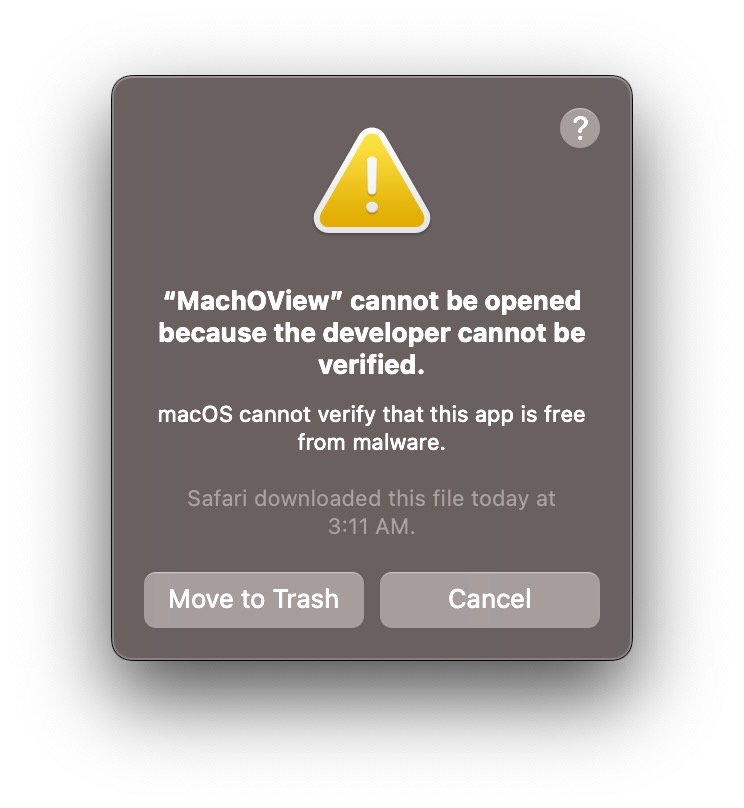
GlassWorm: VSCode Extension Attack Campaign
Overview
GlassWorm is a sophisticated malware campaign targeting macOS developers through malicious VSCode and OpenVSX extensions. First detected in late 2025, Wave 4 of this campaign is currently active in January 2026.
Attack Vector
Compromised Extensions: Three malicious extensions were identified with over 50,000 combined downloads:
- One extension masquerading as "Prettier Pro"
- Extensions offering "productivity enhancements"
- Themes with hidden malicious payloads
Capabilities
Credential Theft:
- Steals macOS Keychain passwords
- Extracts browser cookies and saved passwords
- Captures SSH keys and certificates
- Accesses stored API tokens
Cryptocurrency Targeting:
- Detects hardware wallet applications (Ledger Live, Trezor Suite)
- Replaces legitimate crypto apps with trojanized versions
- Targets 50+ browser-based crypto extensions
- Monitors clipboard for wallet addresses
Supply Chain Risk:
- Compromises developer machines
- Could potentially inject malicious code into developed software
- Access to code signing certificates
Affected Extensions
Indicators of Compromise (IOCs):
| Extension Name | Publisher | Downloads | Status |
|---|---|---|---|
| Prettier Pro+ | [Redacted] | 28,000+ | Removed |
| Theme Enhancer | [Redacted] | 15,000+ | Removed |
| Code Helper AI | [Redacted] | 9,000+ | Removed |
Note: Extension names change frequently. Always verify publishers and reviews before installation.
Detection and Removal
Check Installed Extensions:
# List VSCode extensions
code --list-extensions

# Check for suspicious extensions
ls -la ~/.vscode/extensions/
Manual Inspection:
- Open VSCode
- Go to Extensions (Cmd + Shift + X)
- Review installed extensions
- Remove any you don't recognize
- Verify remaining extensions against official sources
System-Wide Check:
# Check for unauthorized changes to crypto apps
ls -la /Applications/ | grep -i ledger
ls -la /Applications/ | grep -i trezor

# Verify app signatures
codesign -dv --verbose=4 /Applications/[CryptoApp].app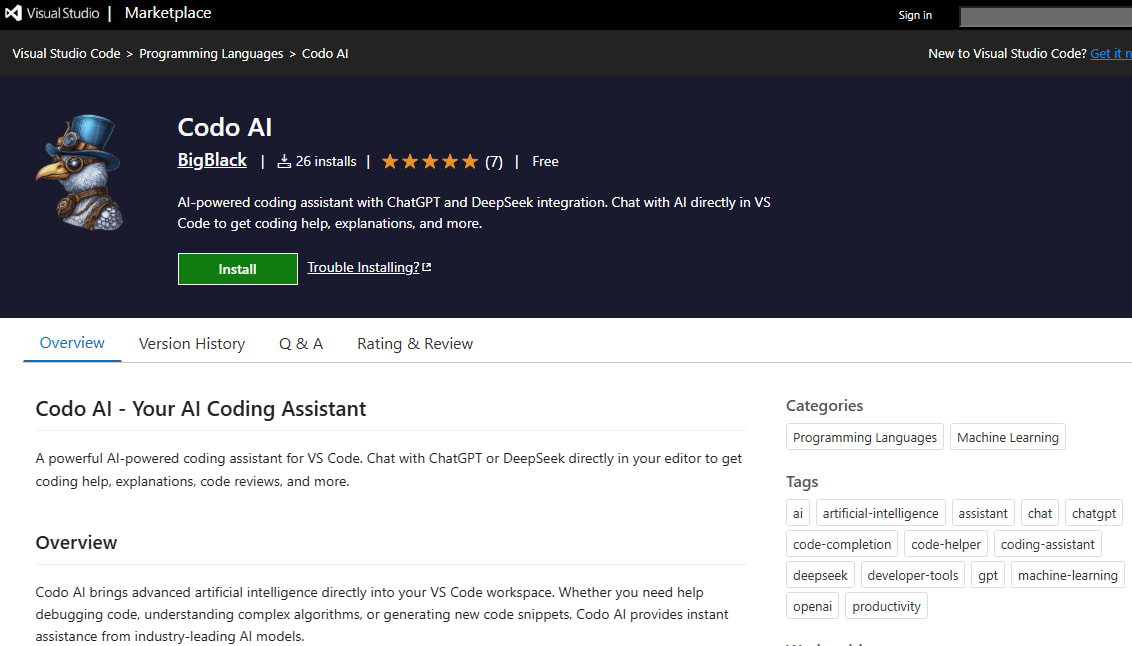
Remediation Steps
If you installed a suspicious extension:
-
Immediately remove the extension
-
Rotate all credentials:
- Change all passwords (start with financial accounts)
- Regenerate SSH keys
- Revoke and regenerate API tokens
- Update 2FA seeds where possible
-
Check crypto wallets:
- Verify wallet applications are legitimate
- Move funds to a fresh wallet created on a clean device
- Monitor accounts for unauthorized transactions
-
Consider system reinstall:
- For high-value targets, clean installation is recommended
- Restore only verified data from backups
Apple-Notarized Malware: The Growing Problem
What Is Notarization?
Apple's notarization process is designed to verify that software:
- Is from a known developer
- Has been scanned for malicious content
- Hasn't been tampered with
When software is notarized, Gatekeeper allows it to run without warnings.
The Problem
In late 2025 and early 2026, multiple malware samples have passed Apple's notarization process:
MacSync Stealer:
- Distributed with valid Developer ID
- Passed Apple's automated scanning
- Appeared legitimate to users and Gatekeeper
- Only detected after significant distribution
Implications:
- Users cannot rely solely on Gatekeeper
- "App Store and identified developers" setting is insufficient
- Additional security measures are essential
How Malware Passes Notarization
Techniques Used:
- Clean submission, dirty update: Initial submission is clean; malicious code added via update
- Time-delayed activation: Malicious behavior activates after notarization checks
- Server-side payload: Benign app downloads malicious payload post-installation
- Obfuscation: Code obfuscated enough to pass automated scanning
Protection Strategies
Don't Trust Notarization Alone:
System Settings > Privacy & Security:
- Use "App Store" only for maximum protection
- Or manually verify applications even when notarized
Additional Verification:
# Check developer certificate
codesign -dv --verbose=4 /Applications/SuspiciousApp.app 2>&1 | grep "Developer ID"

# Verify against known good
shasum -a 256 /Applications/SuspiciousApp.app/Contents/MacOS/[binary]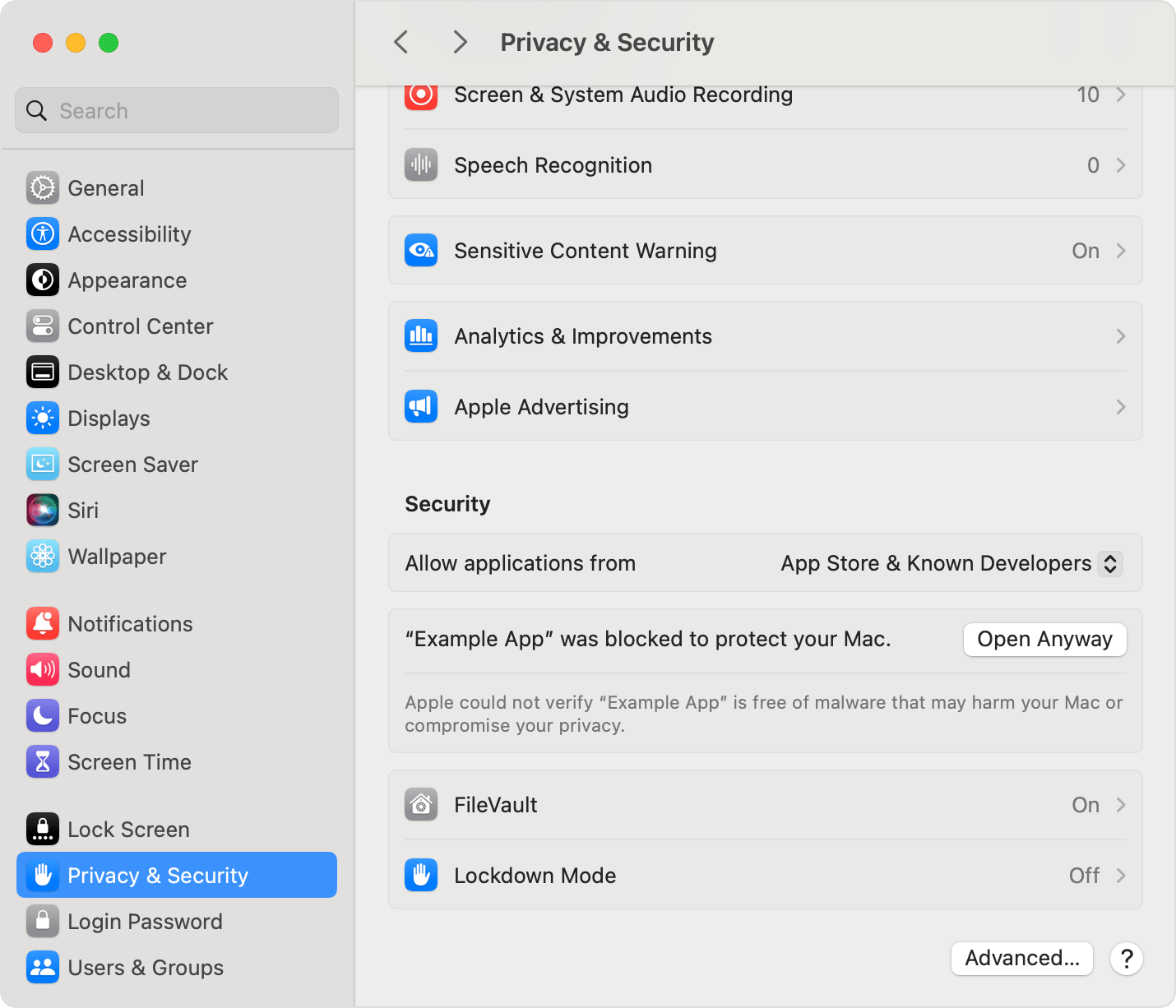
XProtect and macOS Built-in Protection
Current XProtect Status
Latest Version: 5325 (December 2025)
Recent Signatures Added:
- MACOS.SOMA.DEENA
- MACOS.SOMA.DEPEA
- MACOS.SOMA.DETRA
- MACOS.SOMA.DELEA (Soma/Amos family)
- MACOS.ODYSSEY.DEENA (Odyssey family)
Verify XProtect Is Updated
- Open System Settings > General > Software Update
- Click the info button (i) beside Automatic Updates
- Ensure "Install Security Responses and system files" is enabled
Terminal Check:
# Check XProtect version
system_profiler SPInstallHistoryDataType | grep -A 5 "XProtect"

# Or check directly
cat /Library/Apple/System/Library/CoreServices/XProtect.bundle/Contents/Info.plist | grep -A 1 "CFBundleShortVersionString"
Limitations of XProtect
While XProtect provides essential protection, it has limitations:
- Signature-based: Only detects known malware
- Update lag: New malware may spread before signatures are added
- No behavioral analysis: Cannot detect zero-day threats
- Limited scope: Focused on known threat families
XProtect Remediator
macOS includes XProtect Remediator, which runs periodically to scan for and remove known malware:
Check Remediator Status:
# List remediator modules
ls /Library/Apple/System/Library/CoreServices/XProtect.app/Contents/MacOS/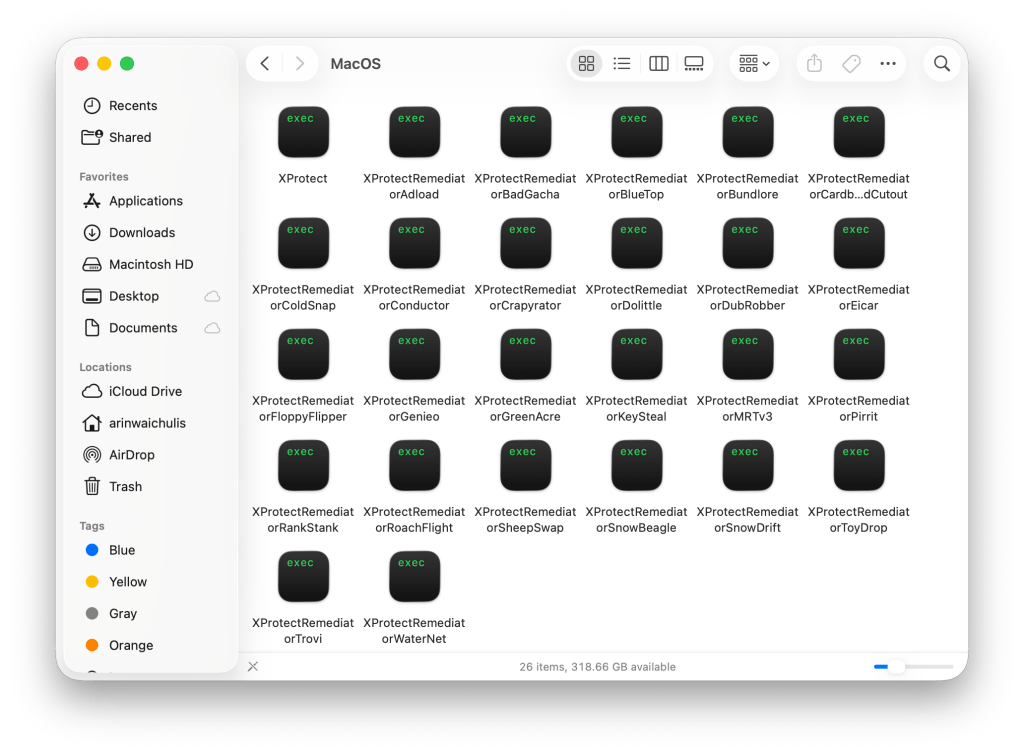
Comprehensive Protection Strategy
Layer 1: System Hardening
Enable FileVault:
System Settings > Privacy & Security > FileVault > Turn OnFileVault encrypts your entire disk, protecting data if your Mac is stolen.
Enable Firewall:
System Settings > Network > Firewall > Turn OnGatekeeper Settings:
System Settings > Privacy & Security > Security:
- "App Store" for maximum security
- "App Store and identified developers" for balance
Layer 2: Browser Security
Safari Settings:
Safari > Settings > Privacy:
- Enable "Prevent cross-site tracking"
- Enable "Hide IP address from trackers"
- Enable "Block all cookies" (strict) or "Allow from websites I visit"
Extension Hygiene:
- Remove unused extensions
- Only install from official stores
- Verify extension permissions
- Review extensions quarterly
Layer 3: Application Security
Download Verification:
- Only download from official sources
- Verify checksums when provided
- Check code signatures before installation
- Be suspicious of "cracked" or "free" versions of paid software
Application Permissions:
System Settings > Privacy & Security:
- Review Full Disk Access
- Review Accessibility permissions
- Remove unused application permissions
Layer 4: Network Security
DNS Security: Consider using a secure DNS provider:
- Cloudflare: 1.1.1.1
- Quad9: 9.9.9.9
- NextDNS: Custom blocking
VPN Usage: Use a reputable VPN on untrusted networks.
Layer 5: Monitoring and Detection
Regular Checks:
# Check for unusual launch agents
ls -la ~/Library/LaunchAgents
ls -la /Library/LaunchAgents
ls -la /Library/LaunchDaemons

# Check running processes
ps aux | grep -v "^root\|^_"

# Check network connections
lsof -i -n -P | grep ESTABLISHED
Third-Party Security Tools: Consider reputable security software:
- Malwarebytes for Mac (Detection and removal)
- Little Snitch (Network monitoring)
- BlockBlock (Persistence monitoring)
- KnockKnock (Startup item scanning)
Incident Response: If You're Infected
Step 1: Isolate
- Disconnect from the internet (Wi-Fi off, Ethernet unplugged)
- Don't log into any accounts
- Don't enter any passwords
Step 2: Assess
Determine scope:
- What application/file caused the infection?
- When did the infection occur?
- What accounts might be compromised?
Step 3: Document
Before removing anything:
- Screenshot any suspicious activity
- Note file paths and names
- Record timeline of events
Step 4: Remove
Option A: Targeted Removal
- Boot into Safe Mode
- Run Malwarebytes or similar
- Remove identified threats
- Clear browser data
- Restart and monitor
Option B: Clean Installation (Recommended for Severe Infections)
- Back up essential data to external drive (files only, not applications)
- Boot to Recovery Mode
- Erase Macintosh HD
- Reinstall macOS
- Restore data manually (not from backup)
- Reinstall applications from official sources
Step 5: Recover
Credential Rotation:
- Change all passwords (from a clean device)
- Enable 2FA everywhere possible
- Revoke all API tokens and regenerate
- Review and revoke OAuth authorizations
Financial Monitoring:
- Check cryptocurrency wallets
- Review bank and credit card statements
- Consider credit freeze if personal info exposed
Step 6: Prevent
- Implement protection strategies from this guide
- Maintain regular backups
- Stay informed about new threats
Enterprise Security Considerations
For IT Administrators
MDM Recommendations:
- Enforce Gatekeeper settings via MDM
- Deploy endpoint detection and response (EDR)
- Implement application allowlisting where feasible
- Monitor for unauthorized applications
User Training:
- Phishing awareness
- Safe download practices
- Reporting procedures for suspicious activity
Incident Response Planning:
- Define escalation procedures
- Establish communication channels
- Maintain offline backup of critical data
Recommended Enterprise Tools
| Category | Tool | Purpose |
|---|---|---|
| EDR | CrowdStrike, SentinelOne | Threat detection and response |
| MDM | Jamf, Mosyle | Device management |
| SIEM | Splunk, Elastic | Log analysis |
| Email Security | Proofpoint, Mimecast | Phishing protection |
Staying Informed
Reliable Security Resources
Apple Security Updates:
- Apple Security Updates
- Subscribe to security announcement emails
Security News:
- Objective-See - Mac-focused security research
- BleepingComputer - General security news
- The Hacker News - Security news
Threat Intelligence:
- VirusTotal - File analysis
- AlienVault OTX - Threat indicators
Security Communities
- Reddit: r/macsysadmin, r/cybersecurity
- Slack: MacAdmins Slack
- Twitter/X: Follow security researchers
Future Outlook: What to Expect
Emerging Threats
AI-Powered Malware: SimpleStealth is likely just the beginning. Expect:
- More sophisticated AI-generated code
- Better evasion of security tools
- Faster variant generation
Supply Chain Attacks: Developer targeting will continue:
- More compromised development tools
- IDE extension attacks beyond VSCode
- Compromised package managers
macOS-Specific Exploits:
- Increased focus on Apple Silicon vulnerabilities
- TCC (Transparency, Consent, and Control) bypasses
- Kernel extension alternatives exploitation
Apple's Response
Expected Improvements:
- Enhanced notarization scanning
- Faster XProtect updates
- macOS Tahoe 26.3 Background Security Improvements
- Improved Gatekeeper heuristics
Conclusion: Security Is a Process
The threats covered in this guide—SimpleStealth, GlassWorm, and notarized malware—represent a new era of Mac security challenges. The days of assuming Macs are inherently safe are over.
Key Takeaways:
- Don't trust notarization alone - Malware can pass Apple's checks
- Verify everything - Even legitimate-looking software deserves scrutiny
- Developers are targets - Extra caution with development tools
- AI changes the game - Expect more sophisticated, rapidly evolving threats
- Layer your defenses - No single protection is sufficient
Protection Checklist:
- XProtect updated and automatic updates enabled
- FileVault encryption enabled
- Firewall enabled
- Gatekeeper set appropriately
- Browser extensions audited
- Development tool extensions verified
- Regular backup strategy in place
- Incident response plan ready
- Security news monitoring established
Stay vigilant, stay updated, and remember that security is not a destination but an ongoing process.
For more macOS security guidance, explore our Security & Privacy Complete Guide and macOS Tahoe 26.2 Security Update Analysis.